

Introduction
A Users report provides information on all the users of selected groups or connections.Pre-requisite
You must have a Tenant Admin account.Steps to create Users Report
- Log in to the Oloid Portal.
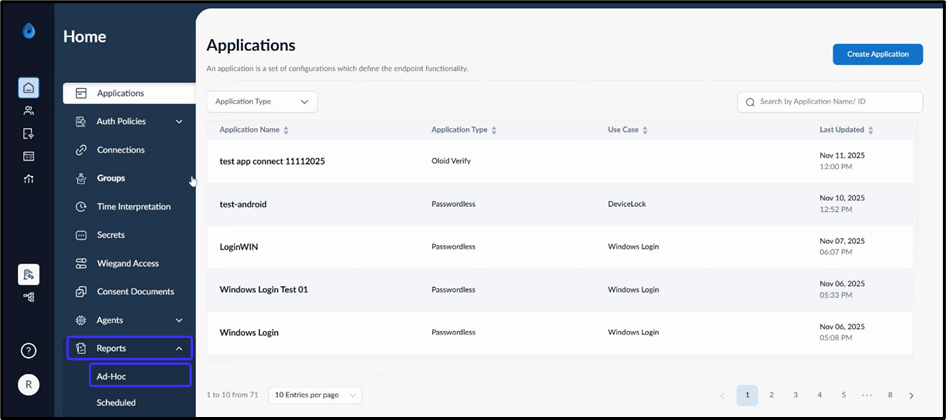
- On the homepage, click Reports > Ad-Hoc on the left menu panel.
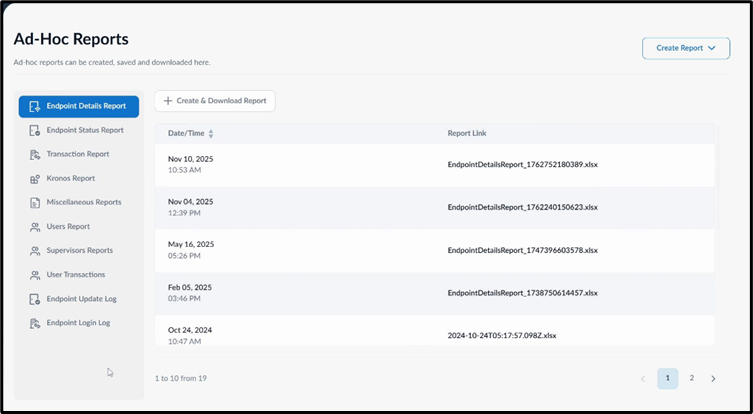
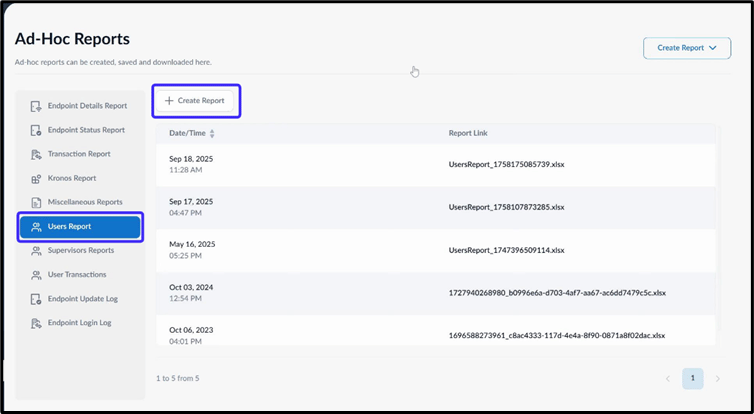
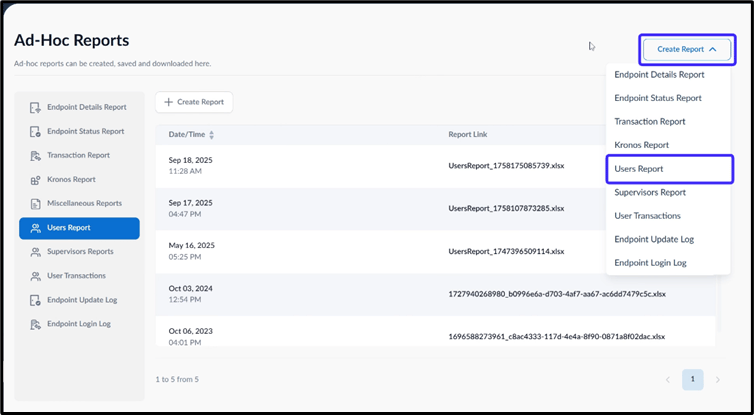
- Do one of the following:
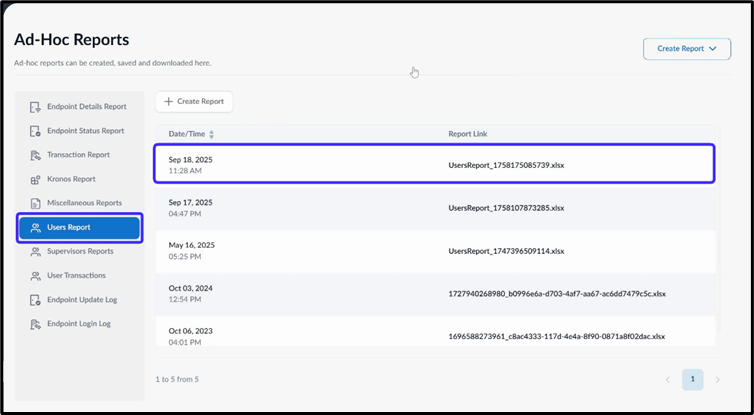
- Go to Users Reports > + Create Report.
- On the top right, click Create Report > Users Report.
- Go to Users Reports > + Create Report.
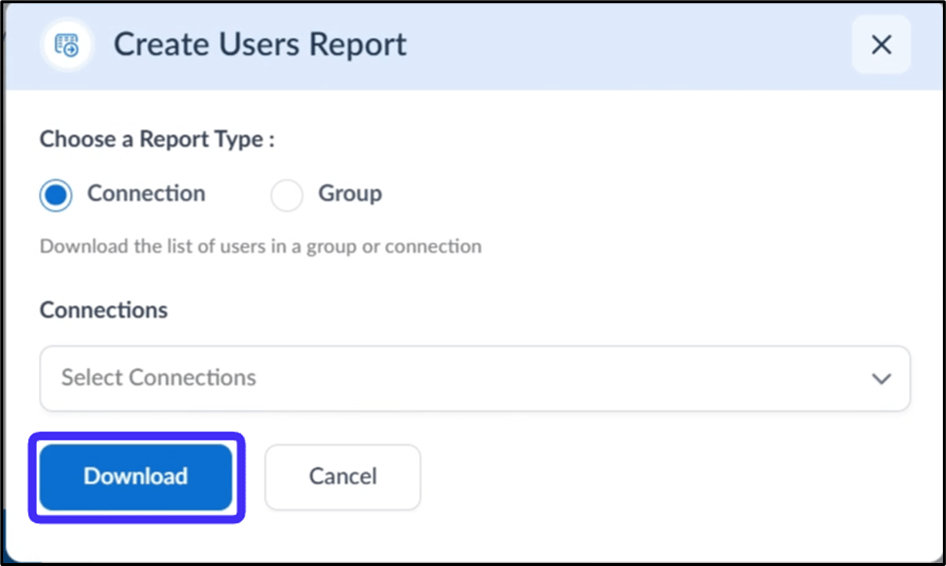
- Do the following:
- Choose a report type as Connection or Group to generate a report of users.
- If you select Connection, choose a connection from the Connections dropdown. (Required)
- If you select Group, select a group from the Groups dropdown. (Required)
- Click Download to download the user report.
Note:
- Ensure you have sufficient permissions as a Tenant Admin before attempting to create the report.
- The downloaded file format for reports is XLSX.