

Introduction
OKTA provides authentication and MFA capabilities that can be integrated with Oloid applications. Configuring OKTA allows admin to establish a secure environment, create applications, and enable MFA for users.Prerequisite
You must have admin access to the OKTA Administrator Console.Steps to Add User in OKTA
- Login to the Okta Admin Account.
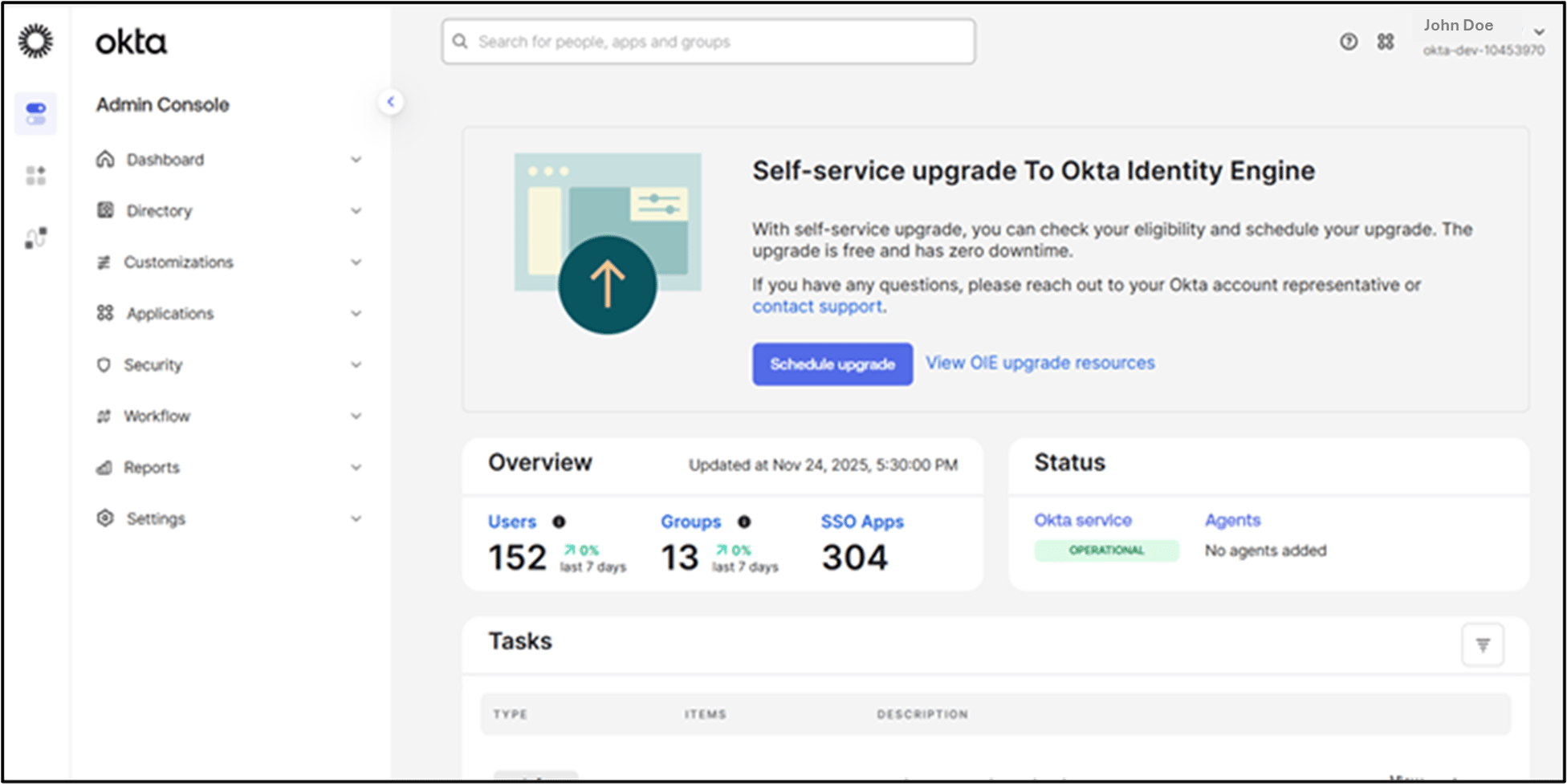
Okta Dashboard screen is displayed.
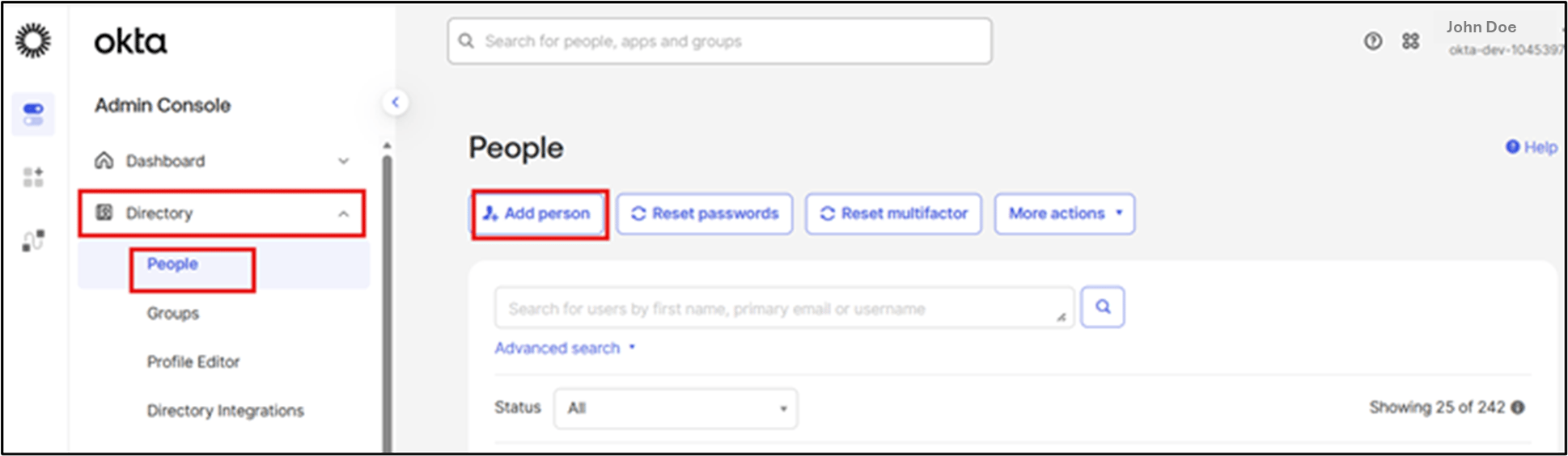
- Click Directory > People > Add Person.
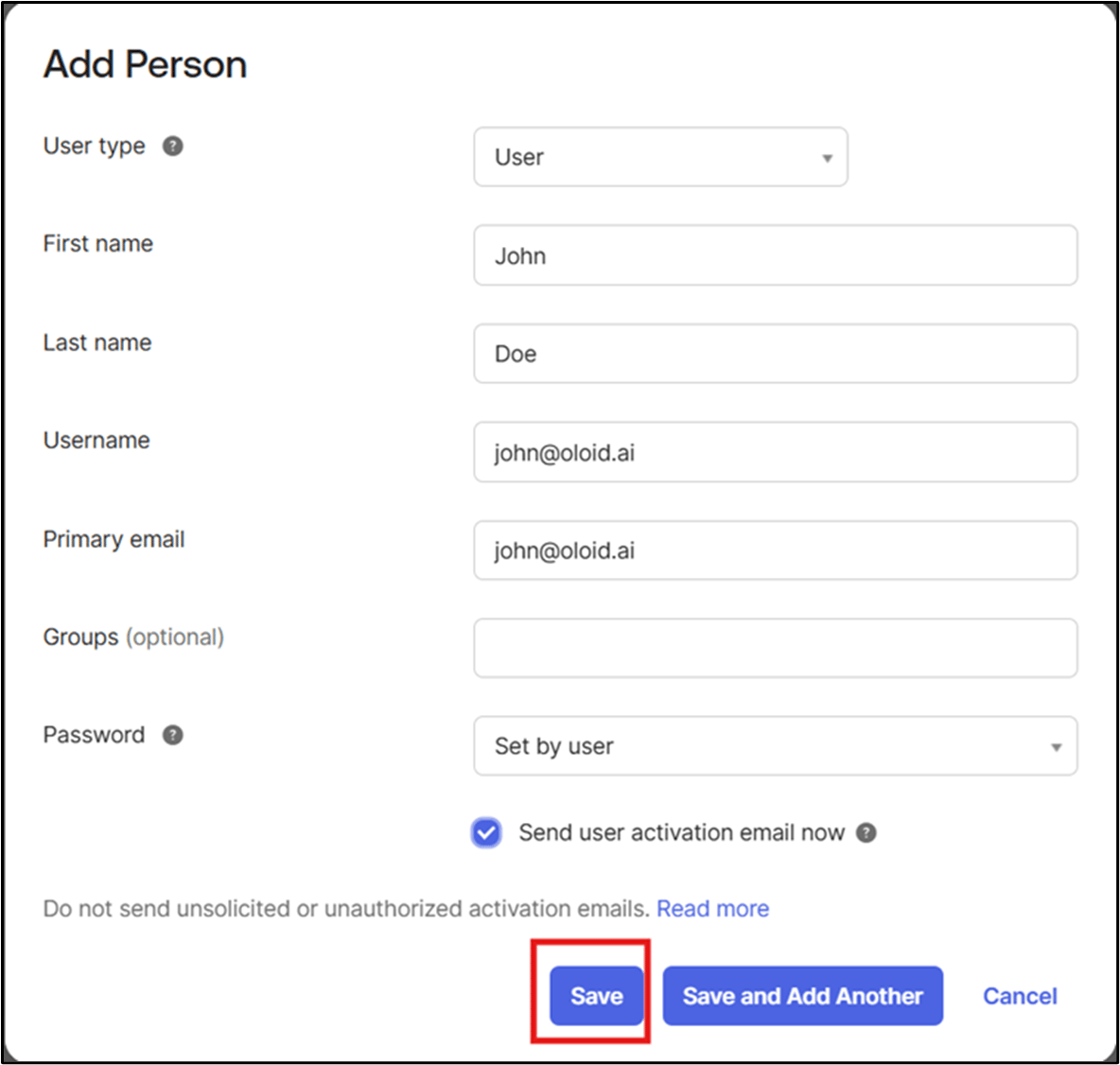
- Do the following:
- Select User Type.
- Enter First name.
- Enter Last name.
- Enter Username.
- Enter Email ID.
- Groups (Optional)
- Select Password.
- Select the send user activation email now.
- Click Save.
- Click on the user.

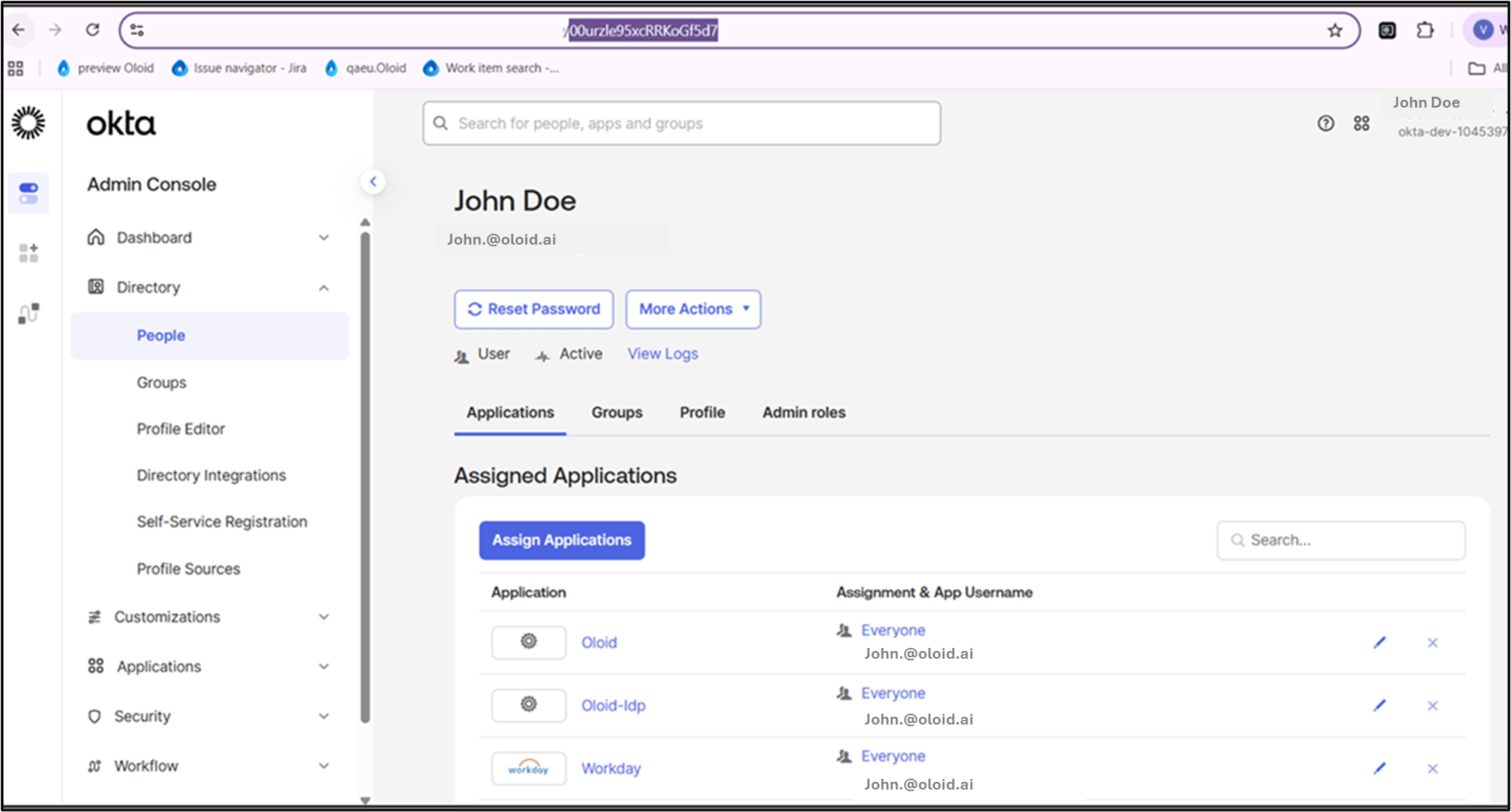
-
Enter this ID in the OKTA ID field in the Tenant Admin Portal.
To navigate the OKTA ID field, go to Directory > Users > Select User > Other Identifier section, enter the ID in the OKTA ID field.

-
User receives an Okta Activation Email on registered email ID, click Activate Okta Account.

-
Do the following:
- Enter Old Password in the Old Password field.
- Enter New Password in the New Password field.
-
Enter New Password in the Repeat password field.
Note: Keep New Password same in New Password and Repeat Password fields.
-
Click Change Password.

-
Go to User Profile > Settings.

-
Click Set up.
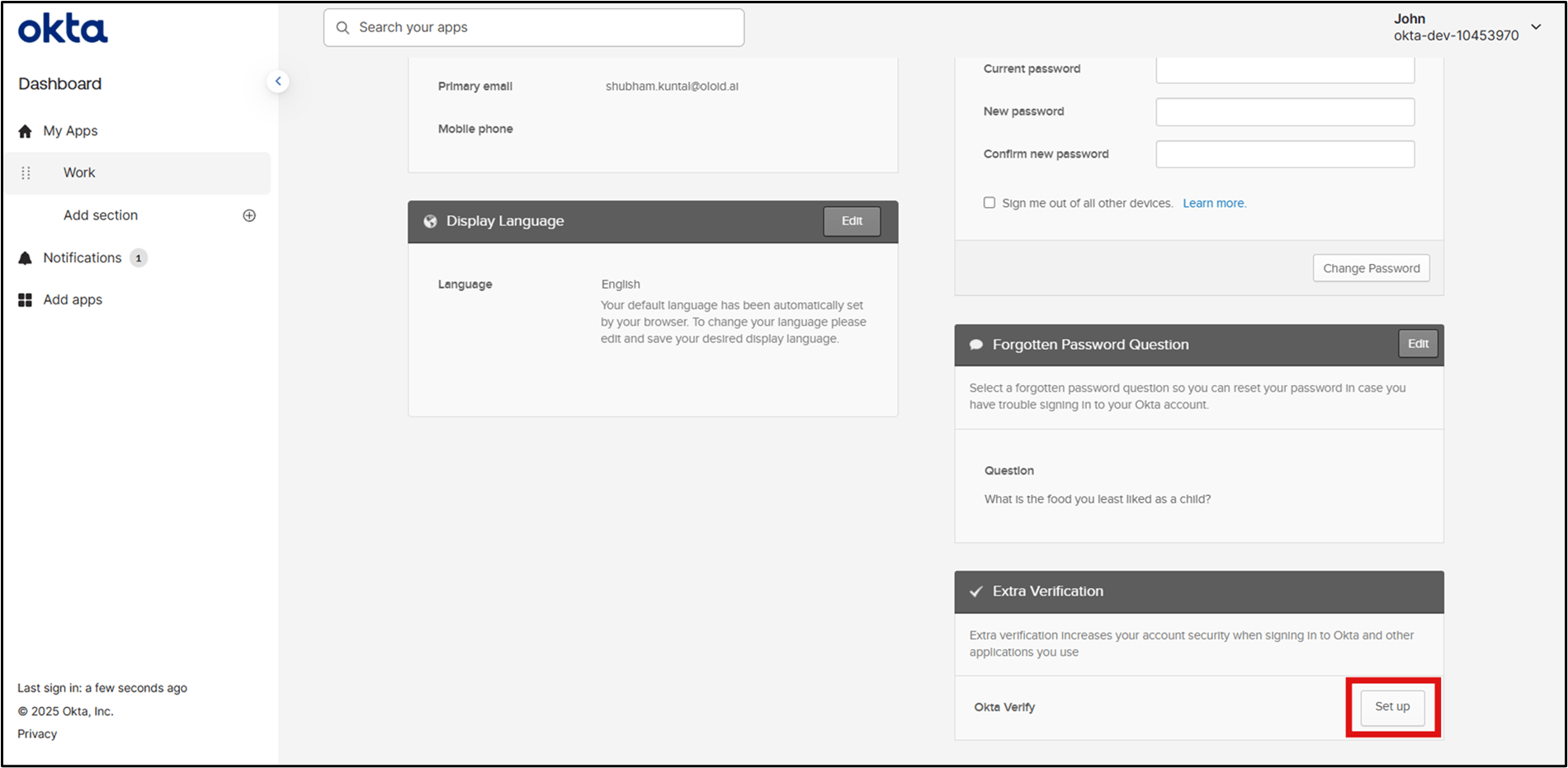
-
Click Setup.
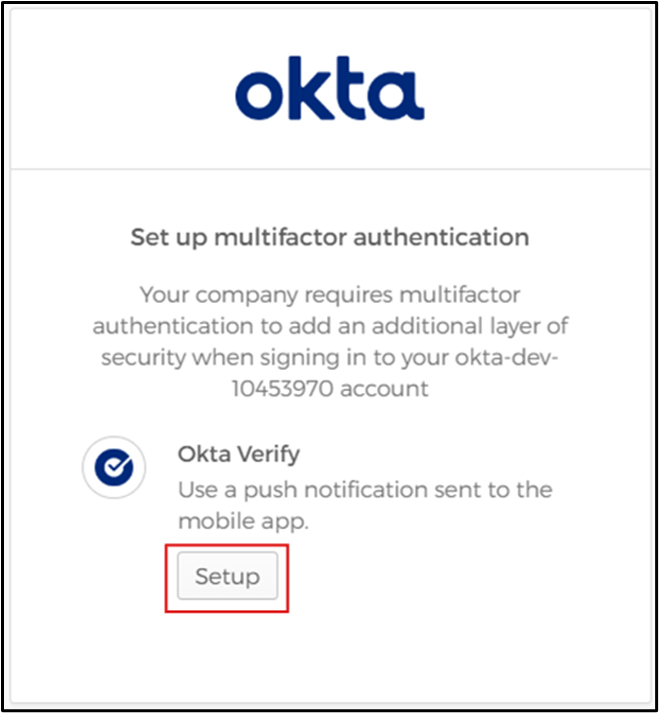
-
Select the device i.e., iPhone or Android.

-
Open the OKTA verify application from your device and scan the QR code.
OKTA Verify is configured successfully.Note: Make sure that OKTA Verify application is installed in your device.