Introduction
The Auto-Pair Config File allows the Tenant Admin to streamline the process of pairing Windows endpoints with a configured application. By generating this file from the Tenant Admin Portal, admins can automatically connect multiple endpoints.Prerequisites
- You must have admin access to a Tenant Admin Portal.
- Ensure that a Windows Login application is already created in the Tenant Admin Portal. Refer: Windows Login - How to create and configure Windows Login application in the Tenant Admin Portal
Steps to Generate Auto-Pair Config file
- Log in to the Tenant Admin Portal.
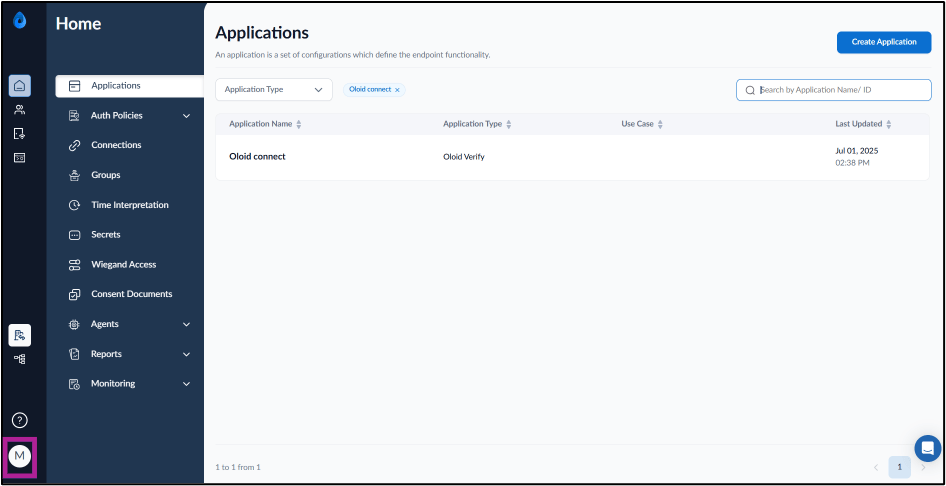
- On the homepage of the portal, click user profile icon on the bottom left corner of the menu panel.
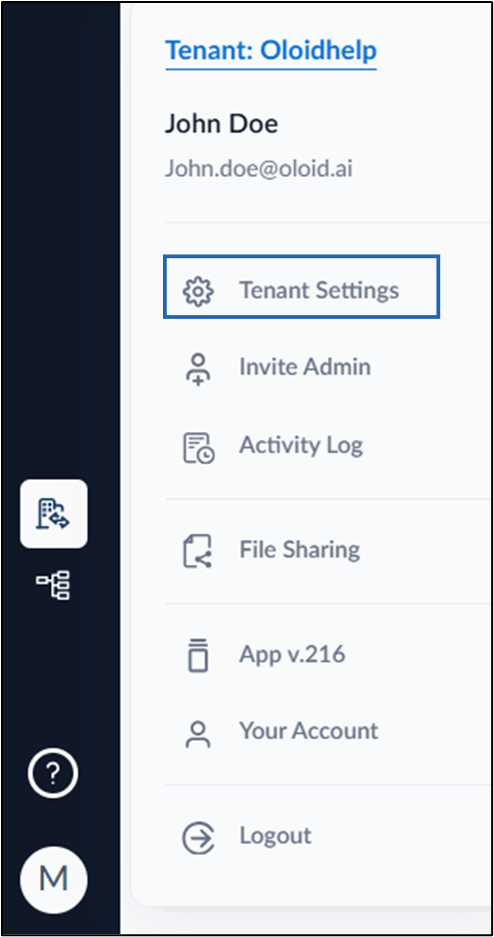
- Click Tenant Settings.
- Go to Security tab > API Token > API Key.
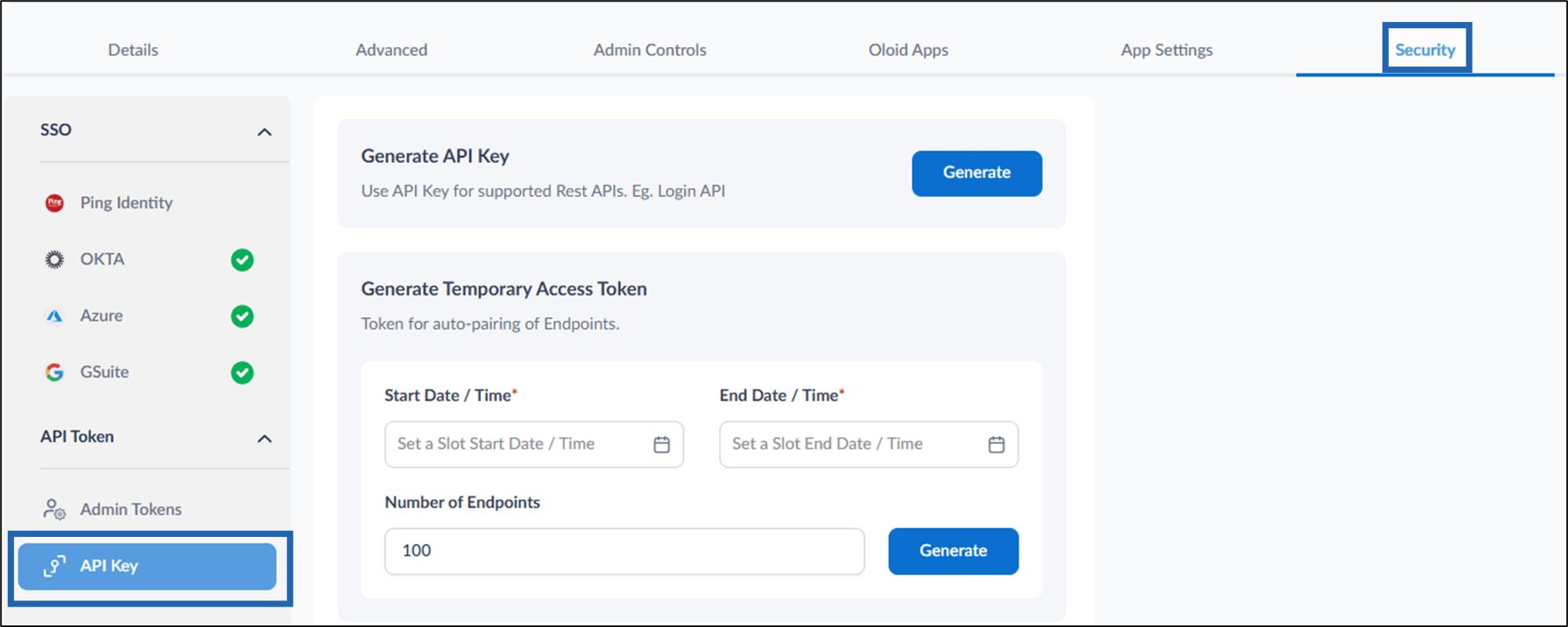
- In the Generate Temporary Access Token section, do the following:
- In the Generate Temporary Access Token section, select the Start Date/Time field.
- To set the start date and time, click the date picker or select Now.
- Select the End Date/Time field.
- Click the date picker, choose when the token will expire, and then click OK.
- Specify Number of Endpoints that can be created using the endpoint. (Optional)
- Click Generate.
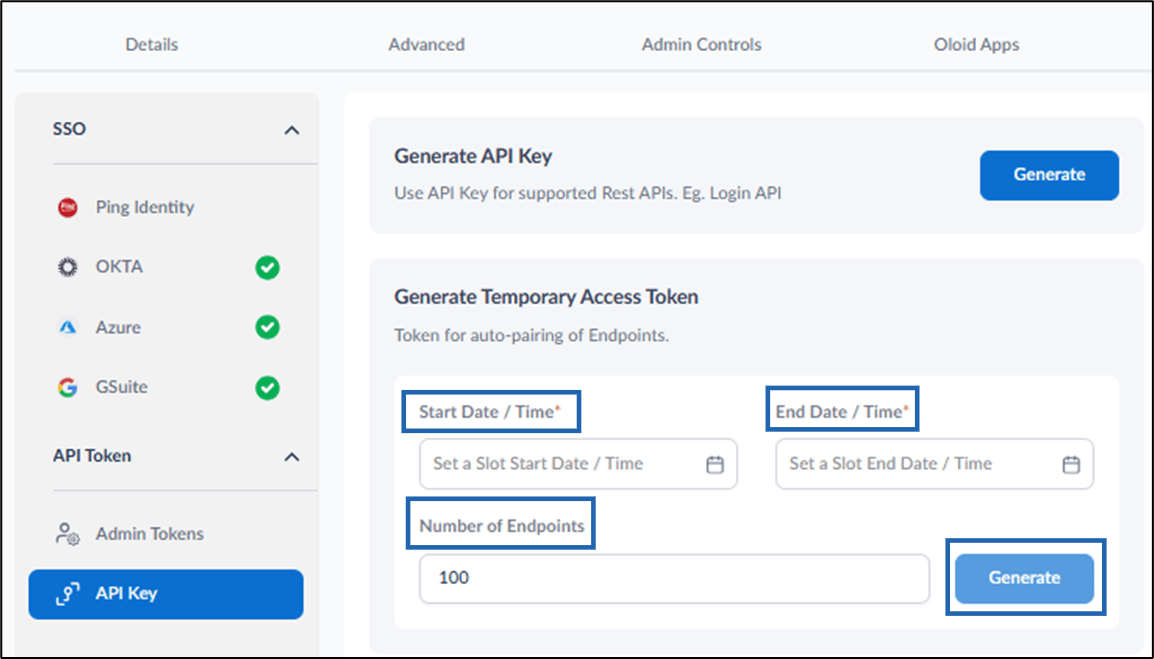
- In the Generate Temporary Access Token section, select the Start Date/Time field.
- Click Auto-pair config file.
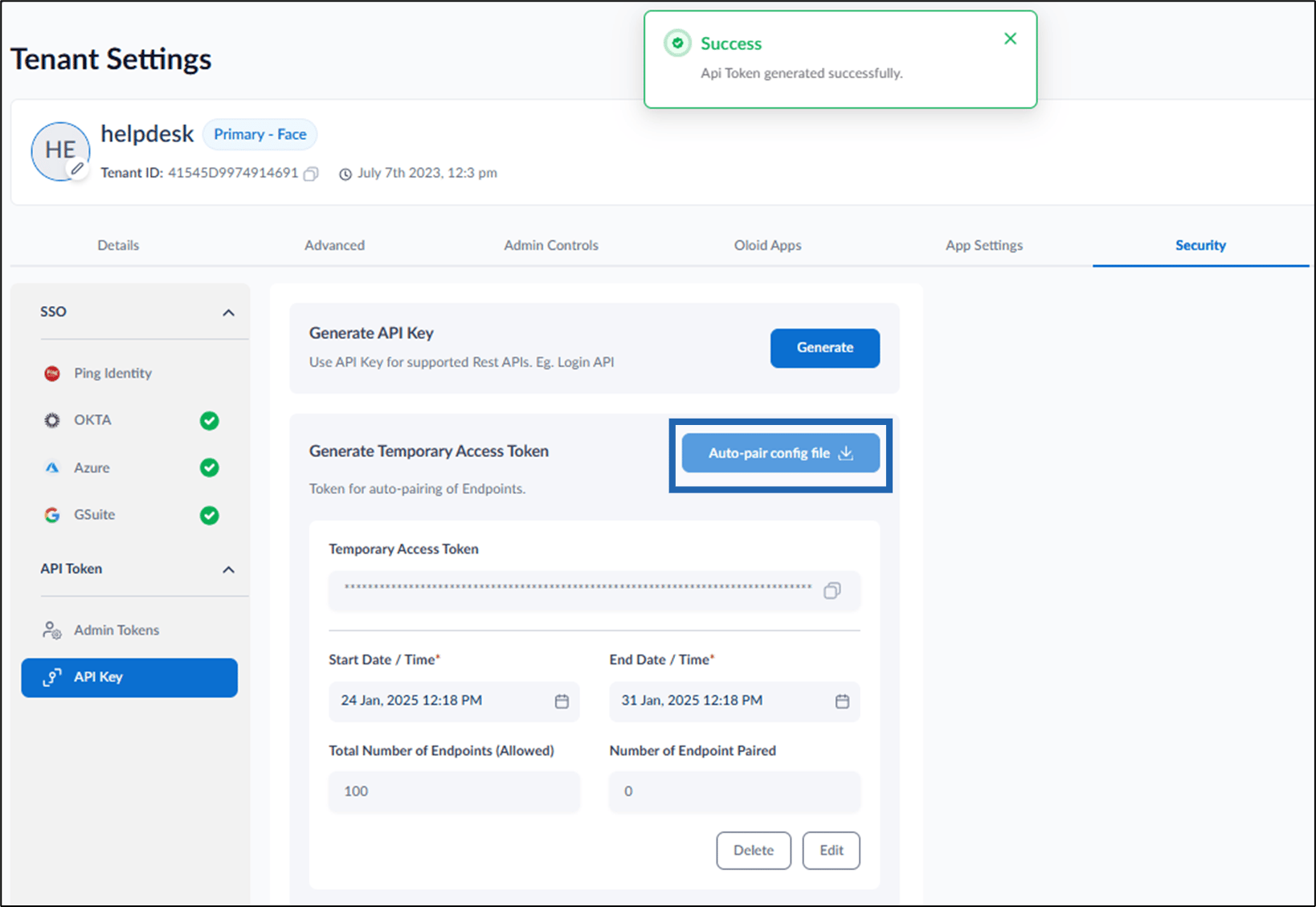
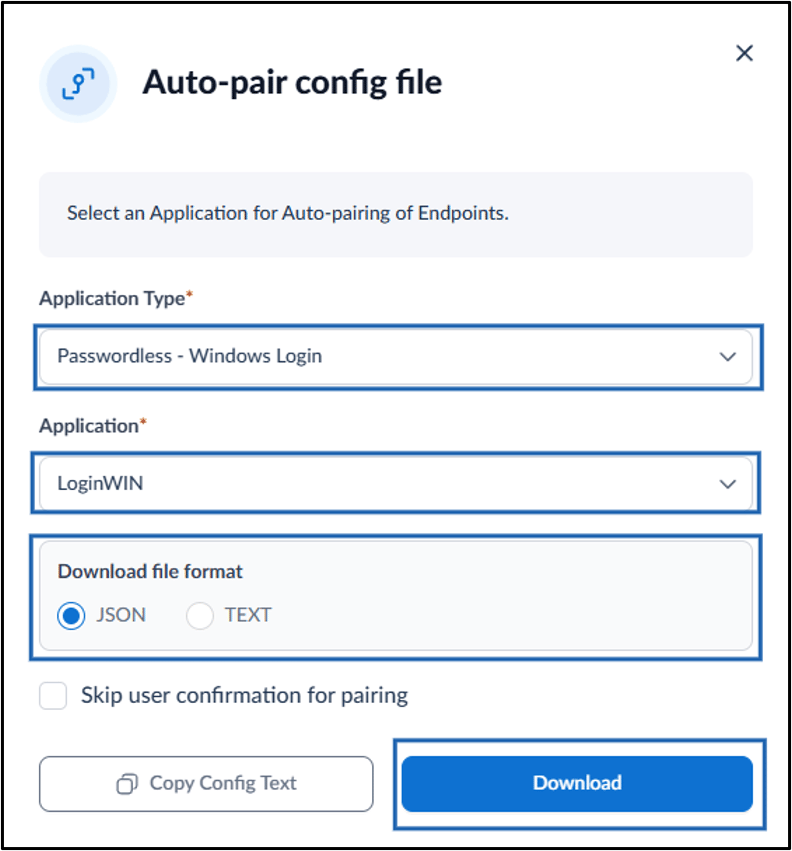
- Do the following:
- Select Application Type as Passwordless - Windows Login from dropdown.
-
From the Select Application drop-down list, select the application that you want the endpoints to pair with.
Note: Select Skip user confirmation for pairing to pair the endpoint without requiring user confirmation.
-
Under Download file format, select one of the following options:
- JSON: Select this option to download the Auto-pair config file when pairing the Windows Login app after installation.
- TEXT: Select this option to generate the Auto-pair configuration text when pairing the Windows Login app during installation.
- Click Download.