

Introduction
The Advanced User Sync feature in the Tenant Admin Portal allows admin to create and manage user synchronization using supported agents such as Workday – Inbound, ensuring accurate and consistent user data in the Oloid Tenant Admin Portal.Prerequisite
You must have Admin access to the Tenant Admin Portal.Steps to Create Advanced User Sync
- Log in to the Tenant Admin Portal.
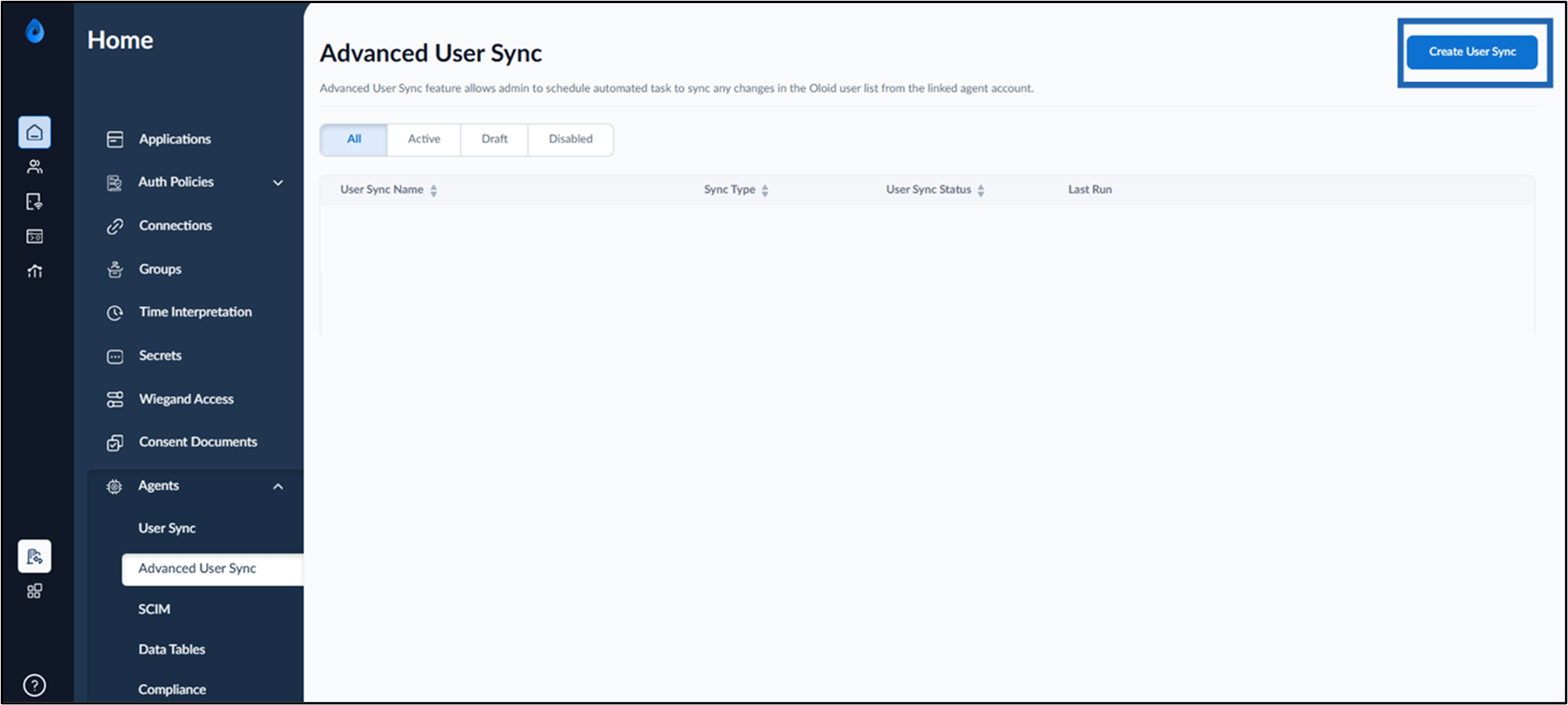
- Go to Agents tab > Advanced User Sync.

- Click Create User Sync.
- Do the following:
- Enter User Sync Name.
-
Select Agent.
Note: Select Workday - Inbound as agents.
-
Click Create.

