- You must be a Tenant Admin in Tenant Admin Portal.
Note:
- Supervisors and Admins cannot be migrated to another connection.
- Users with a facial credential uploaded in the portal cannot be migrated. The Admin must remove the user’s facial credential before proceeding with migration.
- Always consult Oloid Support before initiating the migration process to ensure all pre-requisites are met.
- Log in to the Tenant Admin Portal.
- On the homepage, select Directory from the left menu panel.
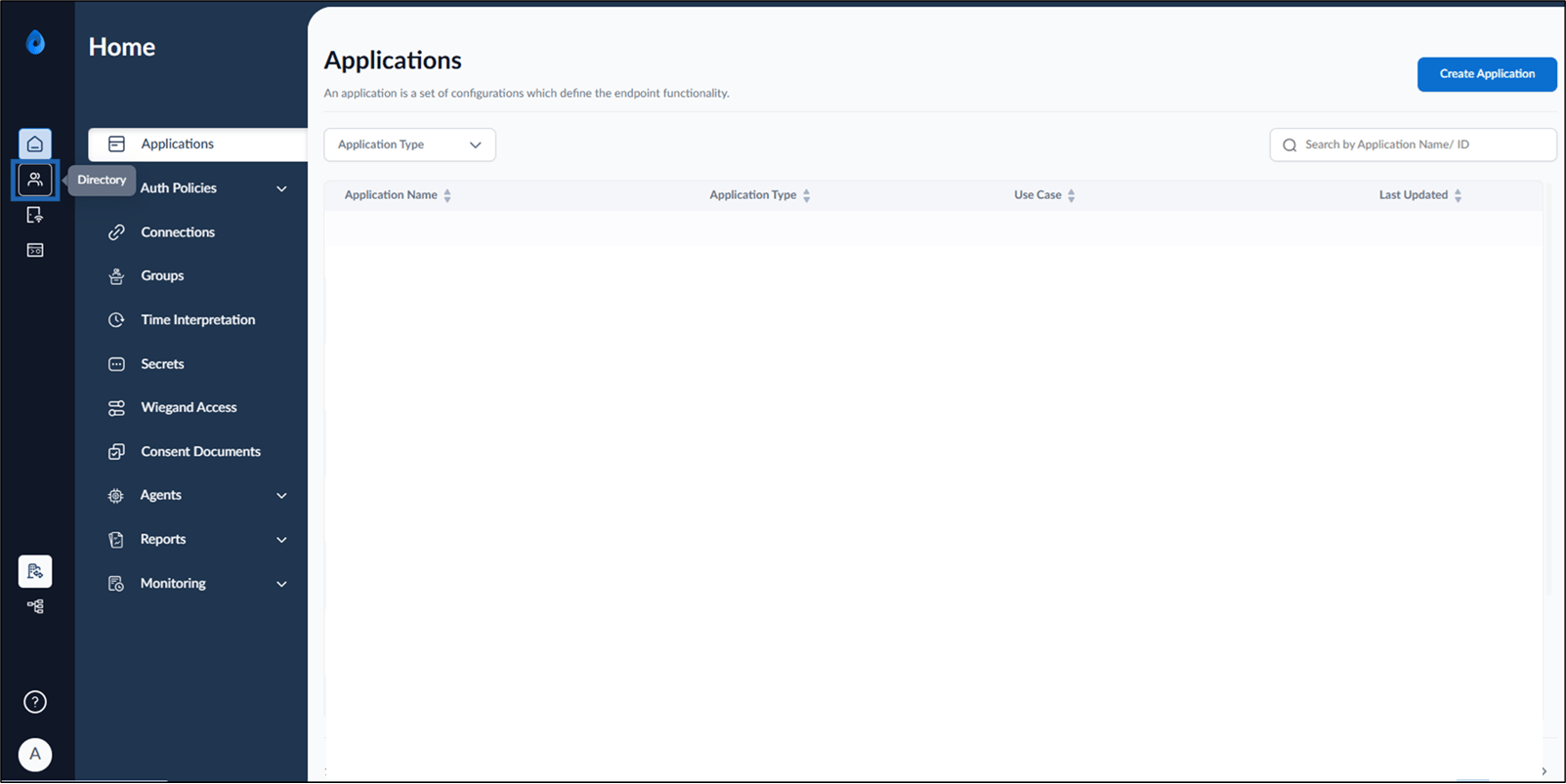
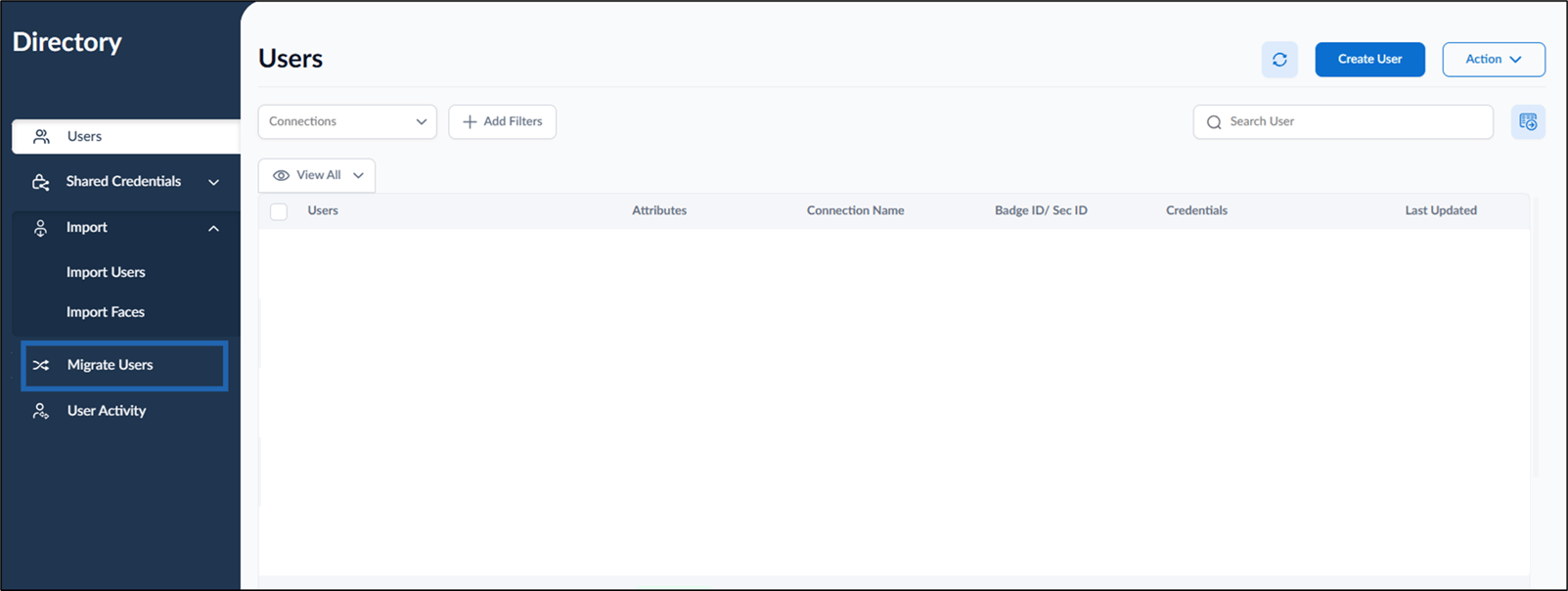
- Select Migrate Users from the left menu panel.
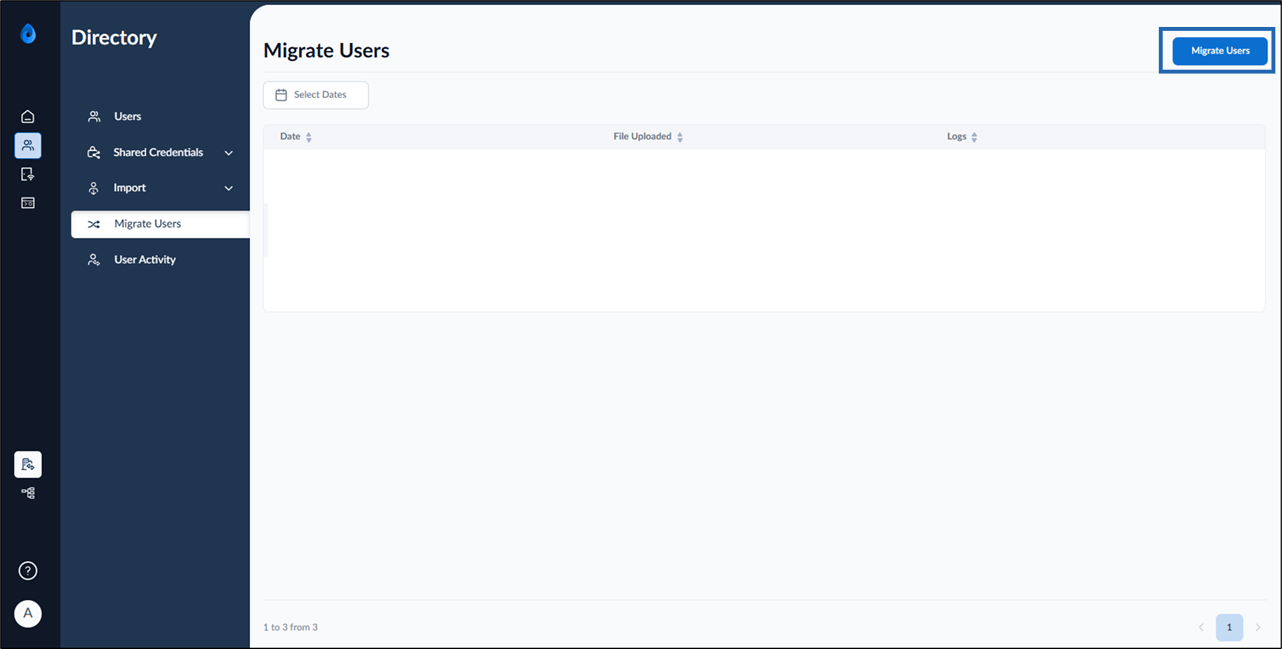
- Click Migrate Users from the top right.
- Do the following:
- Click Download Template.
You may download a .csv or .json file as per your requirement.
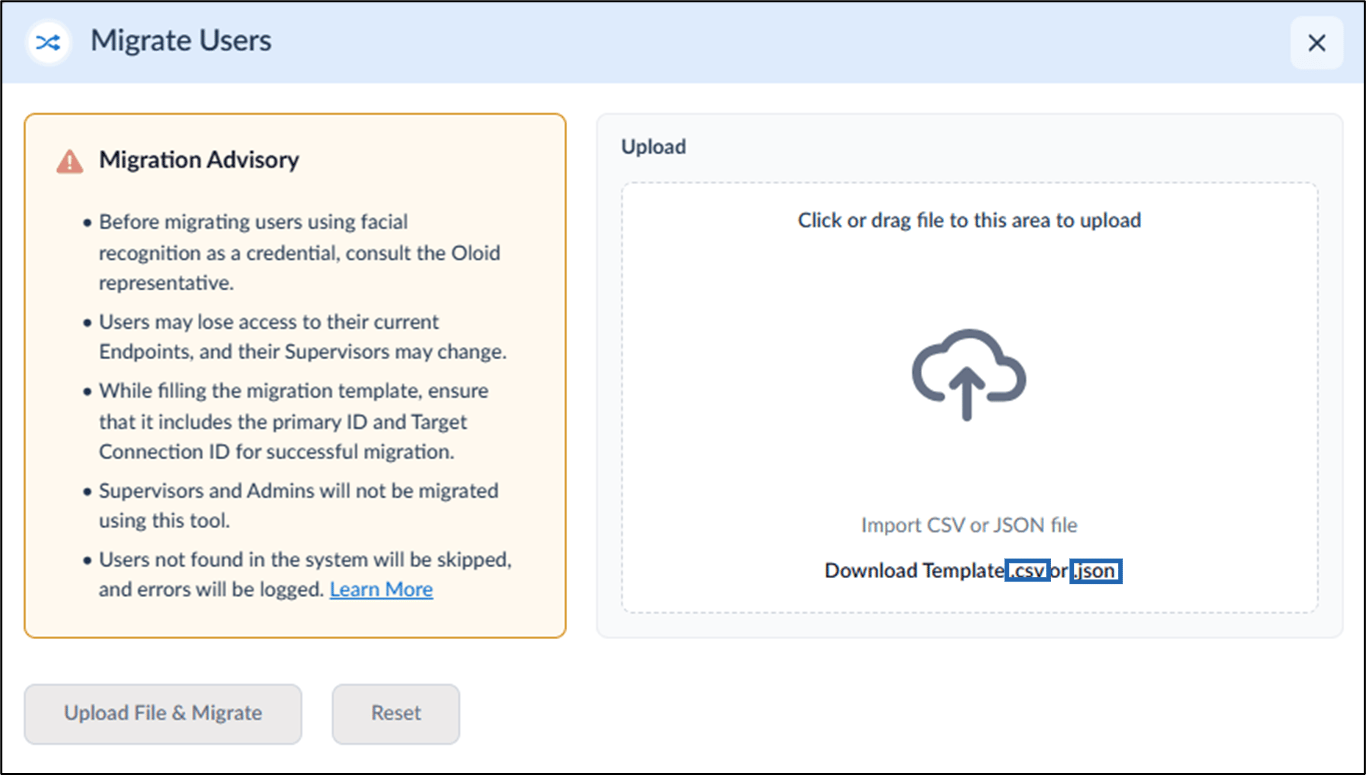
- Open the Template and fill the details.
- Enter primary ID of the user whom you want to migrate under Primary ID field.
-
Enter connection ID of the connection to which you want to migrate the user to under Target Connection ID field.
 Note: You must ensure that the Primary ID and Target Connection ID fields are filled accurately with appropriate data.
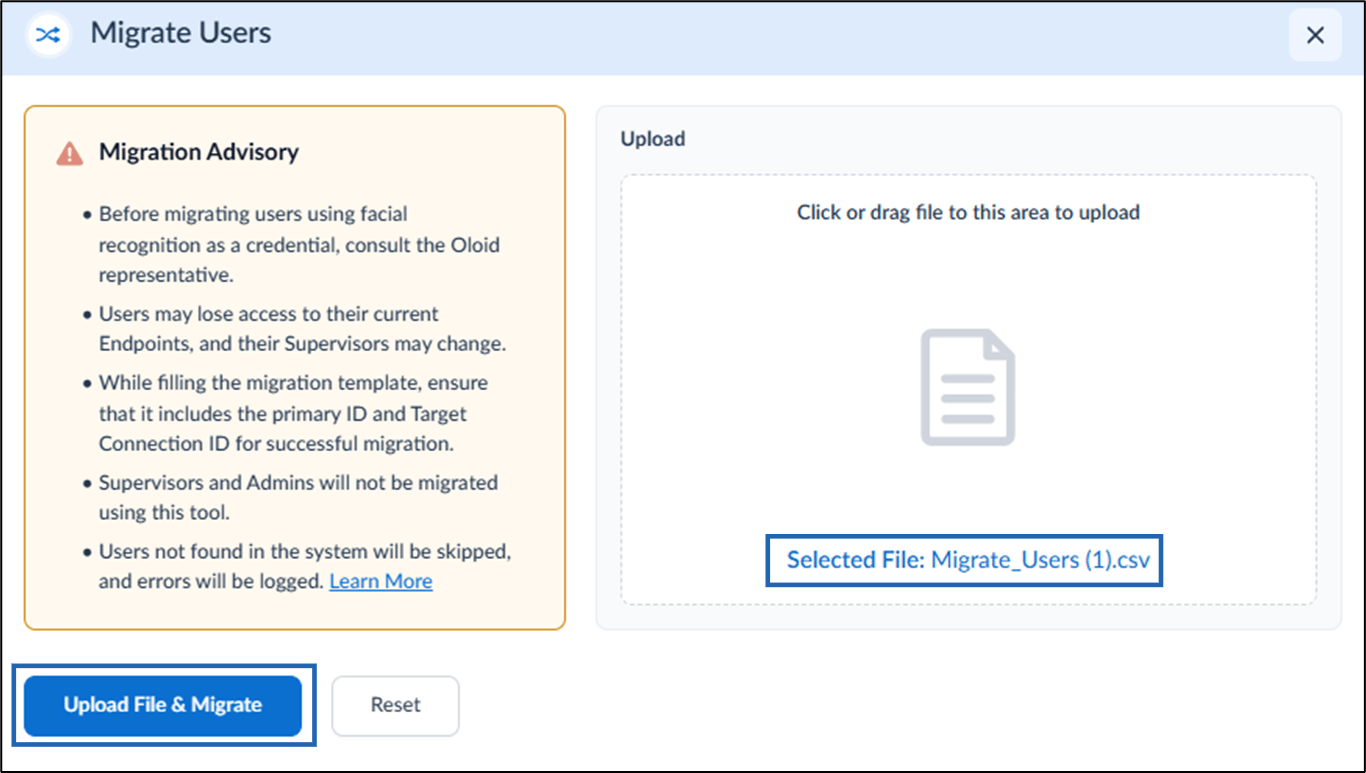
 - Save the File.
- Drag and drop or upload the file to the Migrate Users pop-up box.
- Click Upload File & Migrate.
- Click Download Template.
You may download a .csv or .json file as per your requirement.
Note: After migration is completed:
- Users lose access to their current endpoints.
- New Supervisors get assigned to the migrated users.
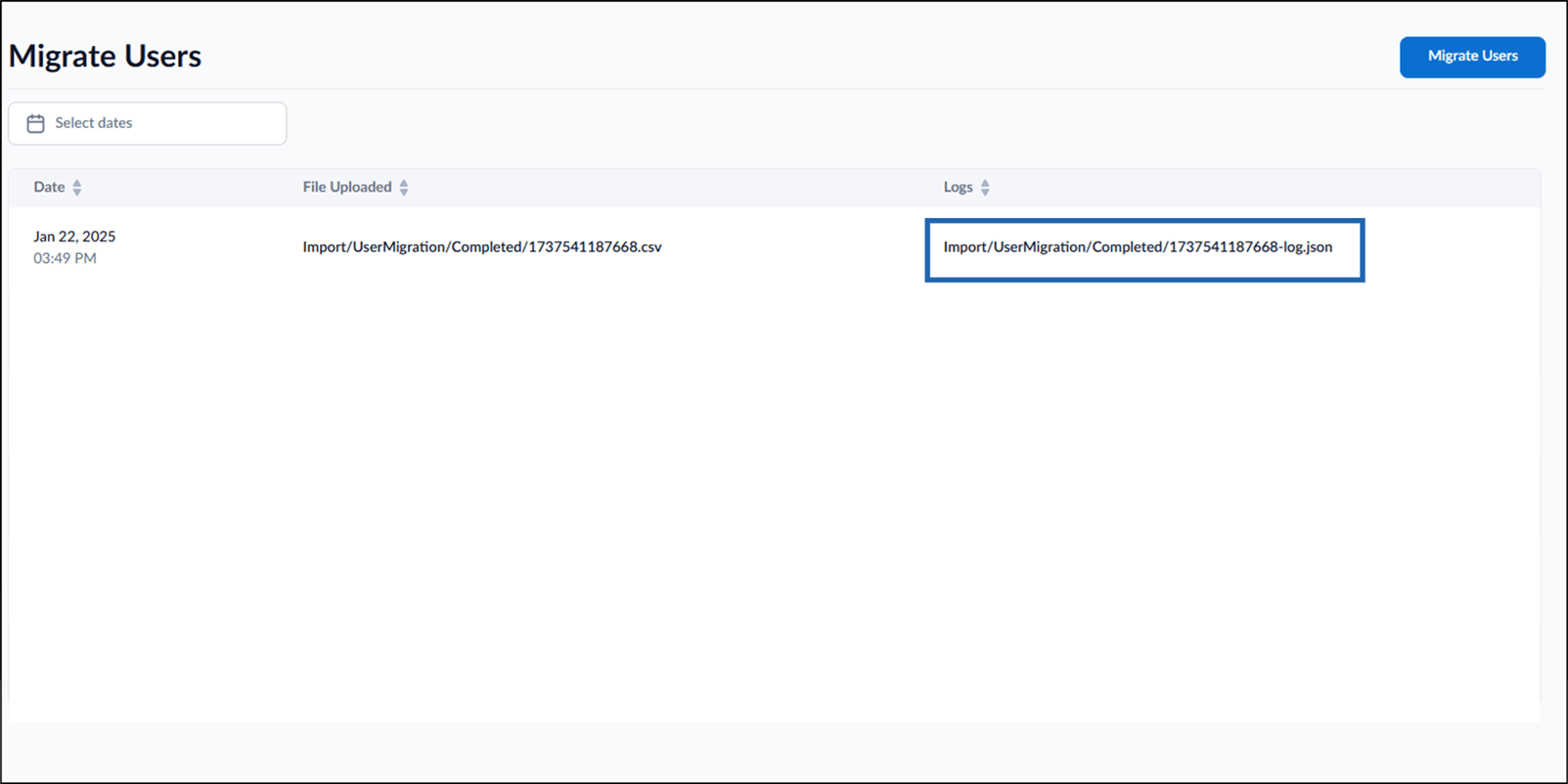
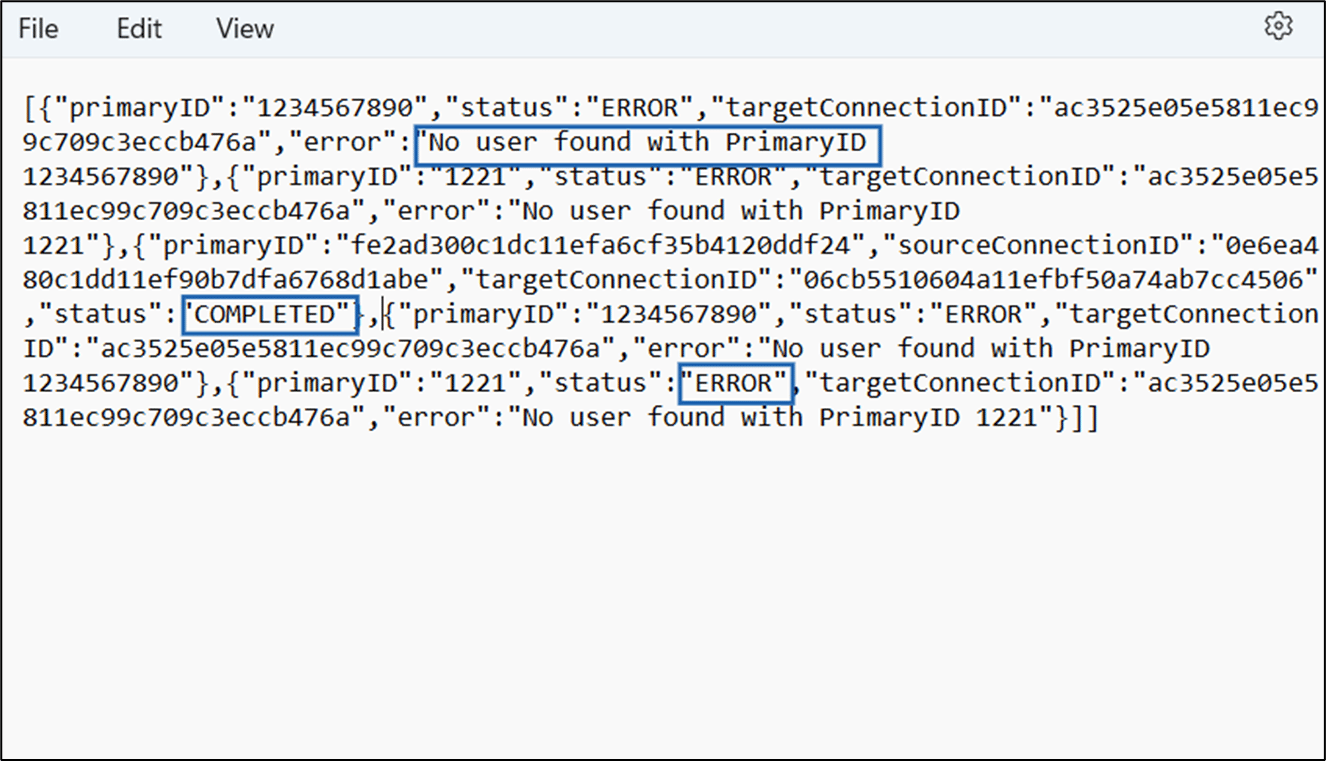
- No user found- No user found is displayed when the user doesn’t exists in the portal.
- Completed- Completed is displayed when the user exists and migrated to the respective connection successfully.
- Error- Error is displayed when the user is either a Tenant Admin or Supervisor or the user who has face uploaded as credential in the Portal.