

Introduction
In the Tenant Admin Portal, admin can assign Shared Password to users. By assigning these credentials, multiple users can securely use the same login details without needing to create individual accounts, making it easier to manage shared systems.Prerequisites
- You must have admin access to Tenant Admin Portal.
- Shared Windows password must be created. To create a shared windows credential refer How to create shared Password for Windows login application in the Tenant Admin Portal.
Steps to Assign Shared Password
- Log in to the Tenant Admin Portal.
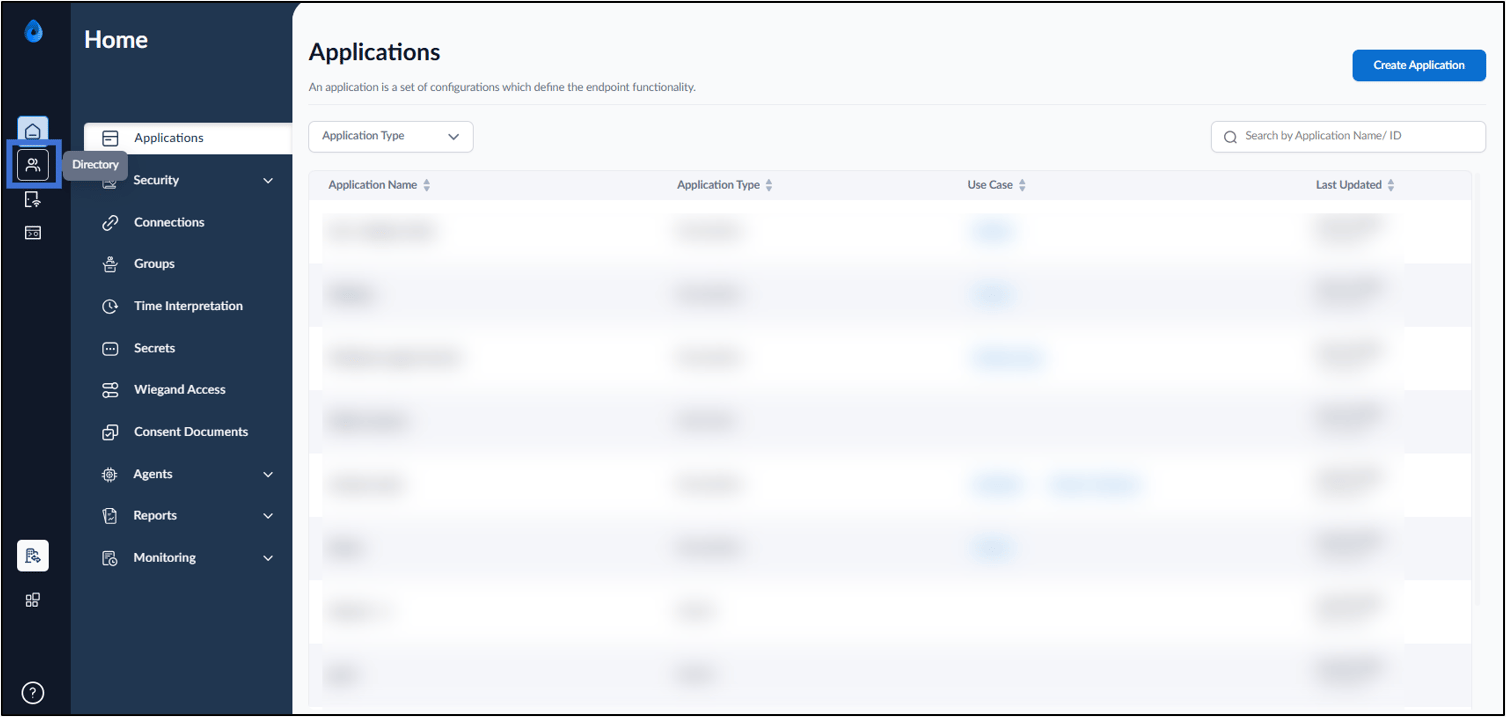
- On the home page of the portal, click Directory on the left menu panel.
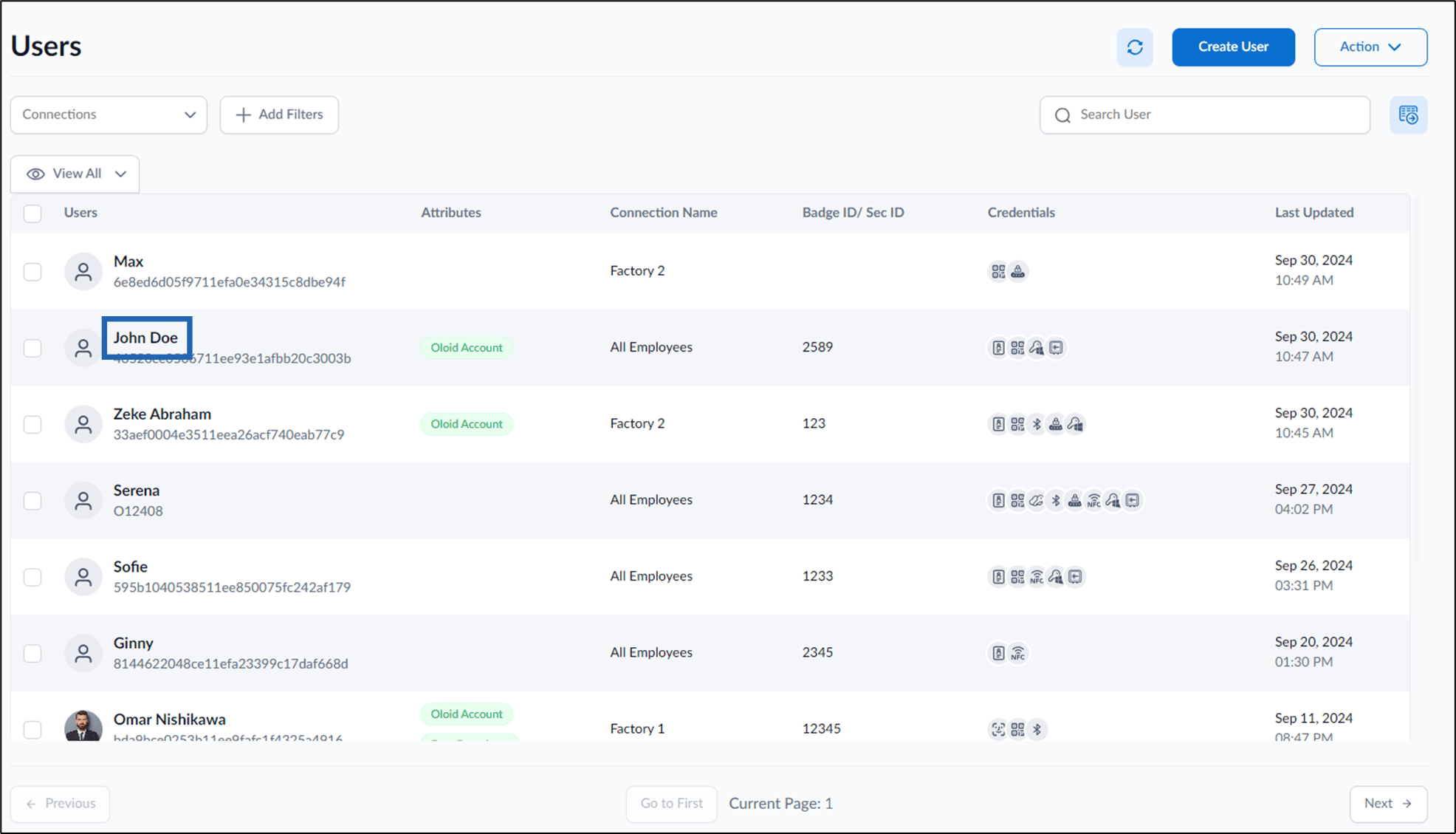
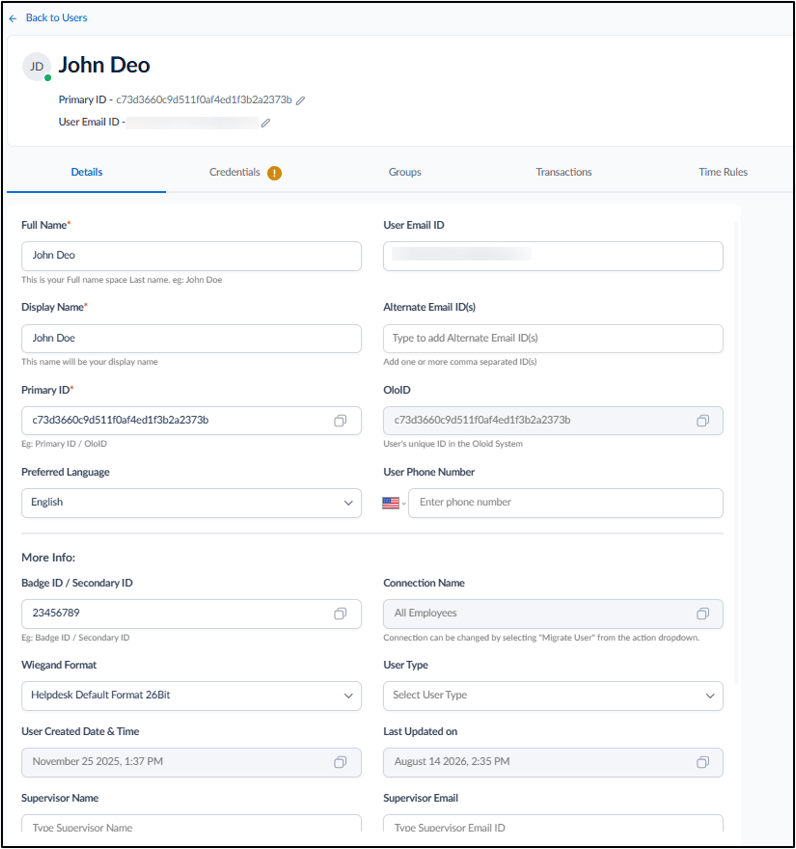
- Click User Name to edit.
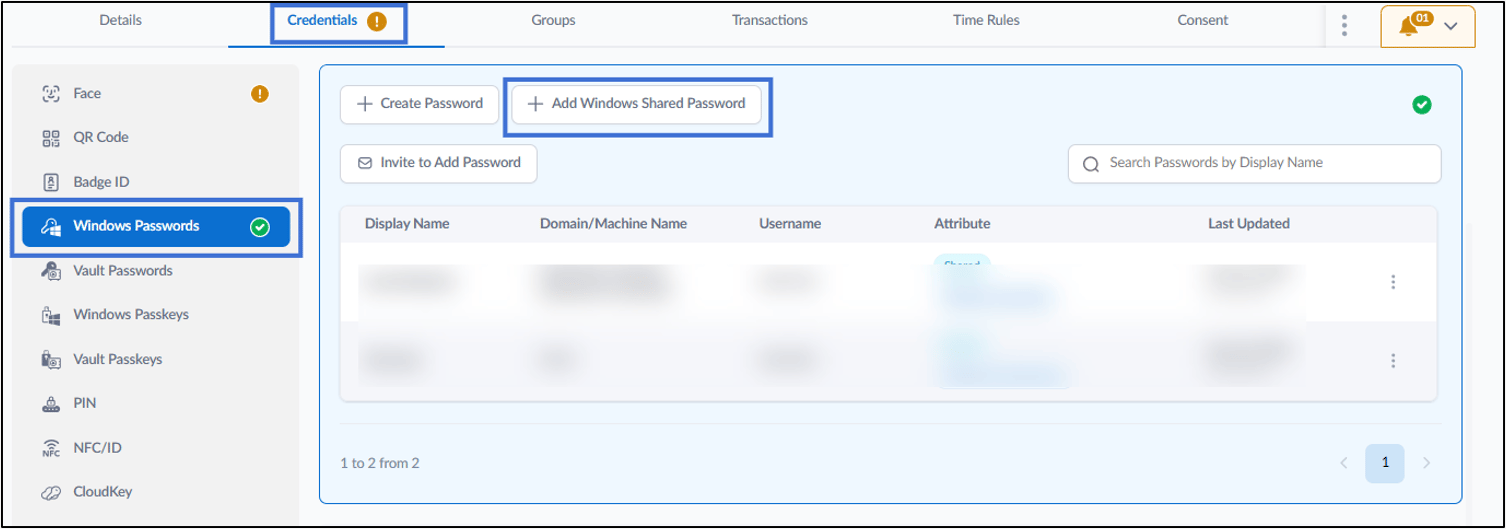
- Go to Credentials >select Windows Passwords from left menu panel > + Add Windows Shared Password.
- On the pop-up box, do the following:
- Select shared password(s) from Select Shared Password drop-down list.
- Click Assign.

