Introduction
This document provides instructions to create and download a User Transactions Report that contains user transaction details across the associated endpoints in the Tenant Admin Portal.Prerequisite
You must have admin access to the Tenant Admin Portal.Steps to Create and Download User Transactions Report
- Log in to the Tenant Admin Portal.
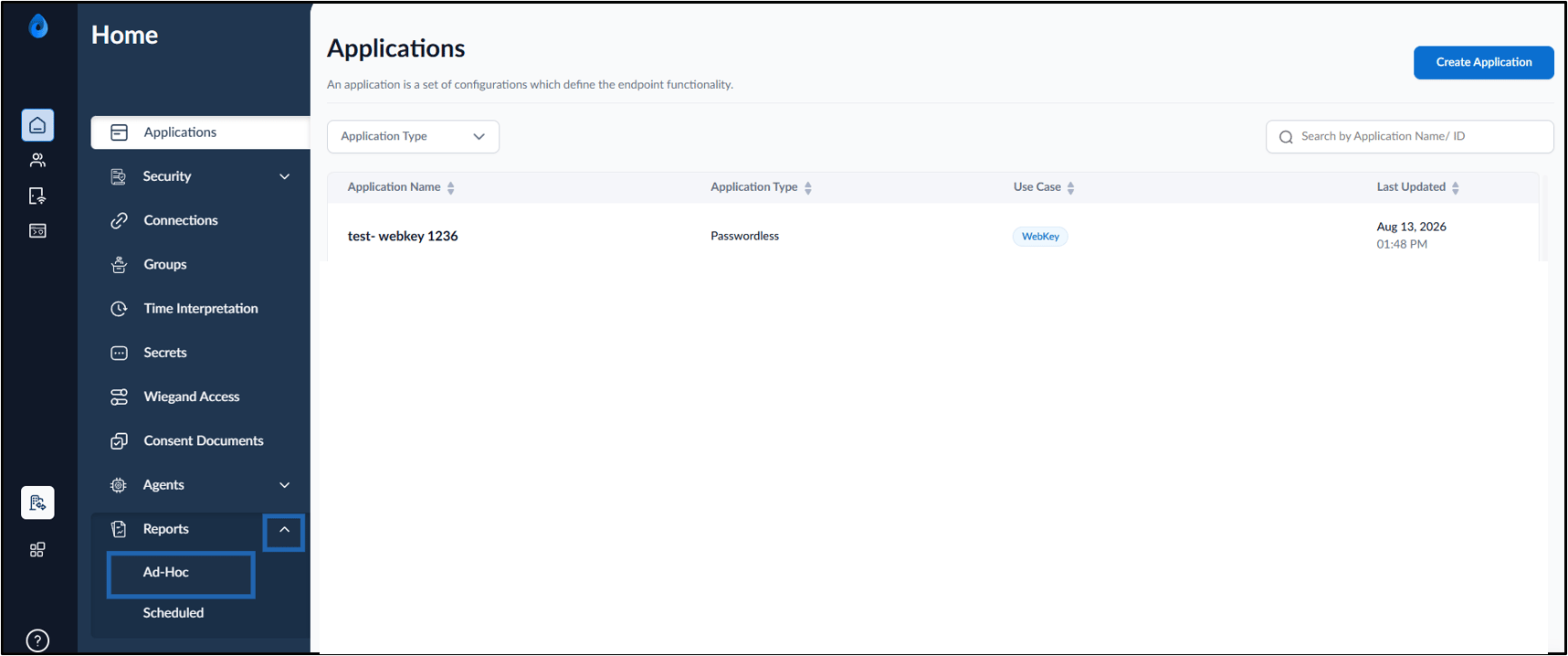
- On the homepage, click Reports > Ad-Hoc in the left menu panel.
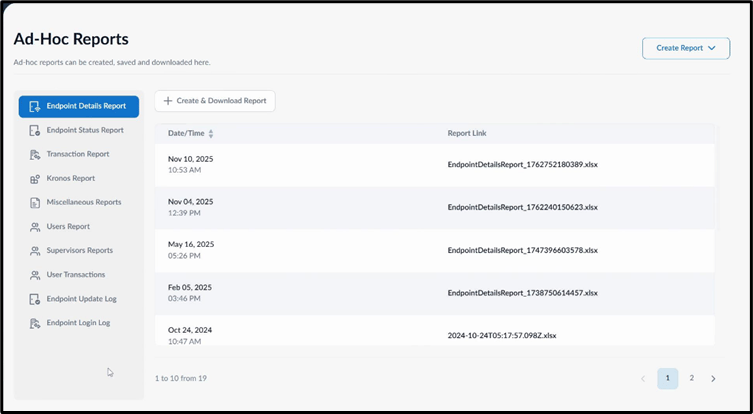
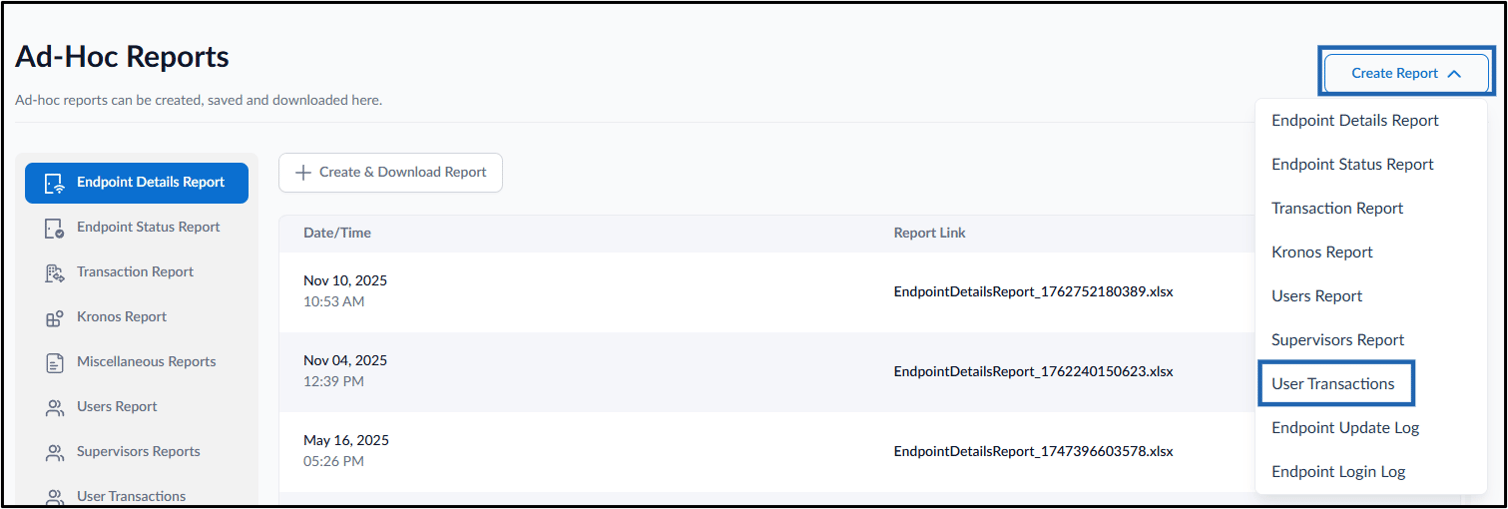
- Do one of the following methods to download the report.
- Click Create Report > User Transactions.
- Select User Transactions from the left menu panel, and then click Create Report.
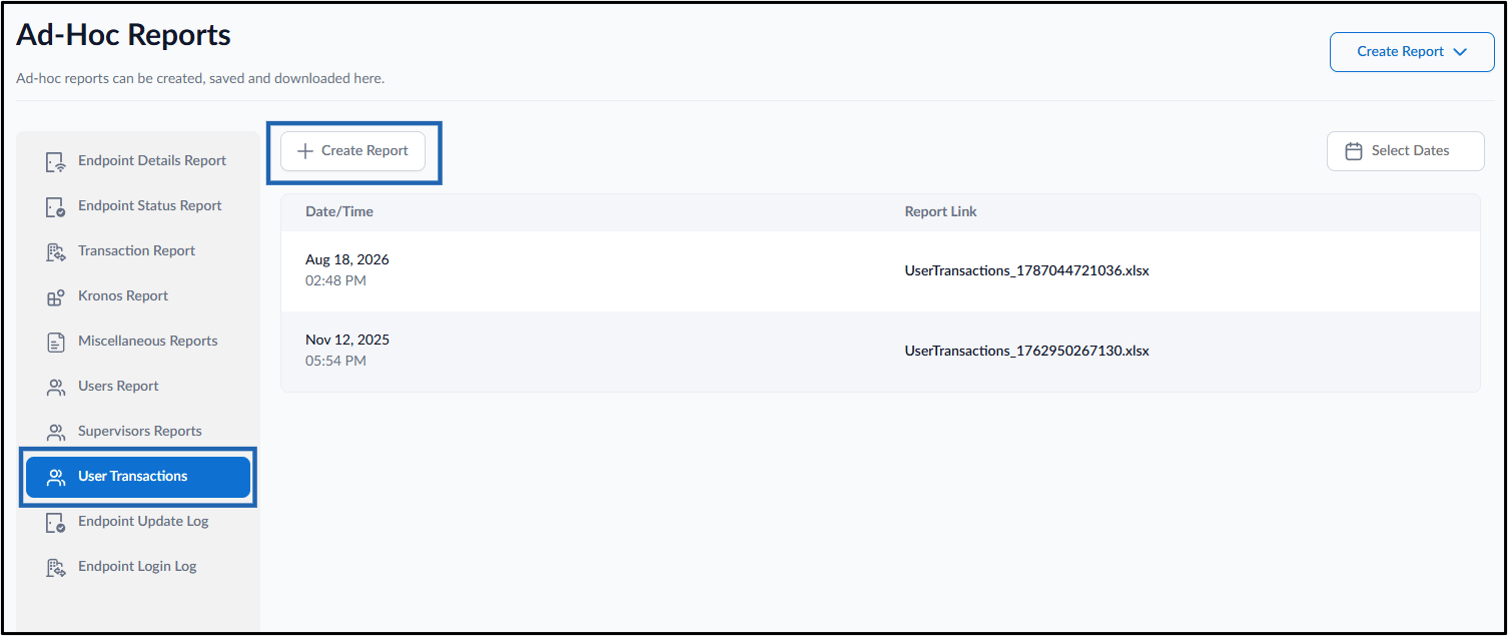
- Click Create Report > User Transactions.
- Do the following:
- Select the date and time from the calendar for From Date & Time (Mandatory).
- Select the date and time for To Date Time (Optional).
-
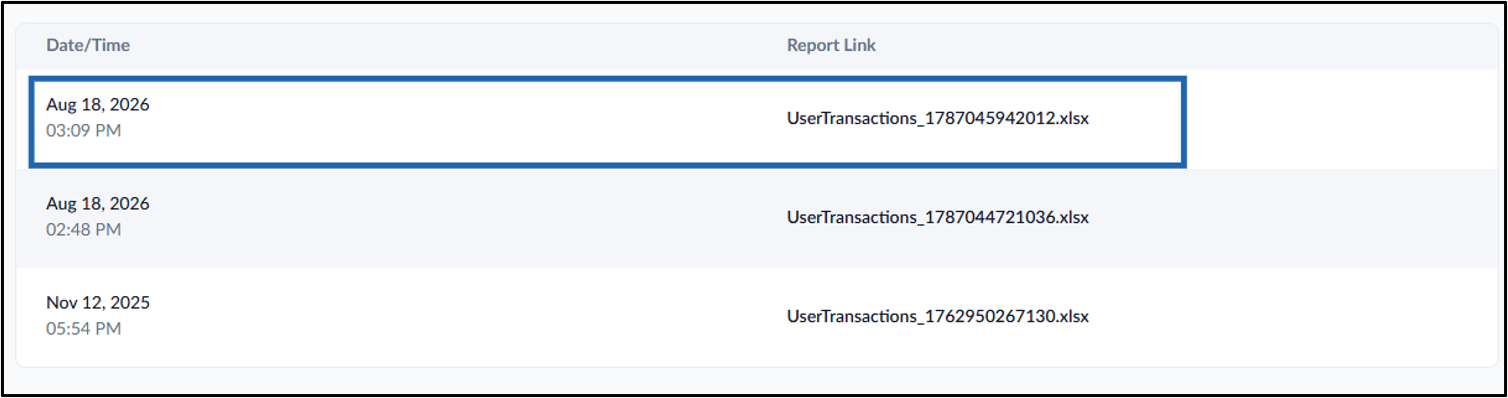
Click Download.
 Note: The downloaded file format for reports is XLSX.