Introduction
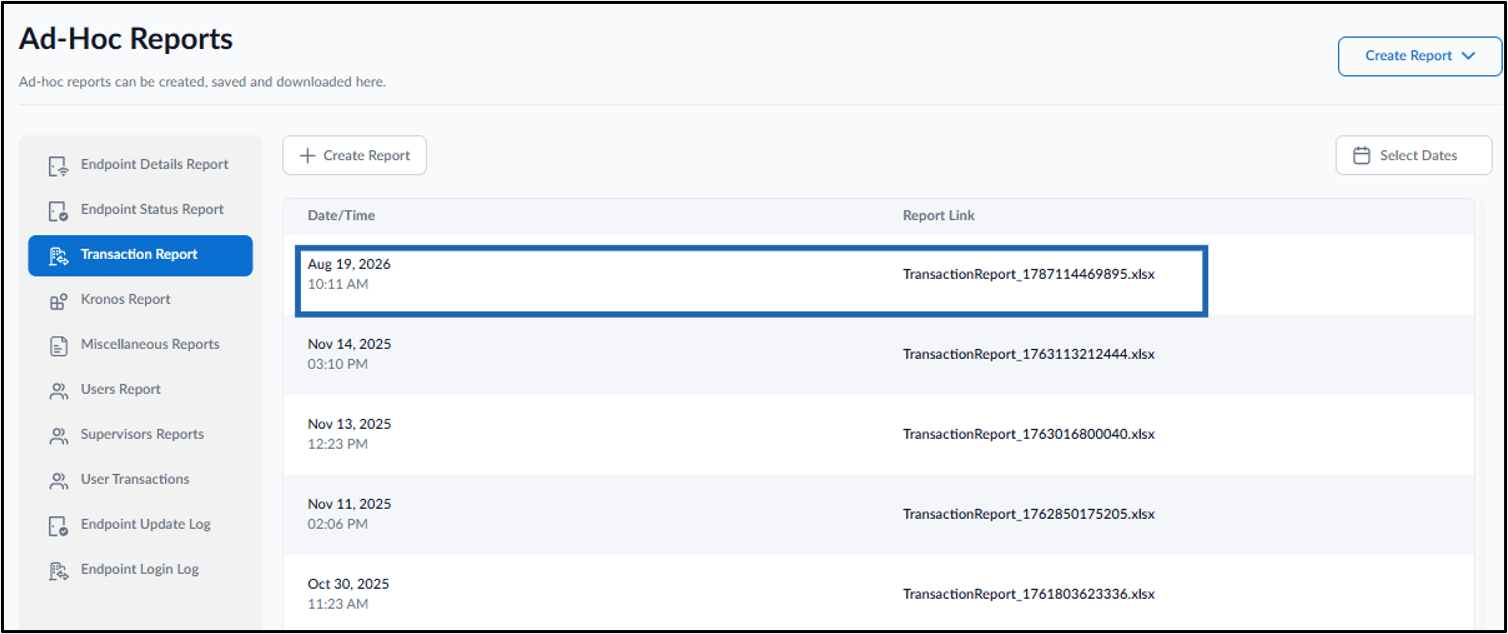
This document provides step-by-step instructions to create and download a Transaction Report (Ad-Hoc) from the Tenant Admin Portal. The report provides transaction details for endpoints and their associated applications.Prerequisite
You must have admin access to the Tenant Admin Portal.Steps to Create and Download the Transaction Report
- Log in to the Tenant Admin Portal.
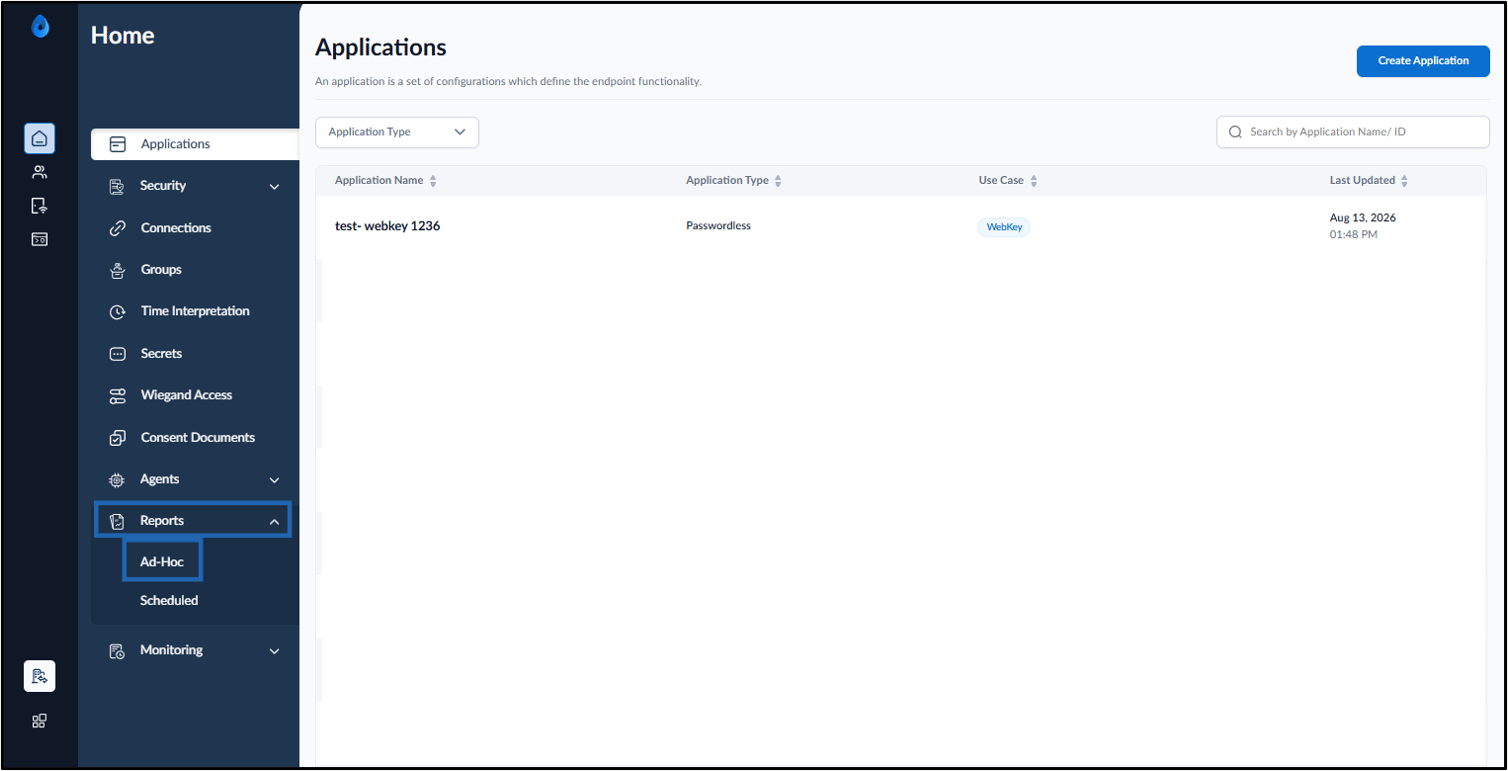
- On the homepage, click Reports > Ad-Hoc on the left menu panel.
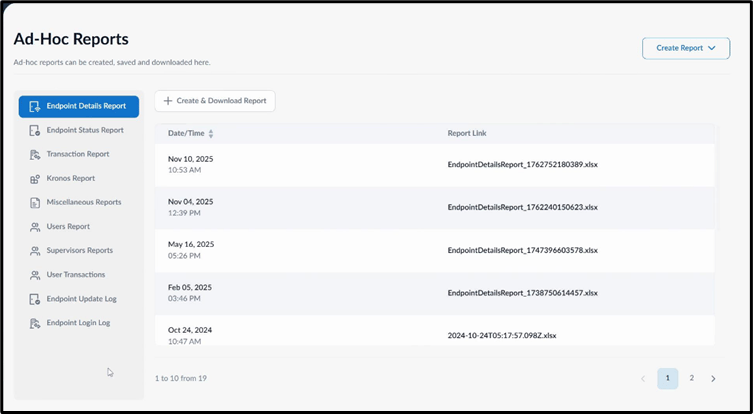
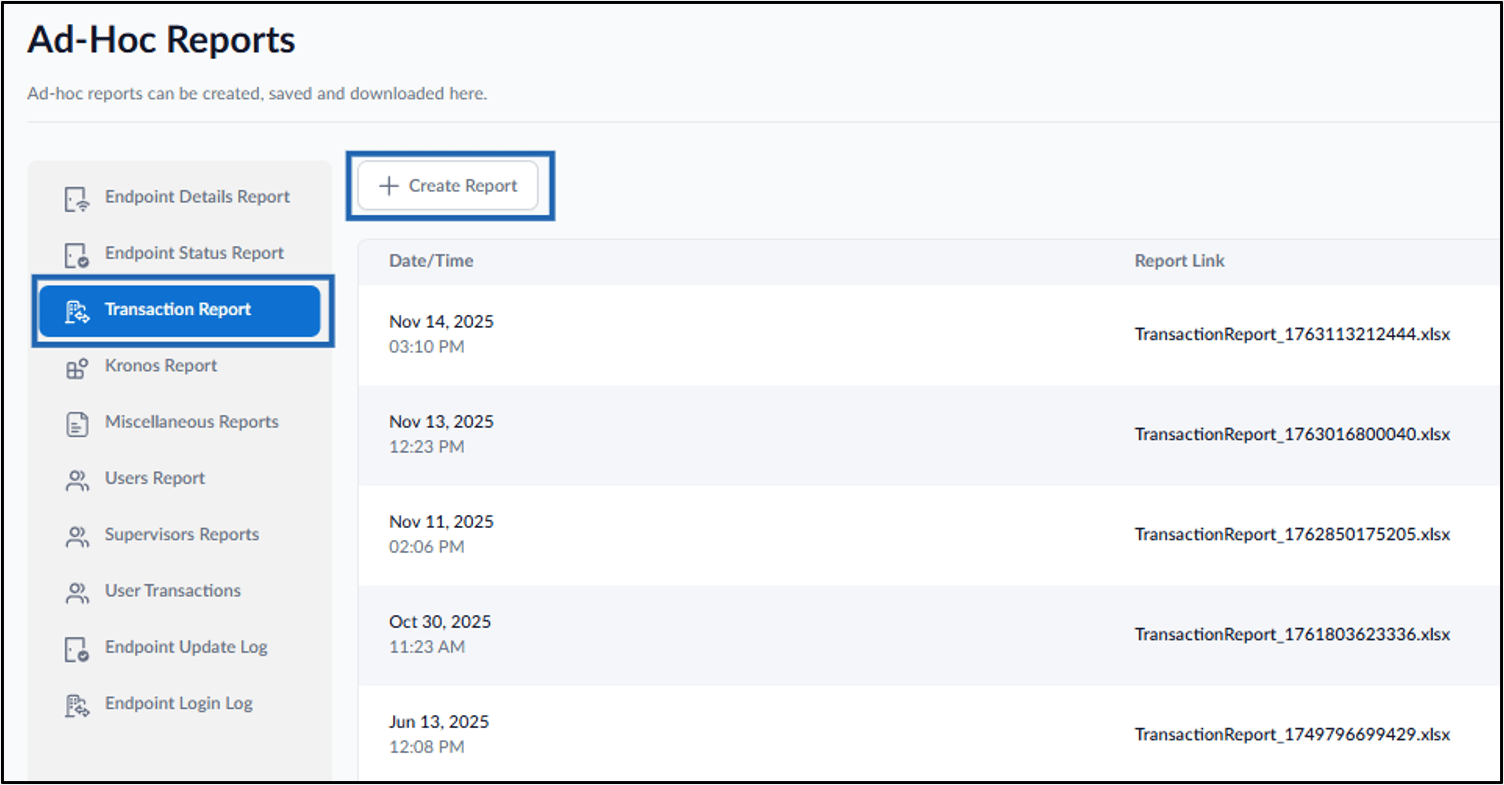
- Do one of the following:
- Select Transactions Report from the left menu panel, and then click + Create Report.
- Click Create Report > Transaction Report.
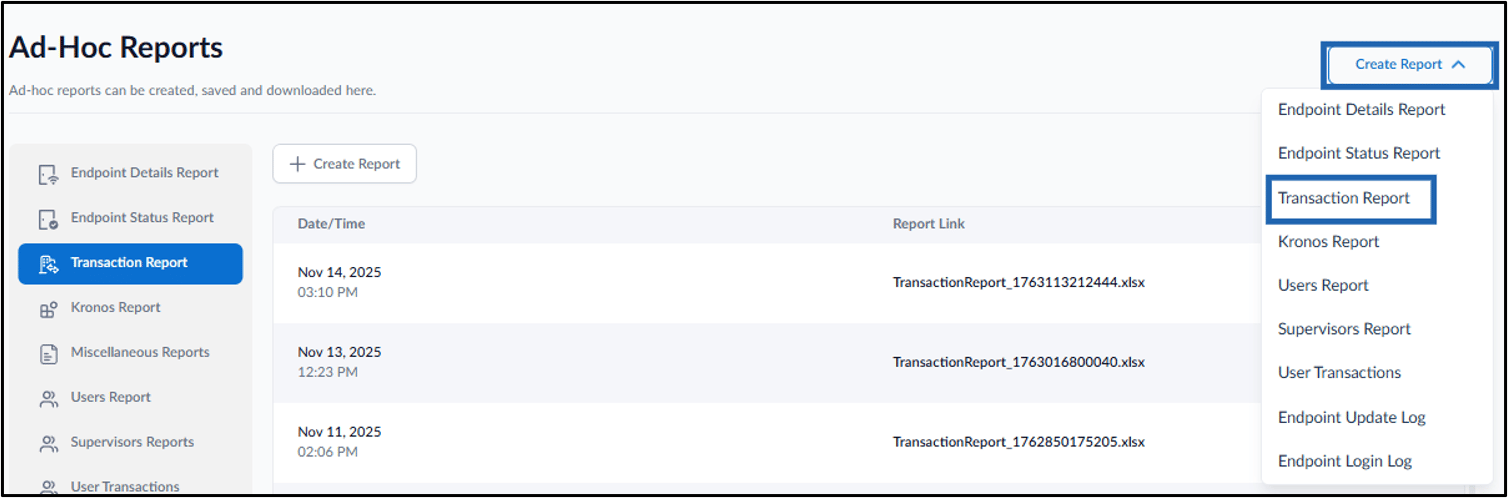
- Select Transactions Report from the left menu panel, and then click + Create Report.
- Do the following:
- Select the date and time from the calendar for From Date & Time and To Date Time.
- Select time-zone from Time-zone drop-down list.
- Select transaction status from Transaction Status drop-down list.
-
Select application names from Application Names drop-down list.
Note: Click the Use Application Time checkbox to show transactions based on the time-zone set in the application.
- Select endpoint names from Endpoint Names drop-down list.
- Enter Primary ID.
- Select Mode from Mode drop-down list.
- Select face match status from Face Match Status drop-down list.
-
Click Download.
Note: All filters are optional. If you do not apply any filters, the report includes all available transaction details.
 Note: The downloaded file format for reports is XLSX.