Introduction
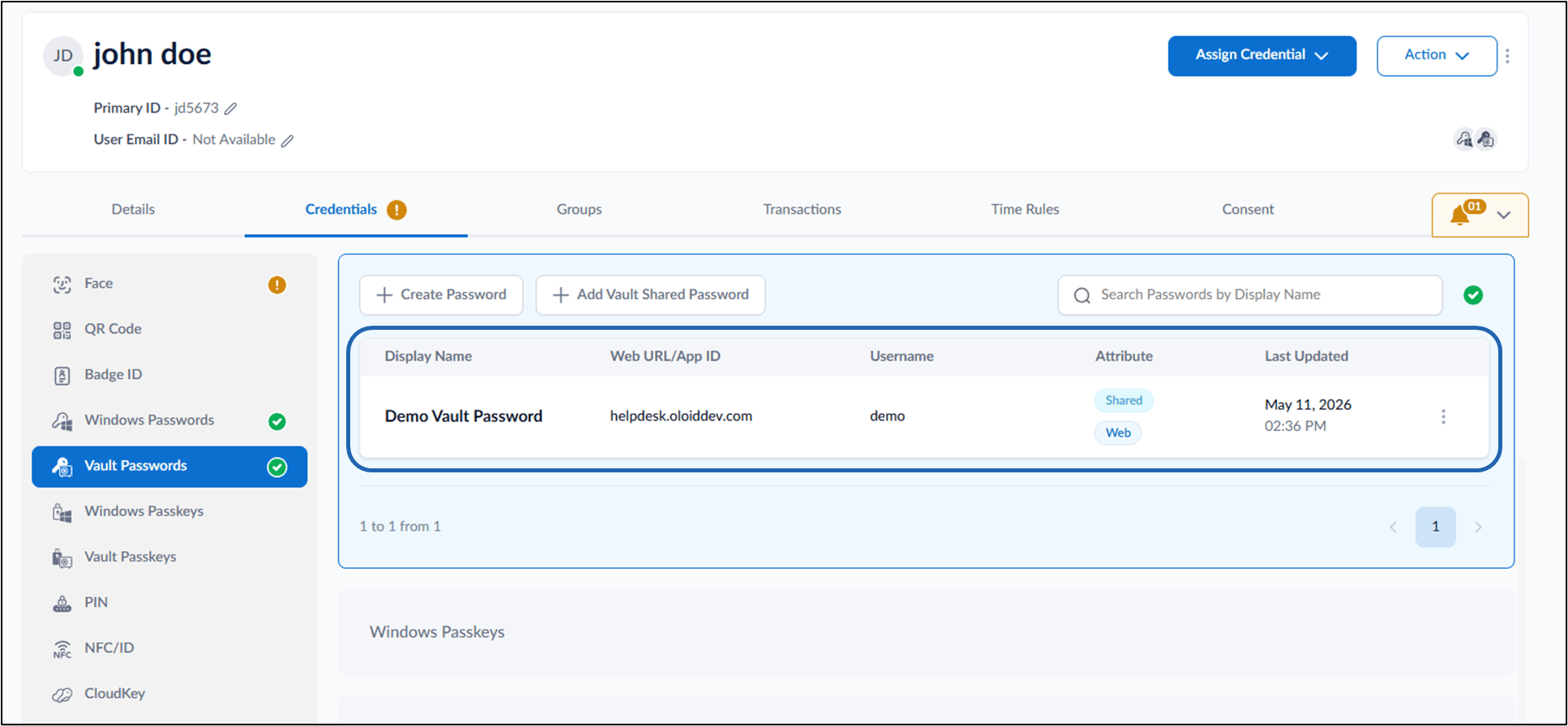
Vault Shared Passwords allow the Tenant Admin to securely assign shared passwords to multiple users from the Tenant Admin Portal.Prerequisites
- You must have a Tenant Admin account.
- Vault shared password must be created. For more, refer: Chrome Vault - How to Create Shared Password in the Tenant Admin Portal
Steps to assign Vault Shared Passwords
- Log in to the Tenant Admin Portal.
-
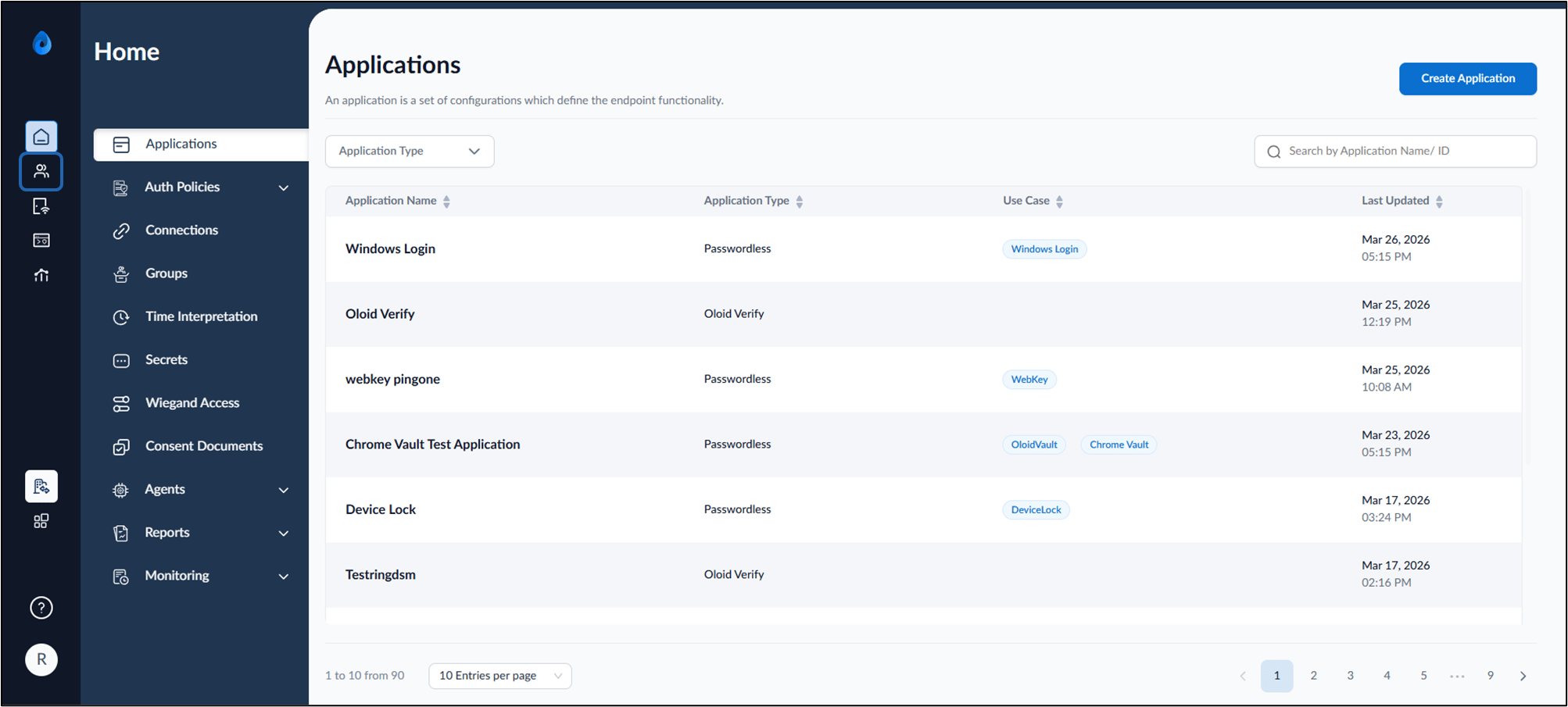
On the home page of the portal, click Directory on the left menu panel.
-
Select Shared Credentials > Vault Passwords on the left menu panel.

-
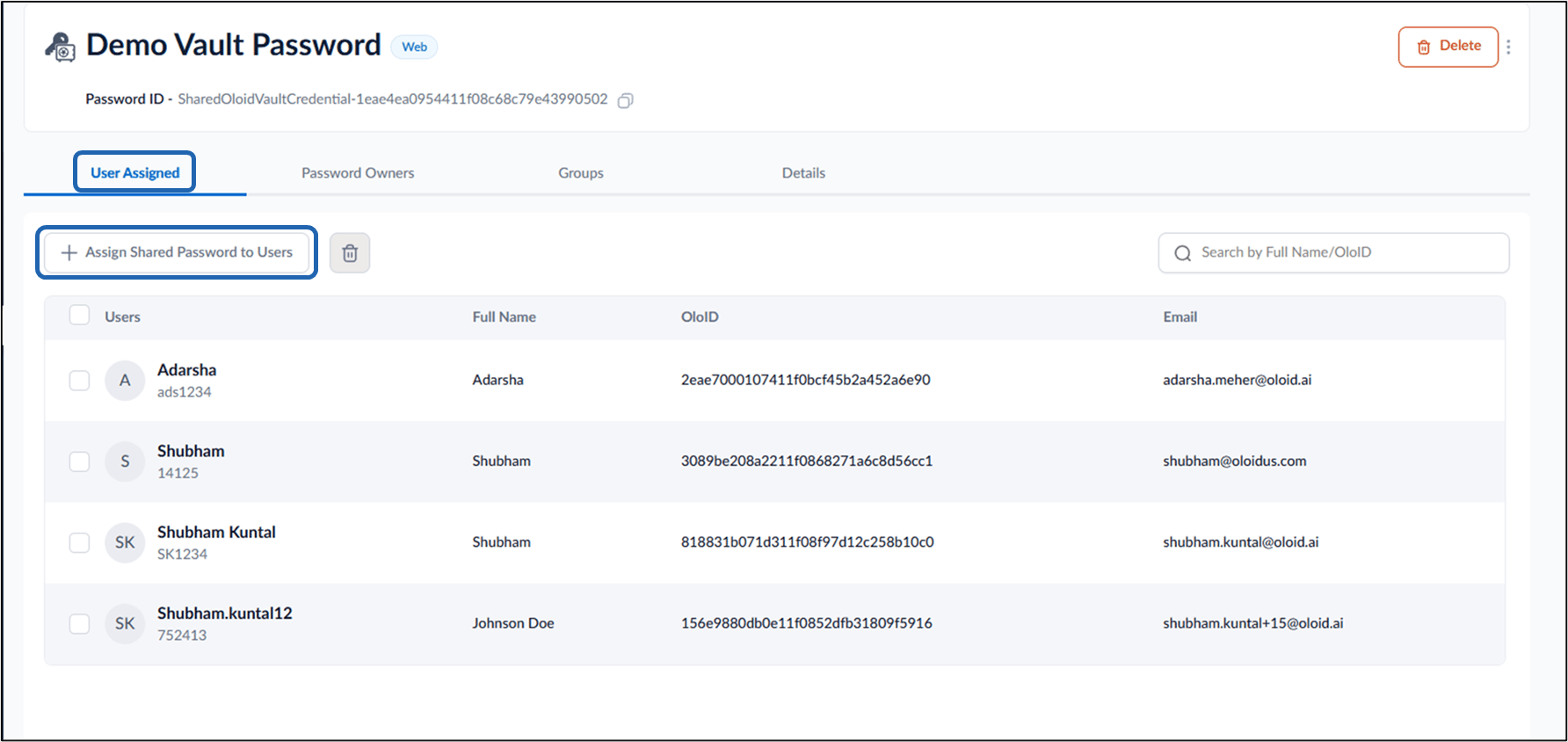
Select credential name to edit.
Note: Multiple Shared Passwords can be assigned to users. To assign multiple passwords select the checkbox next to the required shared password(s) to assign them to users.

-
Click User Assigned > Click + Assign Shared Passwords to Users.
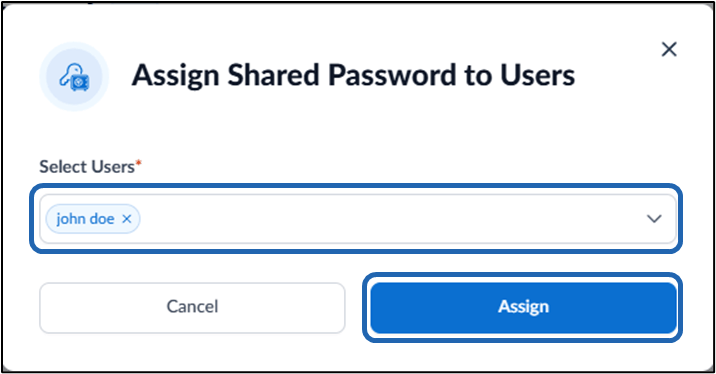
- On the pop-up box, enter user name(s) in the Users dropdown list.
- Click Assign.