

- Log in to the Oloid Portal.
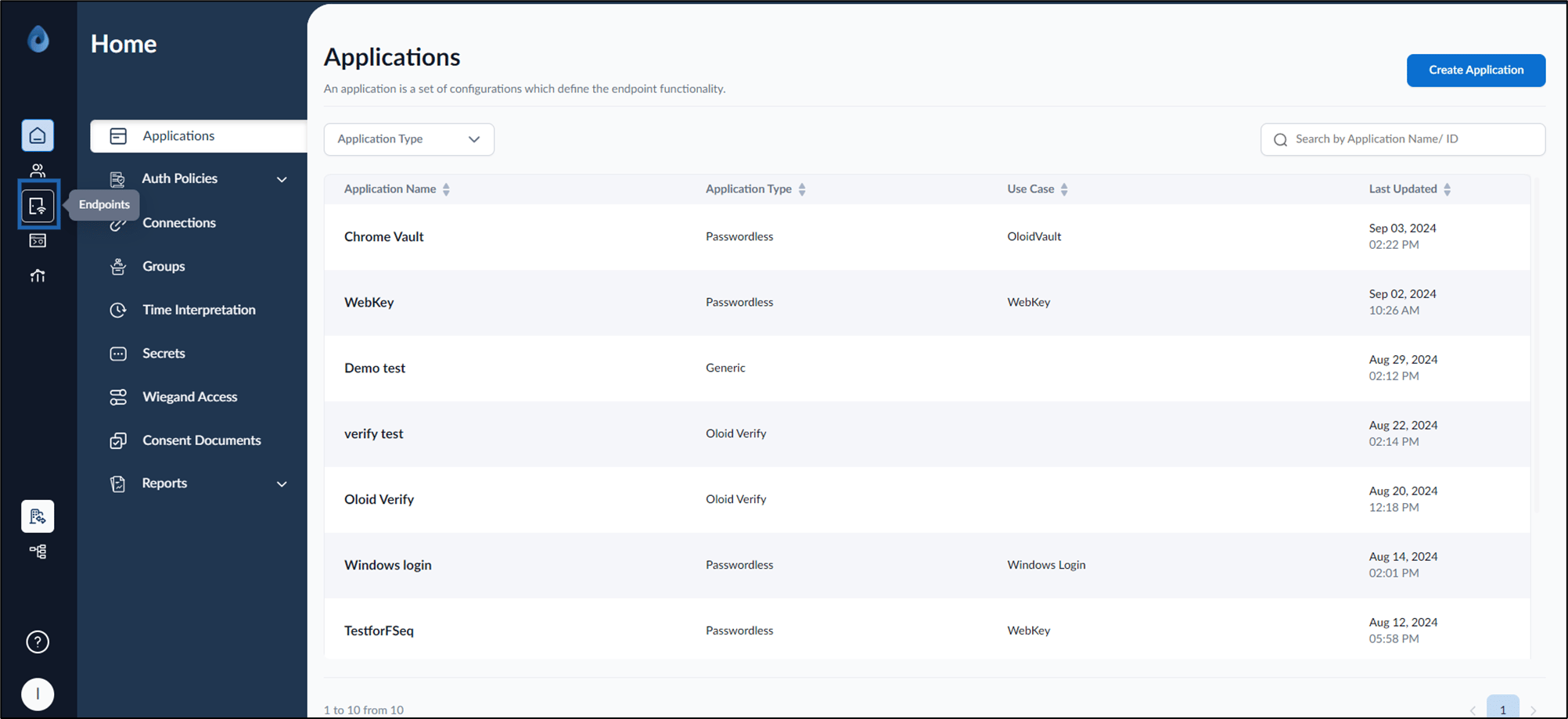
- On the home page of the portal, click Endpoints on the left panel menu.
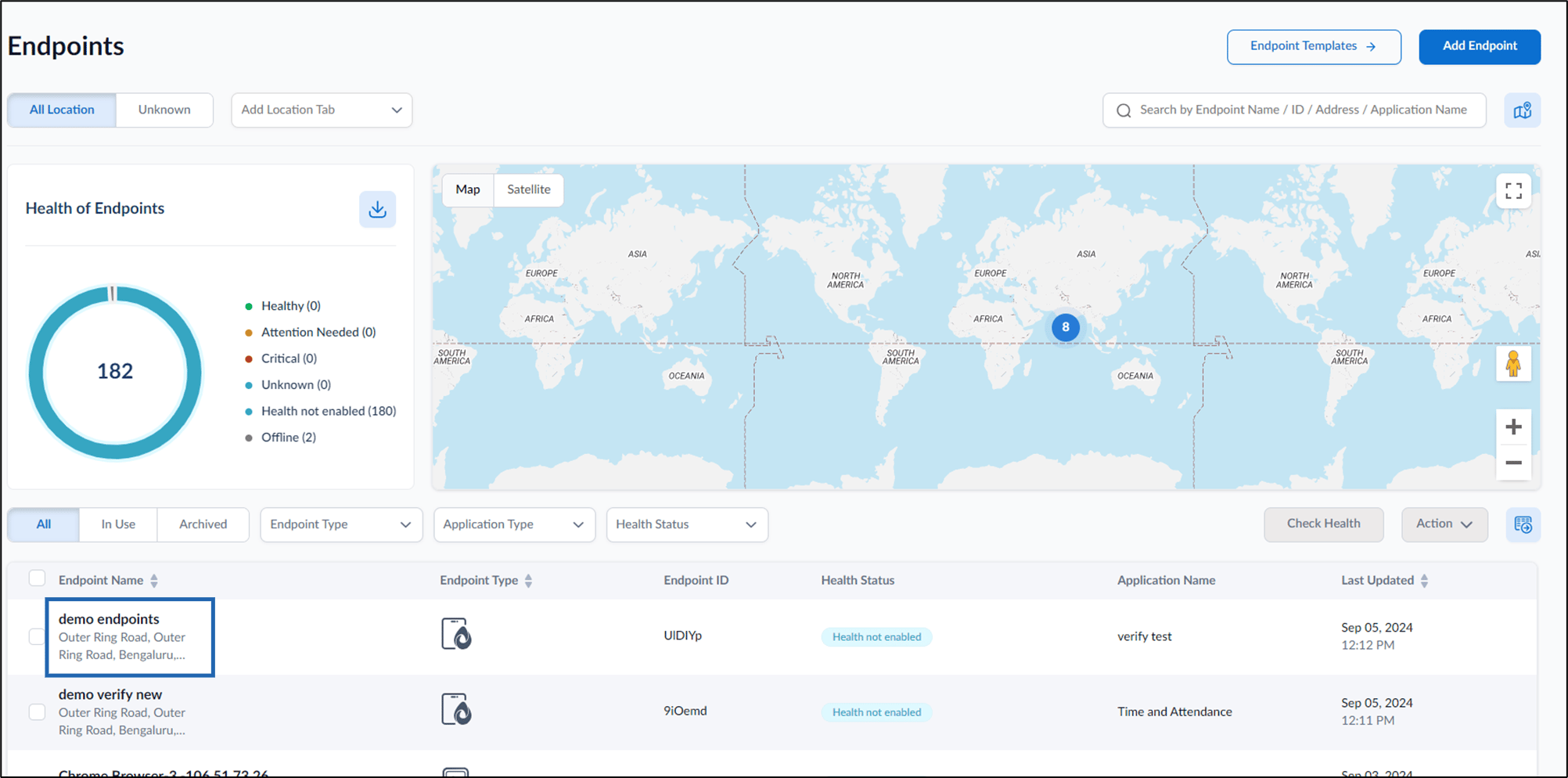
- Click Endpoint name to edit.
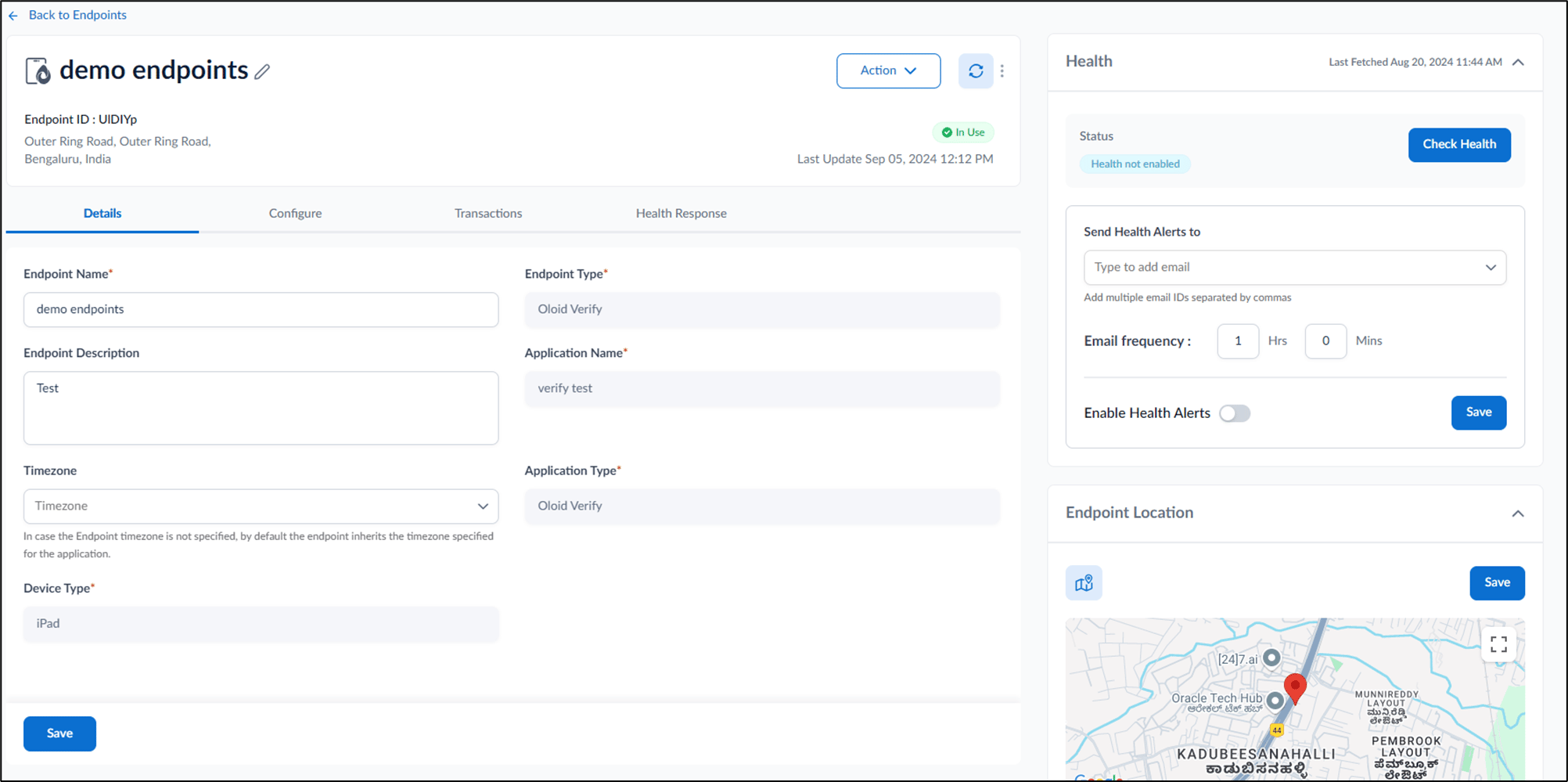
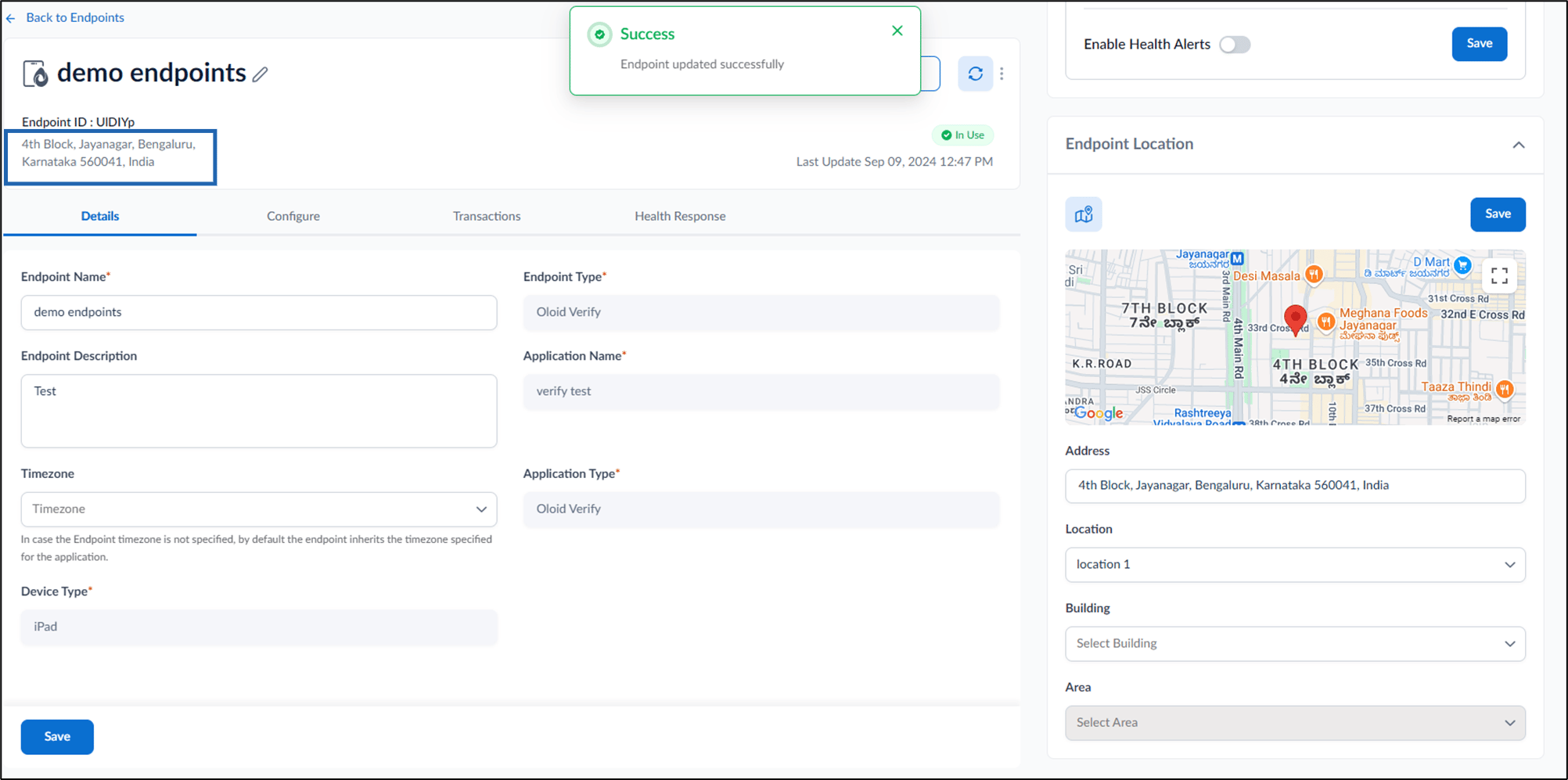
- On the bottom right corner, locate Endpoint Location.
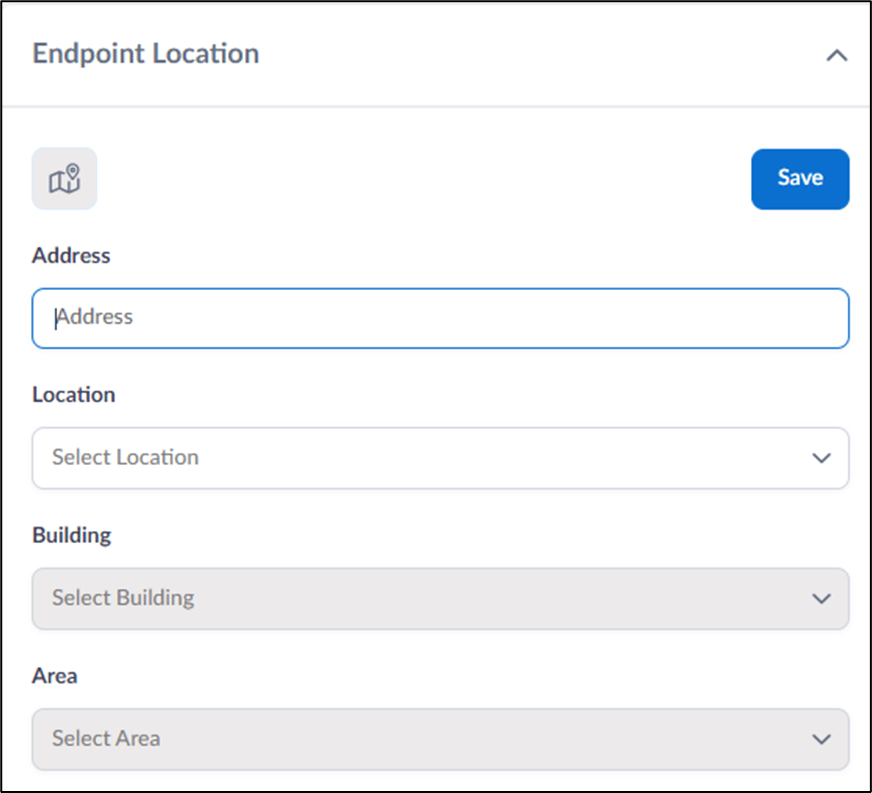
- Do the following:
-
Select an Address from the dropdown list.
Note: You can also fill in the address field on your own.
- Select Location from dropdown list.
- Select Building fromdropdown list.
- Select area from Area dropdown.
-
Click Save.
The endpoint address is successfully added to the endpoint detail page.
-
Select an Address from the dropdown list.
How to add location to the endpoint
This document provides step-by-step instructions to add location to the endpoint in the Oloid Portal.
Steps to add Location to the Endpoint:
⌘I