

Introduction
This document explains how to register and configure an application in Microsoft Entra ID and enable FIDO2 (Passkey) authentication for integration with the Tenant Admin Portal.Prerequisite
You must have Tenant Admin Access for Microsoft Entra ID.Steps to Configure Microsoft Entra ID for Advanced User Sync
Microsoft Entra ID is configured Successfully.Register an Application
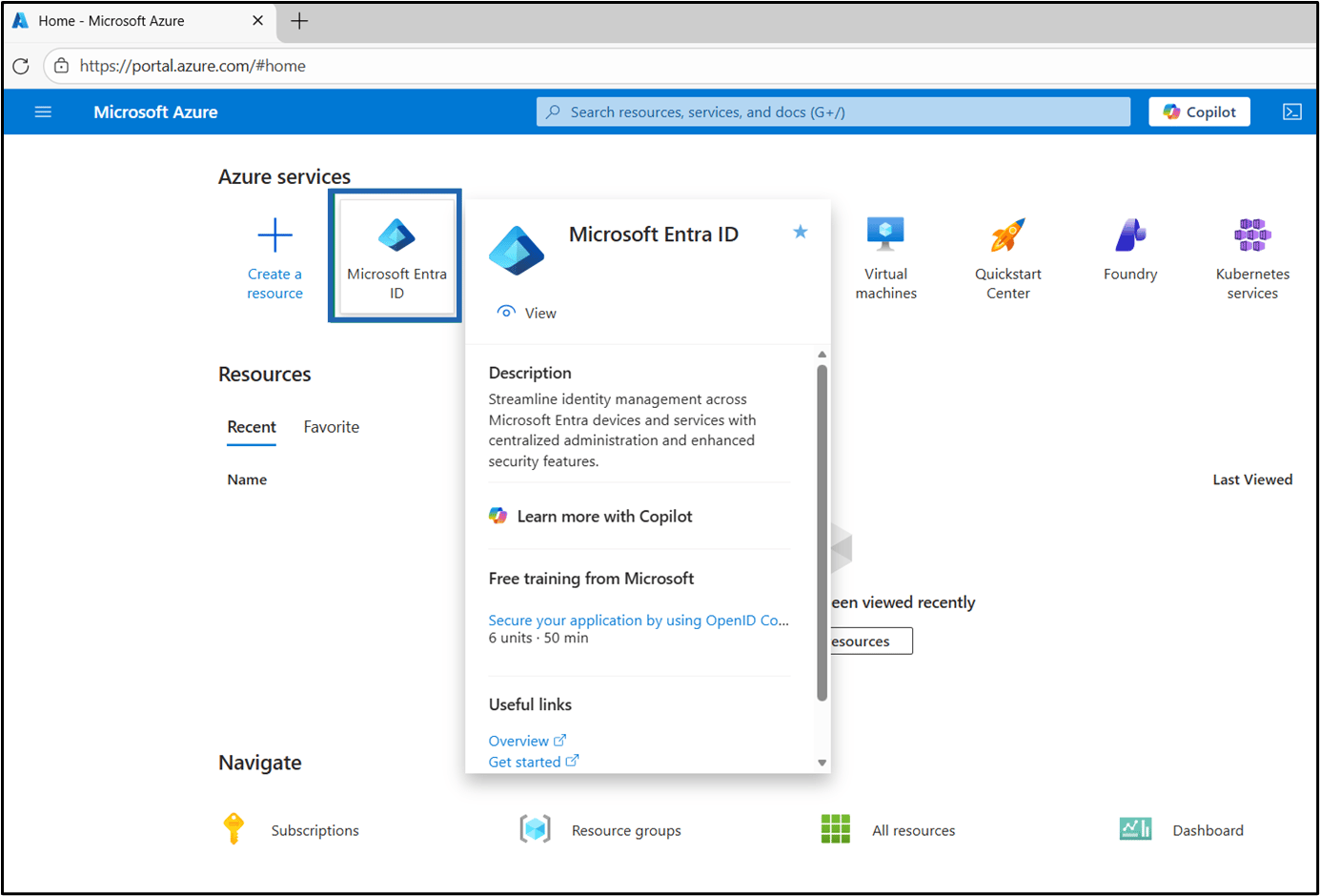
- Log in to Azure Portal and select Microsoft Entra ID on the home page.
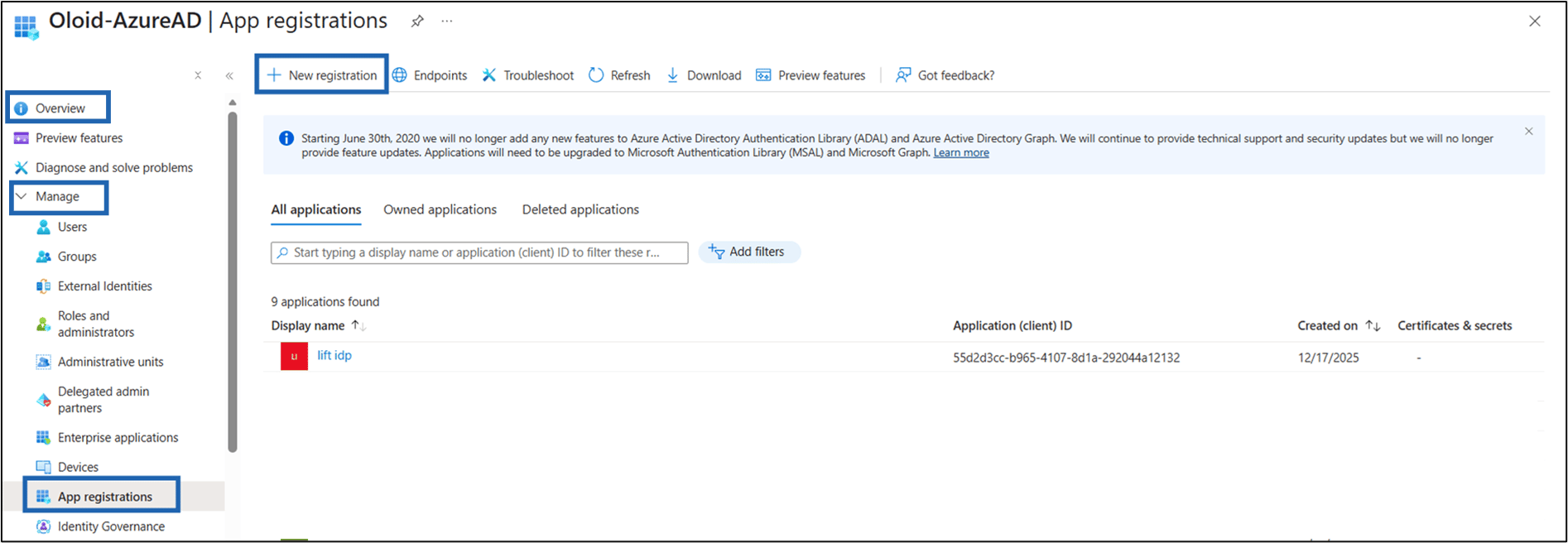
- Go to Overview > Manage > App registrations > New registration.
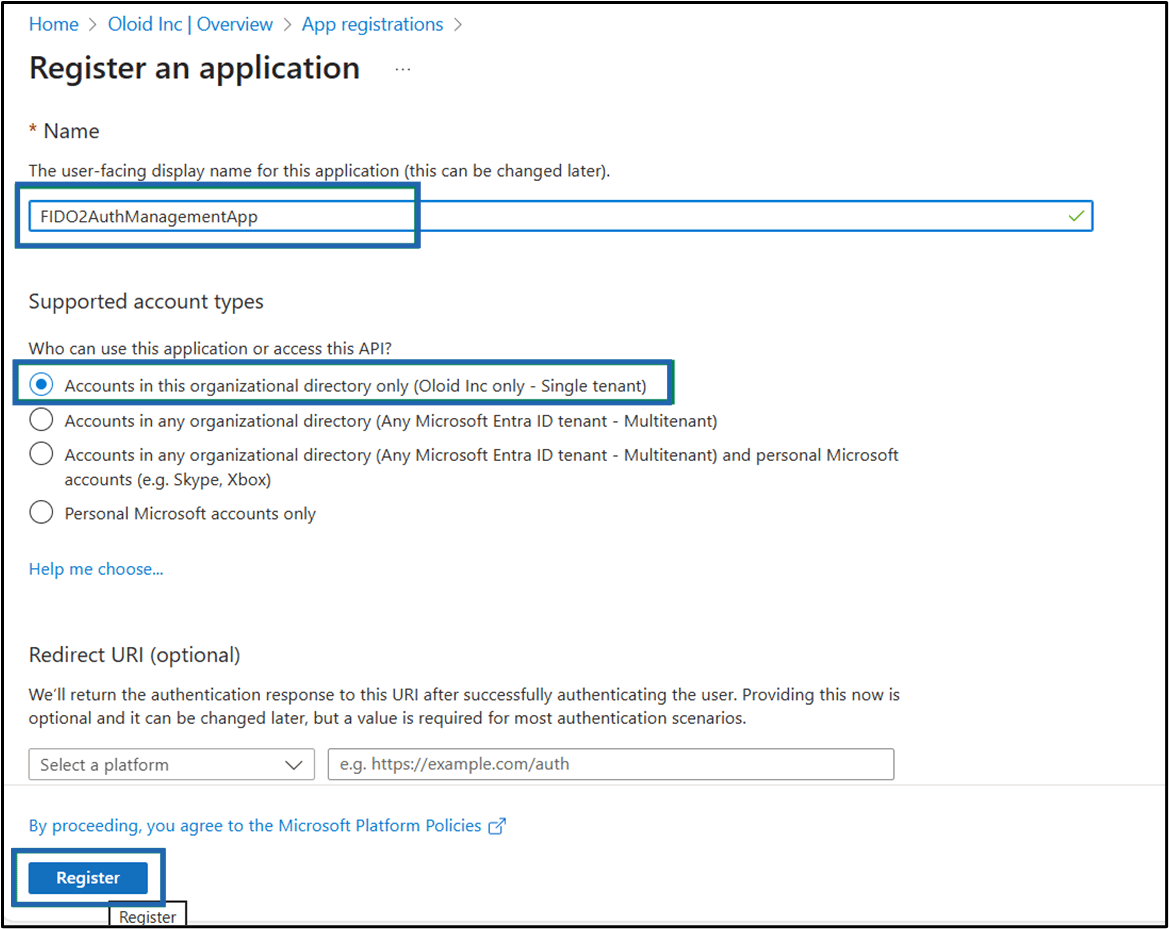
- Do the following.
- Enter Name.
-
Select Supported account types.
Note: Select Accounts in this organizational directory only.
-
Click Register.
Configure the Application
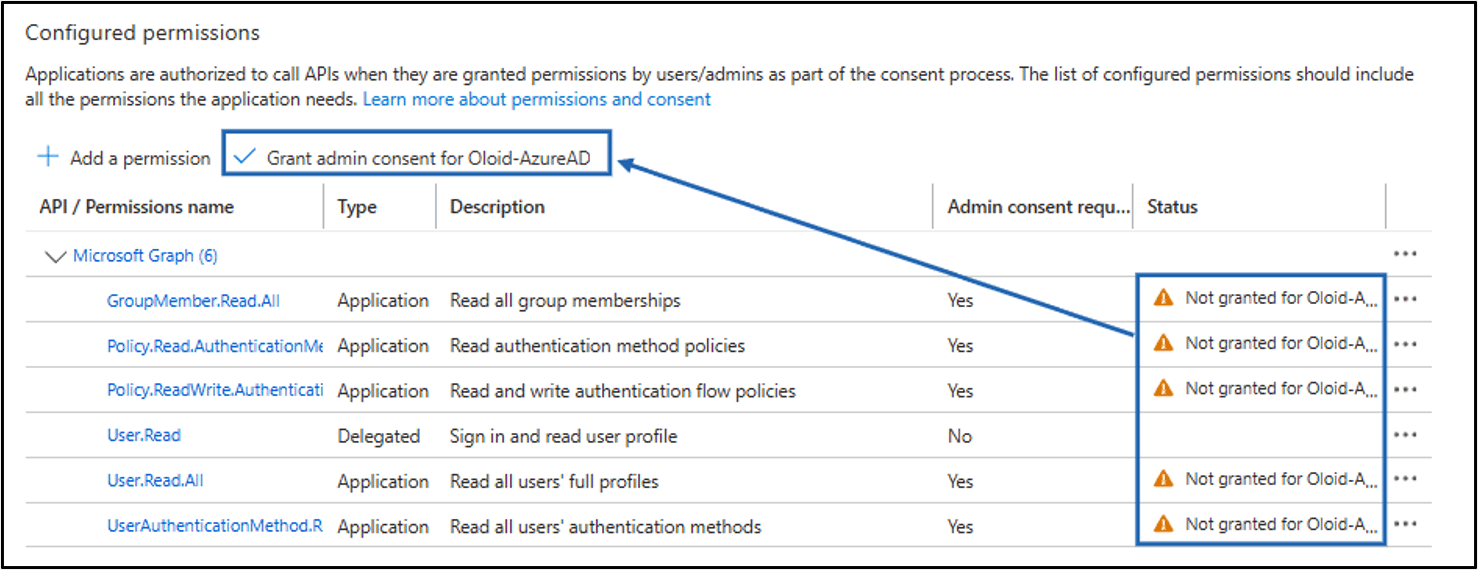
- Navigate to the newly registered app > API Permissions > Add a permission > Microsoft Graph.
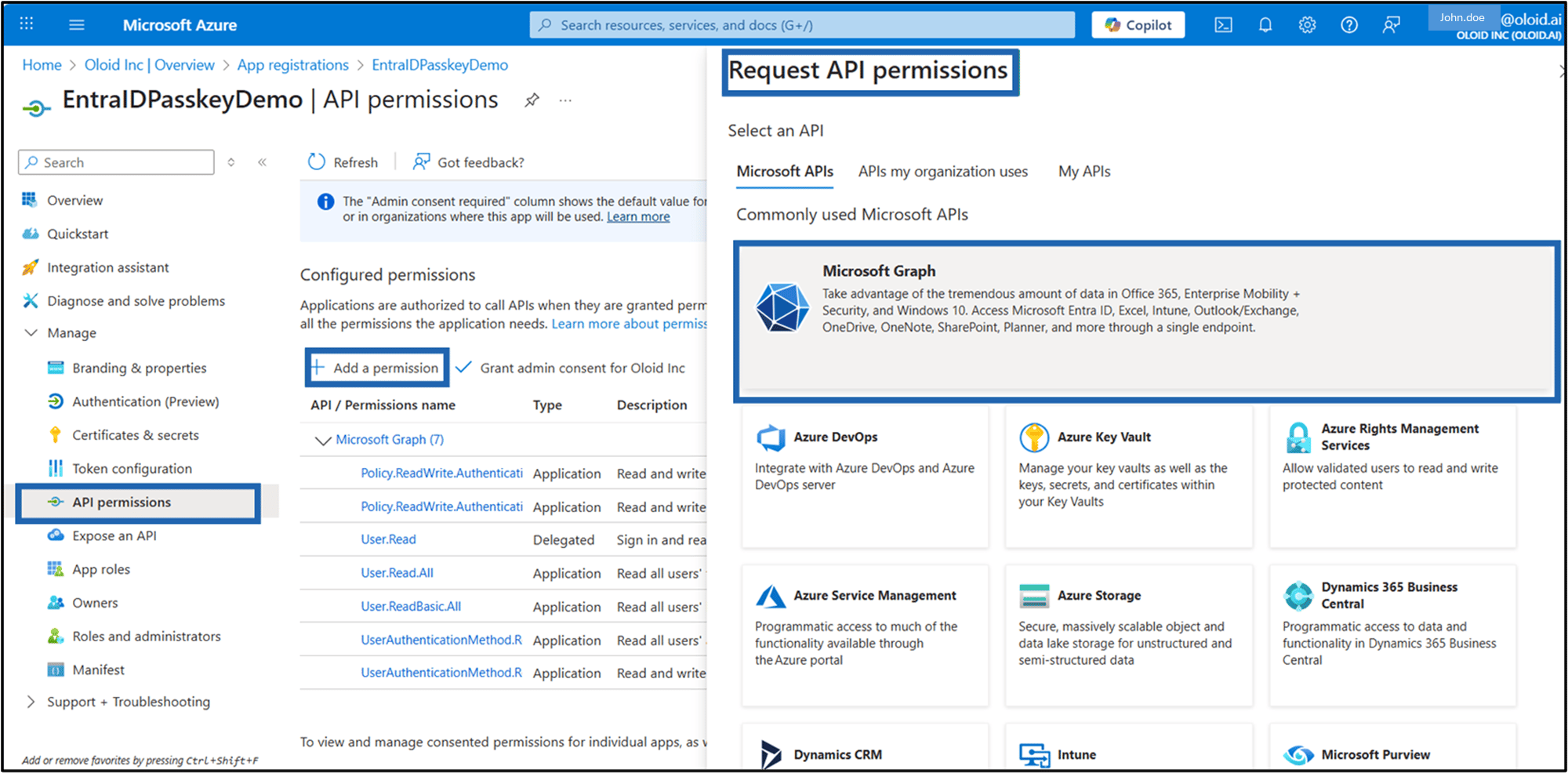
- Select Application permissions.
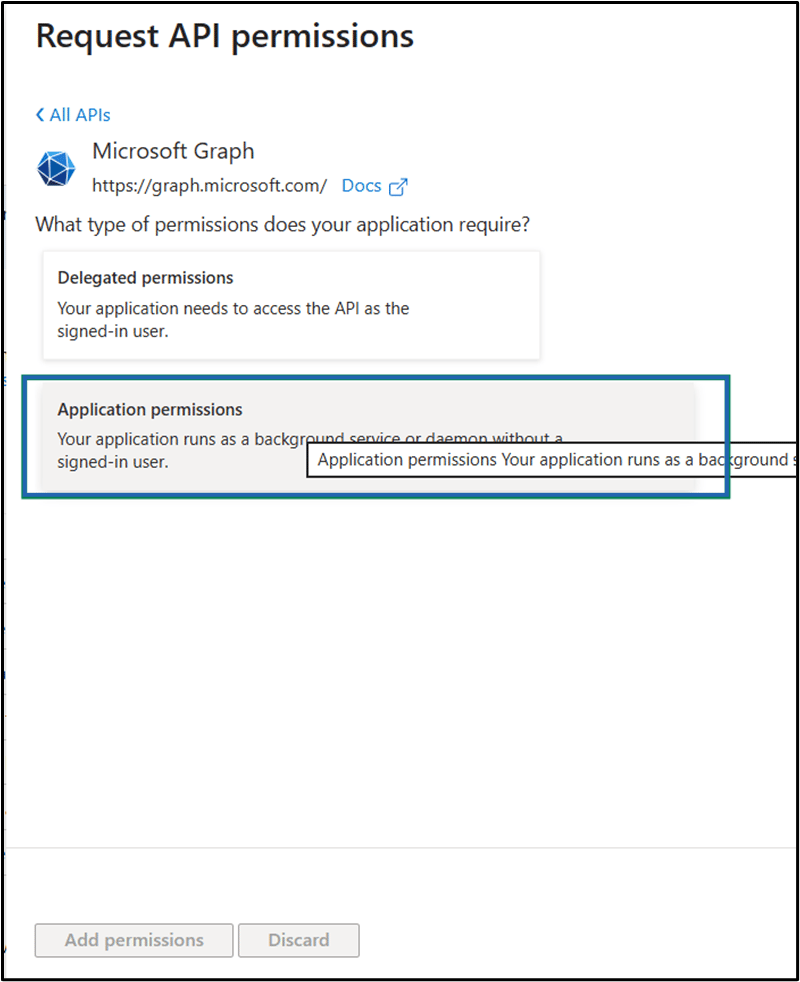
- Do the following:
- On User drop-down, select the following:
- User.Read.All
- User.Read Basic.All (Optional).
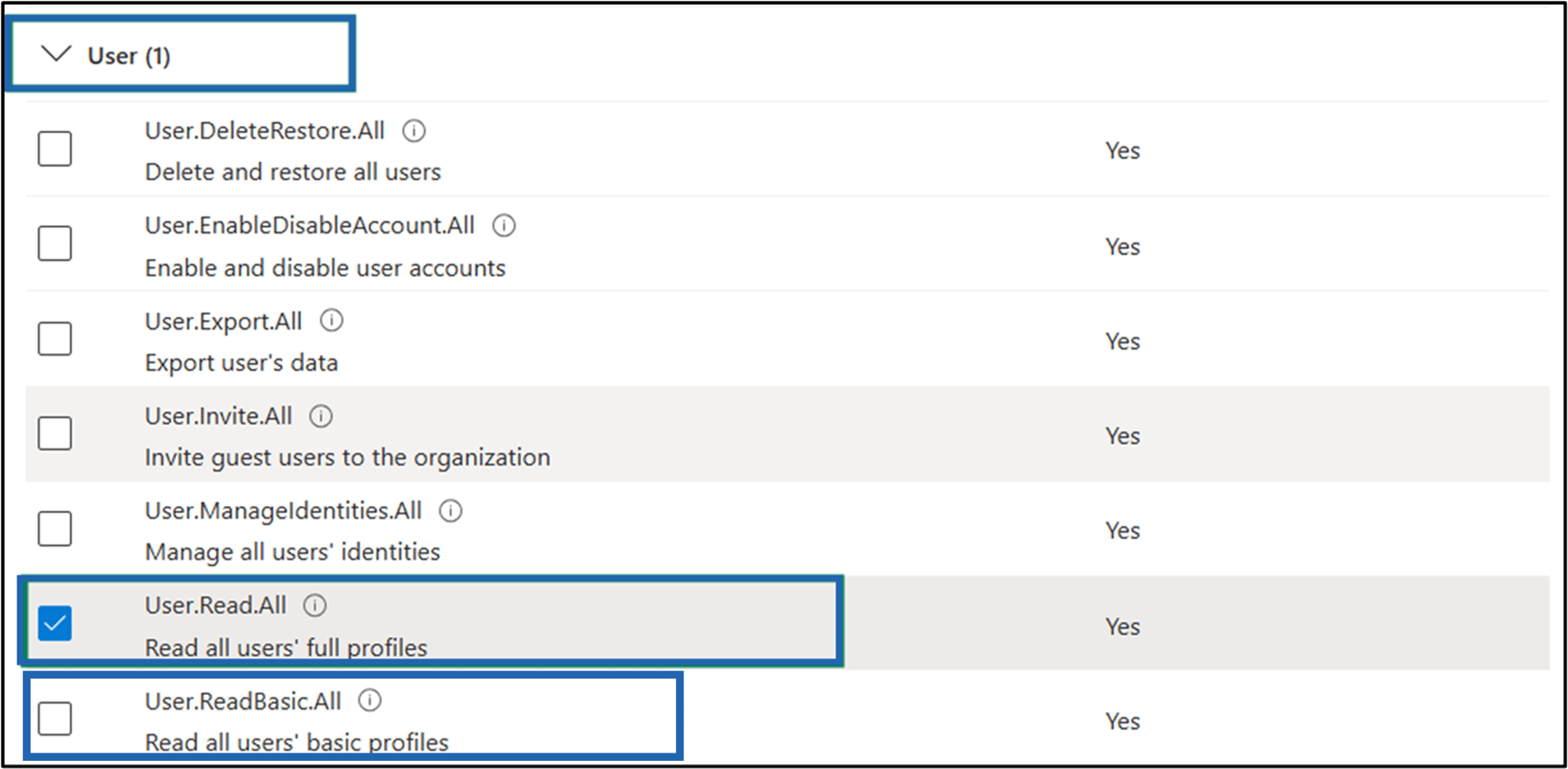
- On GroupMember drop-down, select the GroupMember.Read.All

- On UserAuthenticationMethod drop-down, select the UsersAuthenticationMethod.ReadWrite.All
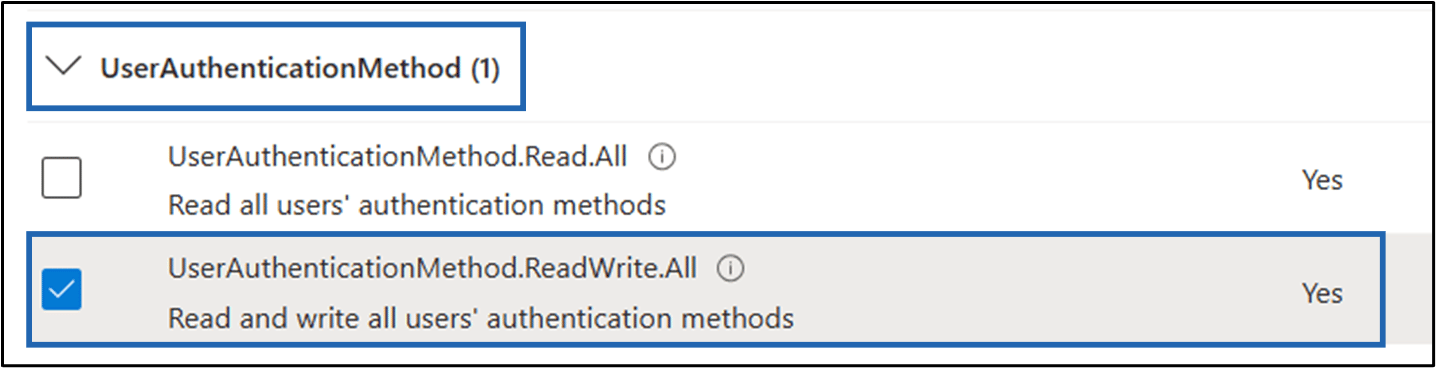
- On Policy drop-down, select the following:
- Policy.Read.AuthenticationMethod.
- Policy.ReadWrite.AuthenticationFlows.
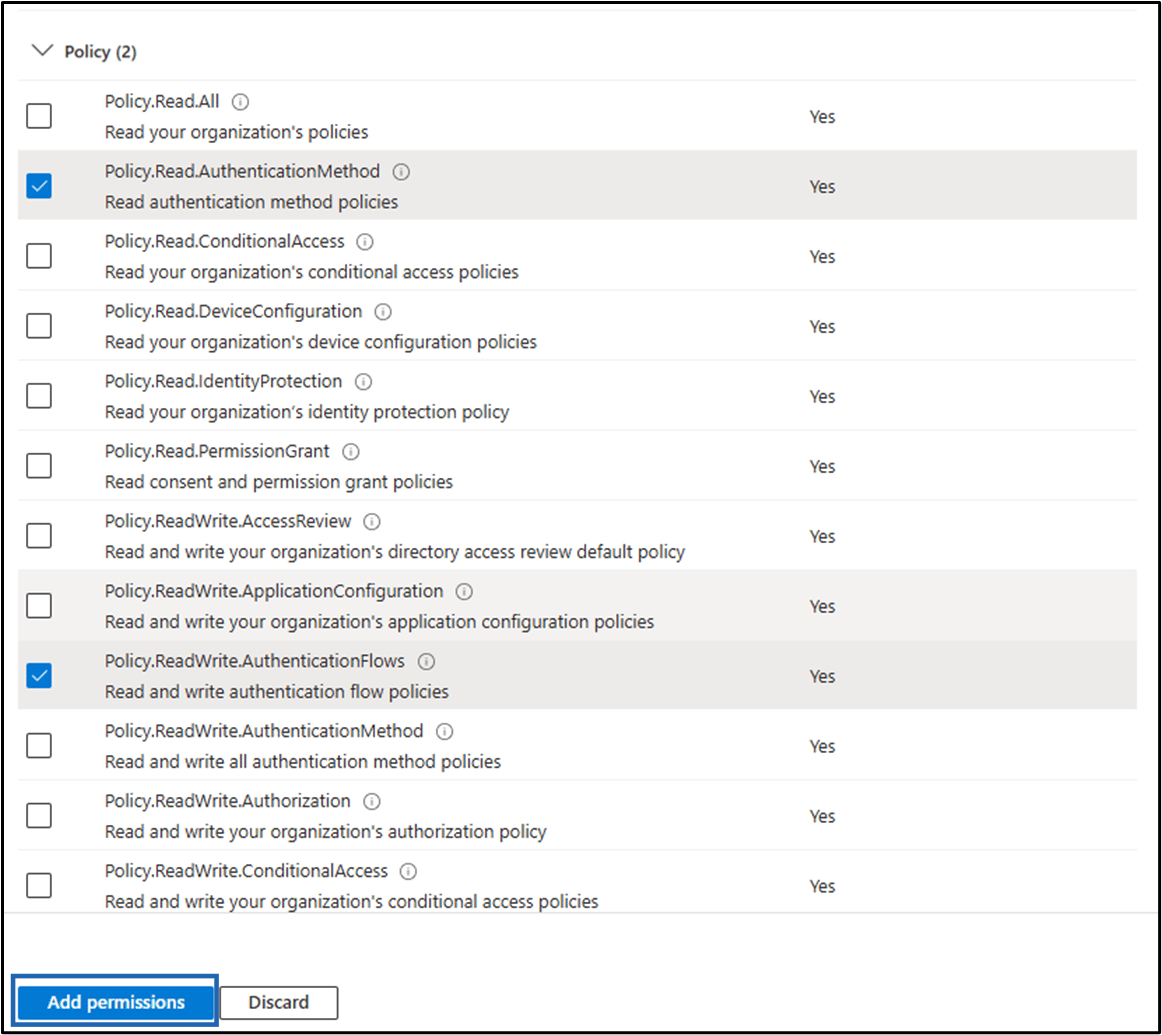
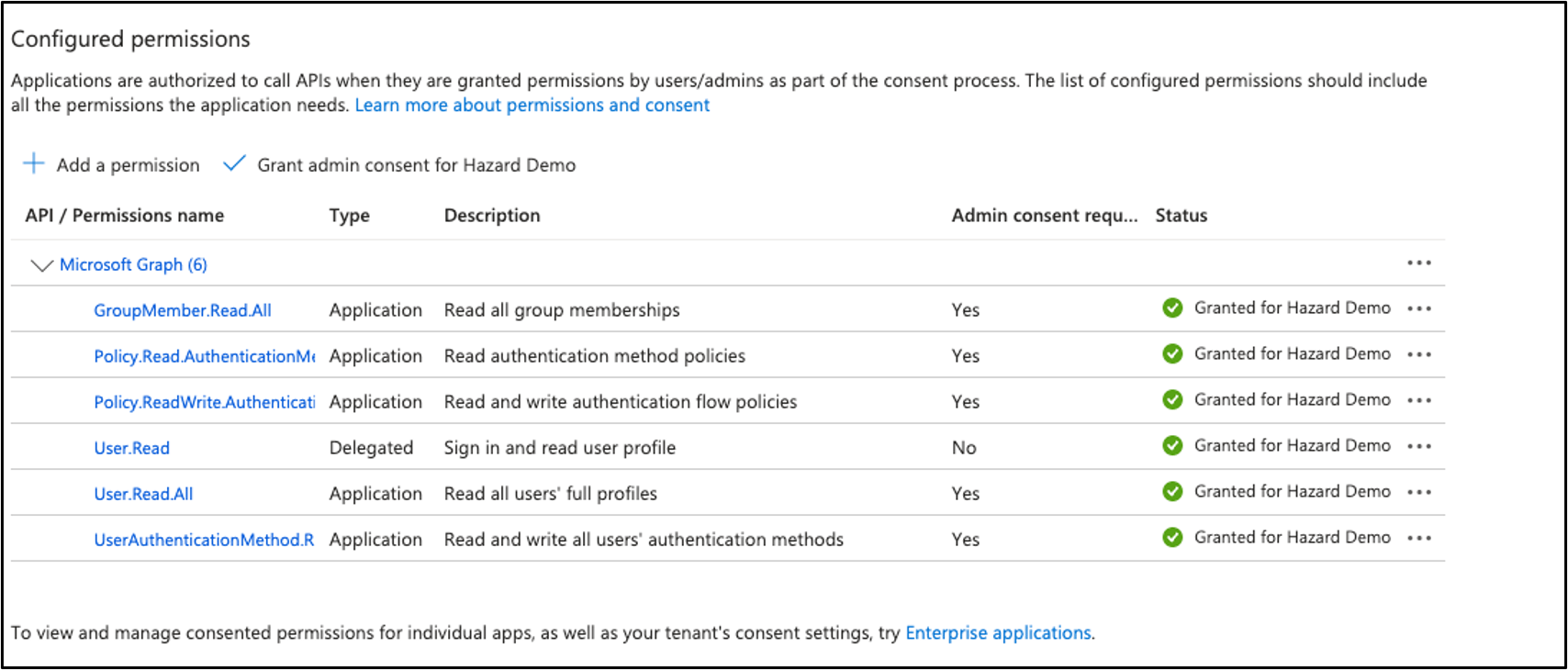
- Click Add Permissions. The Permissions are listed on the API.
- Click Grant admin consent for Oloid inc.
- On User drop-down, select the following:
Create Client Secret
- Go to Certificates & secrets > Client Secrets > + New client secret.
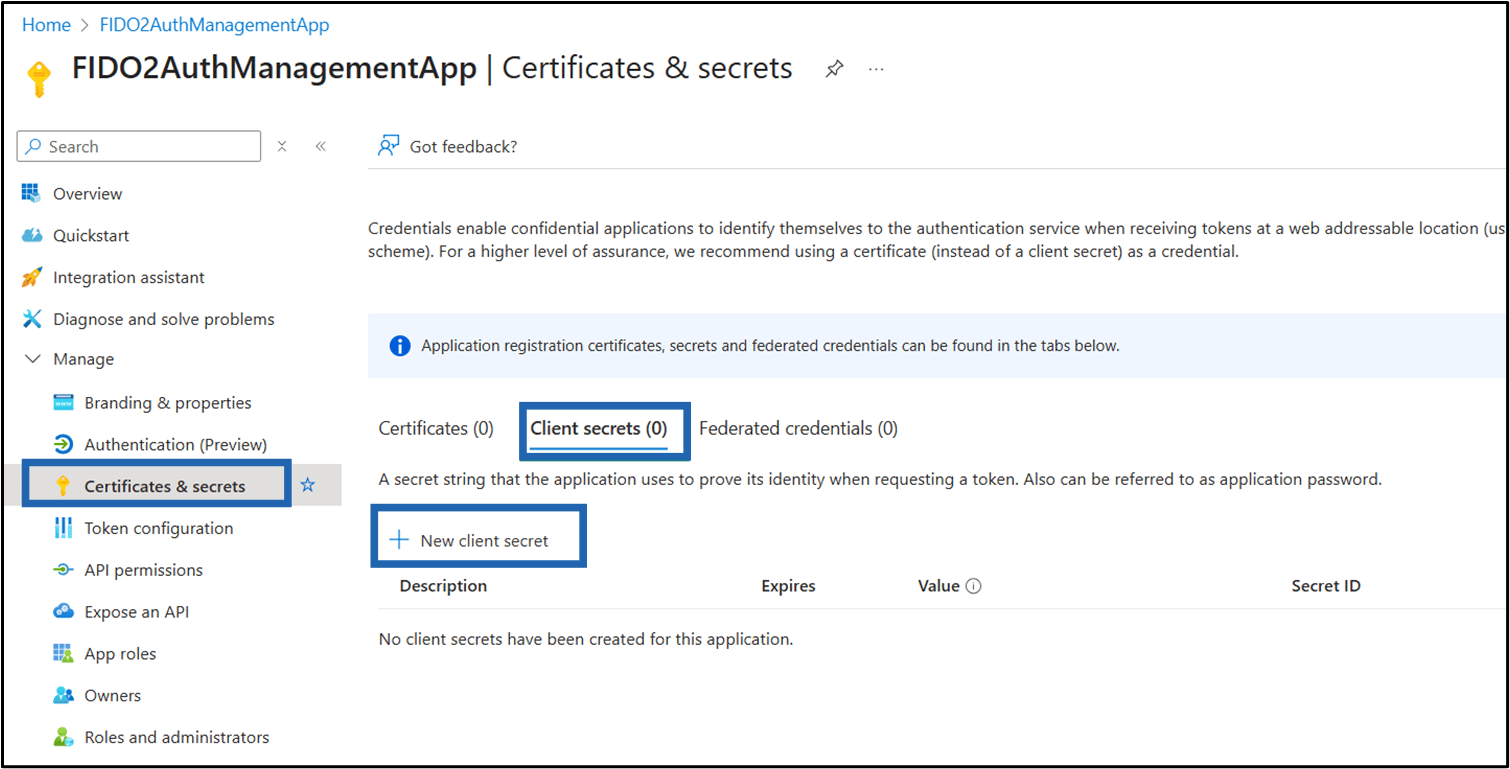
- Do the following:
- Enter Description.
-
Select the Expires duration from the drop-down list.
Note: Select 365 days (12 months).
-
Click Add.
 Note: Click on the Copy to Clipboard icon next to the value field to copy the secret. This option is available only at the time of creation.
- Go to Overview and copy the values of Client ID and Directory (Tenant) ID.

Enable FIDO2 Authentication in Azure Portal
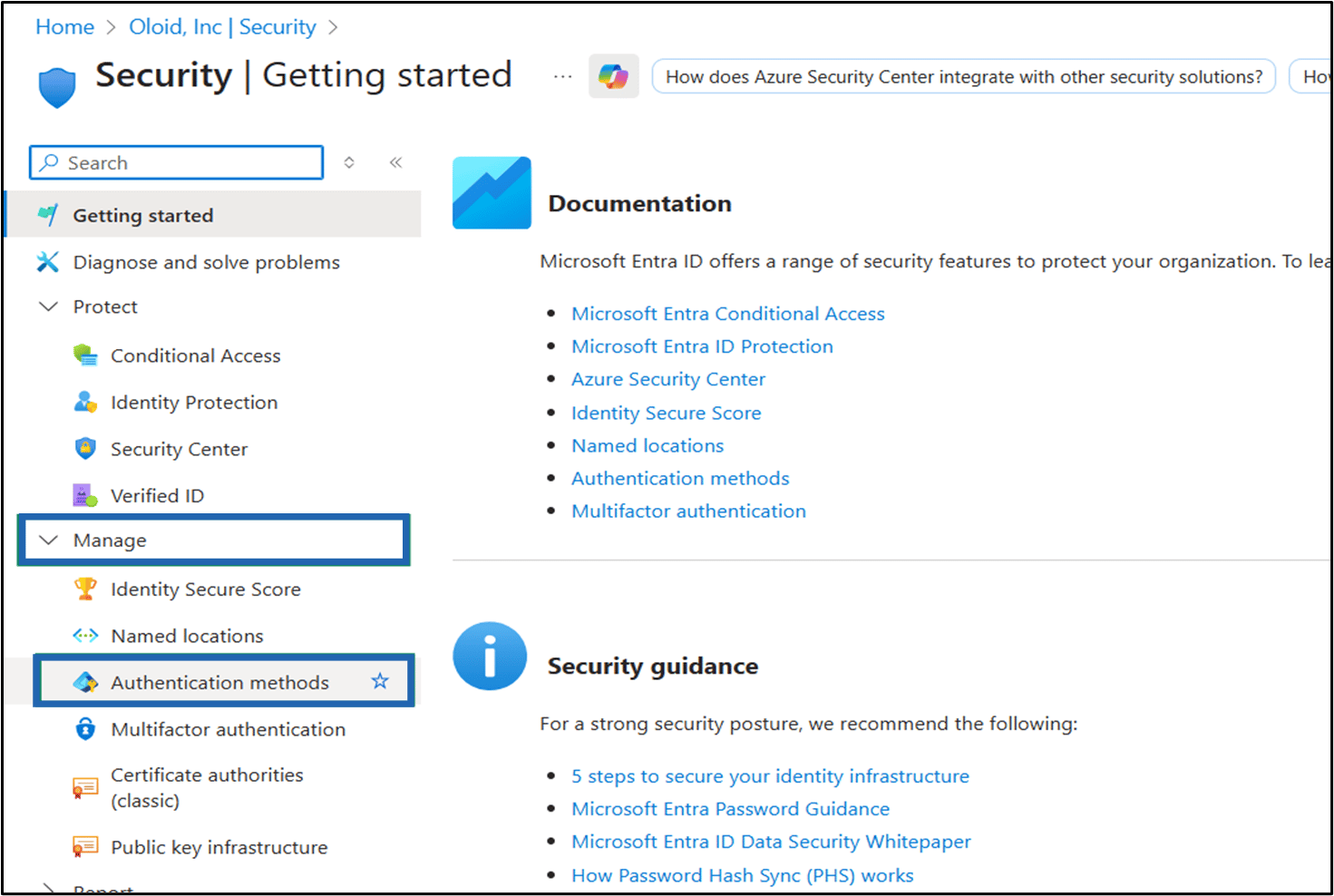
- Go to Tenant Overview > Manage > Security in the vertical navigation menu.

- Go to Security > Manage > Authentication Methods.
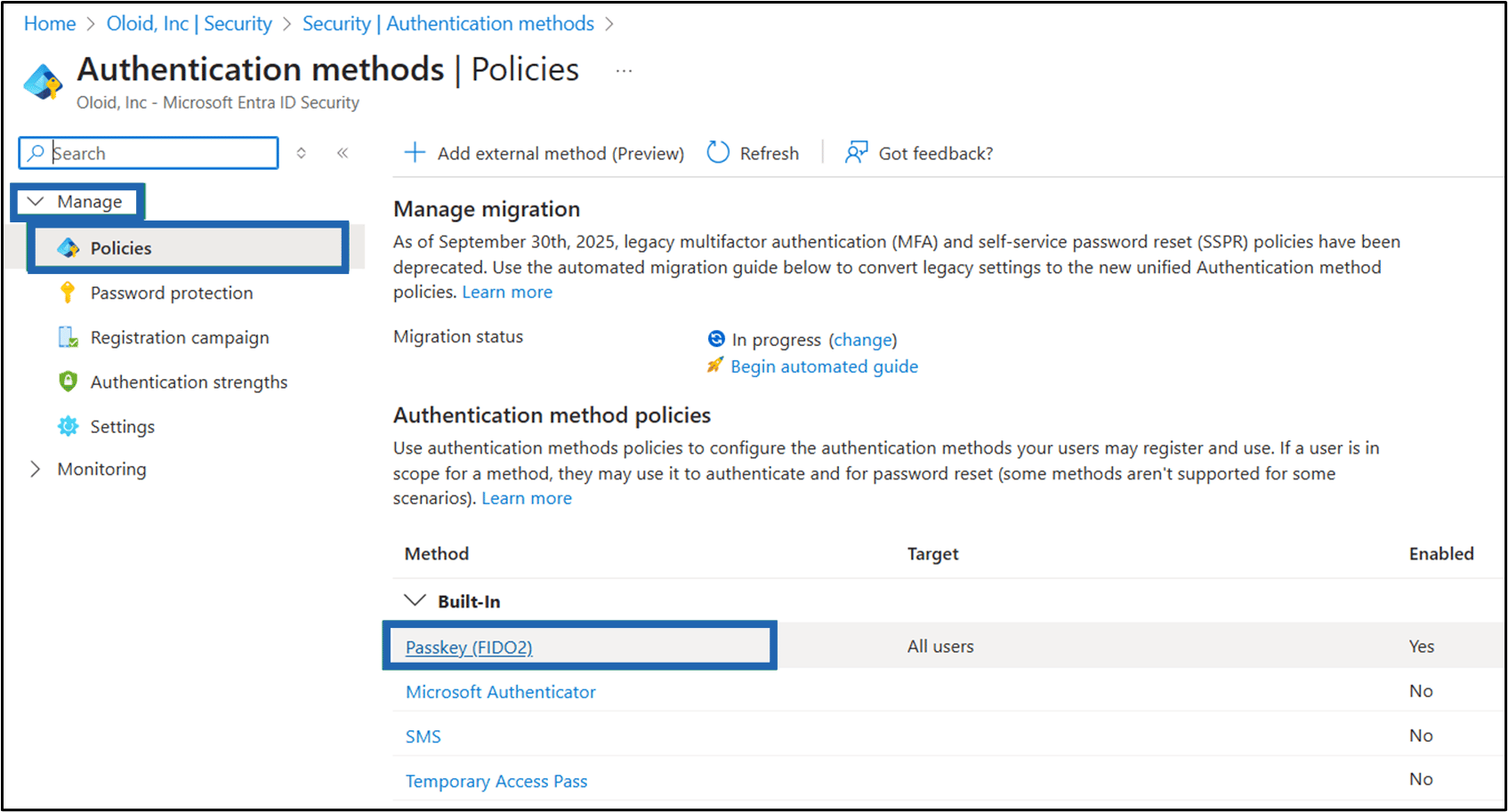
- Go to Manage > Policies, select Passkey (FIDO2) in Authentication method policies table.
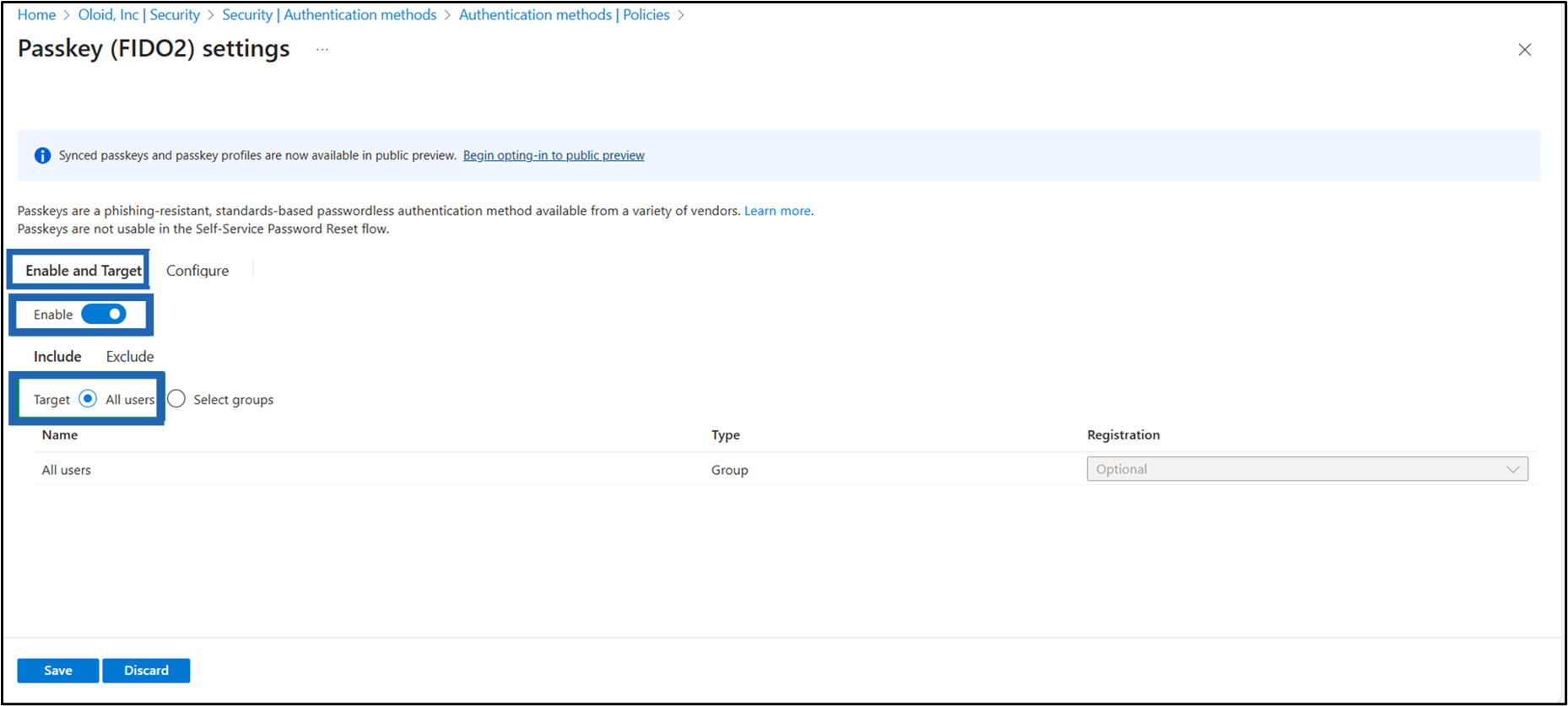
- Click Enable and Target tab and do the following:
- Enable the toggle.
-
Select All User as Target.
Note: If you want all users to use FIDO2 authentication.
-
Click Save.
- Click Configure tab and do the following:
- Select Allow Self-Service set up Yes.
- Select Enforce Attestation No.
- Select Enforce key restrictions No.
- Select Restrict specific key Allow.
- Click Save.
