

Introduction
This document provides instructions to generate and assign QR Code credentials to users in a selected Connection in the Tenant Admin Portal.Prerequisites
- You must have Tenant Admin Access.
- Connection must be created. For more, refer toTenant Admin Portal - How to Create Connection
Steps to Generate QR Code for a Connection
- Log in to the Tenant Admin Portal.
- On the home page of the portal, click Directory on the left menu panel.

- Go to Action > Generate QR Code Credential.
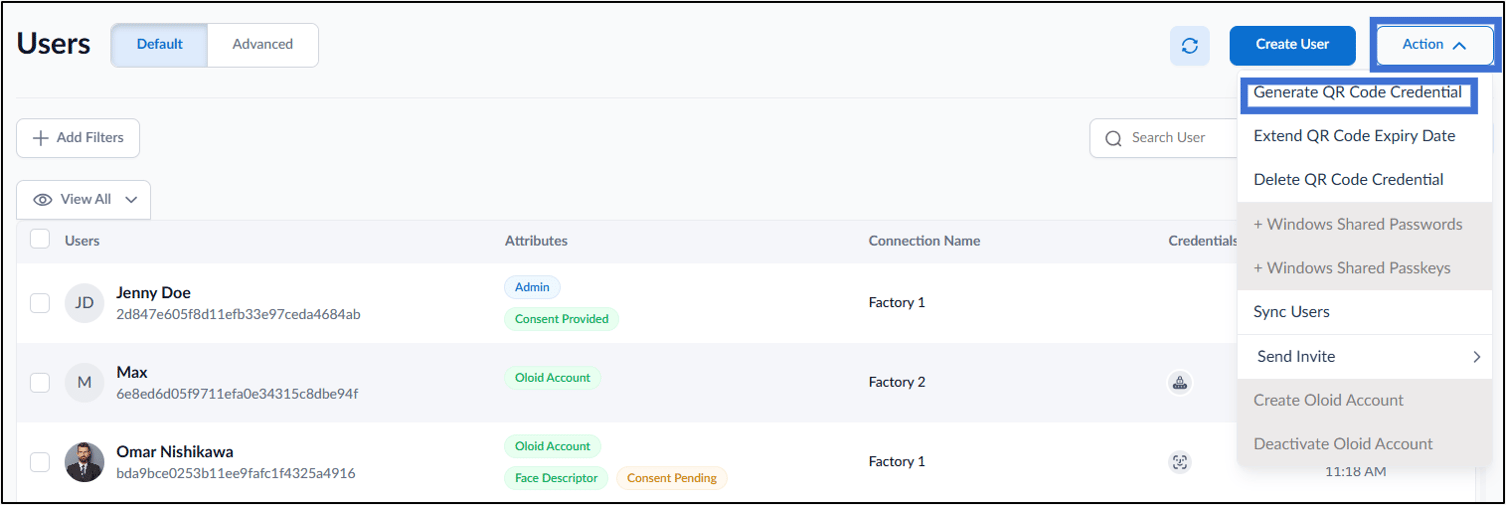
- On the pop-up box, do the following:
- Select the connection from the Connection dropdown list.
- Under QR Code Validity field adjust the date and time from the calendar icon.
- Under Share Summary With field, enter the email ID(s) with whom you want to share the QR Code summary. (optional)
- Enable Send QR Code to get the generated QR codes with summary. (optional)
- Click Assign.

