

Introduction
An Endpoint Login Log provides details of all the logins made with the endpoints that are associated with the application.Pre-Requisite
You must have a Tenant Admin or Supervisor to create and download reports.Steps to create & download Endpoint Login Log
- Log in to the Oloid Portal.
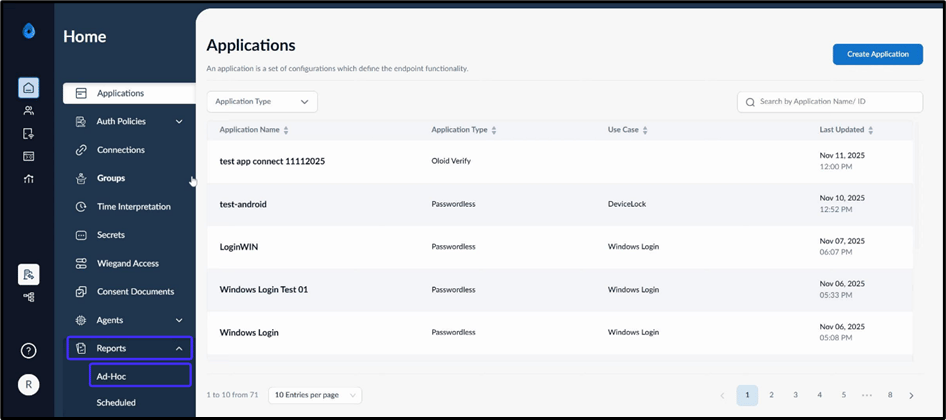
- On the homepage, click Reports > Ad-Hoc on the left menu panel.
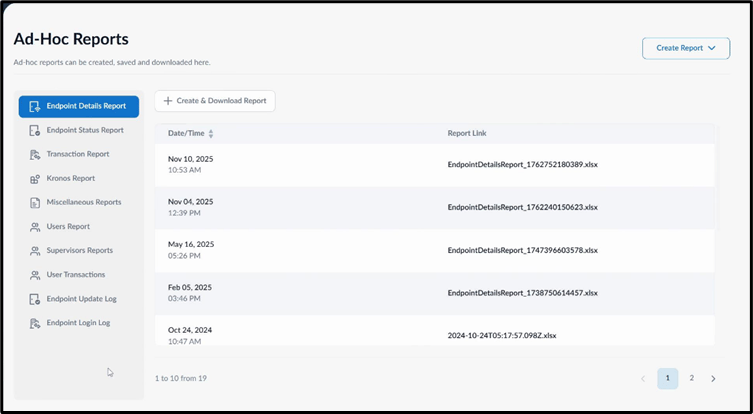
- Use one of the following methods to download the report:
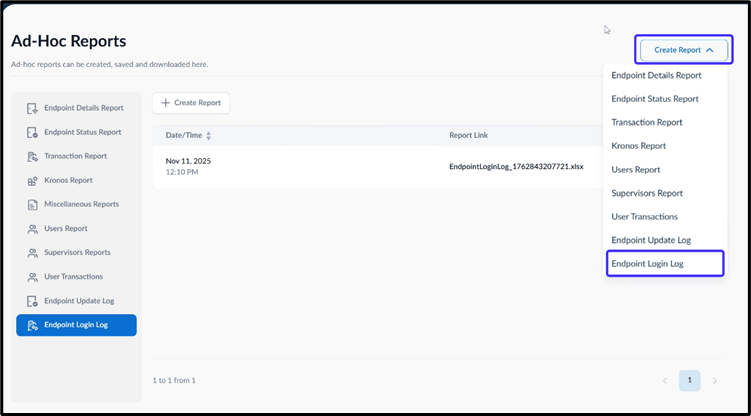
- On the top right, click Create Report > Endpoint Login Log
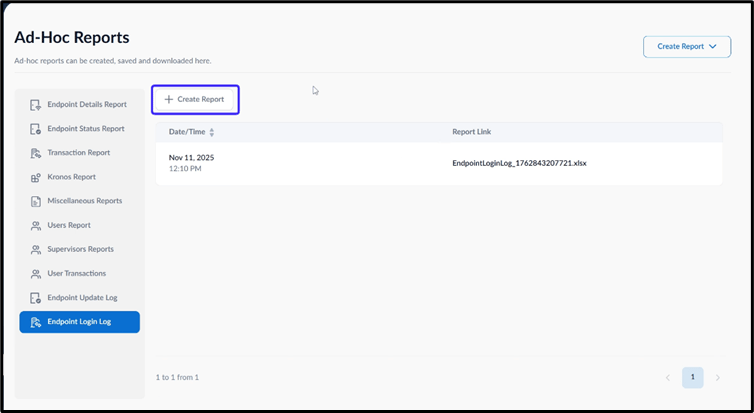
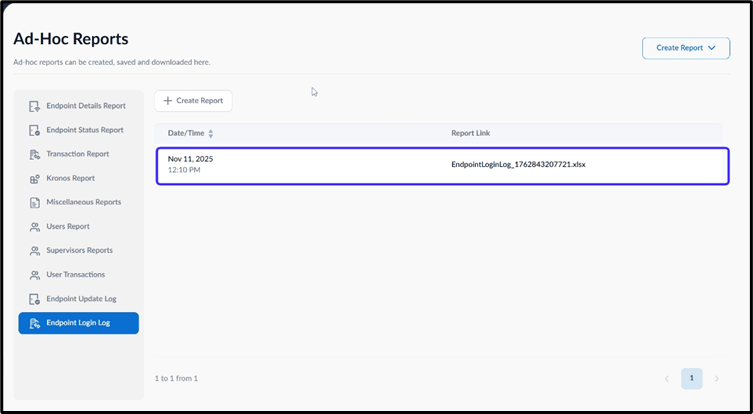
- Select Endpoint Login Log from the left menu panel and then click Create Report.
- On the top right, click Create Report > Endpoint Login Log
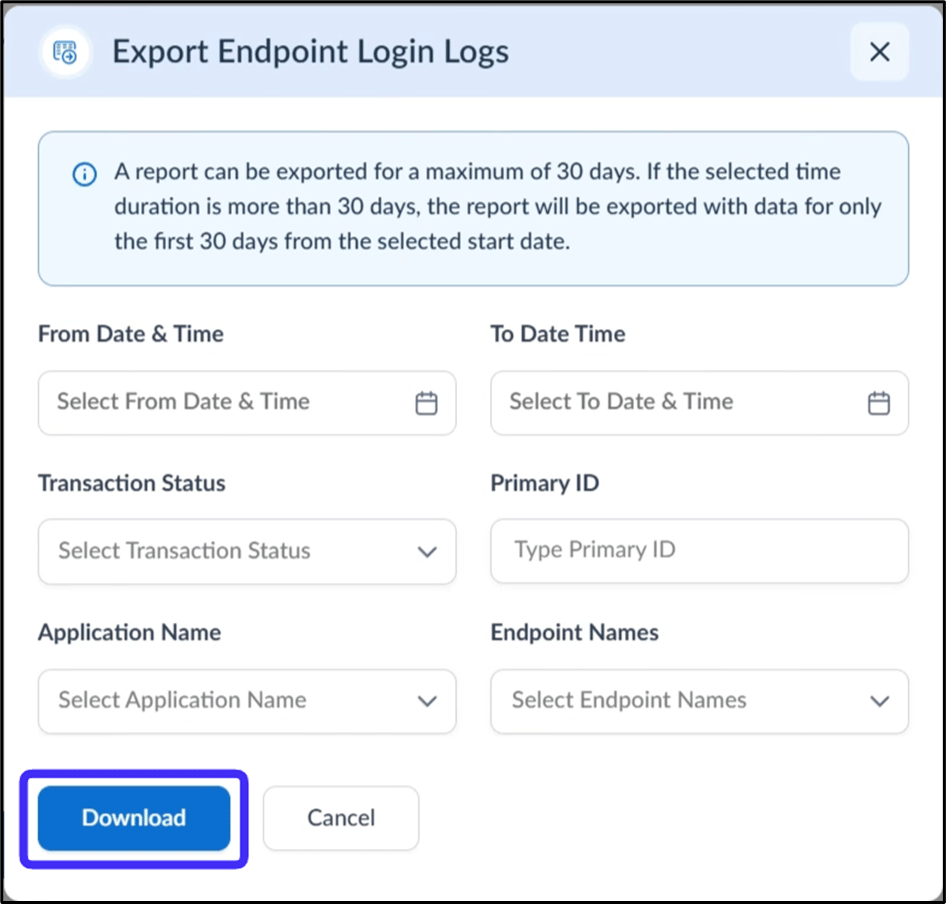
- On the pop-up box, do the following: a. Select the date and time from the calendar for From Date & Time (Mandatory) and To Date Time. (optional) b. Enter Primary ID.(optional) c. Select Transaction Status from Transaction Status drop-down list (optional) d. Select Application name(s) from Application Names drop-down list.(optional) e. Select Endpoint name(s) from Endpoint Names drop-down list.(optional) f. Click Download
Note:
- Ensure you have sufficient permissions as a Tenant Admin before attempting to create the report.
- The downloaded file format for reports is XLSX.
- A report can be exported for a maximum of 30 days. If the selected time duration is more than 30 days, the report will be exported with data for only the first 30 days from the selected start date.
- If optional fields are not selected, all the endpoint login details in the system are downloaded to the file.