

Introduction
The User Report under Insights > Reports allows to narrow down user data based on specific criteria and download targeted reports.Prerequisite
- You must have Tenant Admin account.
How to view and download All Users Report
- Log in to the Tenant Admin Portal.
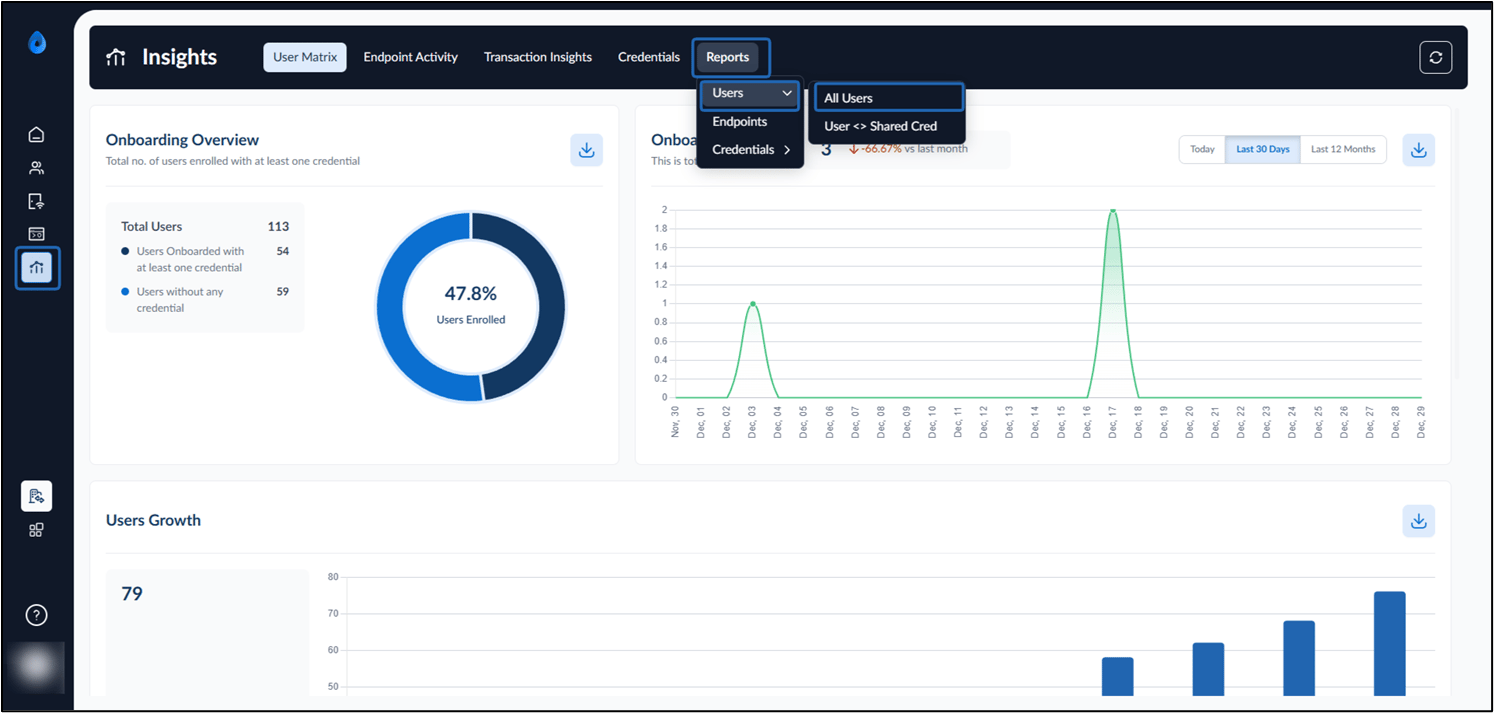
- From the left navigation menu click Insights icon.
- Select the Reports tab > Users > All Users.
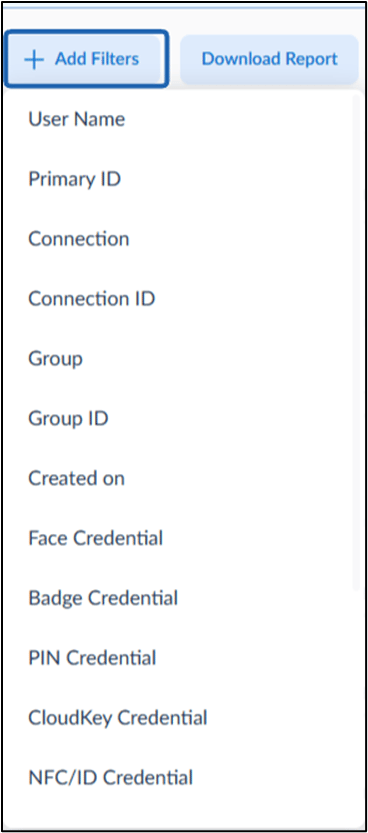
- Click Add Filters to narrow down the report based on specific criteria.
- Select filter from dropdown.
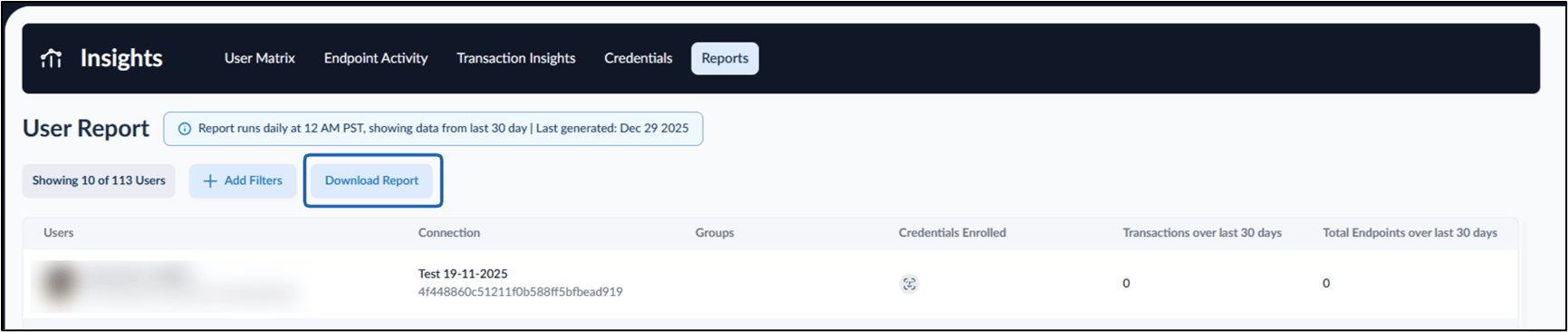
- Click Download Report.
- Enter the Report name and select the required table columns.
- Click Download. The Report is successfully downloaded.
Note: Report Generation Details
- The report runs daily at 12:00 AM PST.
- It displays data from the last 30 days.
- The Last generated date and time is shown at the top of the page.
- Use the pagination controls at the bottom of the page to navigate through multiple pages of users.