

Overview
You can provision users from Okta to Oloid to reduce manually adding each employee to Oloid. The provisioning process reduces administrative errors and is a great way to save time and efforts. With Okta to Oloid provisioning features, you can automate these tasks- Push new users – Any users you create into Okta can be provisioned / created into Oloid.
- Push profile updates – Profile updates done in Okta are pushed to Oloid.
- Push user deactivation – Deactivating or removing a user in Okta terminates the user in Oloid.
How to configure SCIM provisioning from Okta to Oloid
Prerequisite
You must have permission to create application in Okta Console.Steps to Configure SCIM in OKTA
- Log in to Okta Tenant Administration console.
-
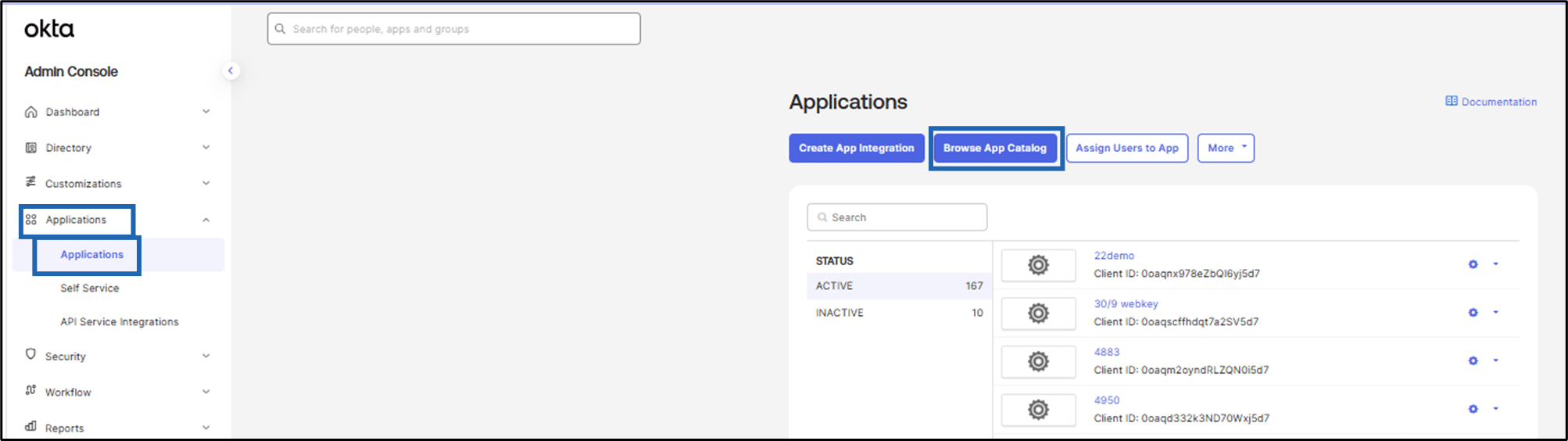
Go to Applications > Applications and click Browse App Catalog.
-
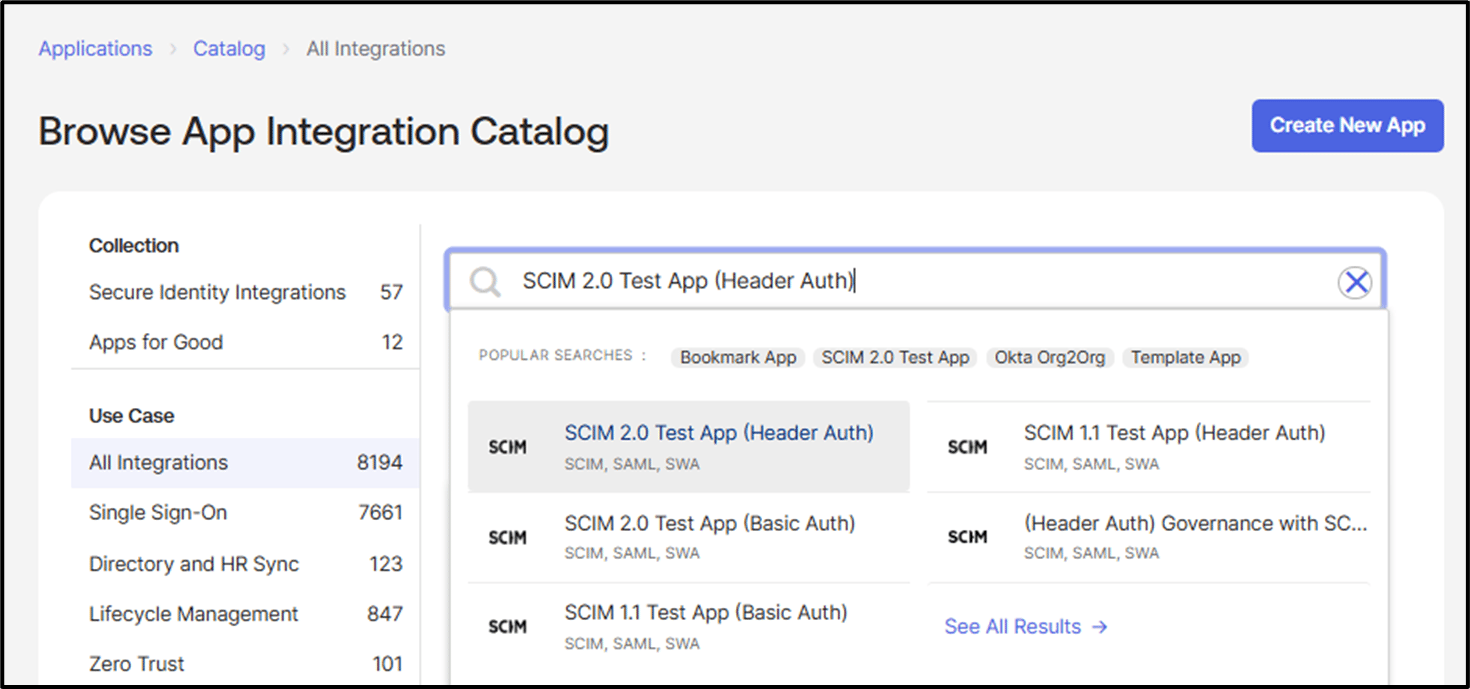
Search SCIM 2.0 Test App (Header Auth).
-
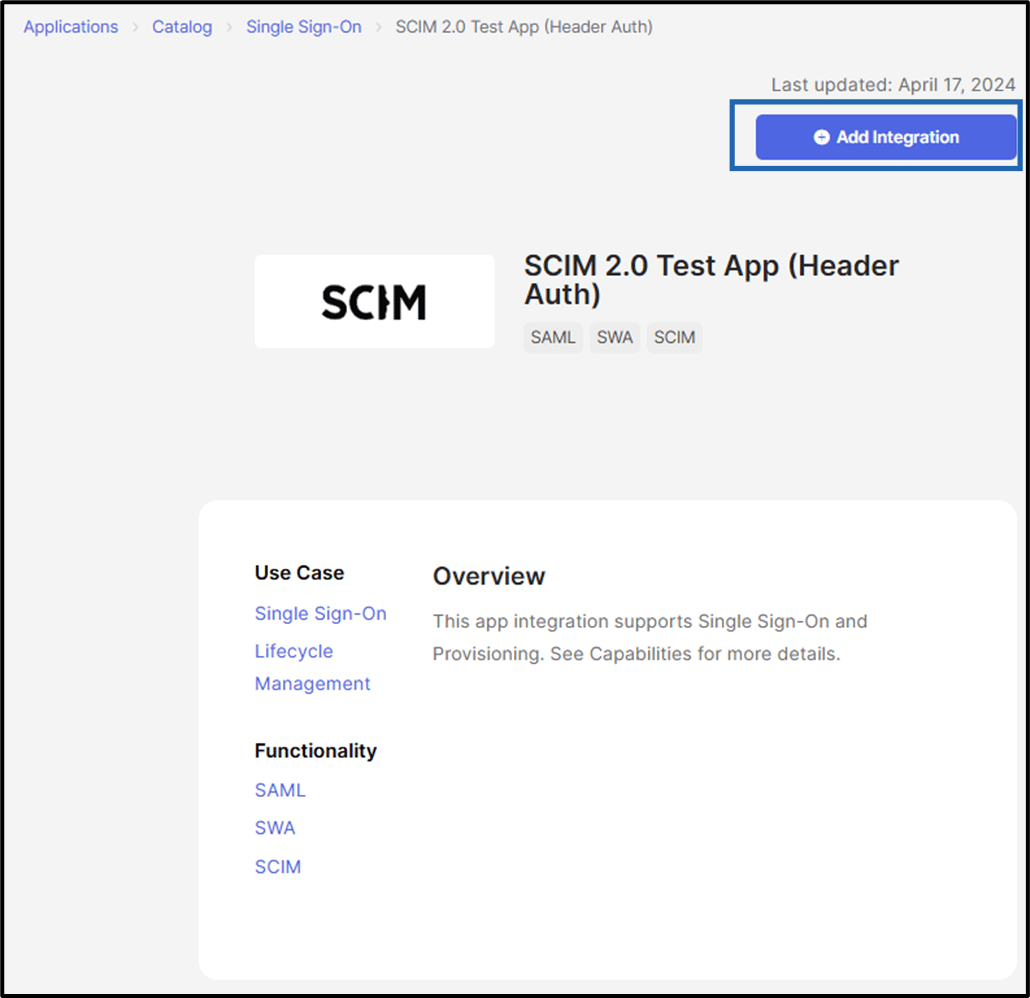
Click Add Integration.
-
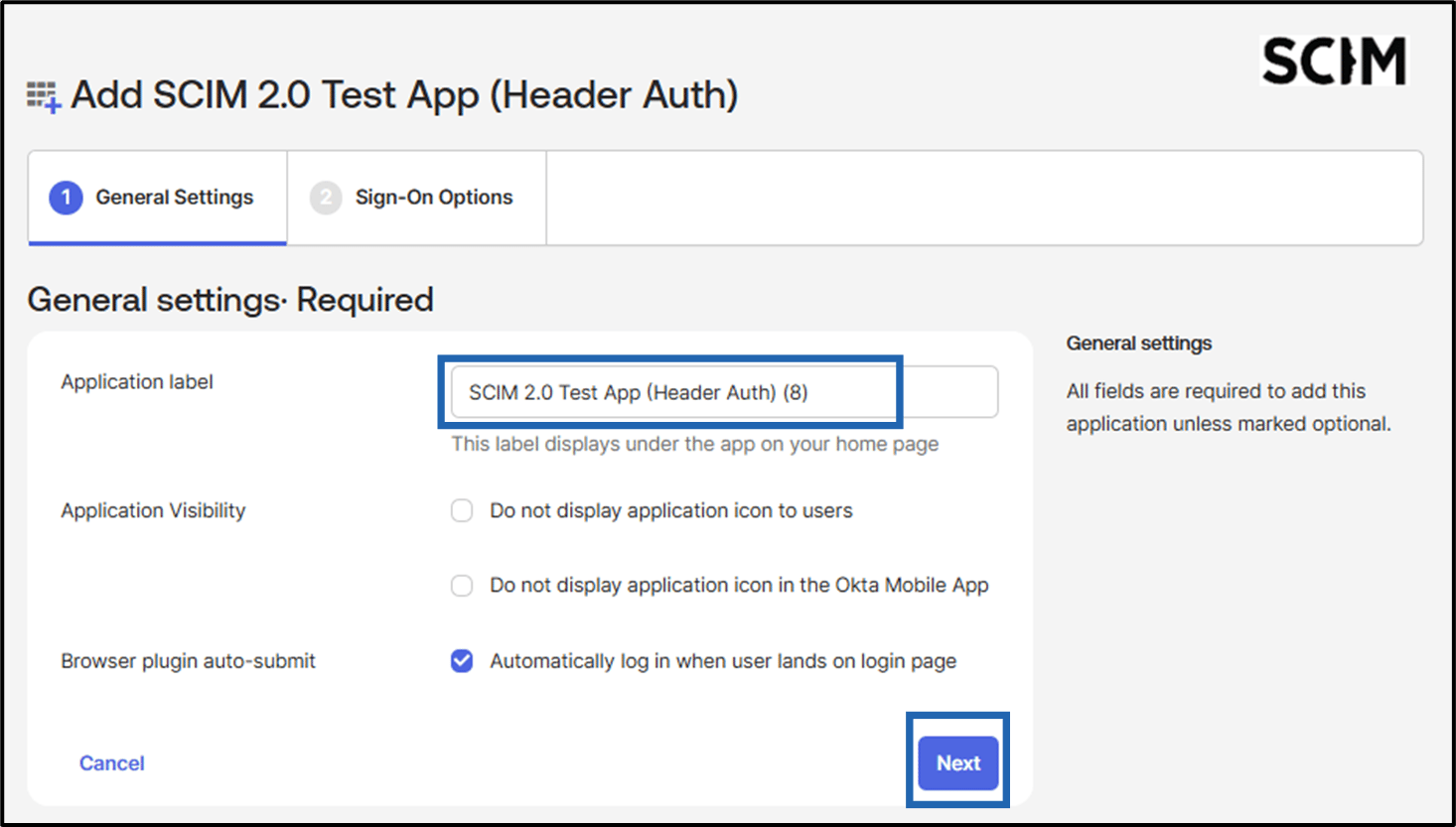
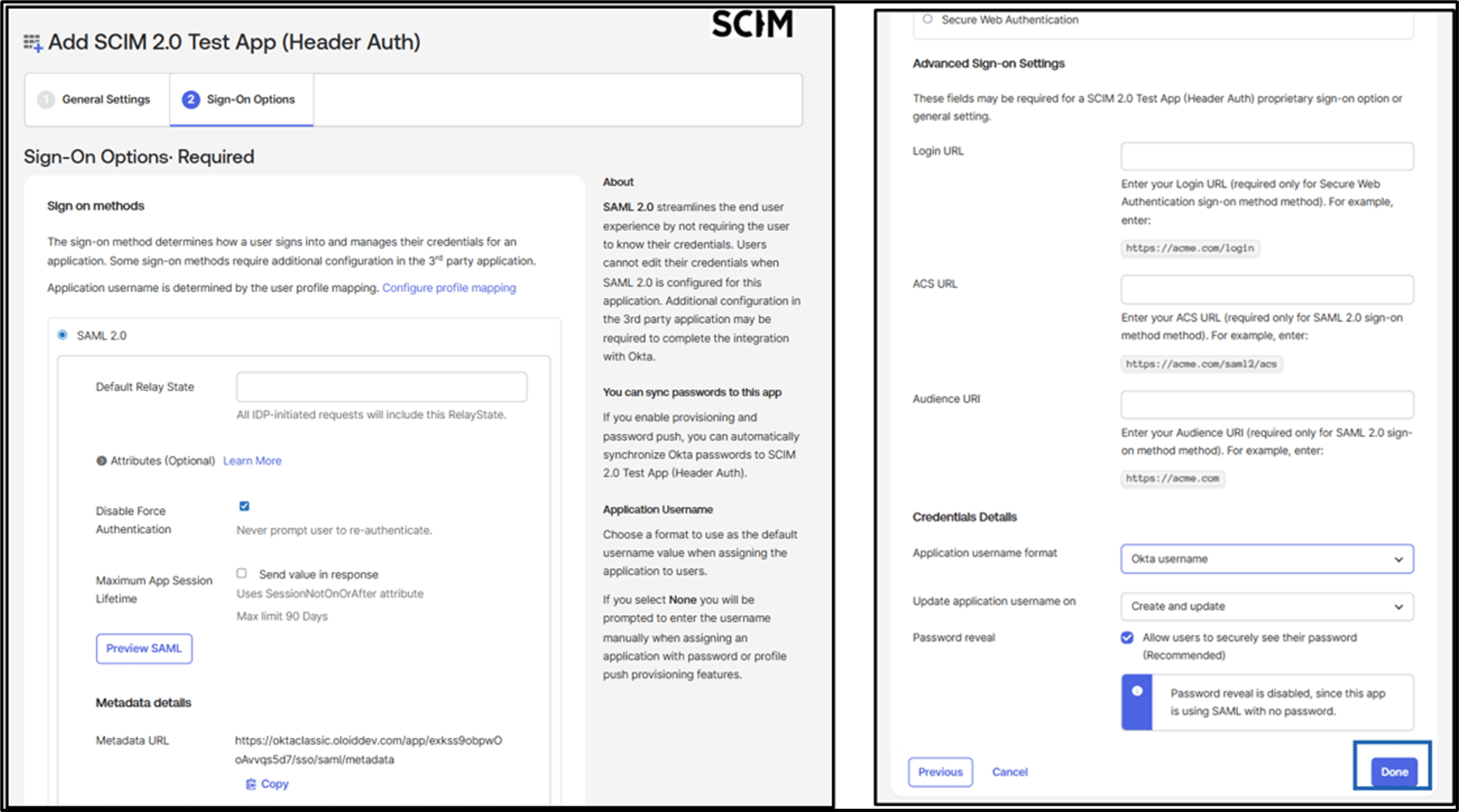
Enter Application Labeland click Next.
-
Click Done.
-
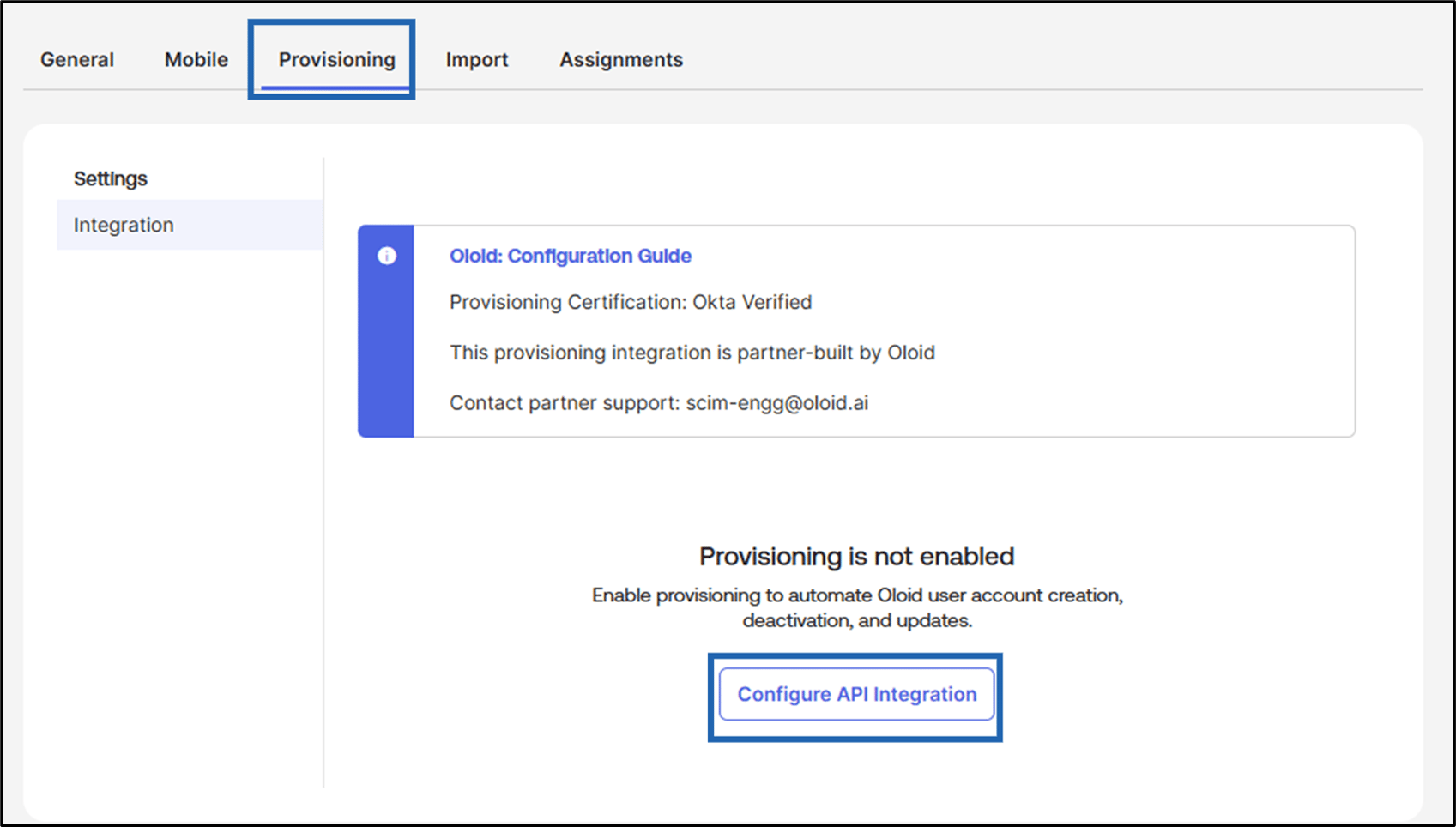
Go to Provisioning tab and click Configure API Integration.
-
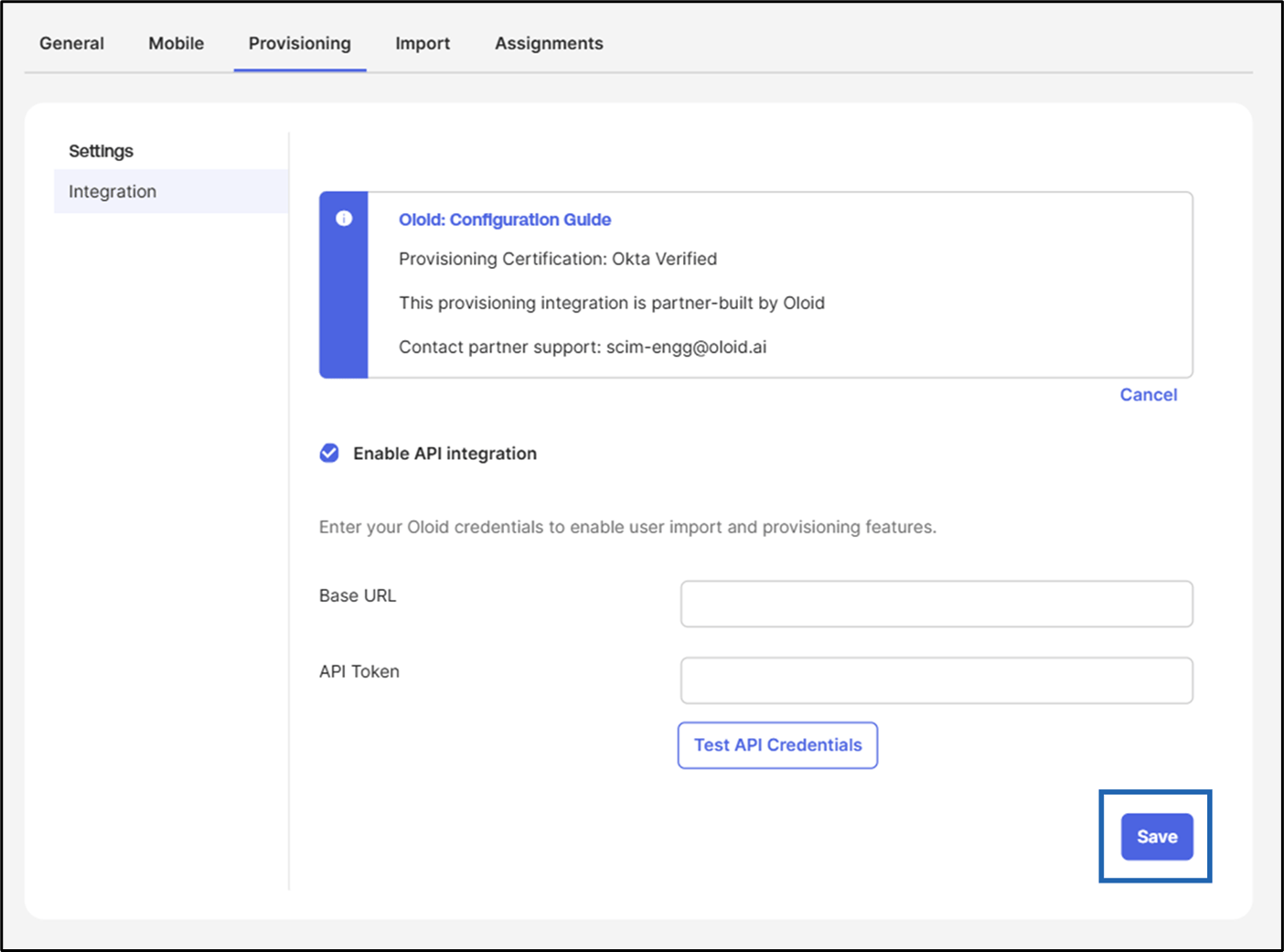
Do the following:
- Select Enable API integration.
- Enter Base URL.
-
Enter API Token.
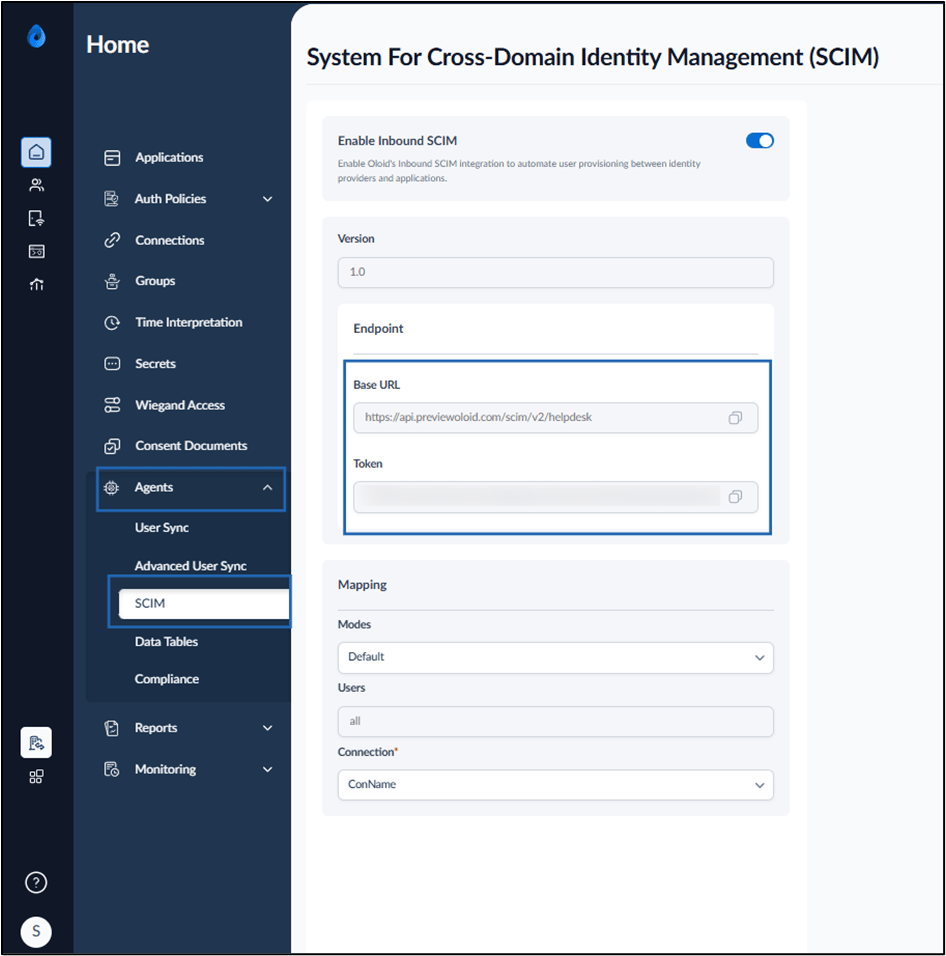
Note: To enter the Base URL and API Token, go to Oloid Tenant Admin Portal > Agents > SCIM and copy the Base URL and API Token.
-
Click Test API Credentials.
Note: Validation should succeed and you should see the message “Okta-SCIM was verified successfully”.
-
Click Save.
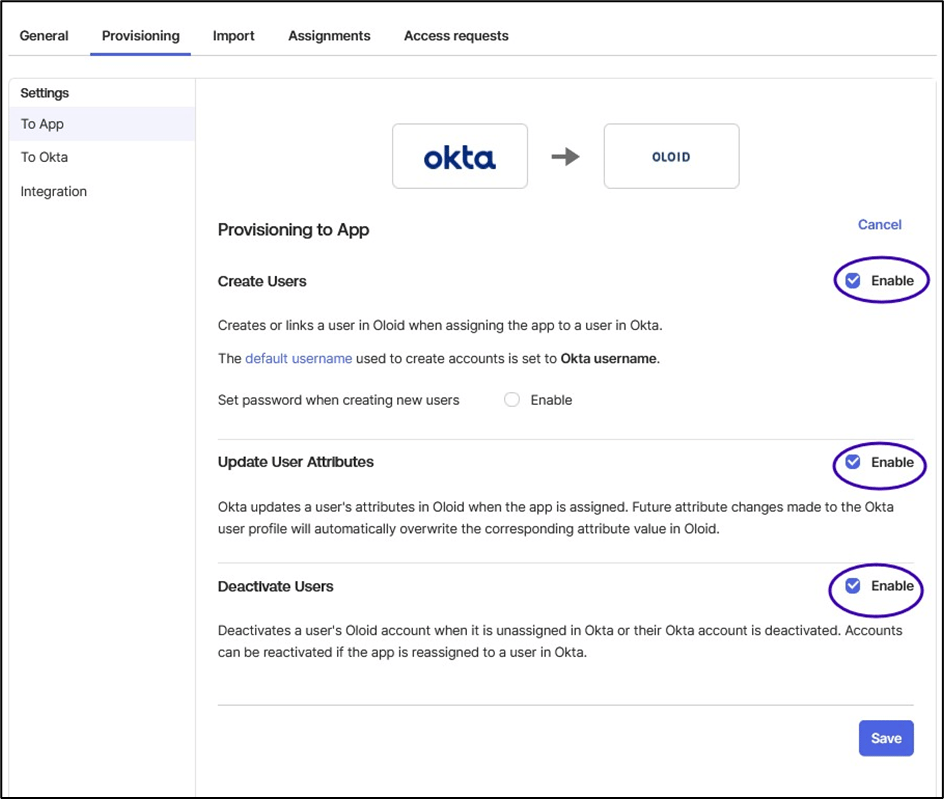
- Go to Provisioning > Settings > To App.
-
Enable the following sections:
- Create Users
- Update User Attributes
-
Deactivate Users.
-
Under attribute mapping, map following attributes:
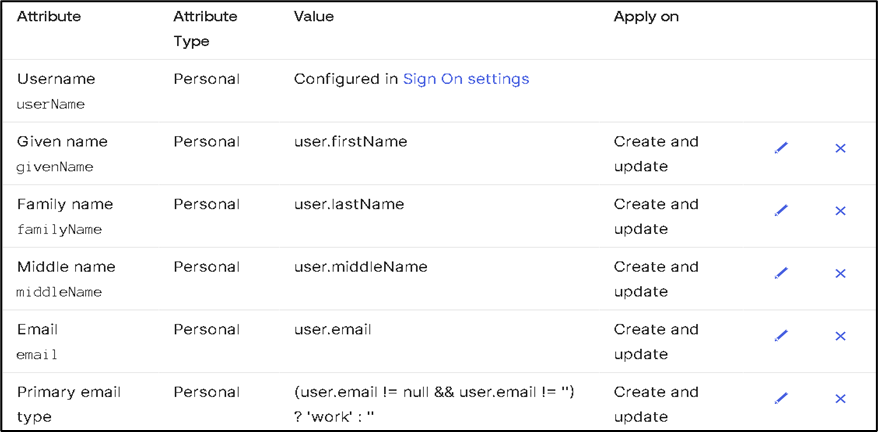
 Note: Email is case insensitive attribute in Oloid.
-
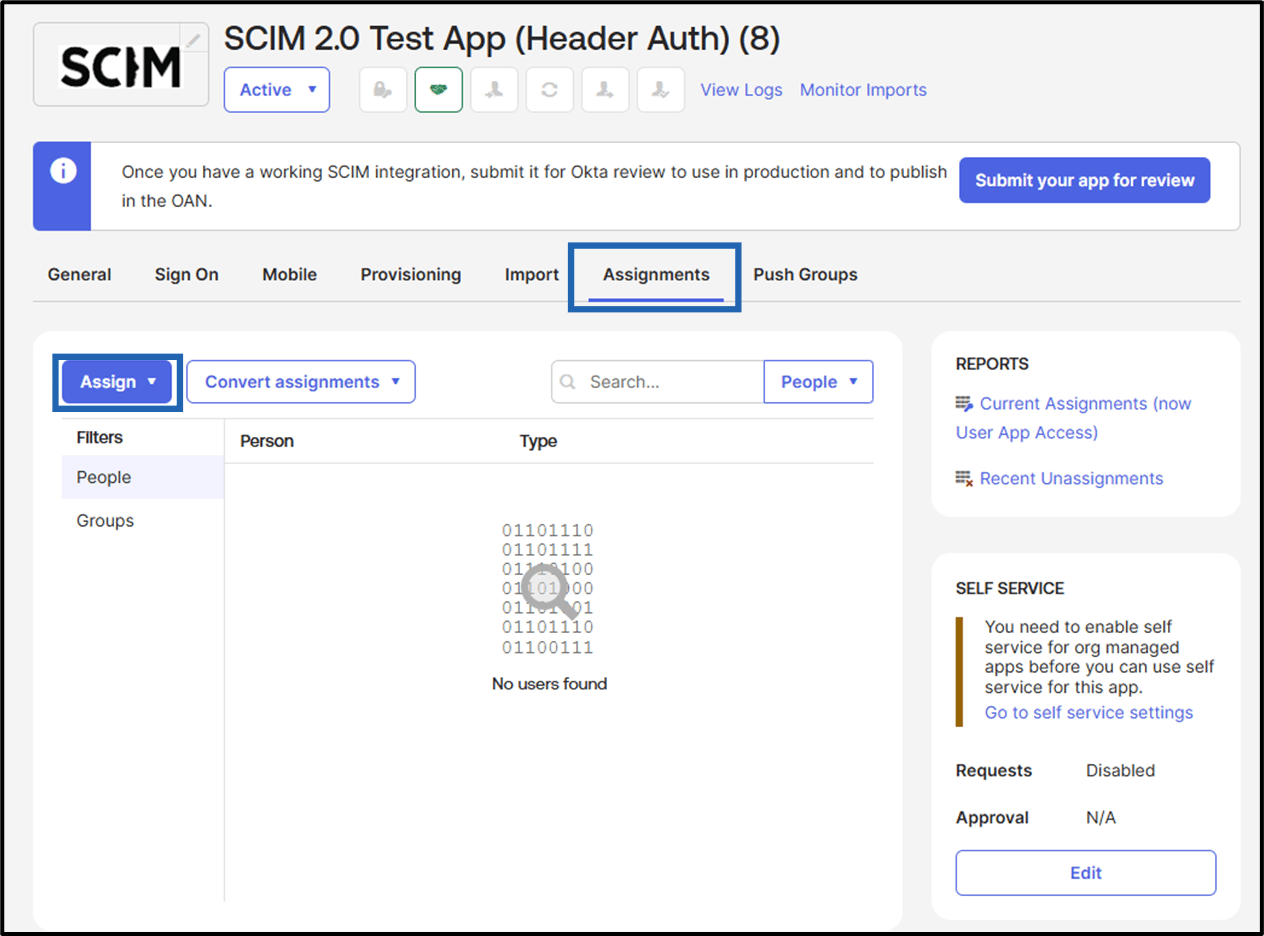
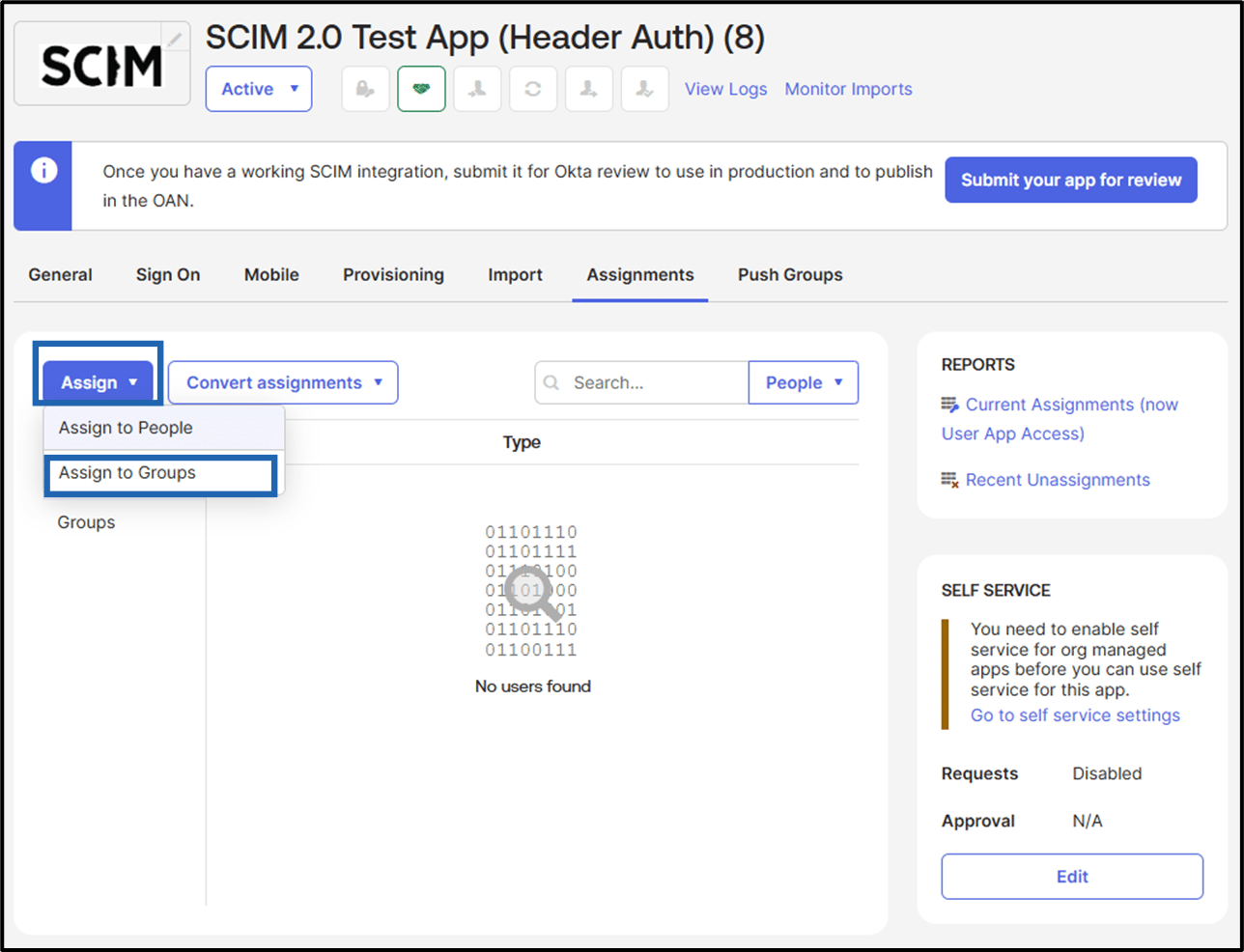
Go to Assignments tab and click Assign.
-
Do the following:
- Assign to People:
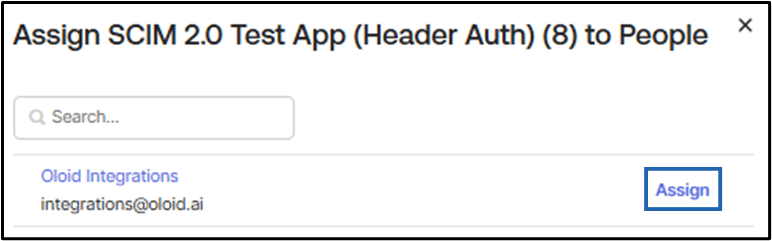
- Go to Assign > Assign to People.
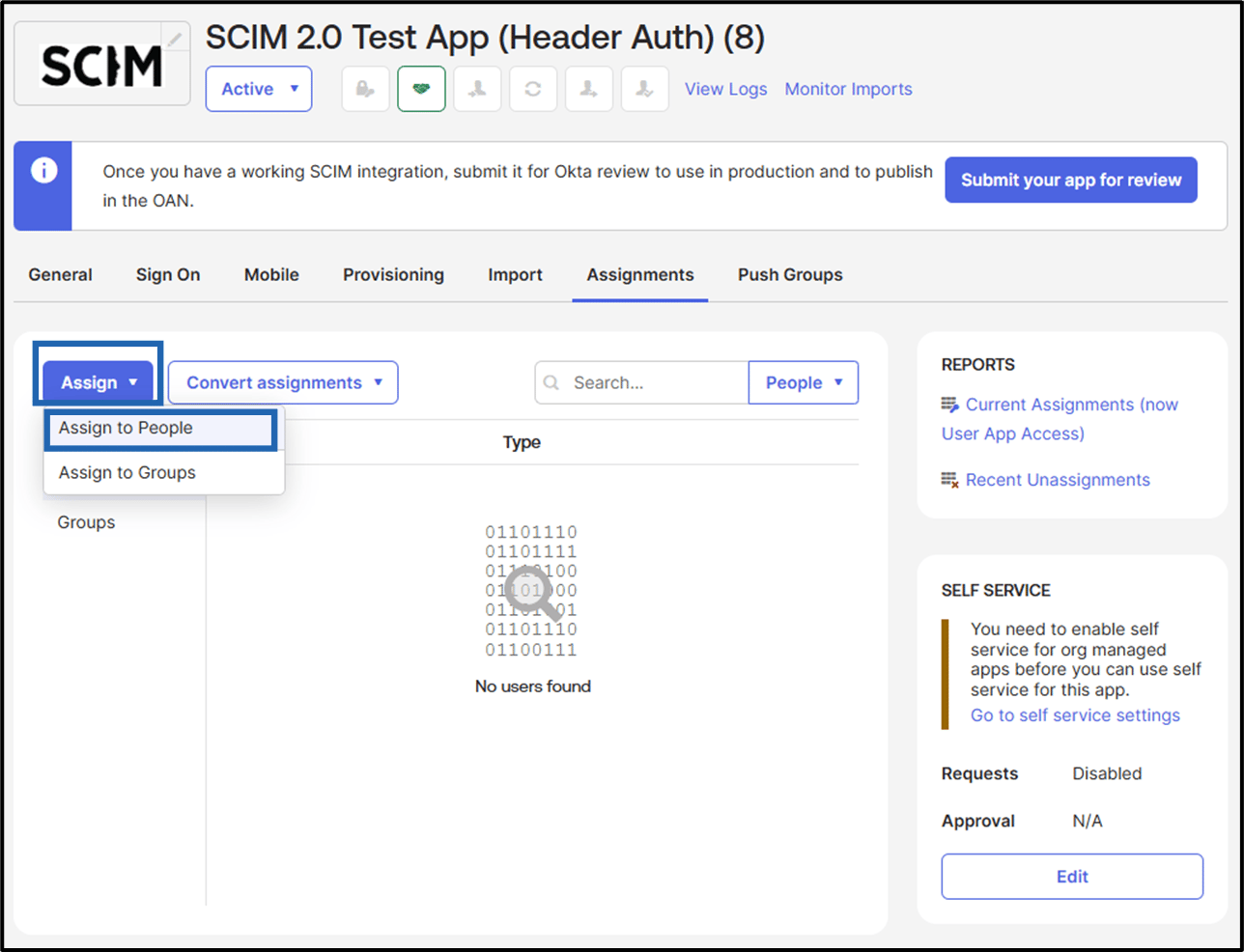
- Click Assign.
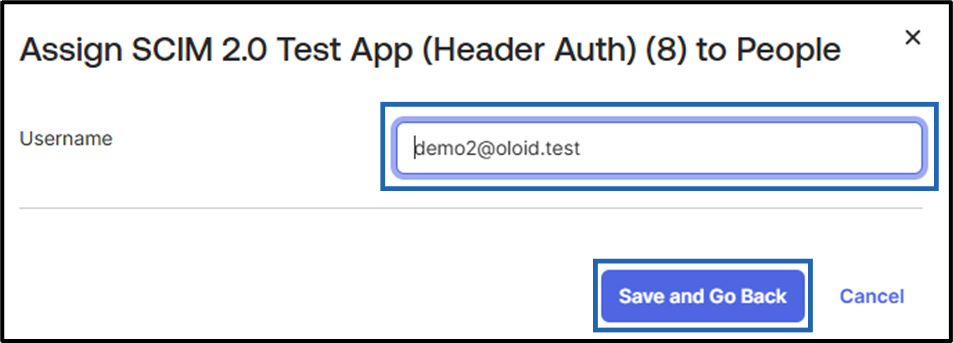
- Click Save and Go Back.
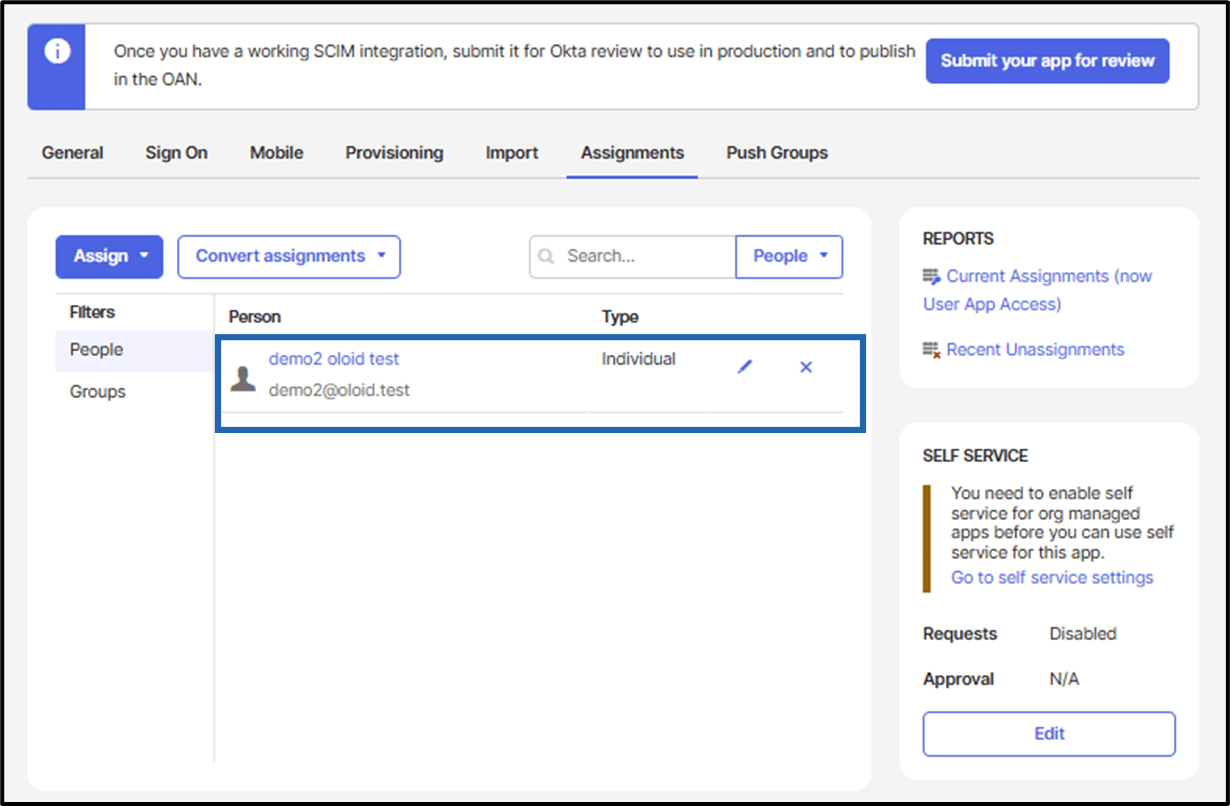
- Go to Assign > Assign to People.
- Assign to Groups
- Go to Assign > Assign to Groups.
- Click Assign.
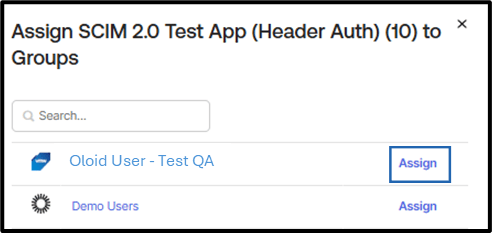
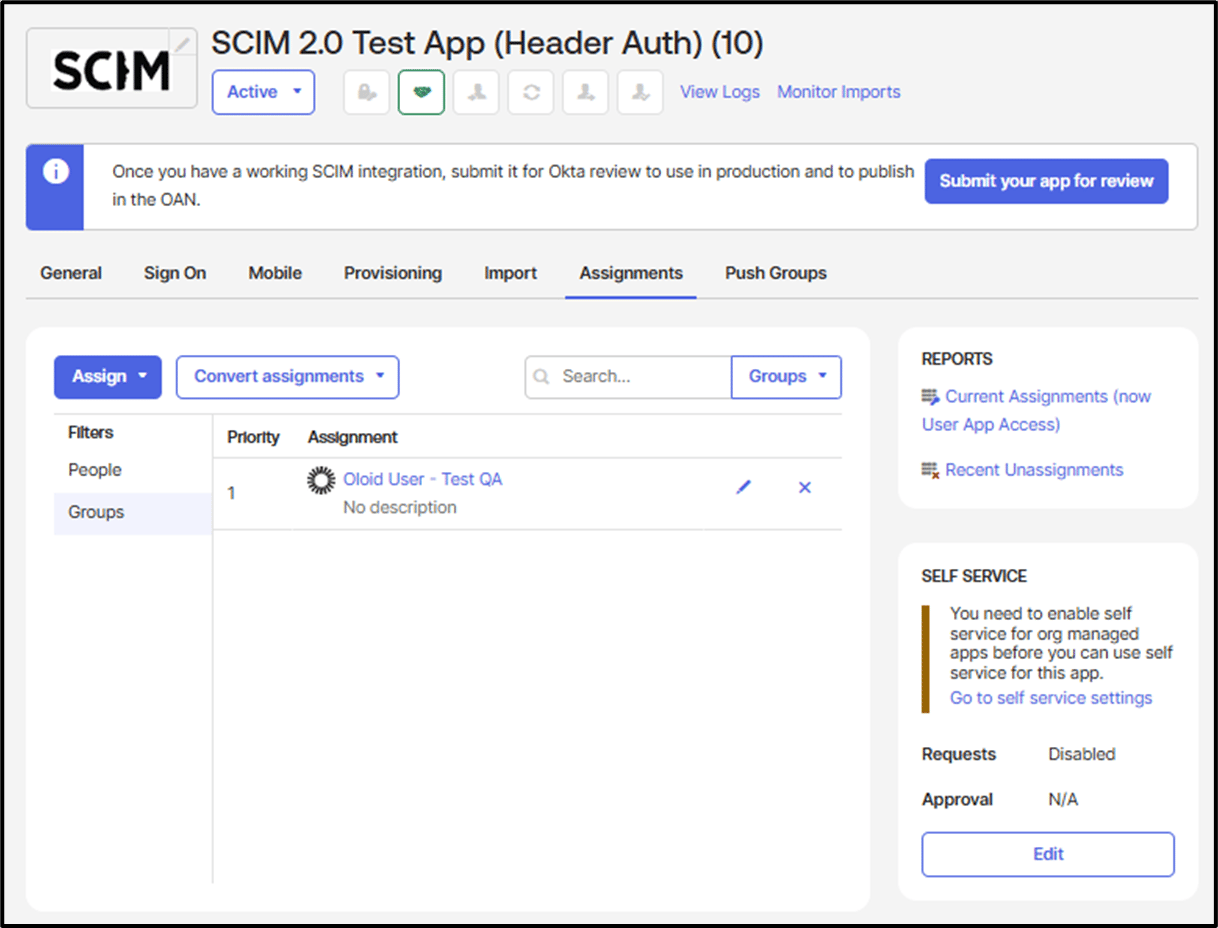
- Go to Assign > Assign to Groups.
- Assign to People: