Introduction
This document provides instructions to create and configure a Generic application in the Tenant Admin Portal.Prerequisites
- You must have Admin access to the Tenant Admin Portal.
- The required Connection must already be created before mapping it to the application. For more, refer to How to create Connections in the Tenant Admin Portal
Steps to Create and Configure Generic Application
- Log in to the Tenant Admin Portal.
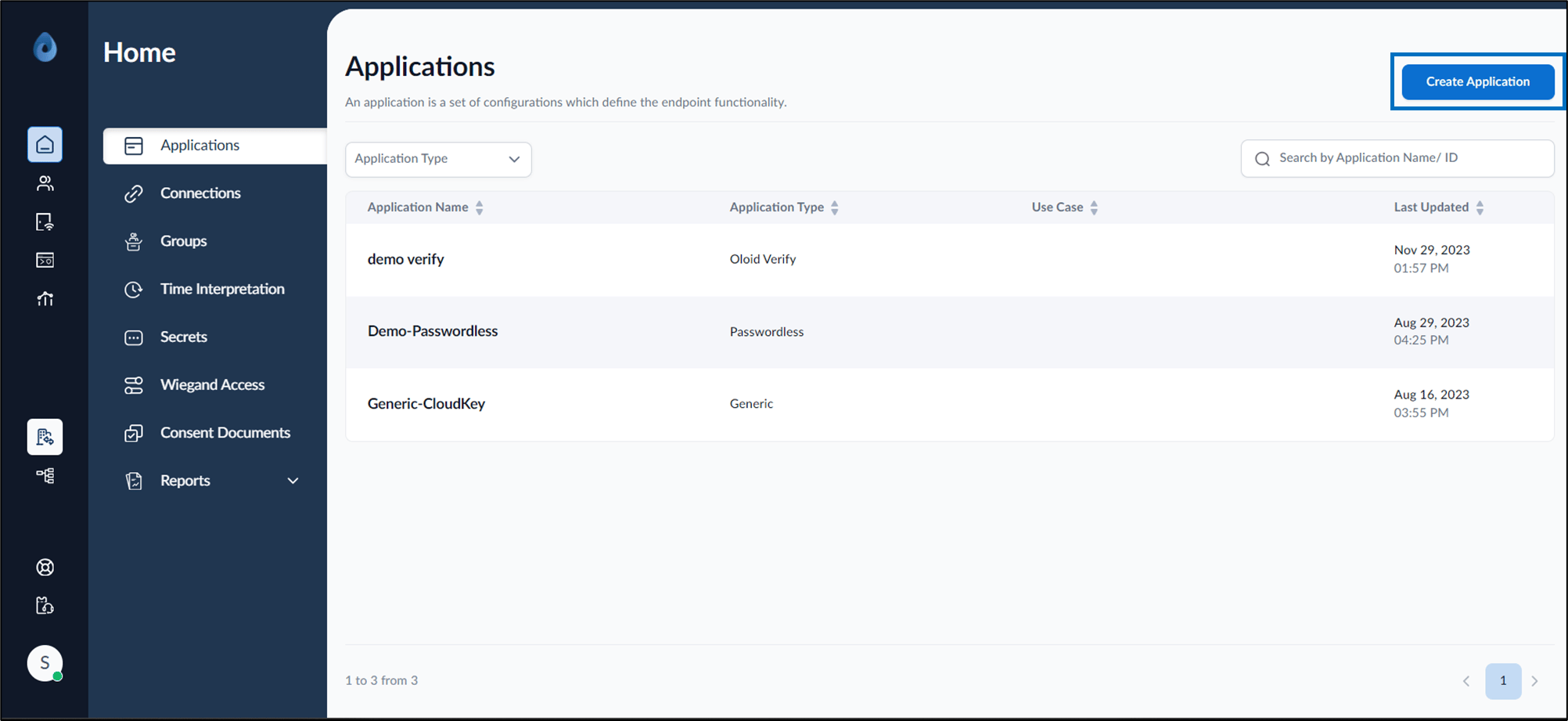
- On the Applications page, click Create Application in the top right corner.
- On the pop-up box, do the following:
- Enter Application Name and select Application Type as Generic.
- Click Create.

- Configure the following tabs:
- Details tab
- Health Setup
-
Connections tab
Note: These settings need to be configured only once, and it is recommended to keep the default values.
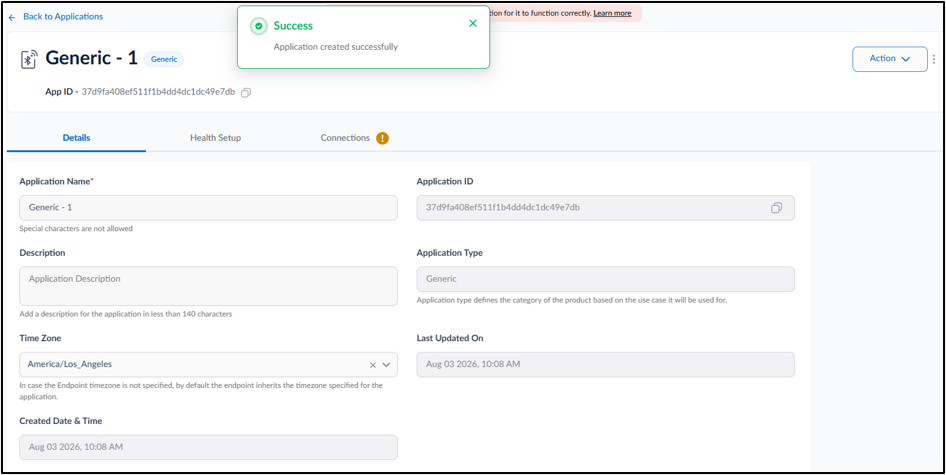
Configure Details Tab
The Details tab is used to configure the basic application information, such as the application name, description, and time zone. Do the following:- Update the Application Name (if needed).
- Add the Description (Optional).
- Select the Time Zone from the drop-down menu.
- Click Save.

Configure Health setup Tab
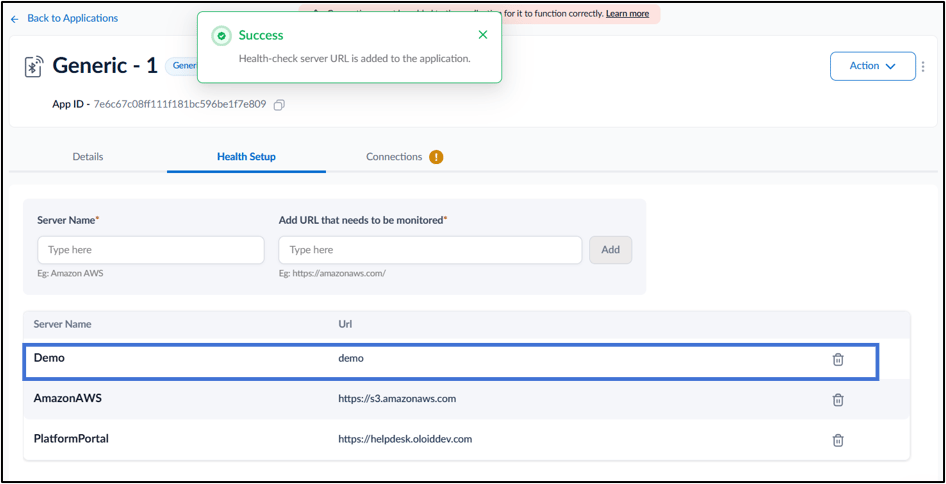
The Health Setup tab is used to configure servers and URLs that the application monitors. Health checks help verify the availability and accessibility of the configured servers.Note: The default health monitoring servers are created automatically recommended. to add server, do the following:
- Enter the Server Name. Example: Amazon AWS
- Enter the URL that needs to be monitored.
Example:
https://amazonaws.com/ - Click Add.
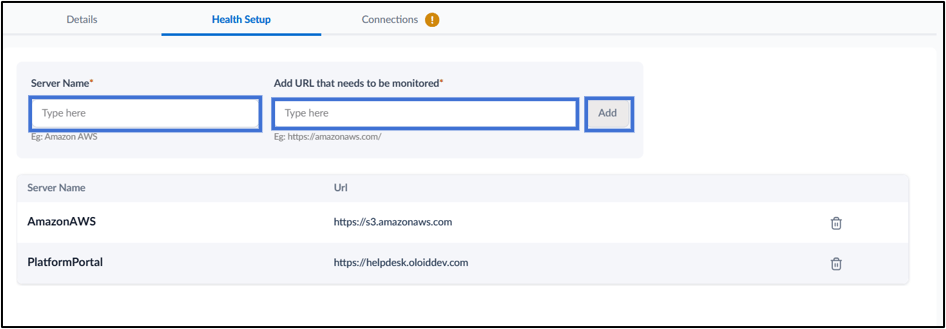
- Server Name: Displays the configured server name.
- URL: Displays the URL configured for health monitoring.
Configure Connections Tab
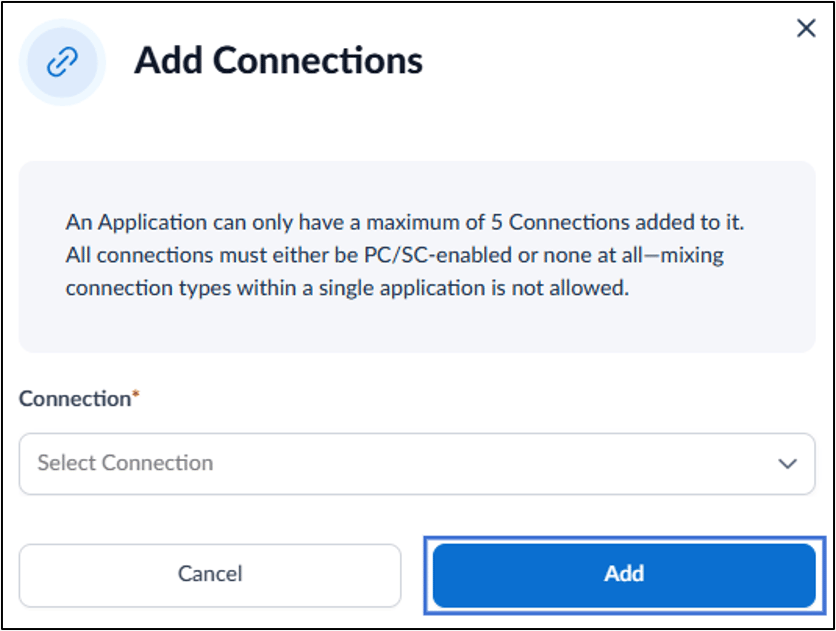
Do the following:- Select + Add Connections to map a connection to the application.

- Select connection from the drop-down list and click Add.