Overview This article explains how to identify the card type and card format using the RF IDeas Configurator Tool, which is essential for accurate card configuration and integration. Introduction RF IDeas Configurator Tool allows access cards to be used as digital identifier throughout the workplace. Pre-requisite:
  • Download the latest “rf IDEAS Configuration Utility” from the RF IDEAS website.
To find the card type and card format:
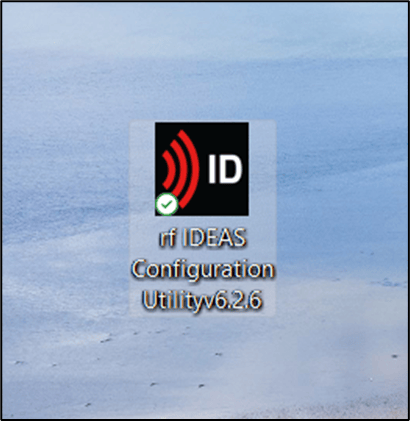
  1. Launch the rf IDEAS Configuration Utility app. How to find the Card Type and Card... - screenshot 1 The app opens. How to find the Card Type and Card... - screenshot 2
  2. Make sure the card reader is connected to the system.
  3. Select Connect from the left menu panel. How to find the Card Type and Card... - screenshot 3 The DEVICE LIST is configured and displayed. How to find the Card Type and Card... - screenshot 4
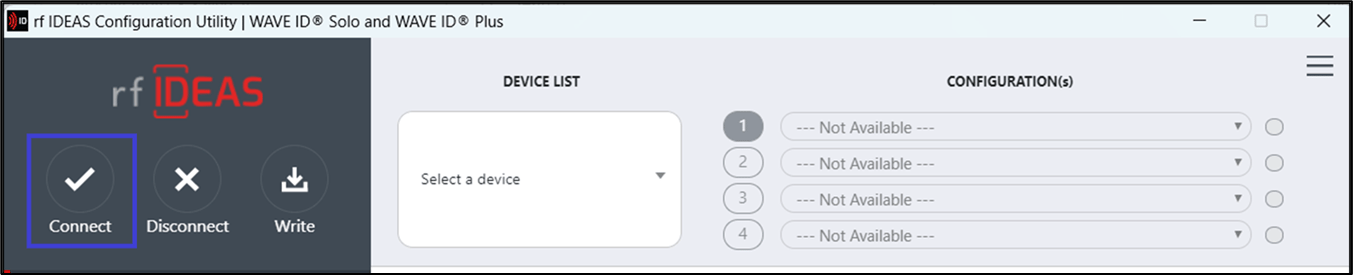
  4. Select Tools from the left menu panel. How to find the Card Type and Card... - screenshot 5
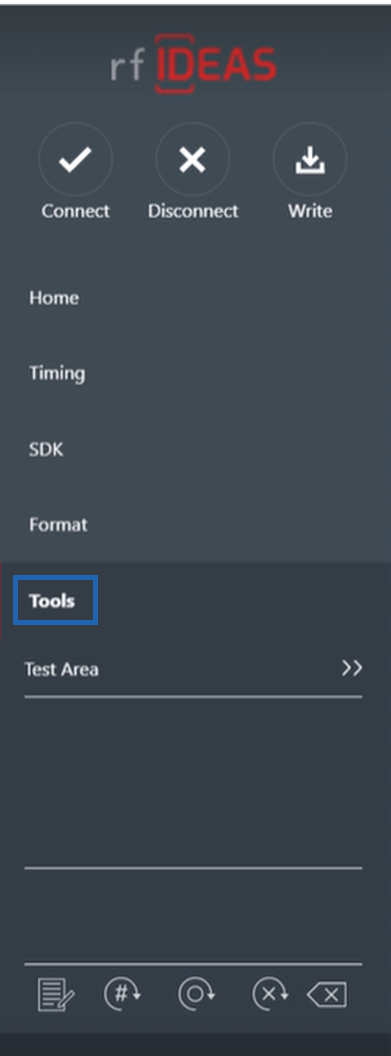
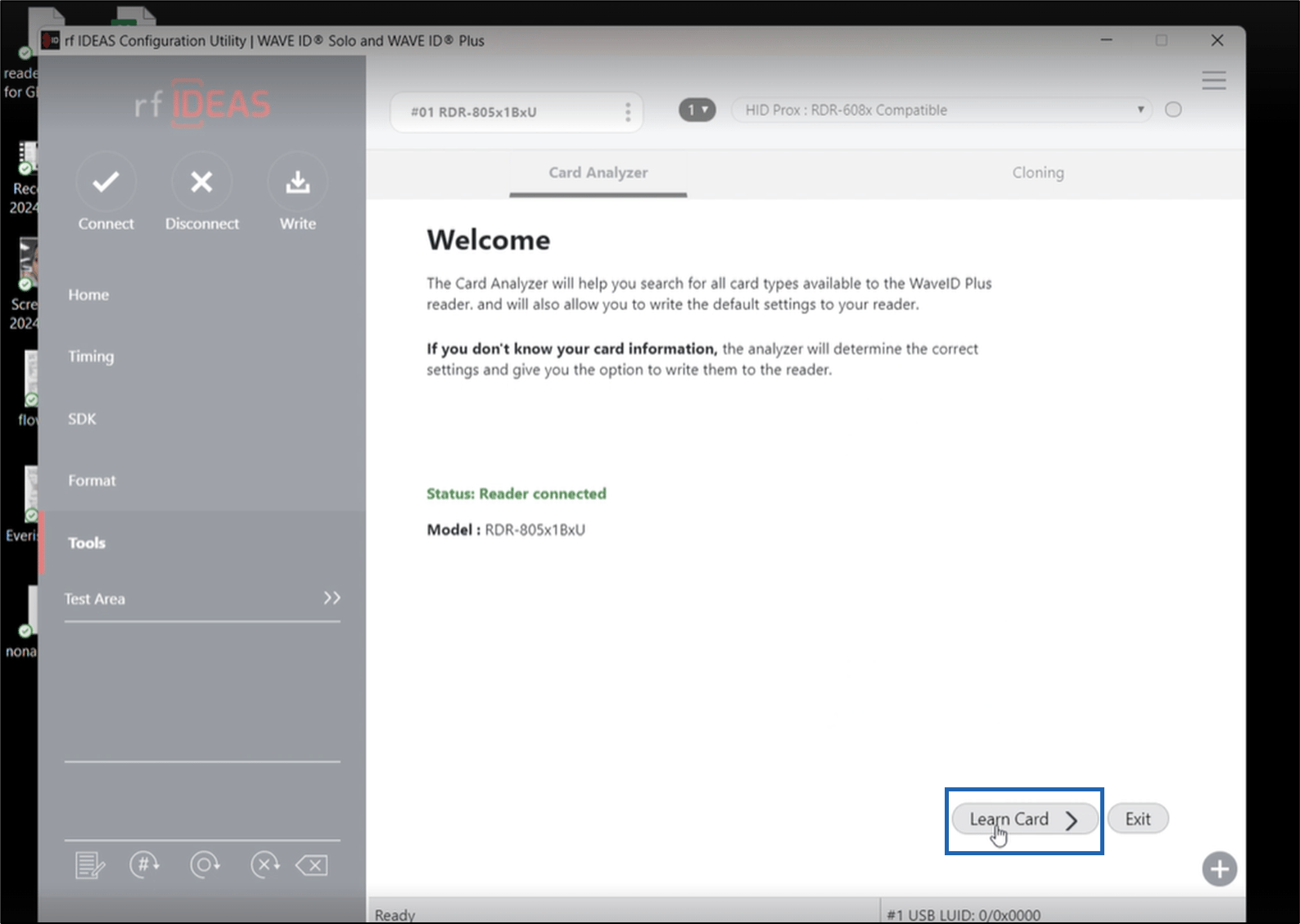
  5. Go to Card Analyzer tab, and click Start. How to find the Card Type and Card... - screenshot 6 The Welcome screen is displayed.
  6. Select Learn Card. How to find the Card Type and Card... - screenshot 7
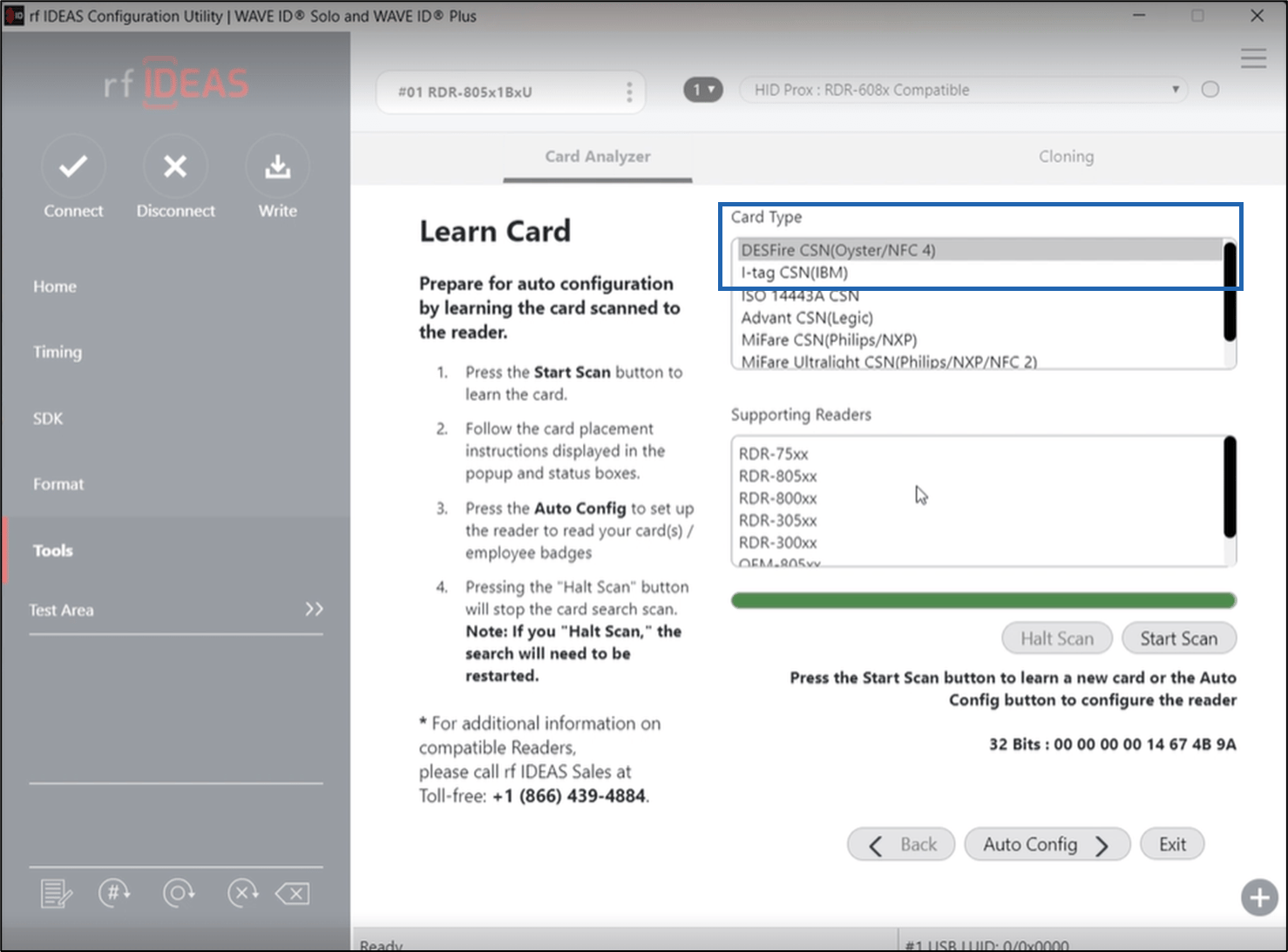
  7. Place the card on the reader and leave it there, then click Start Scan. How to find the Card Type and Card... - screenshot 8 As the scan runs, the Card Type and Supporting Readers are displayed. If it identifies a card type, it will beep and display the Card Type in the top box. How to find the Card Type and Card... - screenshot 9
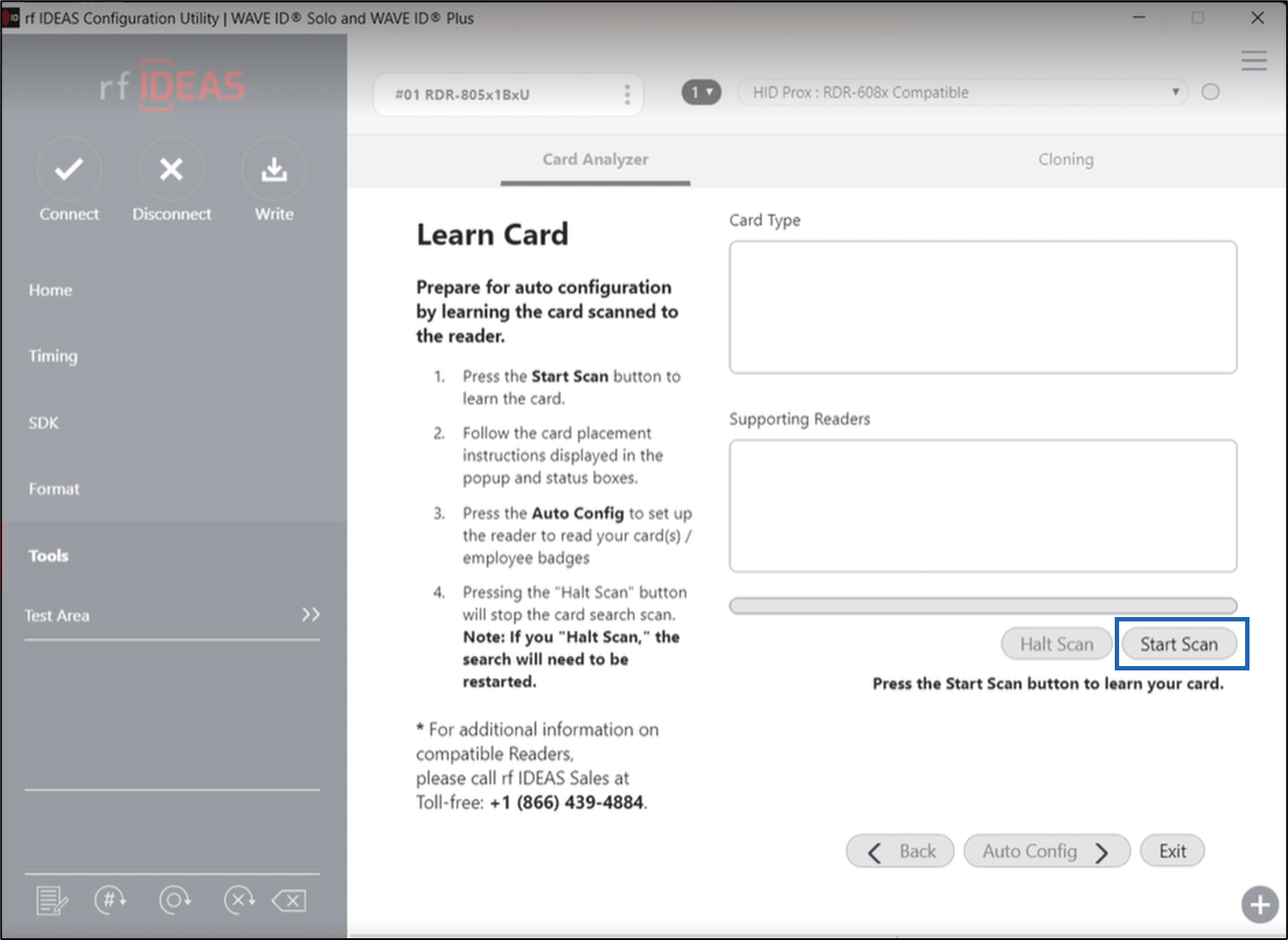
  8. Once the status scan is complete, if you want to configure the reader, then click Auto Config. How to find the Card Type and Card... - screenshot 10 The Auto Config screen is displayed.
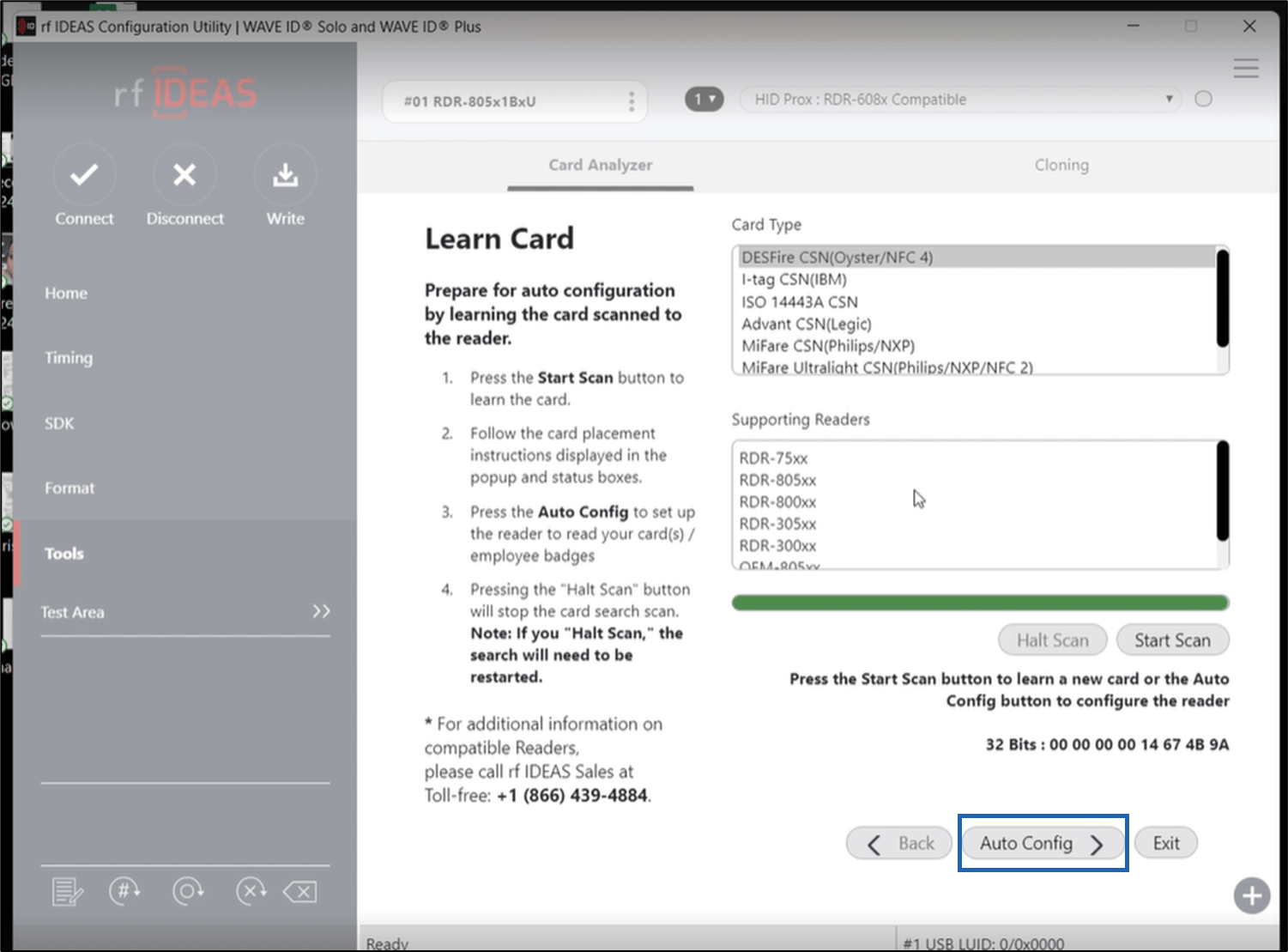
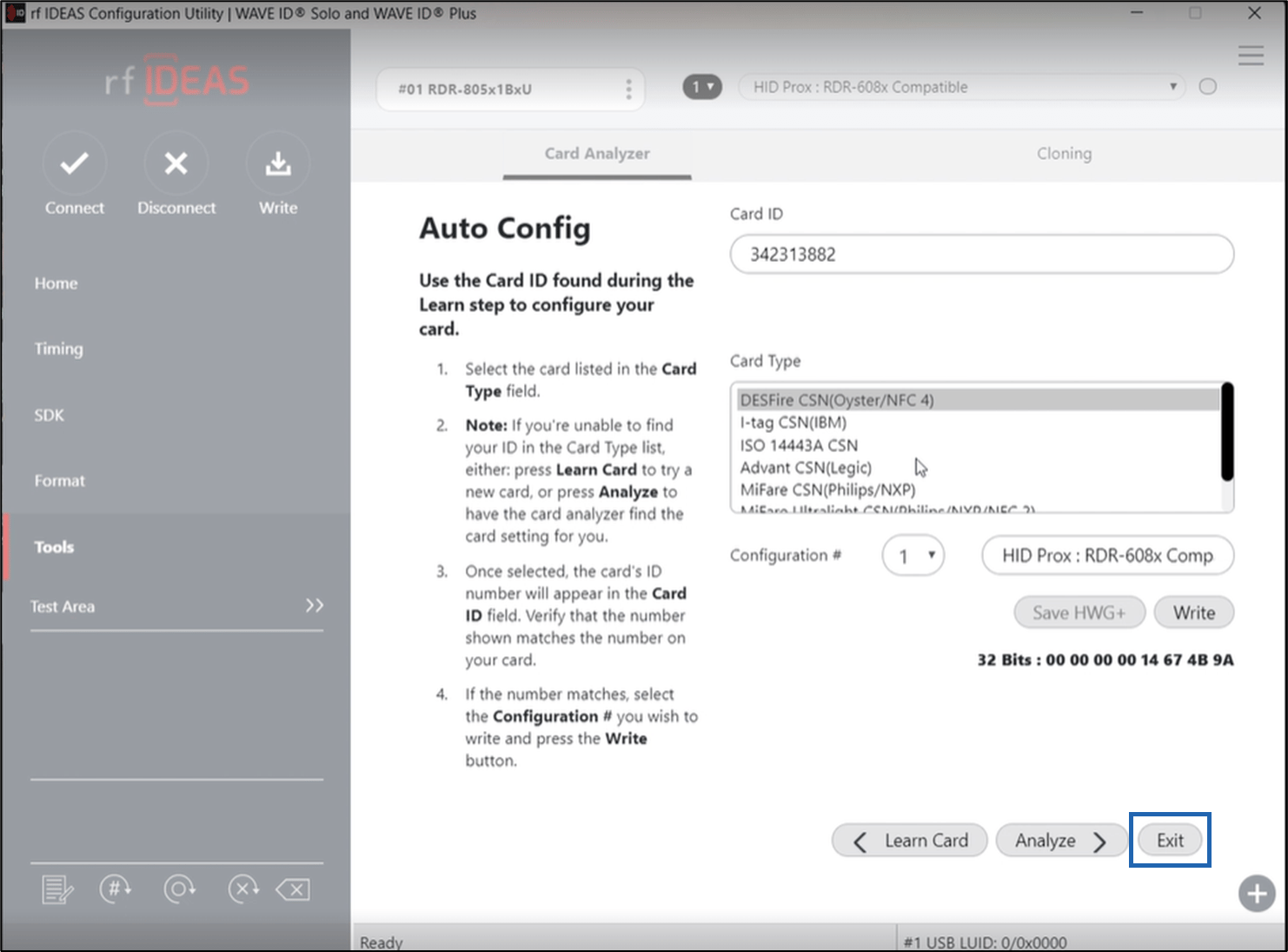
  9. To identify the card, view the card type and the card format information. How to find the Card Type and Card... - screenshot 11
  10. Click Exit. How to find the Card Type and Card... - screenshot 12