

Introduction
This document explains how to create and share QR Code Credential with User in the Tenant Admin Portal.Prerequisite
You must have Admin access to the Tenant Admin Portal.Steps to create QR code
- Log in to the Tenant Admin Portal.
- On the home page of the portal, click Directory on the left menu panel.

- Click username to edit.

- Do one of the following:
- Go to Assign Credential > Create QR Code.

- Go to Credentials tab > QR Code >+Create QR Code.
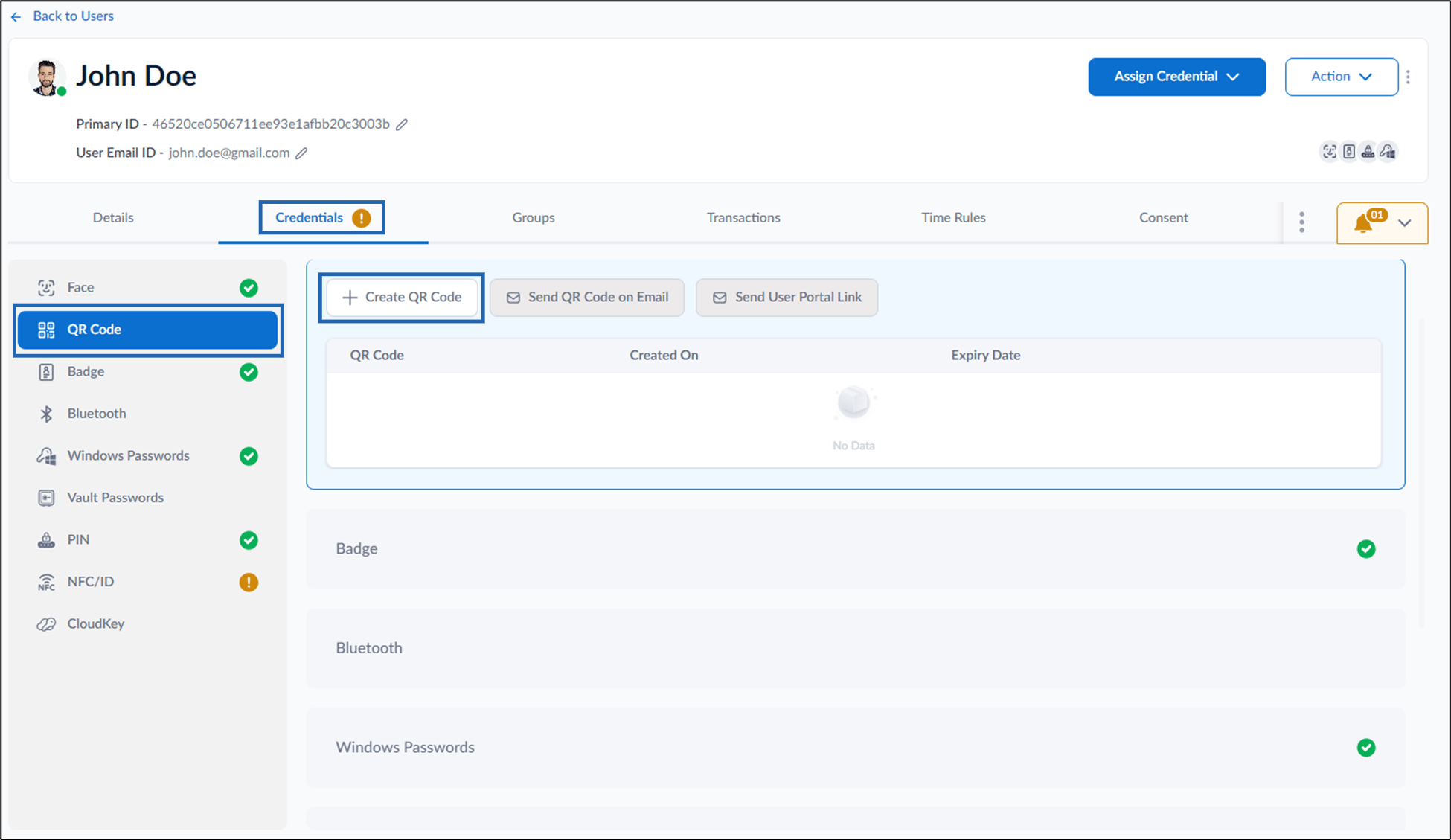
- Go to Assign Credential > Create QR Code.
- On the pop-up box, do the following:
- Select QR Code Validity from the calendar.
-
Enter one or more email IDs of the recipients(Optional).
Note: To add multiple recipients, separate each email ID using a comma (,).
-
Click Assign.

