

- Sign in to the Ping Identity Administrator Console with your PingOne account credentials
-
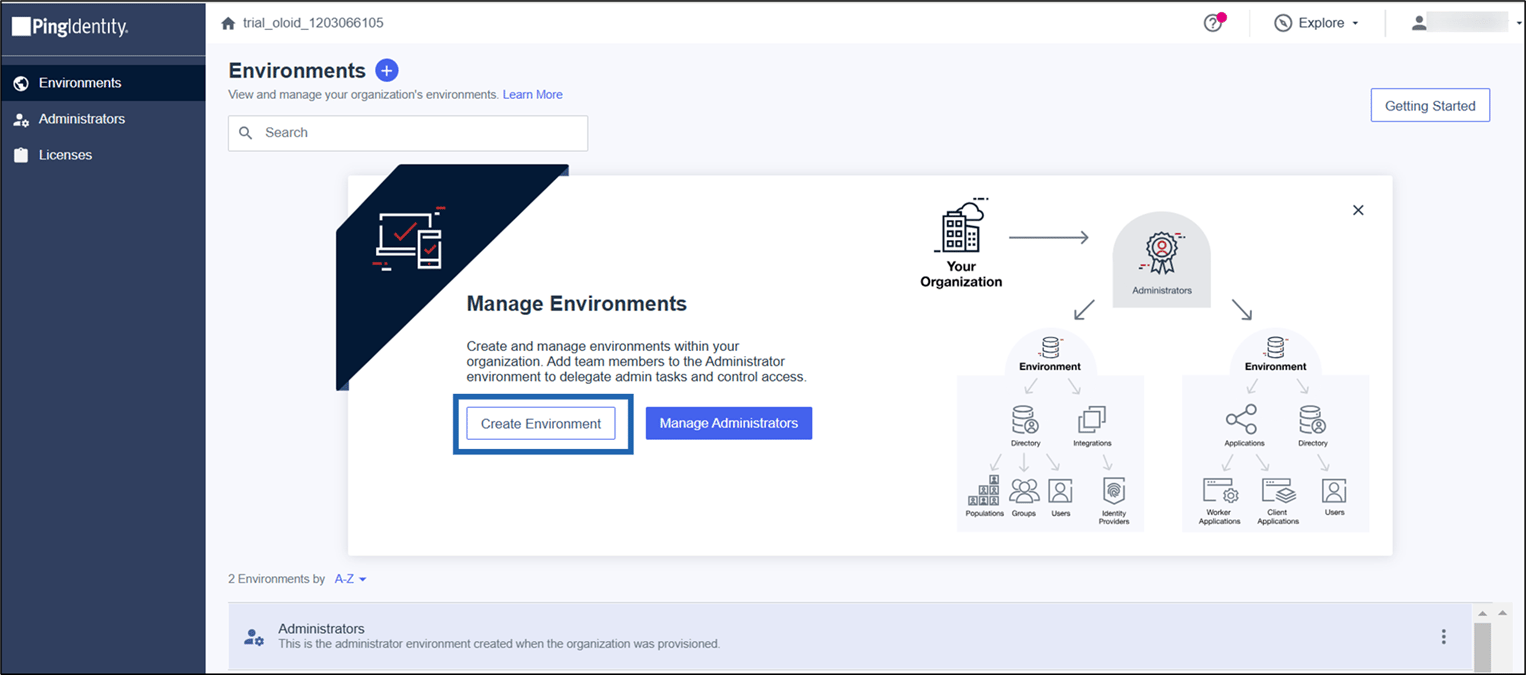
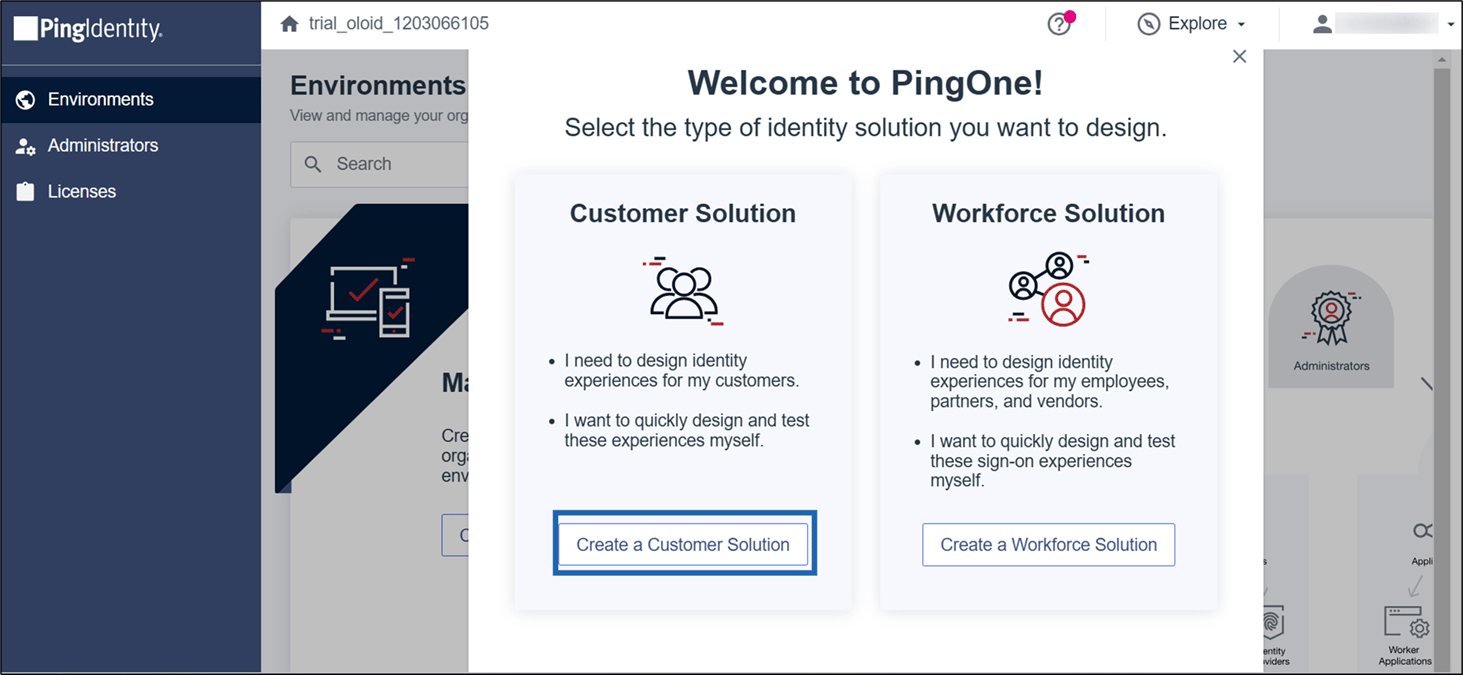
Select Create Environment, then select Create a Customer Solution.
-
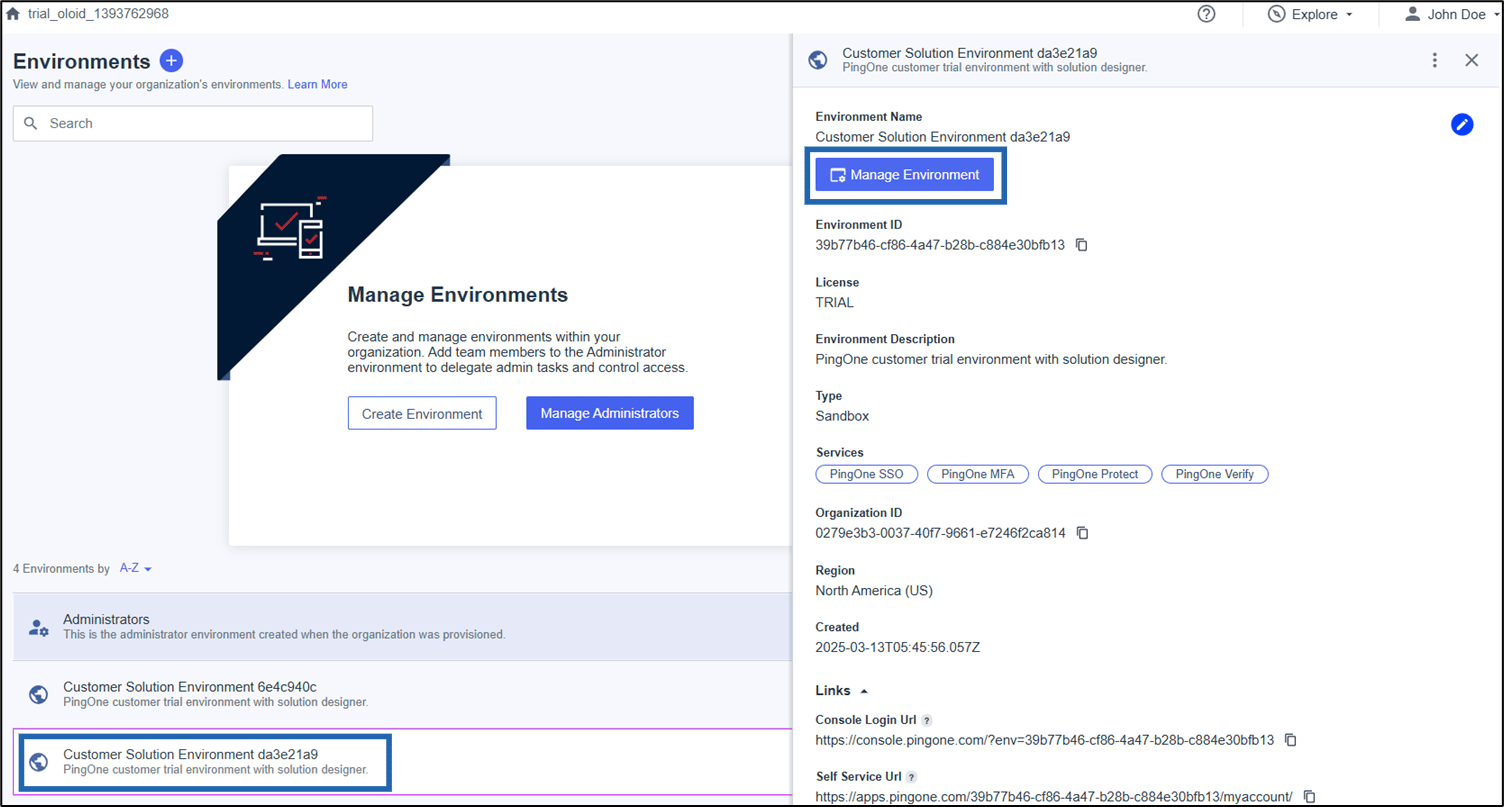
Go to the newly created environment and select Manage Environment.
-
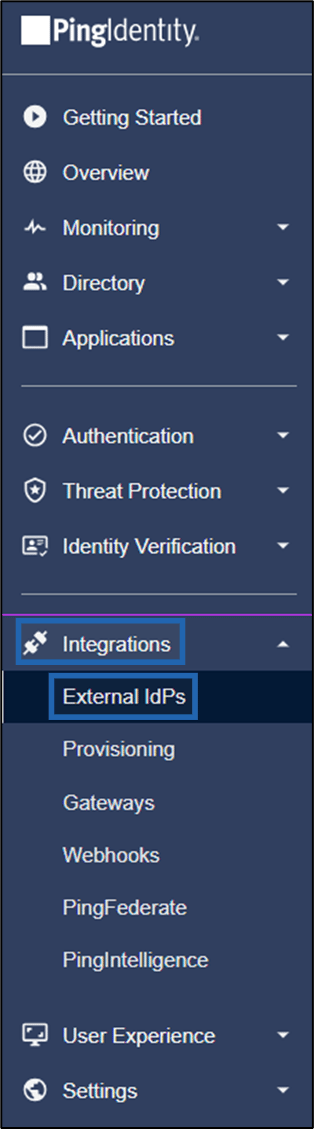
On the left menu panel, select Integrations > External IdPs.
-
Select +Add Provider.

-
Select OpenID Connect under Custom.

-
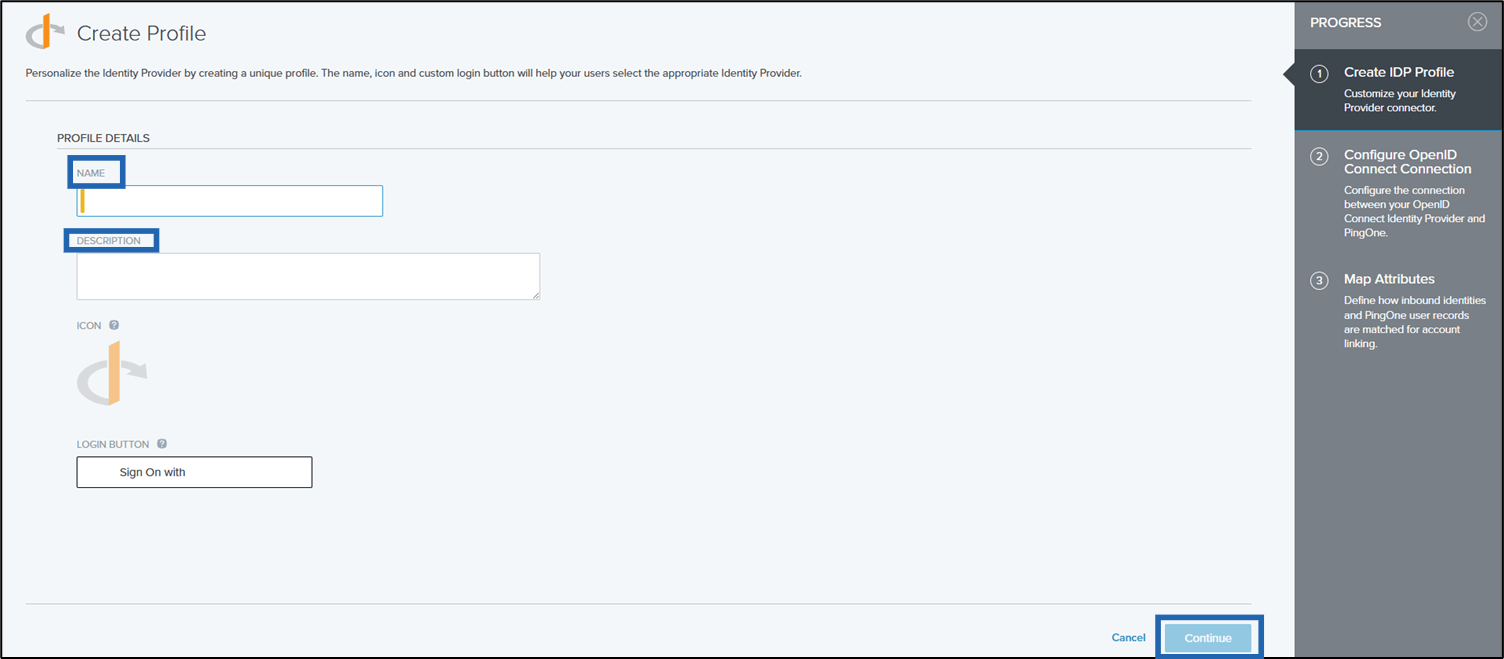
Do the following:
- Enter a unique name for the Identity Provider profile in the NAME field.
- Enter a description to help identify the purpose of this profile in the DESCRIPTION field.
-
Click Continue.
-
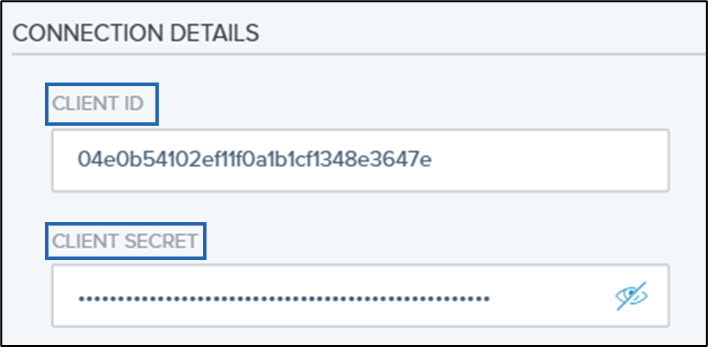
Enter ClientID and Client Secret provided by Oloid Admin.
-
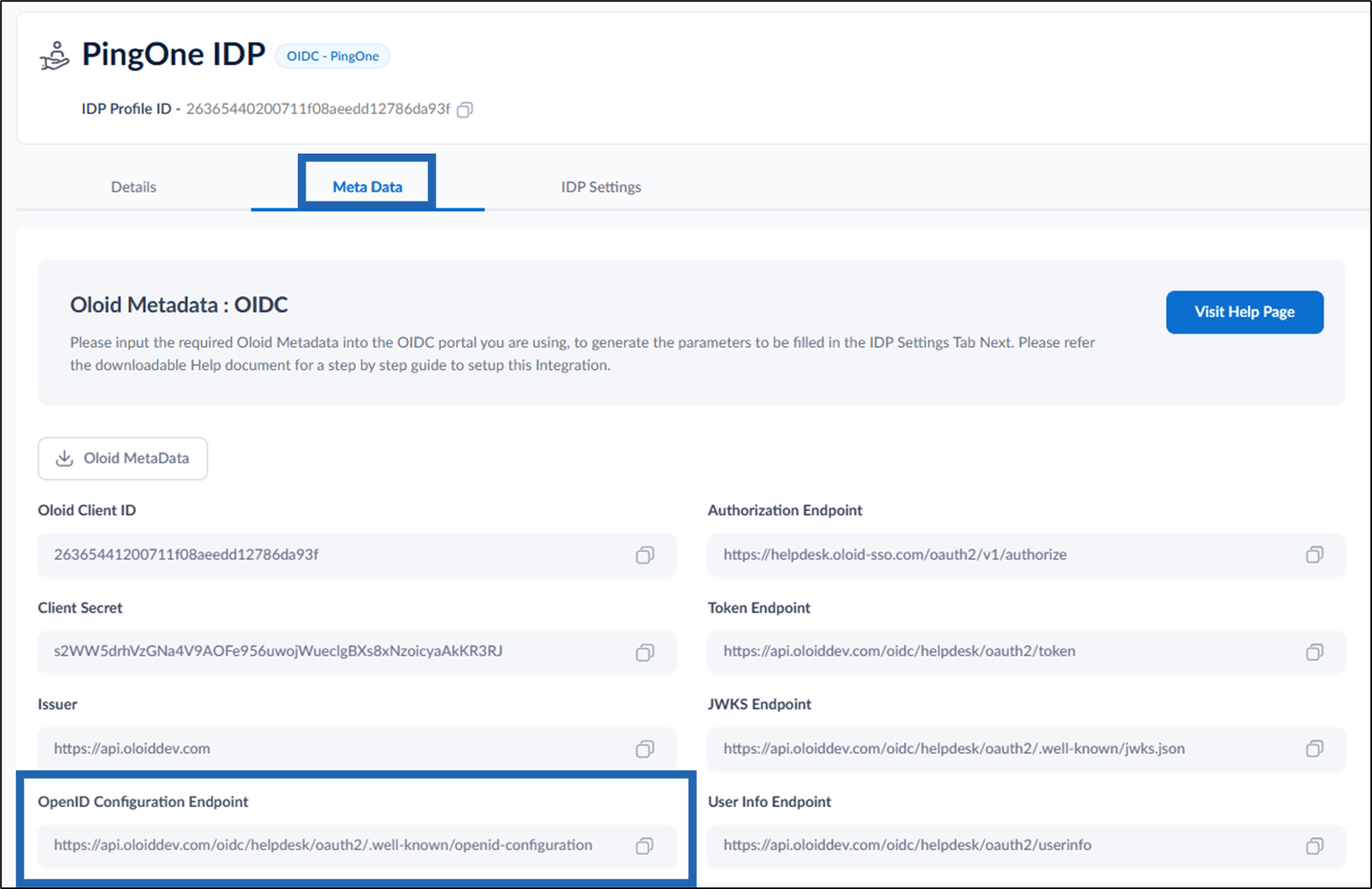
Enter OpenID Configuration Endpoint from Oloid Tenant Admin Portal in the Discovery Document URI field.
Note: To find the OpenID Configuration Endpoint in the Oloid Tenant Admin Portal, go to Auth Policies > Identity Provider > select IDP Profile > Meta Data tab > OpenID Configuration Endpoint.

-
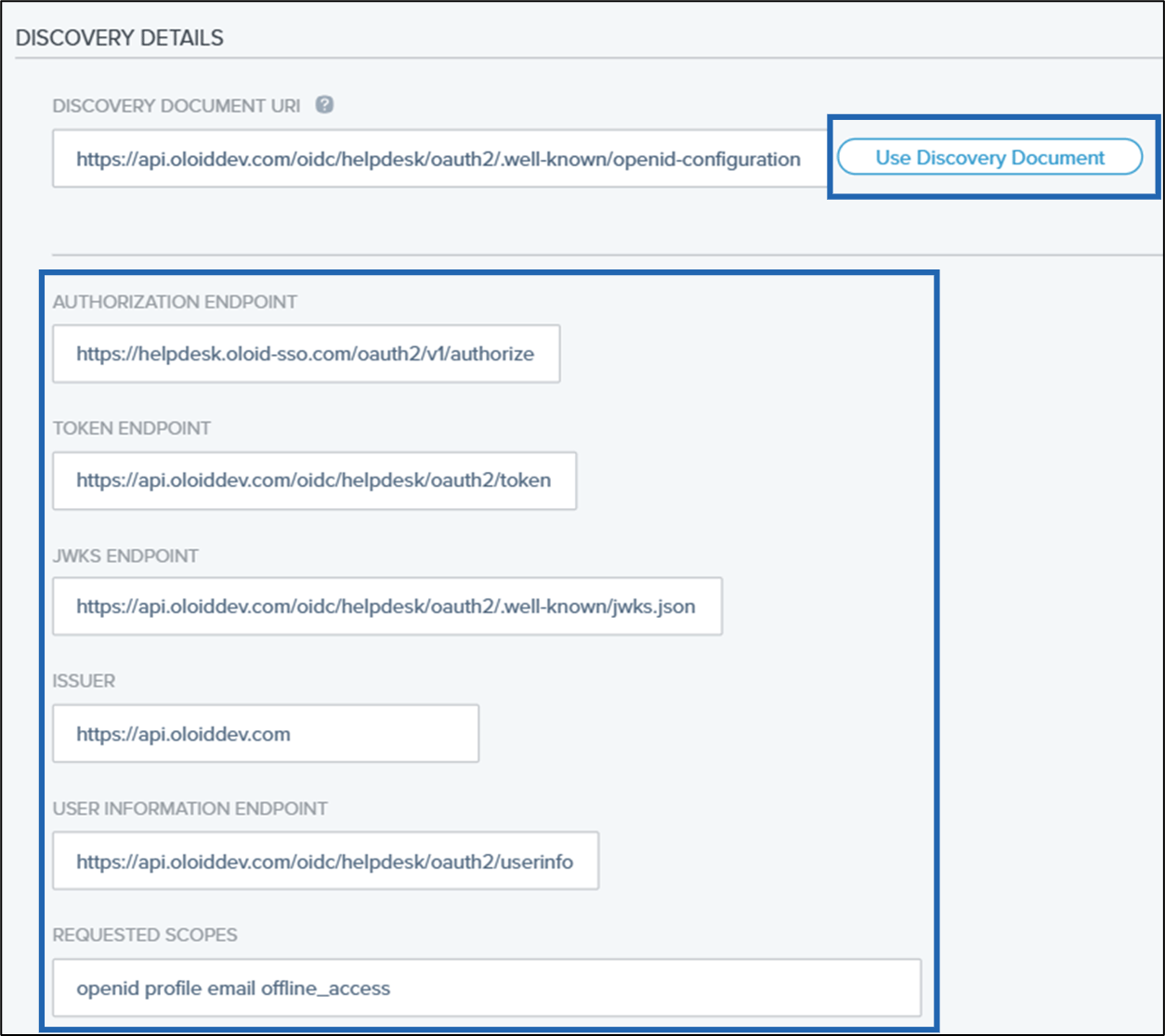
Next, select Use Discovery Document.
This auto-fills the remaining endpoints.
-
Select Client Secret Basic as TOKEN ENDPOINT AUTHENTICATION METHOD.

-
Click Save and Continue.

-
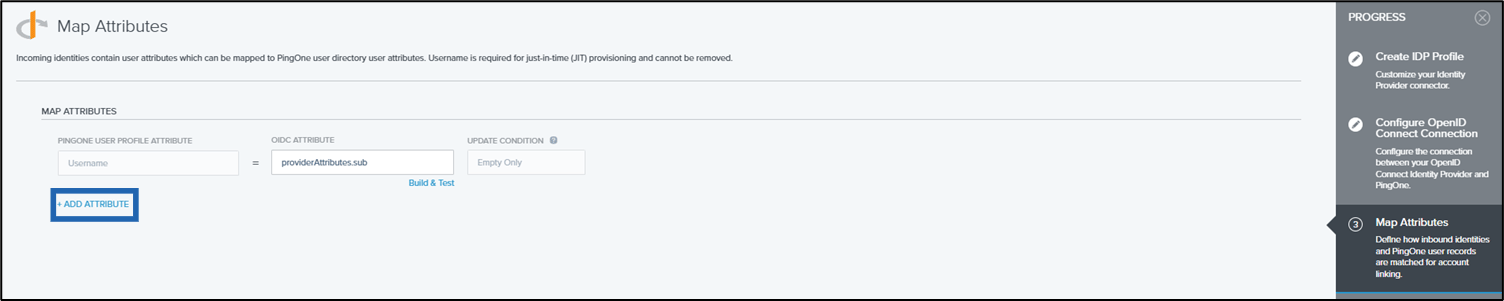
Click +ADD ATTRIBUTE.
-
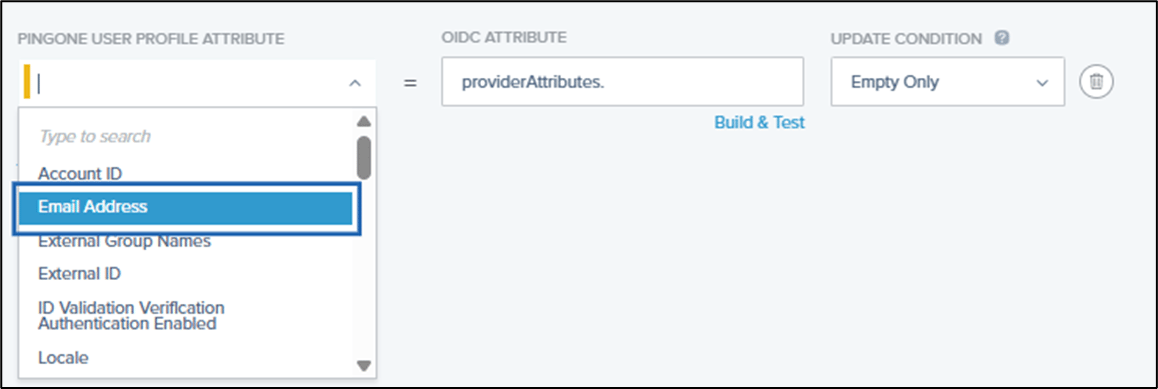
Select Email Address from PINGONE USER PROFILE ATTRIBUTE dropdown list.
-
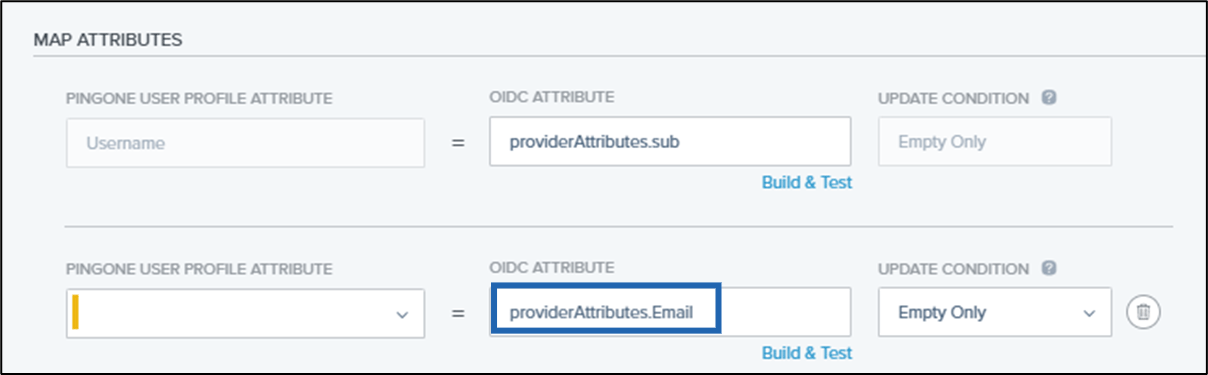
Set providerAttributes.Email in OIDC ATTRIBUTE field.
-
Select Empty Only from UPDATE CONDITION dropdown list.

-
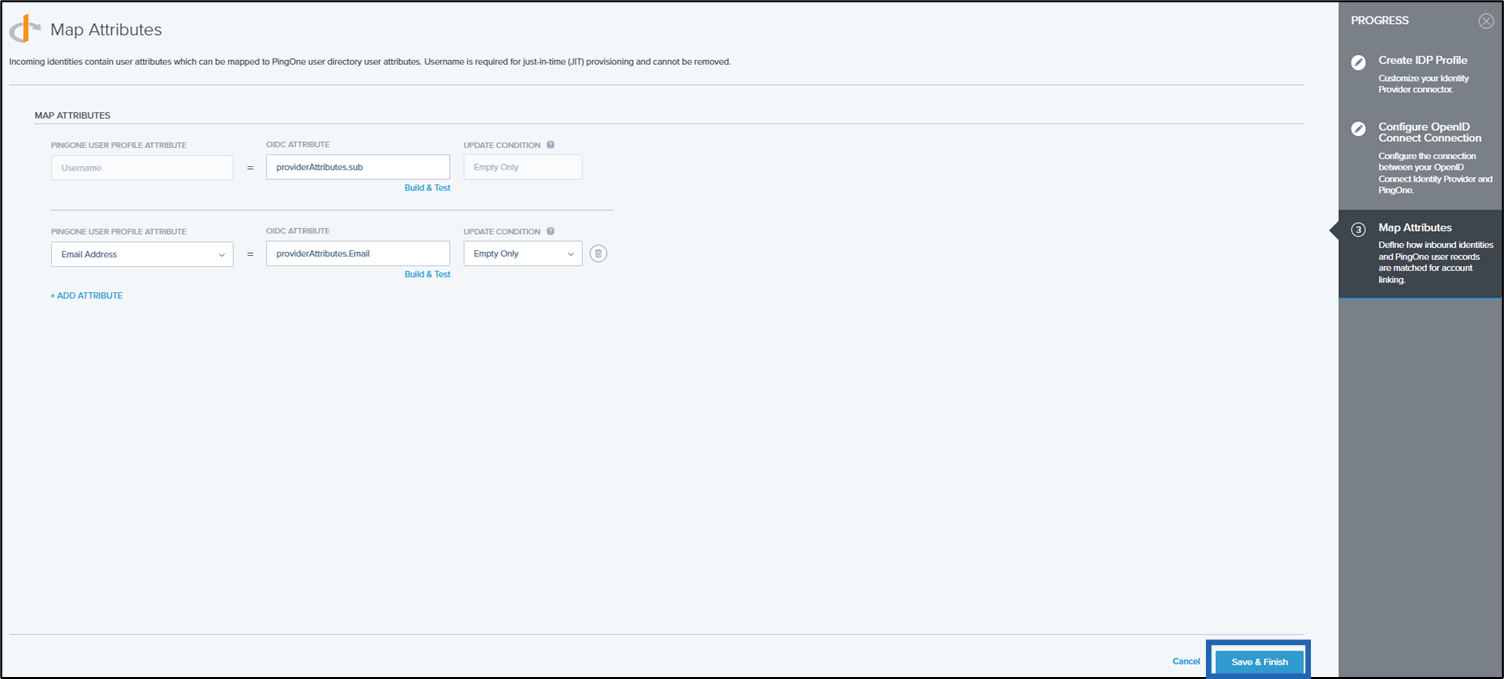
Select Save and Finish.
-
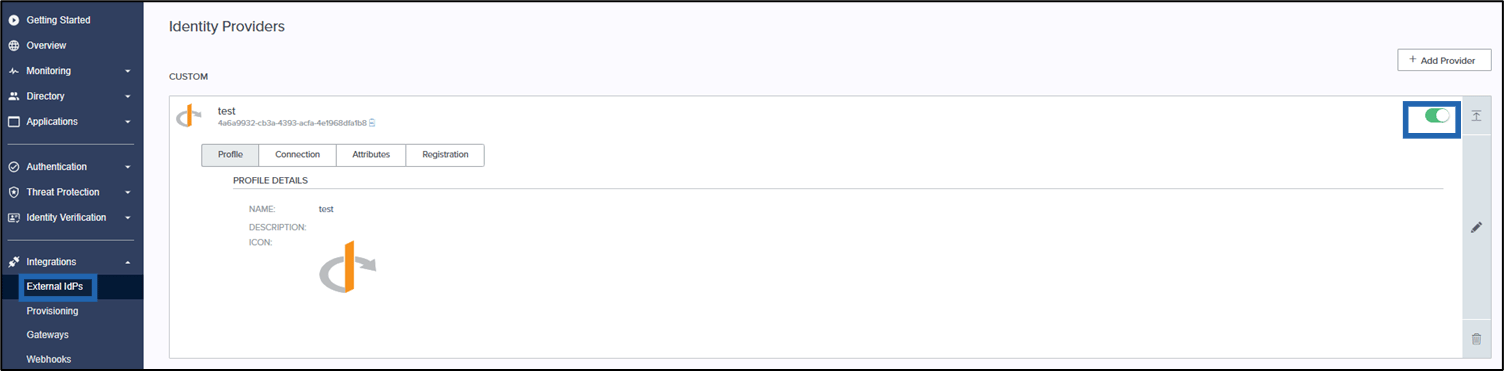
Enable the newly created IDP from the External IdPs list.
-
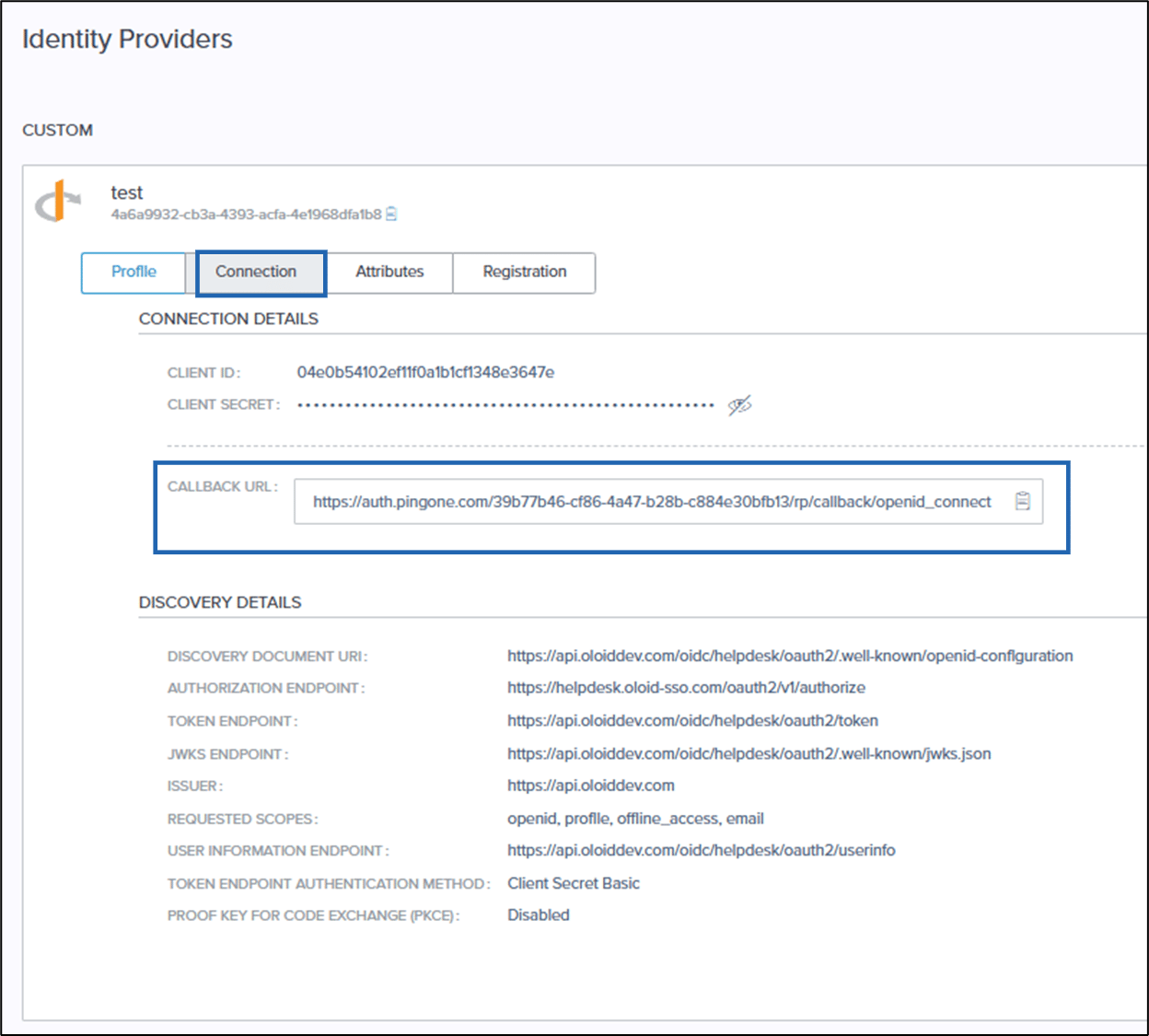
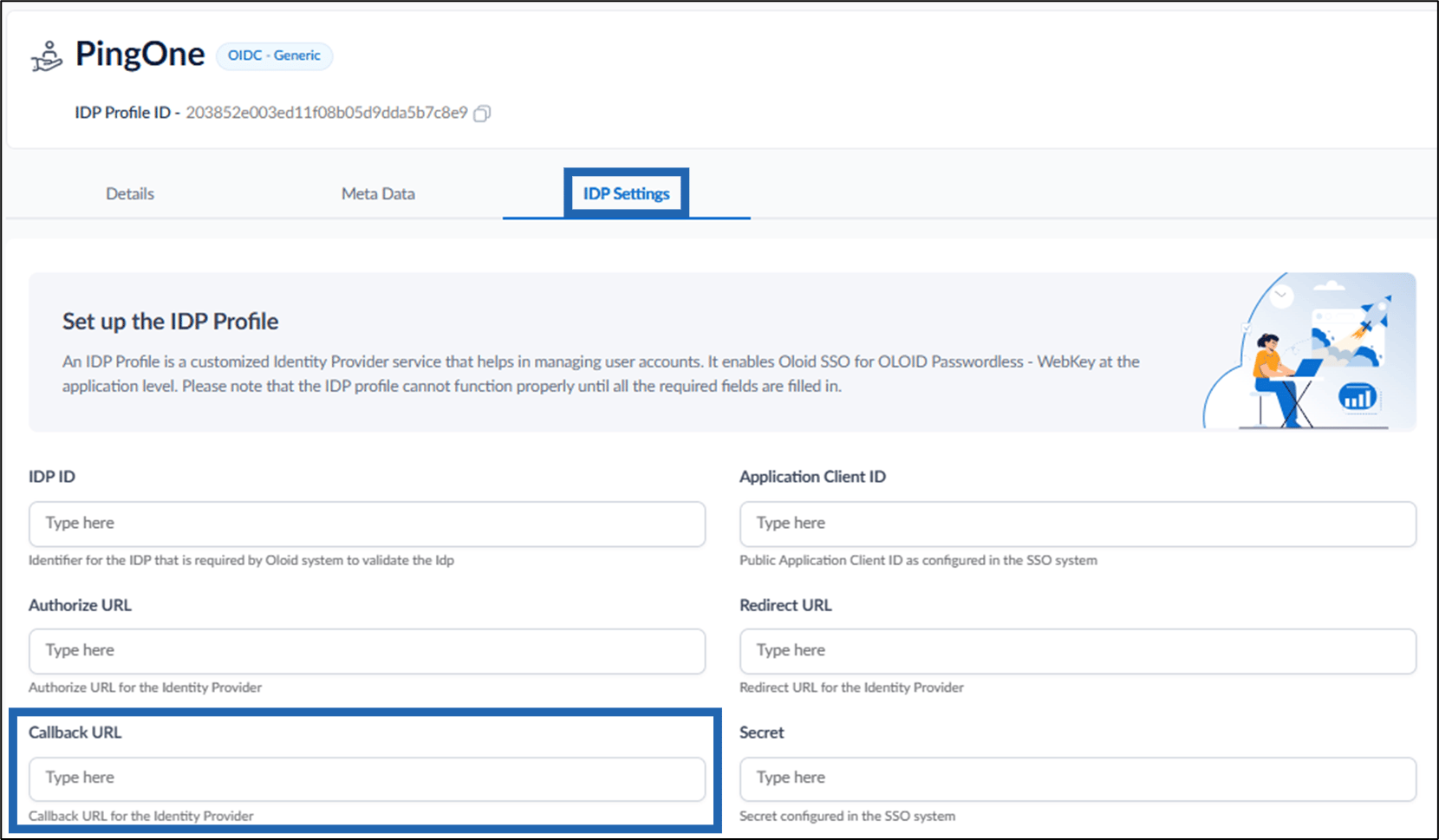
Go to the Connection tab, copy the CALLBACK URL, and paste it in the Oloid Tenant Admin Portal in Callback URL field.
Note: To find the Callback URL field in the Oloid Tenant Admin Portal, go to Auth Policies > Identity Provider > select IDP Profile > IDP Settings tab > Callback URL.
-
Update the Authentication Policies to use the new IDP.
- On the left navigation menu panel, go to Authentication > Policies > Authentication.

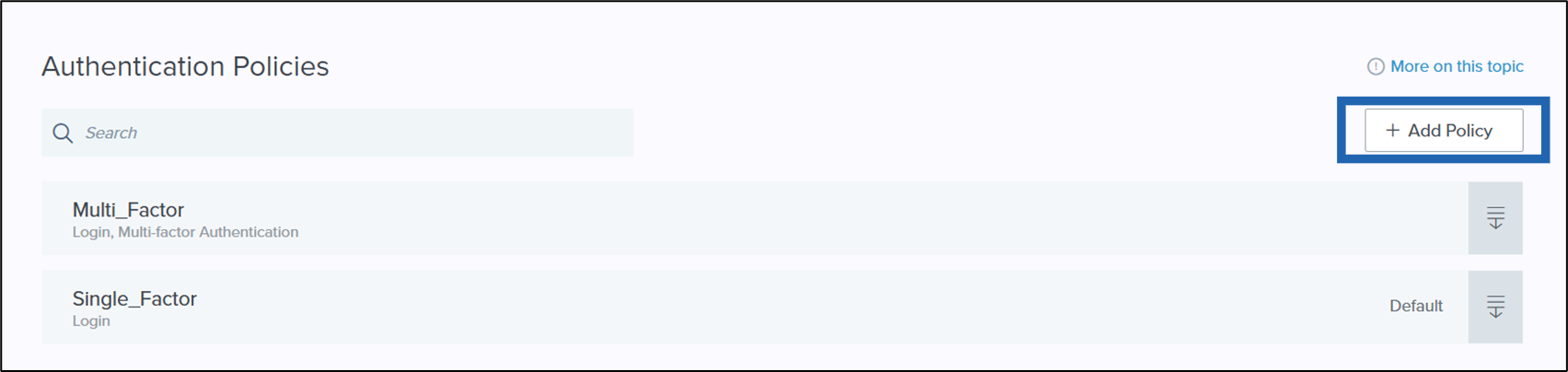
- Select +Add Policy to create a new authentication policy.
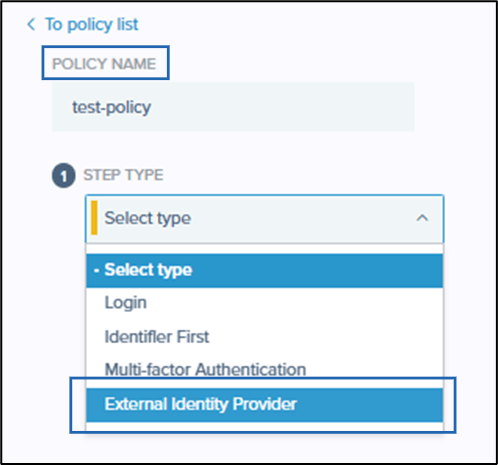
- Enter policy name in the POLICY NAME field.
- Under STEP TYPE, select External Identity Provider from dropdown.
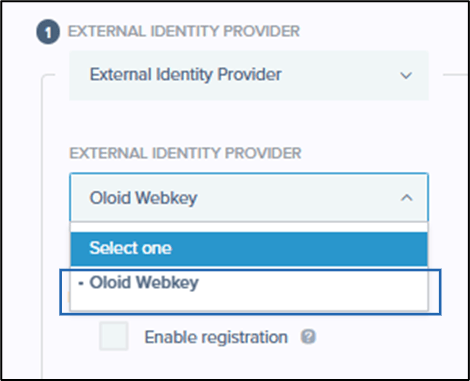
- Select the created external identity provider from the EXTERNAL IDENTITY PROVIDER section.
- Click Save.
The policy is created successfully.

- On the left navigation menu panel, go to Authentication > Policies > Authentication.
-
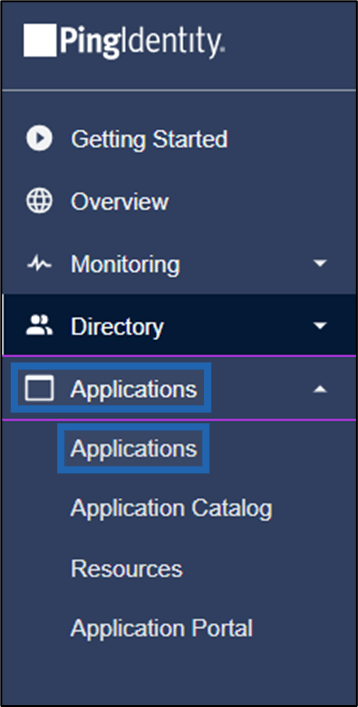
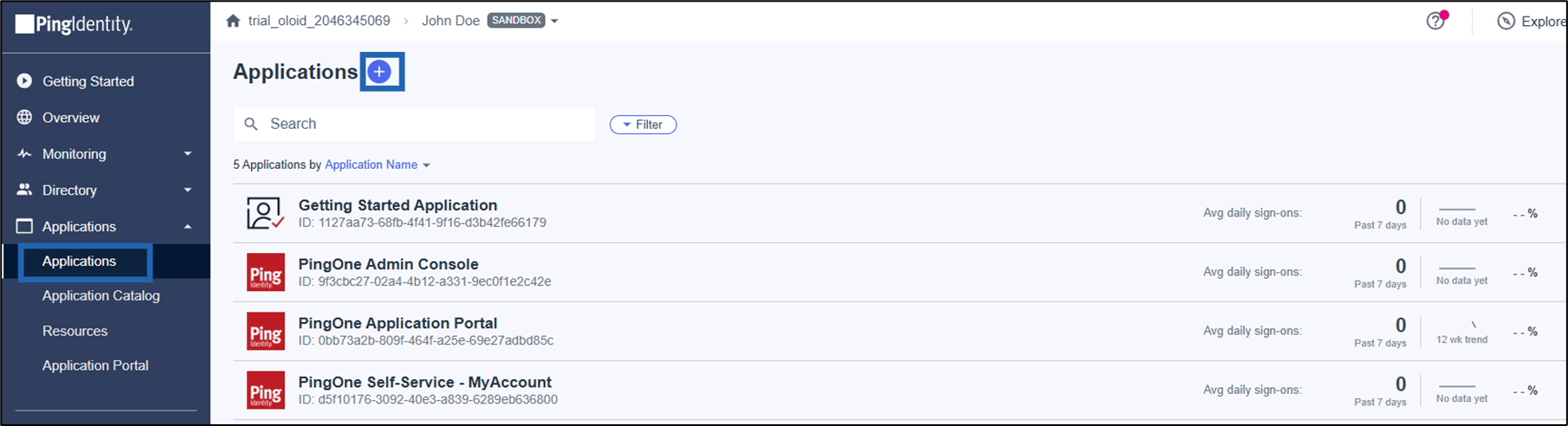
Next, go to the left menu navigation panel and select Applications > Applications.
-
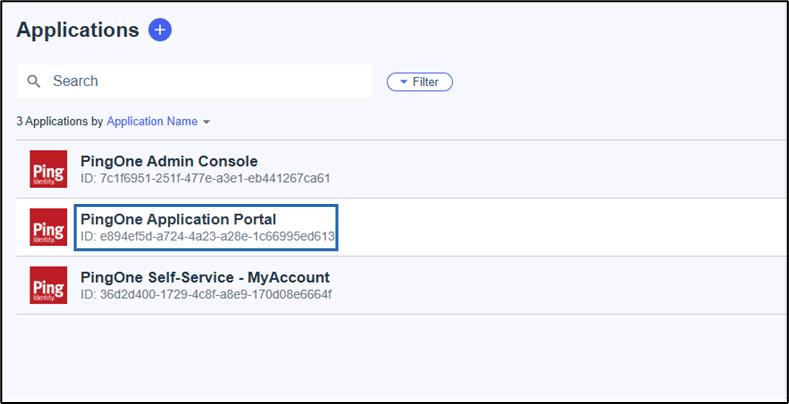
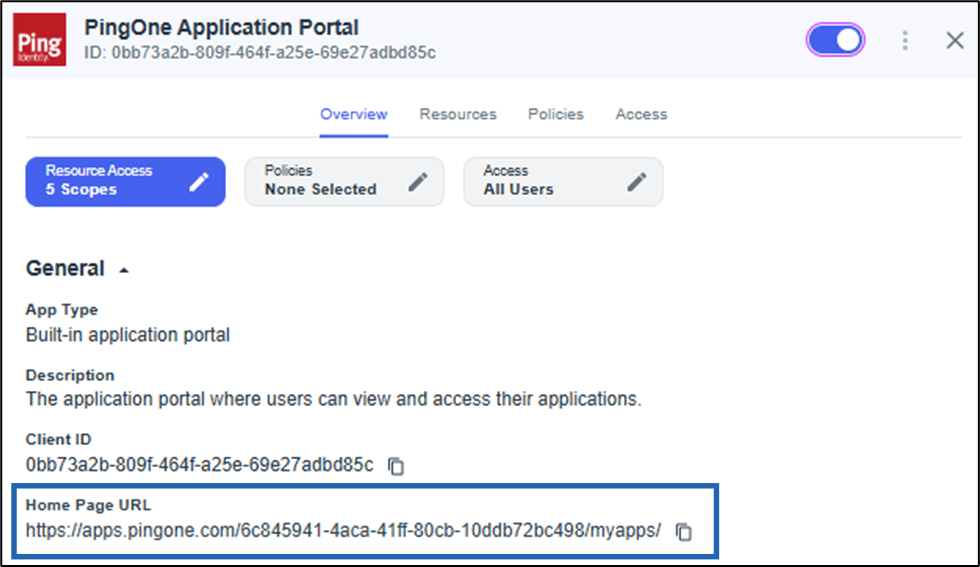
On the Application page, select PingOne Application Portal > copy the Home Page URL.
-
Select Applications from the left menu, and click the Add
 icon to add a new application.
-
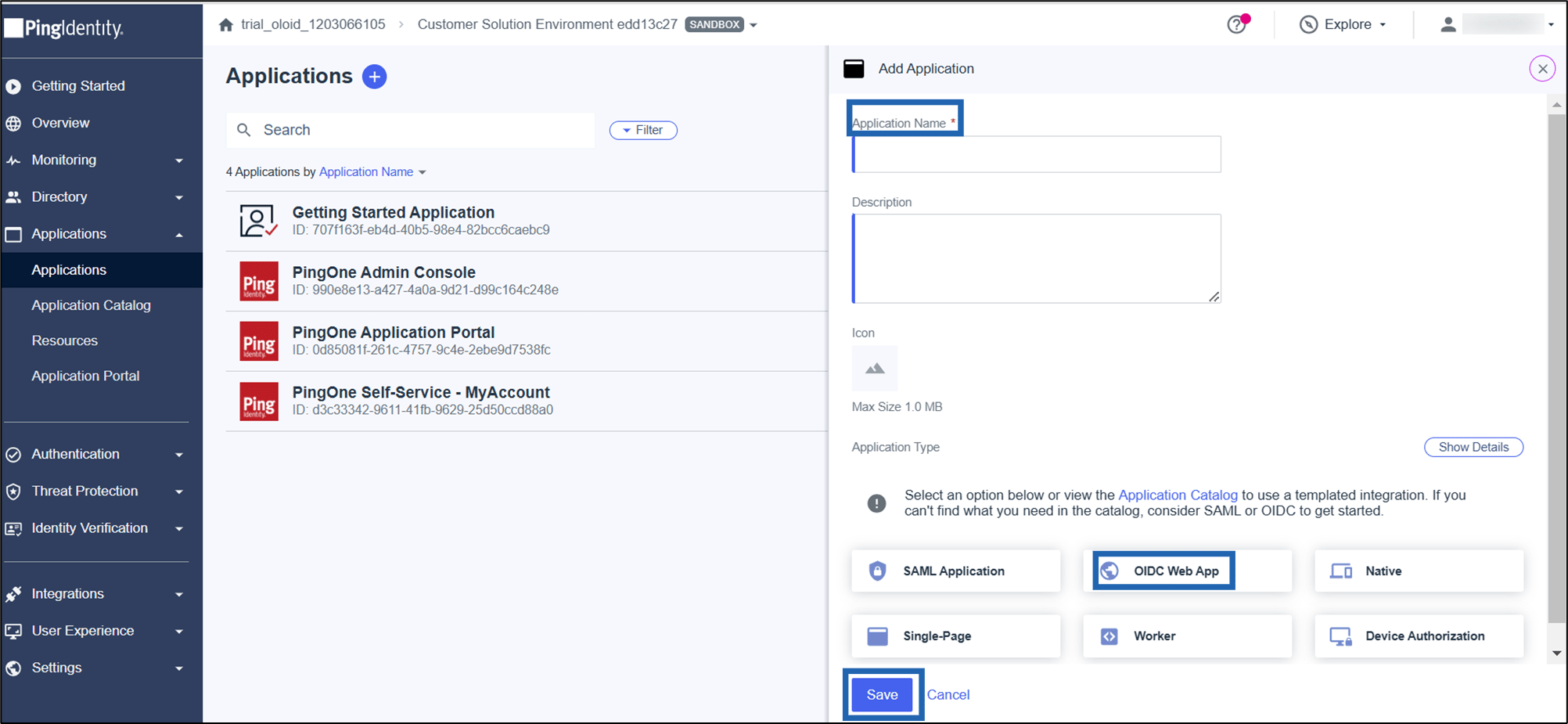
Do the following:
- Enter Application Name, then select OIDC Web App from Application Type.
- Click Save.
-
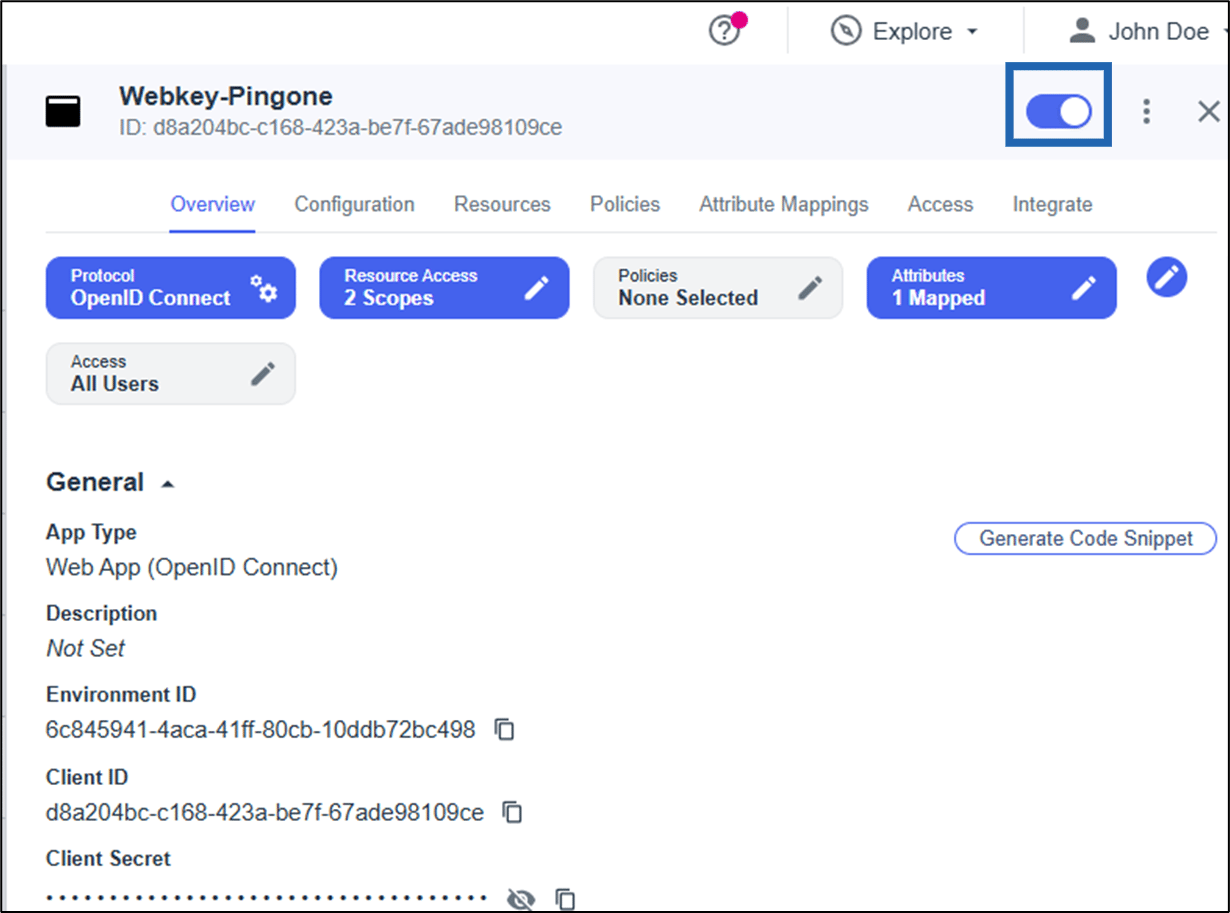
Select the newly created application from the application list to edit.

-
On the application Profile page, enable the app using the toggle button next to the application name.
-
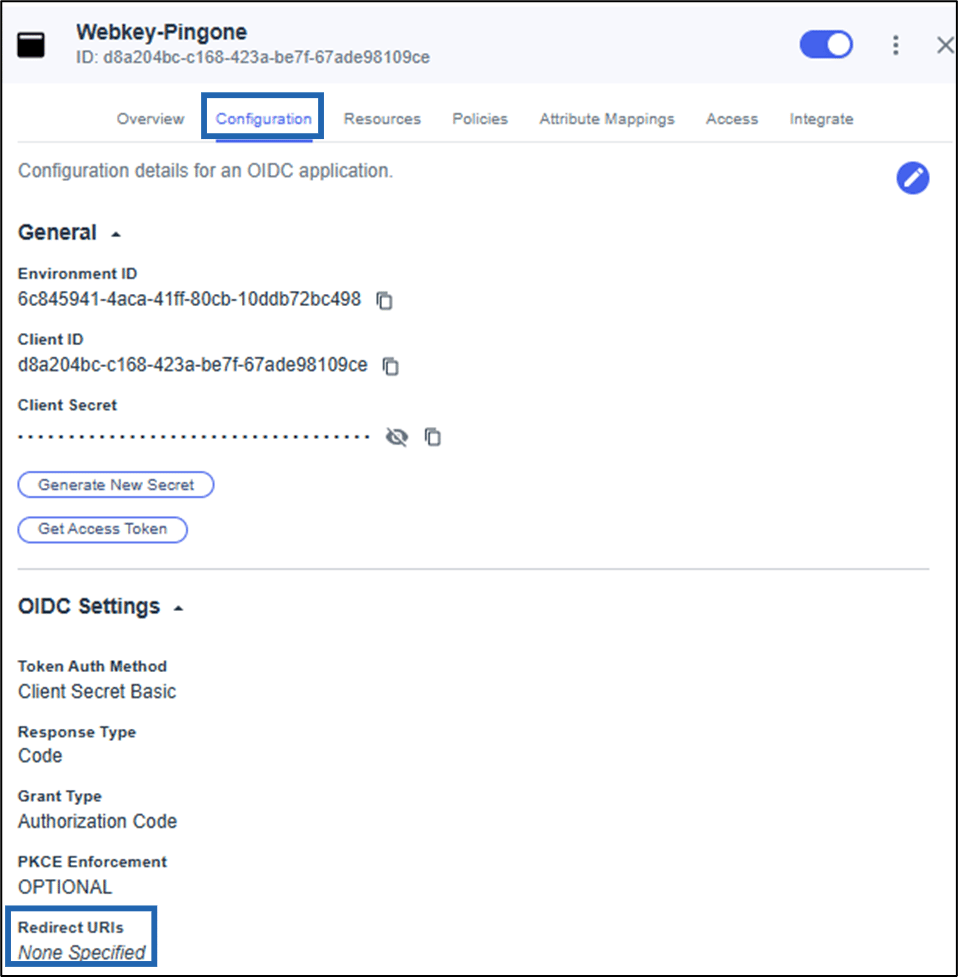
Paste the copied URL in the Configuration tab > Redirect URL field of the created application.
Note: Create an application.
-
In the Oloid Tenant Admin Portal, go to IDP Settings > Redirect URL and paste the same Home Page URL in the Redirect URL field.
 Note: Ensure that the Redirect URL in both PingOne and the Oloid Tenant Admin Portal match exactly to enable successful authentication.
 - Select the created application. The application details page is displayed.
-
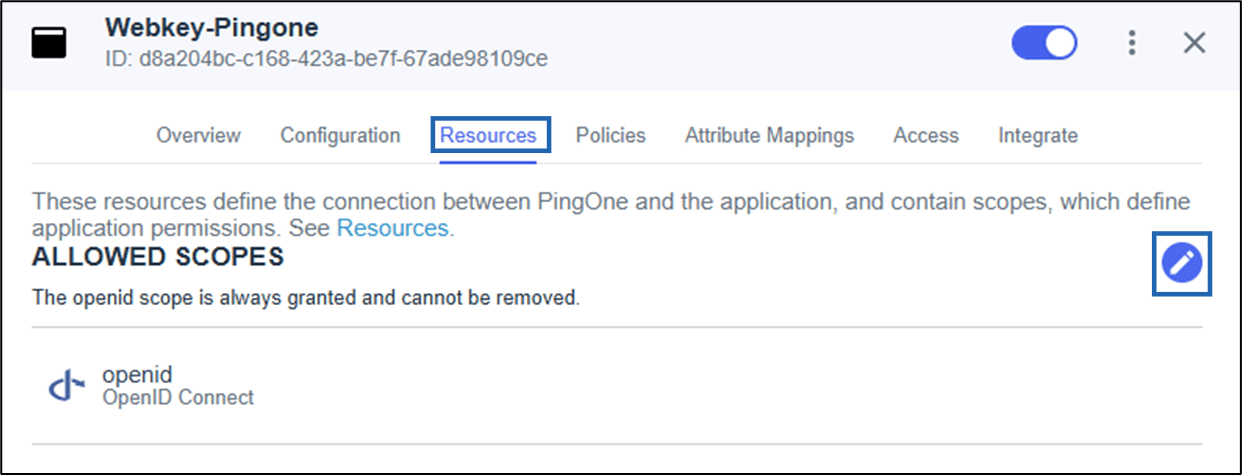
Go to Resources > edit ALLOWED SCOPES.
-
Select email, and then click Save.

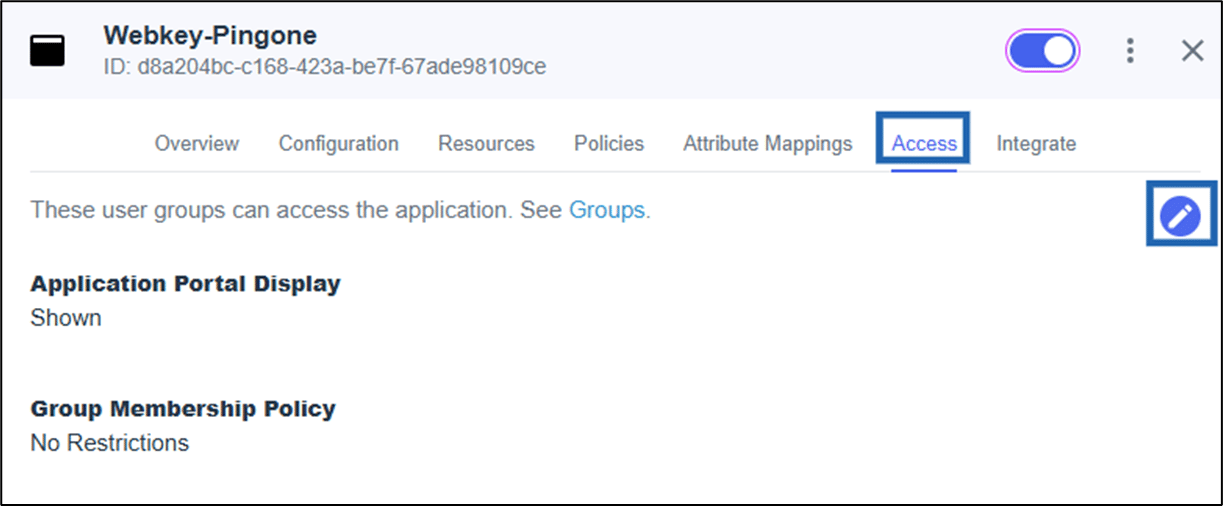
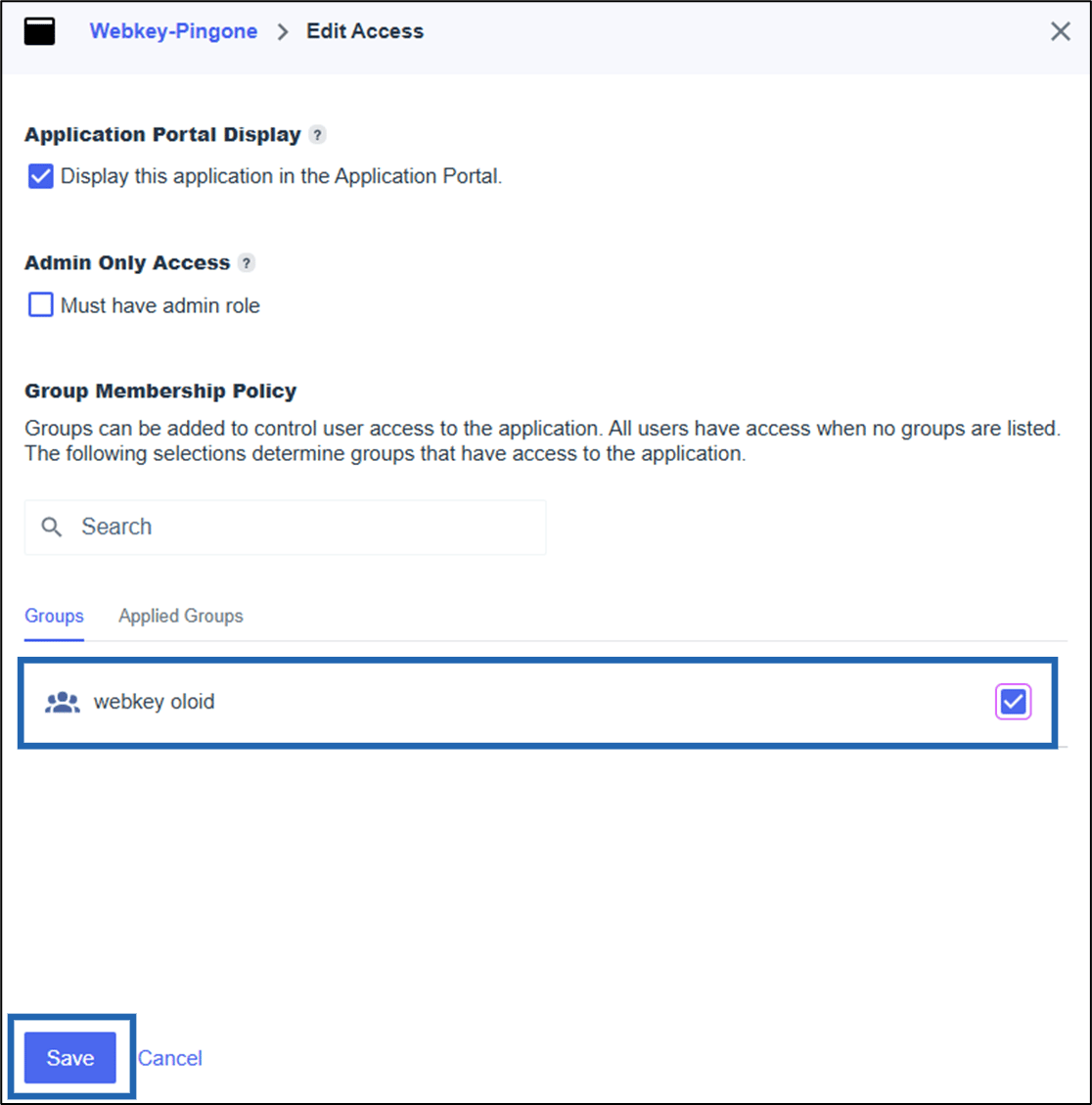
- Then, go to Access and edit > add groups > click Save.
-
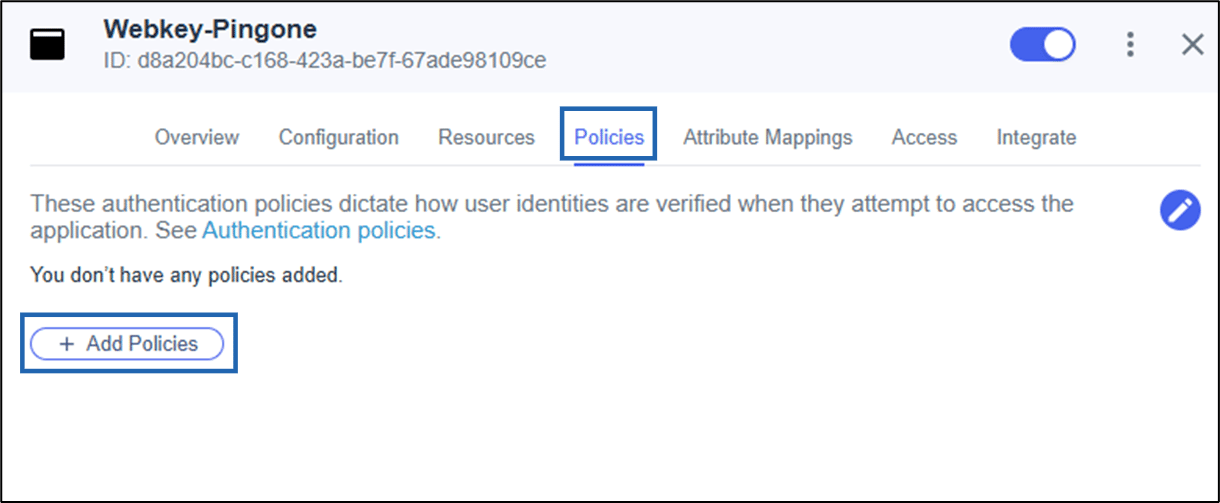
Under Policies tab, click +Add Policies.
-
Select the created policy, then click Save.

-
Under Access tab, click the edit
 icon.
icon.
-
Select the created group, then click Save.
Note: To create a group, go to Directory > Groups.
Integrating Oloid tenant to your PingOne (OIDC) instance
This document provides step-by-step instructions on how Oloid’s WebKey application integrates with PingOne as an external OpenID Connect (OIDC) Identity…
Introduction
This document provides step-by-step instructions on how Oloid’s WebKey application integrates with PingOne as an external OpenID Connect (OIDC) Identity Provider (IdP).
⌘I