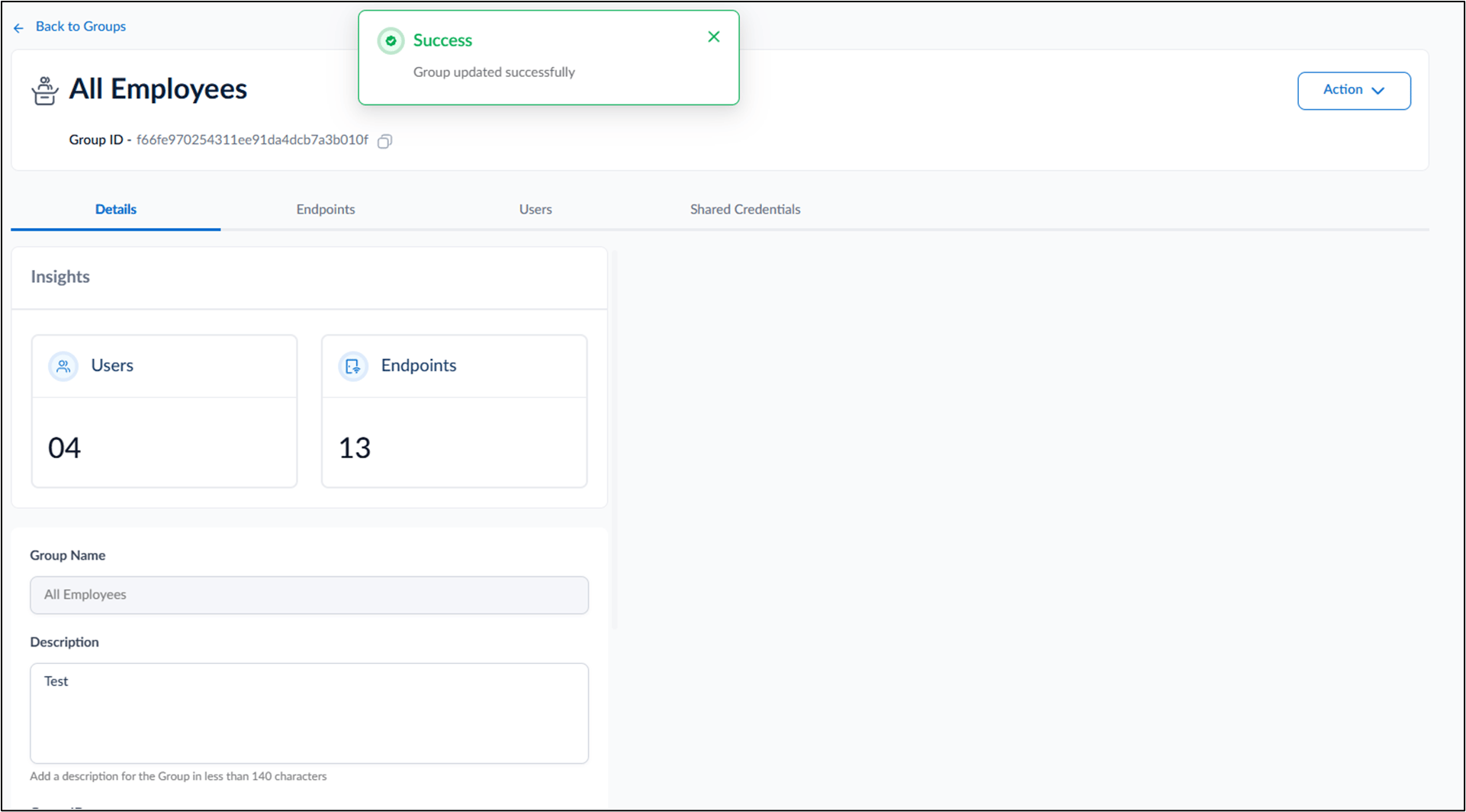
Introduction
Groups provide a structured way to organize users, endpoints, and shared credentials. They help manage access and configurations more effectively by grouping related Users together.Prerequisites
- You must have access to a Tenant Admin account.
- Ensure that the Group is already created. For more information, please refer: How to create group
Steps to configure a Group
- Log in to the Tenant Admin Portal.
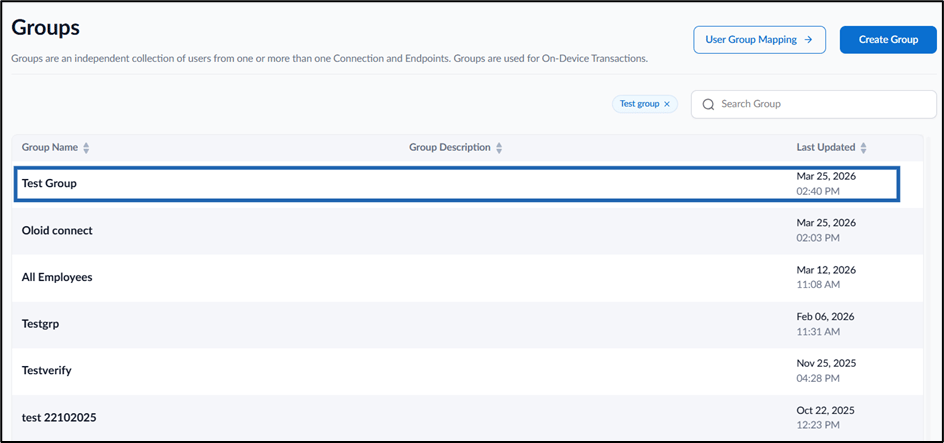
- On the home page of the portal, click Groups on the left menu panel.

- Click the Group Name to be configured from the listed groups.
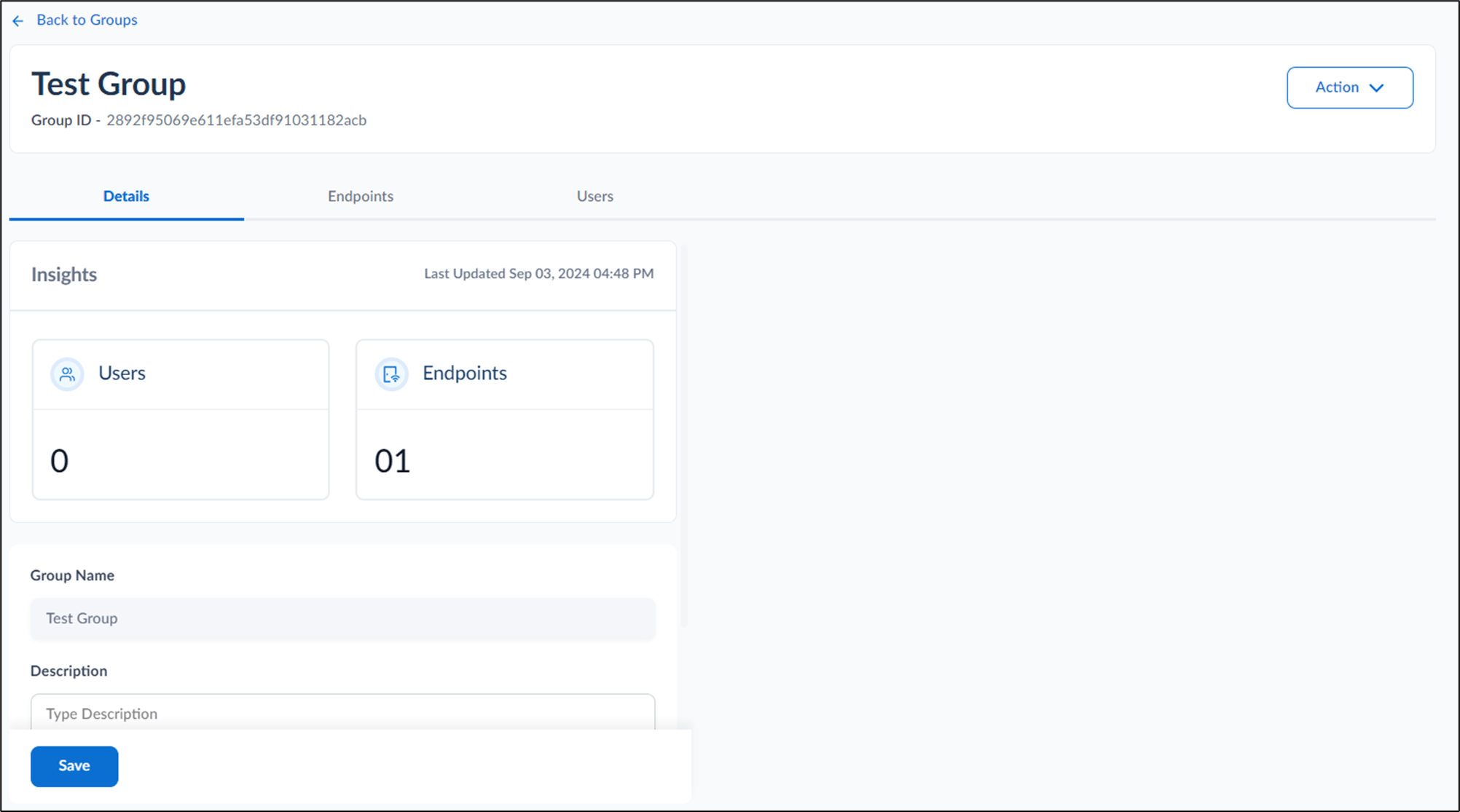
- Do the following: Configure Details tab Configure Endpoint Tab Configure Users Tab View Shared Credentials
Configure Details Tab
- On the Details page, enter Description (Optional).
- Click Save.

Configure Endpoint Tab
- Click Add Endpoint button to add endpoint to the group. For more information, refer to How to Add Endpoint to a group

Configure Users Tab
Click Add User to add user to the group. For more information, How to Map Users to a Group
View Shared Credentials
The Shared Credentials tab within a group allows Tenant Admin to view all shared credentials assigned to that group.Note: Shared Credentials tab only appears if any shared credential has been assigned to the group. For more information, refer: How to Add a Group to Windows Shared Passwords