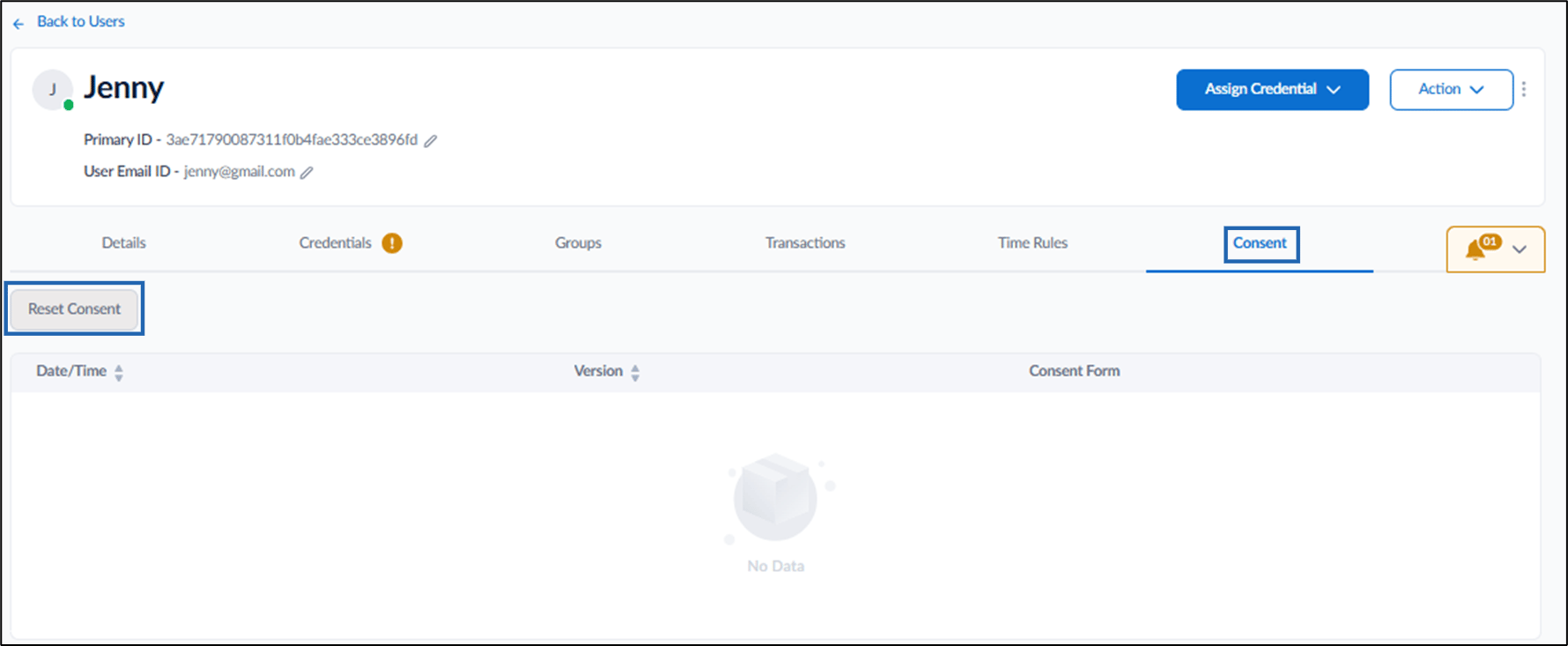
Introduction
The Revoke Consent feature allows admins to manage users’ legal consent. When activated, it resets previously obtained consent, prompting users to provide consent again if the organization updates the legal agreement document.Prerequisite
- You must have a Tenant Admin Account.
- User must have an active consent.
Steps to Revoke Consent
- Log in to the Tenant Admin Portal.
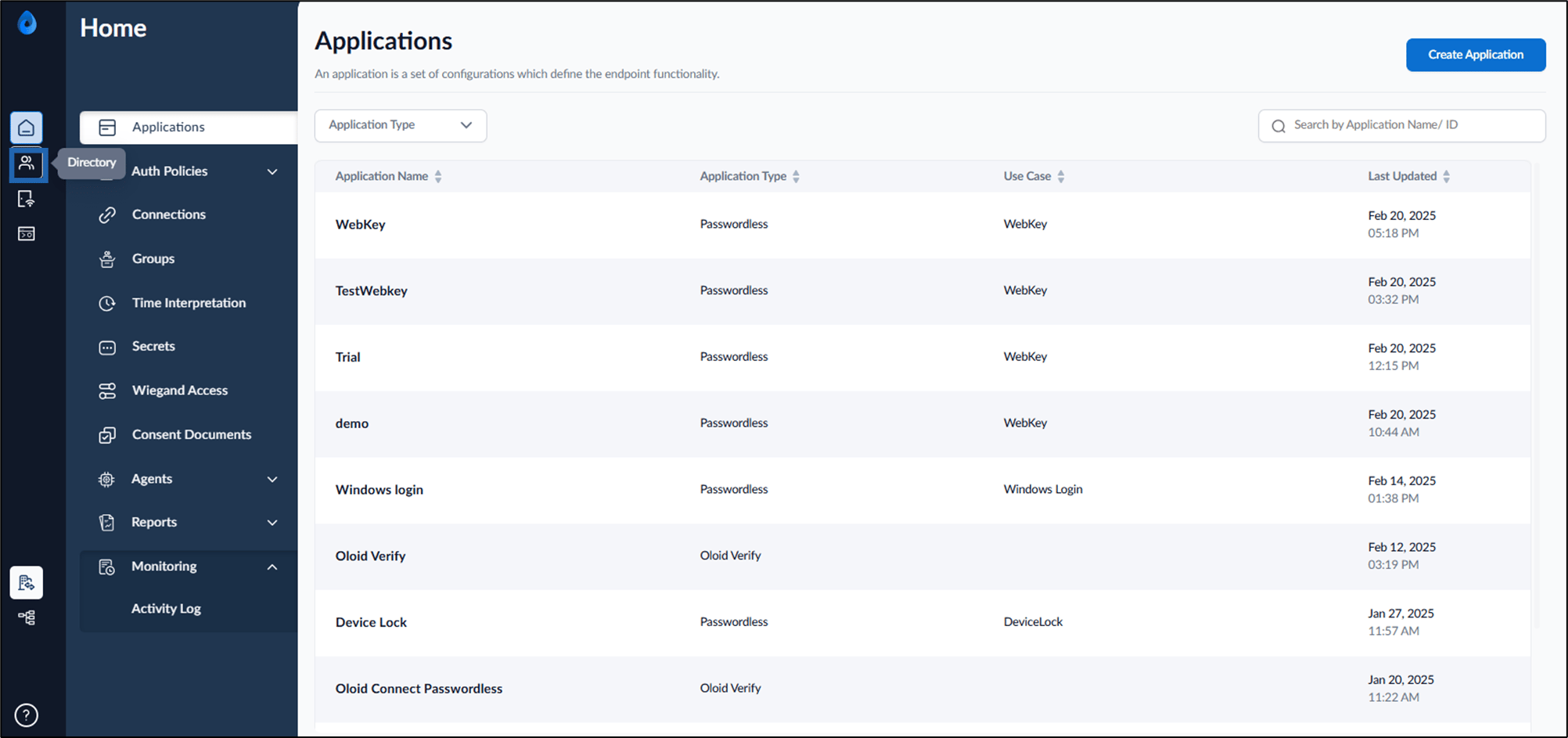
- On the homepage, select Directory from the left menu panel.
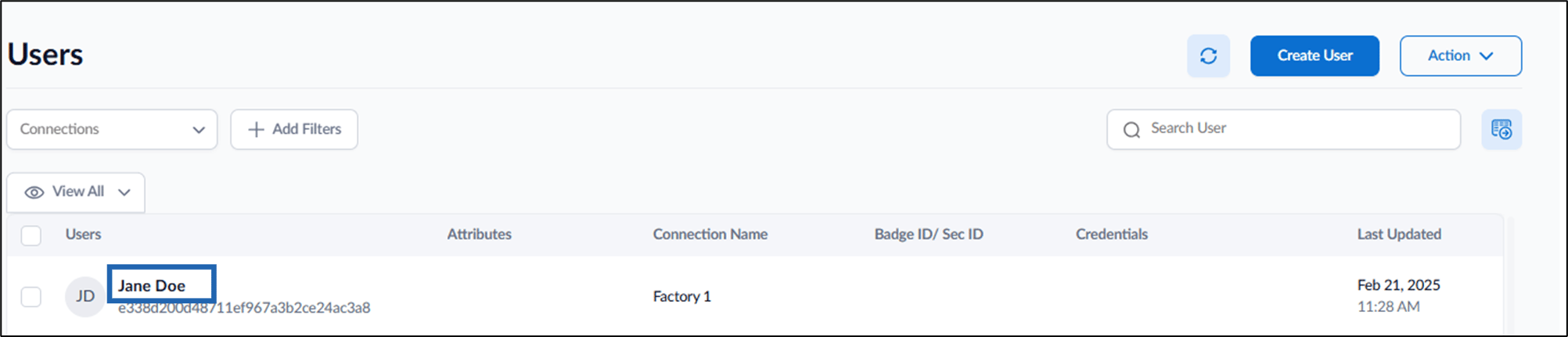
- Select User from the list.
- Do one of the following:
-
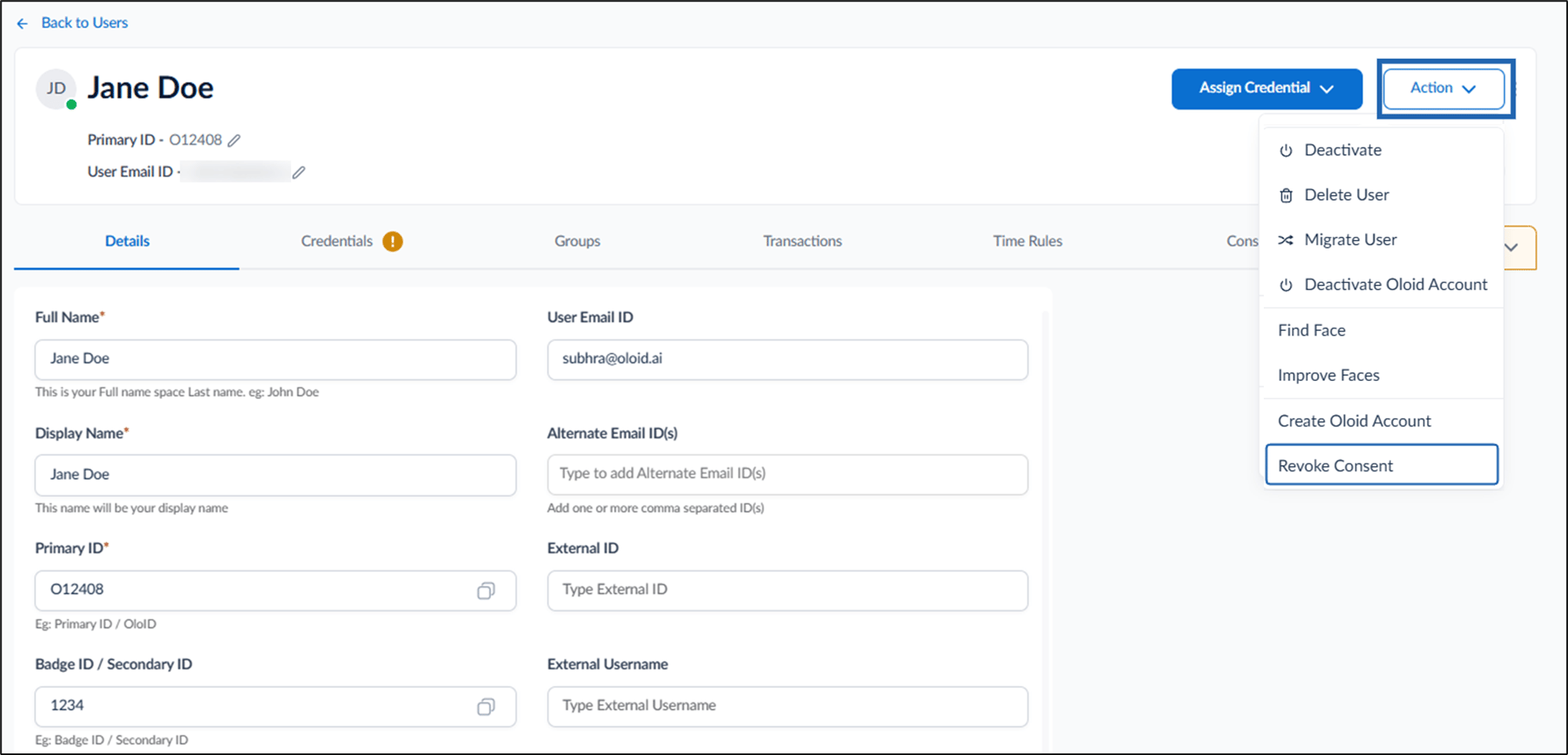
Click Action dropdown at top right > select Revoke Consent.
-
Go to Consent tab > Active Consent > click Revoke Consent.
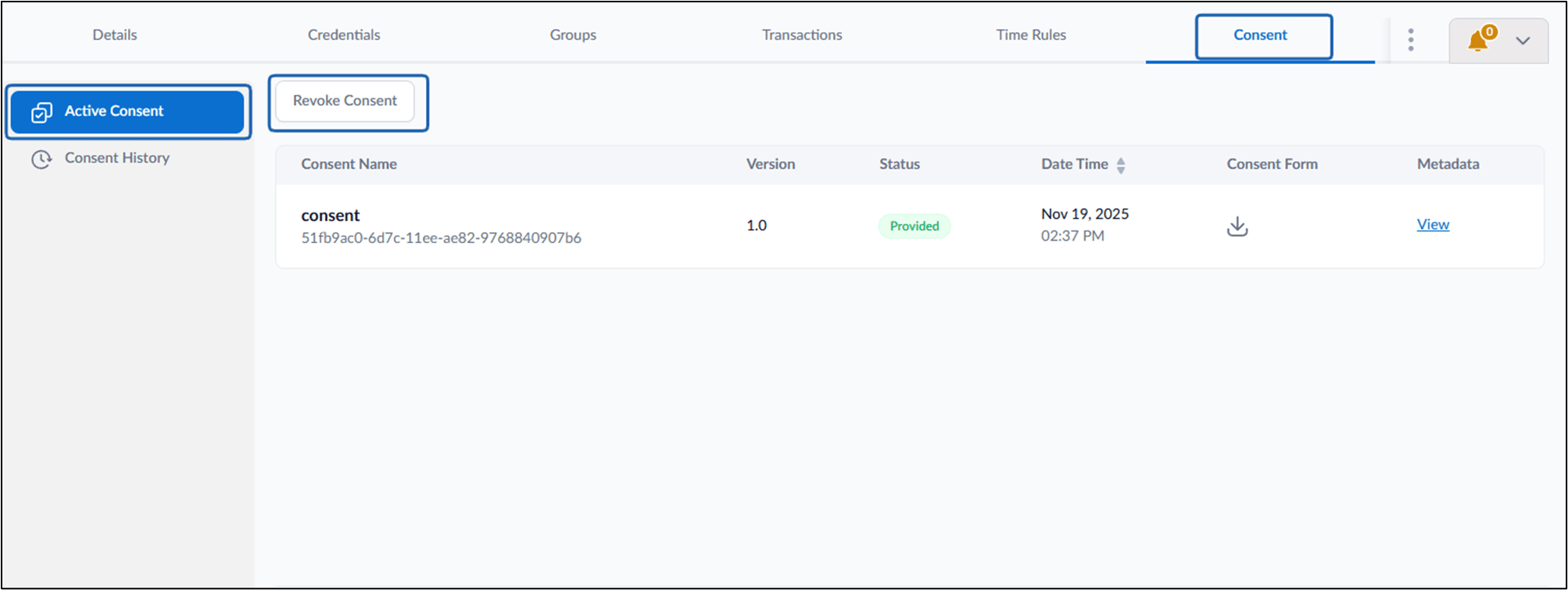
-
Click Confirm Revoke Consent.
 Note: The user is prompted to submit consent in the User Portal during face addition.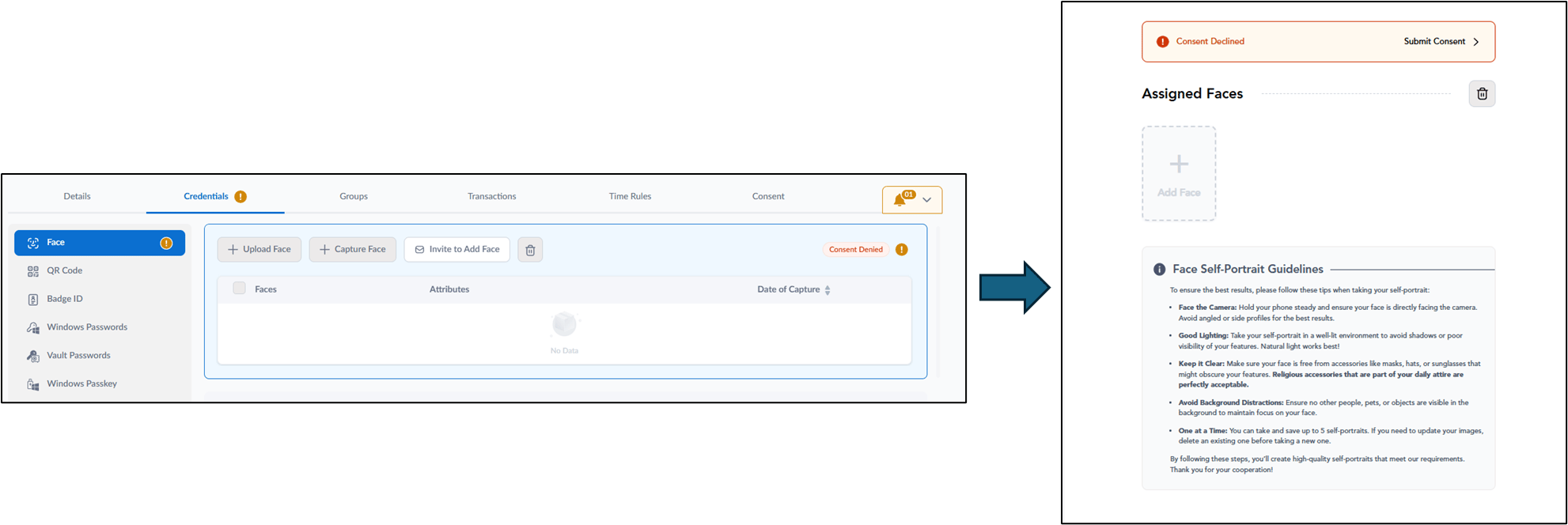
-
Click Action dropdown at top right > select Revoke Consent.
Note: Once activated, the Revoke Consent button is disabled until the user submits consent again.