

Introduction
The Active Consent feature in the Oloid Tenant Admin Portal allows administrators to quickly access and manage user consent records. This ensures that consent-related information is easily accessible and securely maintained within the platform.Prerequisites
- You must have a tenant admin account.
- User must be part of the connection.
- Consent should already be accepted by the User to view active consent.
Steps to View and Download Active Consent of a User
- Log in to the Tenant Admin Portal.
- On the homepage, select Directory from the left menu panel.
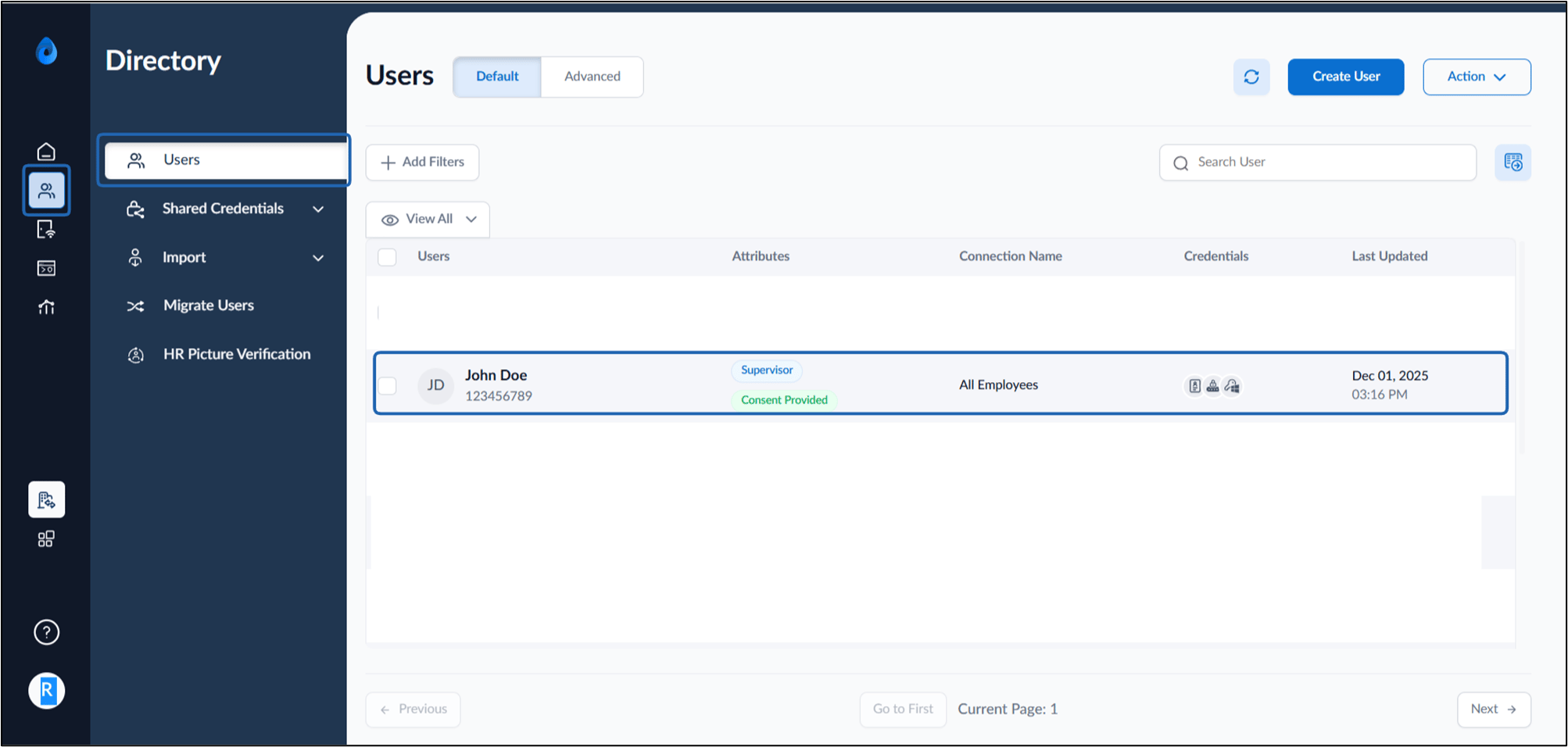
- Click the user name to edit. The User details page is displayed.
- Click the Consent Tab > Active Consent.
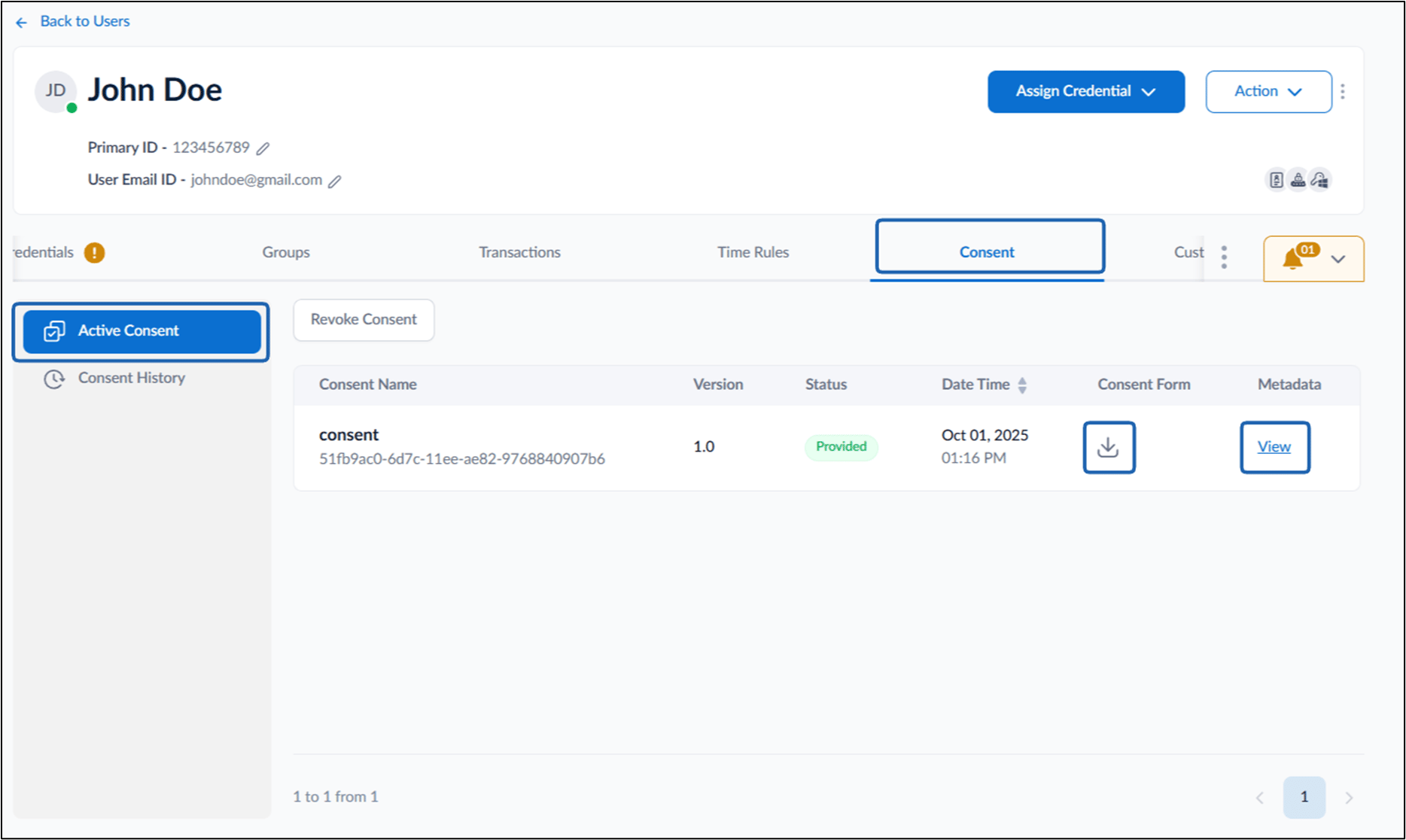
- Do the following:
- Click download icon to download the active consent of the user. The active consent is successfully saved to the device.
- Click View to view the active consent metadata.
Note: Consent Status are as follows:
- Provided: The user has given consent to add their face data.
- Denied: The user has rejected the consent request.
- Pending: The user has received the consent request, and their action is pending.
- Re-consent Pending: The user had previously provided consent, but a new consent request was issued and their action is pending.