Introduction
This document provides instructions to create a PC/SC-enabled connection in the Tenant Admin Portal. When creating a Connection, you can enable PC/SC Badge Input to allow authentication using PC/SC-compatible badge readers (for example, HID cards).Prerequisite
You must have an admin access to the Tenant Admin Portal.Steps to Create a Connection
- Log in to the Tenant Admin Portal.
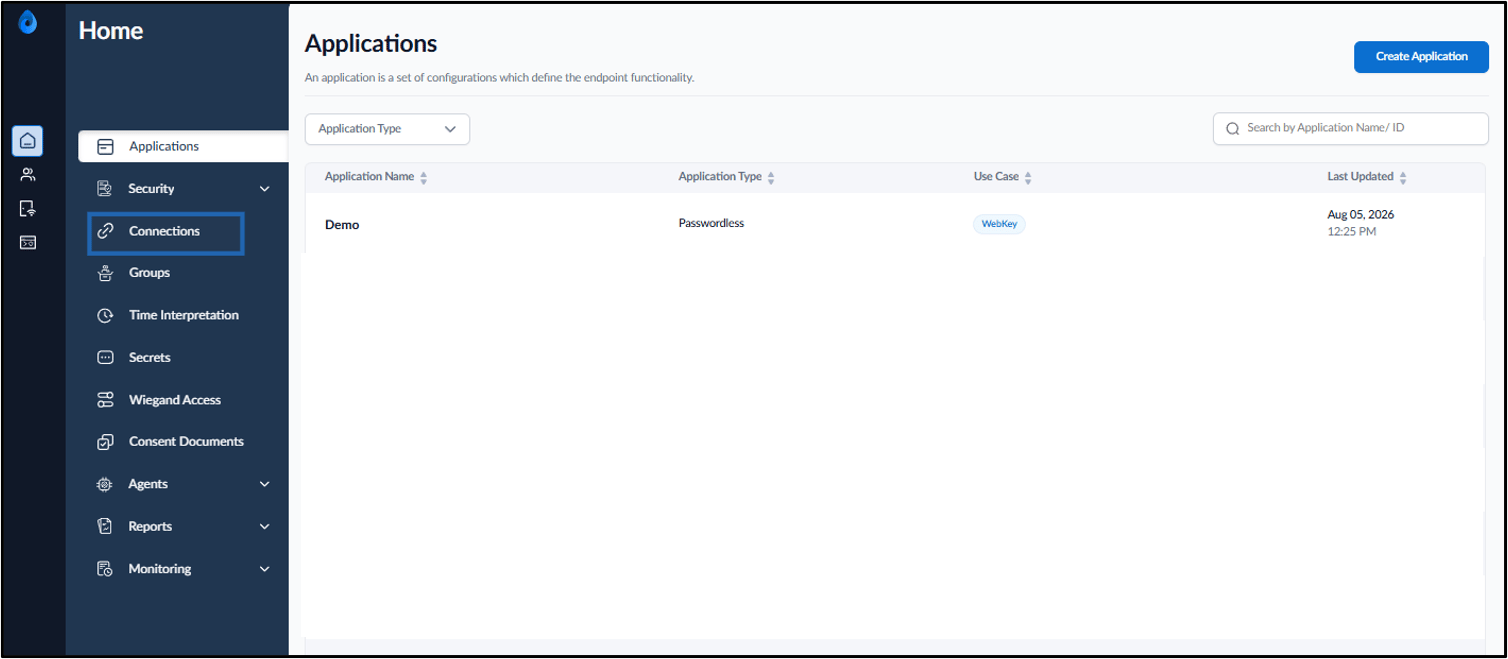
- On the home page of the portal, click Connections on the left panel menu.
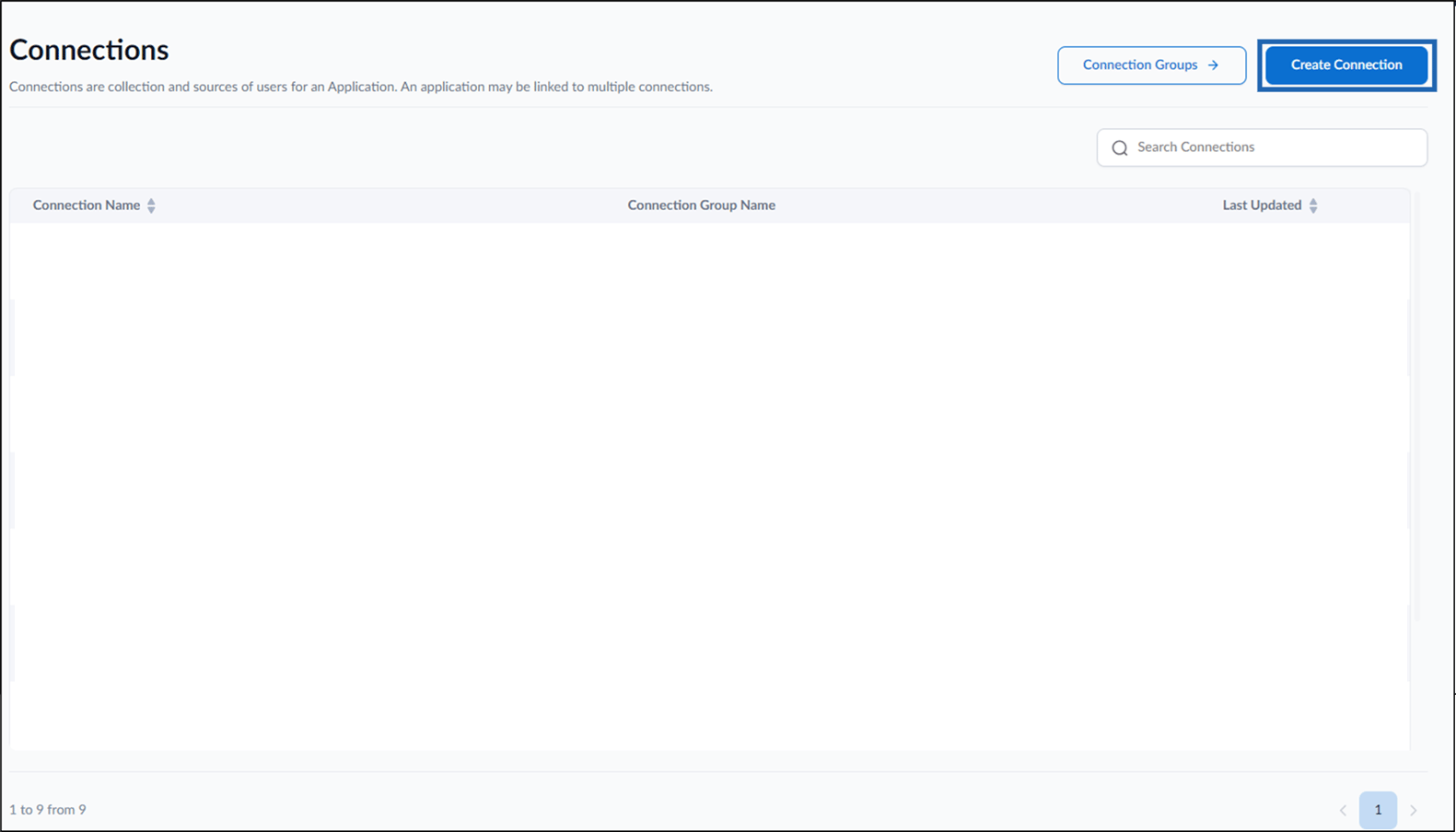
- Click Create Connection.
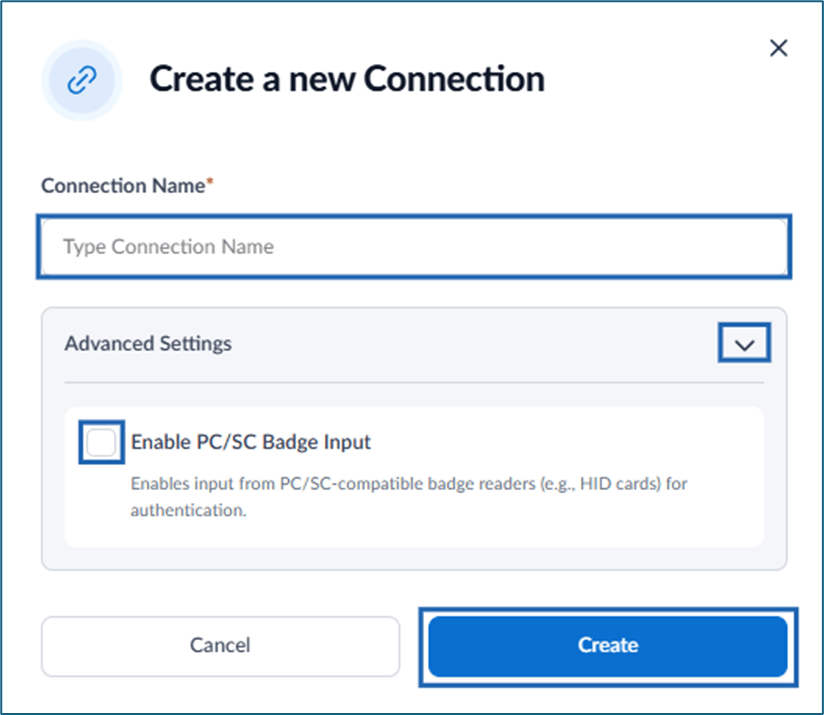
- Do the following:
- Enter Connection Name.
-
Click the Advanced Settings drop-down menu and select Enable PC/SC Badge Input to allow input from PC/SC- compatible badge readers (e.g., HID cards) for authentication.
Note: Once a connection is tagged as PC/SC-enabled, it cannot be reverted back to non-PC/SC use cases.
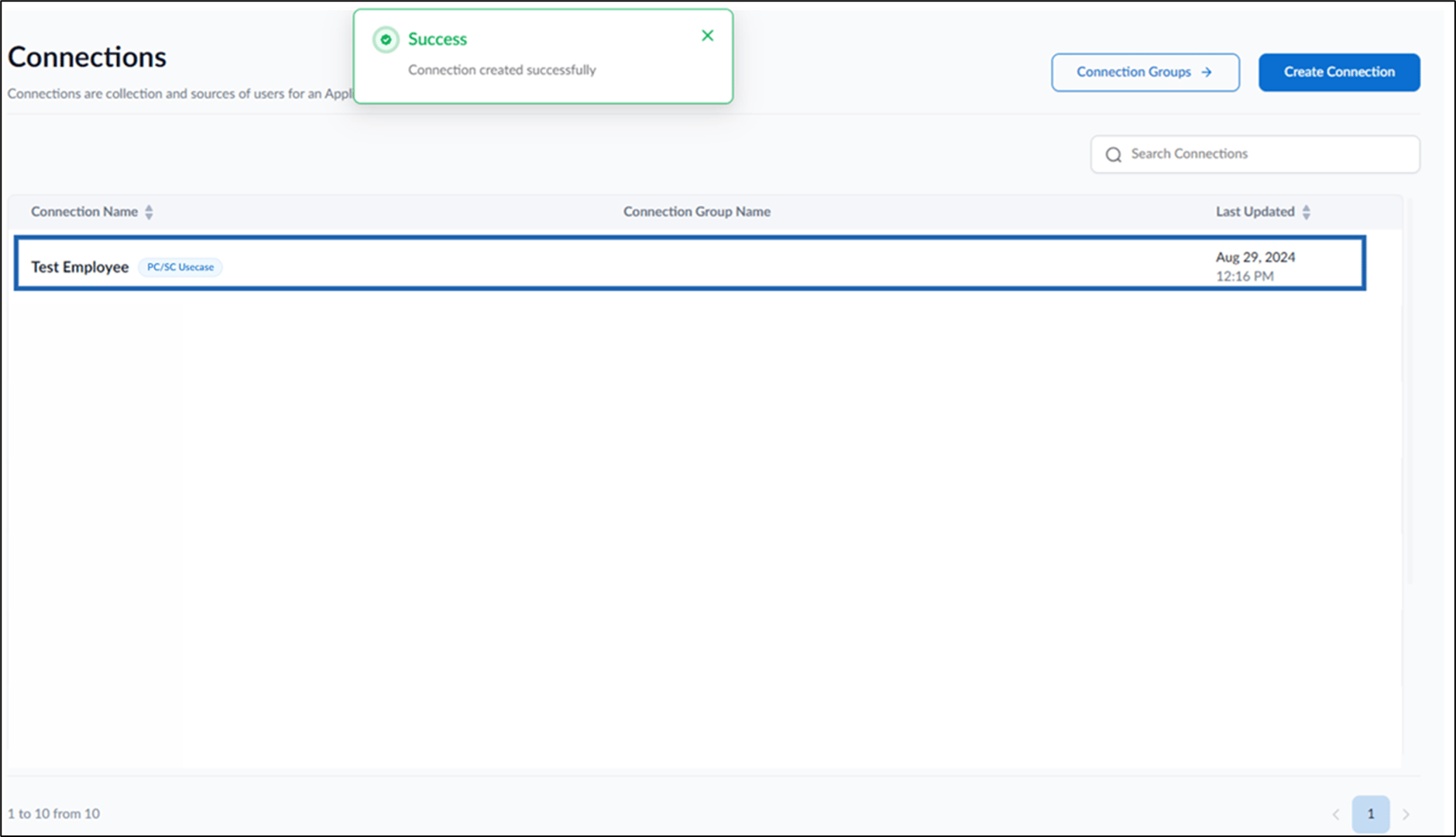
- Click Create.