Introduction
This document explains how to configure Security Assertion Markup Language (SAML) as an Identity Provider (IdP) using Okta for Oloid application. The configuration involves creating a SAML IdP in the Okta Admin Console and configuring Oloid application with the SAML.Prerequisites
- You must have Admin access to the Okta Admin Console.
- Ensure Webkey application is created. To create Webkey application, refer How to create and configure WebKey Application in Tenant Admin Portal.
- Ensure the SAML IDP application is created. To create SAML application, refer How to Create IDP Profile for Security Assertion Markup Language (SAML) in the Tenant Admin Portal.
Steps to Add Identity Provider
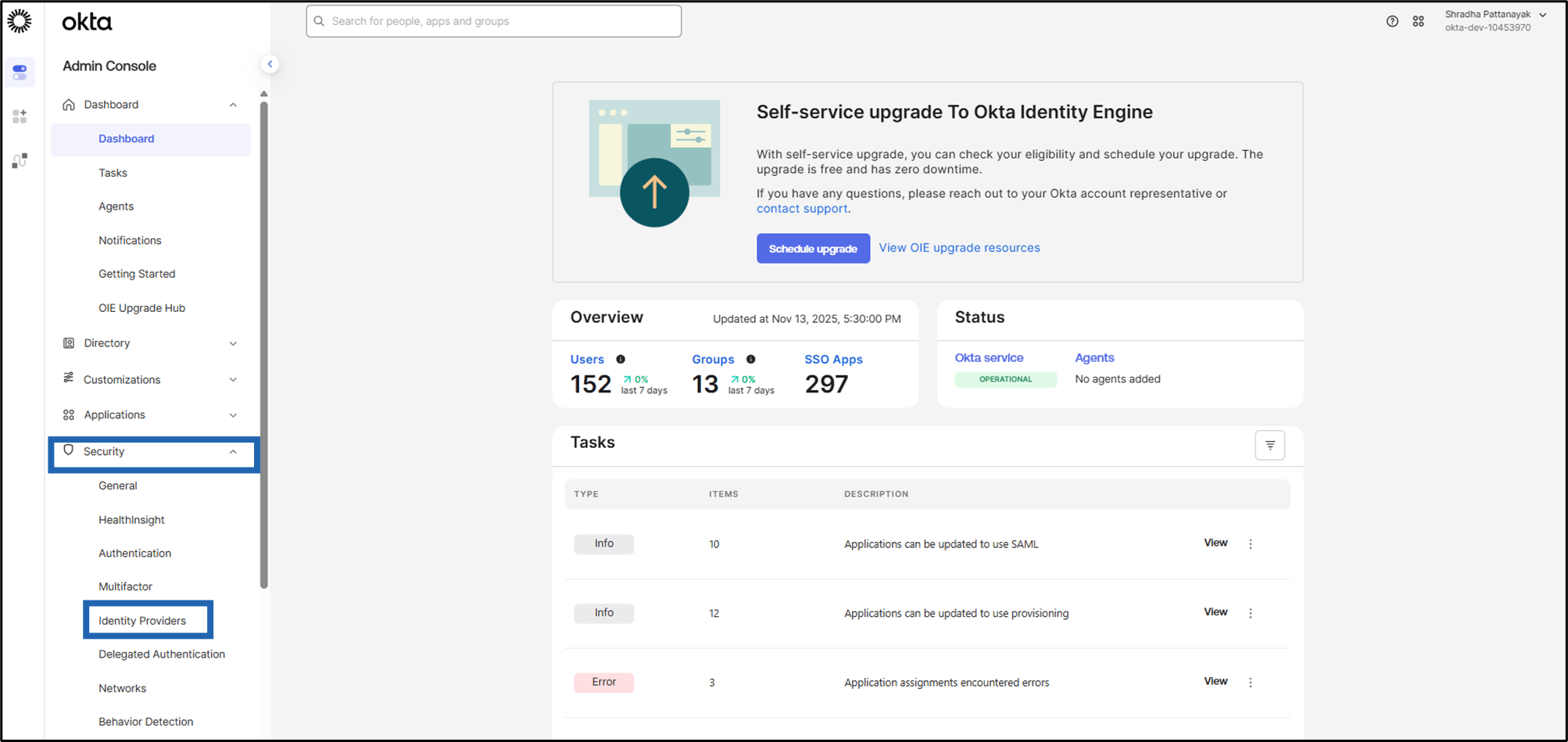
- On the home page of the Okta Admin Console, go to Security > Identity Providers.
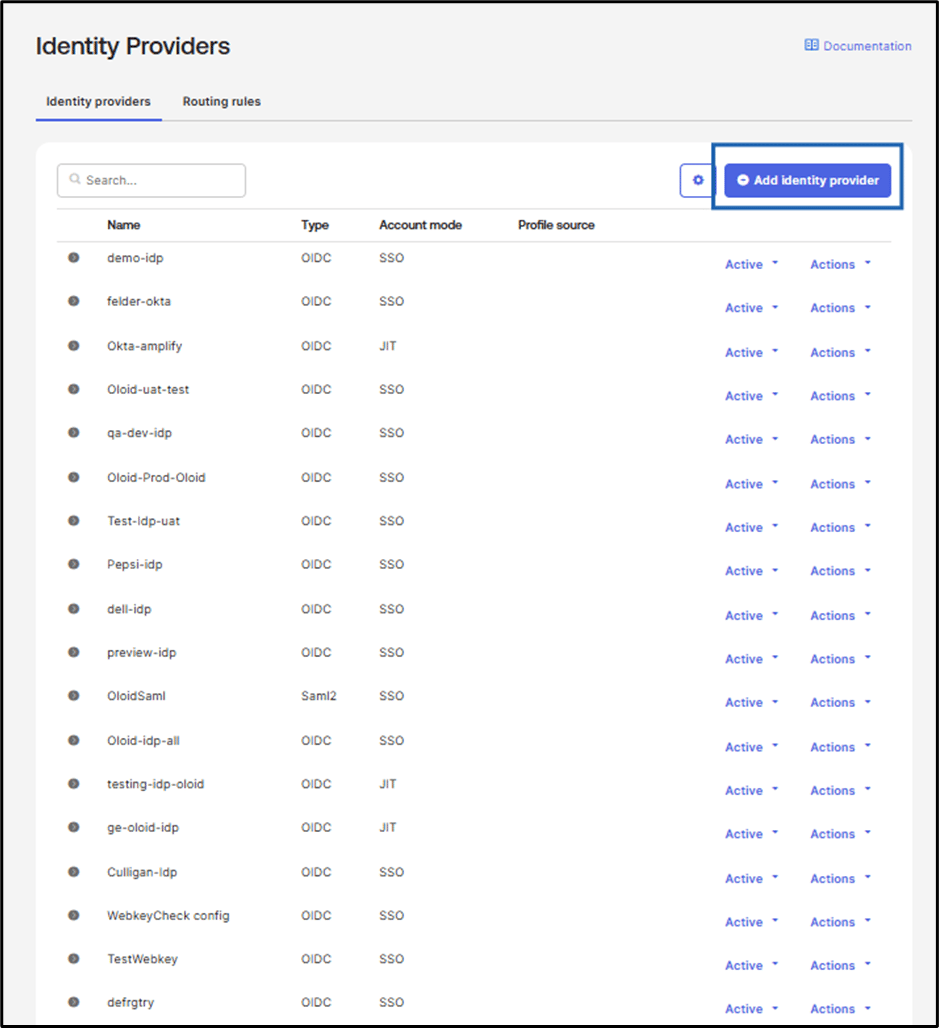
- Click Add Identity provider.
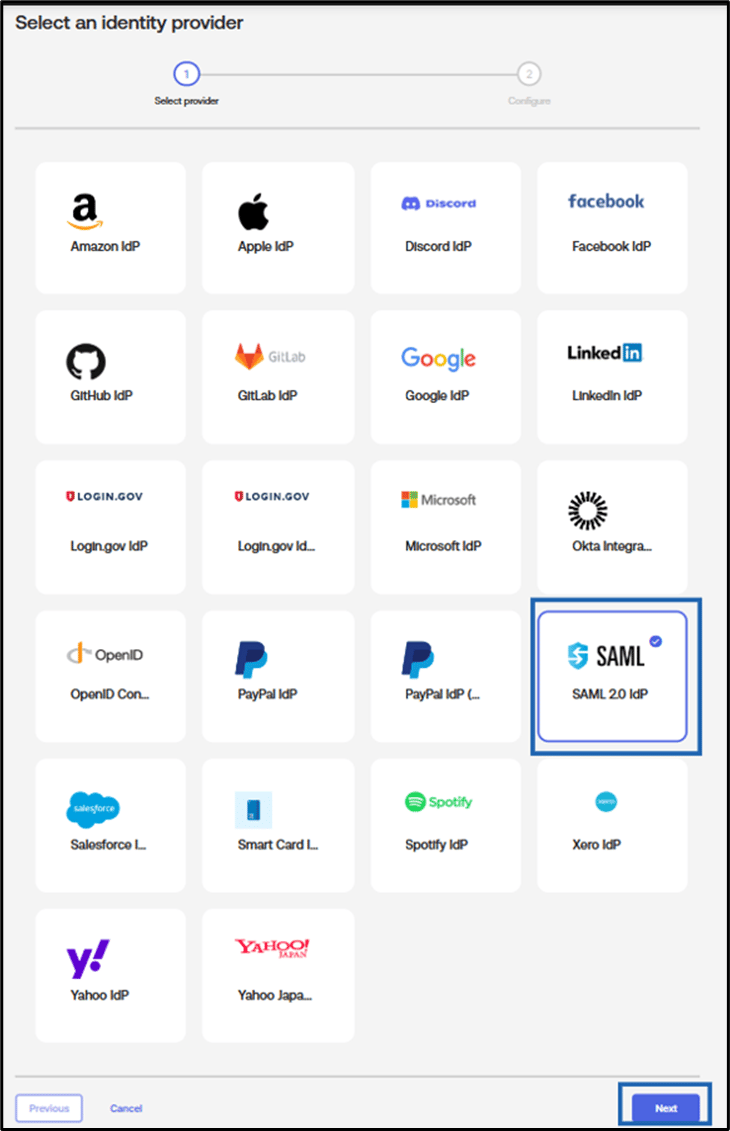
- Select SAML and click Next.
- Do the following:
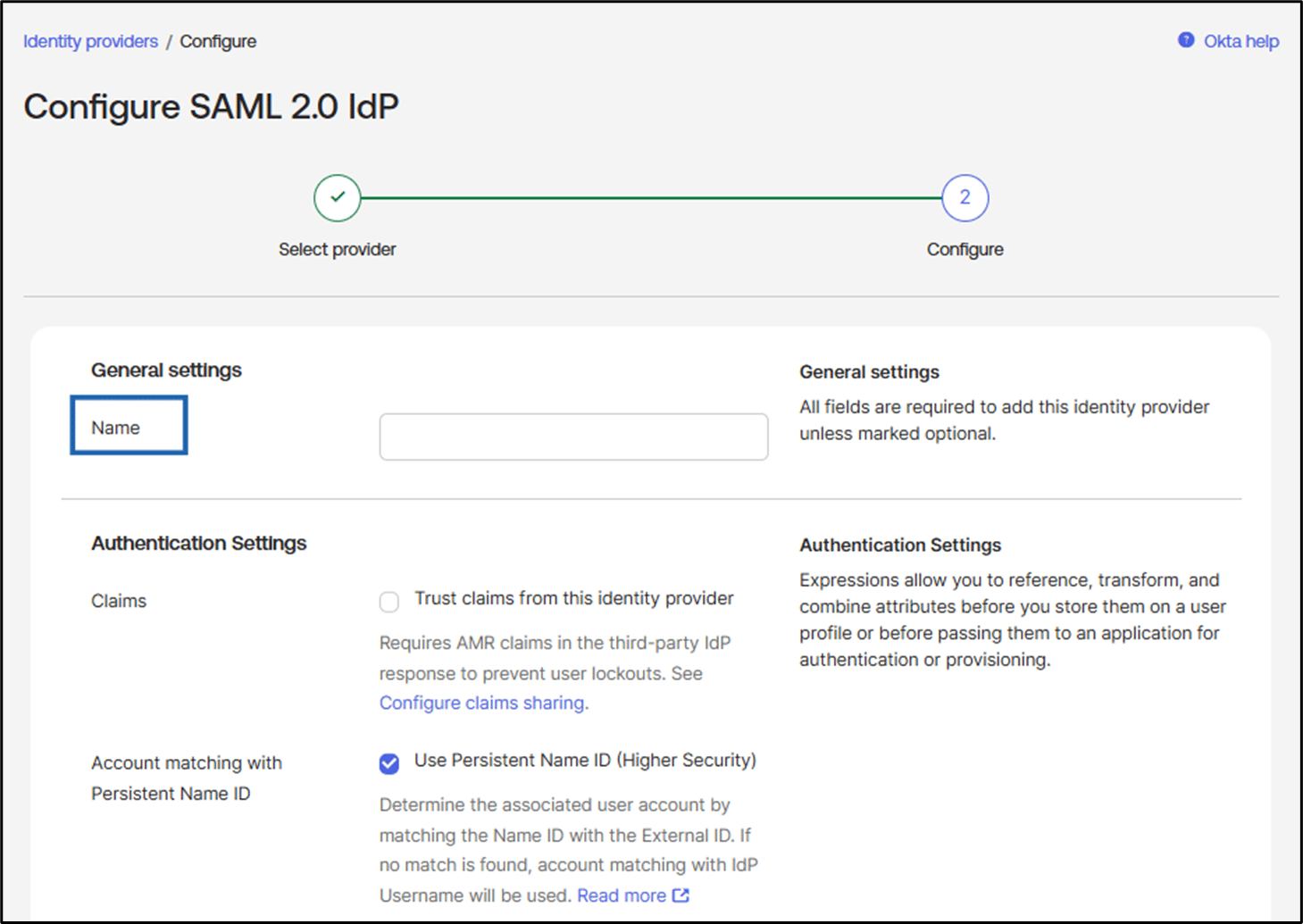
- Under General settings section, enter Name for the Identity Provider configuration.
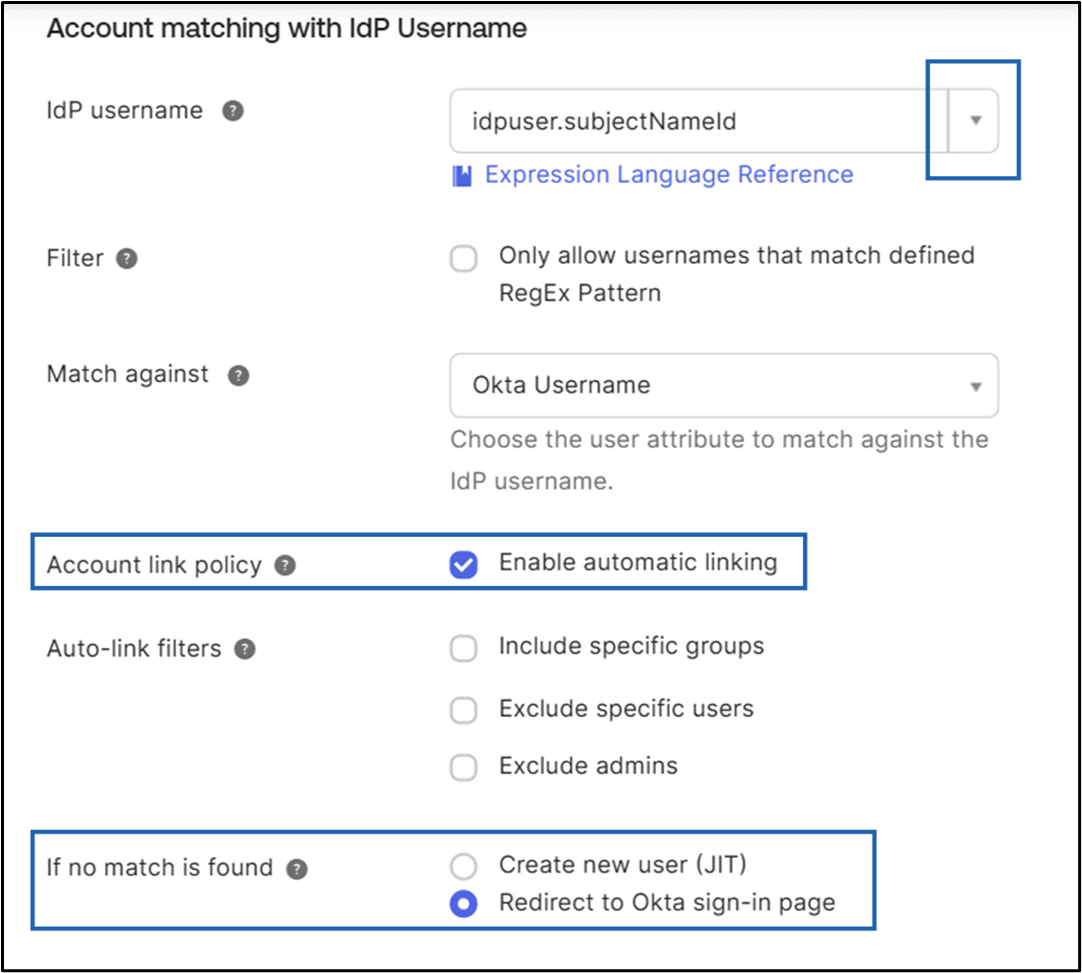
- Under Account matching with IdP Username section:
-
Select the IdP username from the dropdown list**.**
Note: It is recommended to select idpuser.subjectNameId in the idP username field.
- Select Enable automatic linking in Account link policy to allow Okta to automatically link the IdP user to an existing Okta user account.
-
In the If no match is found section, select Redirect to Okta Sign-in page.
-
Select the IdP username from the dropdown list**.**
- Under General settings section, enter Name for the Identity Provider configuration.
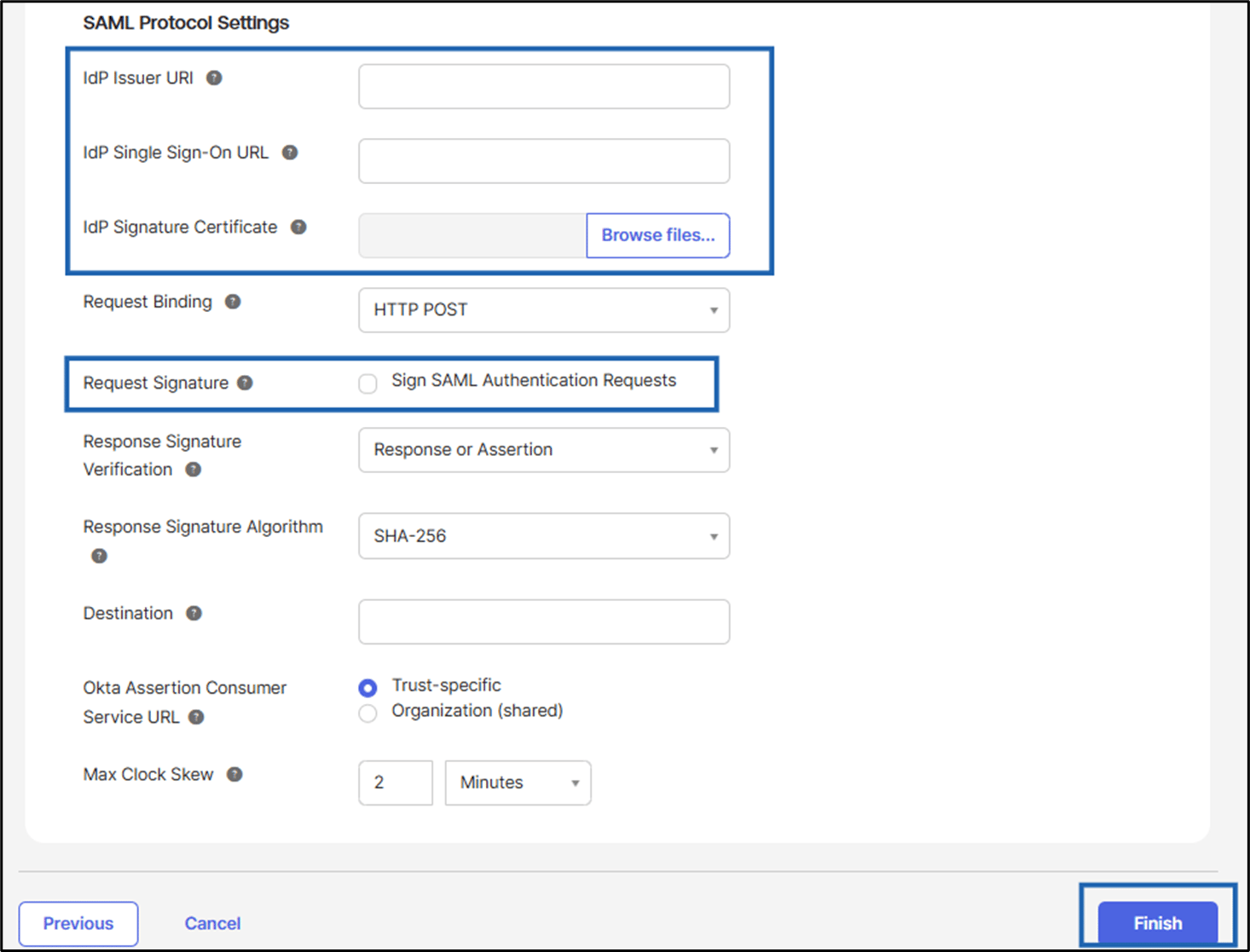
- Under SAML Protocol Settings sections:
- Enter the IdP Issuer URL. See Tenant Admin Portal > Identity Provider > SAML Application > Oloid Metadata tab and copy Entity ID.
- Enter the IdP Single Sign-On URL. See Tenant Admin Portal > Identity Provider > SAML Application > Oloid Metadata tab and copy Sign-on URL.
- Upload the IdP Signature Certificate. To download, go to Tenant Admin Portal > Identity Provider > SAML Application > Oloid Metadata tab and select Download Certificate.
- Request Signature, Unselect the Sign SAML Authentication Request.
- Select Response in Response Signature Verification.
-
Click Finish.
 Note: In the search bar, you can search using identity provider name.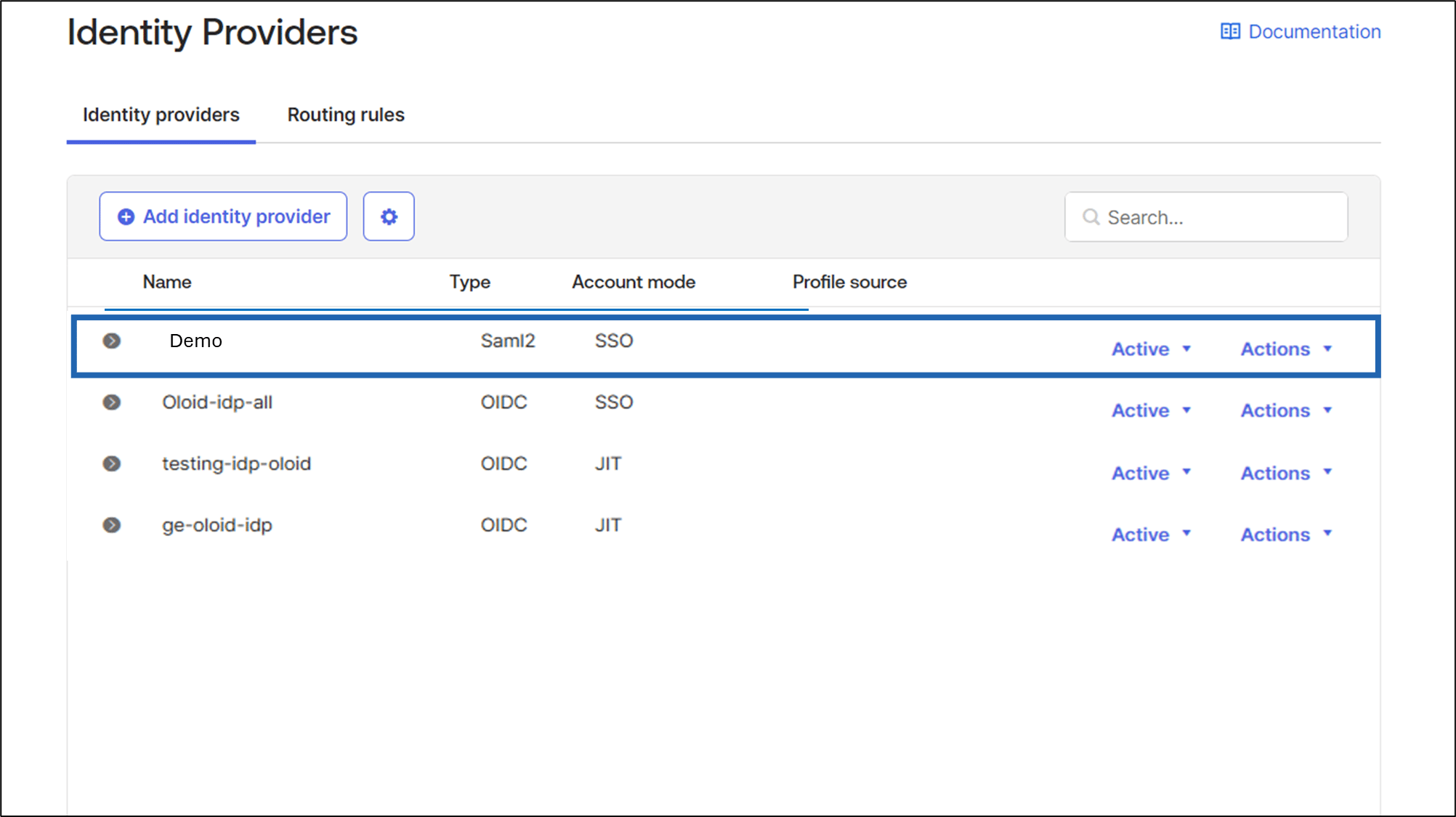
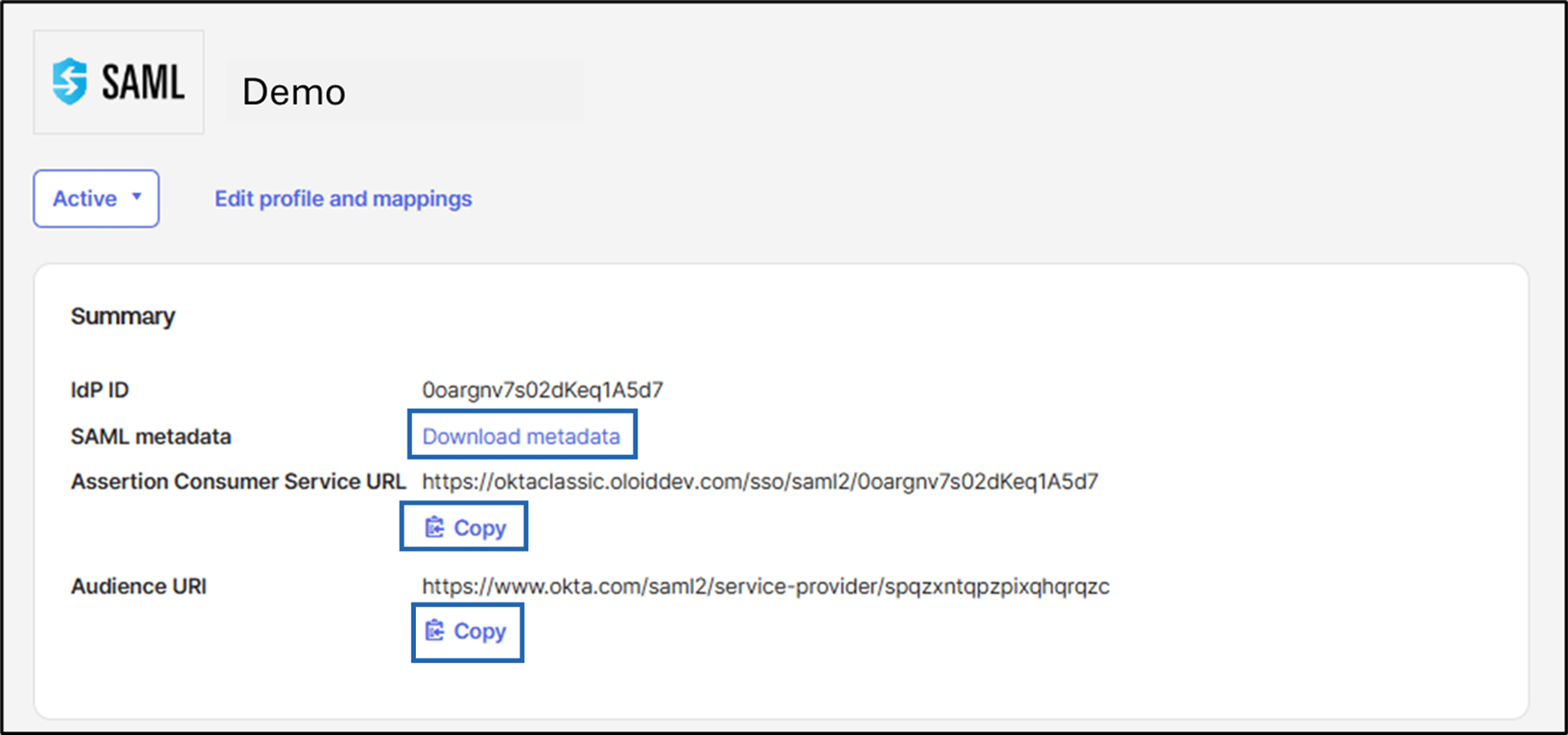
- Go to IDP details and do the following:
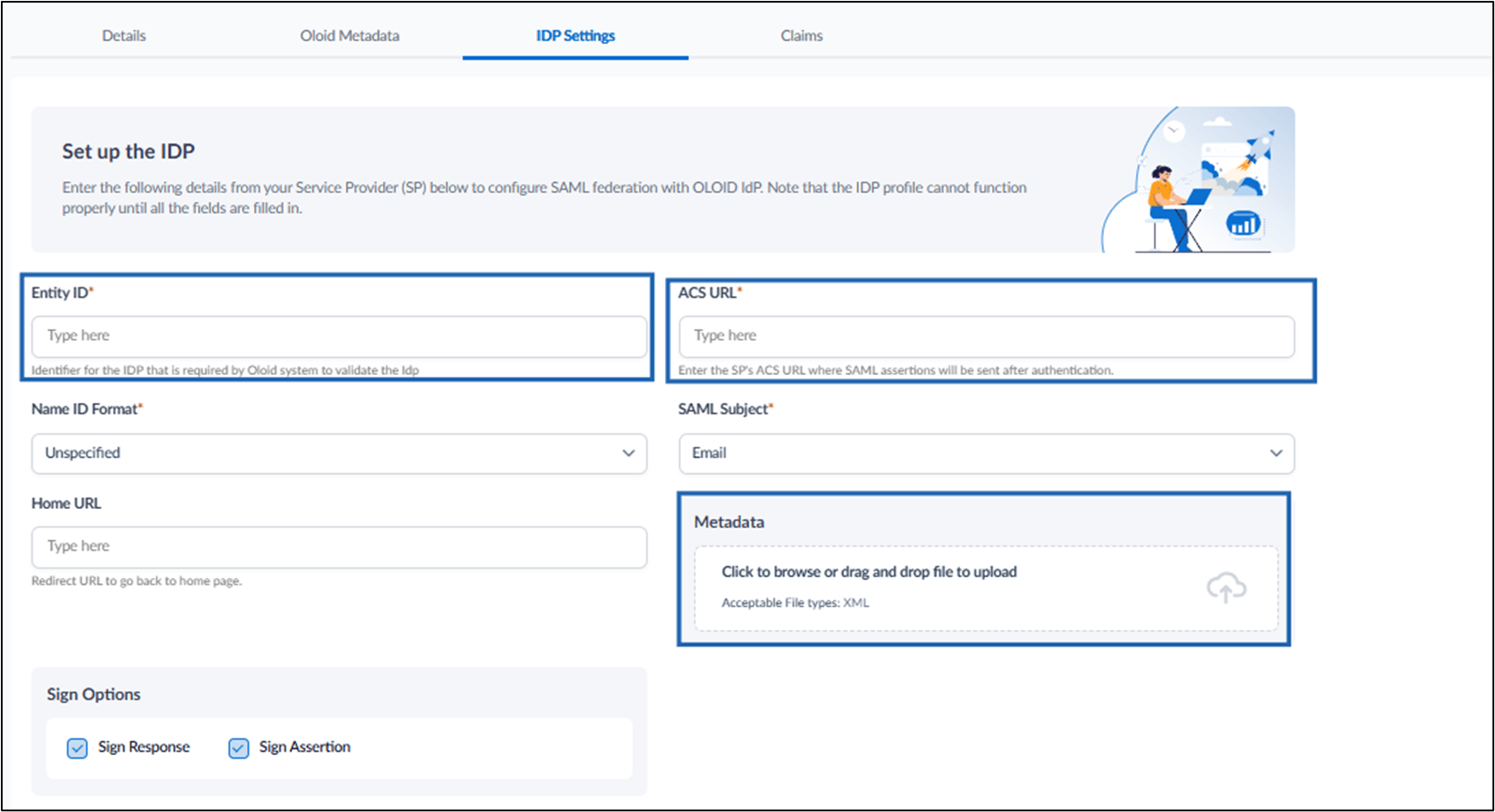
- Download the Metadata file and upload it in the Metadata field under Tenant Admin Portal > Identity Provider > SAML Application > IDP Settings > Metadata. OR
- Copy IDP ID and enter it in Tenant Admin Portal > Identity Provider > SAML Application > IDP Settings > Entity ID.
- Copy Assertion Consumer Service URL and enter it in Tenant Admin Portal > Identity Provider > SAML Application > IDP Settings > ACS URL.
Add Routing Rules
Steps to add Routing Rules
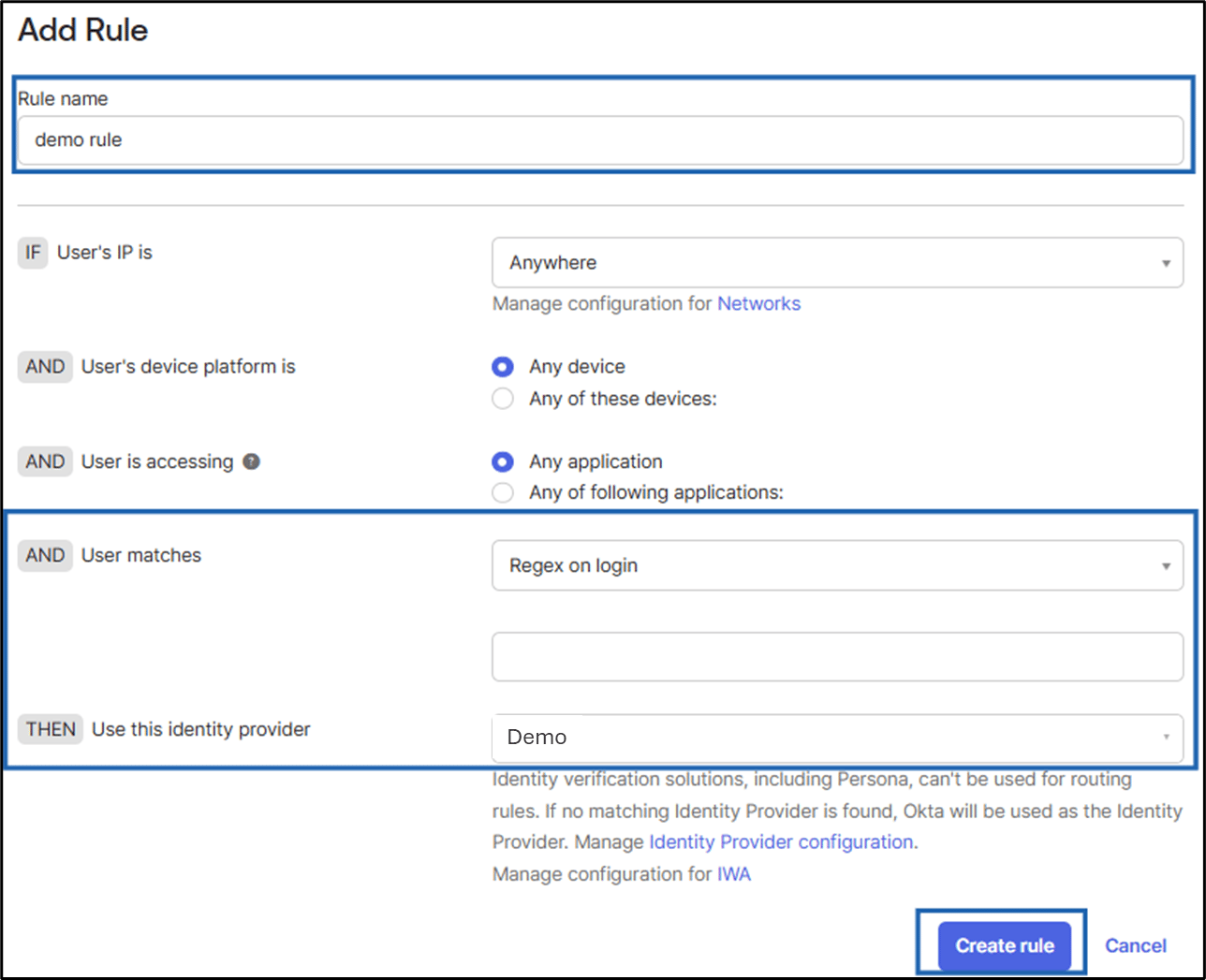
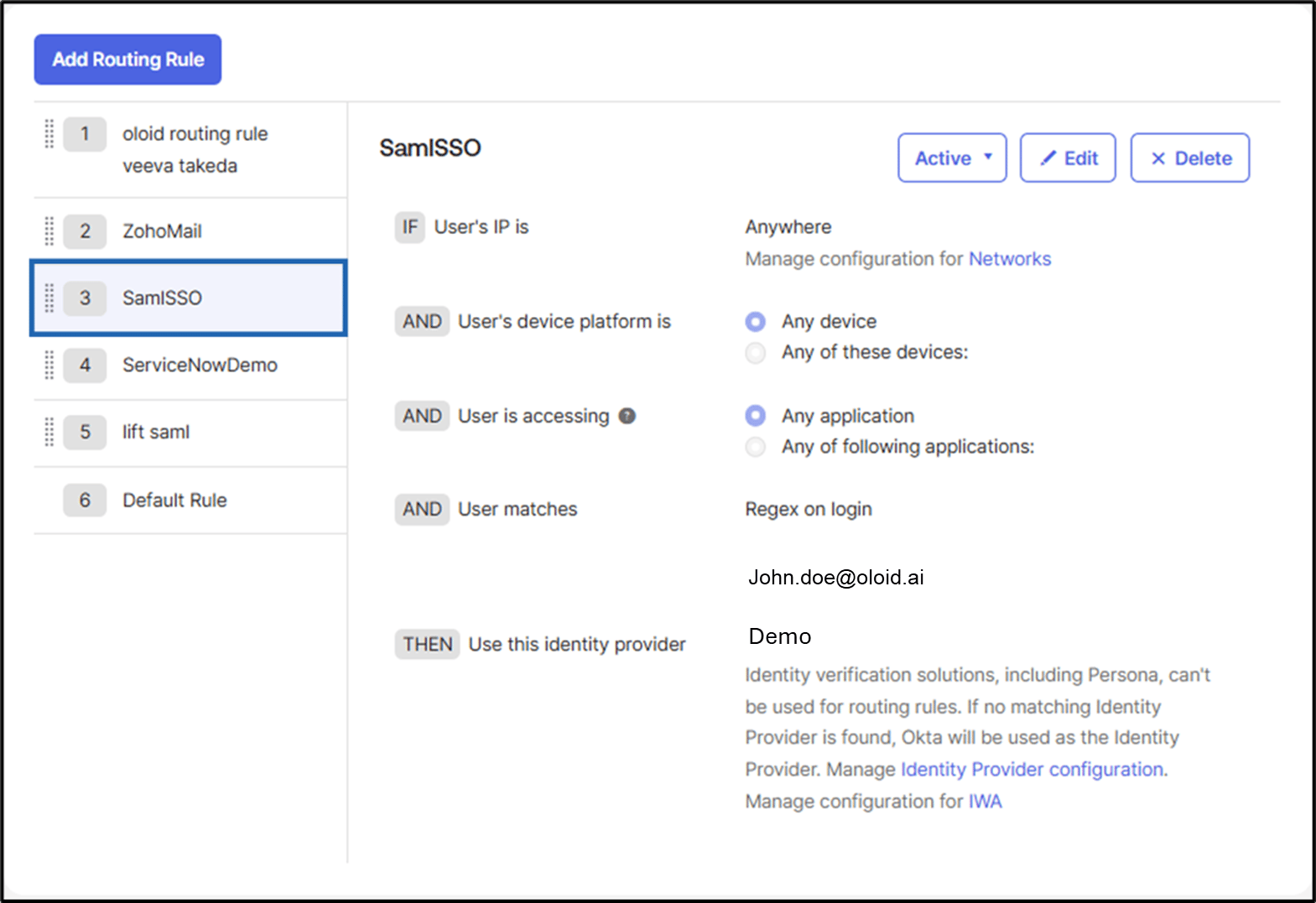
- In the Okta Admin Console, on Identity Providers Screen, go to Routing rules > Click Add Routing Rule.

- Do the following:
- Enter Rule Name.
-
Select User matches from the Dropdown list.
Note: Select Regex on Login and enter the mail.
-
Select Use this Identity provider from the drop-down list.
Note: Select the Identity Provider added in Step 1.
-
Click Create rule.
- Configure the IDP Profile in the Tenant Admin Portal.
- On the homepage of the portal, select the preferred IDP to edit.
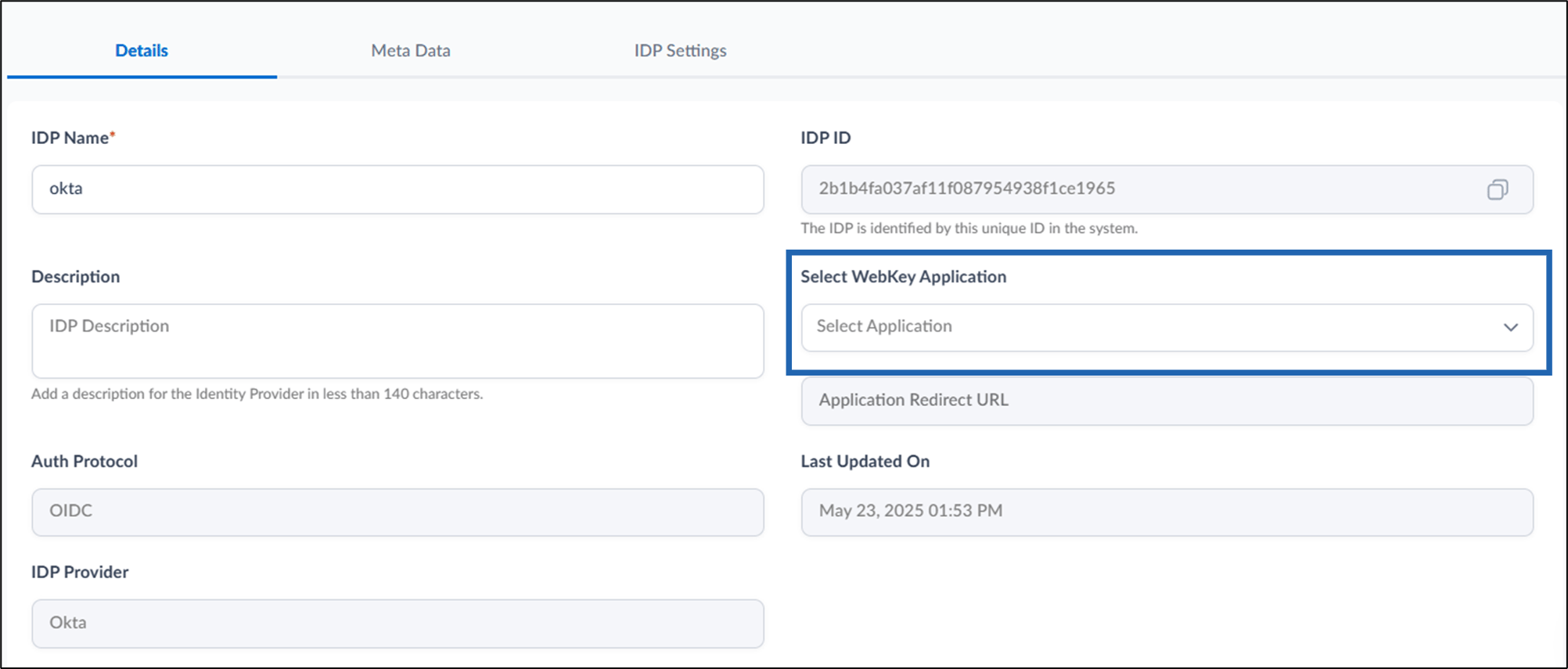
- On the IDP details page, select the WebKey Application from Select WebKey Application dropdown.
- Click Save.