Introduction
This document describes how to configure Advanced User Sync for Workday - Inbound in the Tenant Admin Portal.Prerequisites
- You must have access to the Tenant Admin Portal.
- An Advanced User Sync profile for Workday -Inbound is created.
- A Data Mapper Table is created and available for user attribute mapping.
Steps to Configure Advanced User Sync for Workday -Inbound
- Log in to the Tenant Admin Portal.
-
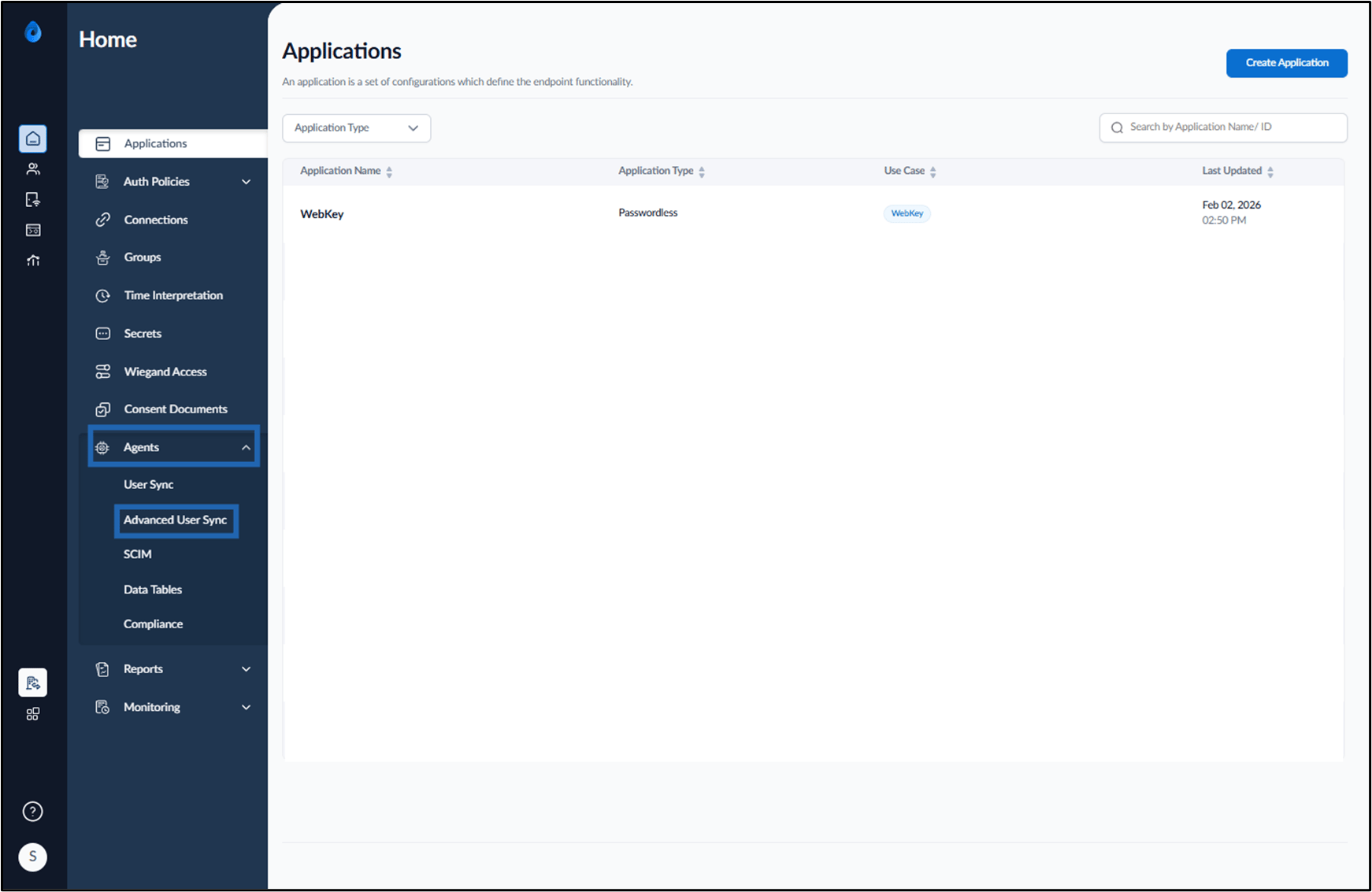
Go to Agents > Advanced User Sync.
-
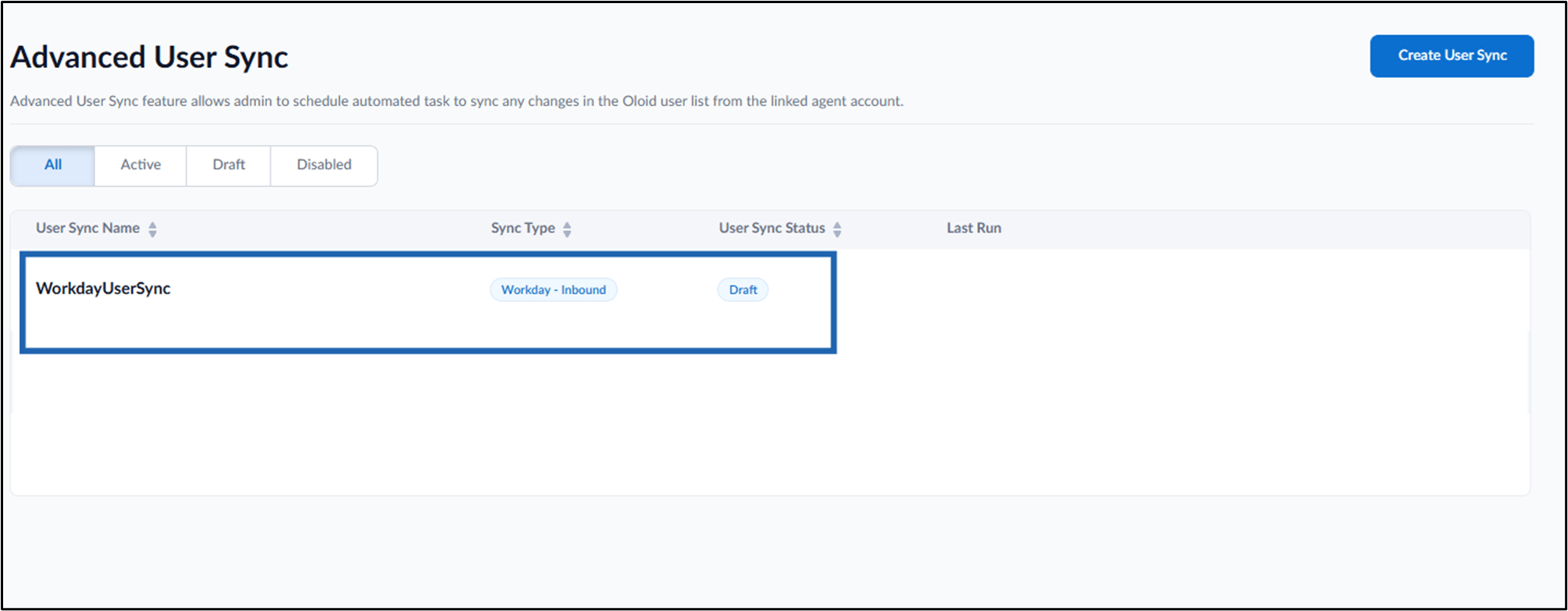
Select the preferred Workday Inbound Advanced User Sync.
- Do the following:
-
Click Activate.
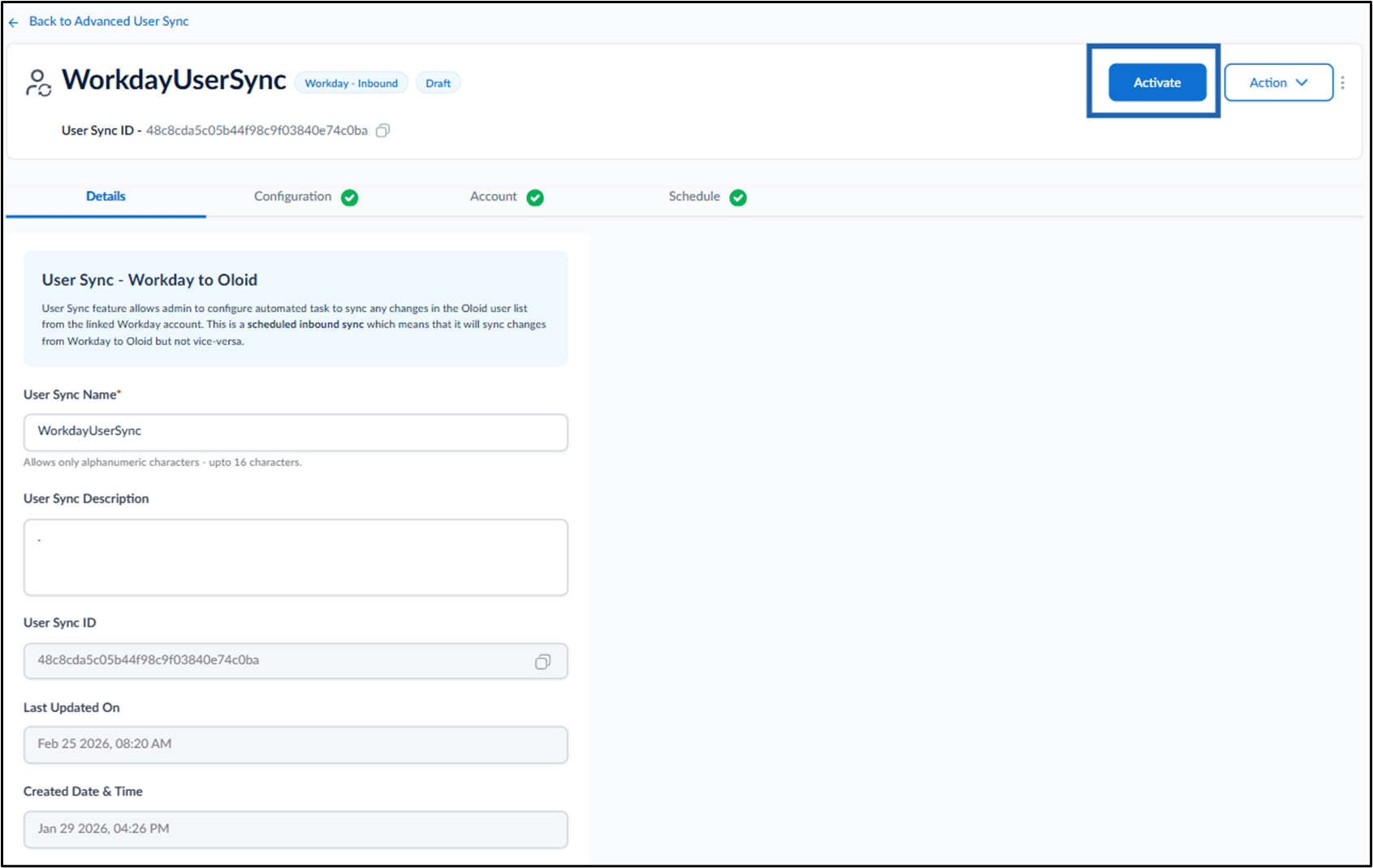
-
Click Confirm.
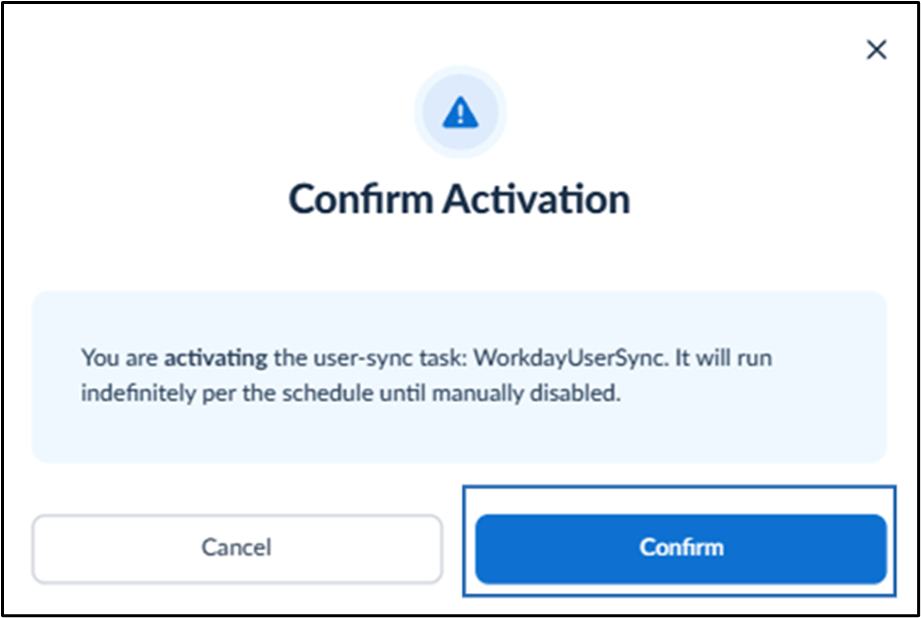
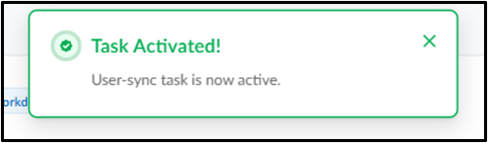
-
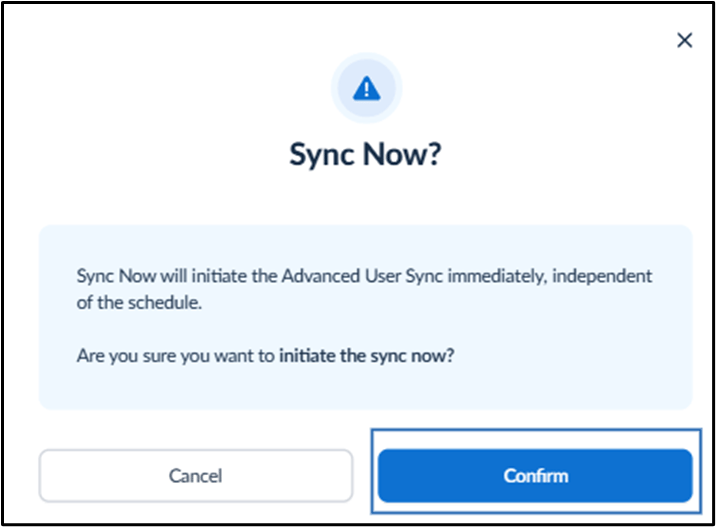
(Optional) Go to Action > User Sync.
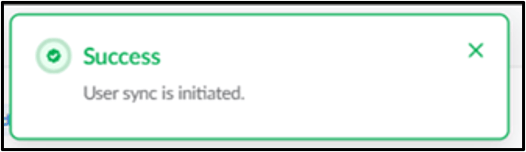
Note: Selecting Sync Now immediately triggers a manual synchronization.
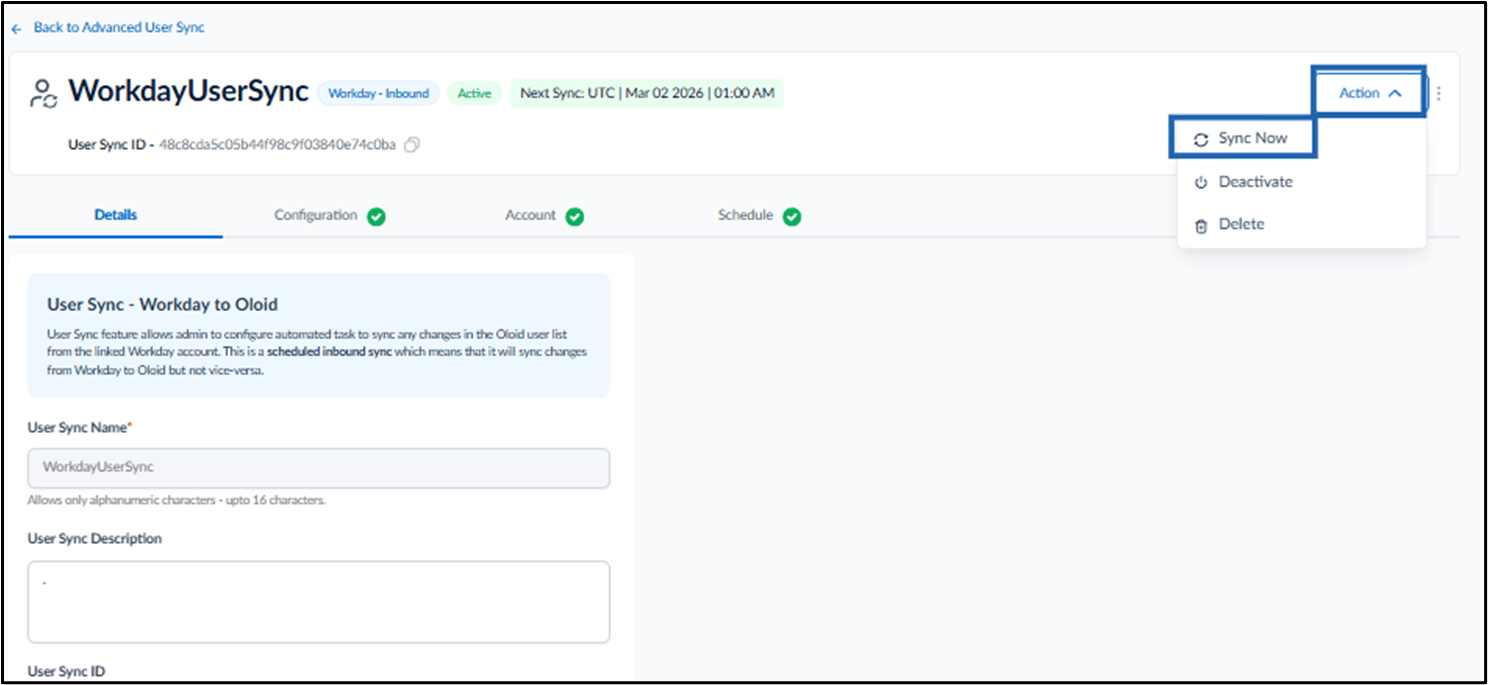
-
Click Confirm.
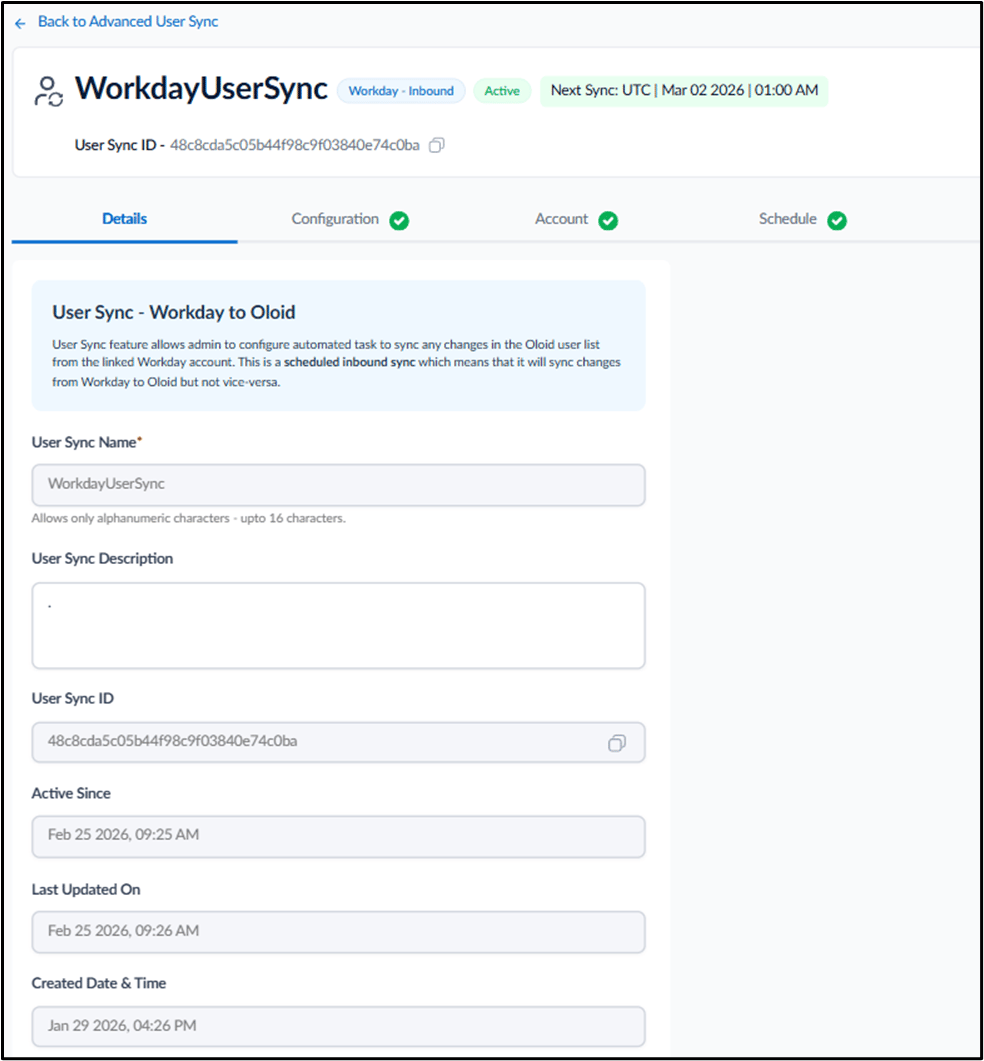
Configure Details Tab
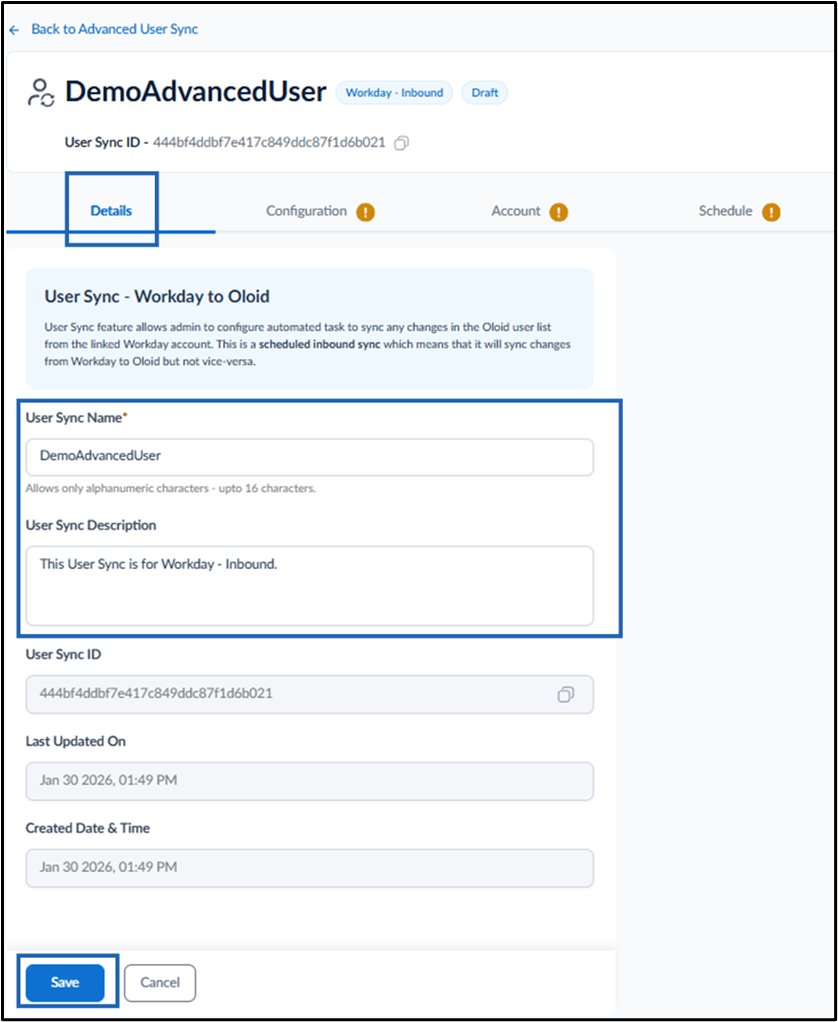
This tab is used to view and edit basic information about the Advanced User Sync. Do the following:- Update the User Sync Name (if required).
- Enter the User Sync Description (Optional).
- Click Save.
Setup Configuration Tab
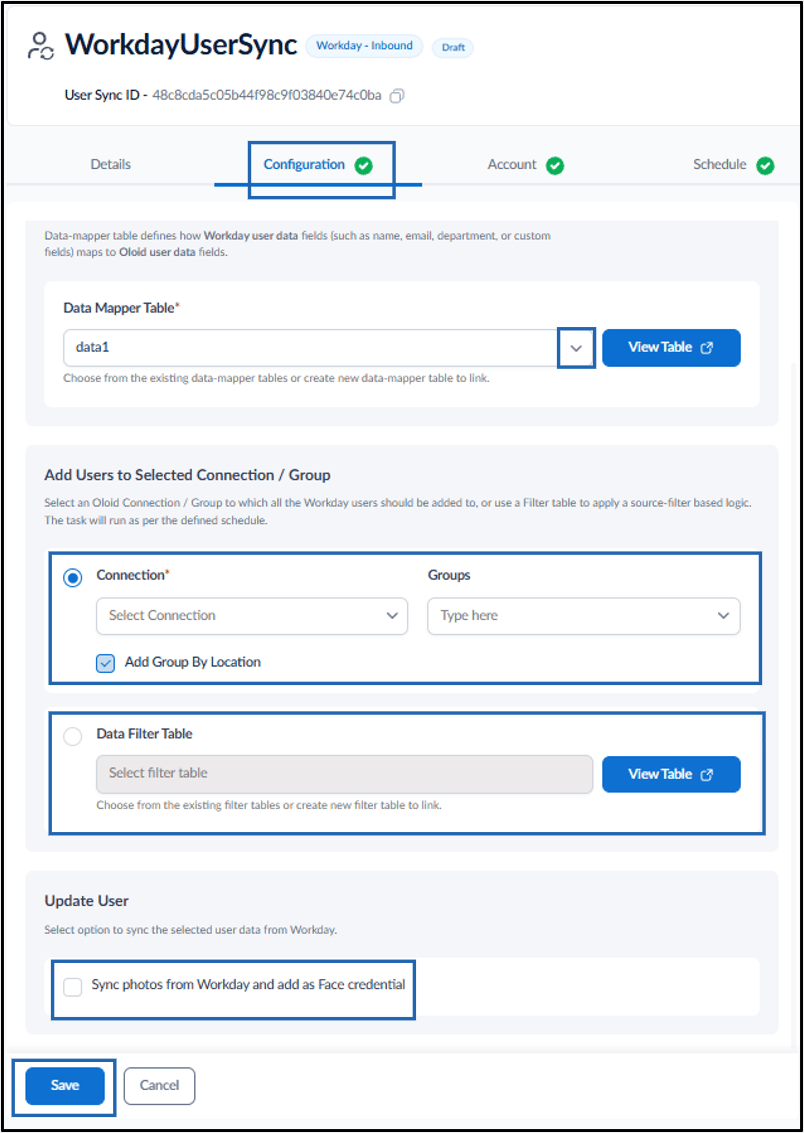
This tab is used to map user data from Workday to Oloid and select the Oloid connection where users are added during the inbound user sync. Do the following:-
Select the data mapper table from the drop-down.
Note: Click View Tables to review or create a data mapper table, if required.
-
On Add Users to Selected Connection, do one of the following:
- Select the Connection option, and then select the required Connection from the drop-down list. Note: (Optional) Select Group from the Groups drop-down to add users only to the selected groups. OR
-
Select the Data Filter Table option, and then select the required Data Filter Table from the drop-down list.
Note: Click View Tables to review or create a data filter table, if required.
- On Update User, select Sync Photos from Workday and add as Face credential.
-
Click Save.
-
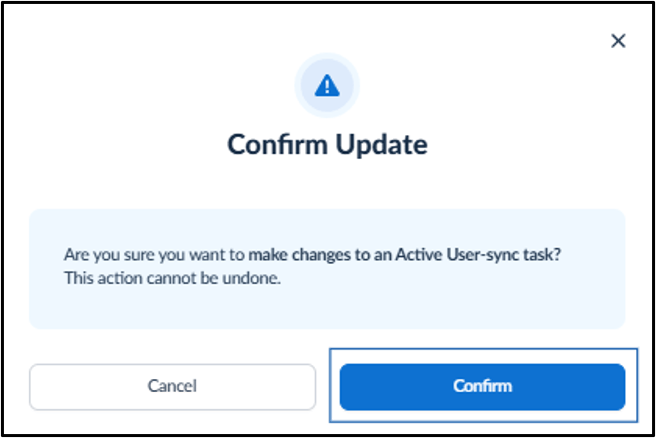
Click Confirm.

Configure Account Tab
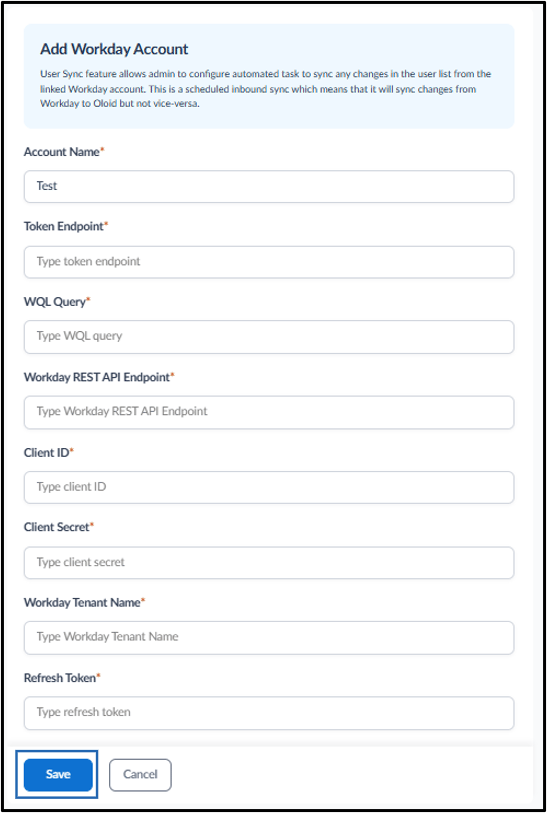
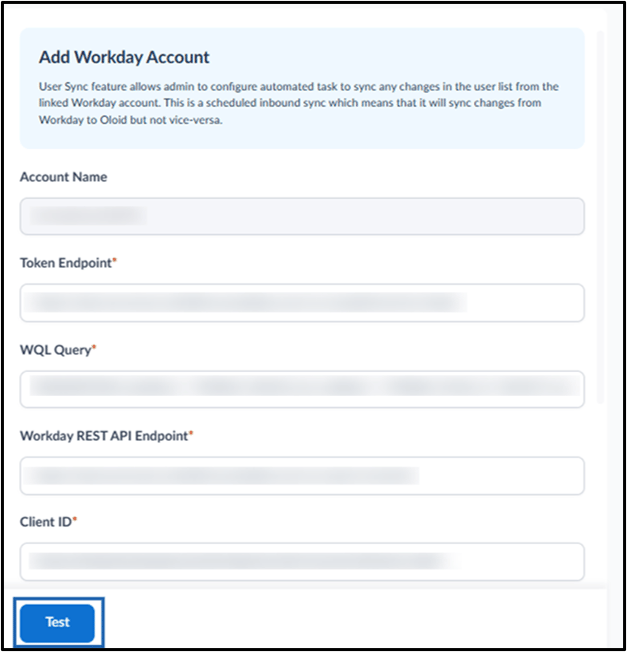
This tab is used to add and configure the Workday account details required for inbound user synchronization with Oloid. Do the following:-
Enter Account Name.

-
Enter Token Endpoint.

-
Enter Workday REST API Endpoint.
 Note: You can see the Token Endpoint and Workday REST API Endpoint on View API Clients for Integrations page in the Workday HRIS admin console. To know more, click here.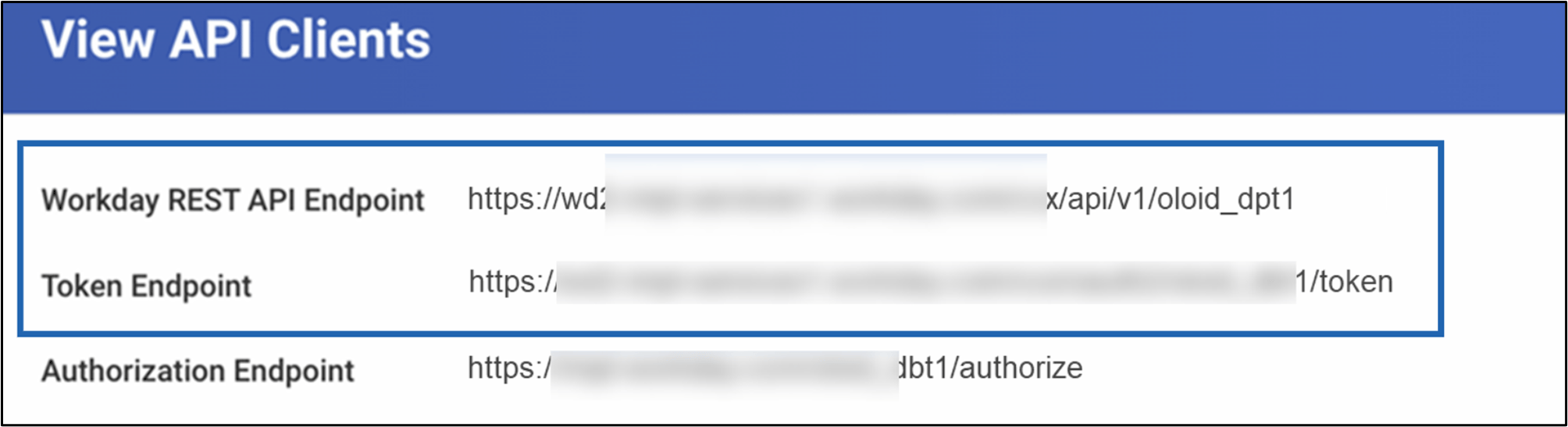
-
Enter WQL Query.
 Note: You can see the WQL Query on Convert Report to WQL in the Workday HRIS admin console. To know more, click here.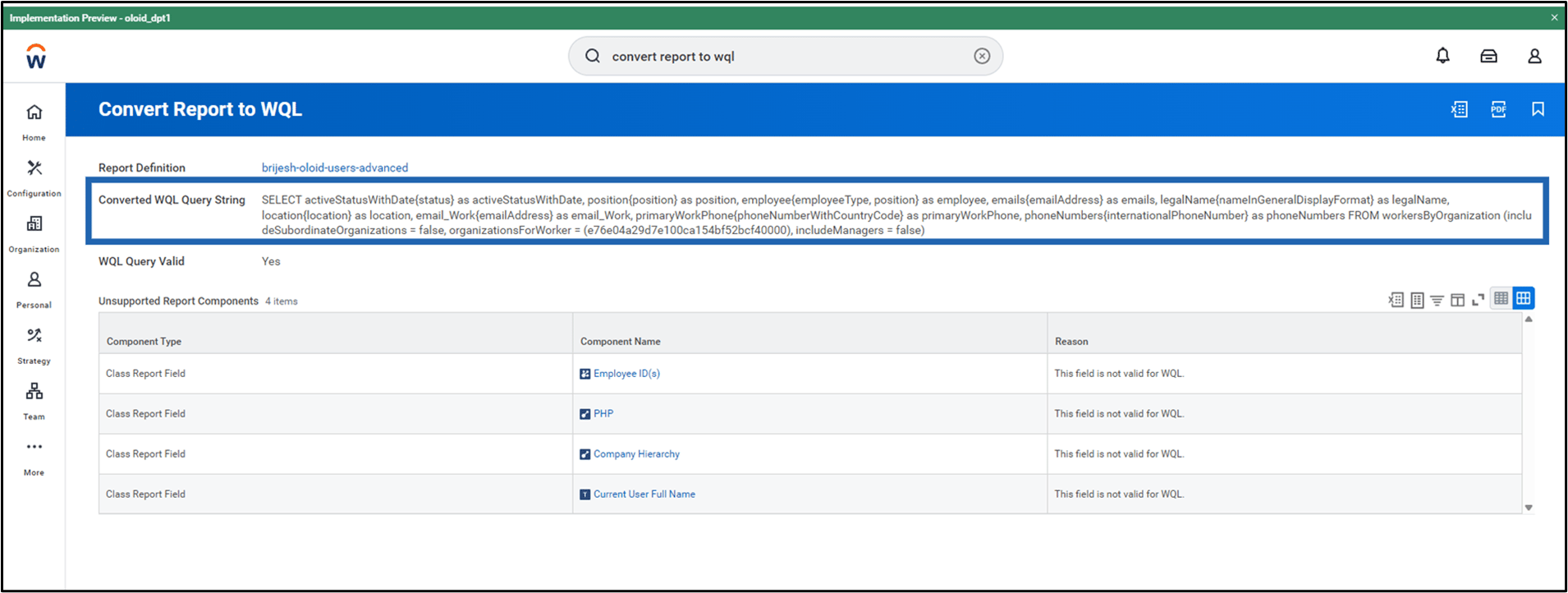
-
Enter Client ID.

-
Enter Client Secret.
 Note: You can see the client ID and client Secret on Register API Client for Integrations page in the Workday HRIS admin console. To know more, click here.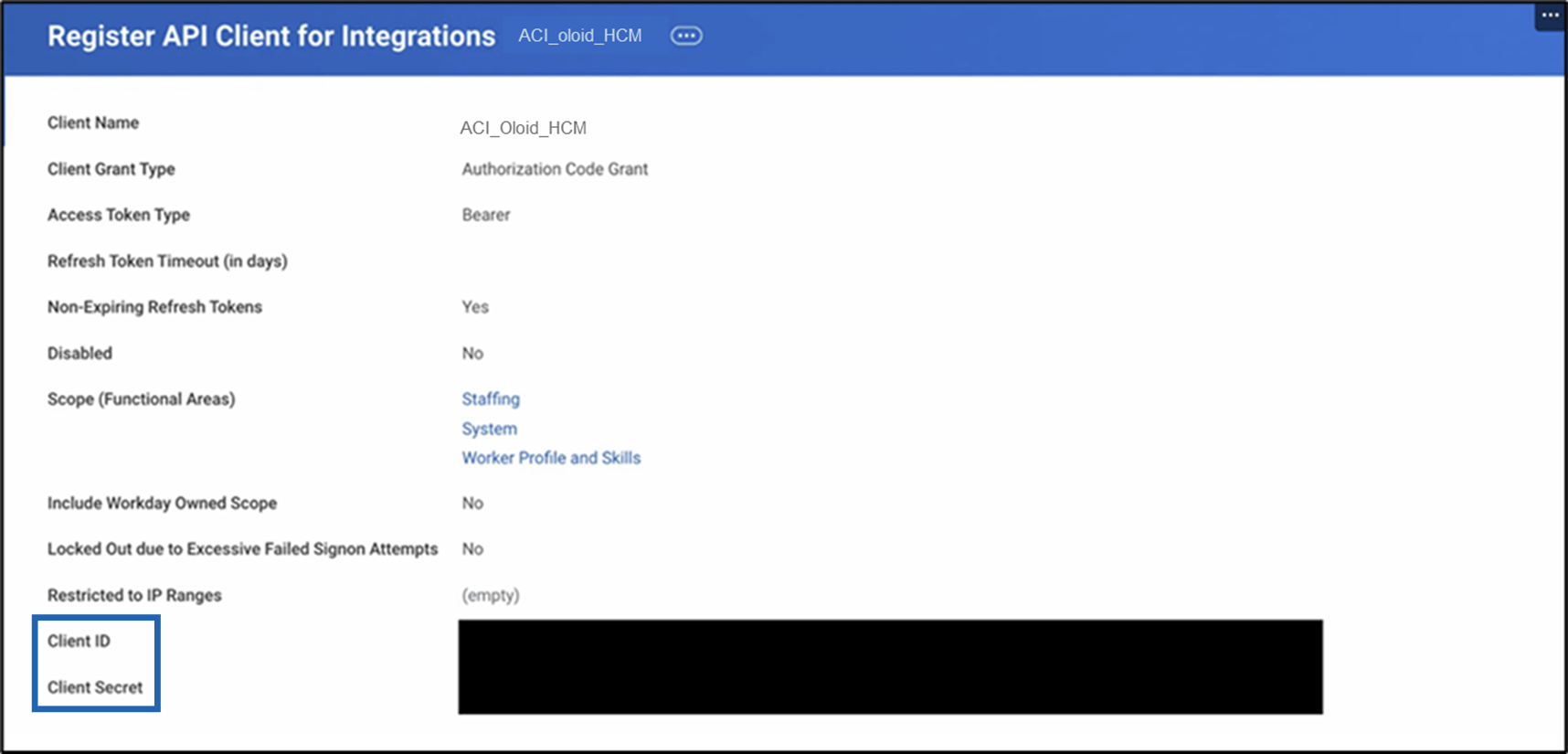
-
Enter Workday Tenant Name.
 Note: You can see the Workday Tenant Name on View API Clients for Integrations page in the Workday HRIS admin console. To know more, click here.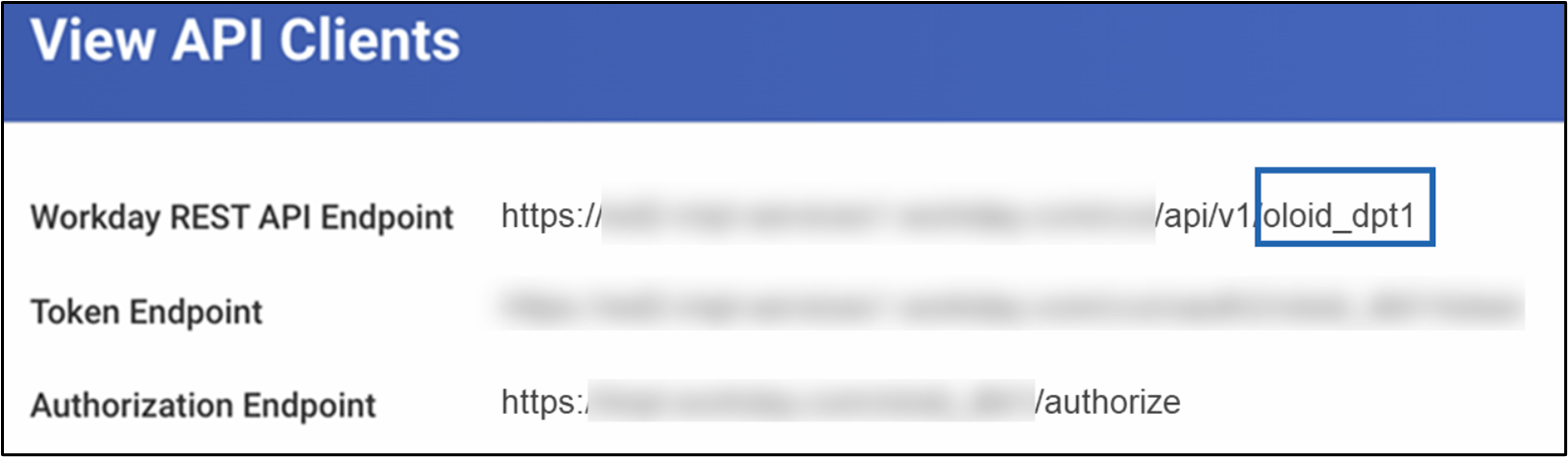
-
Enter Refresh Token.
 Note: You can see the Refresh Token on Delete or Regenerate Refresh Token page in the Workday HRIS admin console. To know more, click here.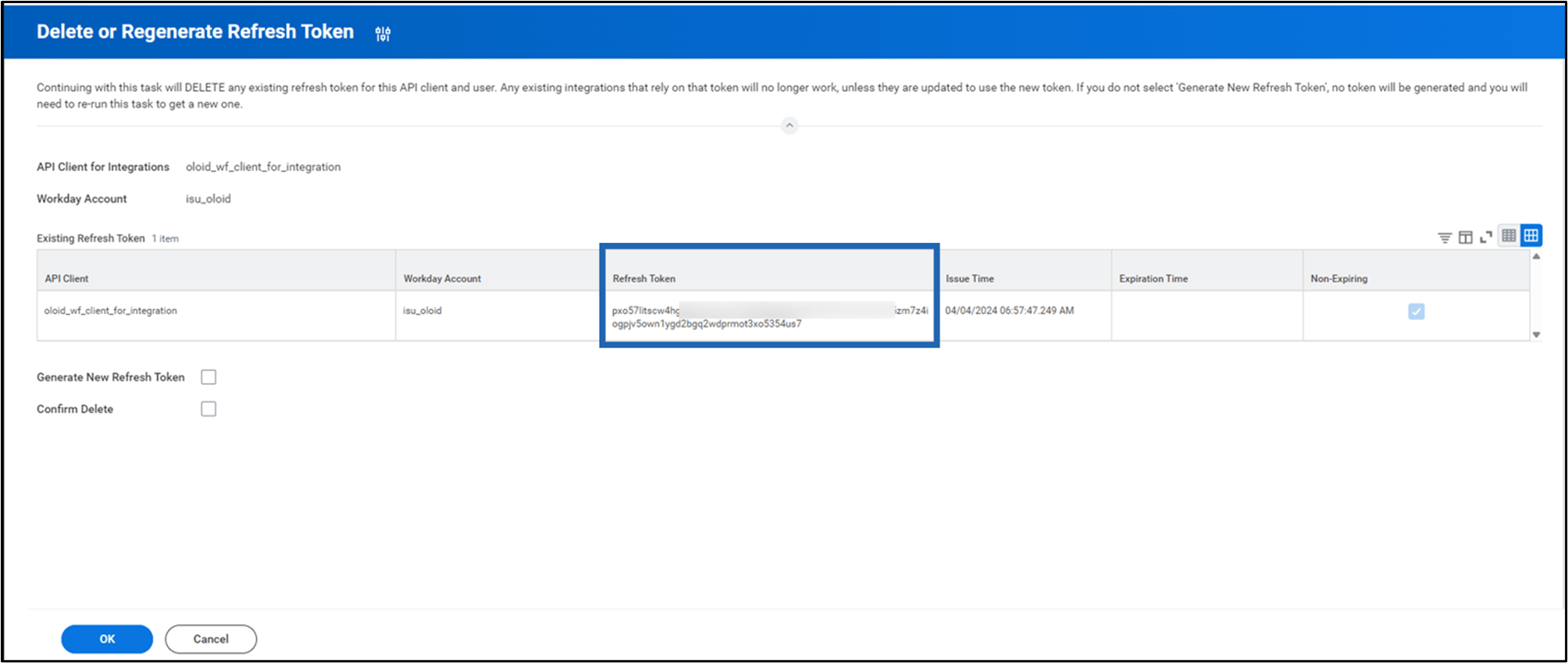
-
Click Save.
-
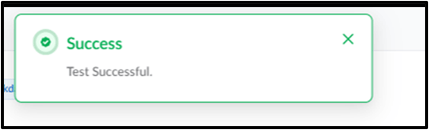
Click Test.
Configure Schedule Tab
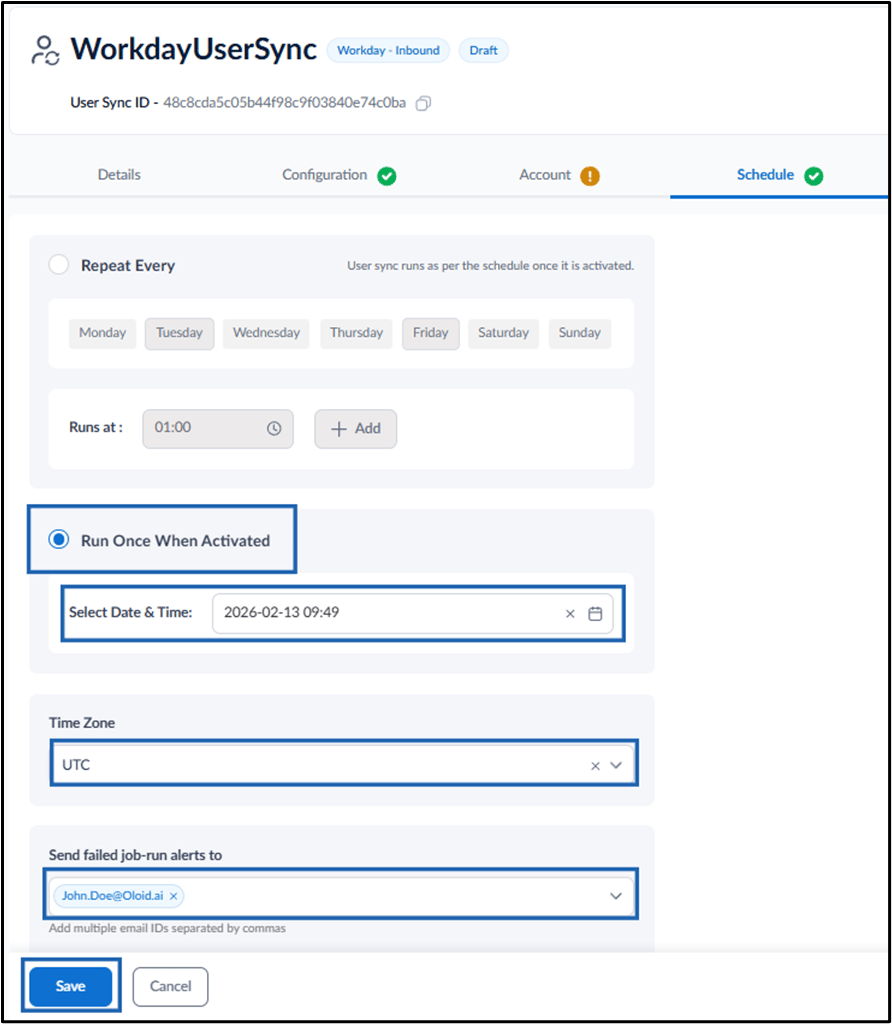
This tab is used to define when the Workday - Inbound user sync runs. You can configure the sync to run on a recurring schedule or run once when the sync is activated. Do one of the following: Repeat Every OR Run Once When Activated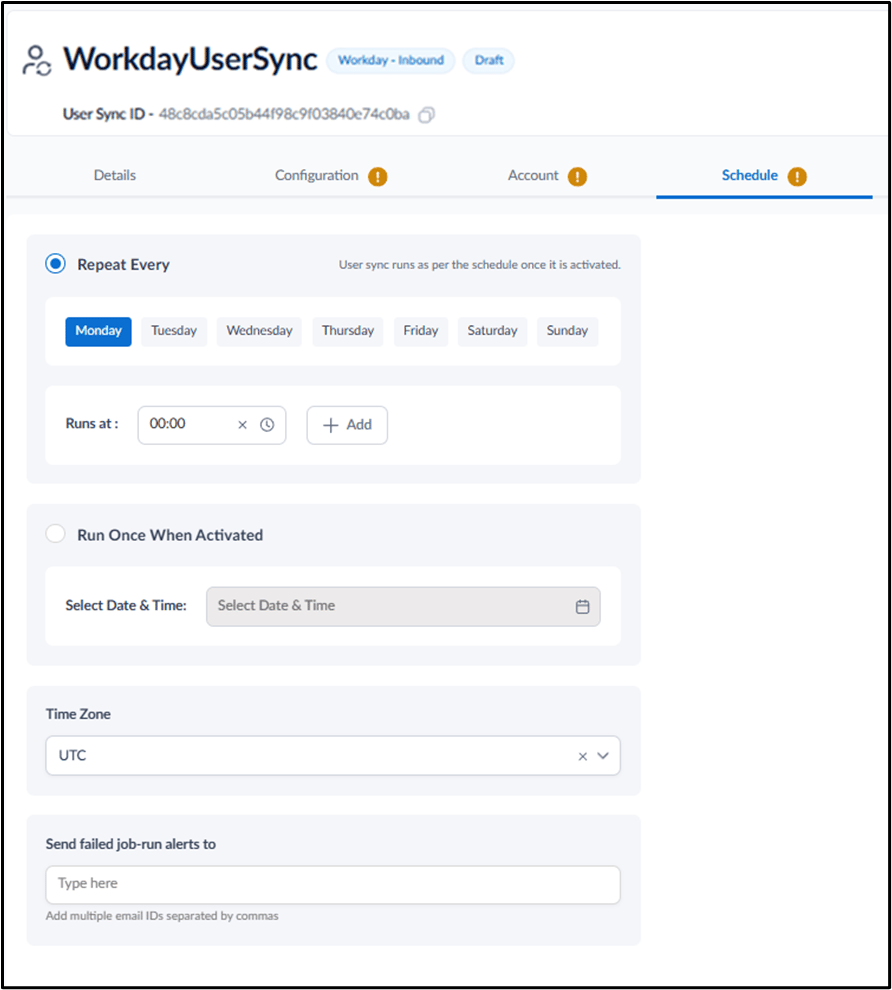
Repeat Every
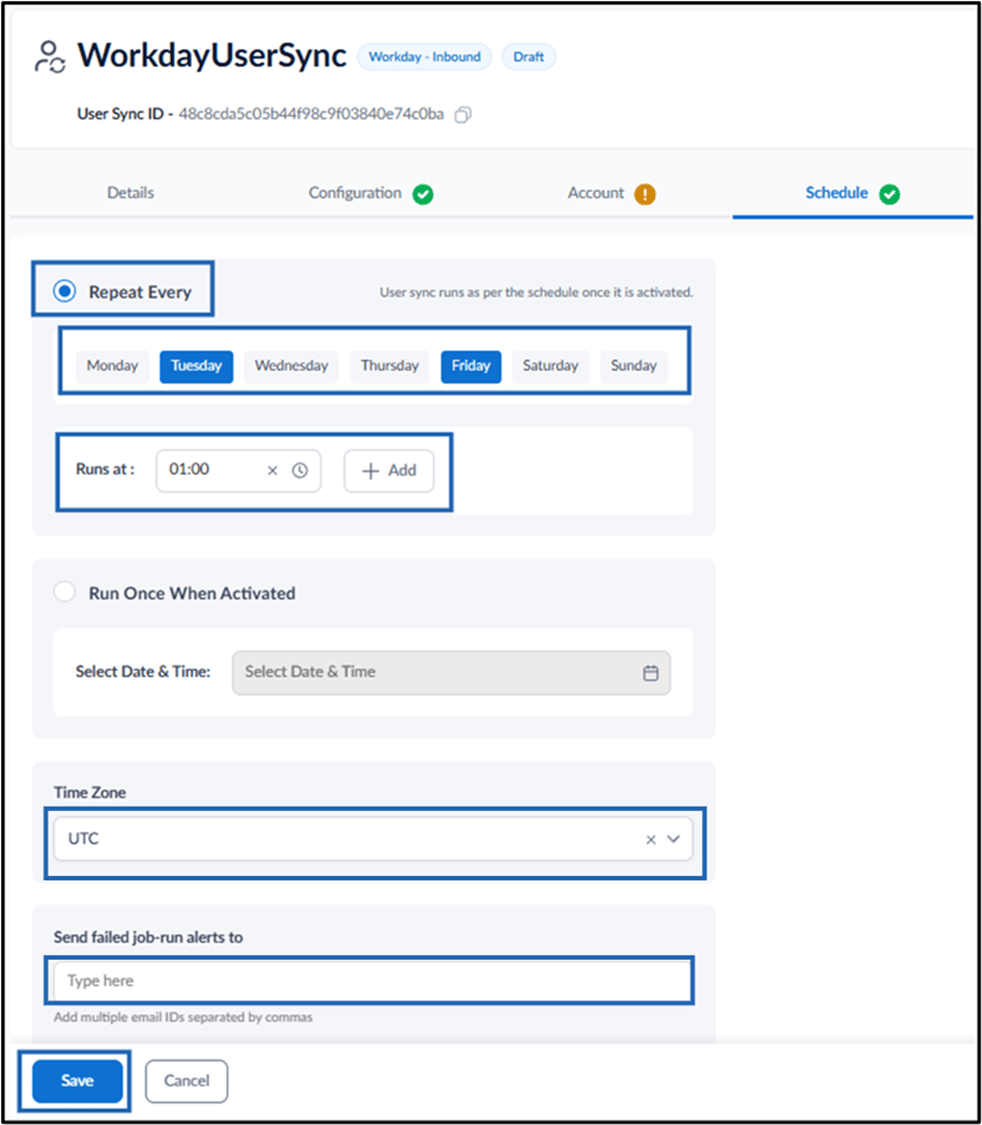
The Repeat Every section is used torun the user sync on selected days and times. Do the following:- Select Repeat Every.
-
Select the required day(s).
Note: You can select multiple days (if needed).
-
Select the run time in the Runs at field.
Note: You can add multiple execution time. To do, click +Add to configure additional run times, if required.
- Select Time Zone from the drop-down.
-
Enter email address(es) in the Send failed job-run alerts to field.
Note: Separate multiple email addresses with commas.
-
Click Save.
Run Once When Activated
The Run Once When Activated section is used to run the sync only once. Do the following:- Select Run Once When Activated.
- Select the date and time in the Select Date & Time field.
- Select Time Zone from the drop-down.
-
Enter email address(es) in the Send failed job-run alerts to field.
Note: Separate multiple email addresses with commas.
- Click Save.