

Introduction
The Read-only Mode feature limits the Supervisor to viewing data in the Oloid Portal, restricting from performing any actions.Steps to enable Read-only Mode for existing Supervisor
- Log in to the Oloid Portal.
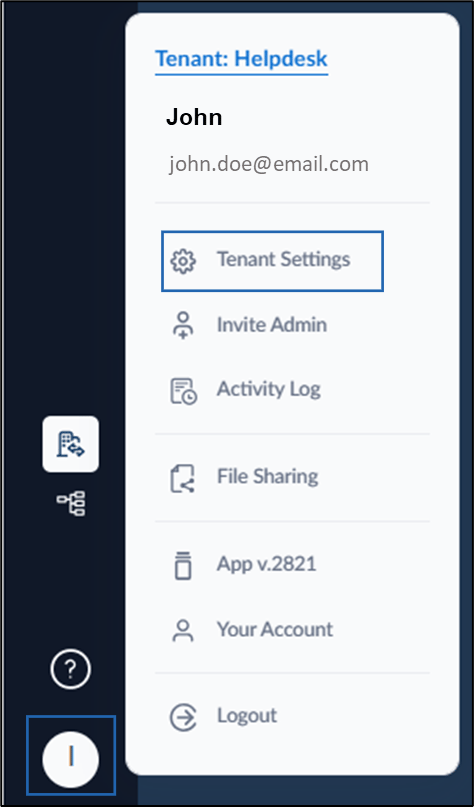
- On the homepage, go to user profile icon from the left panel > Select Tenant Settings.
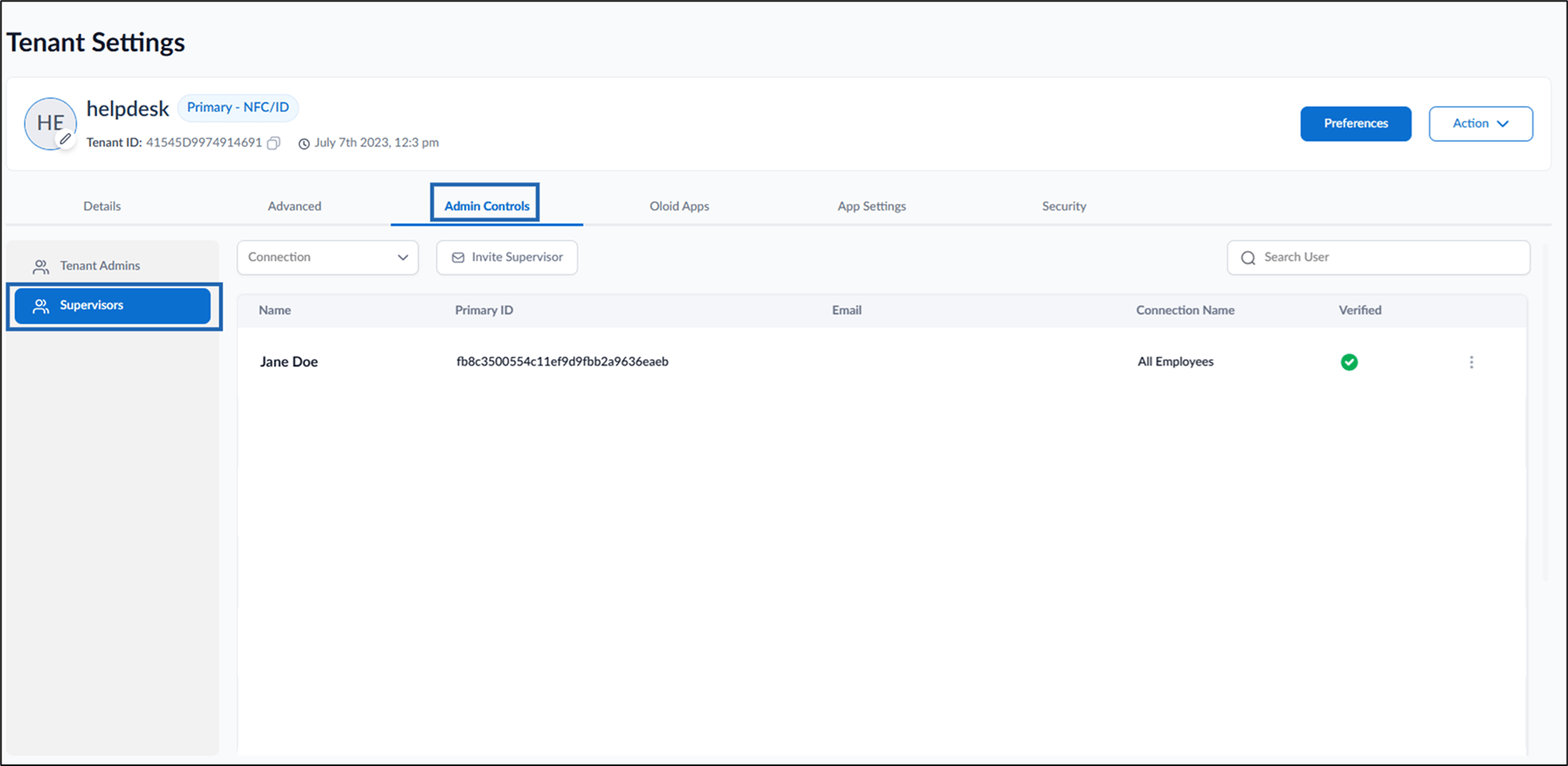
- Go to Admin Controls > select Supervisors.
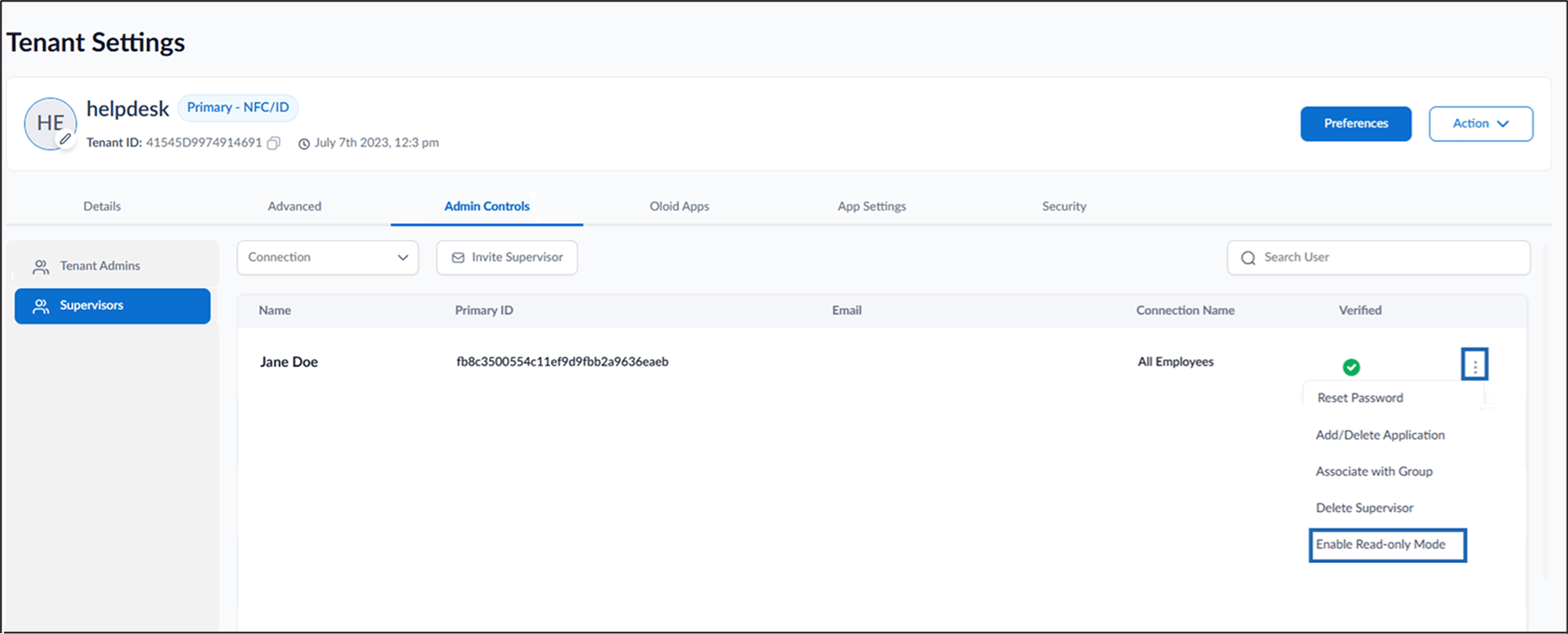
- Click Kebab menu (
 )> Enable Read-only Mode.
- Click Enable.
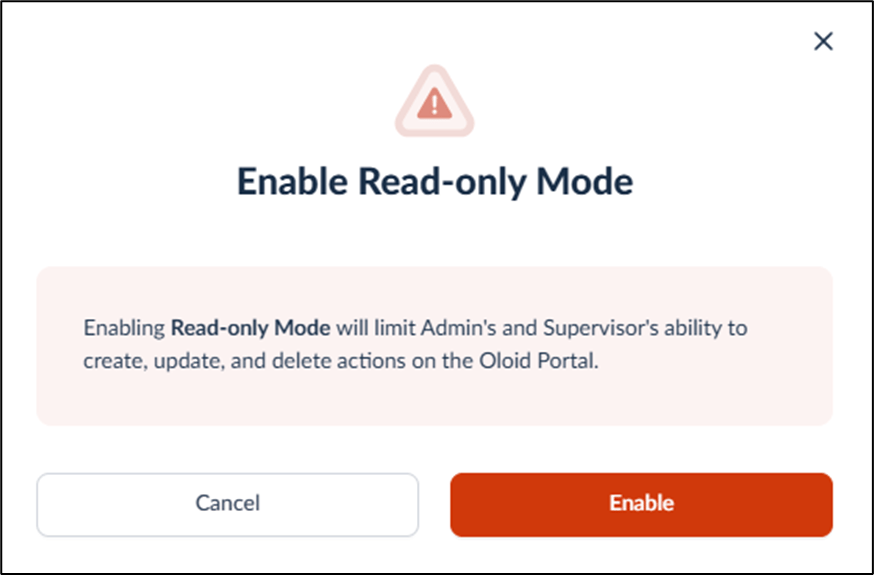
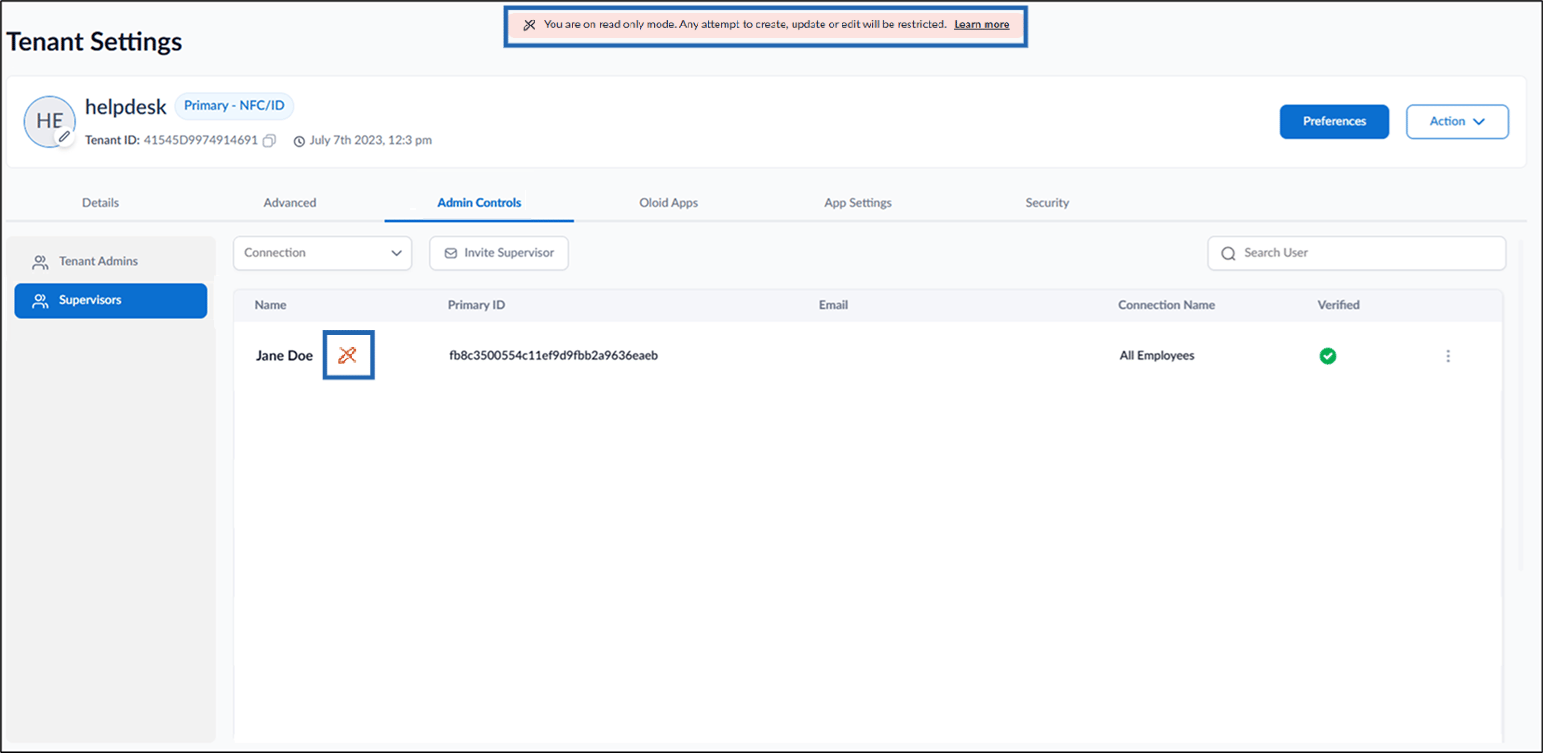
Note: Once the Read-only Mode is enabled, the Supervisor cannot perform any action. A Read-only disclaimer is displayed at the top of every web page, and an editing disabled icon ( ) is displayed next to the user name.
) is displayed next to the user name.Steps to enable Read-only Mode while inviting a Supervisor
- Log in to the Oloid Portal.
- On the homepage of the portal, click User profile icon on the bottom left corner of the menu panel.
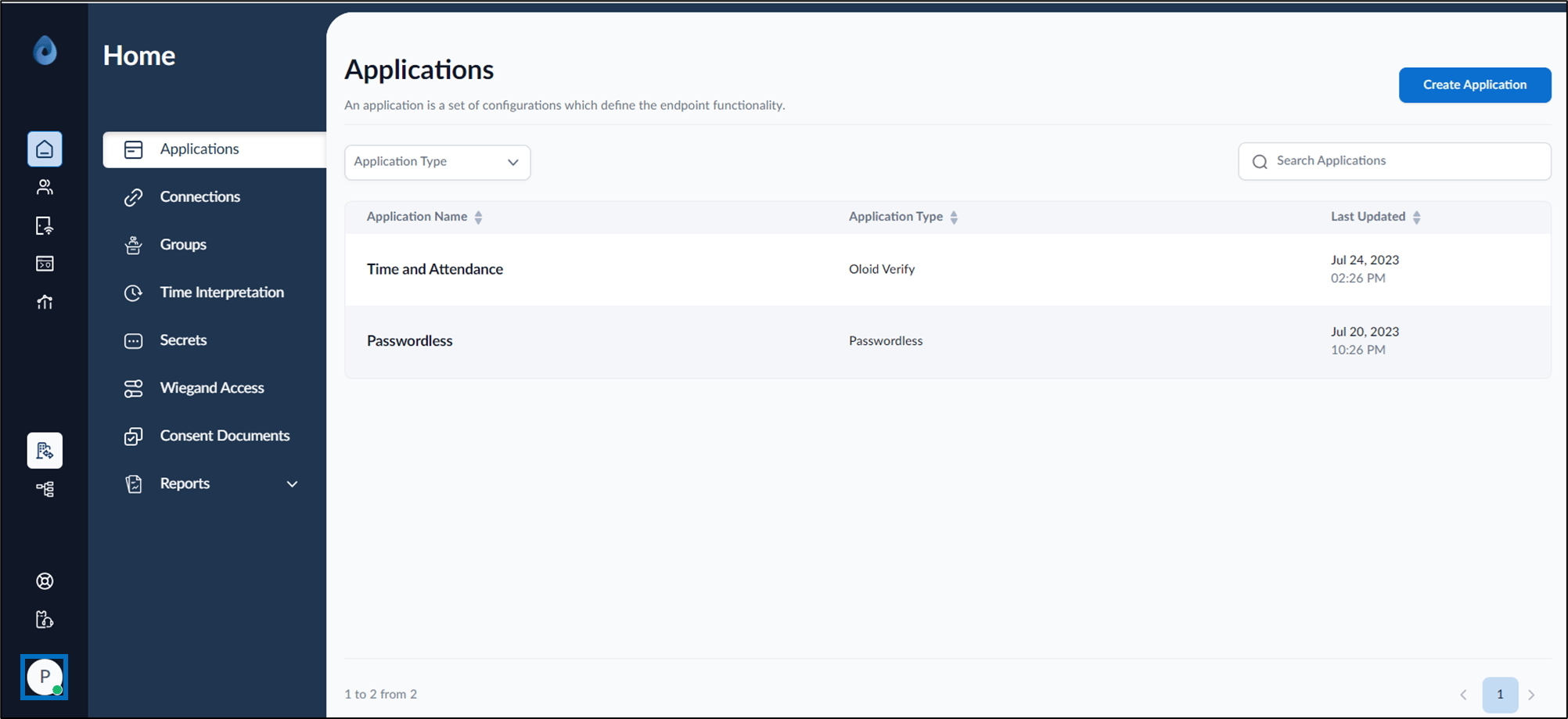
- Click Tenant Settings.
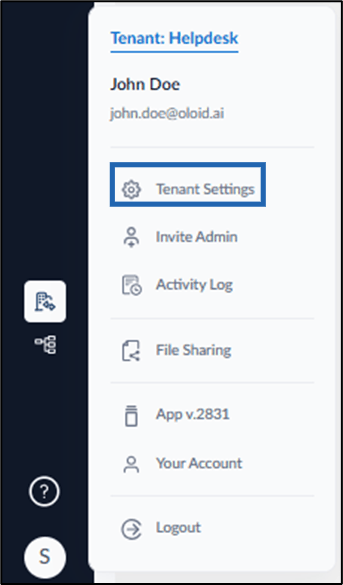
- On the Tenant Settings page, do one of the following:
- Go to Admin Controls > Supervisors tab > Invite Supervisor.
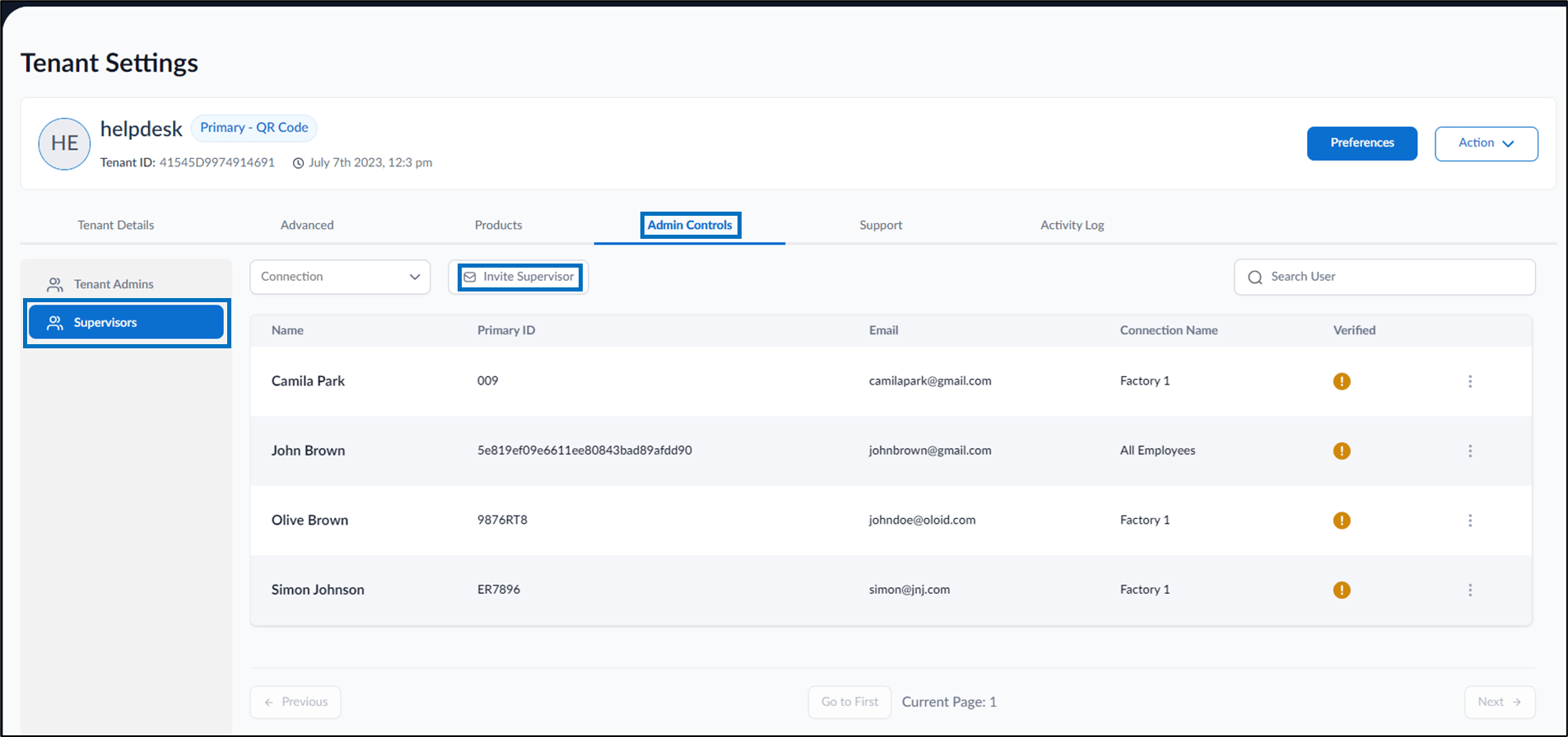
- Click Action > Invite Supervisor.
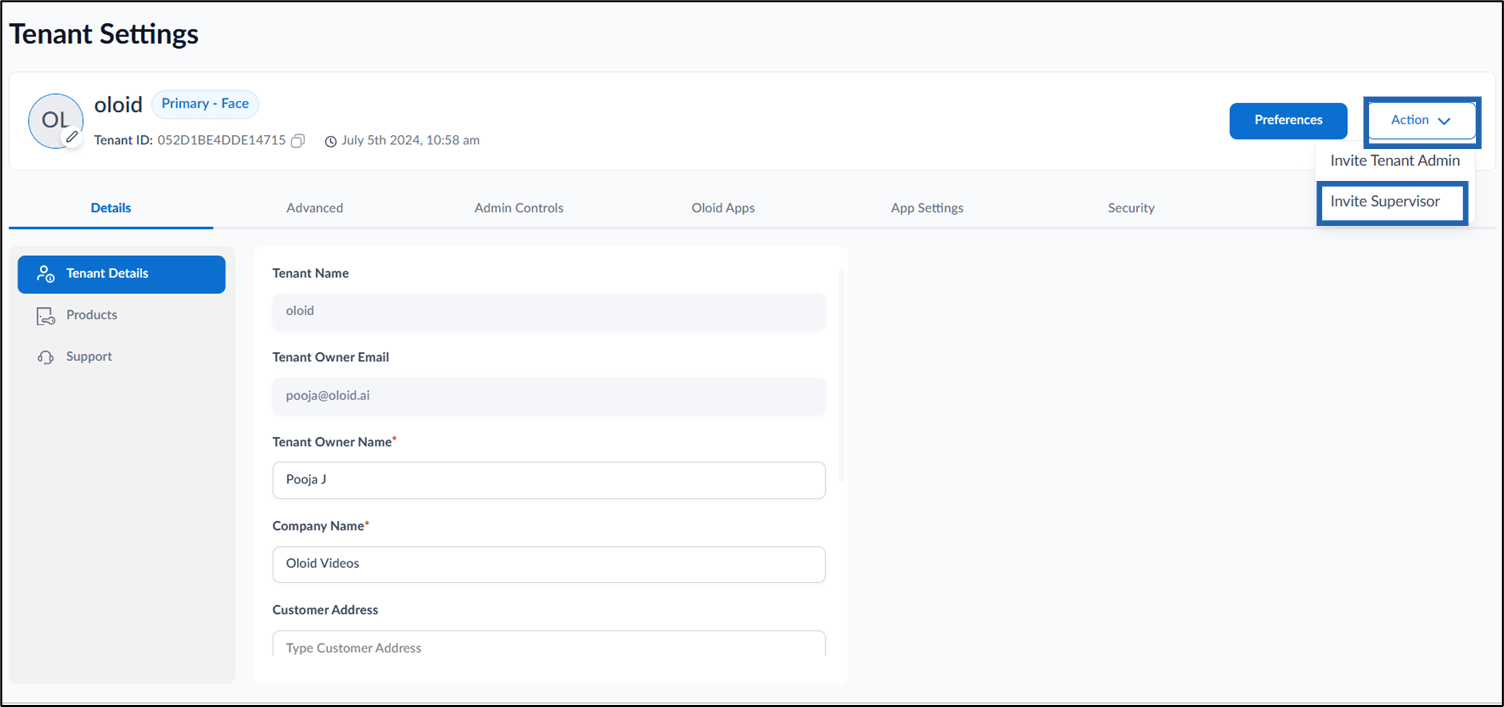
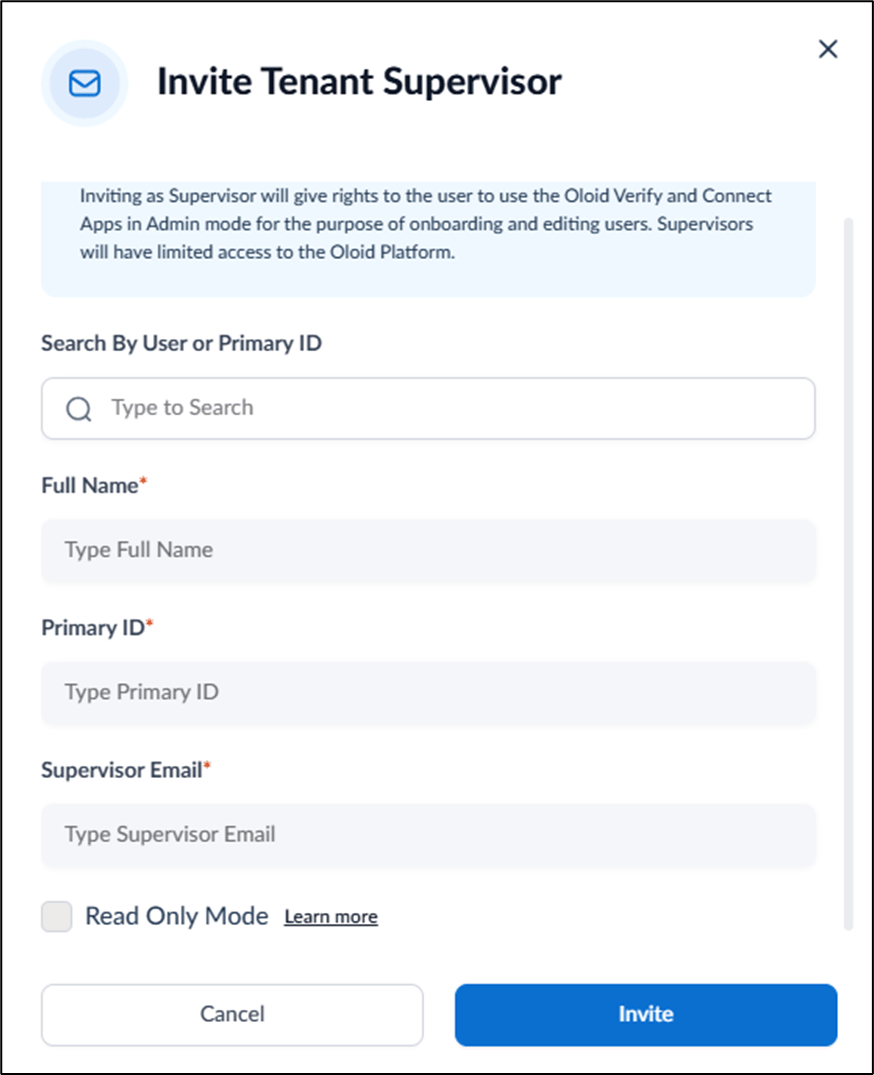
- Go to Admin Controls > Supervisors tab > Invite Supervisor.
- On the pop-up box, do the following:
- Enter User name or Primary ID of existing User in the search field.
-
Select the accurate user name from the search list.
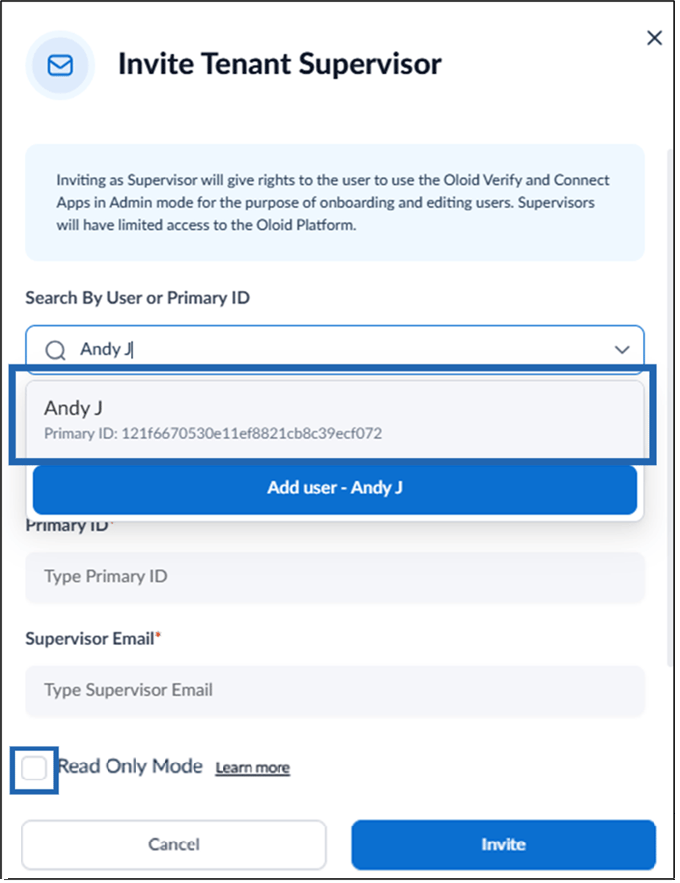
- Select Read Only Mode to restrict the Supervisor from performing any action.
-
Click Invite.
The user is successfully invited as a Tenant Supervisor with Read-only Mode enabled.
 Note: Once the Read-only Mode is enabled, the Supervisor cannot perform any action. A Read-only disclaimer is displayed at the top of every web page, and an editing disabled icon () is displayed next to the user name.