Introduction A Tenant Admin has complete access to Oloid platform and all the Oloid connected devices. Pre-requisite You must be a Tenant Admin to invite a new Tenant Admin. The user you want to invite must already exist in the Tenant Admin Portal. For adding a new user as a tenant admin, see How to add and invite a Tenant Admin Steps to invite a Tenant Admin:
  1. Log in to the Oloid Portal.
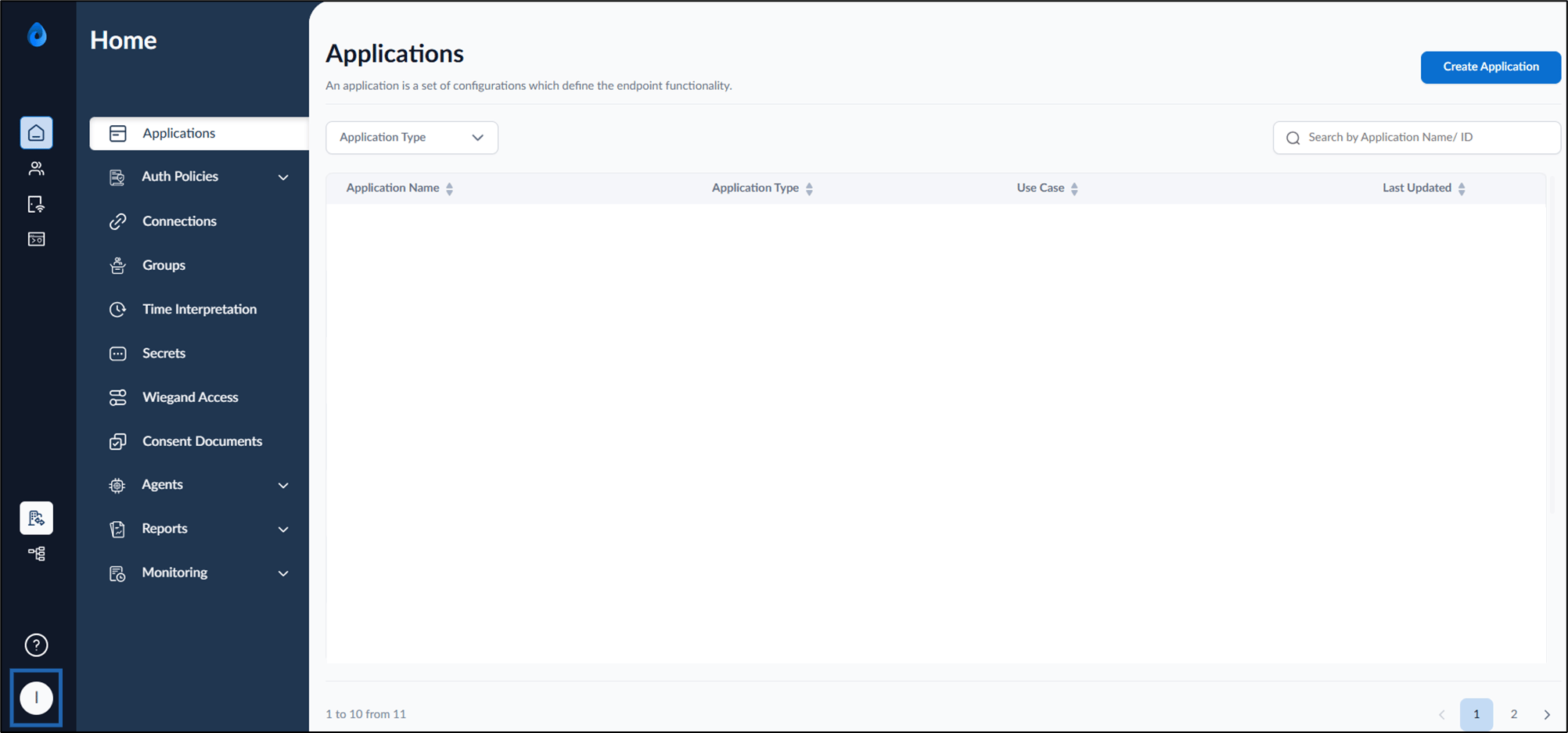
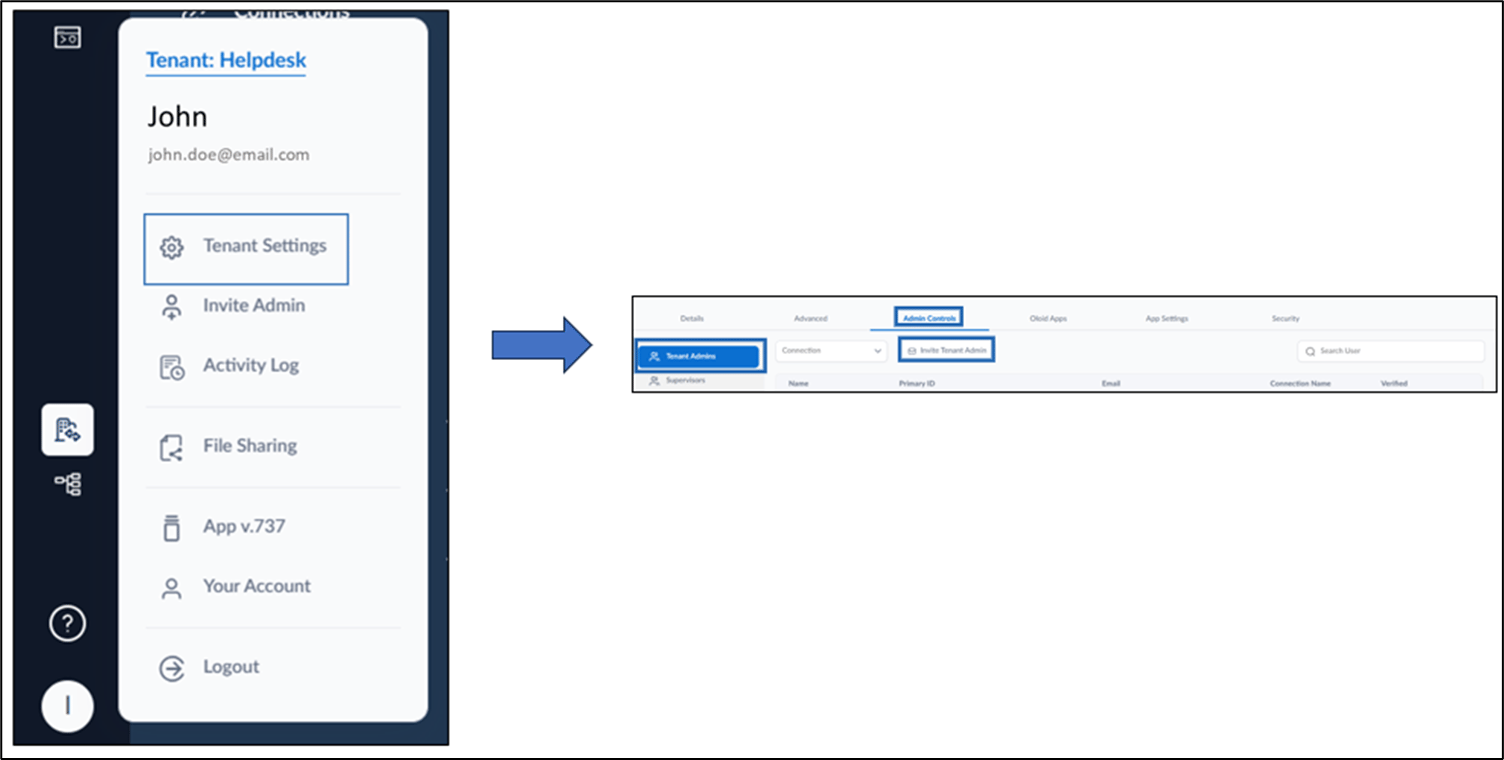
  2. On the homepage of the portal, click user profile icon on the bottom left. How to invite a Tenant Admin - screenshot 1 The user profile menu is displayed.
  3. Do one of the following:
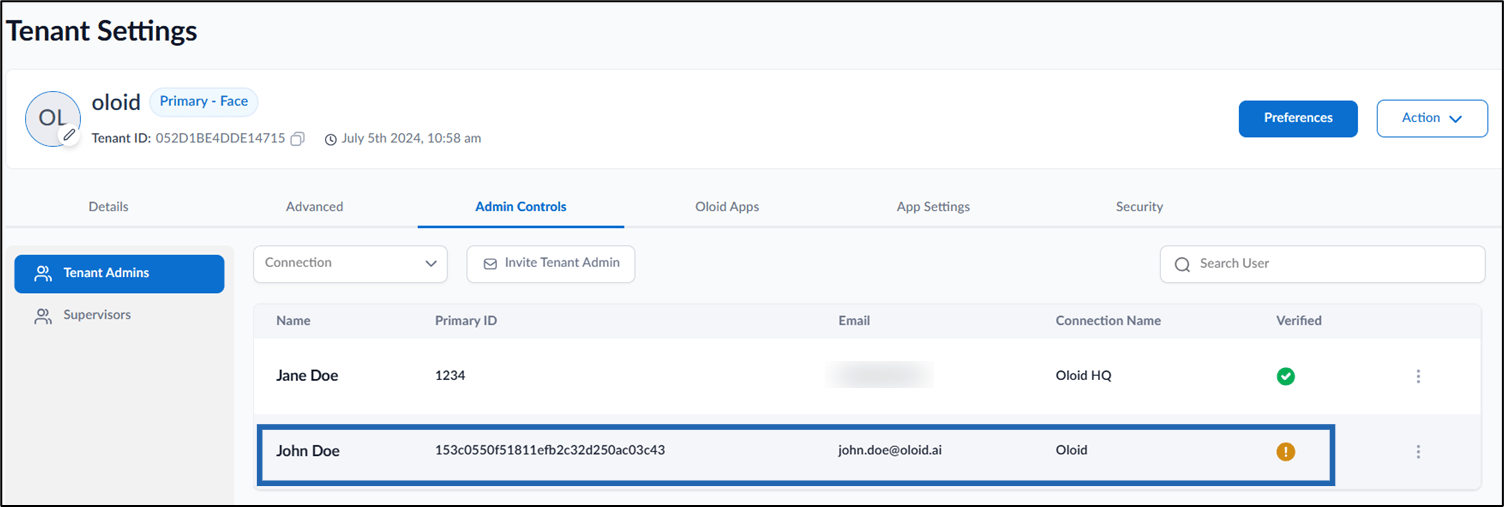
    1. Go to Tenant Settings > Admin Controls tab >Tenant admins > Invite Tenant Admins. How to invite a Tenant Admin - screenshot 2 OR, go to Tenant Settings > Action > Invite Tenant Admin. How to invite a Tenant Admin - screenshot 3
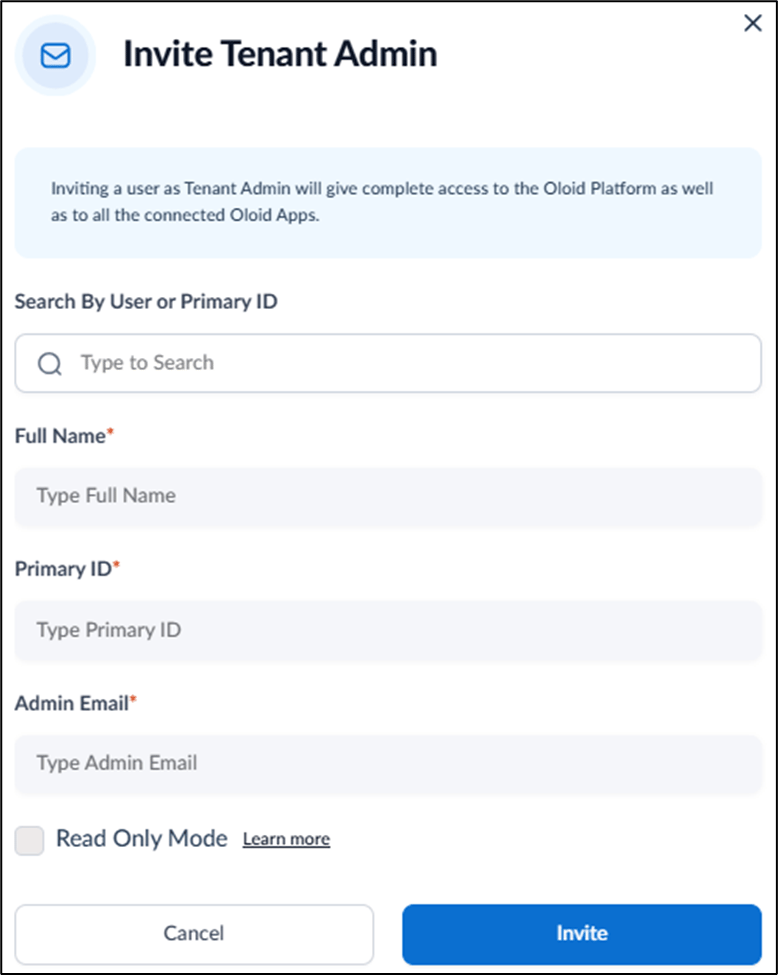
    2. Click Invite Admin. How to invite a Tenant Admin - screenshot 4 The Invite Tenant Admin pop-up box is displayed. How to invite a Tenant Admin - screenshot 5
  4. On the pop-up box, do the following:
    1. Enter User name or Primary ID of existing User in the search field.
    2. Select the accurate user name from the drop-down list. How to invite a Tenant Admin - screenshot 6
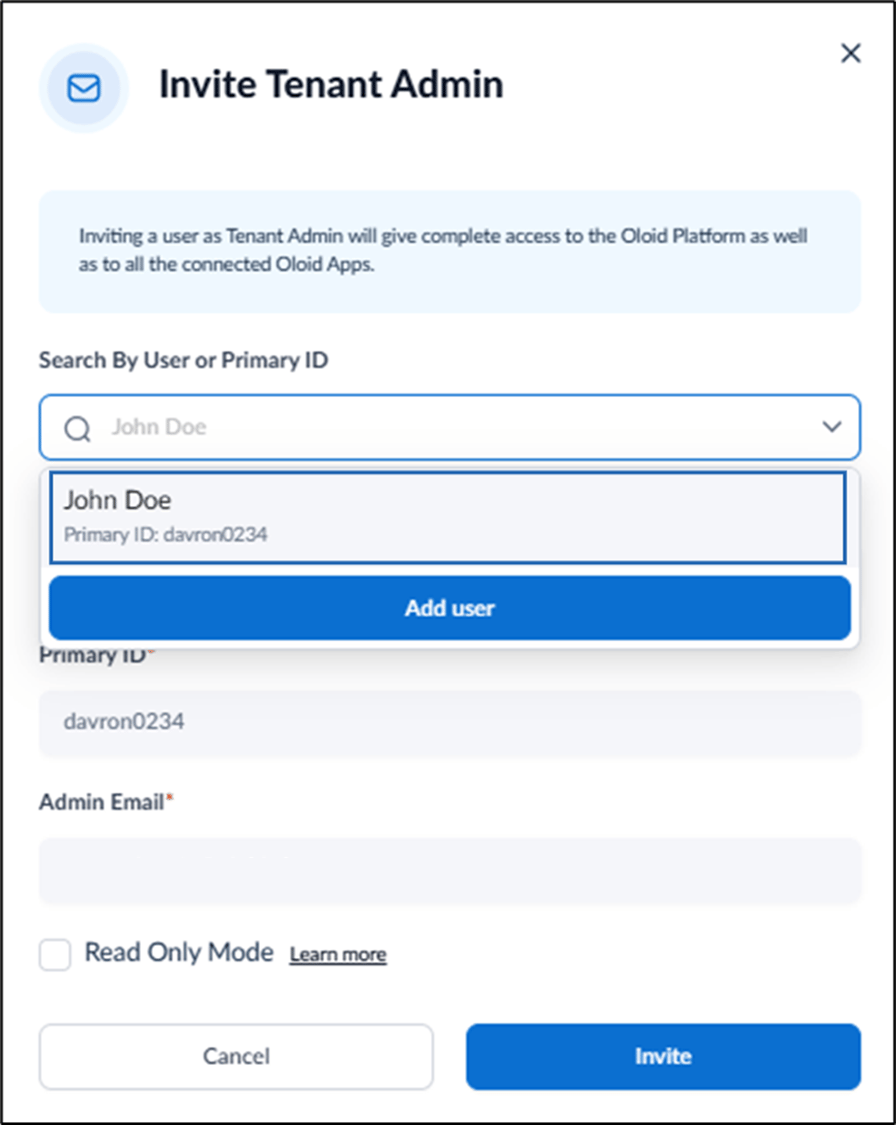
    3. Select Read Only Mode to restrict the Admin from performing any action in the Oloid Portal. (Optional)
    4. Select Invite.
The Tenant Admin is listed on the Tenant Admins tab. An invite email is sent to the user for verification. How to invite a Tenant Admin - screenshot 7

Video Tutorial

Watch the video How to invite a Tenant Admin in Tenant Admin Portal-Video Tutorial