Introduction
This document provides instructions to configure a Wiegand in the Tenant Admin Portal.Prerequisites
You must have admin access to the Tenant Admin Portal.Steps to Configure Weigand
- Log in to the Tenant Admin Portal.
- On the home page, select Weigand Access on the left menu panel.

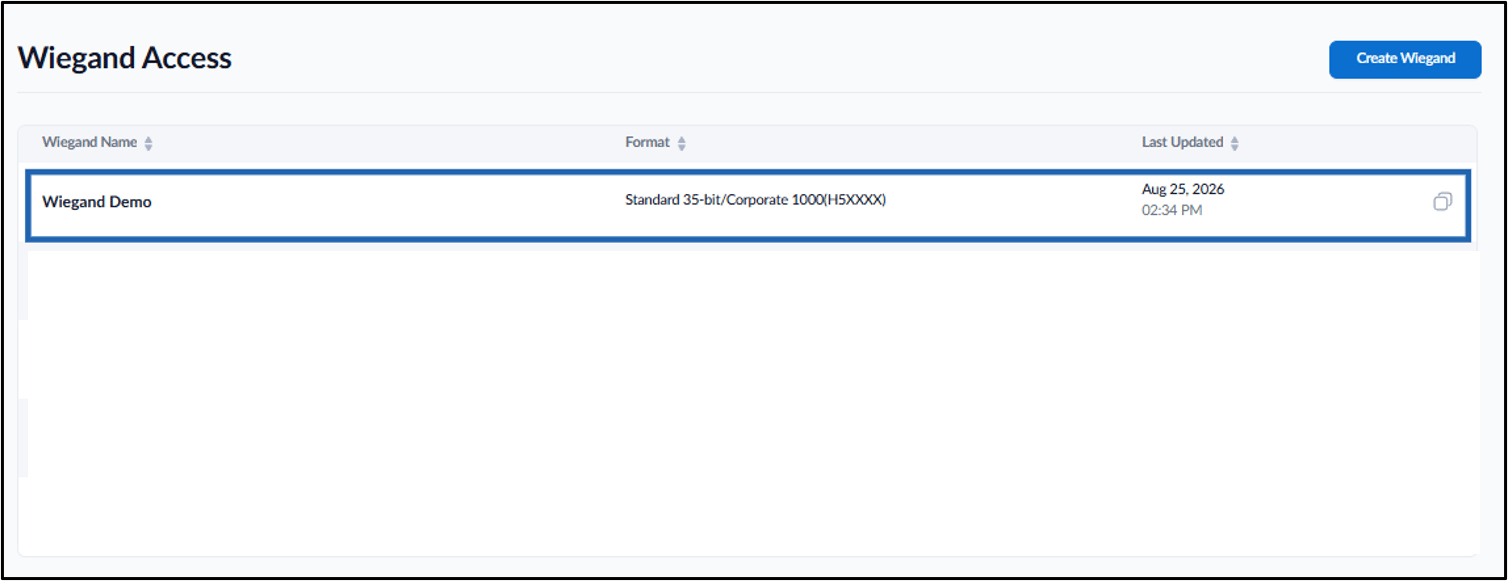
- Select the Weigand Name to edit.
- Do the following:
-
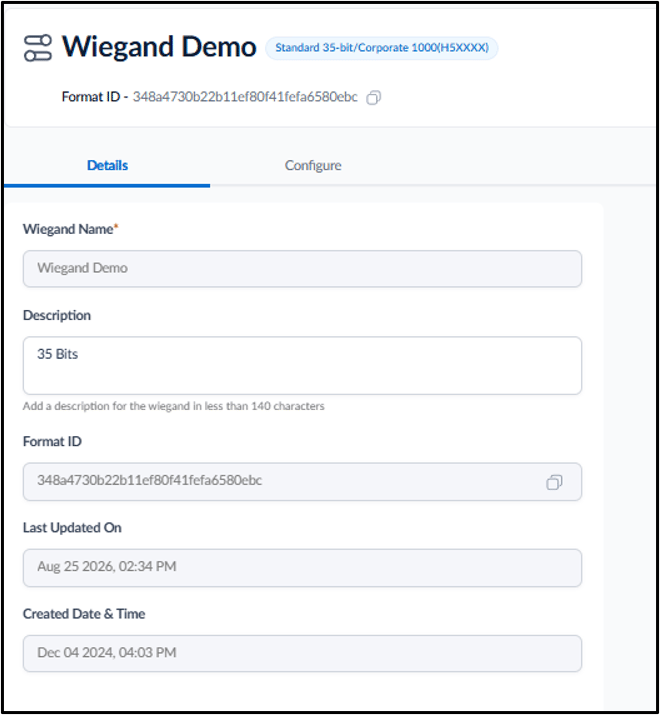
On Details tab, enter the Description (Optional).
Note: You can describe the specific arrangement of your binary card data.
-
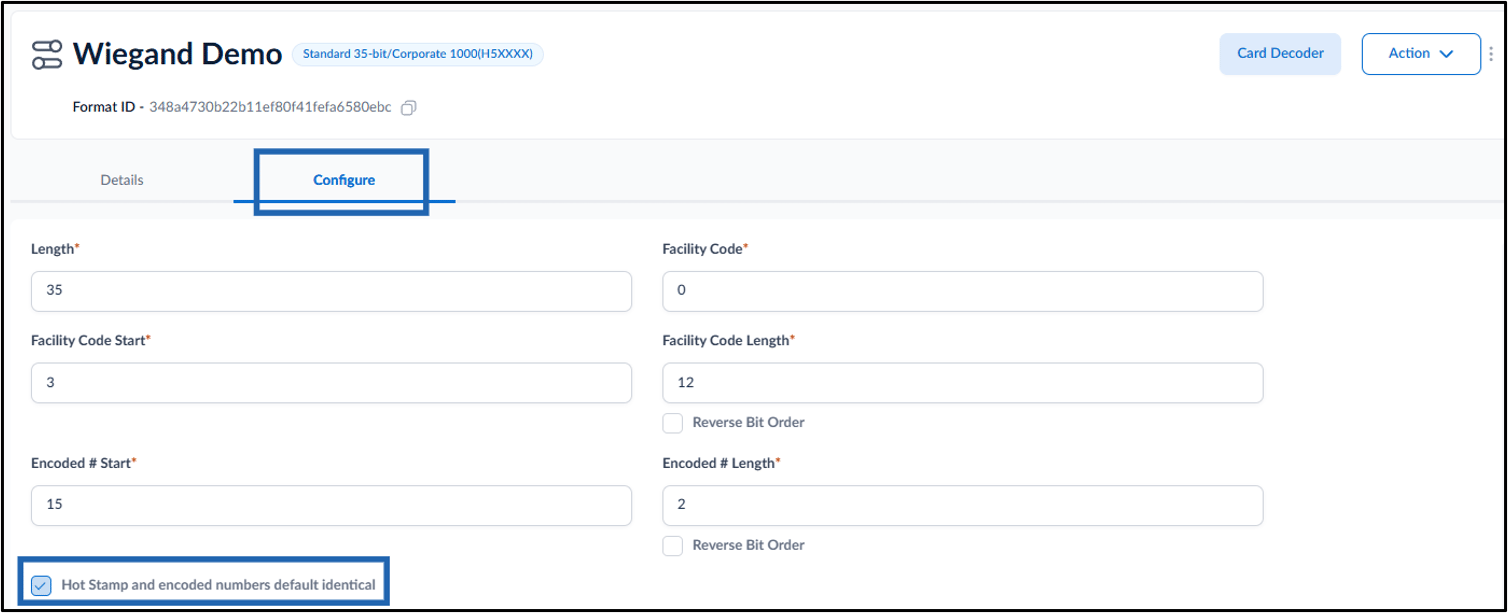
Click Configure taband do the following:
-
Length: Enter length of Wiegand Format.
Note: Length is the number of bits in a badge binary.
-
Facility Code: Enter the Facility Code of the card format.
Note: This is a number that represents the facility or building that the card will be used in.
-
Facility Code Start: Enter the start number of the Facility Code.
Note: This is used to identify or represent each cardholder.
-
Facility Code Length: Enter the facility code length.
Note: Facility Code Length is the length (number of bits) available for storing facility code.
-
Encoded # Start: Enter encoding start position.
Note: Encoded Start represents the starting bit position from where card number will be stored.
-
Encoded # Length: Enter encoded length.
Note: Encoded length represents number of bits available to store the card number.
-
Select the Hot Stamp and encoded numbers default identical checkbox.
-
Select + Add Parity Bit Definitions
The Parity Bit Definitions pop-up box is displayed.

-
Enter values.
Note: A parity bit is used as a very simple quality check for the accuracy of the transmitted binary data.

-
Length: Enter length of Wiegand Format.
-
On Details tab, enter the Description (Optional).
- Click Save.
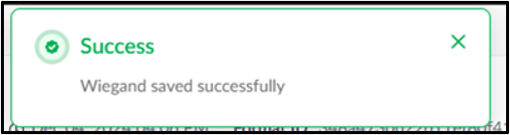
The Wiegand format is configured and listed on the Wiegand Access page.