

Introduction
This document describes how to configure Oloid External Authentication Method (EAM) in Microsoft Entra ID. The integration allows Oloid’s passwordless authentication to work with Microsoft Entra ID, enabling Oloid to act as an external MFA provider for secure and seamless access to enterprise applications.Key highlights of this document include
Obtaining Essential Oloid Tenant Details
- Client ID.
- OpenID Configuration.
- Authorization Endpoints.
Configuring Microsoft Entra ID
- Register and configure the application.
- Configure External Authentication Methods (EAM).
- Configure Conditional Access Policies (Optional).
Testing the Integration
Verify the authentication flow by testing user access to integrated applications, such as ServiceNow. This configuration integrates Oloid’s passwordless authentication with Microsoft Entra ID (Azure AD) to enhance security and improve the user experience.Step 1: Obtain Oloid Tenant Configuration
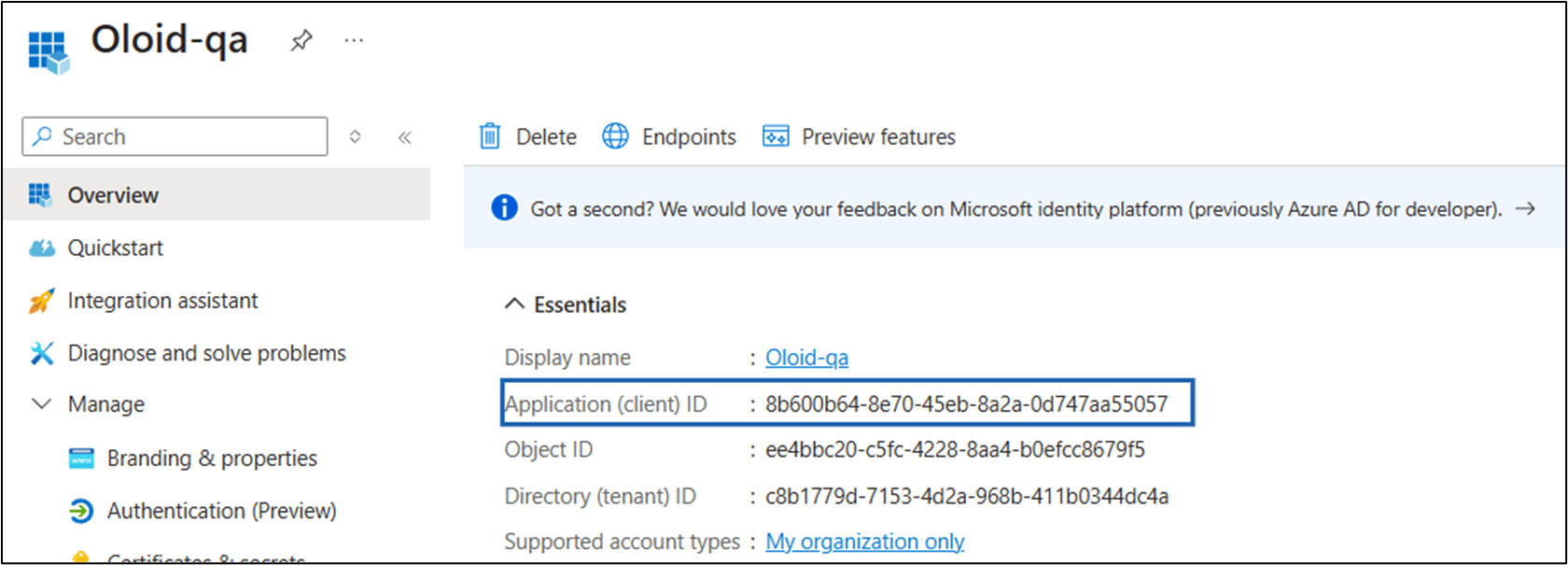
To configure Oloid as an External Authentication Method in Microsoft Entra ID, gather the following details from your Oloid tenant: Client ID <<################################>> OIDC Endpoint https://api.oloidpreview.com/oidc/showcase/eam/oauth2/.well-known/openid-configuration Authorization Endpoint https://api.oloidpreview.com/oidc/showcase/eam/oauth2/authorizeStep 2: Register and Configure an Application in Microsoft Entra ID
Register an application
- Log in to the Microsoft Entra ID Portal with an account that has Global Administrator permissions or sufficient access to create applications.
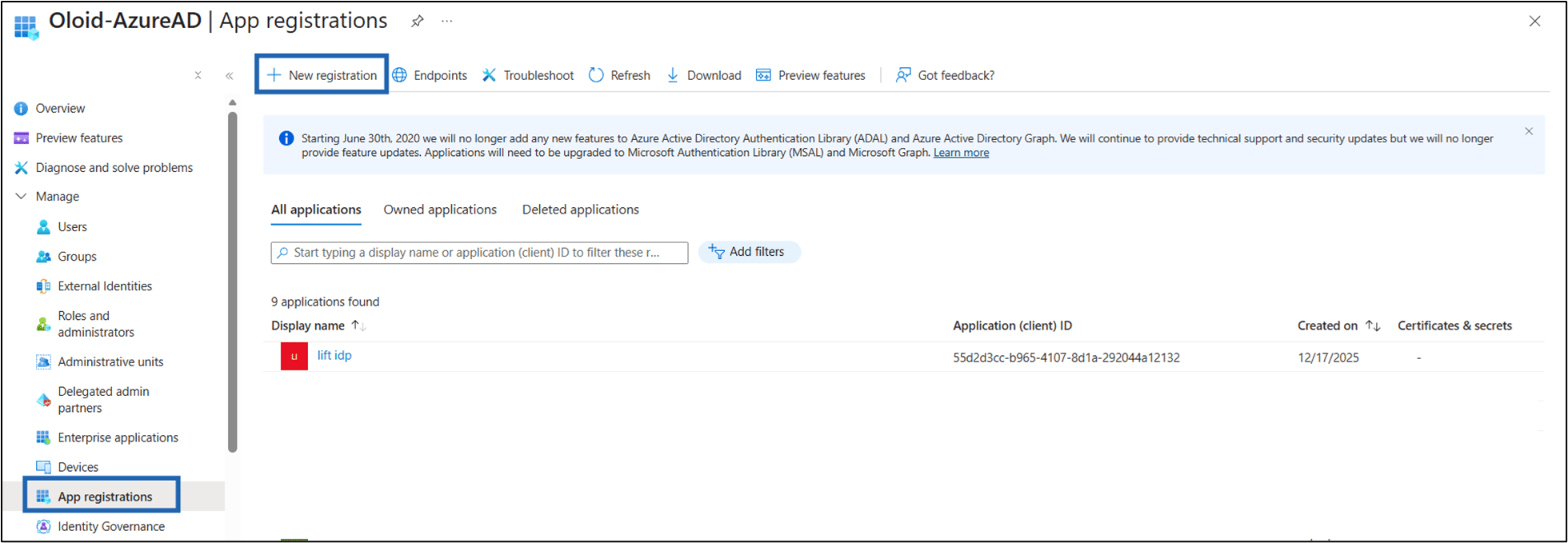
- Navigate to Microsoft Entra ID > App registrations > New registration.
- Provide the following details:
- Enter Name.
-
Enter Redirect URI: Select Web from the drop-down list and Use the Authorization Endpoint from Step 1 in the redirected URL field.
Note: The Authorization Endpoint from theTenant Admin Portalis the Redirect URL.
-
Click Register.

Configure the Application
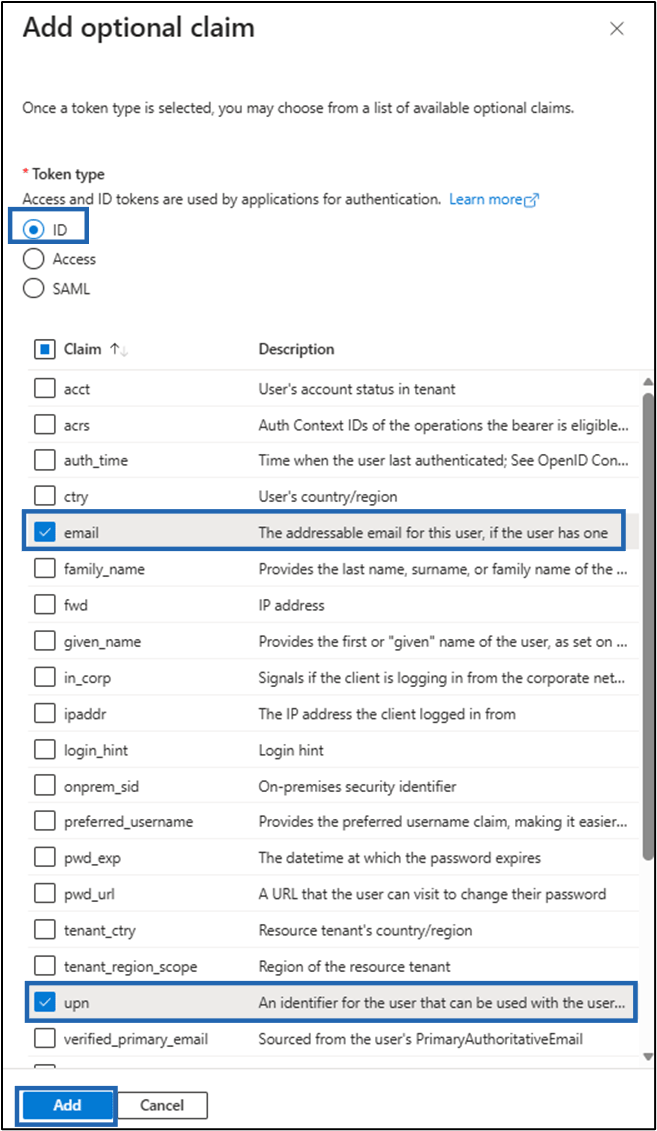
- Navigate to the newly registered app > Manage > Token Configuration > Click + Add optional claim.

- Select ID as a Token type and do the following:
- Select email.
- Select upn.
- Click Add.
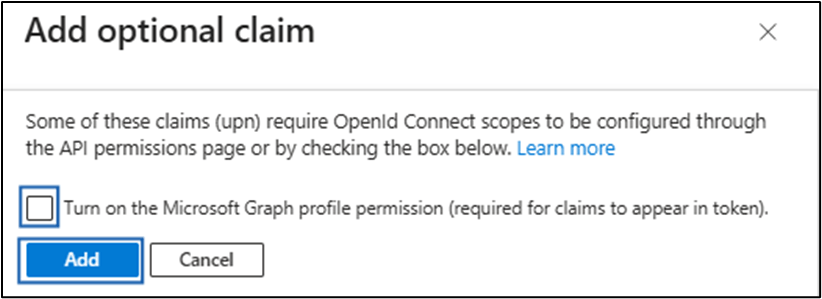
- Select Turn on the Microsoft Graph checkbox and click Add to save the claims.
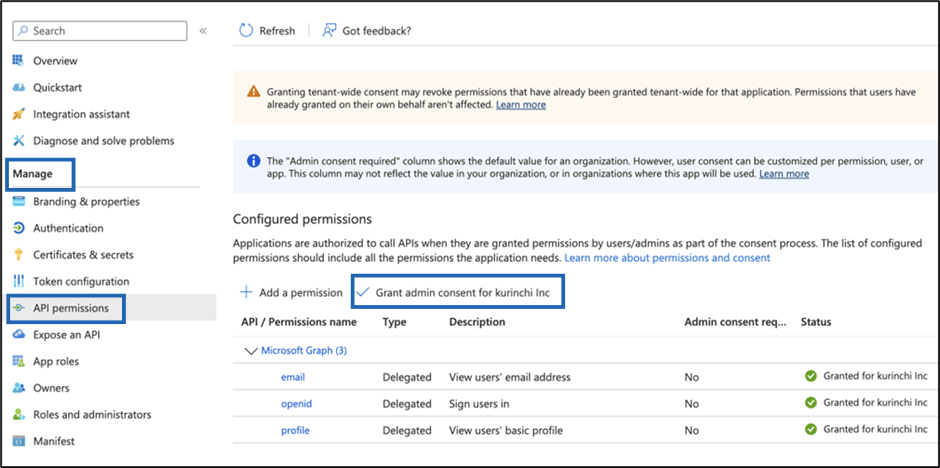
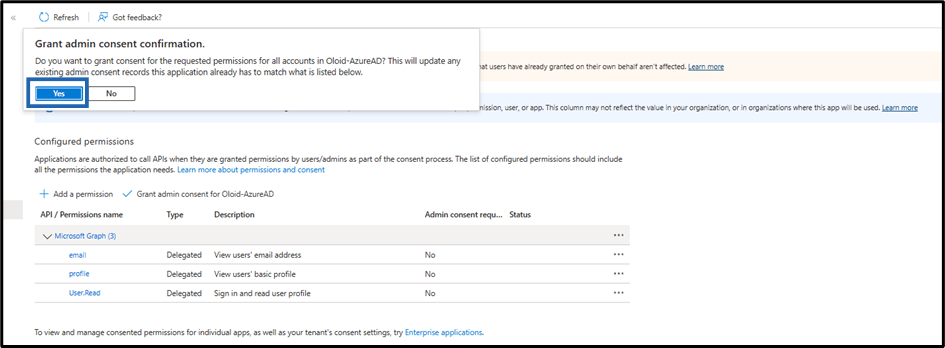
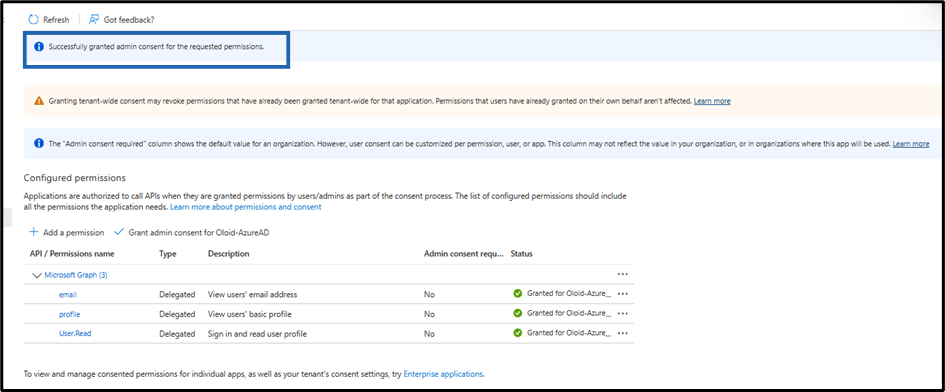
- Go to Manage > API permissions > Grant required permissions.
- Click Yes.
Create Client Secret
-
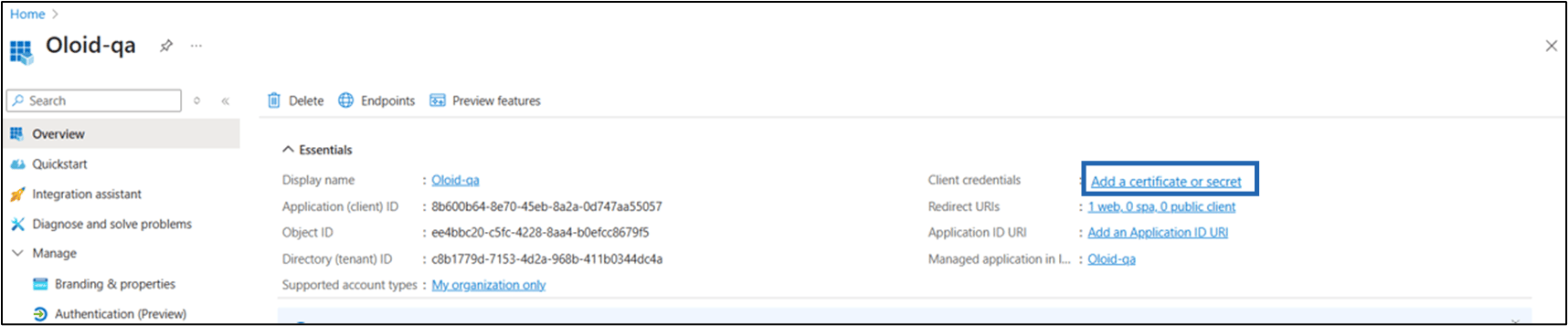
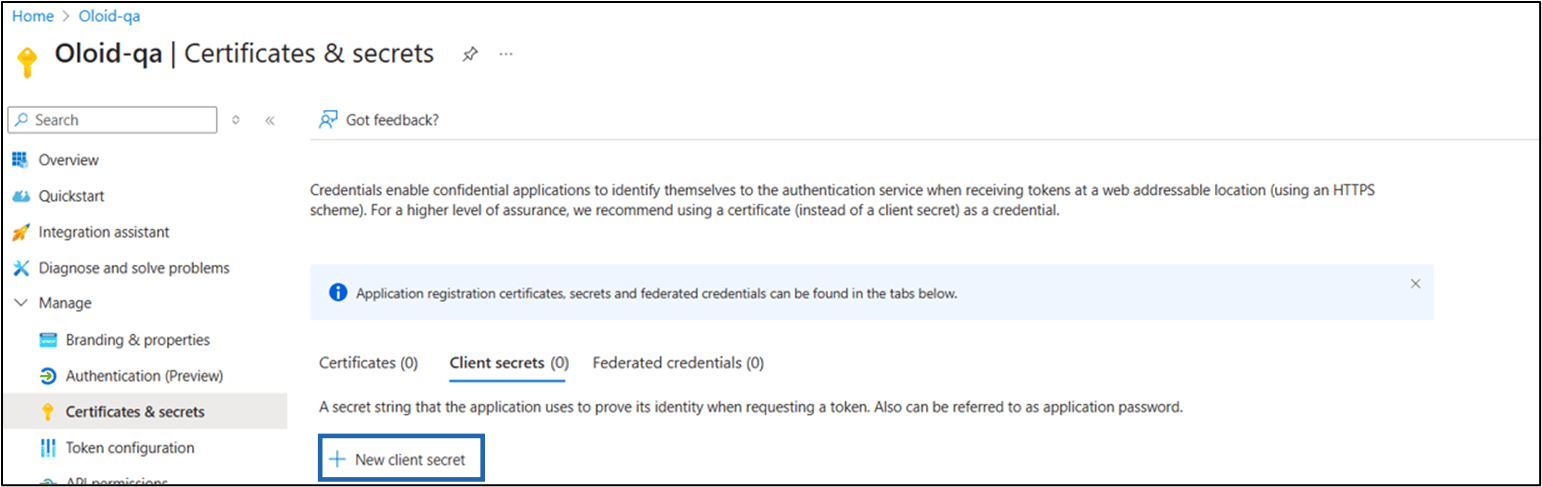
Navigate to newly registered app > Click Client Credentials.
-
Click New client secret.
-
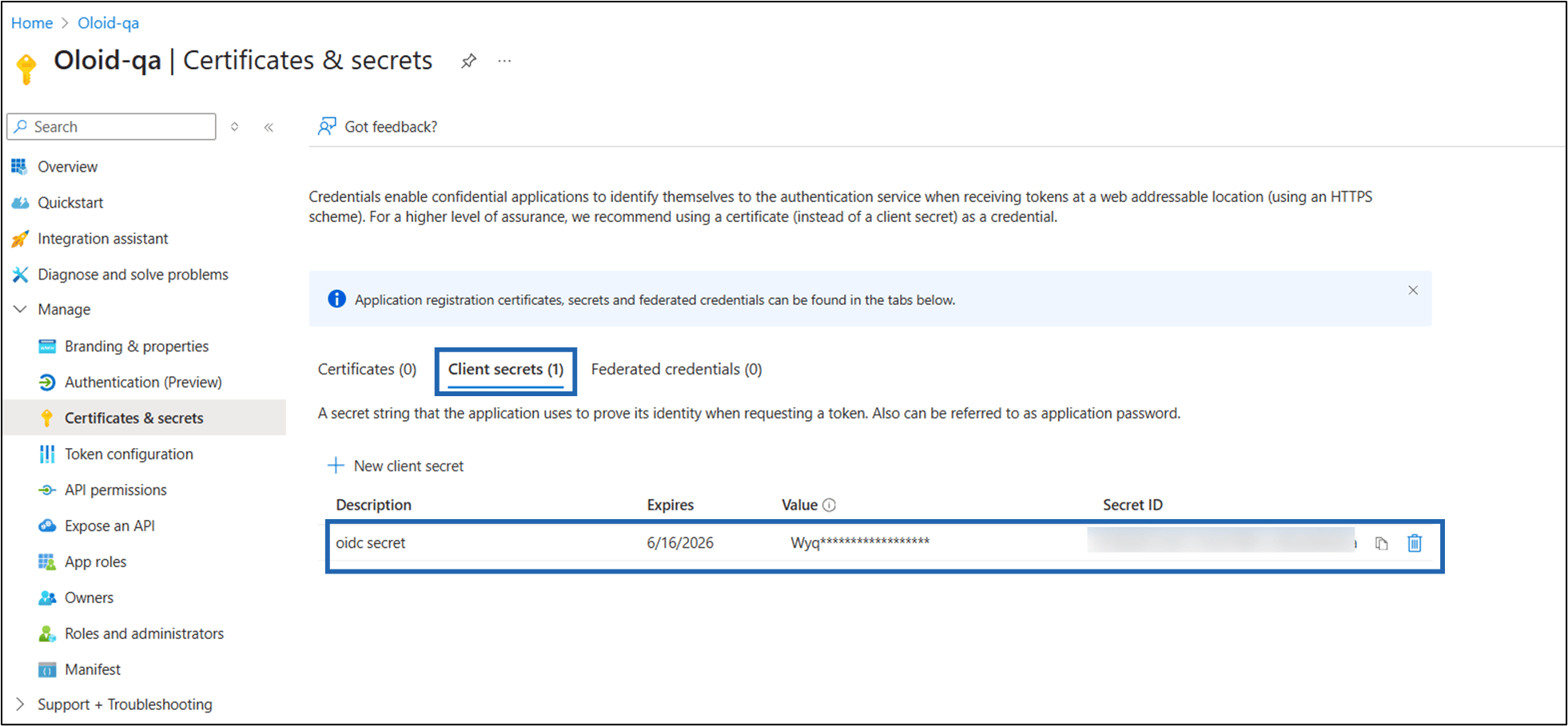
Do the following:
- Enter Description.
- Select the secret expires duration from the drop-down list.
- Click Add.

Step 3: Configure External Authentication Method in Microsoft Entra ID
-
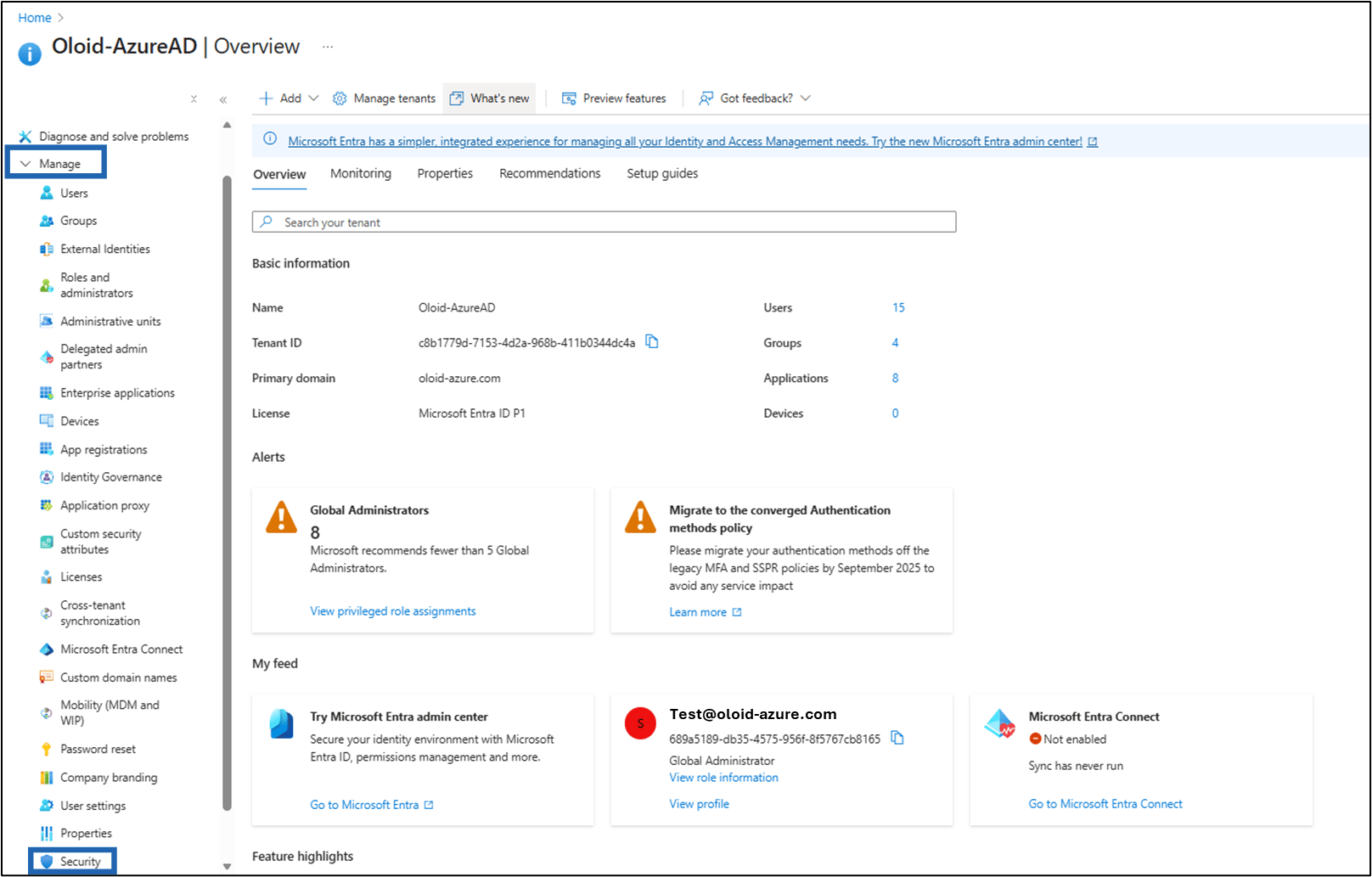
Navigate to Application > Manage > Security.
-
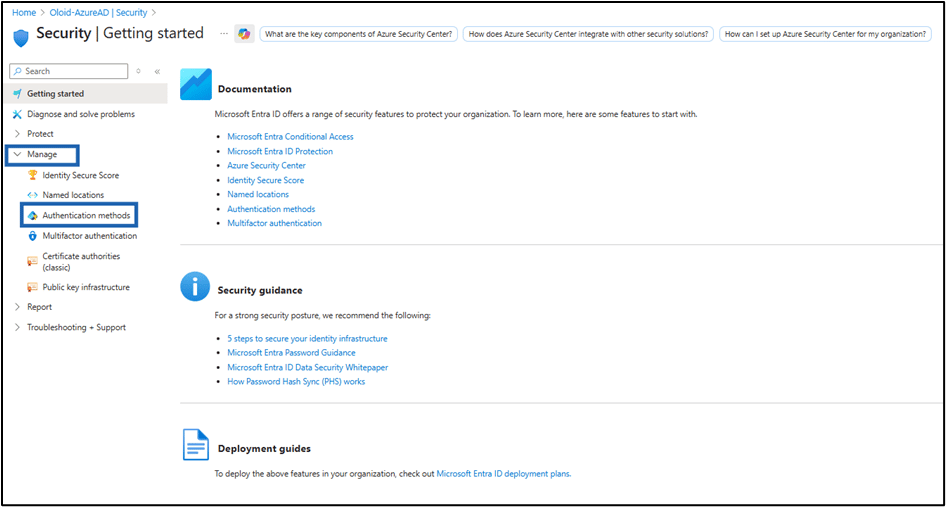
Go to Manage > Authentication Methods.
-
Click +Add external method (Preview).
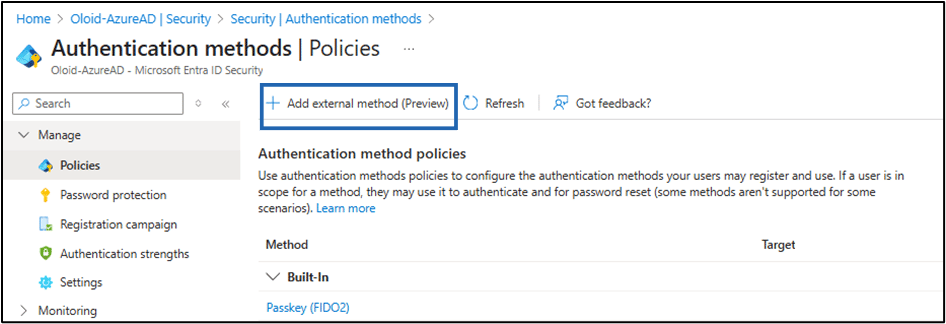
-
Do the following:
- Enter Name.
-
Enter Client ID.
Note: Enter the Oloid Client ID in the Client ID field.
-
Enter Discovery Endpoint.
Note: Enter the OpenID Configuration Endpoint in the Discovery Endpoint field.
- Enter App ID.
-
Click Request Permission.
 Note: You can view the Oloid Client ID and OpenID Configuration Endpoint in the Metadata tab in the Tenant Admin Portal. To see the Metadata tab, go to Tenant Admin Portal > Auth Policies > Identity Provider > Select applicable OIDC (Entra ID) idP > Oloid Metadata.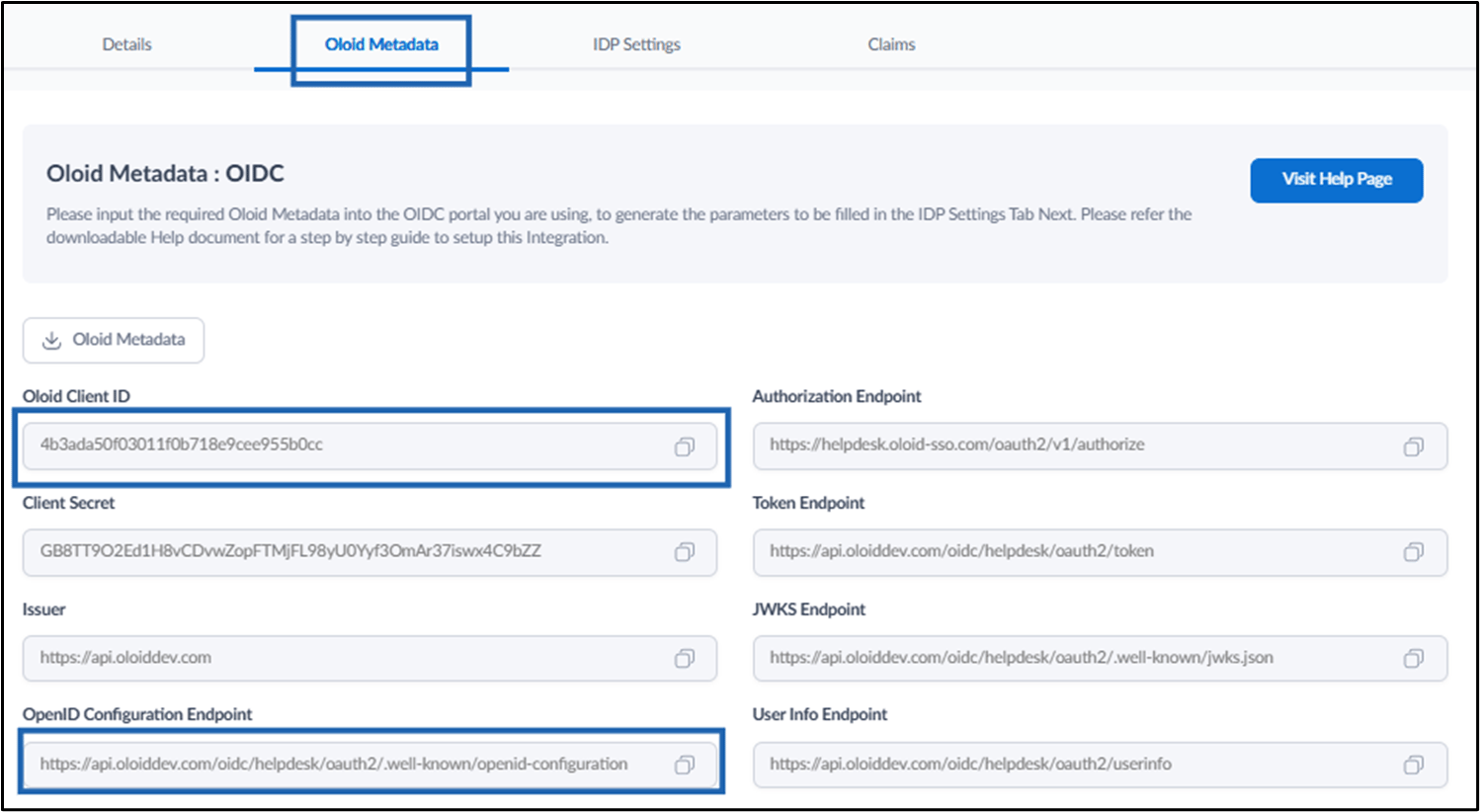
-
Accept the required permissions.
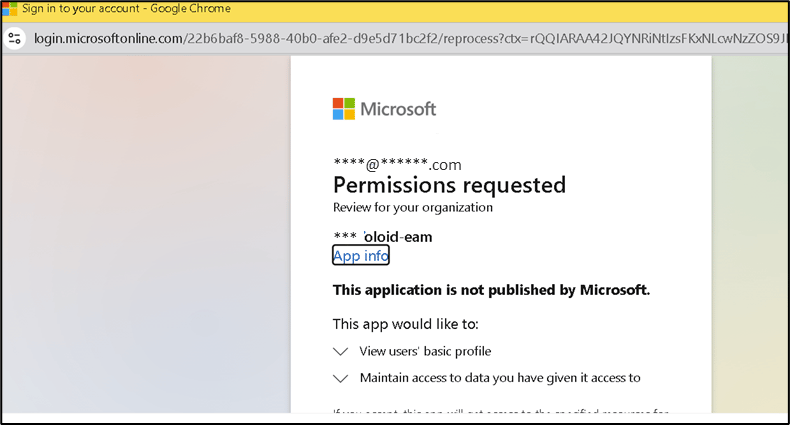
-
Click Save and enable the configuration.
Note: Ensure that you select only the users who require Oloid as MFA. Do not apply this setting to all users.

Step 4: Provide Microsoft Entra ID Information to Oloid
Share the following details of your Microsoft Entra ID tenant with Oloid for final configuration: Configuration Detail Value Tenant ID Obtain from Microsoft Entra ID. Application ID Found under Register an Application (Step 2). OIDC Endpoint Found under Azure App Endpoints section. Redirect URL Enter the Redirect URL (Step 2). Callback URL Optional Secret Found under Create Client Secret (Step 2). The Tenant ID can be obtained from the following screen: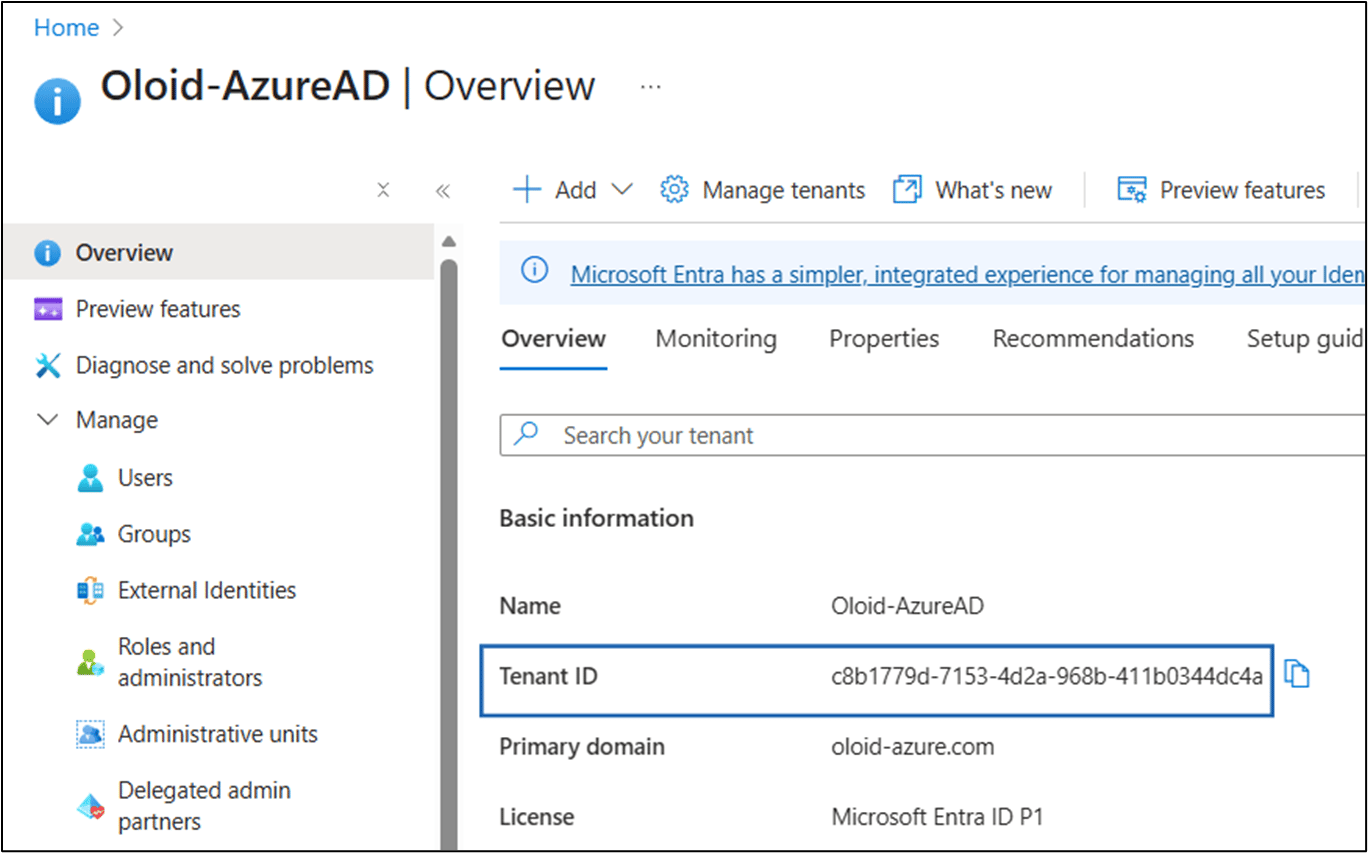
Instructions to Obtain Endpoints
-
Navigate to App Registrations > Select the registered application > Endpoints.

-
Copy the OpenID Connect Meta data document URL.
 Note: Use OpenID Connect Meta data document URL in the Authorize URL field. To see the Authorize URL field, go to Tenant Admin Portal > Auth Policies > Identity Provider > Select OIDC tab > IDP Settings.
Step 5: Apply Conditional Access Policies (Optional)
Note: Perform this step only if you need to protect a specific application by using Oloid as MFA or for selected user(s) group(s).
-
Navigate to Oloid-AzureAD > Security.
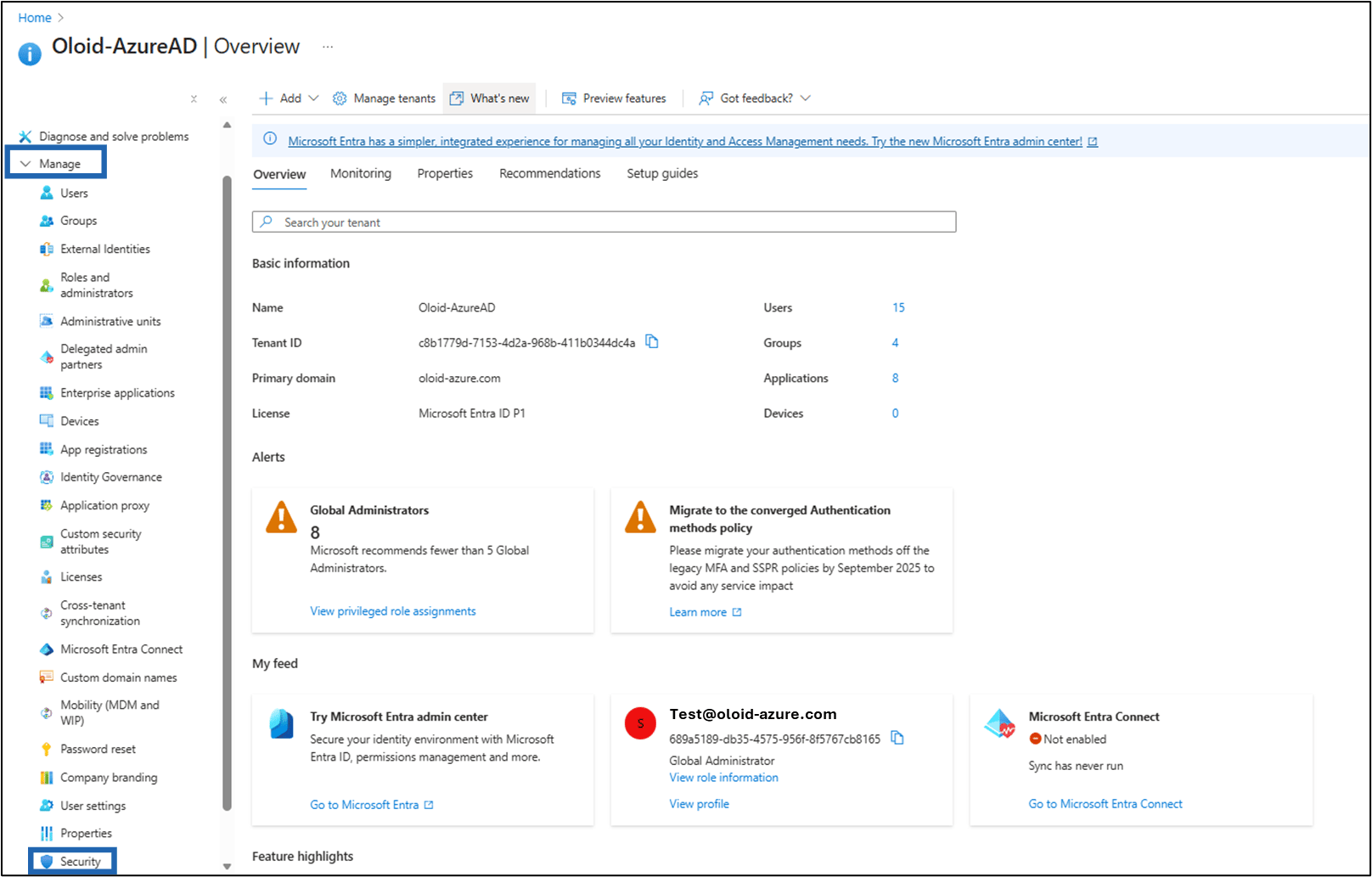
-
Go to Protect > Conditional Access.
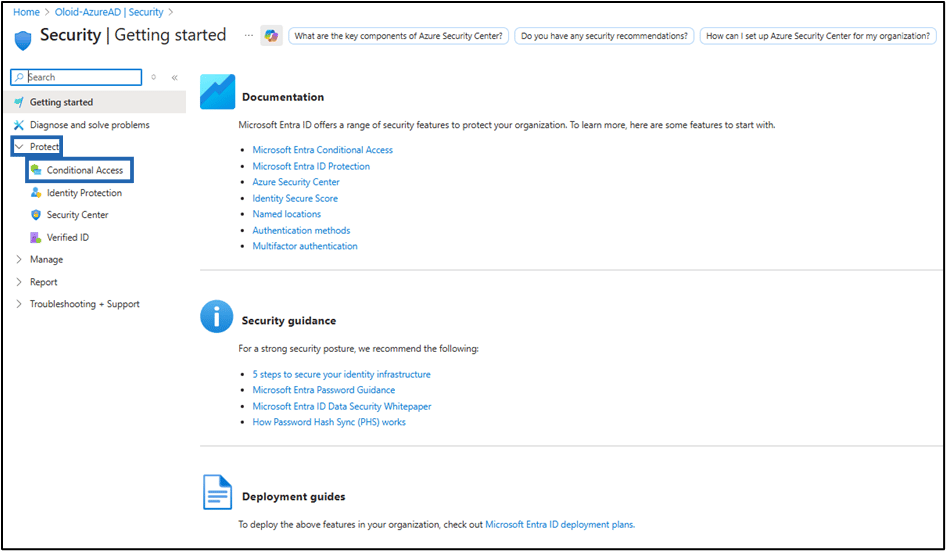
-
Click Policy Snapshot.
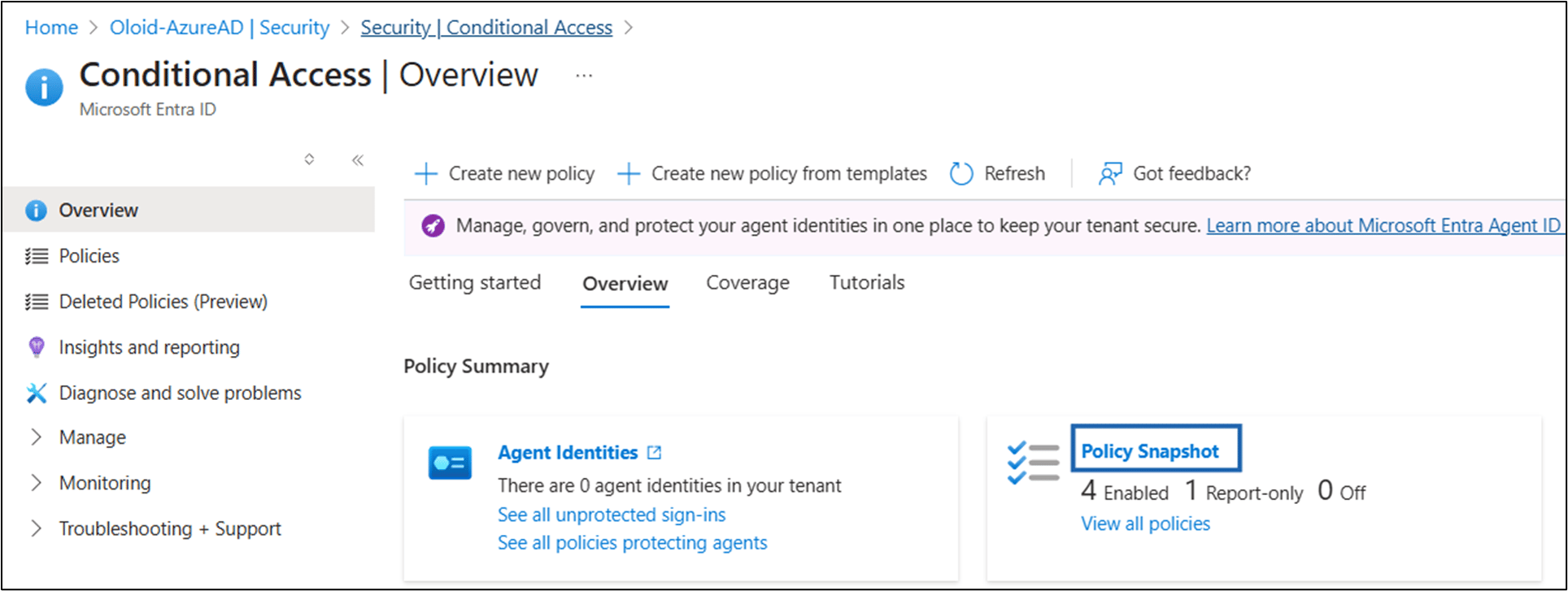
-
Click +New Policy.

-
Click users or agents > Select Users and groups > select Users and Groups > Select the Preferred Group from the list e.g. oloid.
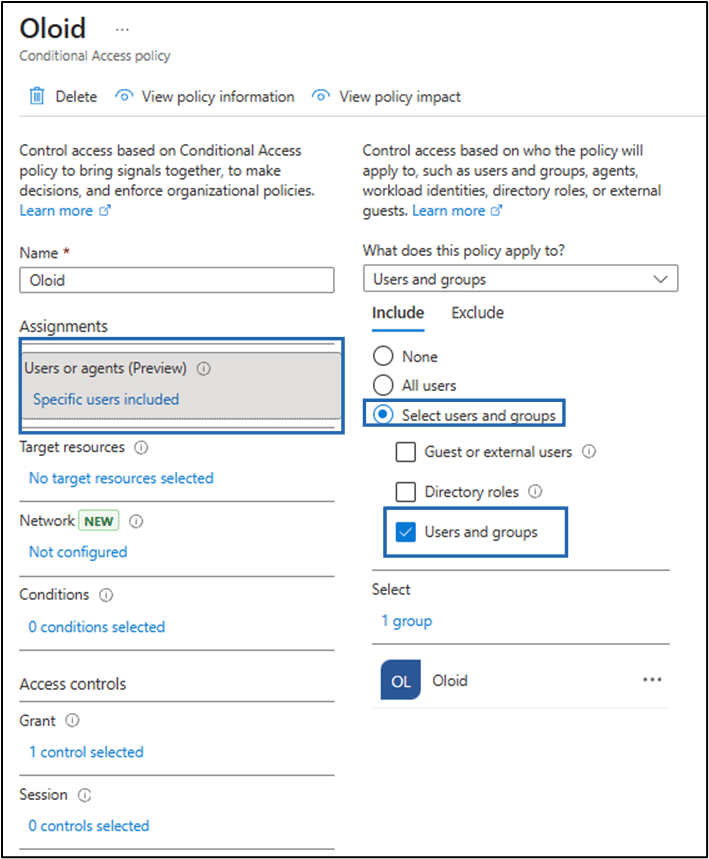
-
On Target Resources, select an application e.g. Service Now.
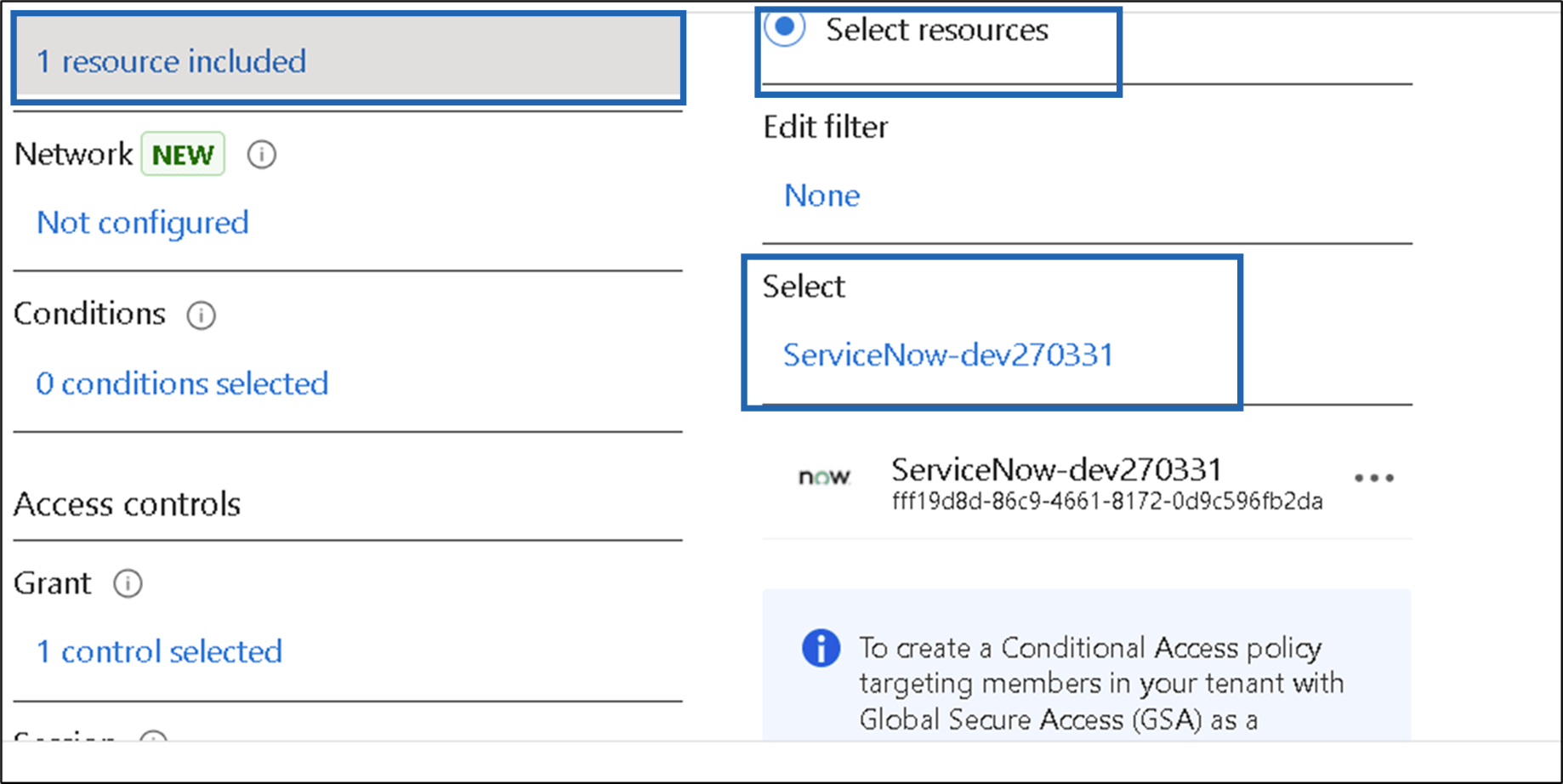
-
Click Access Control > Select Grant access > Click Select.
Note: Select Require multifactor authentication checkbox.
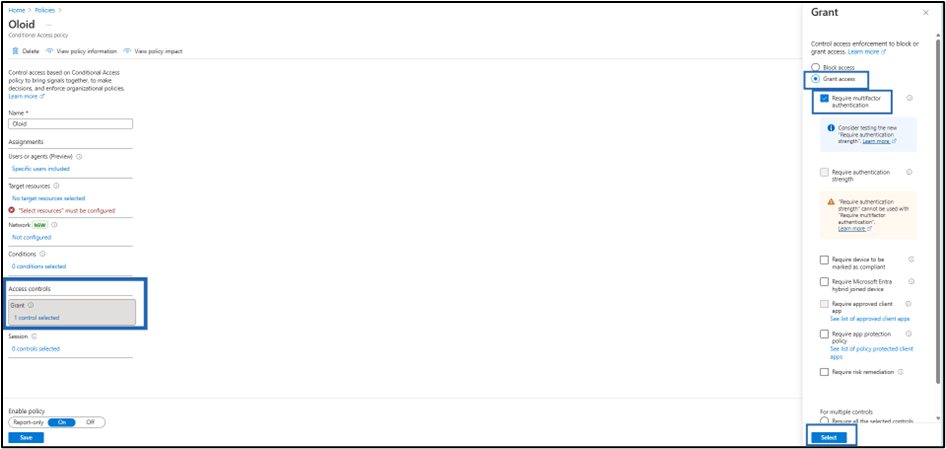
-
On Grant section, select Require one of the selected controls.

-
On Enable Policy, click On > Save.

Step 6: Test the Integration
Test the integration using an application managed by Microsoft Entra ID e.g. ServiceNow- Open the ServiceNow application URL: https://<<servicenow_tenant>>.service-now.com
- Log in with a user account that meets the following criteria:
- Belongs to the snow-users group.
- Has access to the ServiceNow application.
- After entering the password, the user will be prompted for Oloid EAM.

- Authenticate using Oloid MFA (ensure the user’s Oloid account has the same email as the Microsoft Entra ID UPN).
- Upon successful authentication, the user will be logged into ServiceNow.
