Introduction
The Tenant Admin Portal allows the admin to Remove/ disable consent of a connection or Change the consent Template of a connection.Prerequisites
- You must create a Consent template. To create refer How to create a Consent Template.
- You must have access to the Tenant Admin Portal.
Steps to add Consent
- Log in to the Tenant Admin Portal.
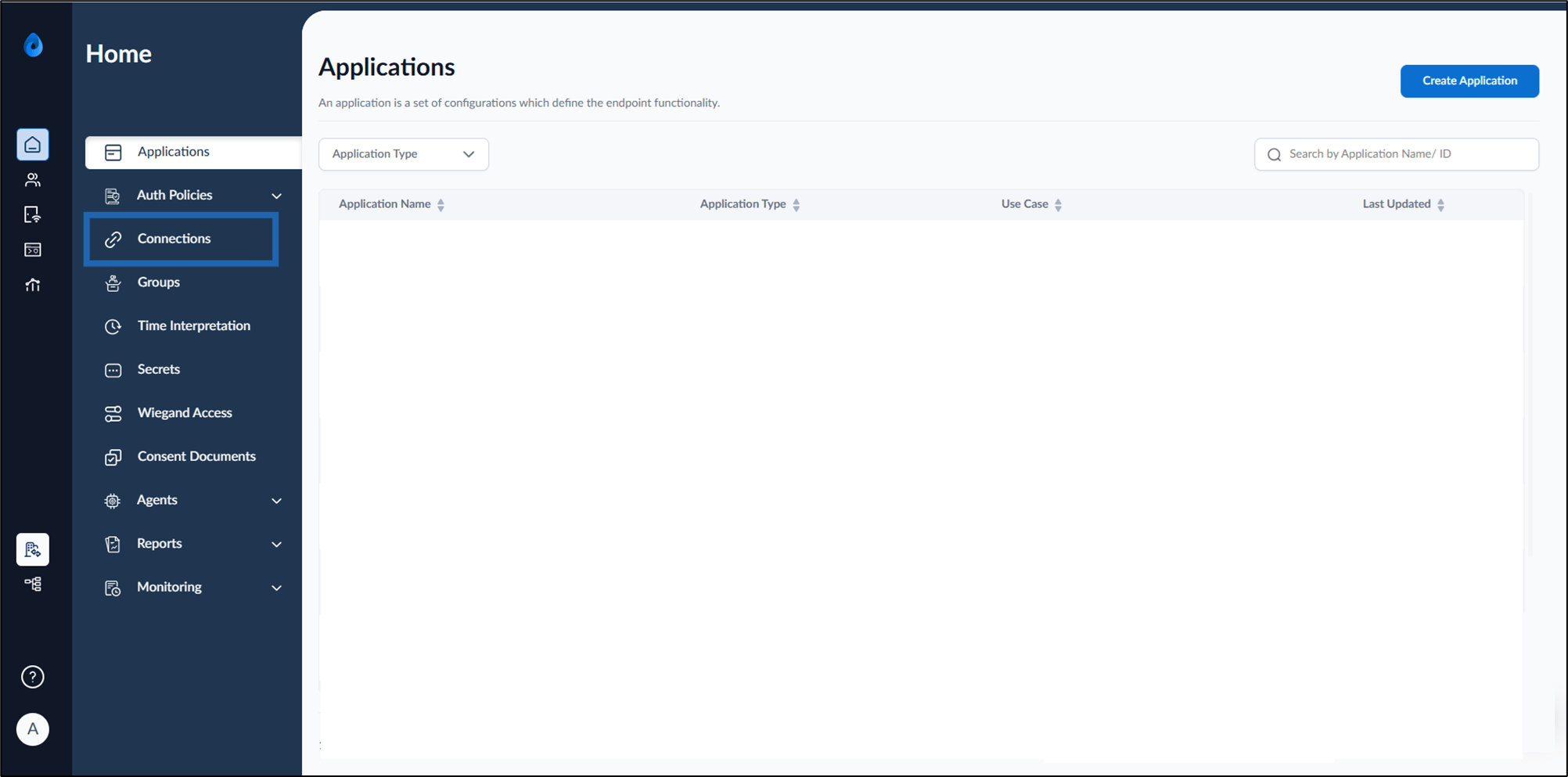
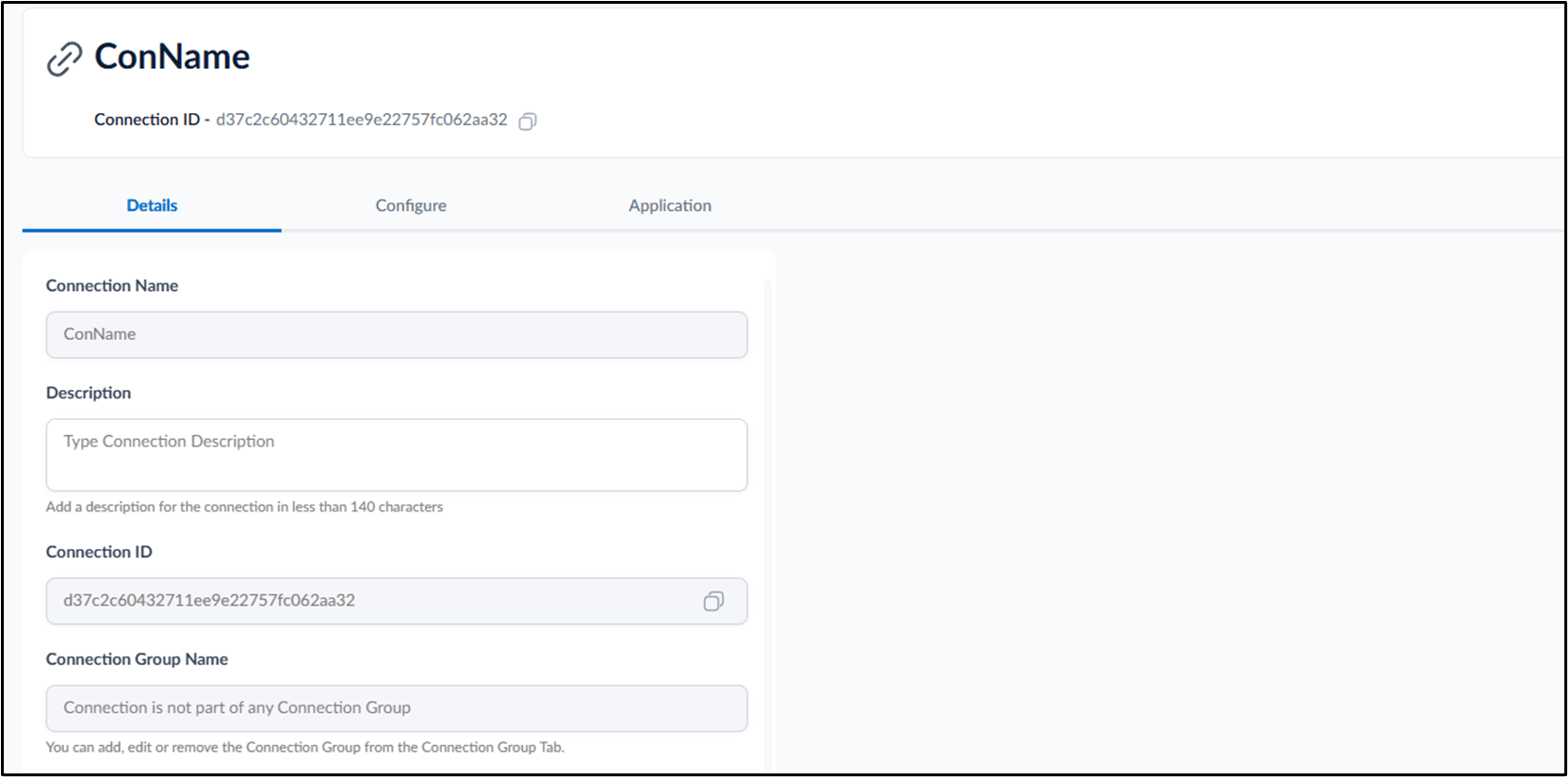
- On the home page of the portal, click Connections on the left menu panel.
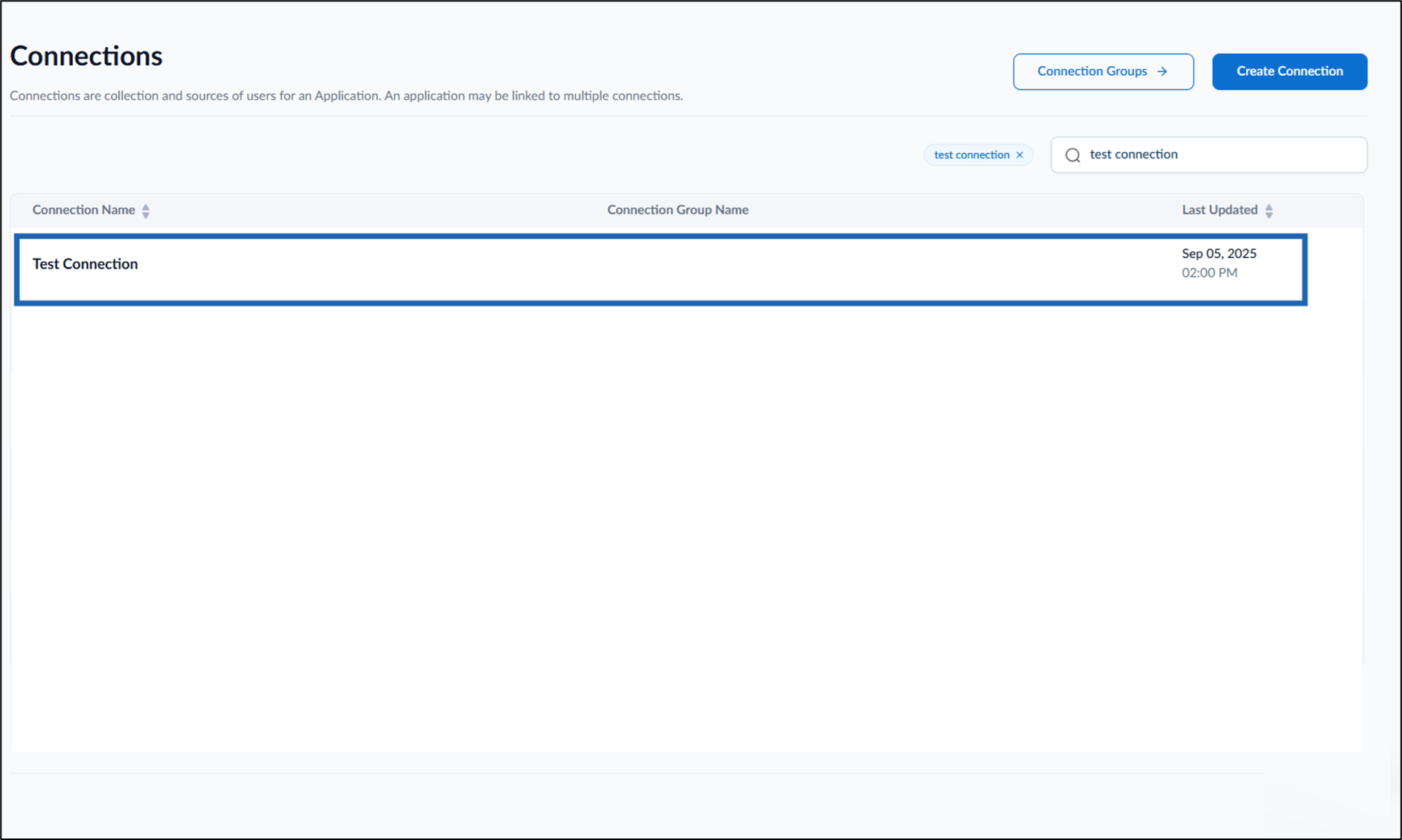
- Select a connection name to edit.
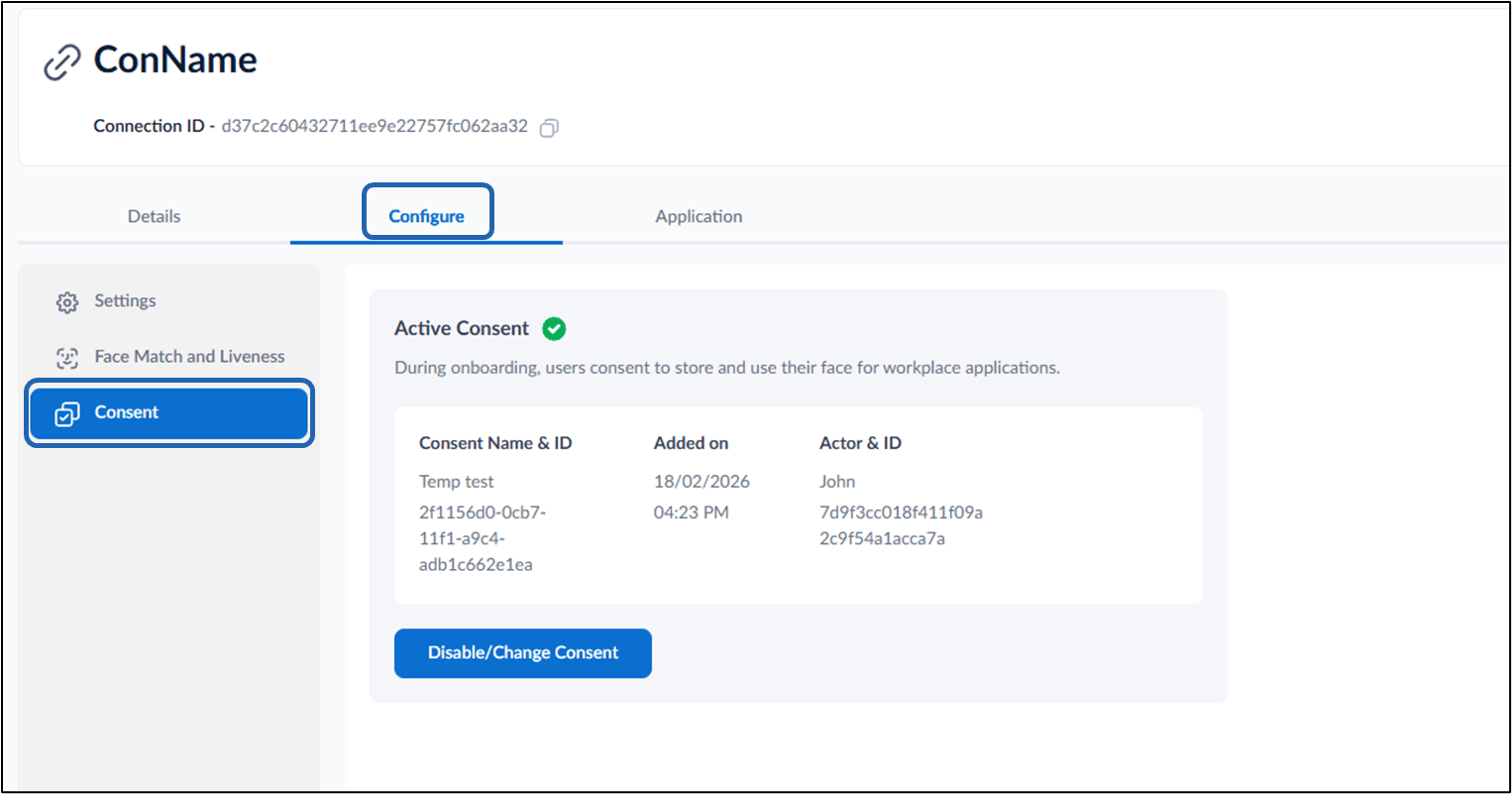
- Go to Configure Tab > click Consent.
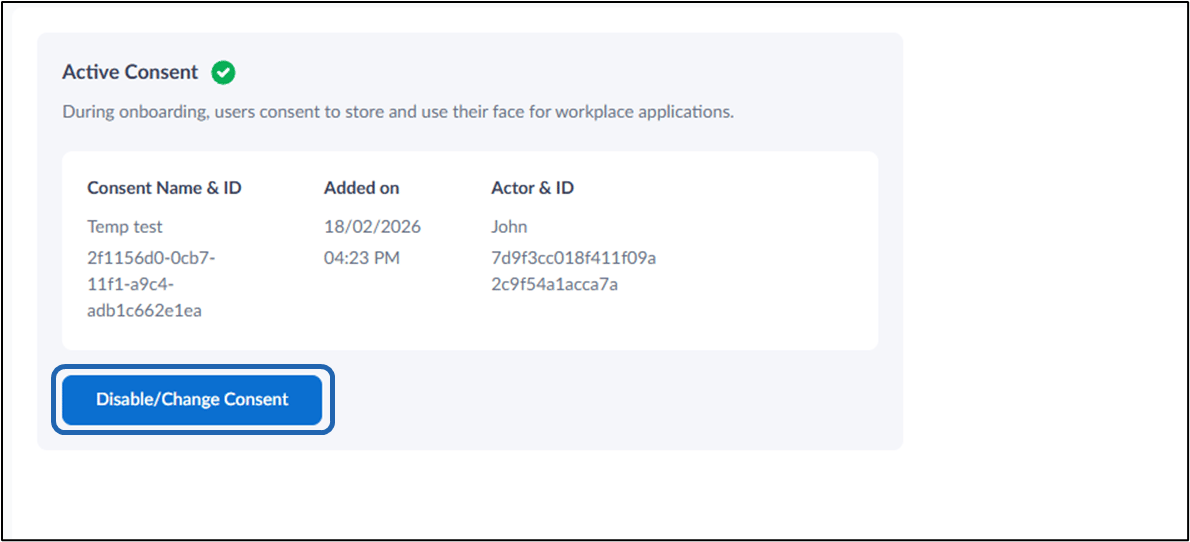
- Click Disable / Change Consent.
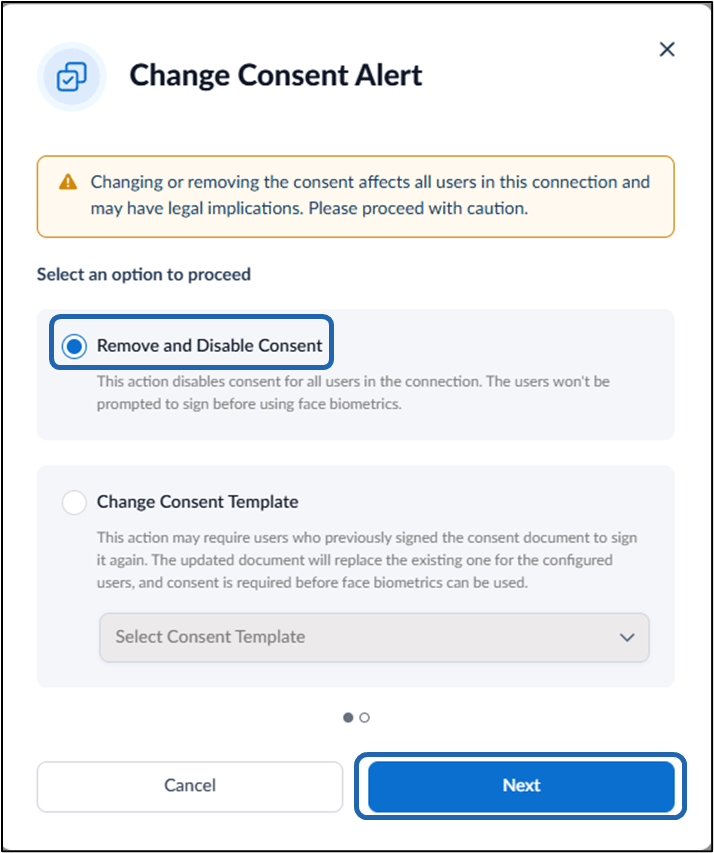
Remove and Disable Consent Template
- Select Remove and Disable Consent > Select the Consent template from the dropdown list.
- Click Next.
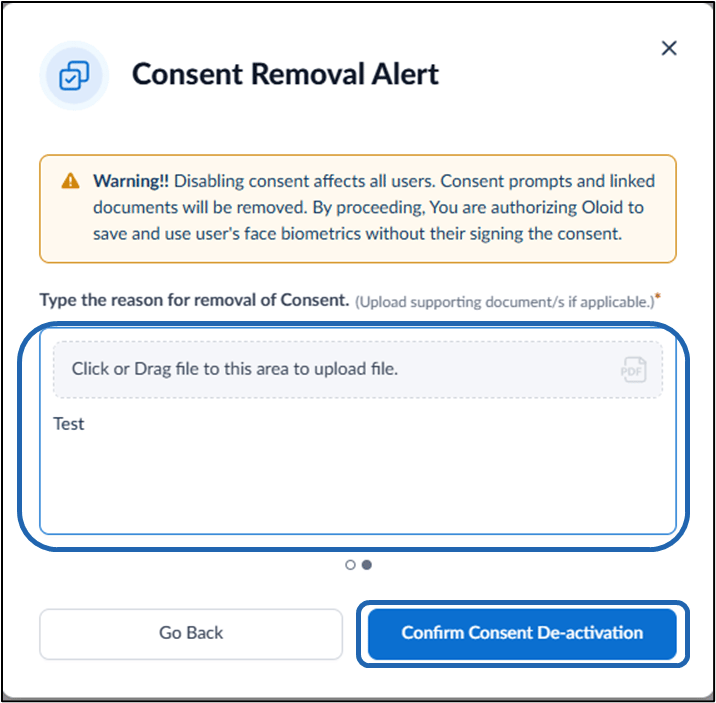
- Type the reason for removal of Consent or upload a supporting document.
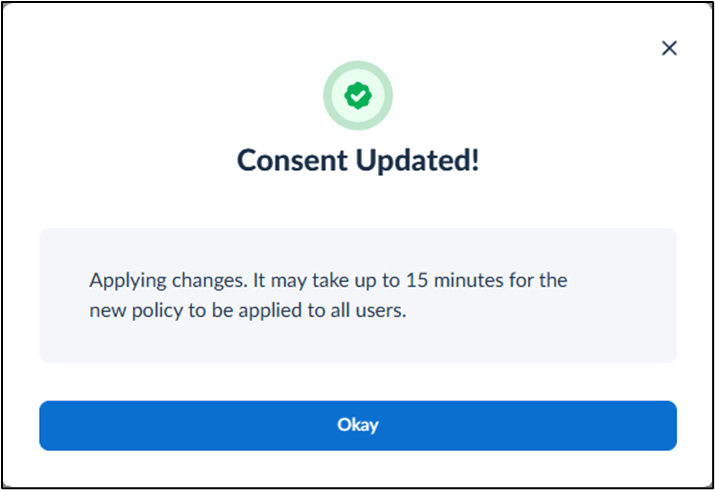
- Click Confirm.
To Change Consent Template
-
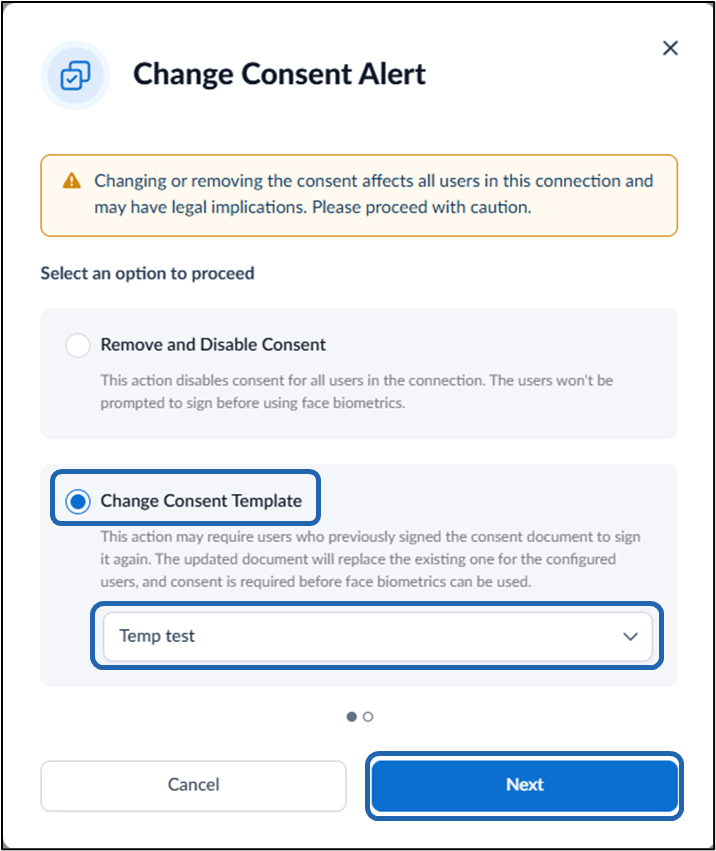
Select Change Consent Template > Select the Consent template from the dropdown list.
Note: Only Published Consent Templates will appear in the dropdown list.
-
Click Next.
-
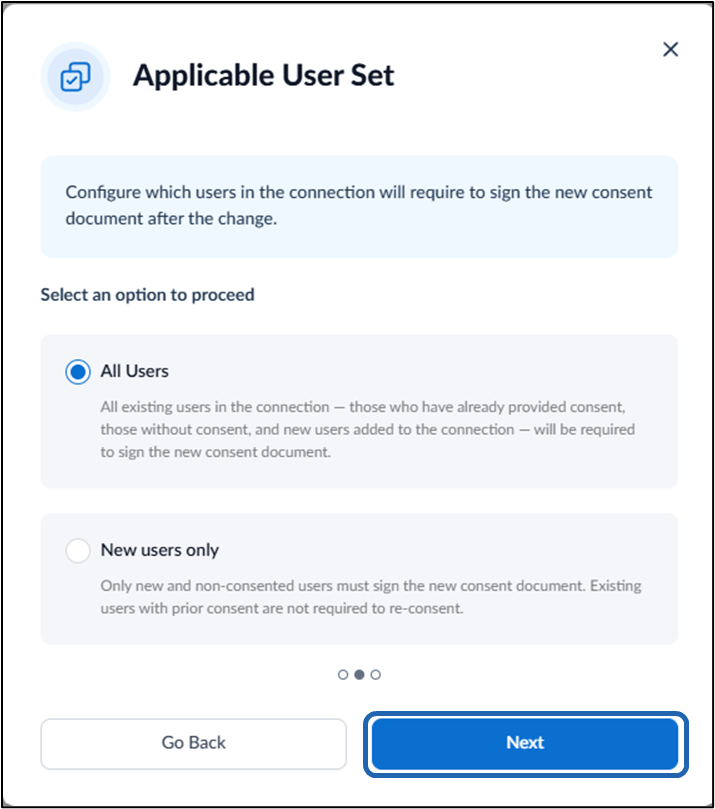
Select New User Only (or) All User > click Next.
Note: Selecting All users updates the consent template for all existing and new users, while selecting New users only applies the updated template only to users created after the change.
-
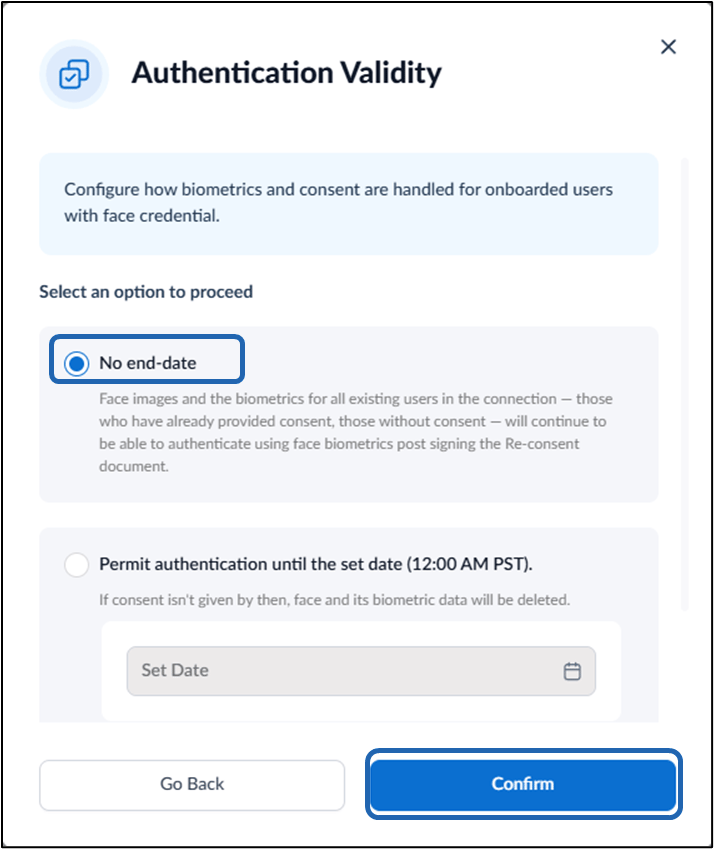
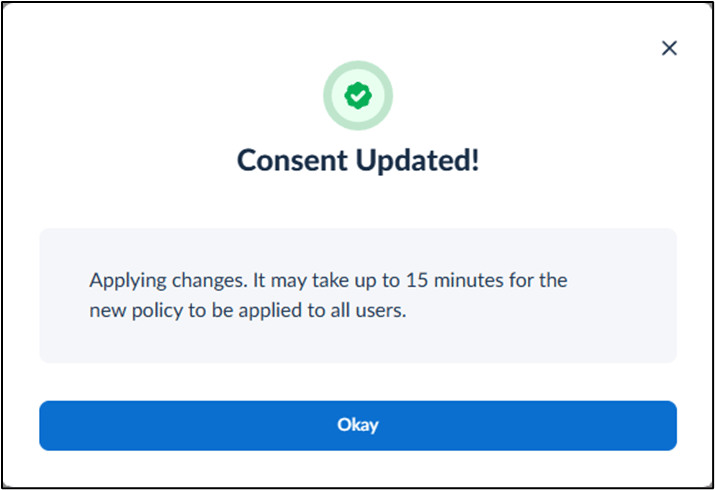
Select No End Date (or) Permit Authentication until the set date > click Confirm.
Note: Ensure that all users provide consent within the defined authentication validity period, if a validity date is configured.