Introduction
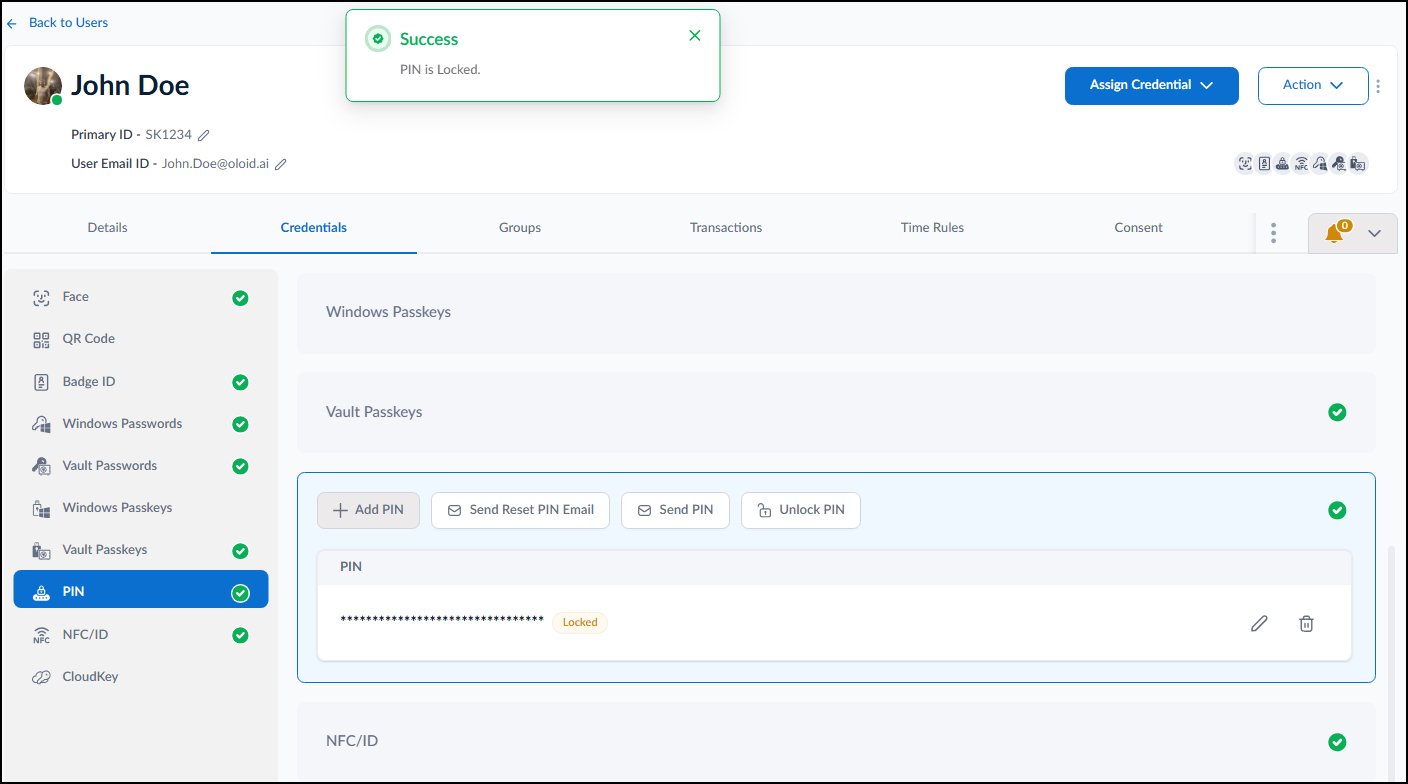
The Lock PIN feature allows the Tenant Admin to restrict the use of a user’s PIN credential from the Tenant Admin Portal. Locking a PIN prevents the user from authenticating with that credential until it is unlocked or updated.Prerequisites
- You must have access to the Tenant Admin Portal.
- Ensure that the PIN Lock is enabled in the Tenant Settings. For further information, refer PIN Lock Policy.
Steps to Lock PIN of a User
- Log in to the Tenant Admin Portal.
-
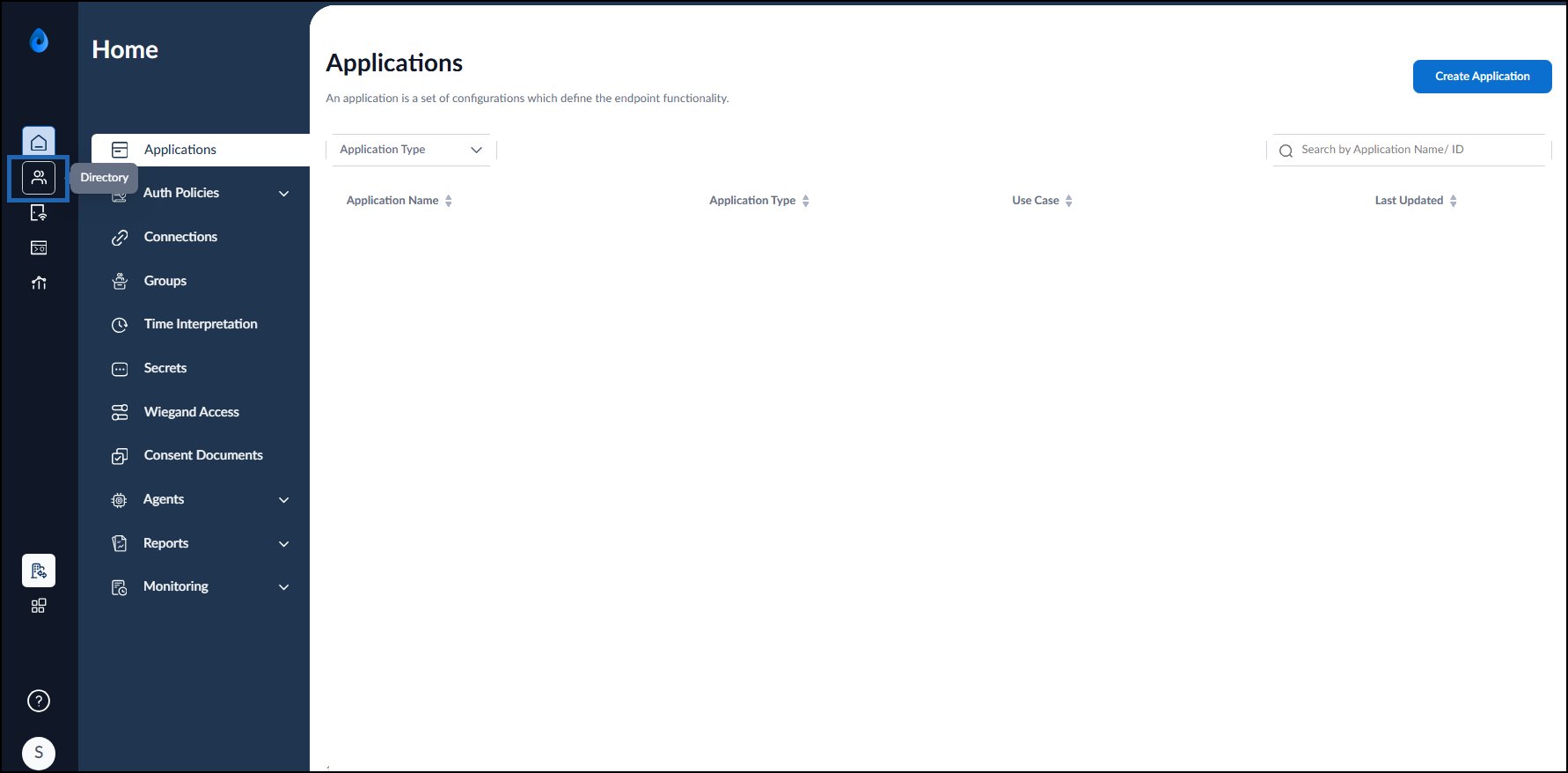
On the homepage, click Directory in the left navigation panel.
-
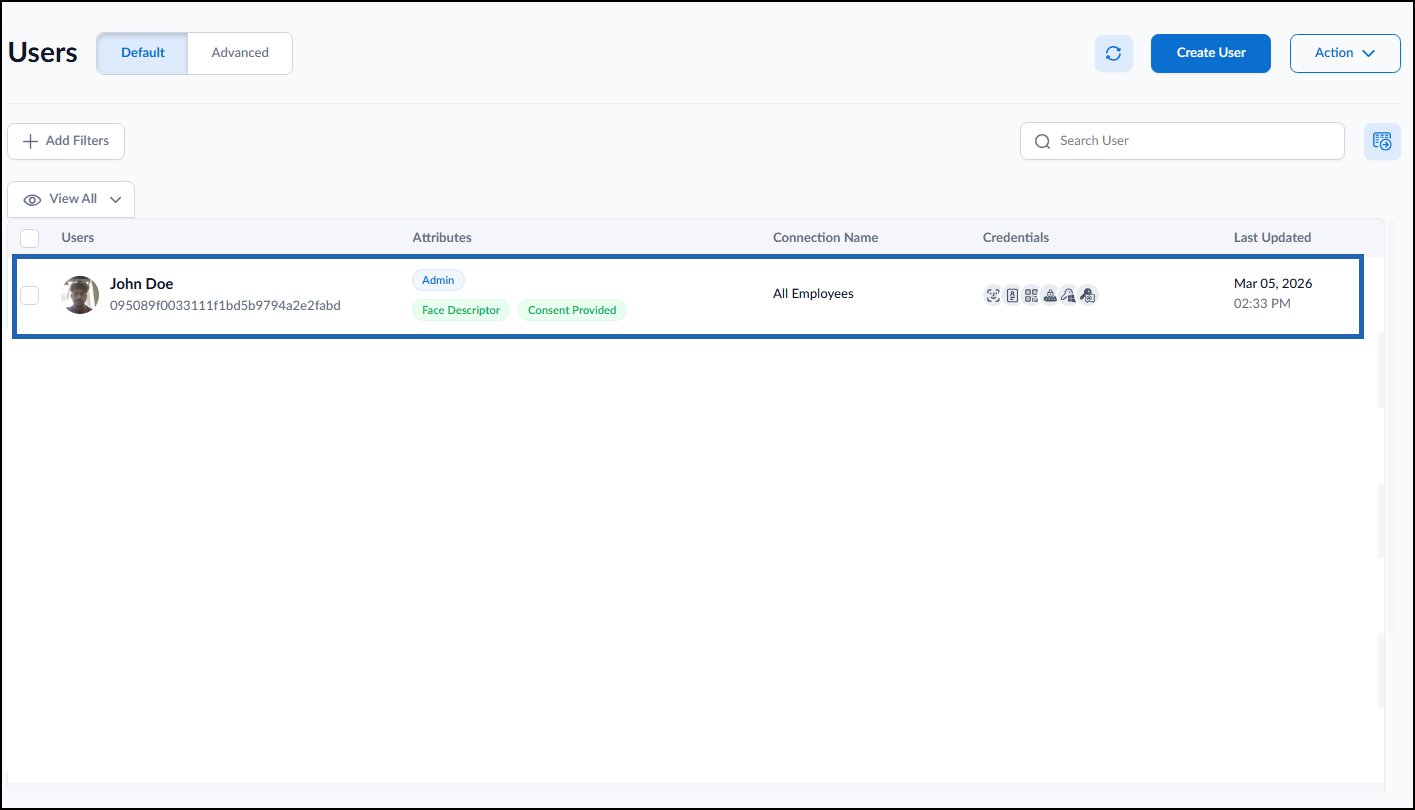
Select the user name to edit.
-
Go to Credentials > PIN.
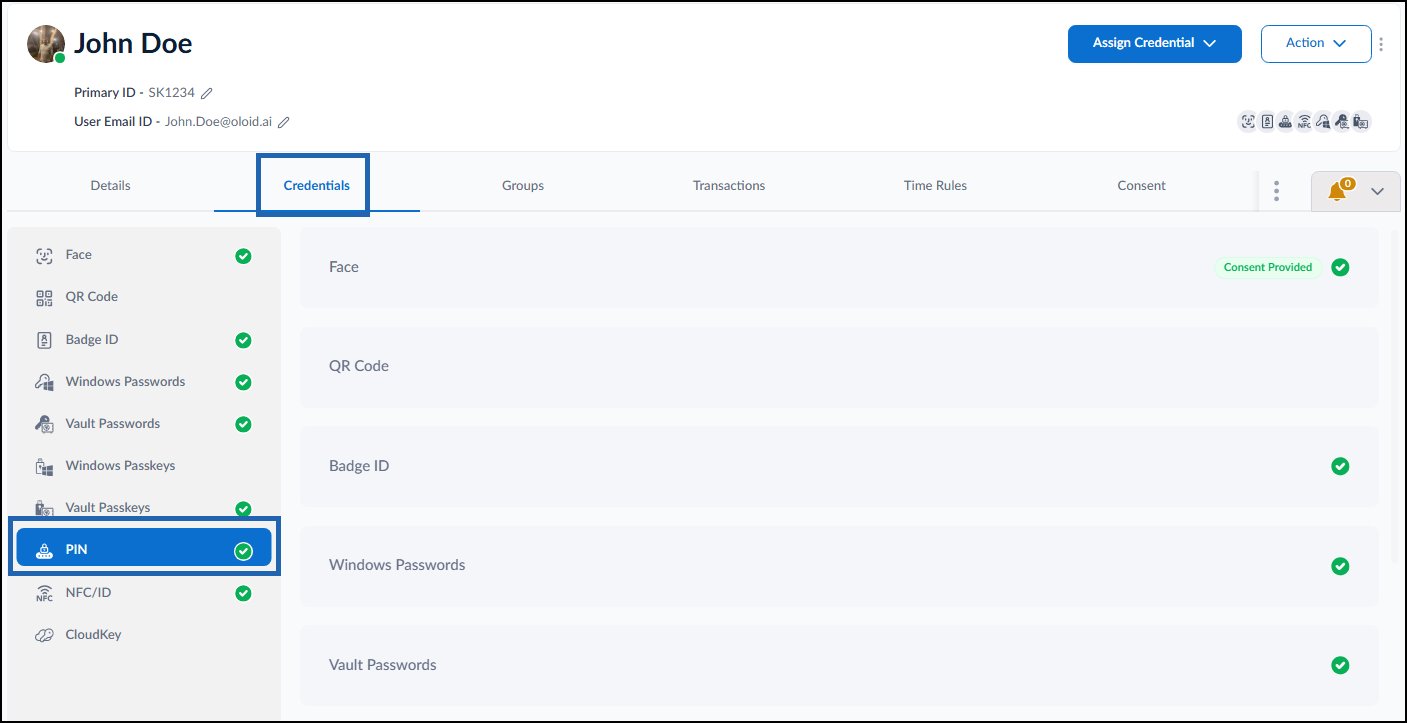
-
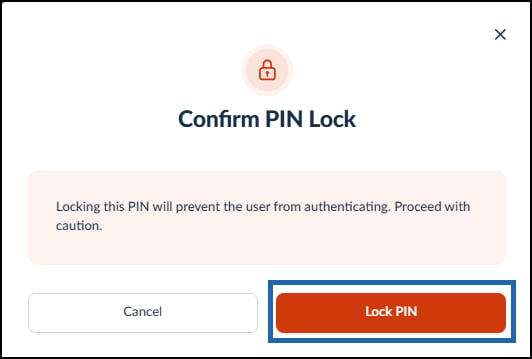
Click Lock PIN.
Note: The PIN Lock Policy is used to configure the settings for locking a PIN after consecutive failed authentication attempts and defining the unlock behavior. For further information, refer PIN Lock.
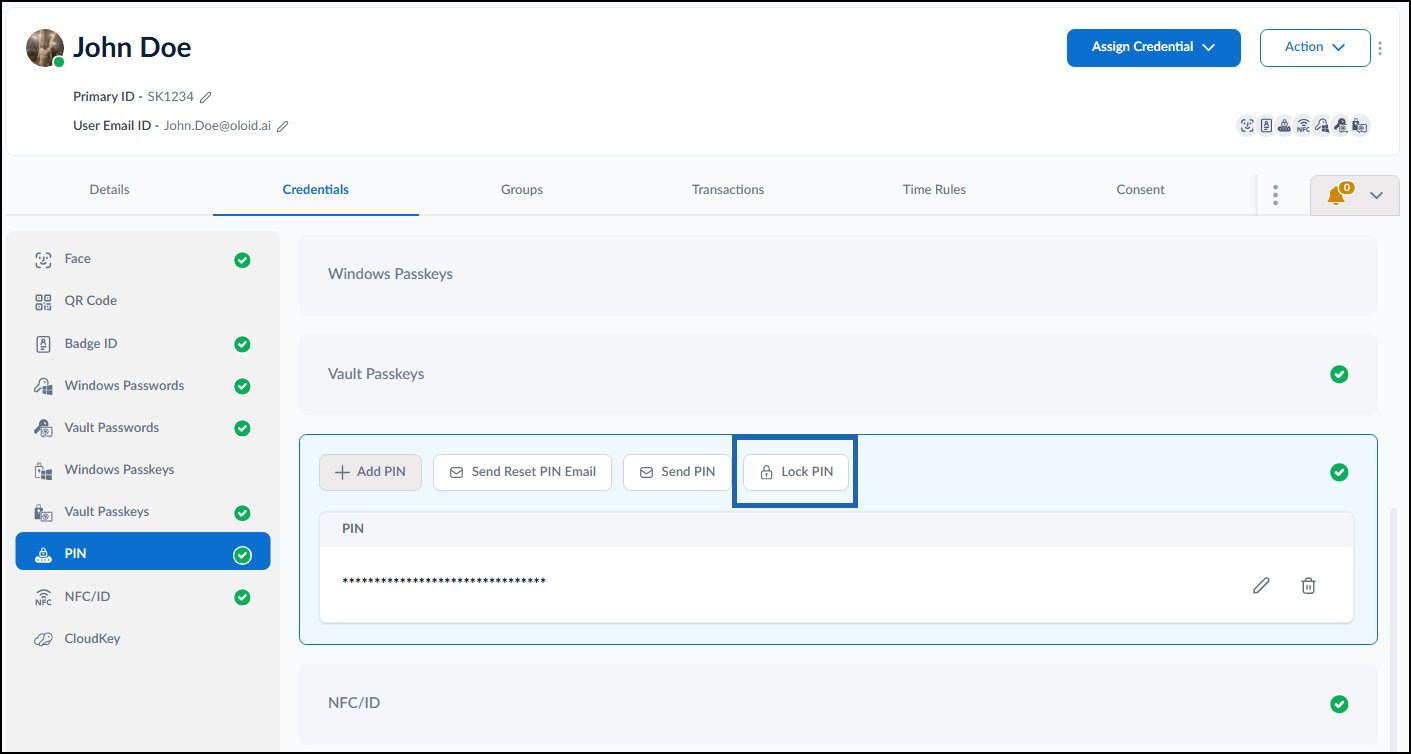
-
Click Lock PIN.