Introduction
This document provides instructions to delete a group from the Tenant Admin Portal.Prerequisite
You must have admin access to the Tenant Admin Portal.Steps to Delete a Group
- Log in to the Tenant Admin Portal.
- On the home page, click Groups on the left menu panel.

- Click the preferred group.
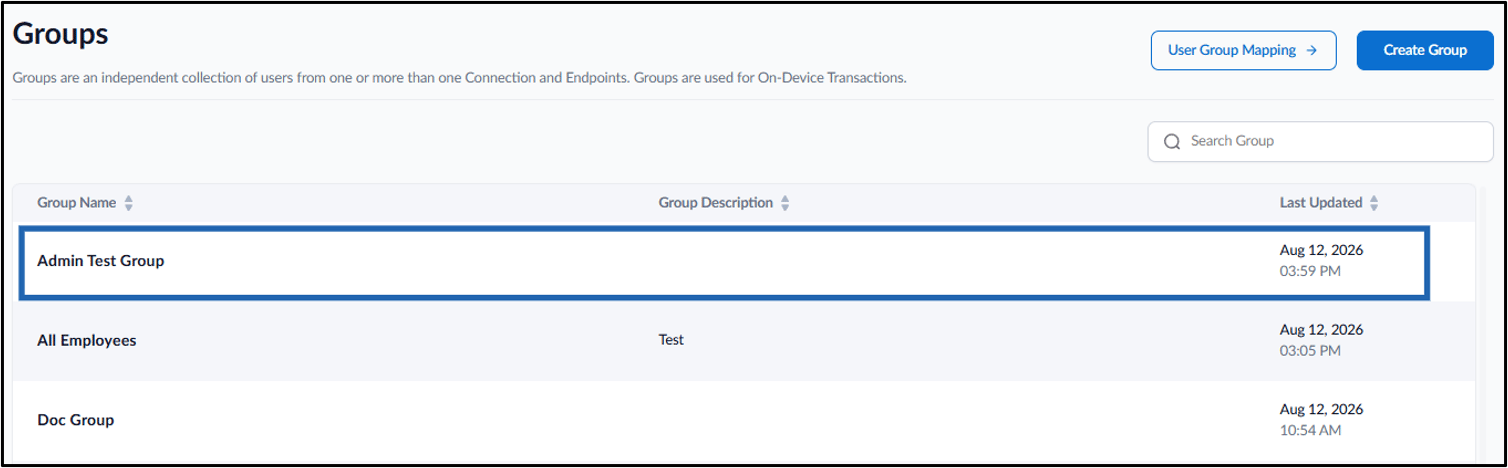
- Go to Action drop-down and select Delete.

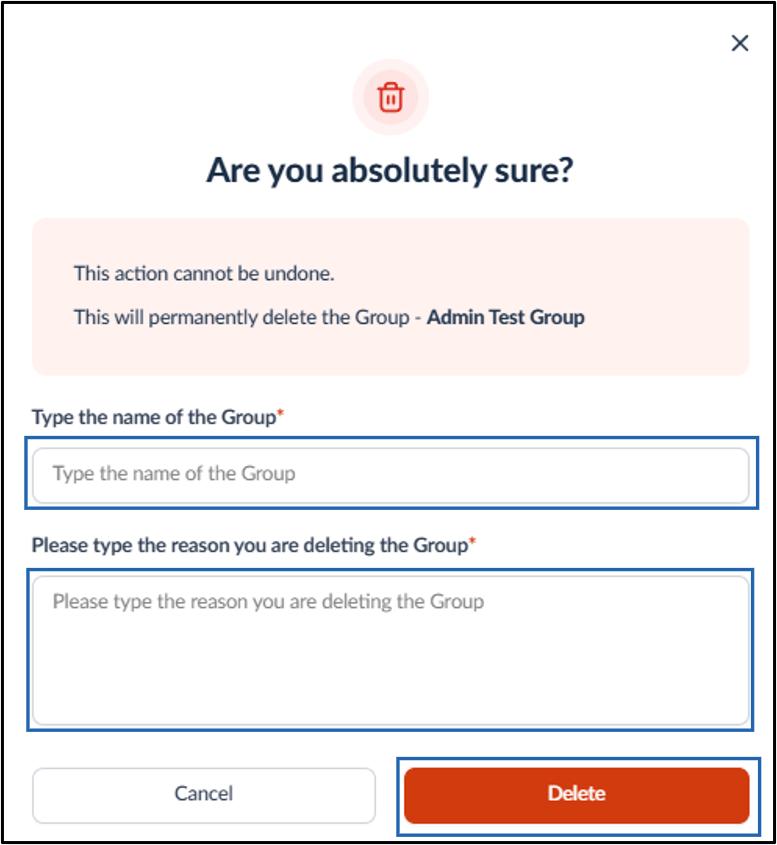
- DO the following:
- Enter the Group Name.
- Enter the reason to delete the group.
- Click Delete.