- Log in to the Oloid Portal.
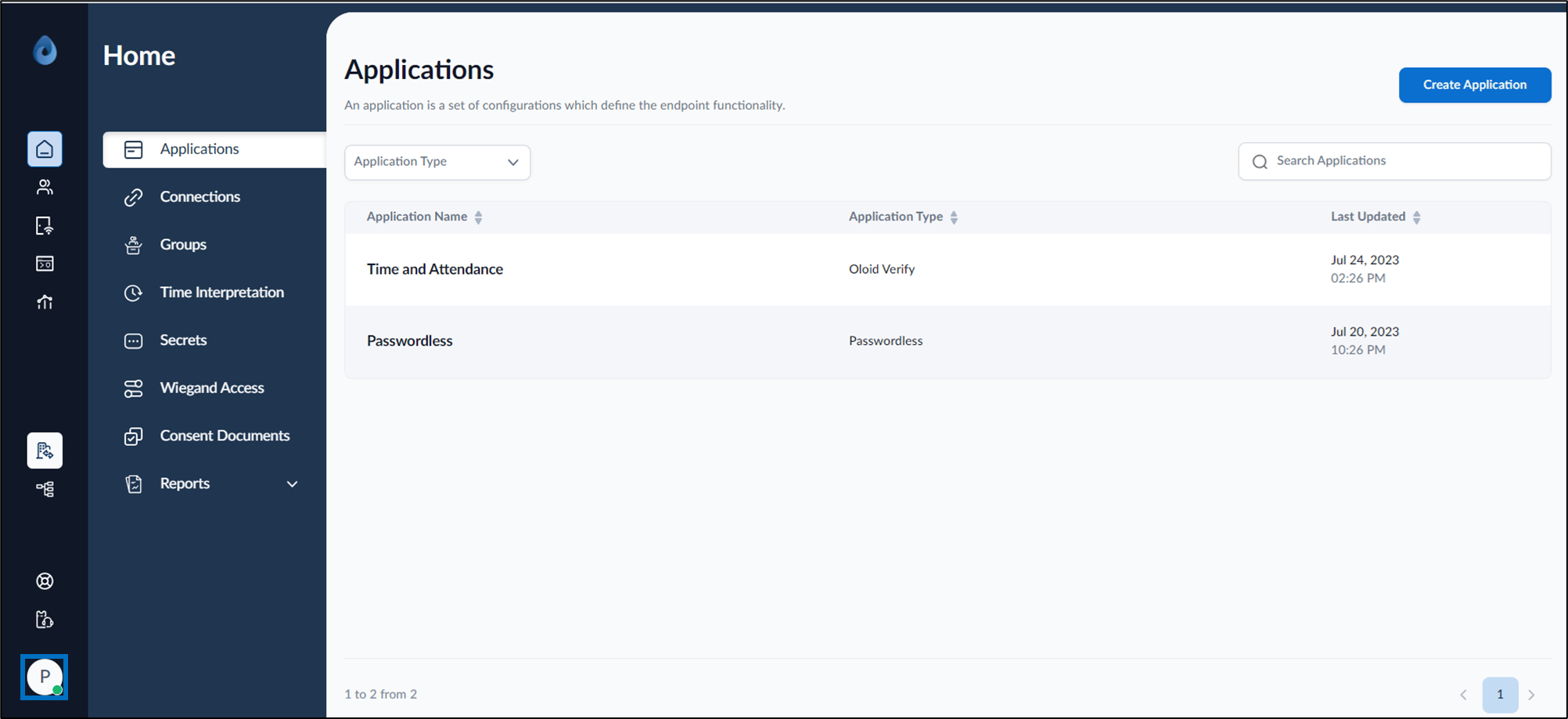
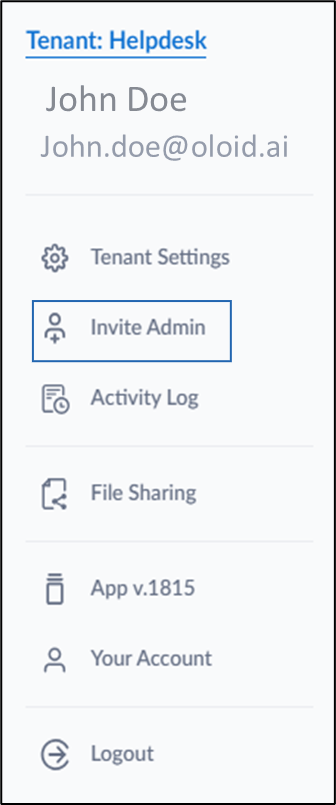
- On the homepage of the portal, click user profile icon on the bottom left.
- Do one of the following:
- Go to Tenant Settings > Admin Controls tab >Tenant admins > Invite Tenant Admin.
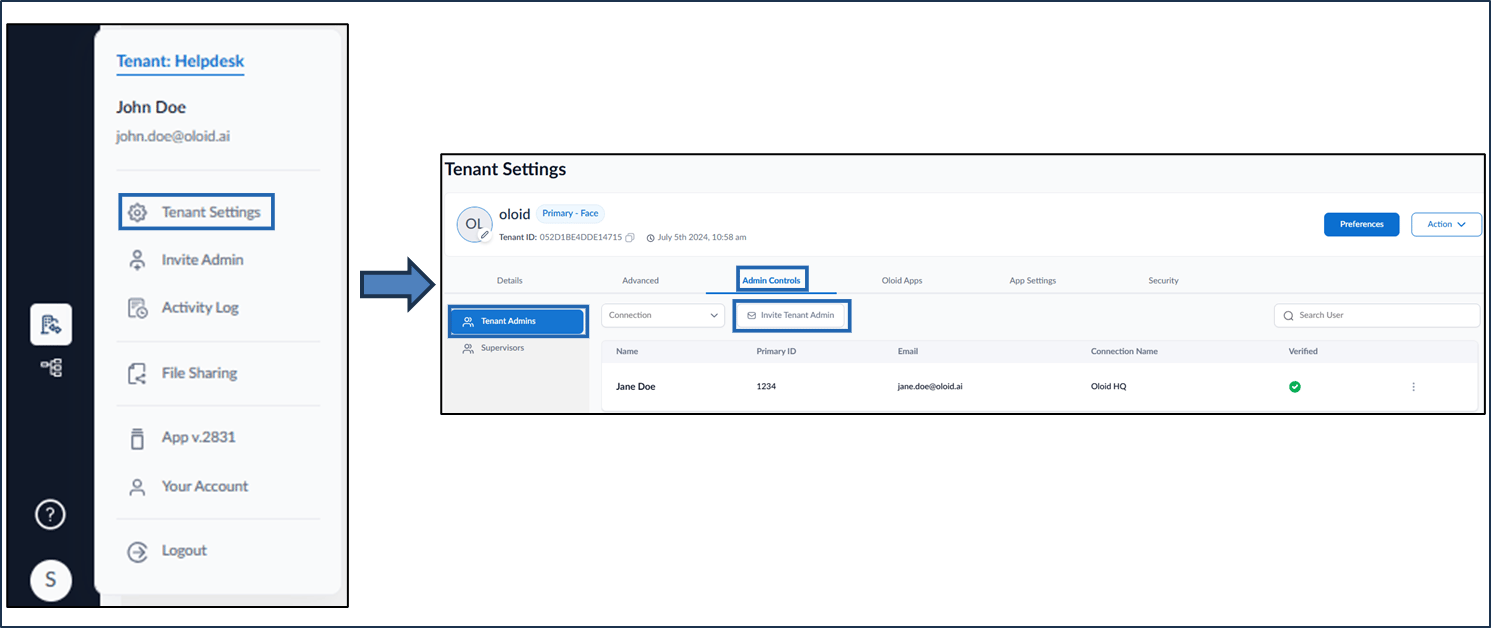
- Click Invite Admin.
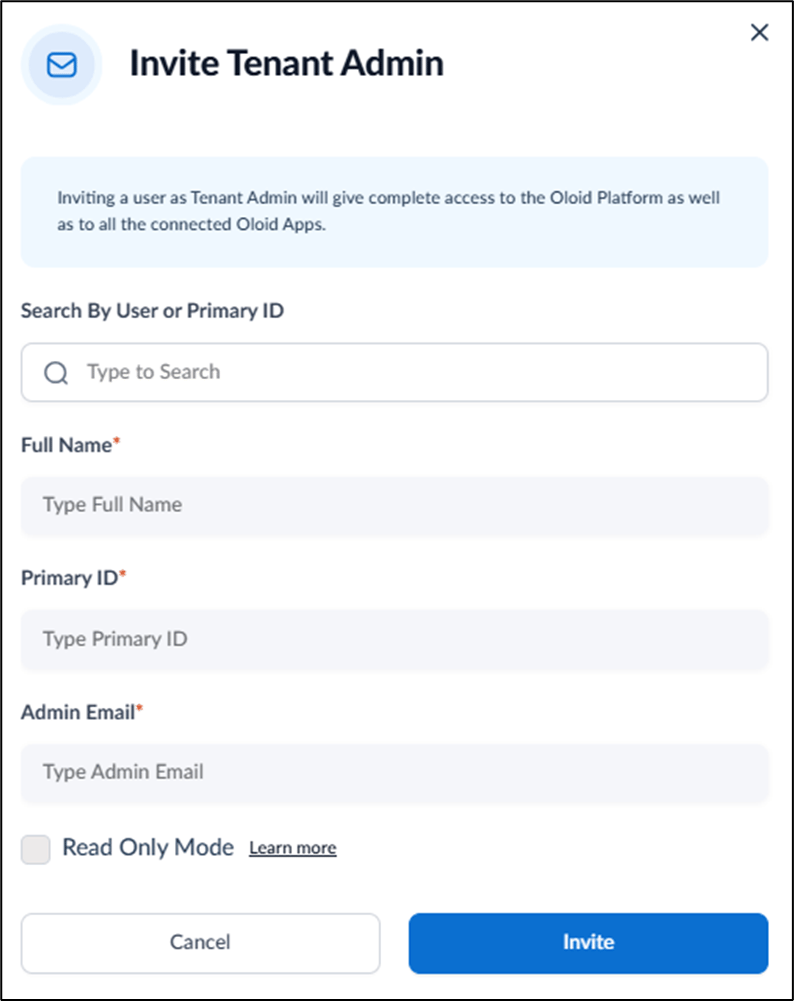
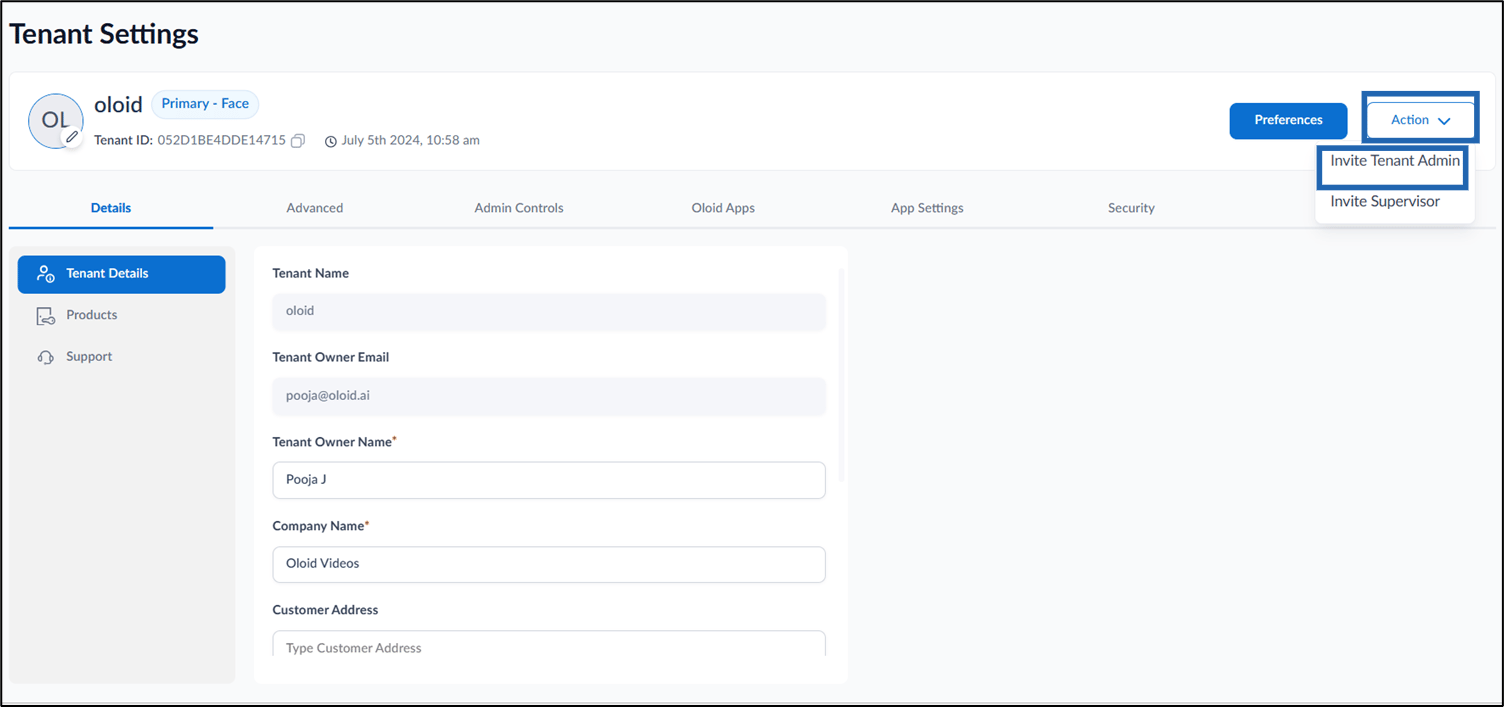
- Go to Tenant Settings > Admin Controls tab >Tenant admins > Invite Tenant Admin.
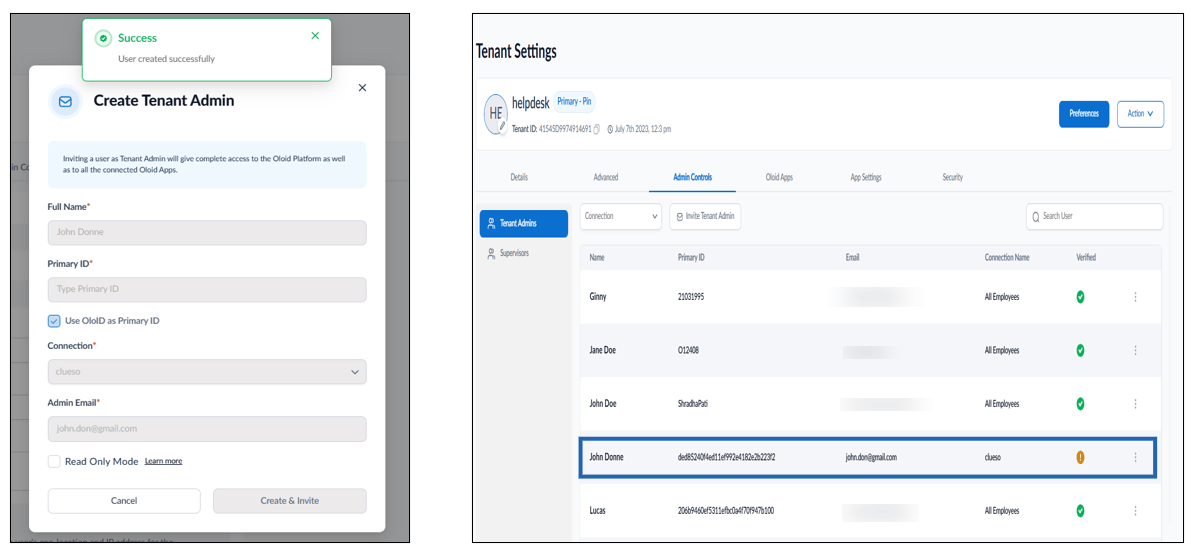
- On the pop-up box, do the following:
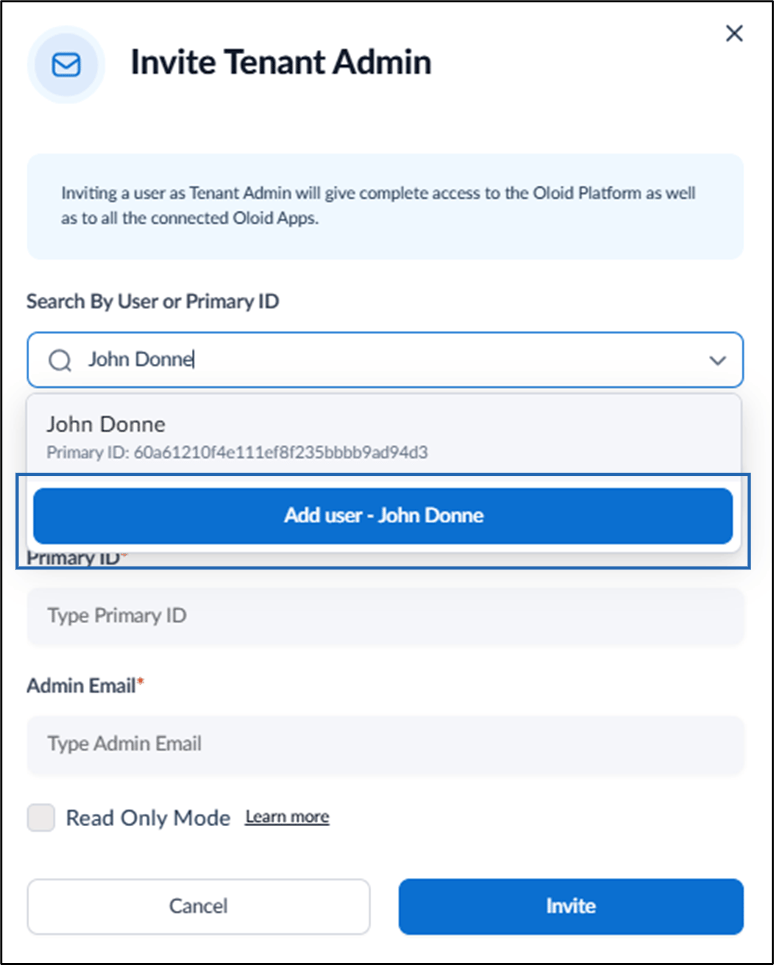
- Enter the user name in the Search By User or Primary ID field. The search result lists down if there is any existing user.
- Click Add user to add a new user.
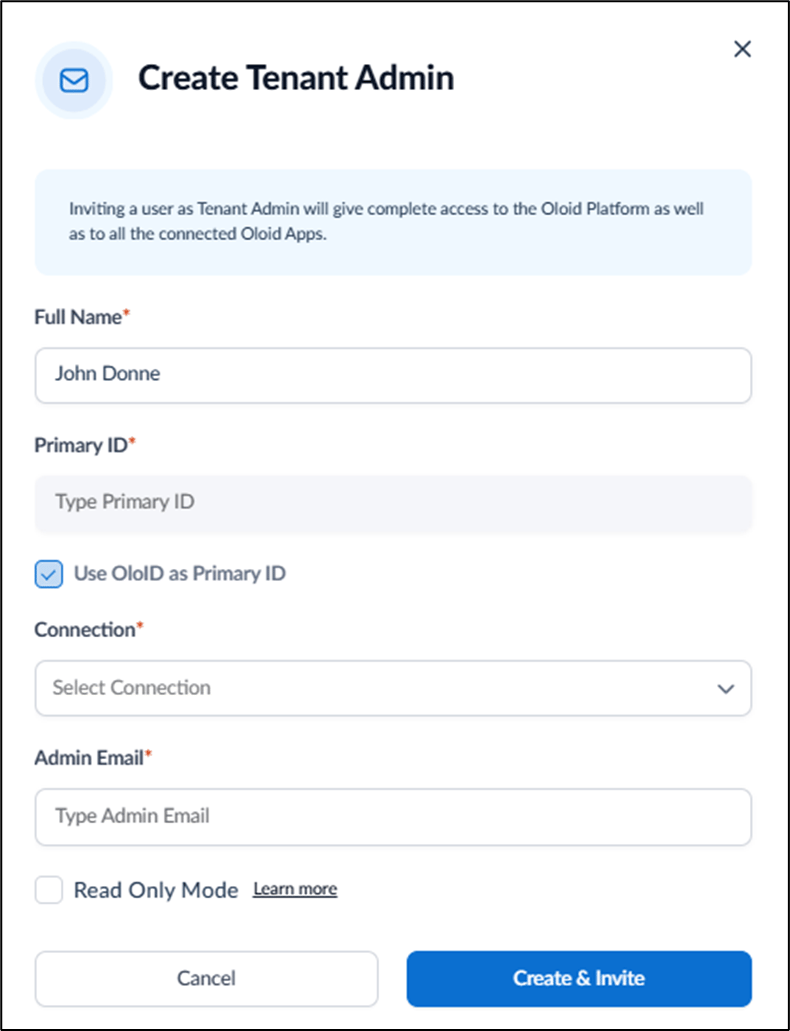
- Edit Full Name( if required).
- Enter Primary ID or select Use OloID as Primary ID to use OloID as your primary ID.
- Select connection from the Connection list.
- Enter Admin Email.
- Select Read Only Mode to restrict the Admin from performing any action in the Oloid Portal. (Optional)
Note: An email is sent to the user to verify the email ID.