Introduction
The User Details section in the Tenant Admin Portal allows administrators to create, assign, manage and update user-credentials for all users in the connection(s).Prerequisites
- You must have a Tenant Admin access to Tenant Admin Portal.
- User must already exist in the Tenant Admin Portal.
Steps to Configure User Details
- Log in to the Tenant Admin Portal.
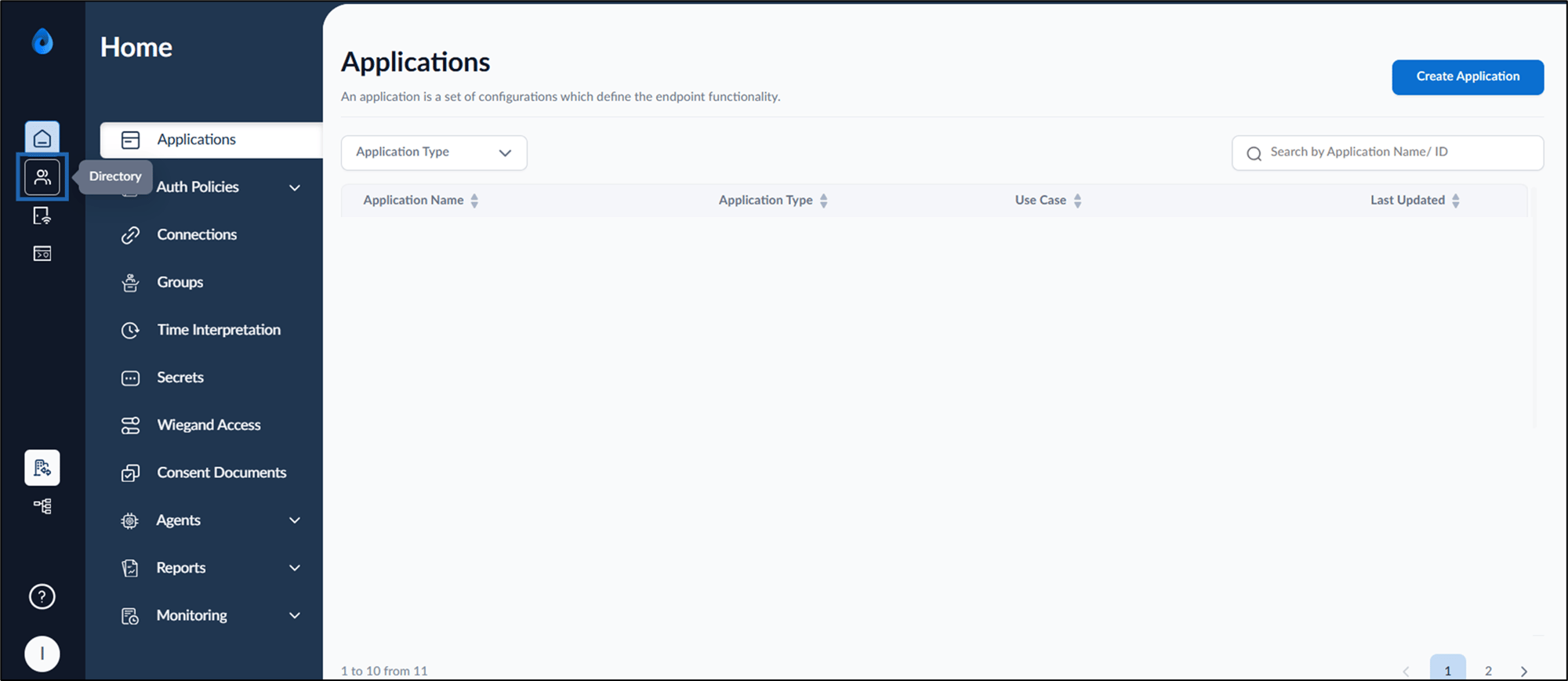
- On the home page of the portal, click Directory icon on the left panel menu.
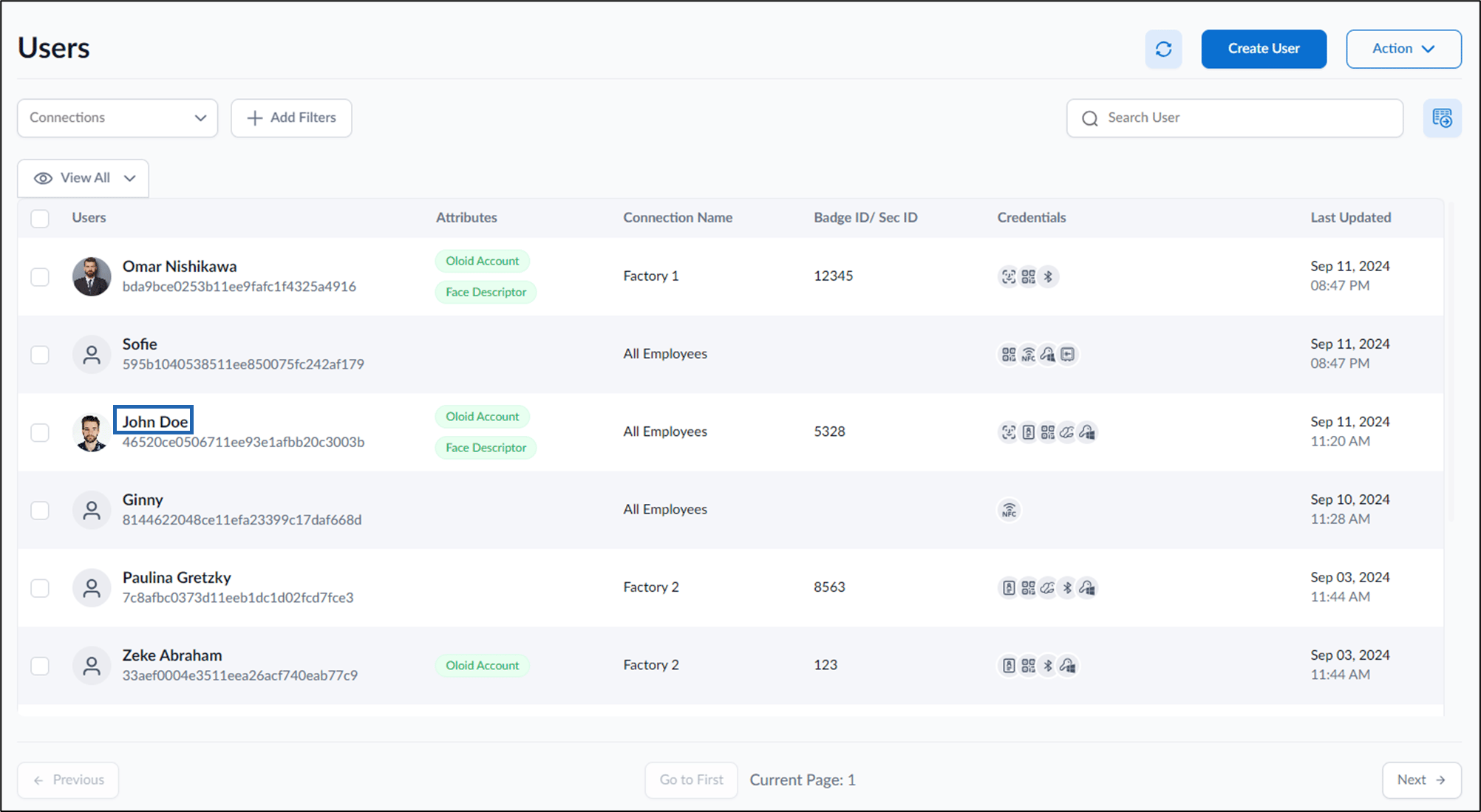
- Click user name to edit.
Configure Details Tab
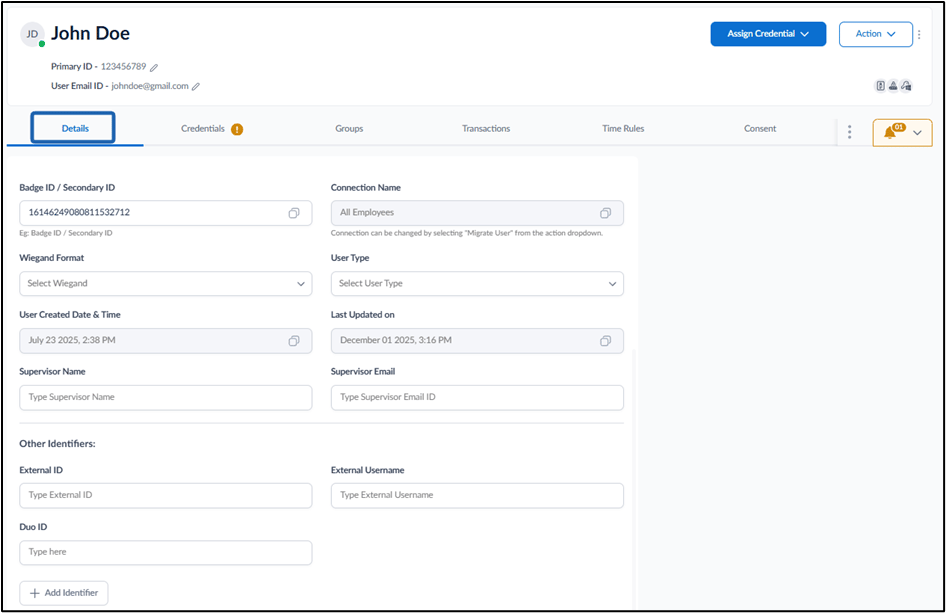
- Edit Full Name. (if required)
- Enter User Email ID. (optional)
- Enter Badge ID/Secondary ID. (optional)
- Enter Wiegand Format. (optional)
- Enter External ID. (optional)
- Enter Phone. (optional)
- Select User Type from the drop-down list. (optional)
- Enter Supervisor Name. (optional)
- Enter Supervisor Email.(optional)
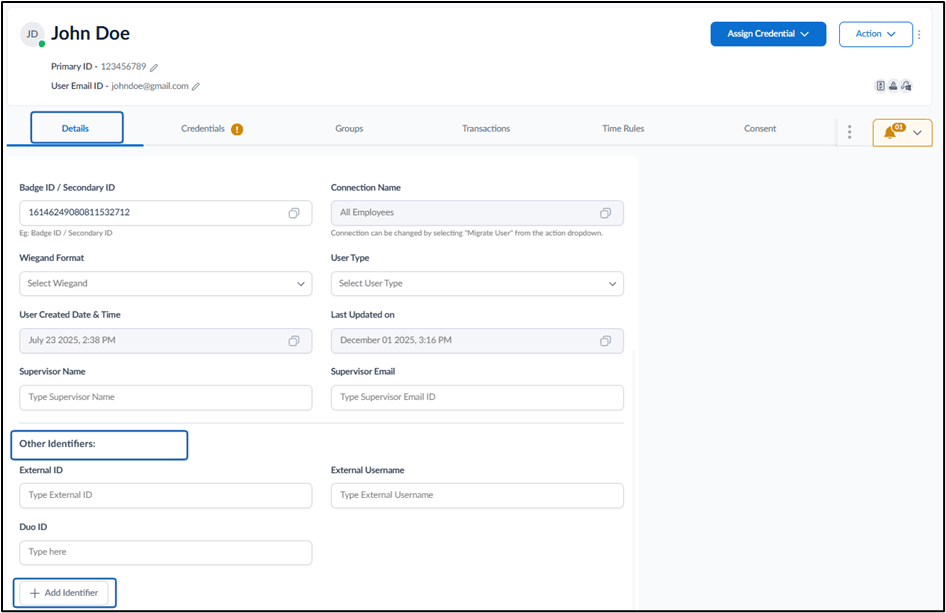
- Enter Other Identifiers (optional)
How to Add Identifiers
Configure Credentials Tab
You may enable one or more credentials based on your requirements.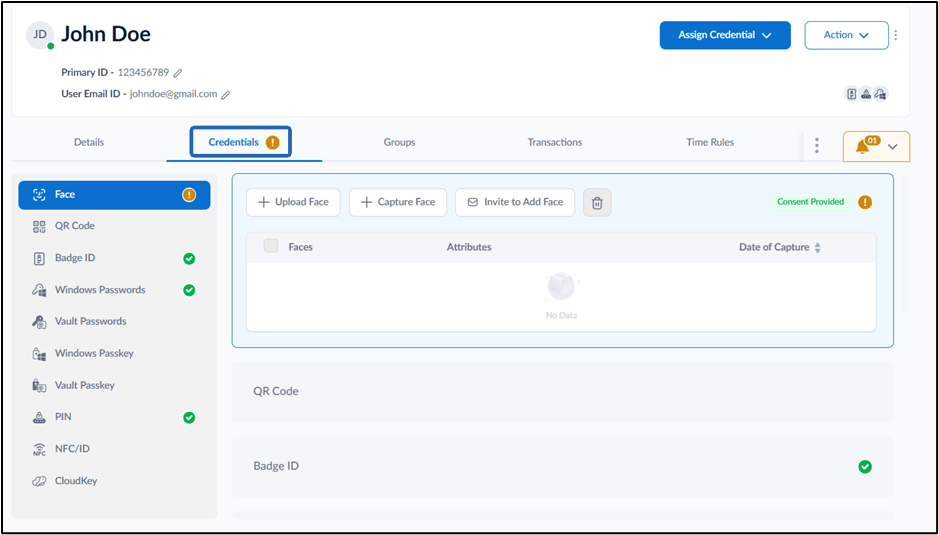
Face Tab
To use face as credential, configure Face option. The Face tab allows you to add or invite user to add face for authentication.Note: A user face cannot be onboarded if the user has not provided consent in the Oloid User Portal.
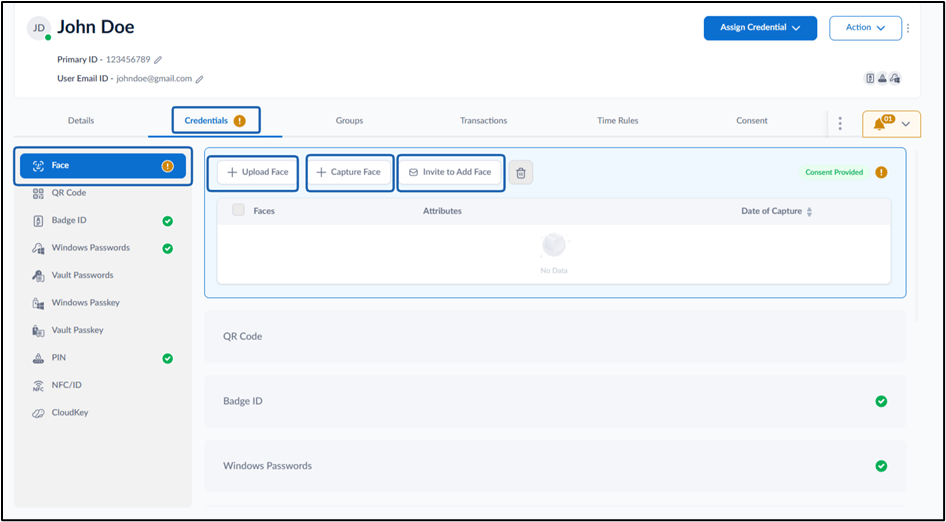
- Upload Face: This option allows you to upload the user’s face. For further information, see How to onboard face of a single user
- Capture Face: This option allows you to capture the user’s face. For further information, see How to capture face of a single user Tenant Admin Portal - How to Add face using Capture Face
- Invite to Add Face: This option sends an email to the user with a link to upload their facial image. For further information, see**How to invite to add face**
QR Code Tab
To use QR Codeas credential, configure QR code option. The QR Code tab allows you to manage the user’s QR code credentials.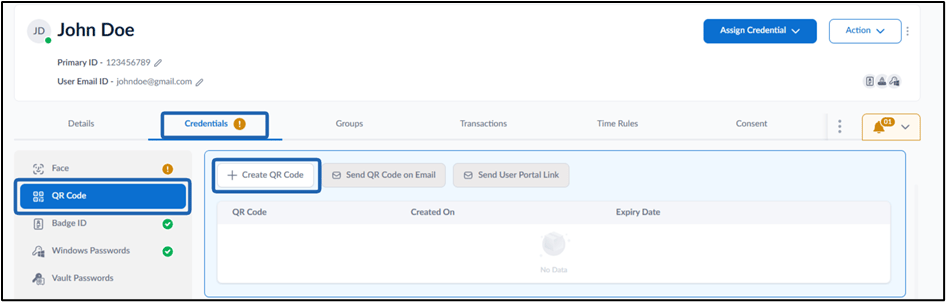
- Create QR Code: Select this option to create QR Code for the user. For further information, see How to create QR Code as credential for user
- Send QR Code on Email: Select this option to send the QR code to the user’s registered email ID. For further information, see How to send QR Code on Email
- Send User Portal Link: Select this option to send the user the User Portal Link via email, allowing them to manage their credentials, including viewing or downloading the QR code. For further information, see**How to send QR Code credential to user using user portal link**
Badge ID Tab
To use badgeas credential, configure Badge ID option. The Badge ID tab allows you to assign or enroll a user’s badge for authentication.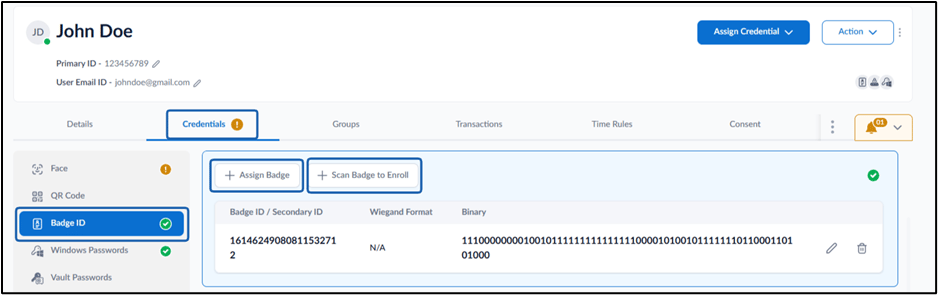
- Assign Badge: Select this option to manually assign a badge to the user. For further information, see How to assign Badge ID as credential to users
-
Scan Badge to Enroll: Select this option to scan or enter badge ID to enroll a new badge for the user. For further information, see How to enroll users using badge scan in Oloid Portal
Note: Changes here create temporary badges. Use ‘Replace Badge’ for permanent changes.
Windows Password Tab
To use Windows Passwordas credential, configure Windows Password option. The Windows Passwords tab allows the admin to create and manage the user’s Windows login credentials.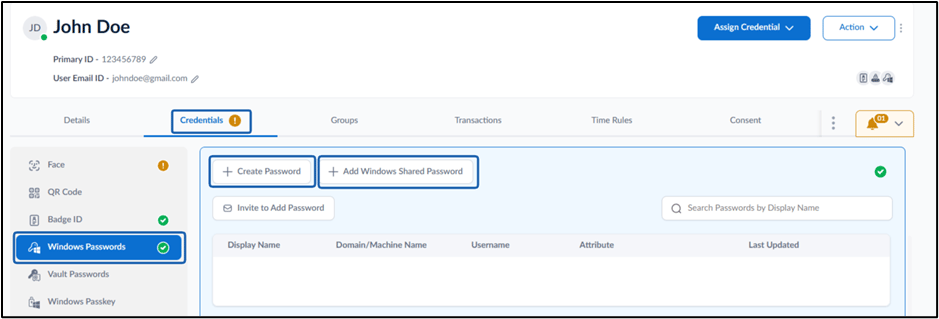
- Create Password: Select this option to generate a new Windows password for the user. For further information, see How to create Password for Windows Login
- Add Windows Shared Password: Select this option to add Windows shared credentials for Windows systems, which multiple users can access.For further information, see**How to assign Shared Credentials to user**
- Invite to add password: Select this option to Invite users to Add Windows password for Windows systems.For further information, see**How to send invite to add Password to a user**
Vault Passwords Tab
To use Vault Password credential, configure Vault Passwords option. The Vault Passwords tab allows you to manage the user’s web password credentials.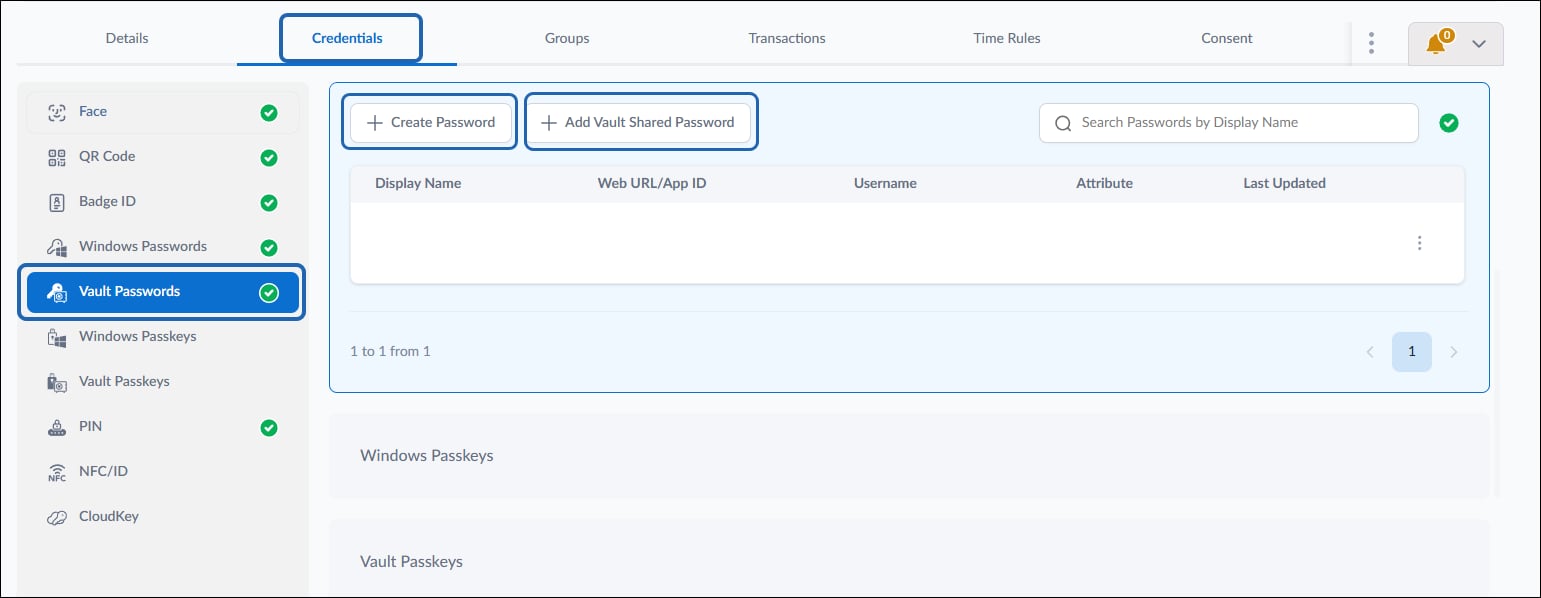
Windows Passkey
To use Windows Passkey credential, configure Windows Passkey option. Windows Passkey tab allows you to manage the user’s windows passkey credentials.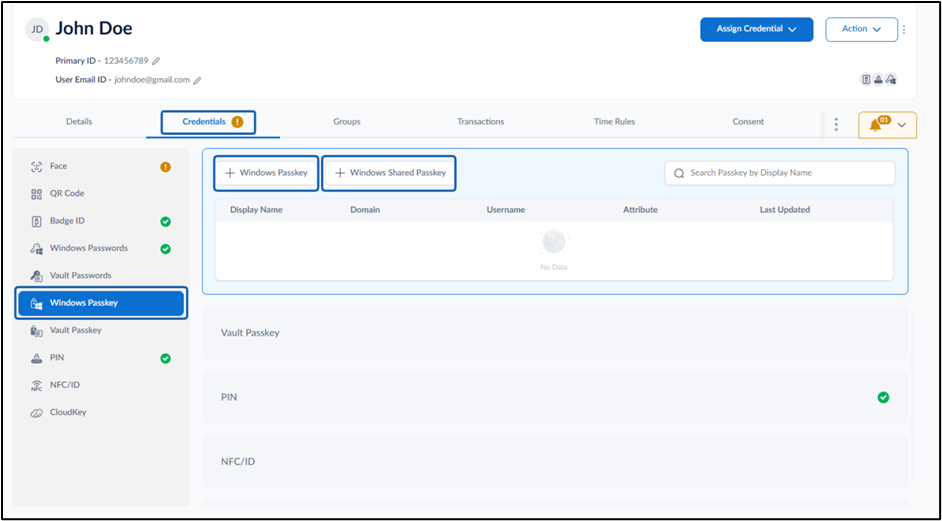
Vault Passkey
Vault Passkey is automatically created after passkey generation under the user profile. The Vault Passkey tab allows you to manage the user’s web passkey credentials. For information please refer: Oloid Platform - How to View and Edit Vault Passkey (FIDO2 certificate)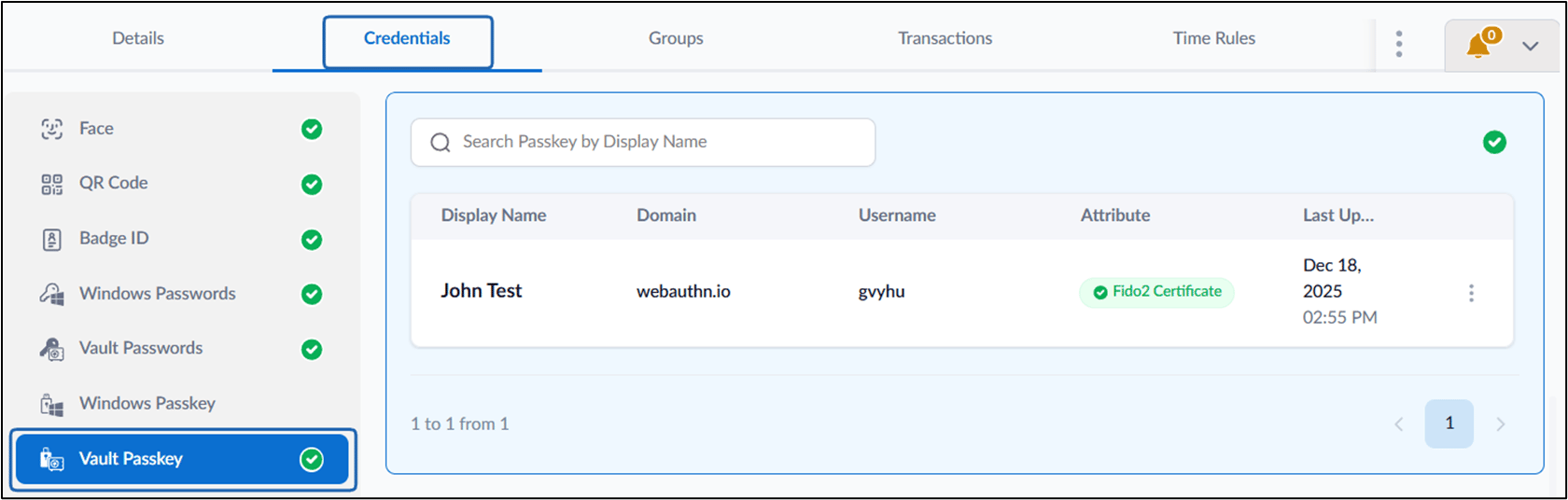
PIN Tab
To use PIN credential, configure PIN option. The PIN tab allows you to manage the user’s PIN configuration.
- Add PIN: Select this option to add PIN to the user. For further information, see**How to add PIN as credential to users.**
- Send Reset PIN Email: Select this option to allow users to Reset PIN. To add and configure PIN. For further information, see How to send invite to set Pin on Email to a user.
- Send PIN: Select this option to send the PIN via Email or SMS to the registered users. For further information, see How to Send PIN to User via email in the Tenant Admin Portal.
- Lock PIN: Select this option to Lock the PIN and prevent the user from authenticating. For further information, see Tenant Admin Portal - How to Lock PIN Credential for a User
NFC/ID Tab
To use NFC/ID credential, configure NFC/ID option. The NFC/ID tab allows you to manage the user’s NFC/ID configuration.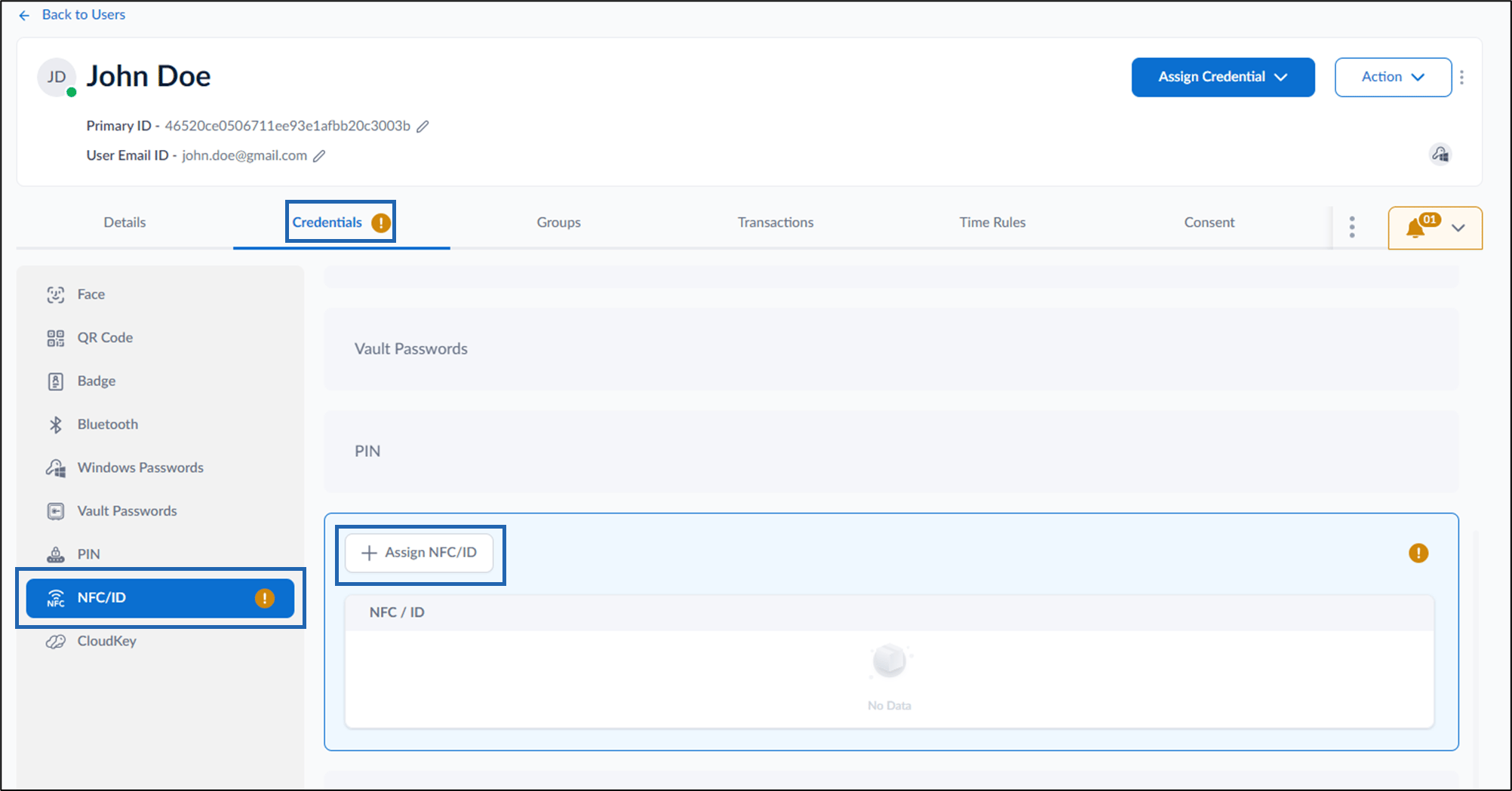
CloudKey Tab
To use CloudKey credential, configure CloudKey option. The CloudKey tab allows you to manage the user’s CloudKey configuration.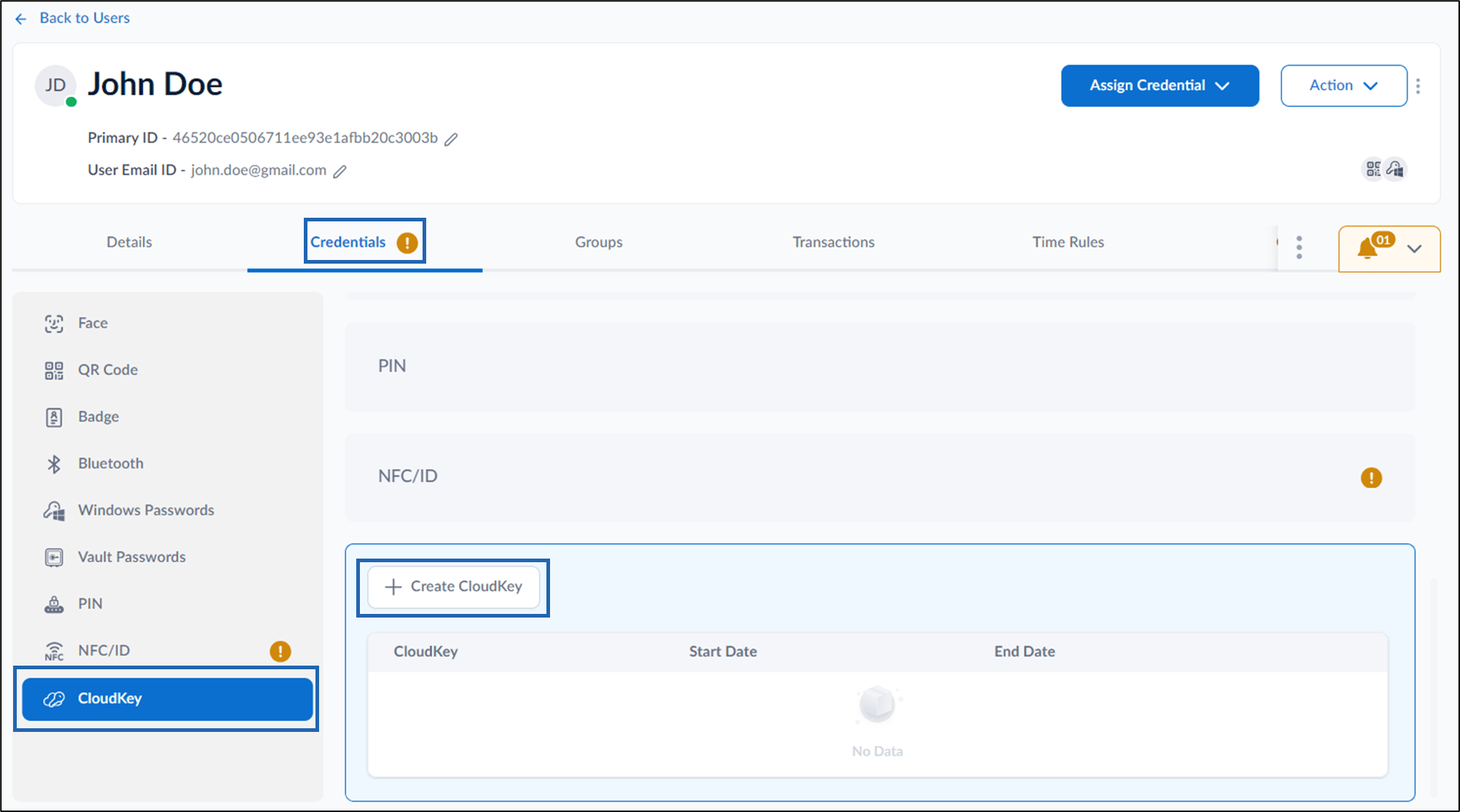
Groups Tab
The Groups tab allows the Tenant Admin to add users to a Group. For more information, refer to Tenant Admin Portal - How to Map User to a Group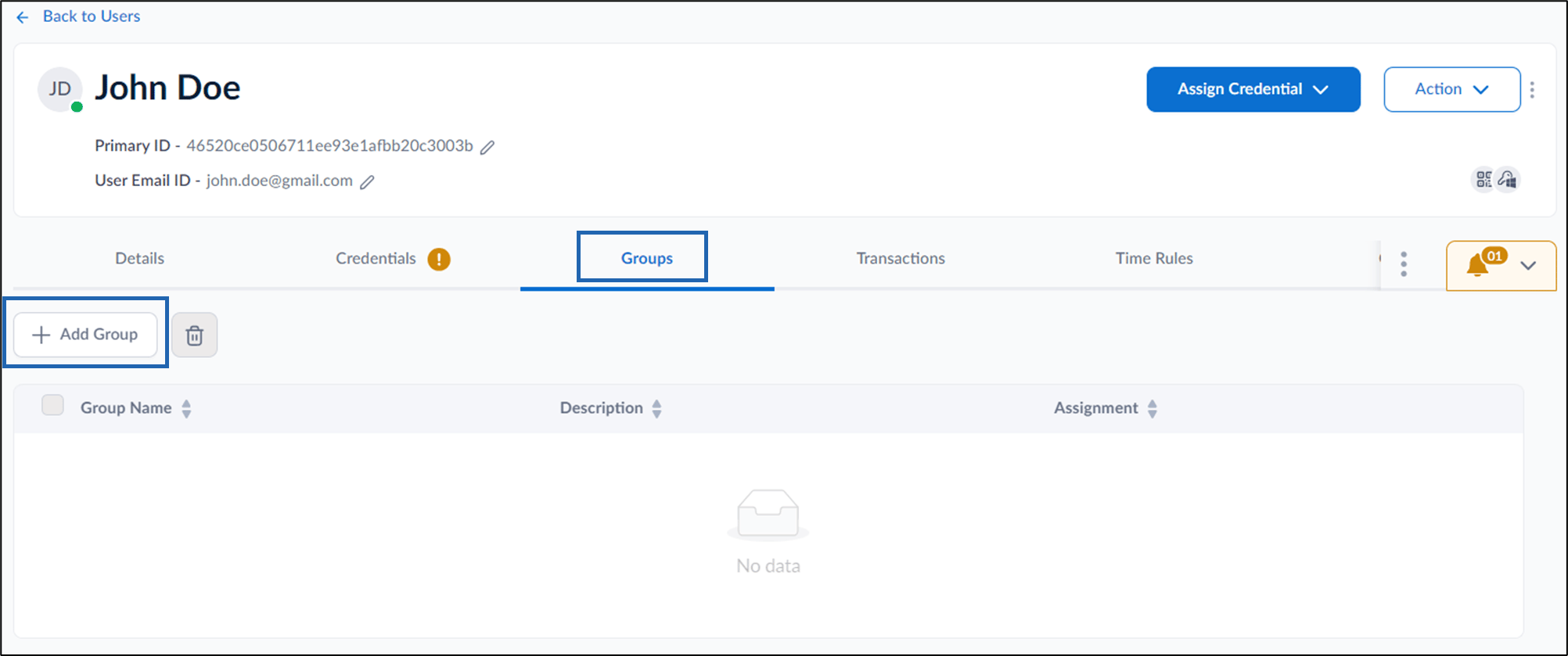
Transactions Tab
The Transactions tab allows you to view the transaction history of the user.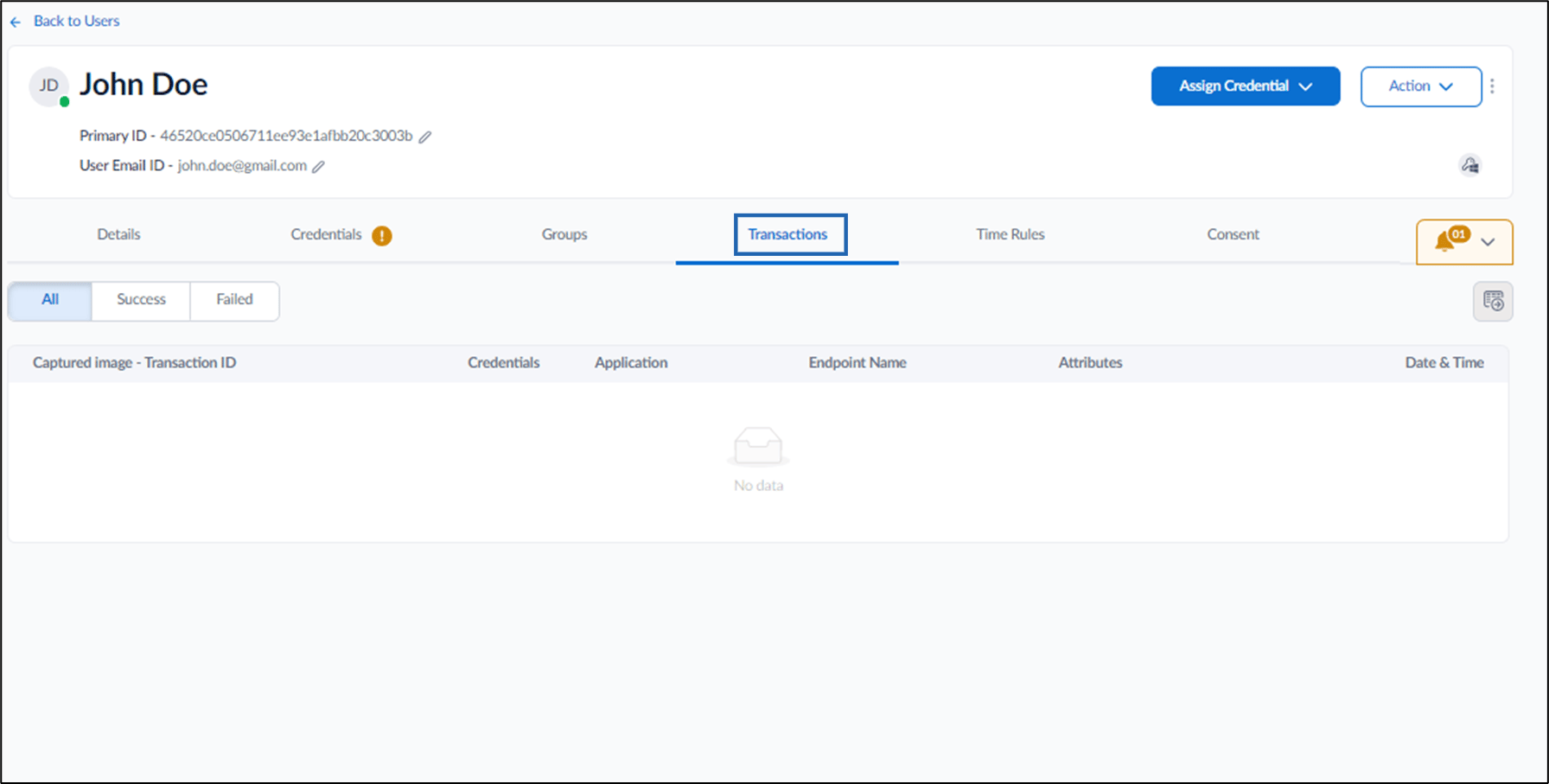
Consent Tab
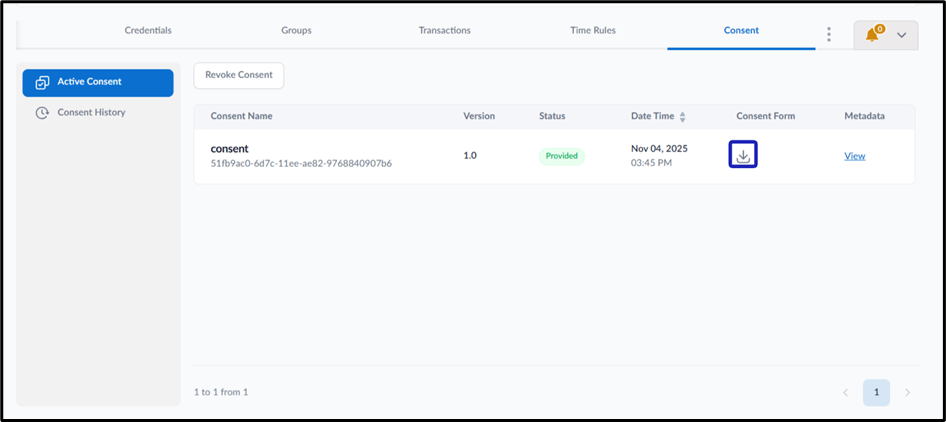
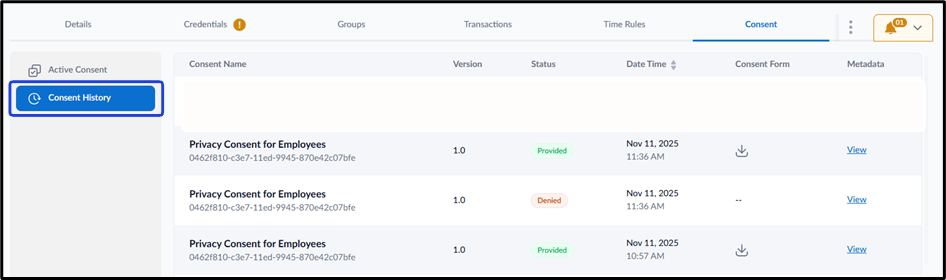
The Consent tab shows the user’s current consent status and their complete consent history.Note: Consent Status are as follows:
- Provided: User has provided consent for adding face
- Denied: User has rejected consent
- Pending: User has been sent the consent and user action is pending.
- Reconsent Pending: User had previously denied consent and was re-shared the consent and user action is pending.