Introduction
The Tenant Admin Portal allows admins to manage Windows Shared Passwords and control access using users, groups, and ownership assignments. Adding groups to a Windows Shared Password enables multiple users to inherit access through group membershipPrerequisites
- You must have a Tenant Admin account.
- Group must be created in the Tenant Admin portal. For more, refer: How to create group
- Windows shared password must be created. For more, refer: How to create shared Password for Windows login application in the Tenant Admin Portal
Steps to Configure to Windows Shared Password
- Log in to the Tenant Admin Portal.
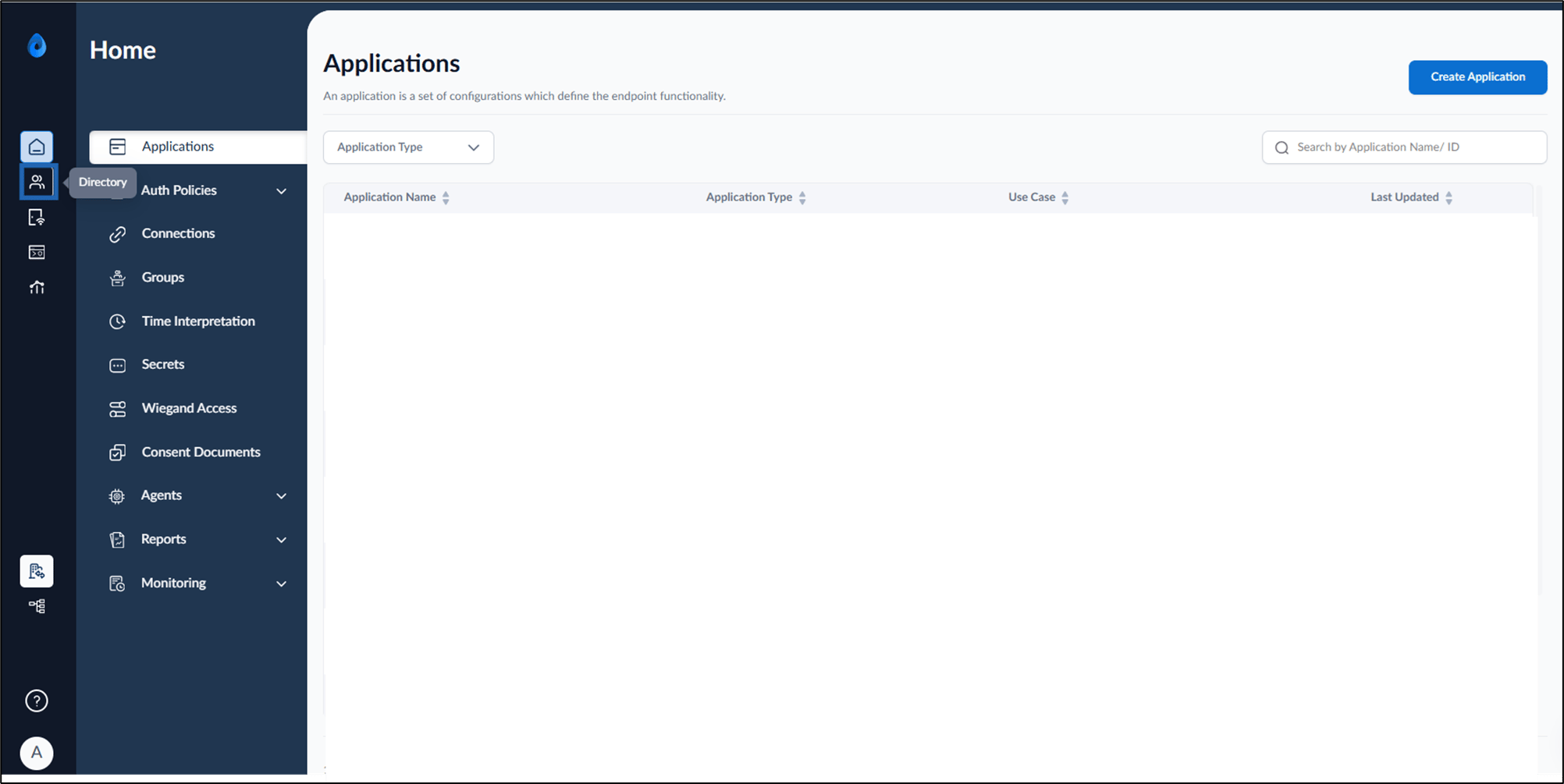
- On the home page of the portal, click Directory on the left menu panel.
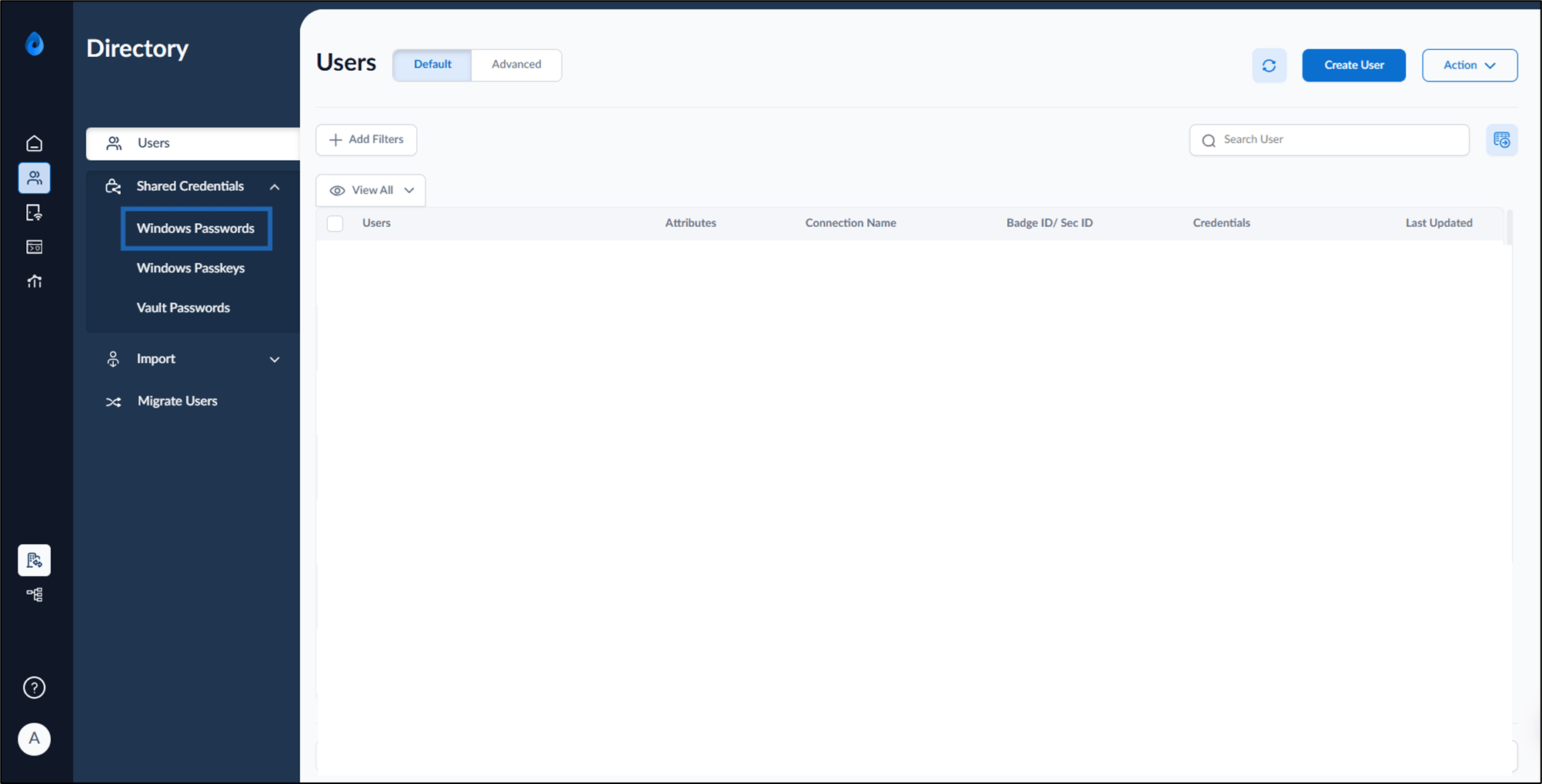
- Click Shared Credentials > Windows Password on the left menu panel.
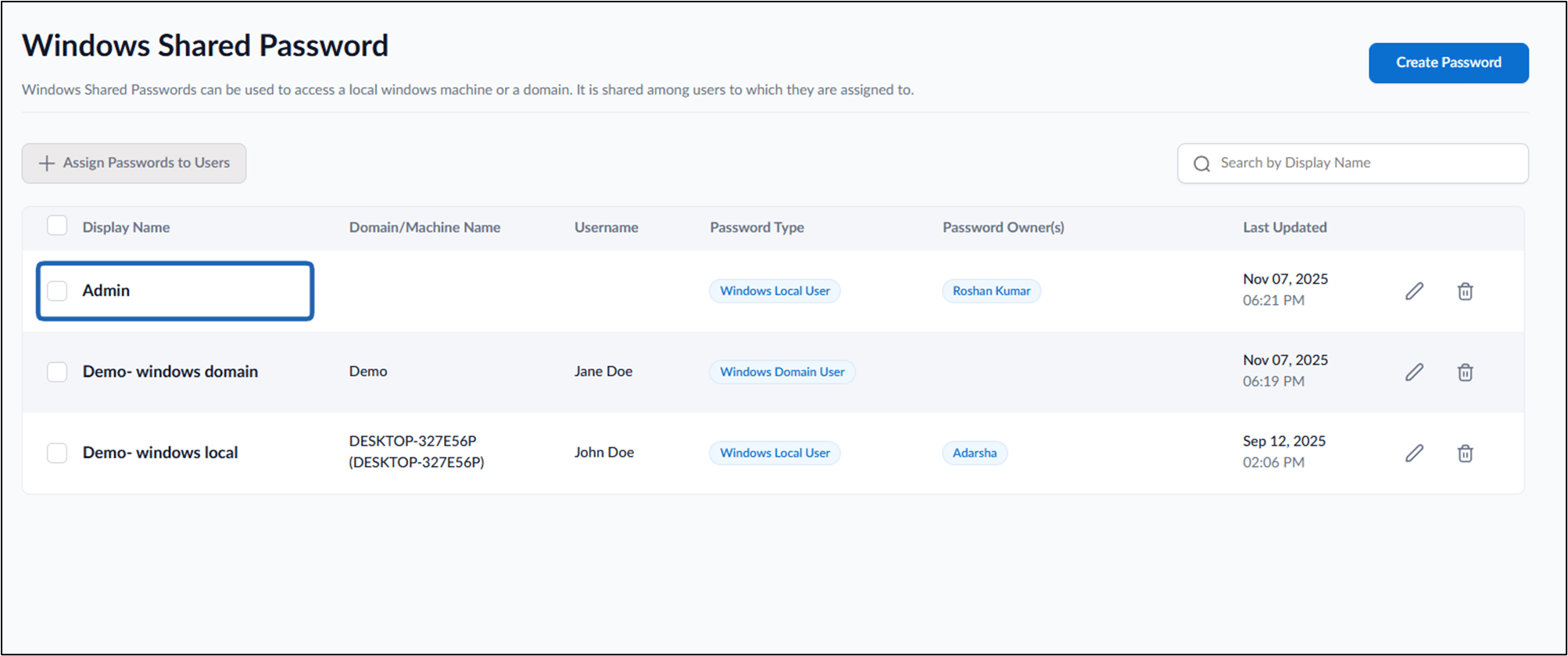
- Select Shared Password from the list. The Windows shared password details page is displayed.
- Do the following:
- Click Save after configuration changes. The Windows shared password is successfully configured.
Users Assigned
This tab displays users who are assigned to use the shared password. Multiple users can be assigned shared windows passwords. For more, refer: How to associate users with shared credentials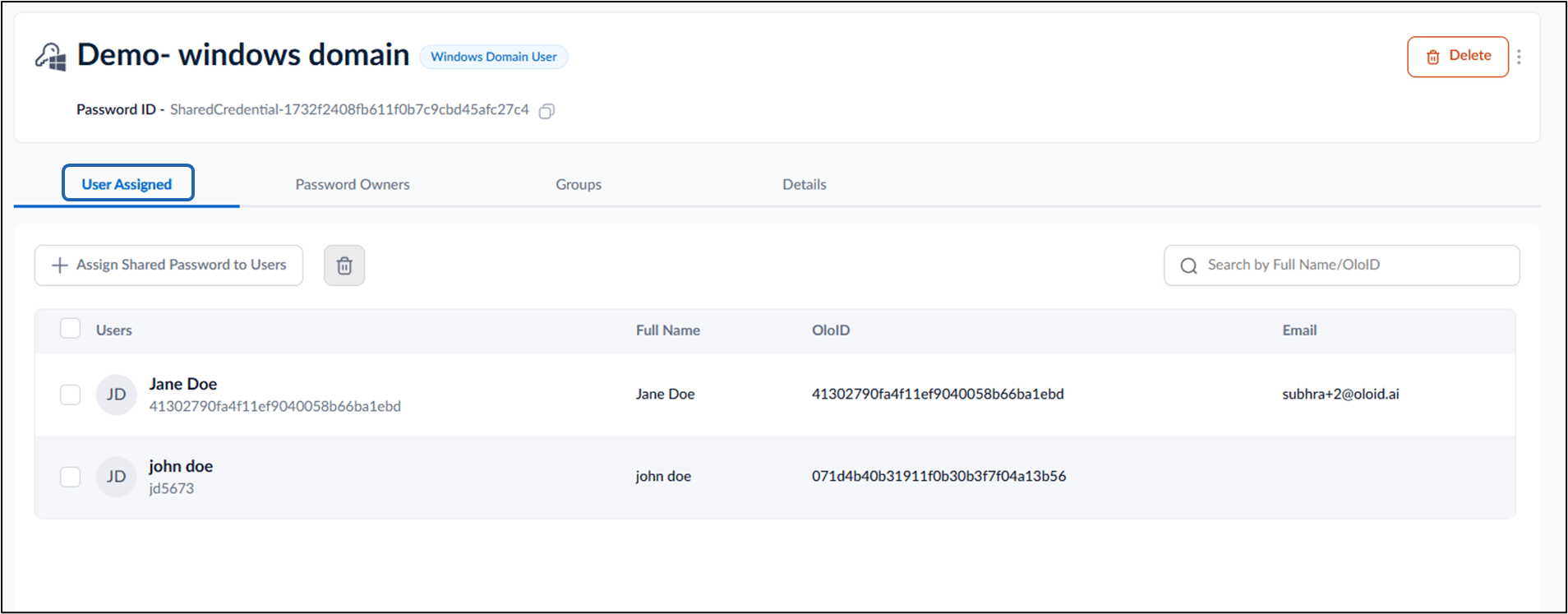
Password Owners
This tab displays users who have ownership privileges over the shared password. More password owners can be added from the tenant admin portal. For more, refer: How to add password owners for Windows shared password in the Tenant Admin PortalNote: Only users with Admin or Supervisor roles can be assigned as Password Owners.
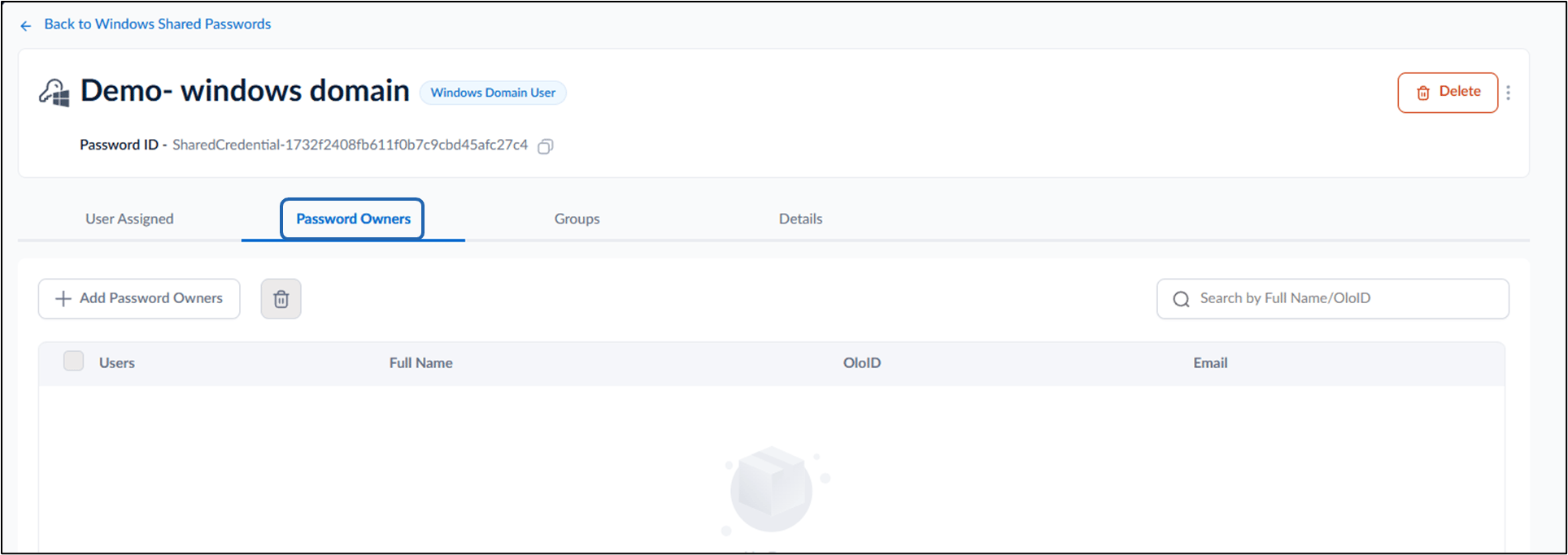
Configure Groups Tab
Displays groups associated with the shared password, adding the shared password to a group allows the all users in the group to use the shared windows password. for more: How to Add a Group to Windows Shared Passwords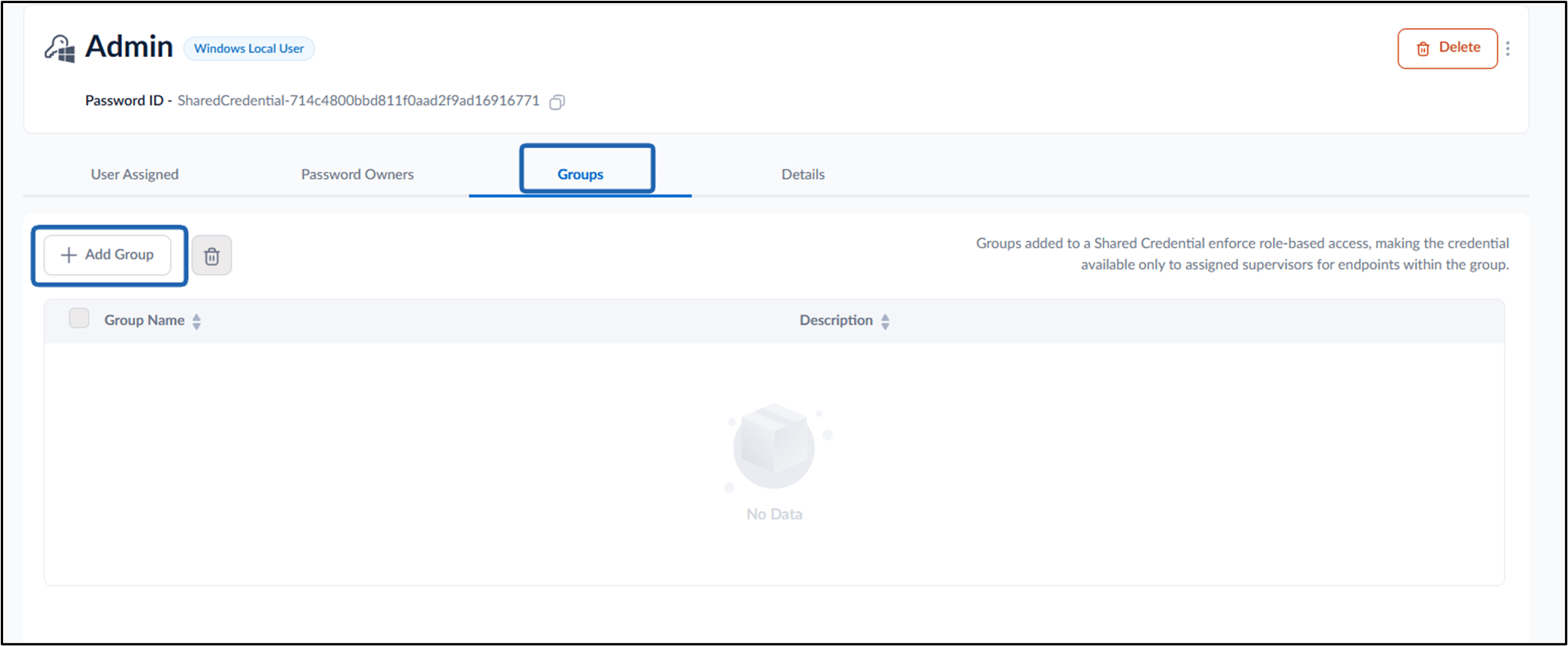
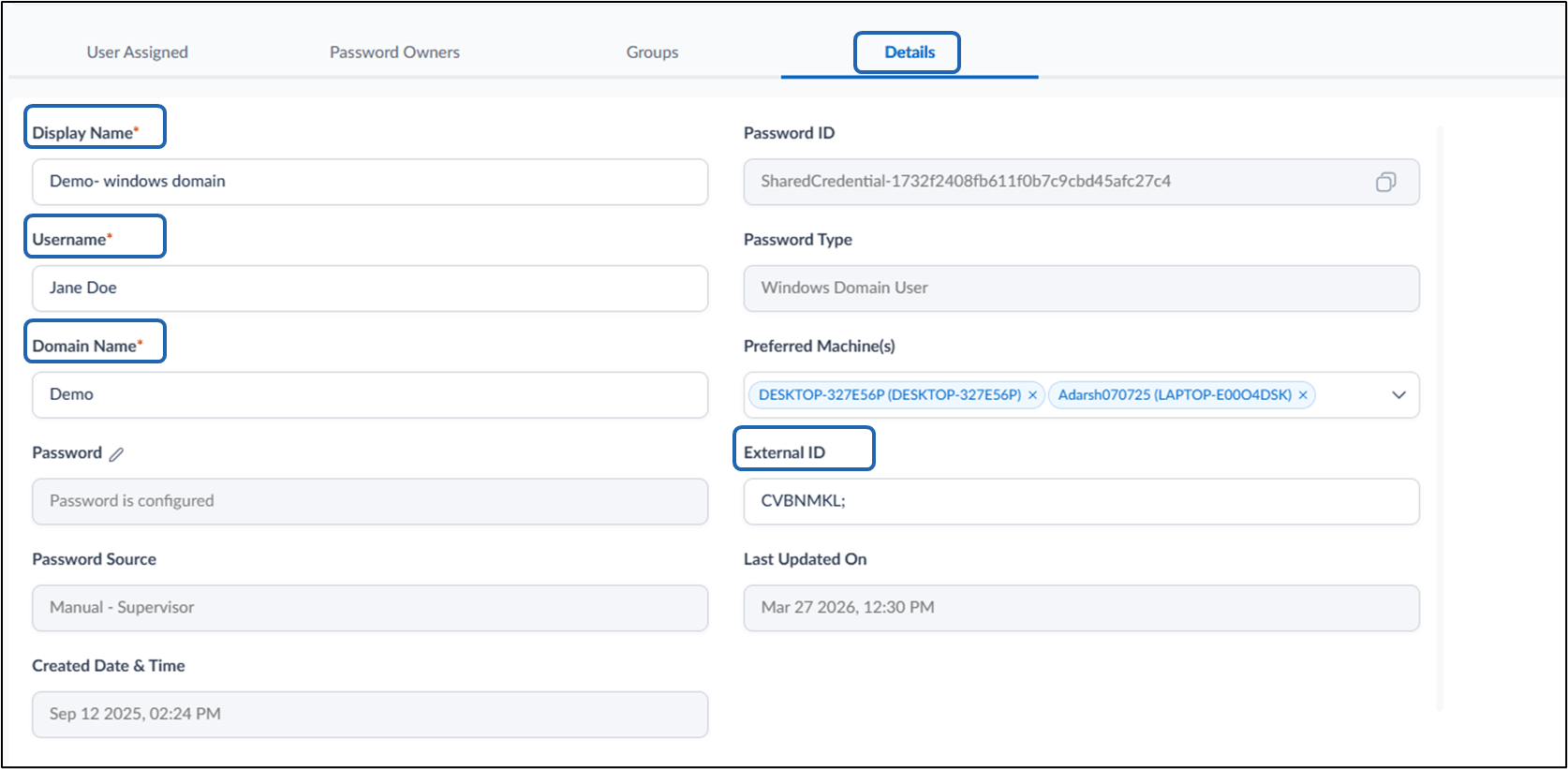
Configure Details Tab
This tab displays configuration details of the shared password. To configure the Details tab do the following:- Enter Display Name Name assigned to the shared password.
- Enter Username Username associated with the credential.
- Enter Domain Name Domain in which the credential is valid.
-
Enter Password
Indicates whether the password is configured.
Note: Use the edit option to update the password.
- Enter Password Source Displays how the password was configured (for example, Manual - Supervisor).
- Select Password Type Type of password (for example, Windows Domain User).
- Select Preferred Machine(s)
- Enter External ID (Optional)
- Click Save.