

Introduction
The onboarding report can be configured to schedule the report generation frequency and send it to the customers through email.Pre-Requisite
You must have a Tenant Admin account.Steps to configure Onboarding Report
- Log in to the Oloid Portal.
-
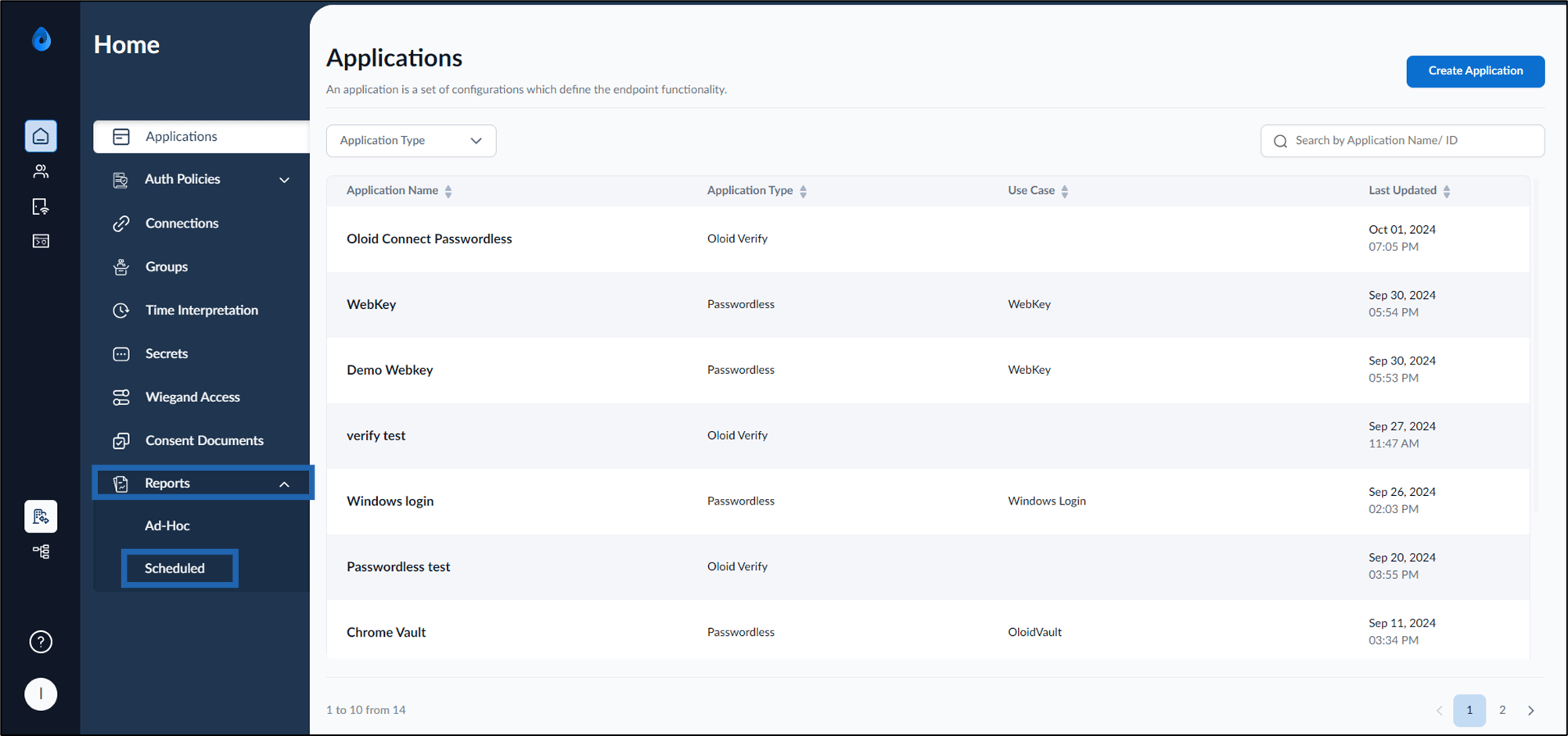
On the homepage, click Reports > Scheduled on the left menu panel.
-
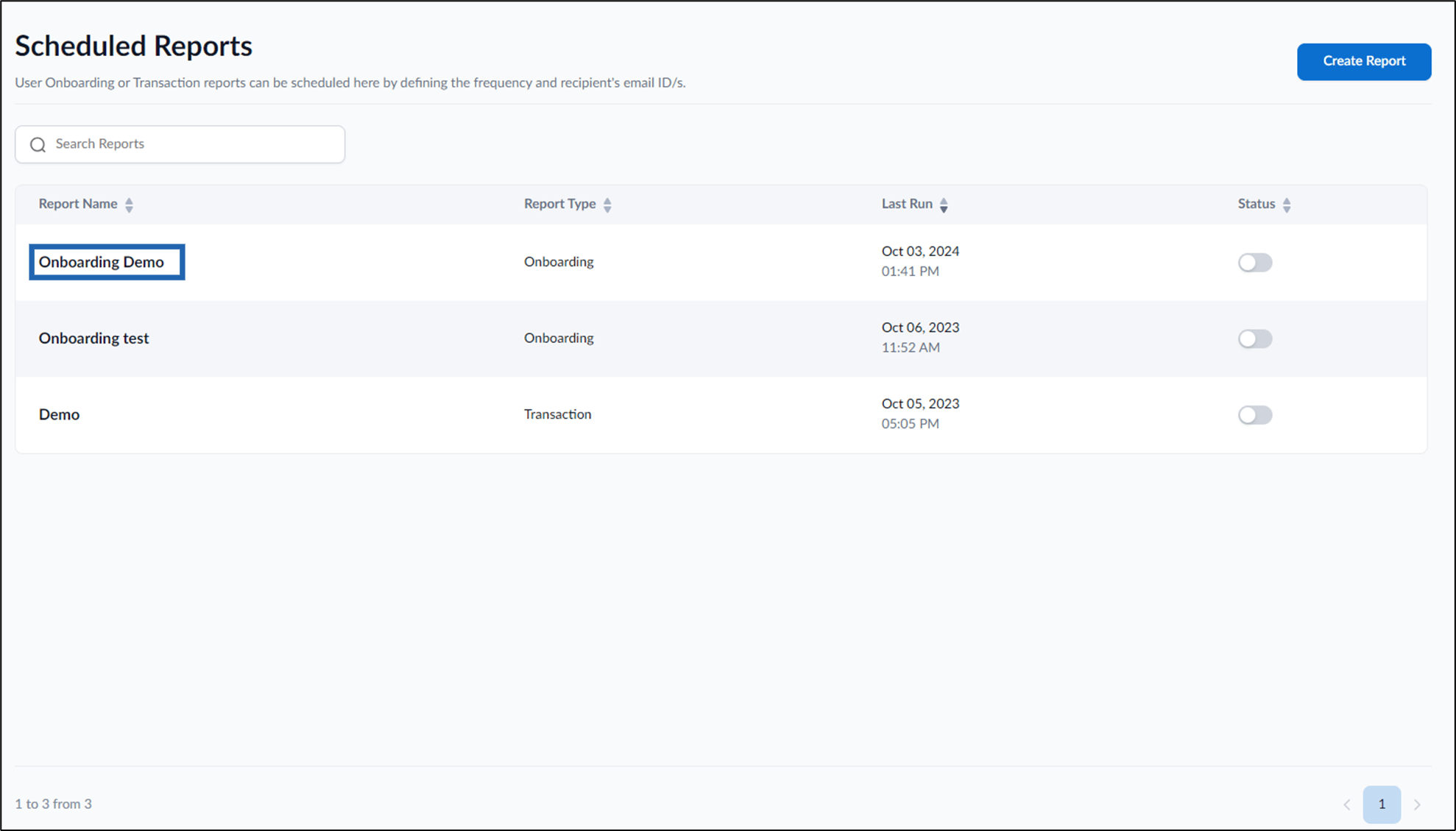
Select report name of onboarding report type to edit.
-
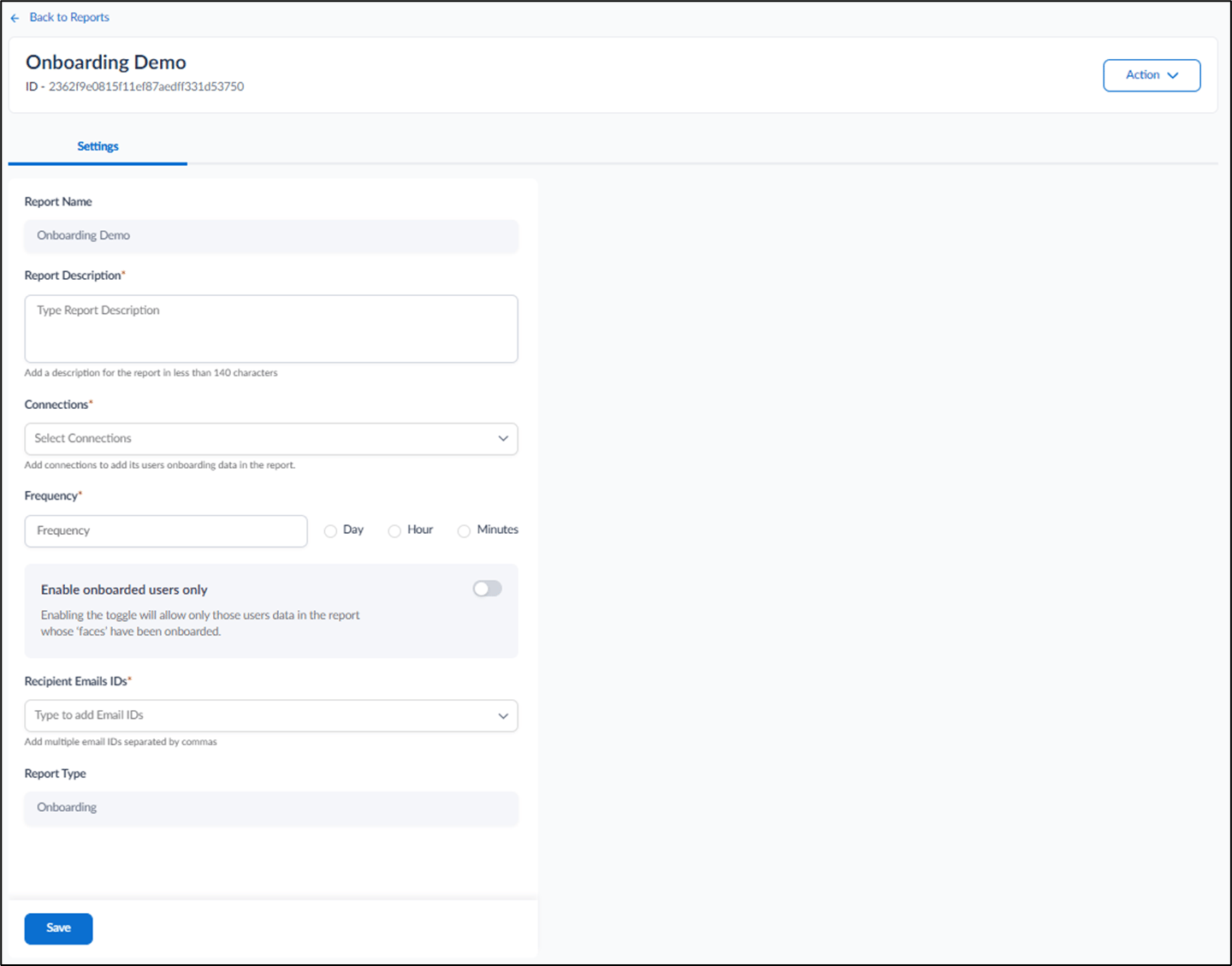
On the Settings tab, do the following:
- Enter Report Description.
- Select Connection(s).
- Enter time unit for Frequency.
- Select the frequency for generating the report.: Day, Hour, Minutes.
- (Optional)Turn on Enable onboarded users only to allow those users’ data in the report whose ‘faces’ have been onboarded.
- Enter Recipient Emails.
- Click Save. The onboarding report is configured.
-
On the Scheduled Reports page, turn on the Status option to send scheduled onboarding reports to the specified email address(es) of recipients.
 Note:
Note:- Ensure you have sufficient permissions as a Tenant Admin before attempting to create the report.
- The downloaded file format for reports is XLSX.