Introduction
The Tenant Admin Portal allows admins to configure Consent Templates for user face onboarding, which define the way consent information is presented to users for acknowledgment.Prerequisite
- You must have a Tenant Admin account
- You must create a Consent Template. To create Consent Template refer How to create a consent template.
Steps to configure Consent Template
- Log in to the Tenant Admin Portal.
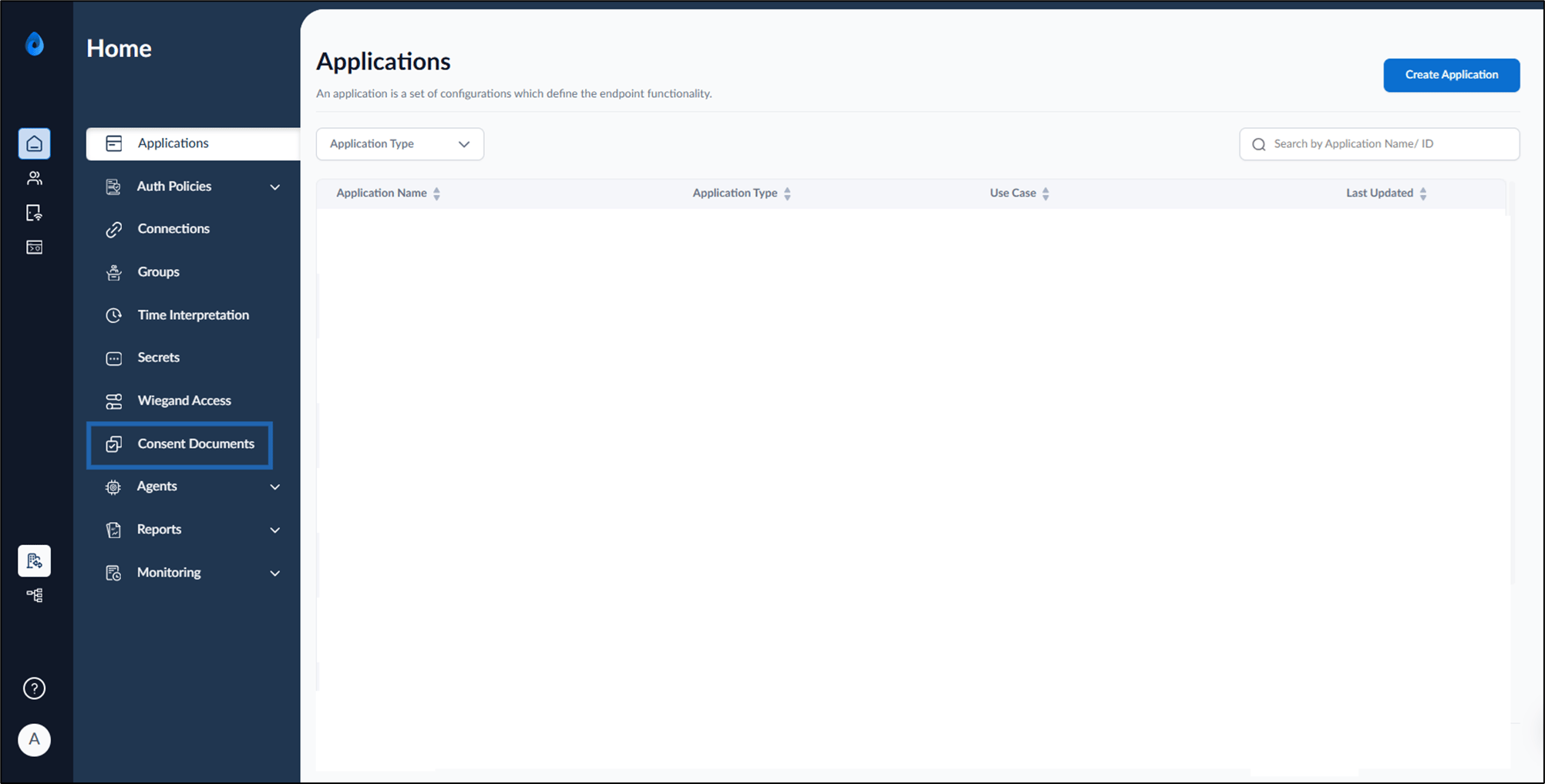
- On the home page of the portal, click Consent Documents on the left panel menu.
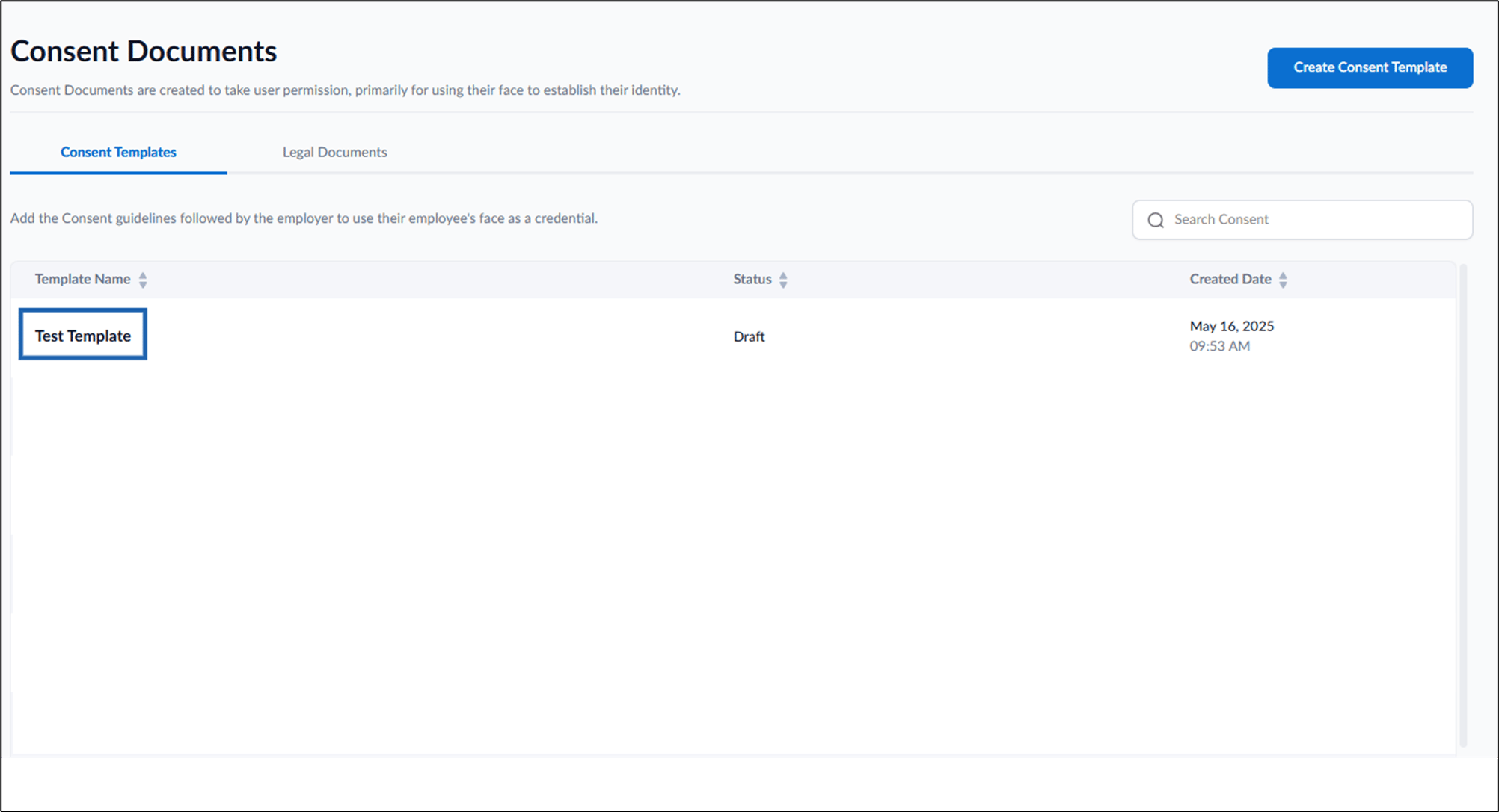
- Click Template Name to edit.
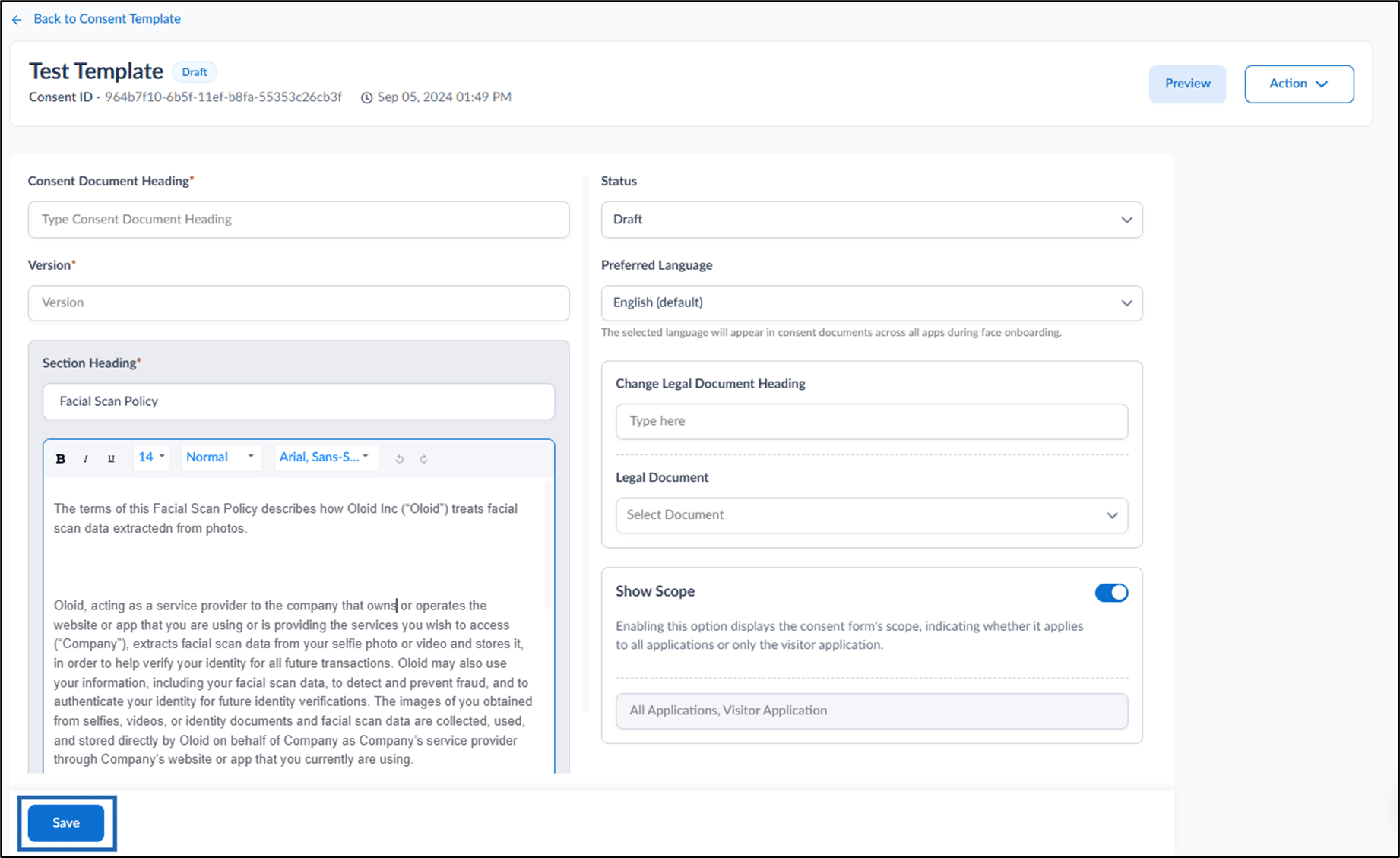
- On the template detail page, do the following:
- Enter Consent Document Heading.
- Edit Version number.
- Edit Section Heading.
- Edit Consent Description.
- Select template status from Status dropdown.
-
Select language from Preferred Language dropdown.
Note: The selected language will appear in consent documents across all apps during face onboarding.
- Change Legal Document Heading. (optional)
-
Select legal document(s) from Legal Document dropdownlist.
Note: If unavailable, click Create Legal Document to upload a new legal document. Refer How to create Legal Document.
-
Enable Show Scope toggle.
Note: Enabling this toggle displays the consent form’s scope, indicating whether it applies to all applications or only the visitor application.
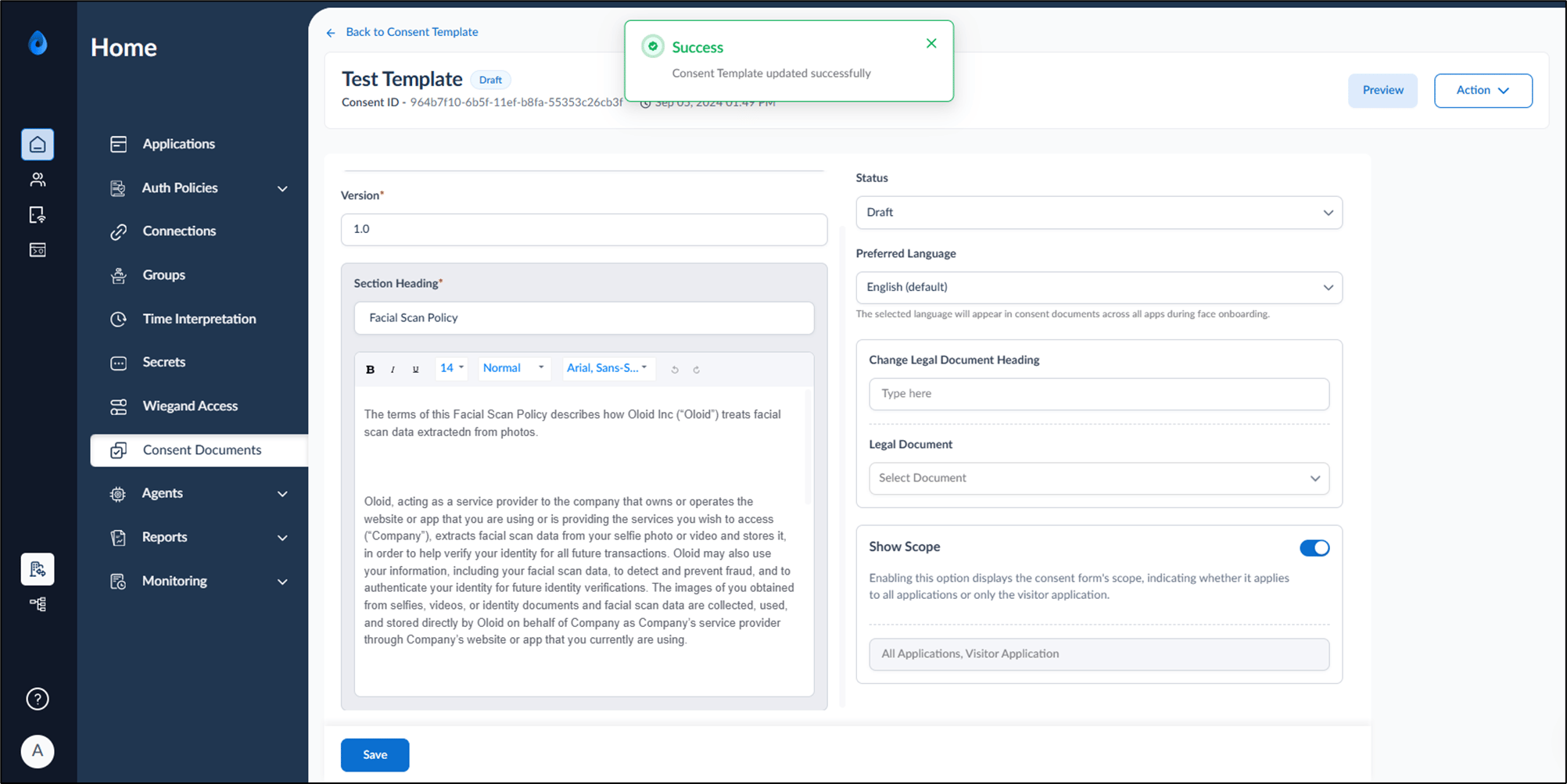
- Click Save.