Introduction
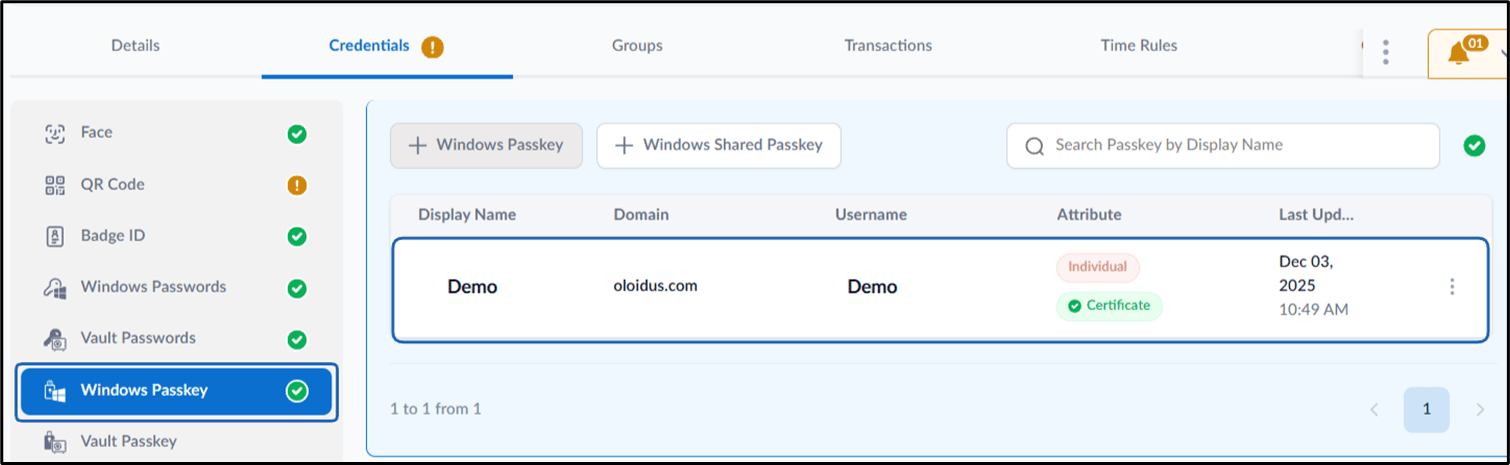
The Windows Passkey feature in the Tenant Admin Portal allows admin to securely create and assign passkeys for users to access Windows Login application.Prerequisites
- You must have Tenant Admin account.
- Passkey must be enabled as a credential in the tenant settings. For further information please refer: Oloid Platform - How to enable Passkey in Tenant Admin Portal
Steps to create Windows Passkey
- Log in to the Tenant Admin Portal.
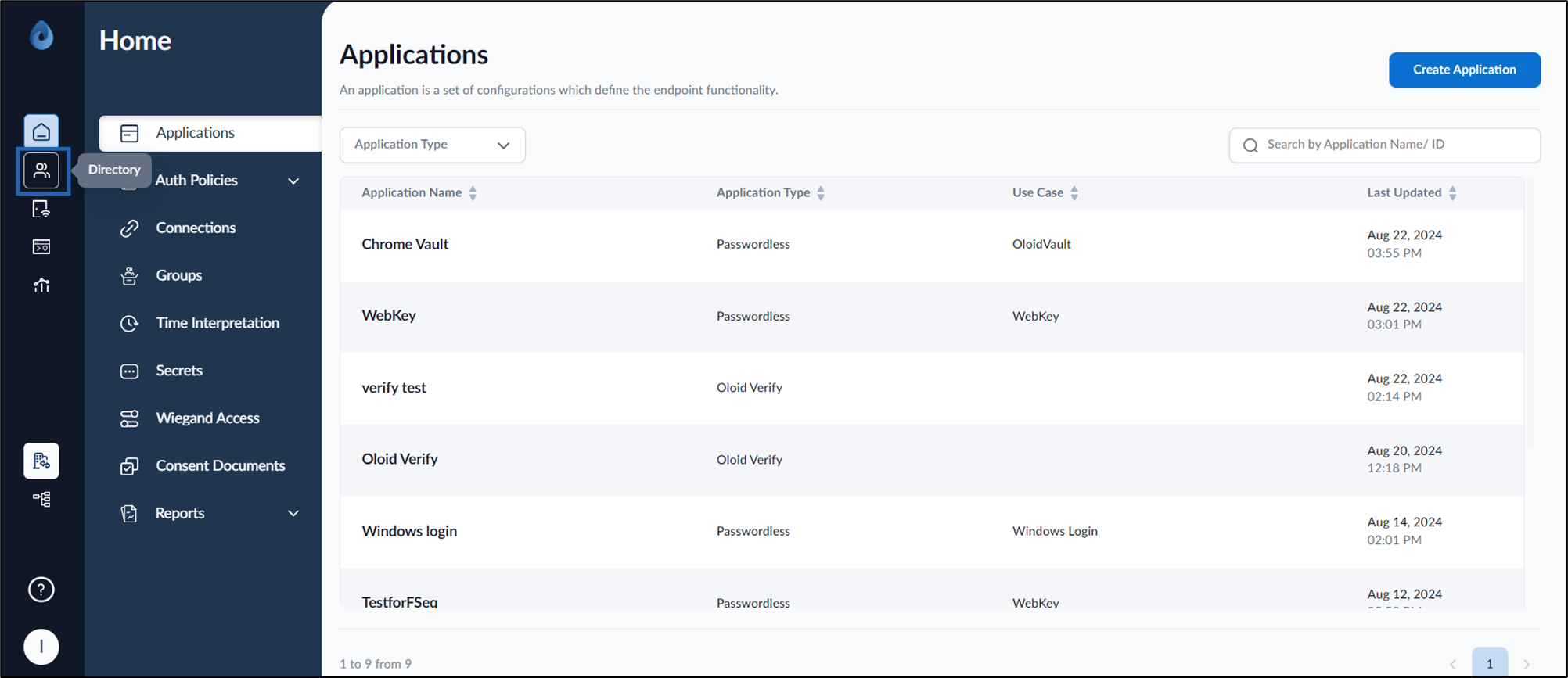
- On the home page of the portal, click Directory on the left menu panel.
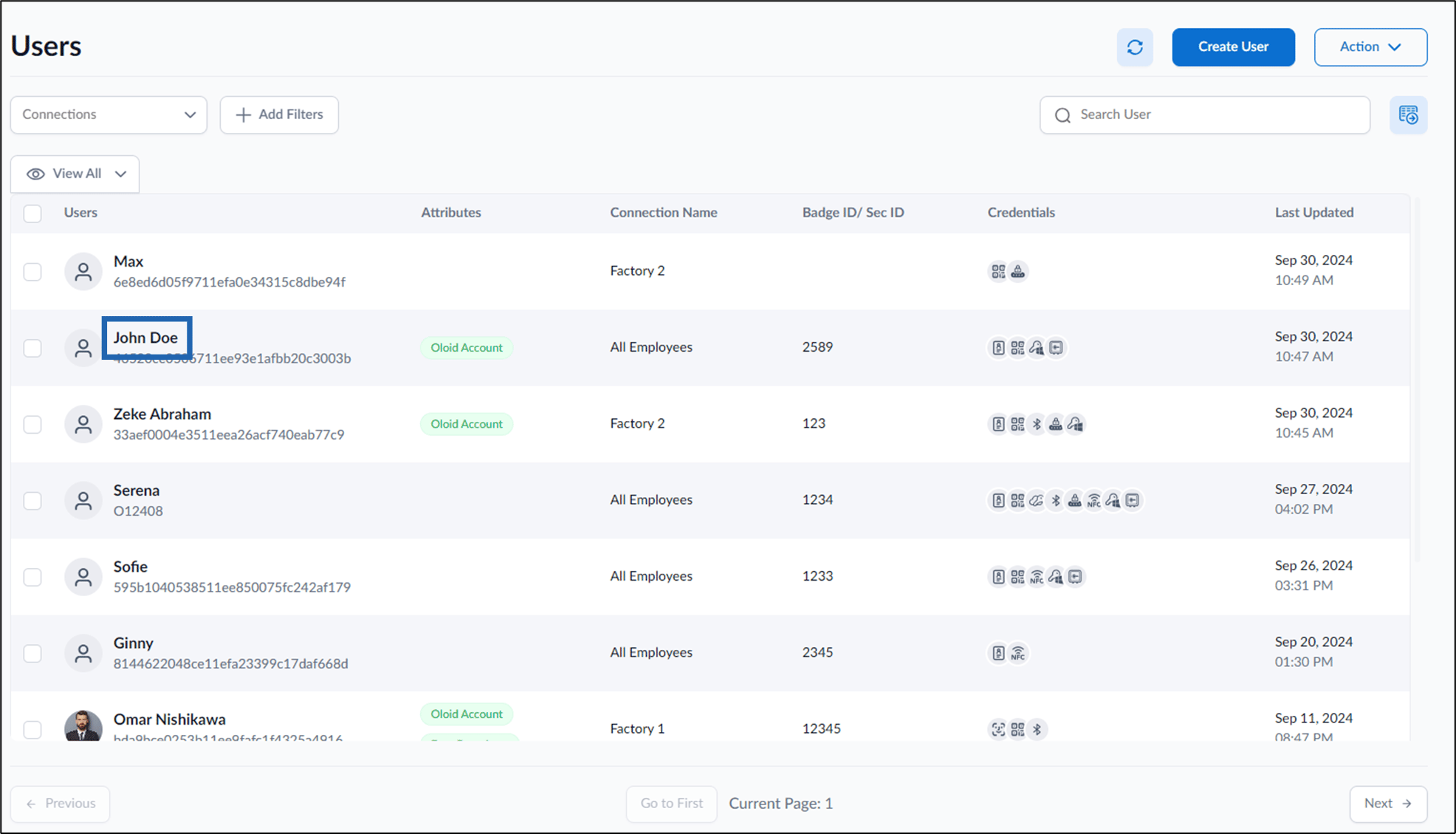
- Click user name to edit.

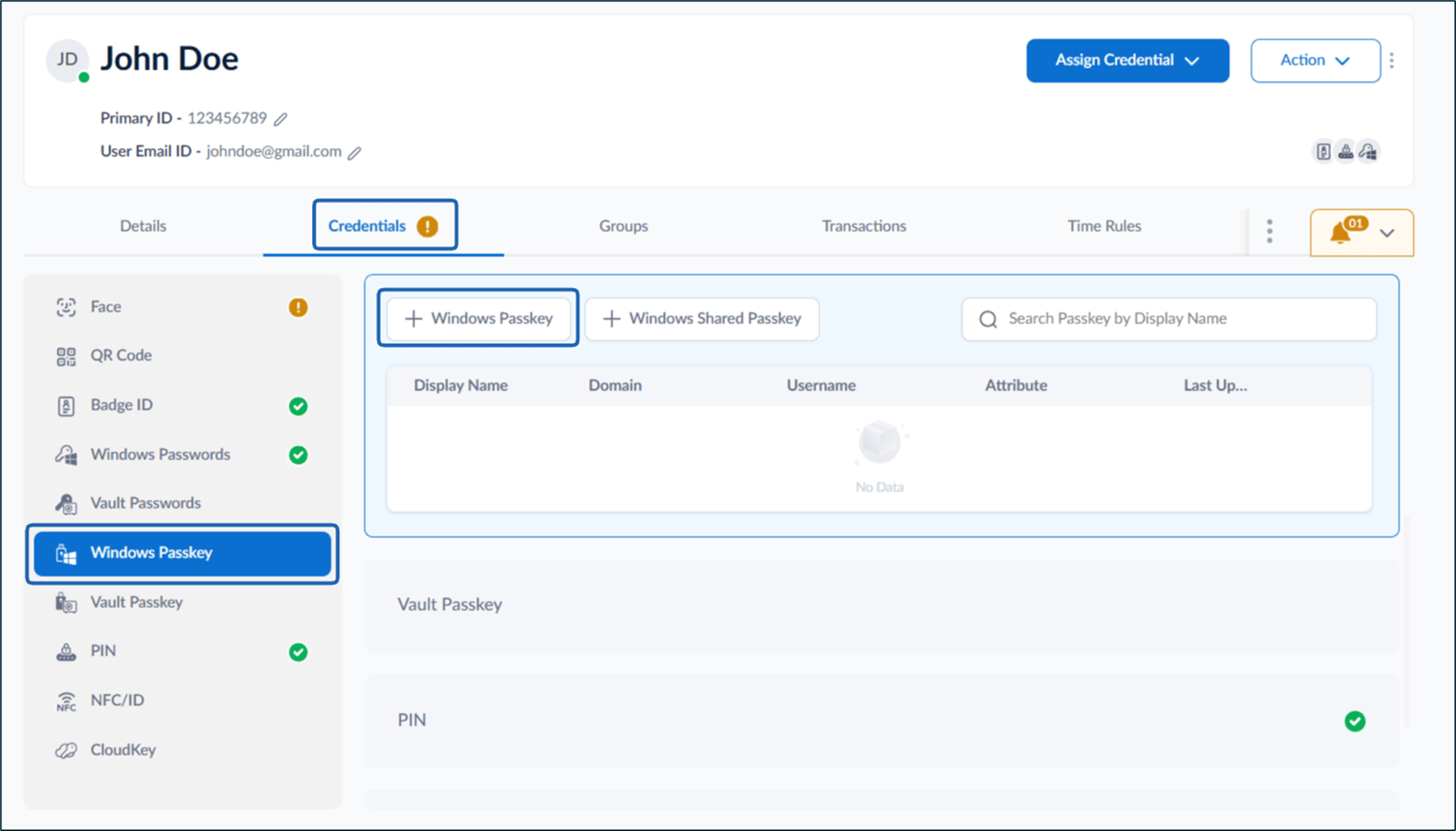
- Go to Credentials tab > Windows Passkey > + Windows Passkey.
- Do the following:

- Enter Display Name. (Required)
- Click Next.
- Enter Domain Name associated with the Windows account. (Required)
- Enter Windows Username for the user account. (Required)
- Select Preferred Machine from the Preferred Machine dropdown list. (Optional)
- Upload the Certificate file or drag it into the upload area. You may also type or paste the certificate contents manually in the text box. (Required)
- Upload the Private Key file or drag it into the upload area. You may also type or paste the key contents manually in the text box.
- Click Create.