Introduction

This document explains how to configure PIN settings in the Tenant Admin Portal, including PIN format, lock policy, retry limits, and validation rules for user PIN credential.

Prerequisite

You must have Tenant Admin access to the Tenant Admin Portal.

Steps to Configure the PIN Credential

  1. Log in to the Tenant Admin Portal.
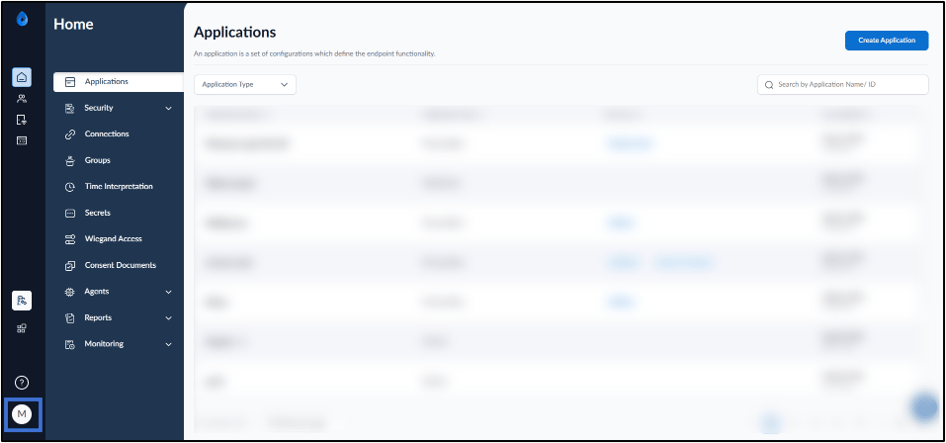
  2. On the homepage of the portal, click user profile icon on the bottom left corner of the menu panel. How to Configure PIN - screenshot 1 The user profile menu is displayed.
  3. Click Tenant Settings. How to Configure PIN - screenshot 2 The Tenant Settings page is displayed.
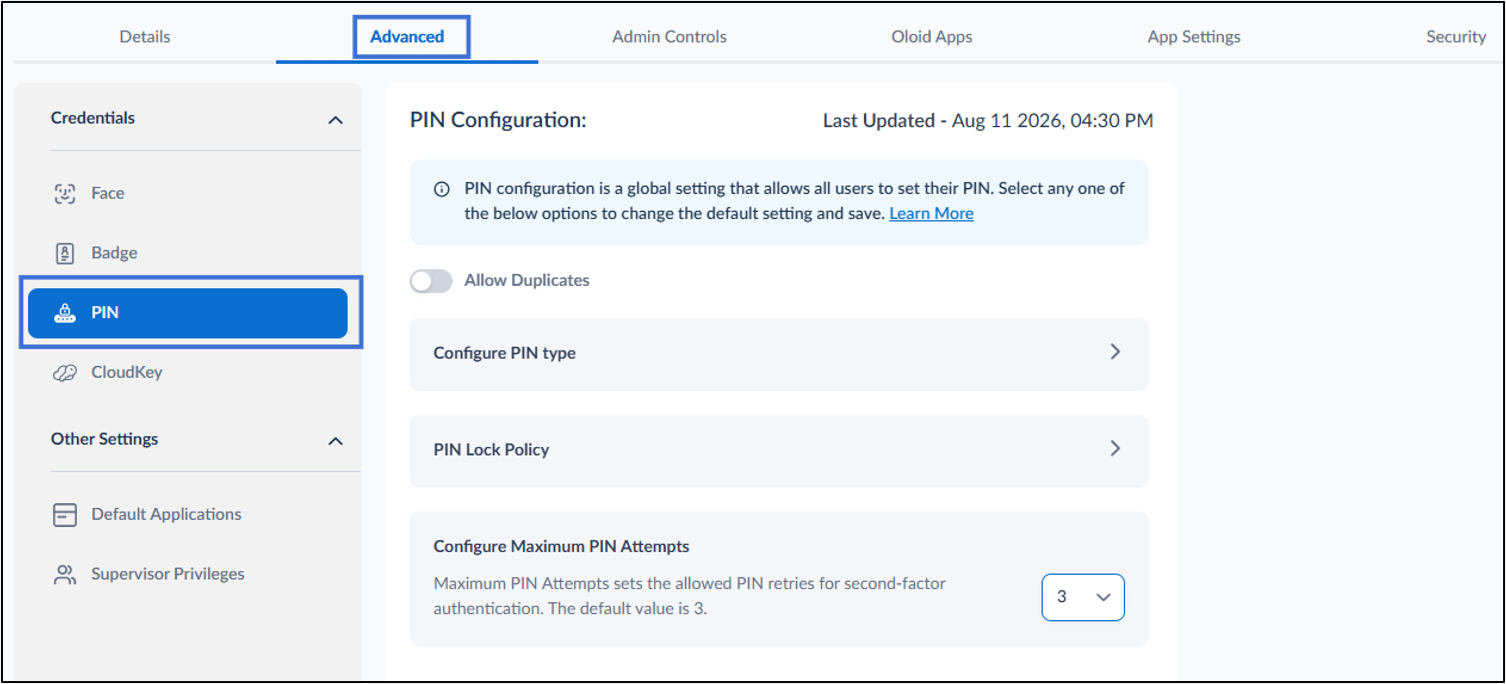
  4. Go to Advanced > PIN. How to Configure PIN - screenshot 3 The PIN configuration page is displayed.
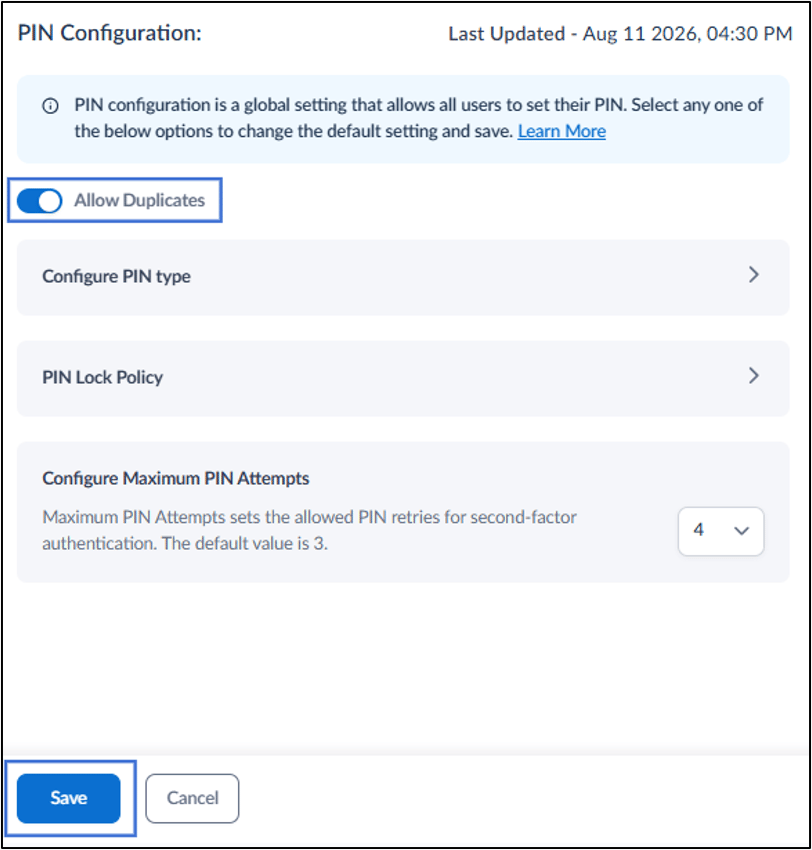
  5. Enable Allow Duplicates toggle to permit identical PINs for multiple users.
  6. Do the following:
  7. Configure Maximum Pin Attempts to set the number of retries allowed.
    Note: The default value is 3 attempts, and the maximum allowed value is 5 attempts.
  8. Click Save. How to Configure PIN - screenshot 4 The PIN is configured successfully.

Setup Configure PIN Type

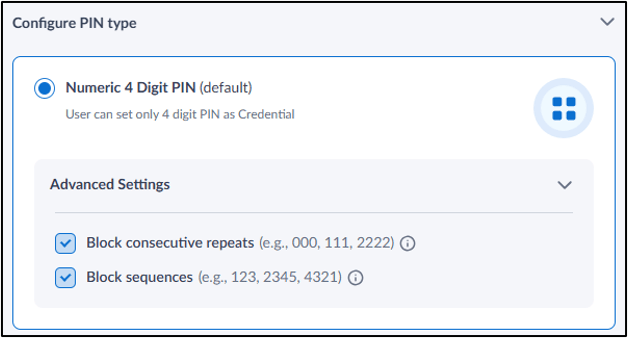
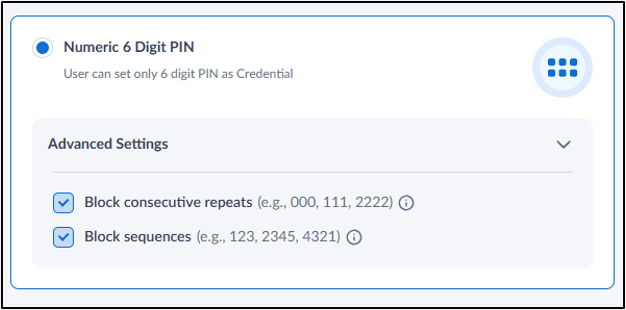
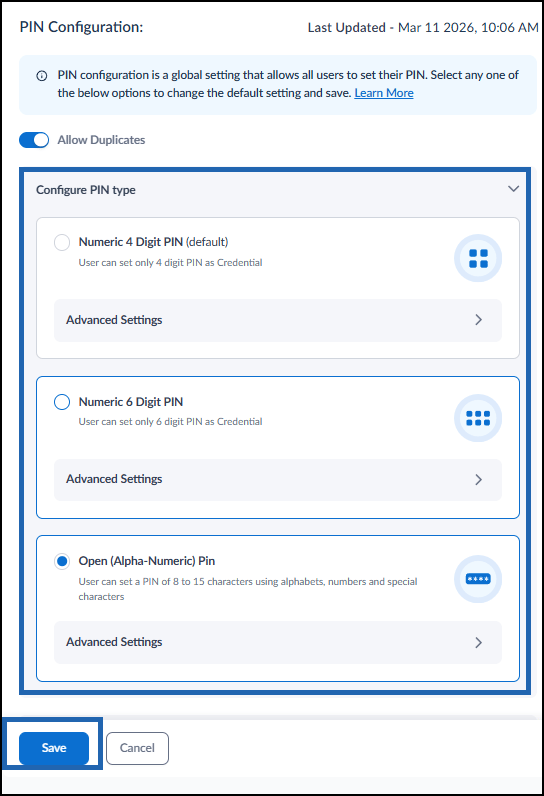
The Configure PIN type setting defines the format and length of the PIN that users can set as a credential.
  1. Do one of the following:
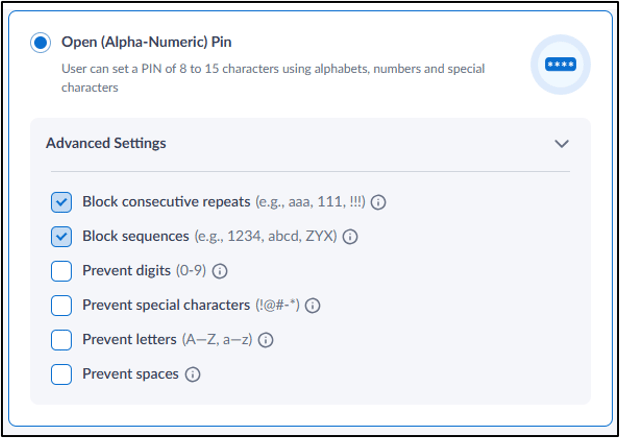
Numeric 4-Digit PIN (Default): Allows only a 4-digit numeric PIN. Advanced Settings Field name Description Block Consecutive Repeats To prevent PINs with repeating characters (for example, aaa, 111) Block Sequences To prevent PINs with sequential characters (for example, 1234, abcd, ZYX). How to Configure PIN - screenshot 5 Numeric 6-Digit PIN: Allows only a 6-digit numeric PIN. Advanced Settings Field name Description Block Consecutive Repeats To prevent PINs with repeating characters (for example, aaa, 111) Block Sequences To prevent PINs with sequential characters (for example, 1234, abcd, ZYX). How to Configure PIN - screenshot 6 Open (Alpha - Numeric PIN): Allows a PIN of 8 to 15 characters using letters, numbers, and special characters. Advanced Settings Field name Description Block Consecutive Repeats To prevent PINs with repeating characters (for example, aaa, 111) Block Sequences To prevent PINs with sequential characters (for example, 1234, abcd, ZYX). Prevent Digits To restrict the use of numeric characters in the PIN. Prevent Special Characters To restrict the use of special characters in the PIN. Prevent Letters To restrict the use of alphabetic characters in the PIN. Prevent Spaces To prevent spaces in the PIN. How to Configure PIN - screenshot 7
  1. Click Save.
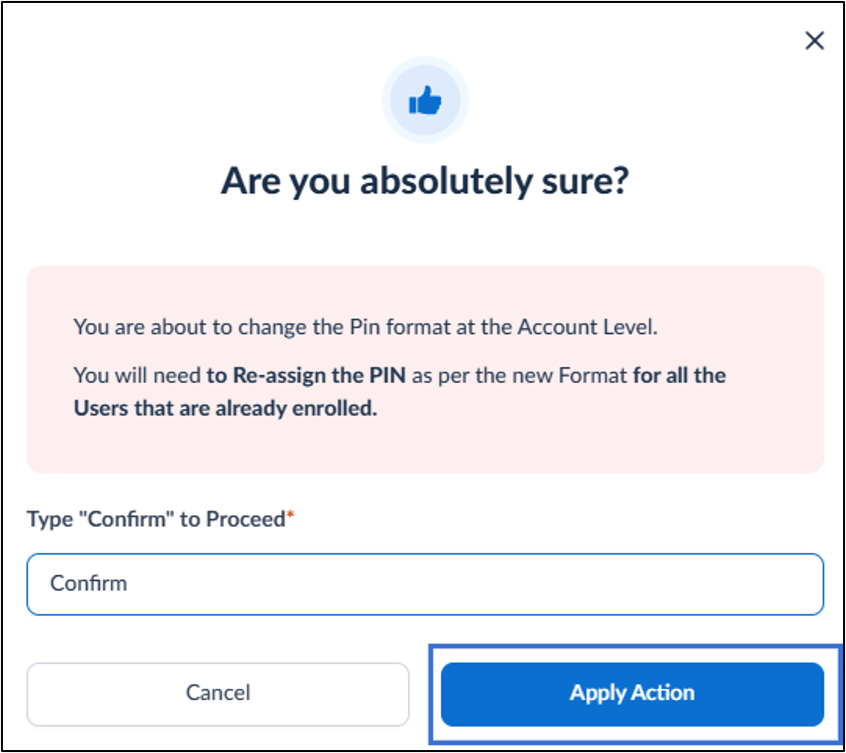
How to Configure PIN - screenshot 8 The confirmation pop-up box is displayed.
  1. Enter Confirm and click Apply Action.
How to Configure PIN - screenshot 9 The Configure PIN Type is setup successfully.

Configure PIN Lock Policy

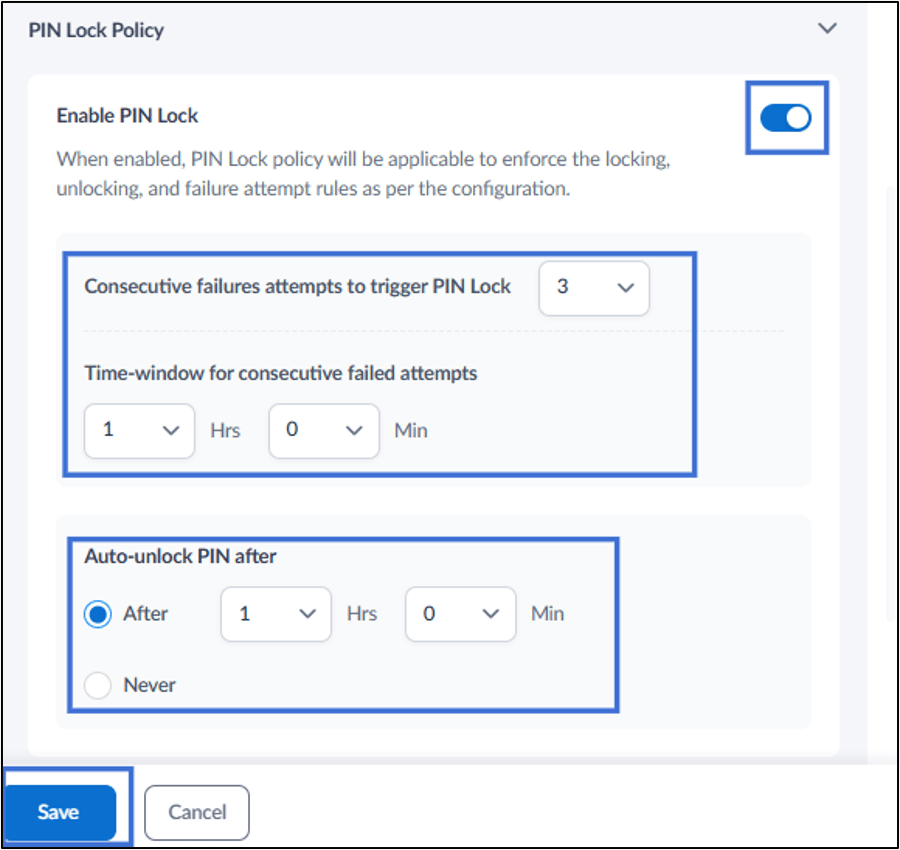
The PIN Lock Policy tab is used to configure the settings for locking a PIN after consecutive failed authentication attempts and defining the unlock behaviour. Do the following:
  1. Turn on Enable PIN Lock toggle.
  2. In Consecutive failures attempts to trigger PIN Lock, select the number of consecutive incorrect PIN attempts required to trigger the PIN lock.
  3. In Time-window for locked PIN, specify the duration within which failed PIN attempts are evaluated.
  4. Under Auto-unlock PIN after, select one of the following options:
    1. After: Specify the duration after which the locked PIN is automatically unlocked.
    2. Never: Keeps the PIN locked until it is reset by an admin.
  5. Click Save. How to Configure PIN - screenshot 10
The PIN Lock is successfully configured.