Introduction
This document describes how to configure Advanced User Sync for ADP Vantage HCM - Inbound in the Tenant Admin Portal.Prerequisites
- You must have access to the Tenant Admin Portal.
- An Advanced User Sync profile for ADP Vantage HCM - Inbound is created.
- A Data Mapper Table is created and available for user attribute mapping.
Steps to Configure Advanced User Sync for ADP Vantage HCM - Inbound
- Log in to the Tenant Admin Portal.
-
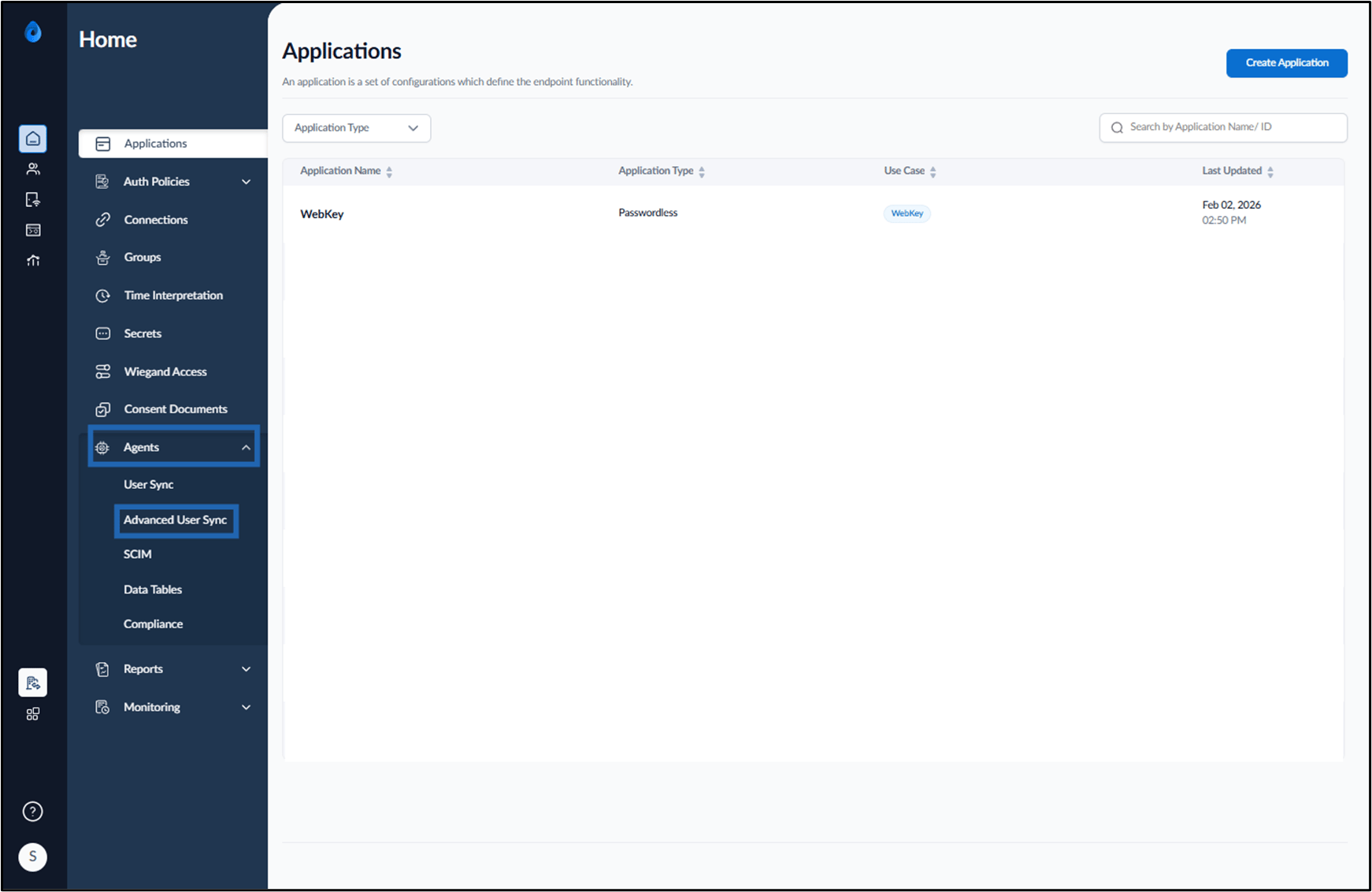
Go to Agents > Advanced User Sync.
-
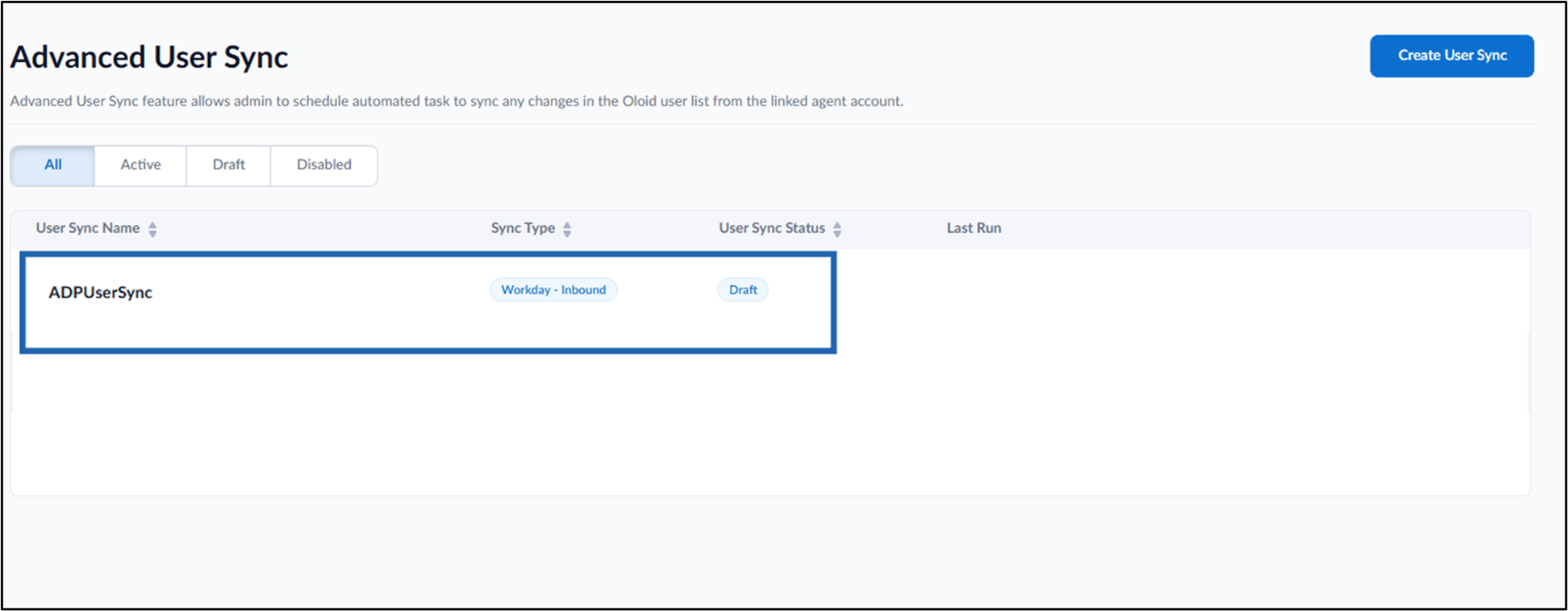
Select the preferred ADP Vantage HCM - Inbound Advanced User Sync.
- Do the following:
-
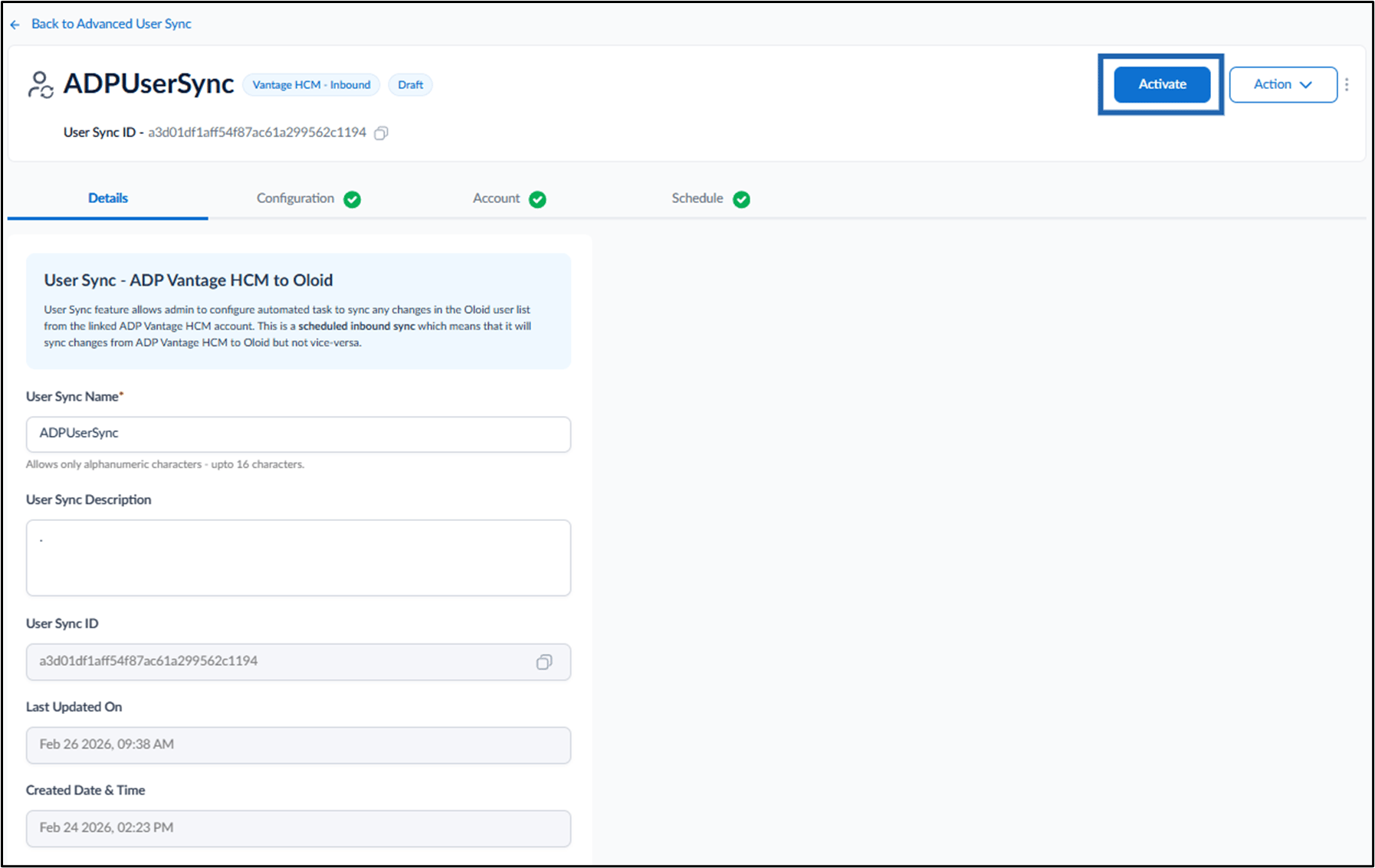
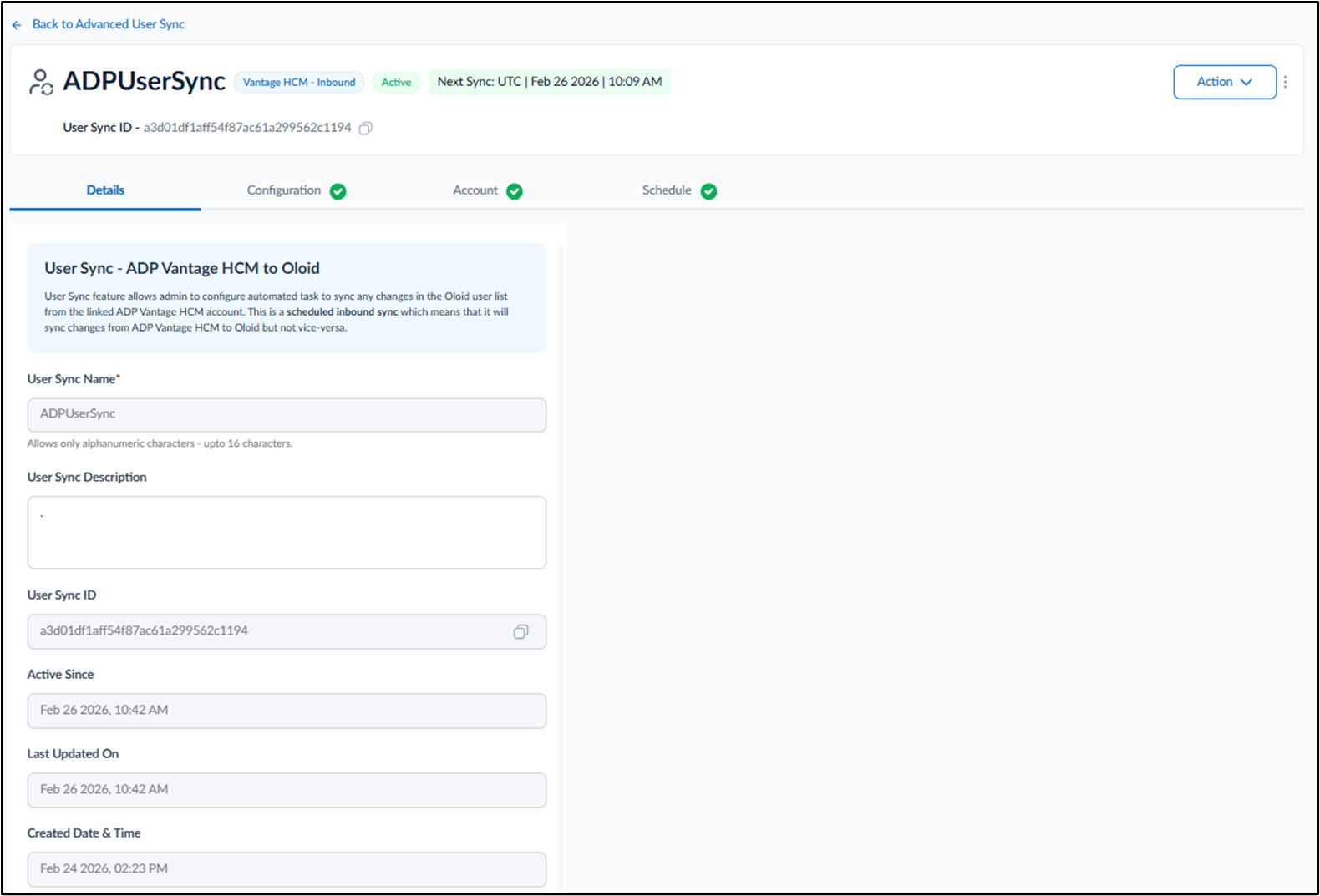
Click Activate.
-
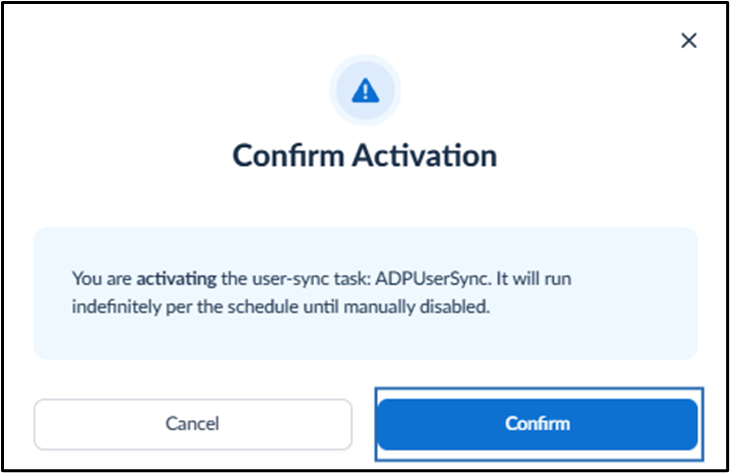
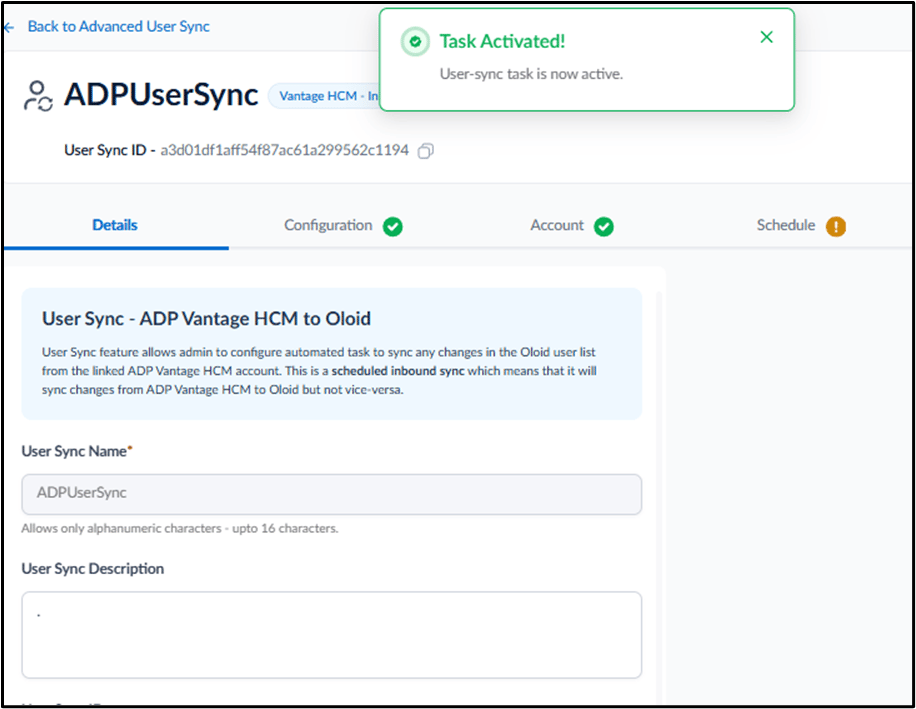
Click Confirm.
-
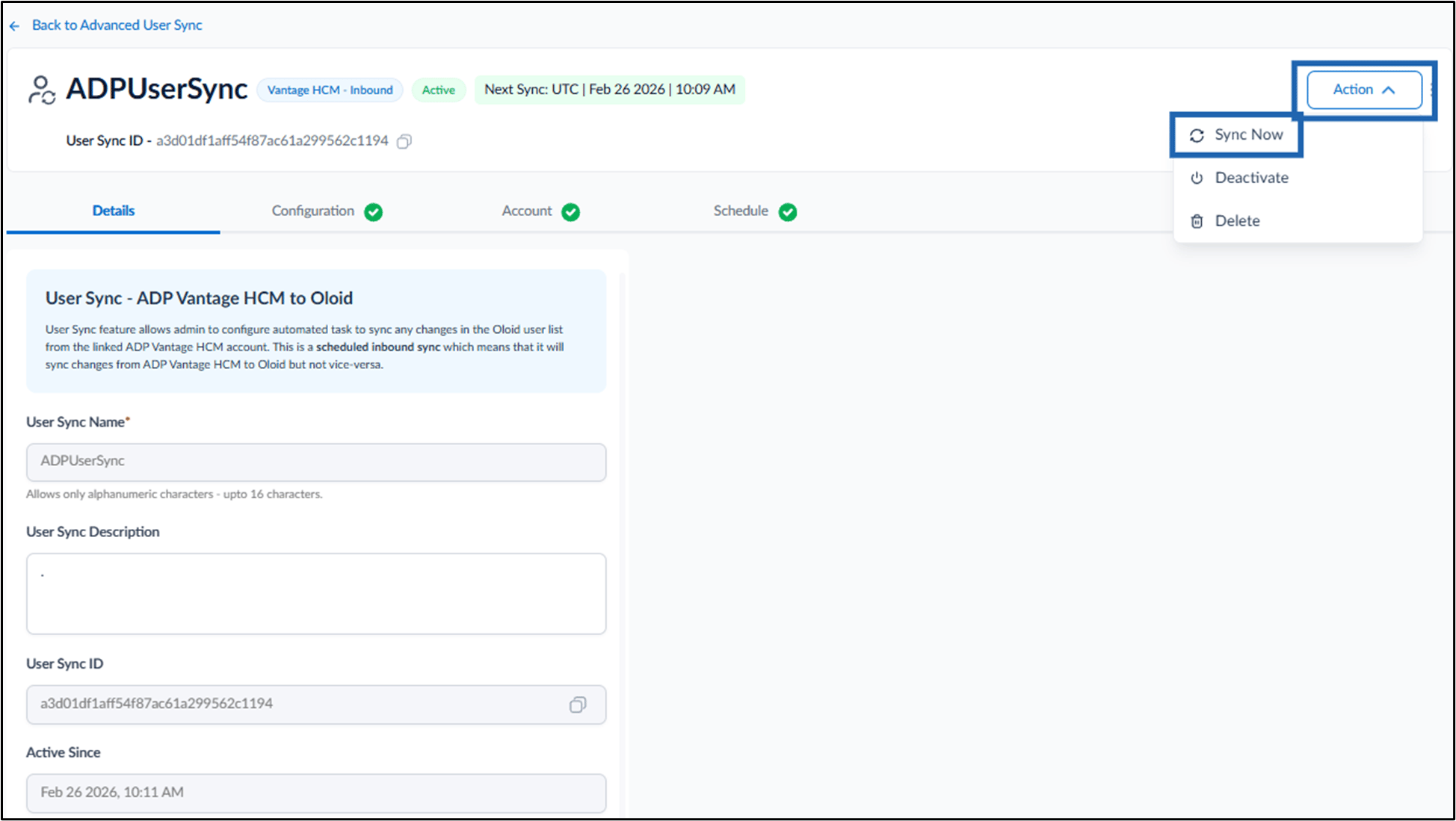
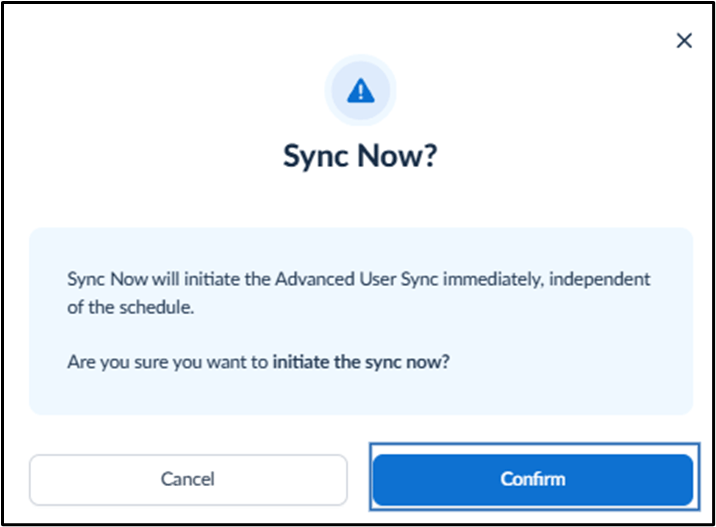
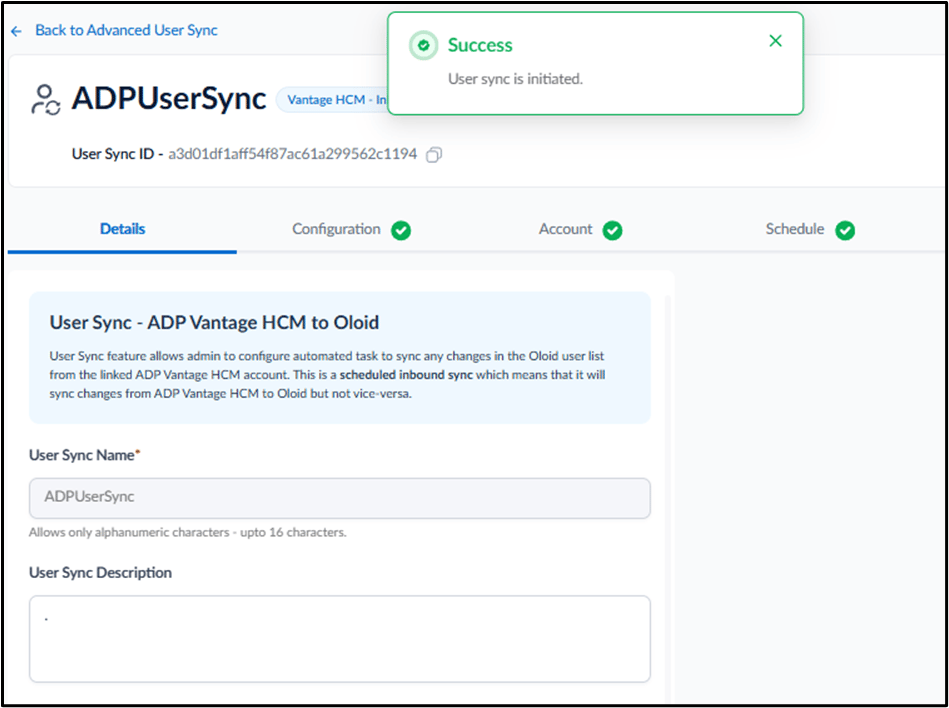
(Optional) Go to Action > User Sync.
Note: Selecting Sync Now immediately triggers a manual synchronization.
-
Click Confirm.
Configure Details Tab
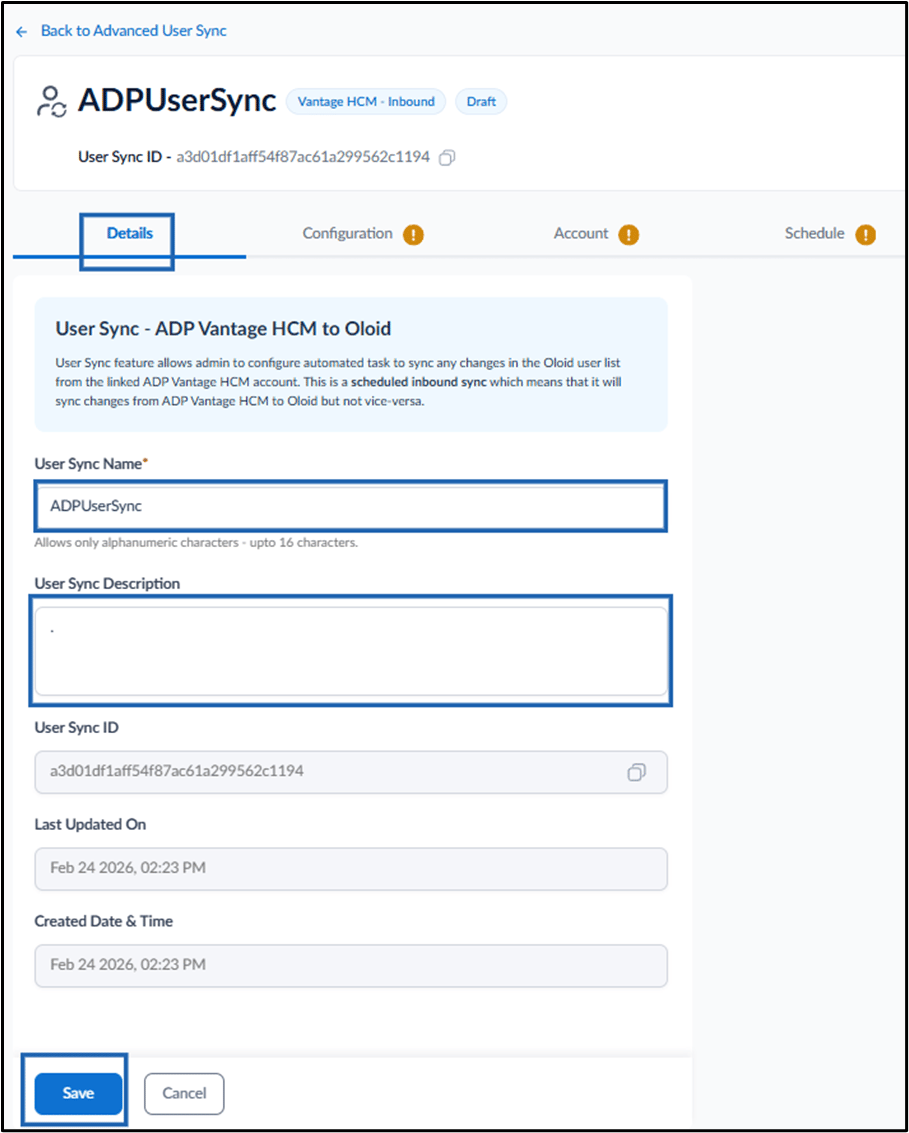
This tab is used to view and edit basic information about the Advanced User Sync. Do the following:- Update the User Sync Name (if required).
- Enter the User Sync Description (Optional).
- Click Save.
Setup Configuration Tab
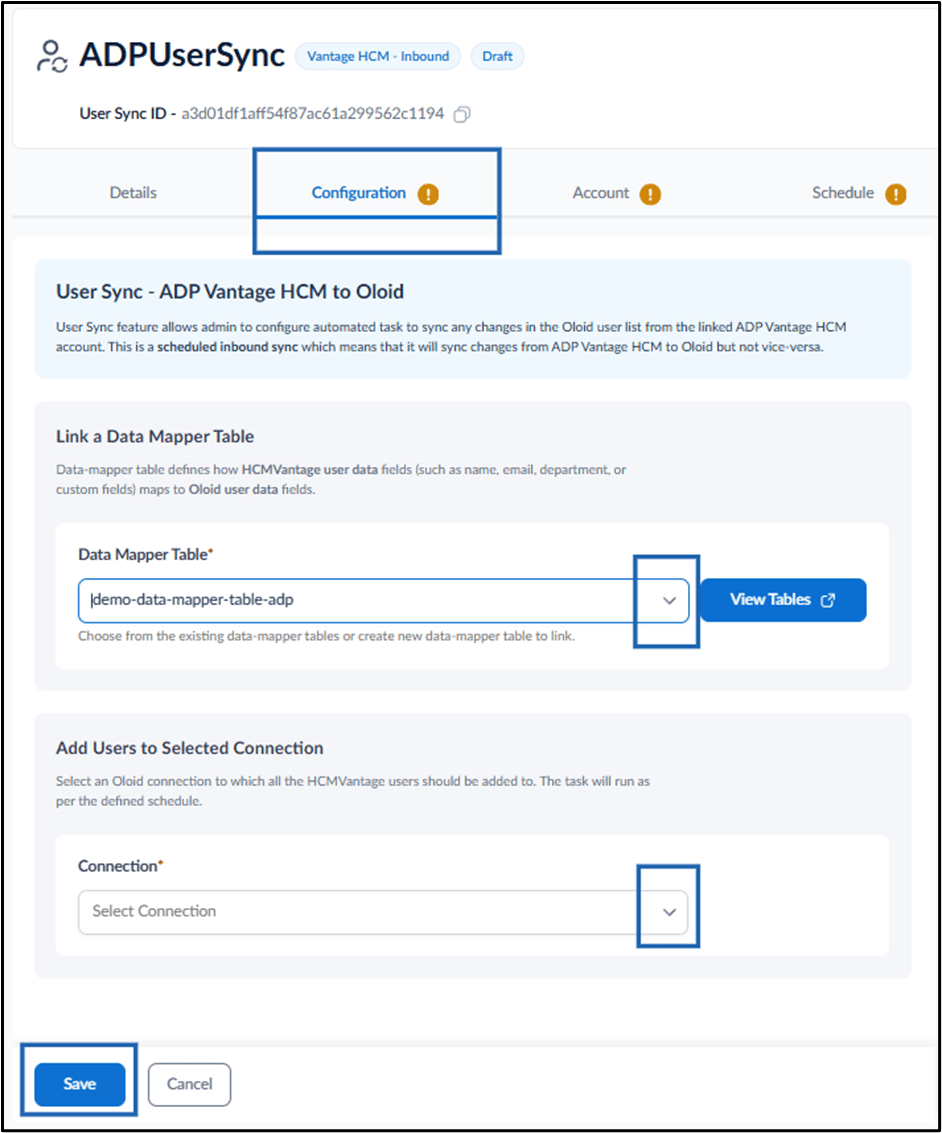
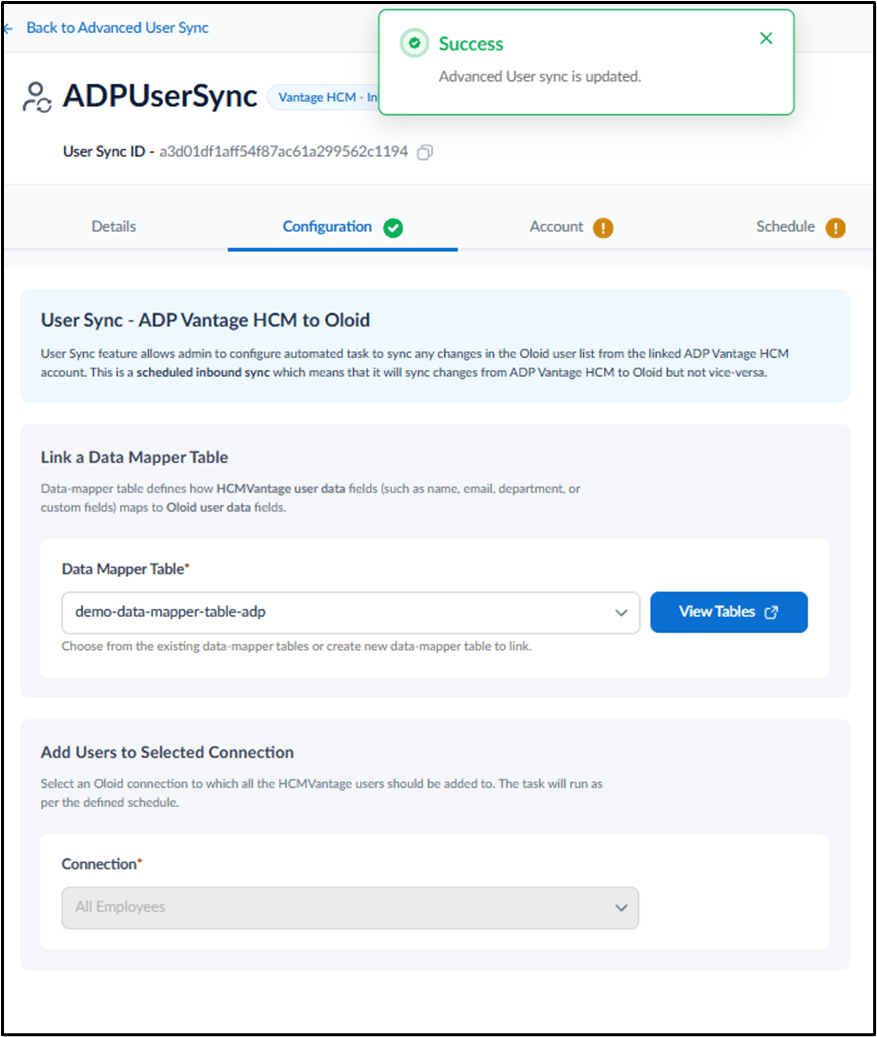
This tab is used to map user data from ADP Vantage HCM - Inbound to Oloid. Do the following:-
Select the Data Mapper Table from the drop-down.
Note: Click View Tables to review or create a data mapper table, if required.
- Select Connection from the drop-down.
-
Click Save.
Configure Account Tab
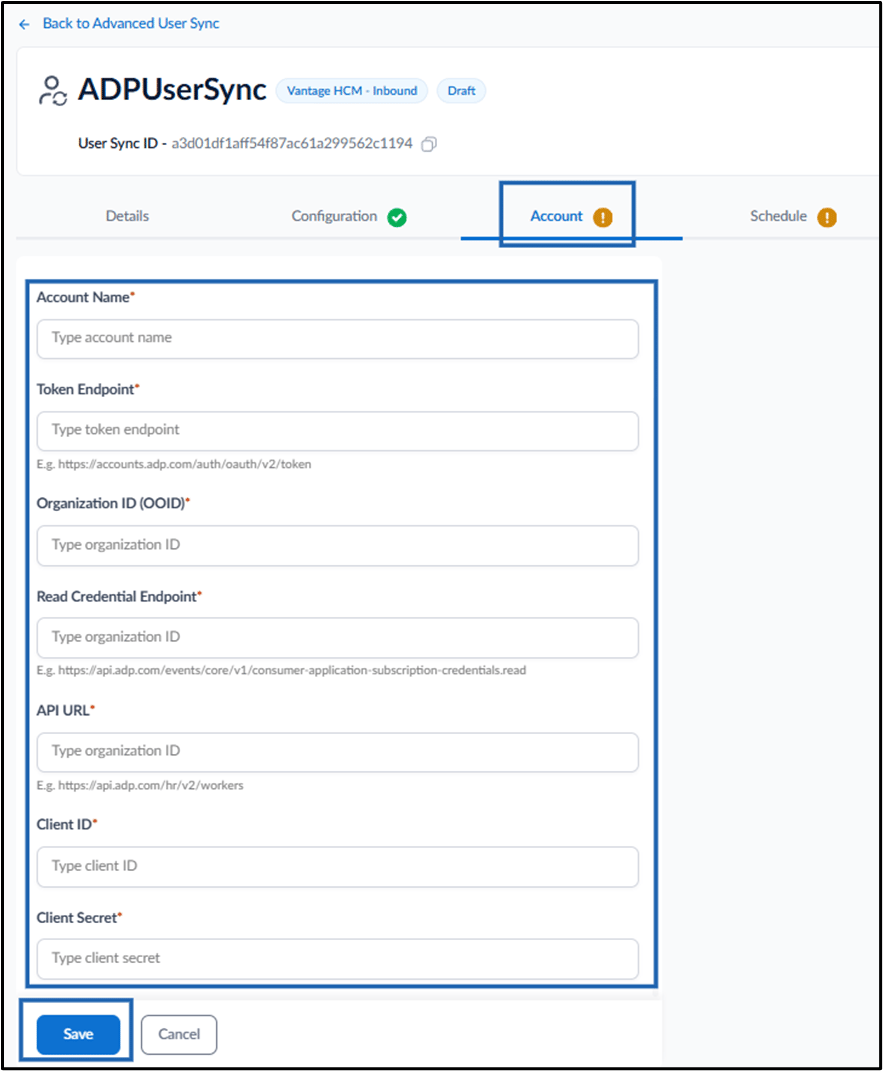
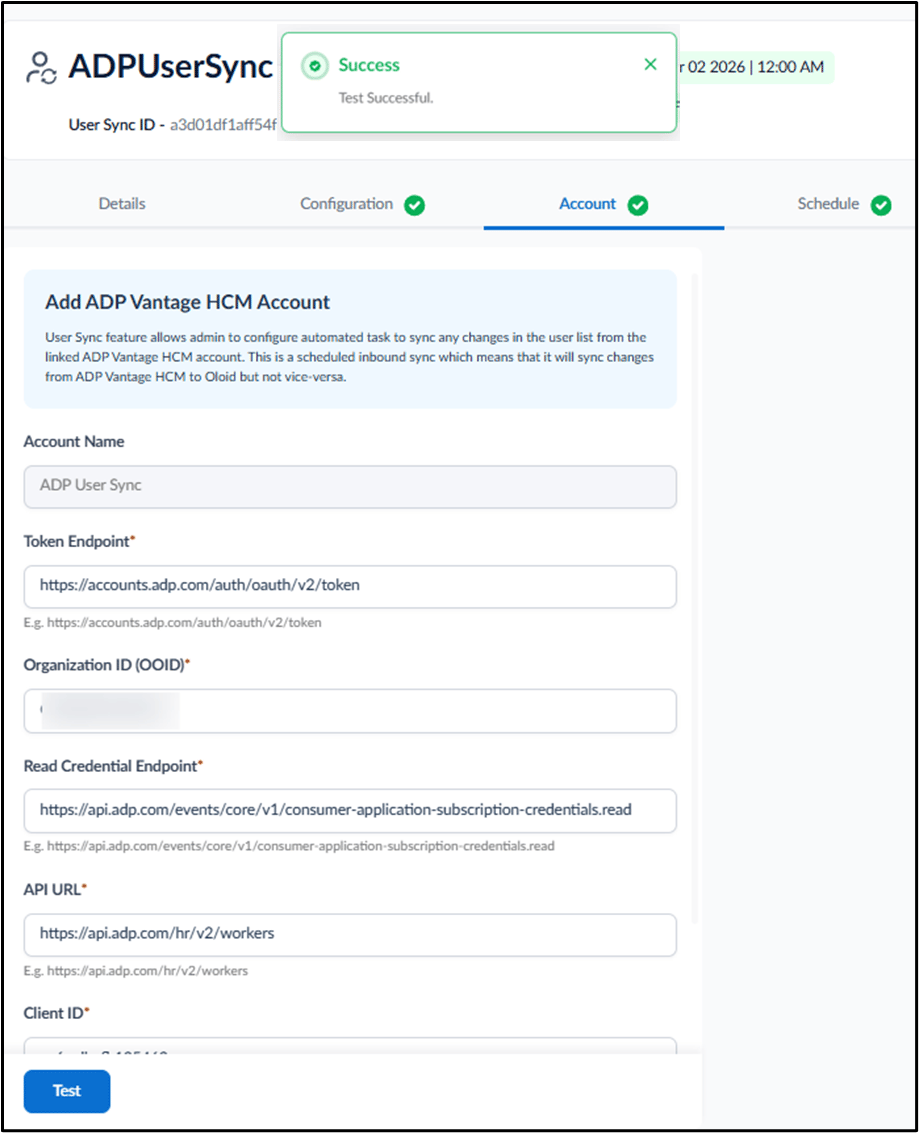
This tab is used to add and configure the ADP Vantage HCM - Inbound account details required for inbound user synchronization with Oloid. Do the following:- Enter Account Name.
- Enter Token Endpoint.
- Enter Organization ID (OOID).
- Enter Read Credential Endpoint.
- Enter API URL.
- Enter Client ID.
-
Enter Client Secret.
Note: Contact Oloid support for Organization ID, Client ID and Client Secret.
-
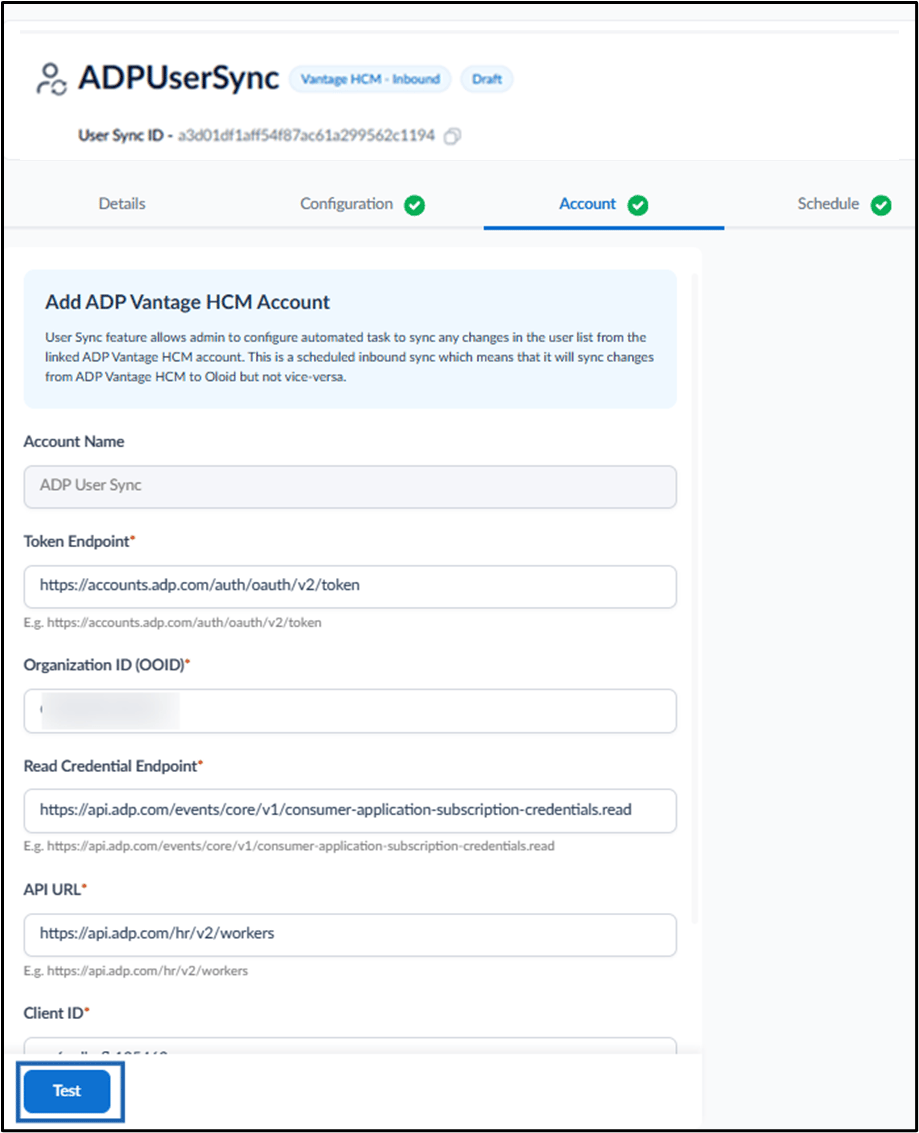
Click Test.
Configure Schedule Tab
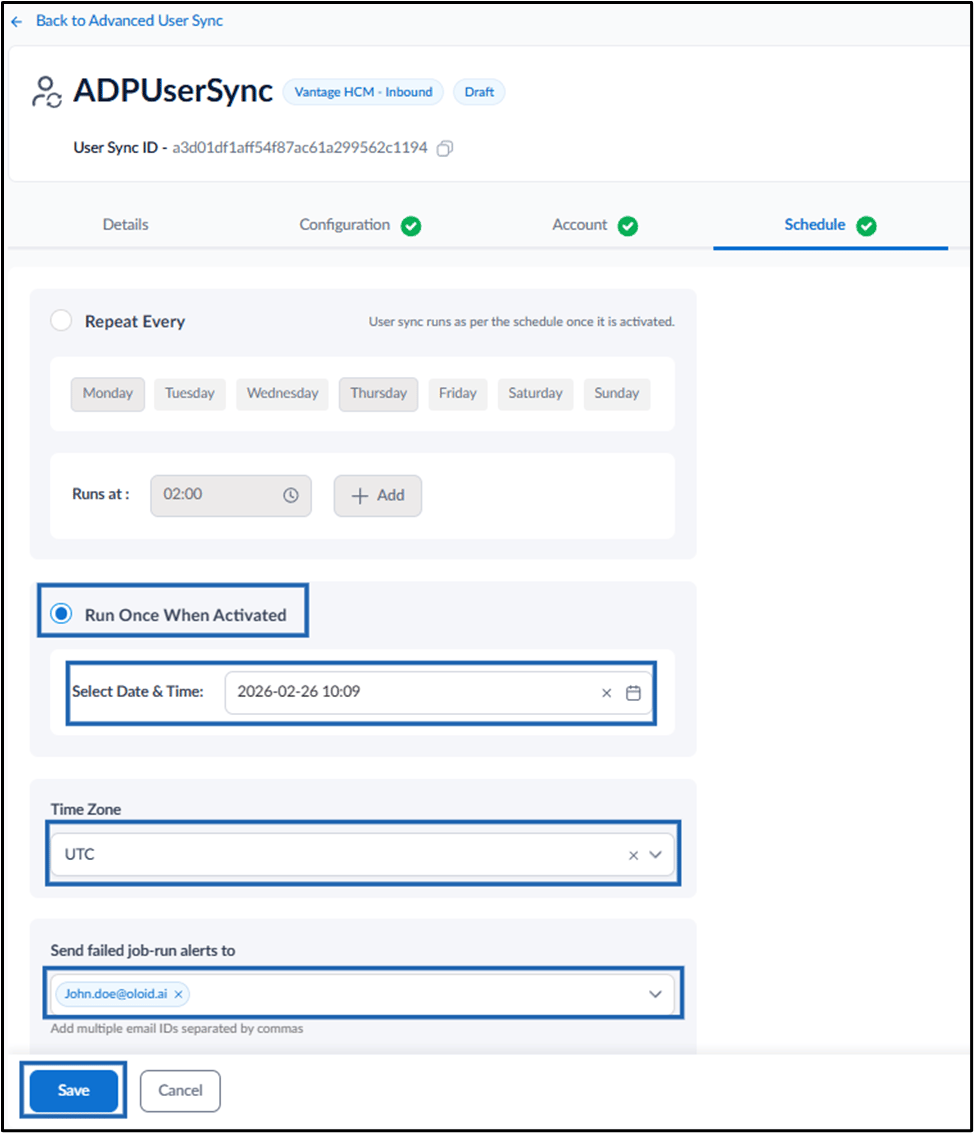
This tab is used to define when the ADP Vantage HCM - Inbound user sync runs. You can configure the sync to run on a recurring schedule or run once when the sync is activated. Do one of the following: Repeat Every OR Run Once When Activated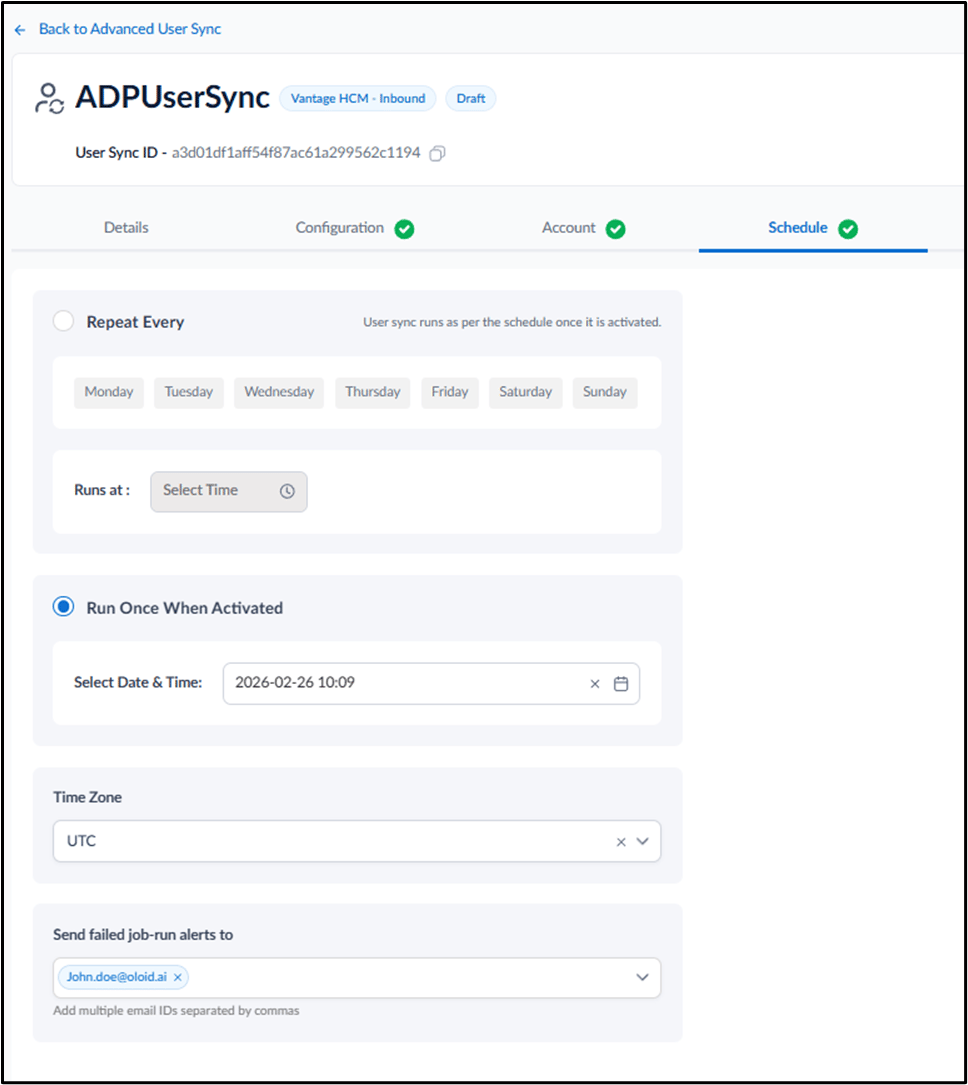
Repeat Every
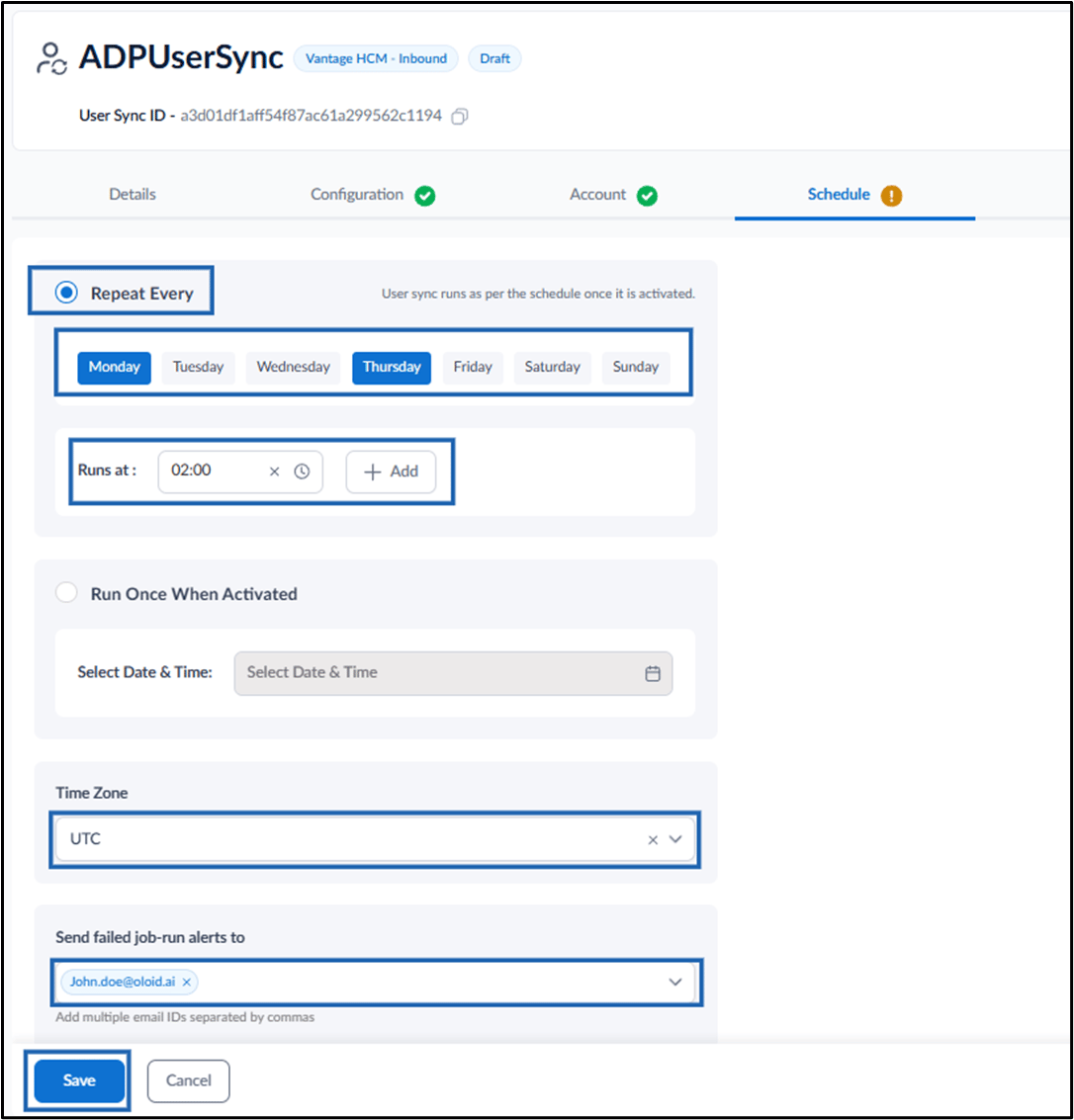
The Repeat Every section is used torun the user sync on selected days and times. Do the following:- Select Repeat Every.
-
Select the required day(s).
Note: You can select multiple days (if needed).
-
Select the run time in the Runs at field.
Note: You can add multiple execution time. To do, click +Add to configure additional run times, if required.
- Select Time Zone from the drop-down.
-
Enter email address(es) in the Send failed job-run alerts to field.
Note: Separate multiple email addresses with commas.
-
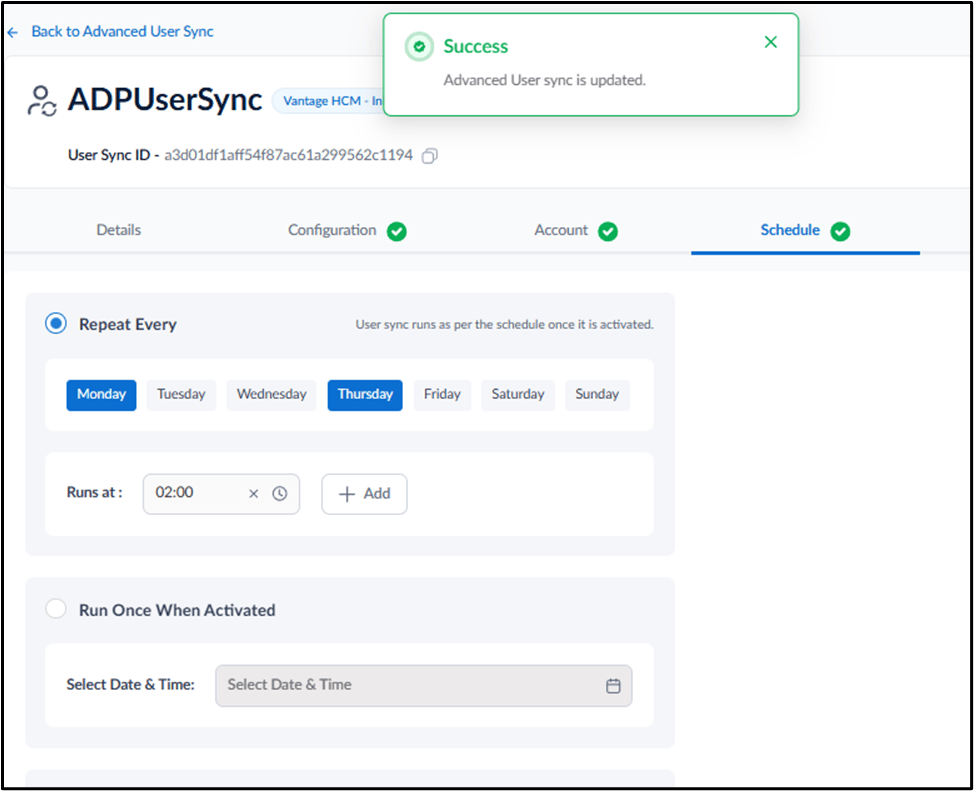
Click Save.
Run Once When Activated
The Run Once When Activated section is used to run the sync only once. Do the following:- Select Run Once When Activated.
- Select the date and time in the Select Date & Time field.
- Select Time Zone from the drop-down.
-
Enter email address(es) in the Send failed job-run alerts to field.
Note: Separate multiple email addresses with commas.
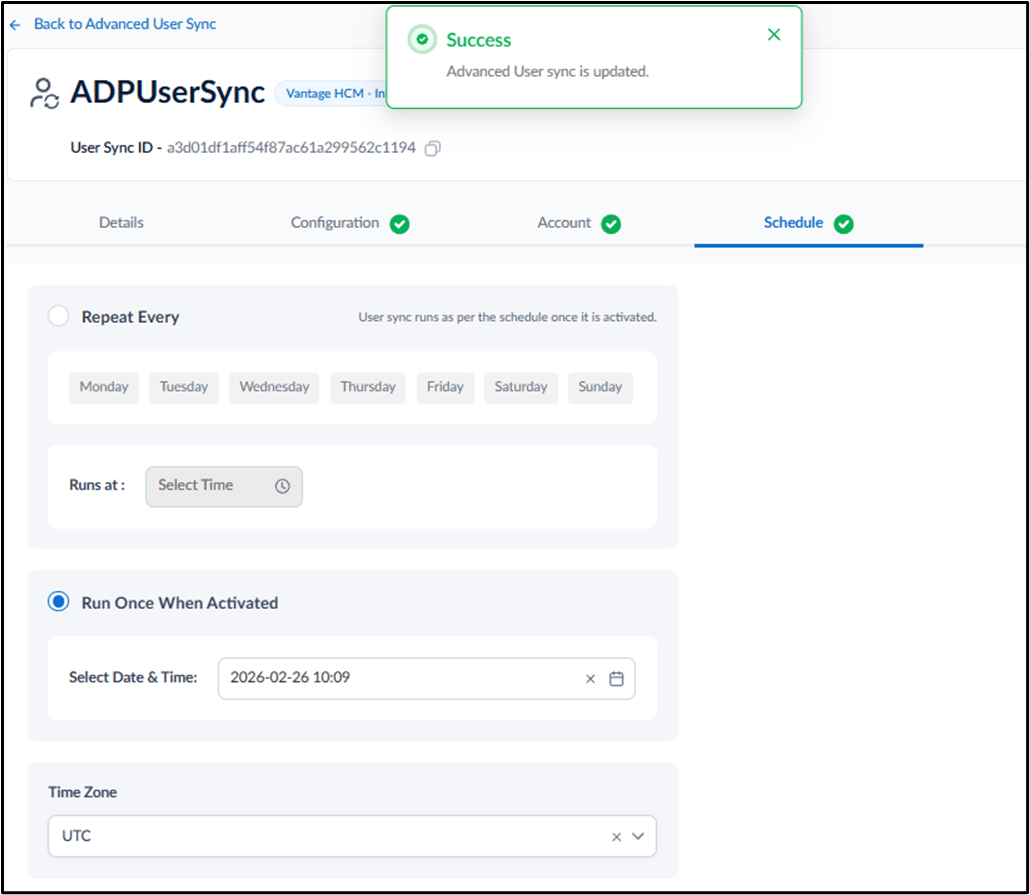
- Click Save.