

Introduction
This section explains how to create a Windows Login passwordless application in the Tenant Admin Portal and configure the required settings to enable secure user authentication on Windows endpoints.Prerequisite
You must have Tenant Admin Access.Steps to create and configure Windows Login application
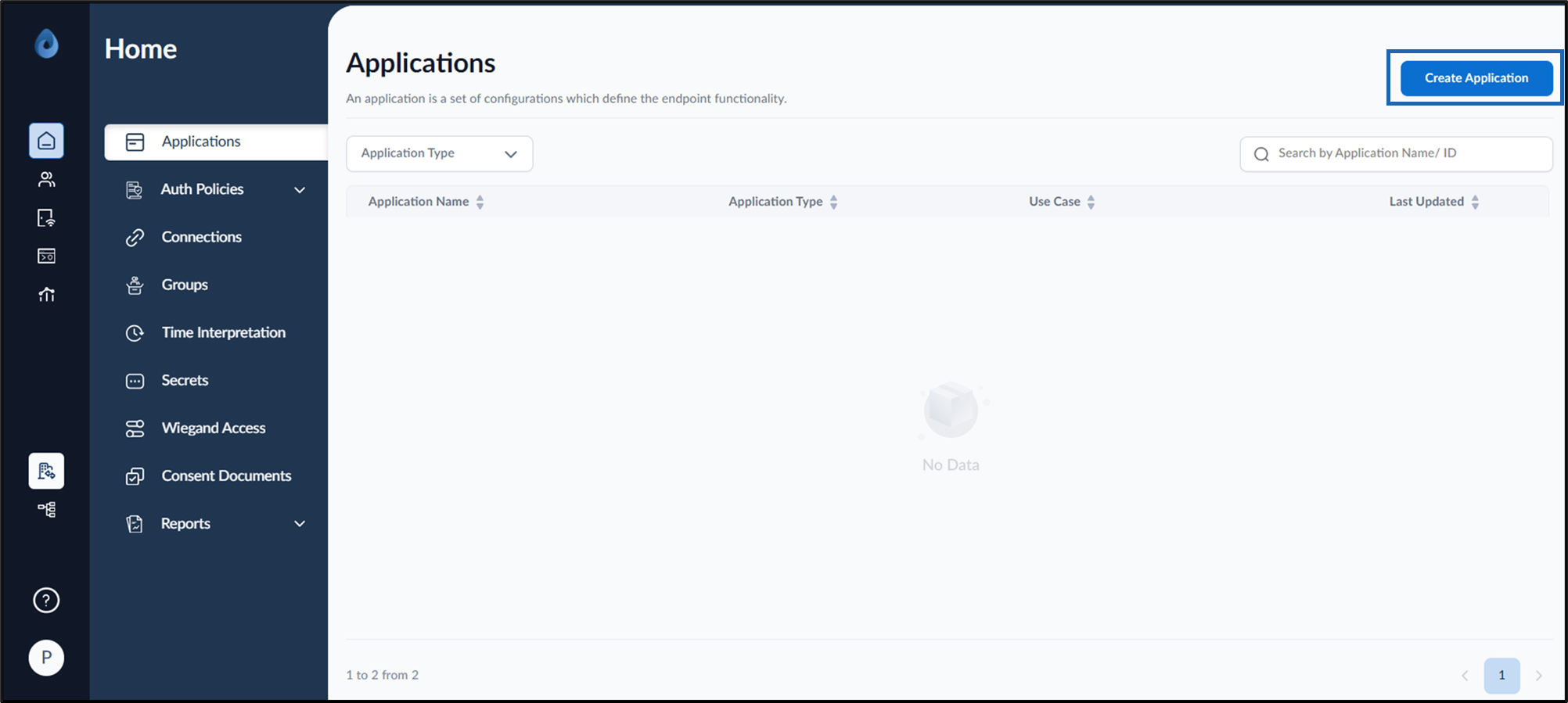
- Log in to the Tenant Admin Portal.
- On the Applications page, click Create Application in the top right corner.
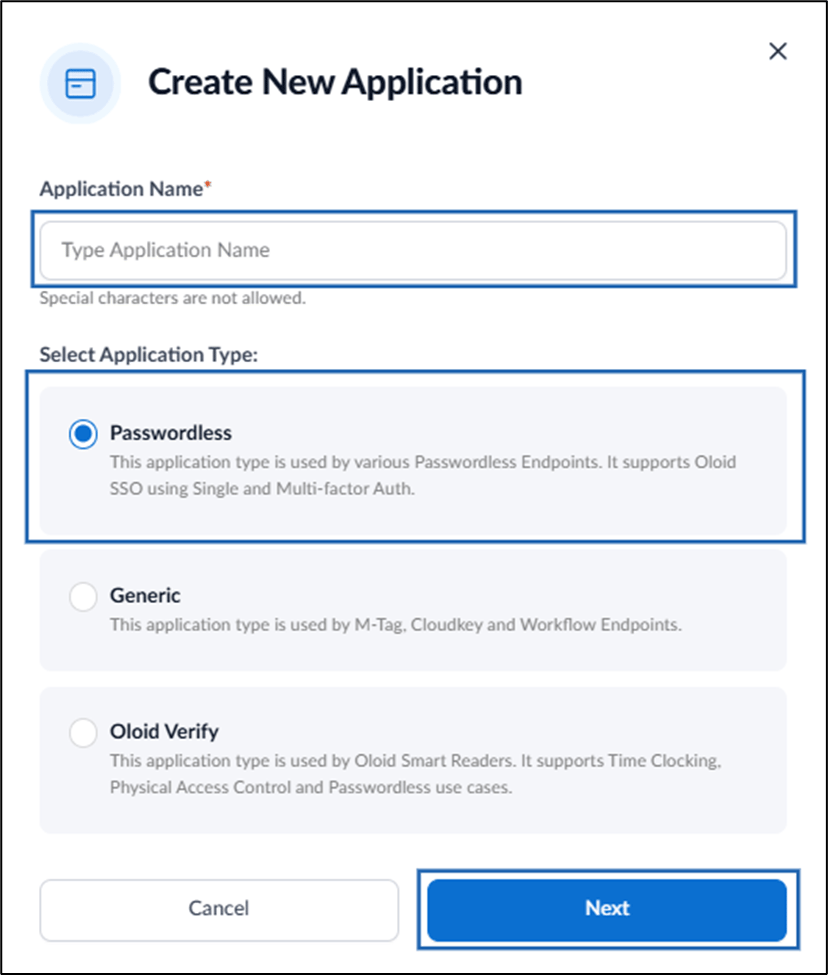
- Do the following:
- Enter Application Name.
- Select Application Type as Passwordless.
- Click Next.
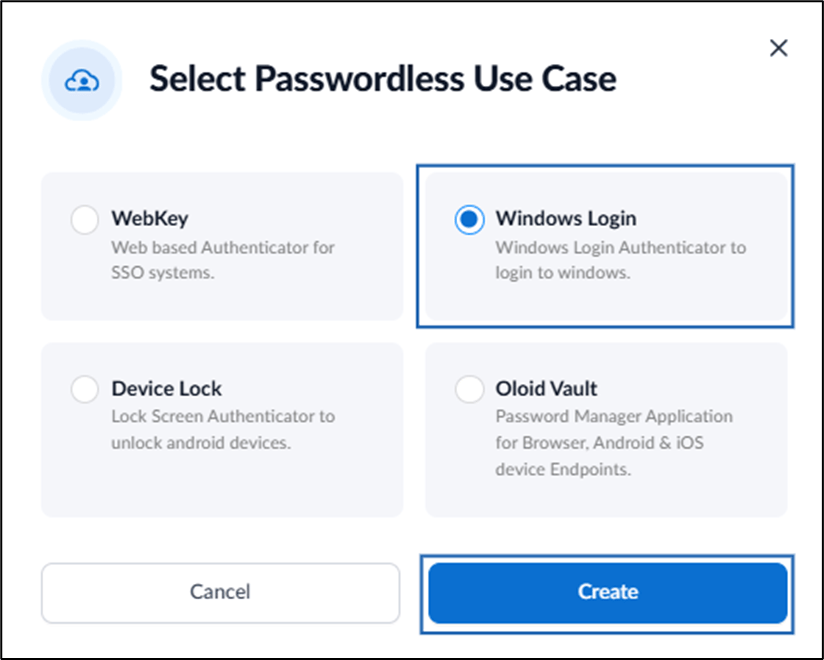
- Select Windows Login > click Create.
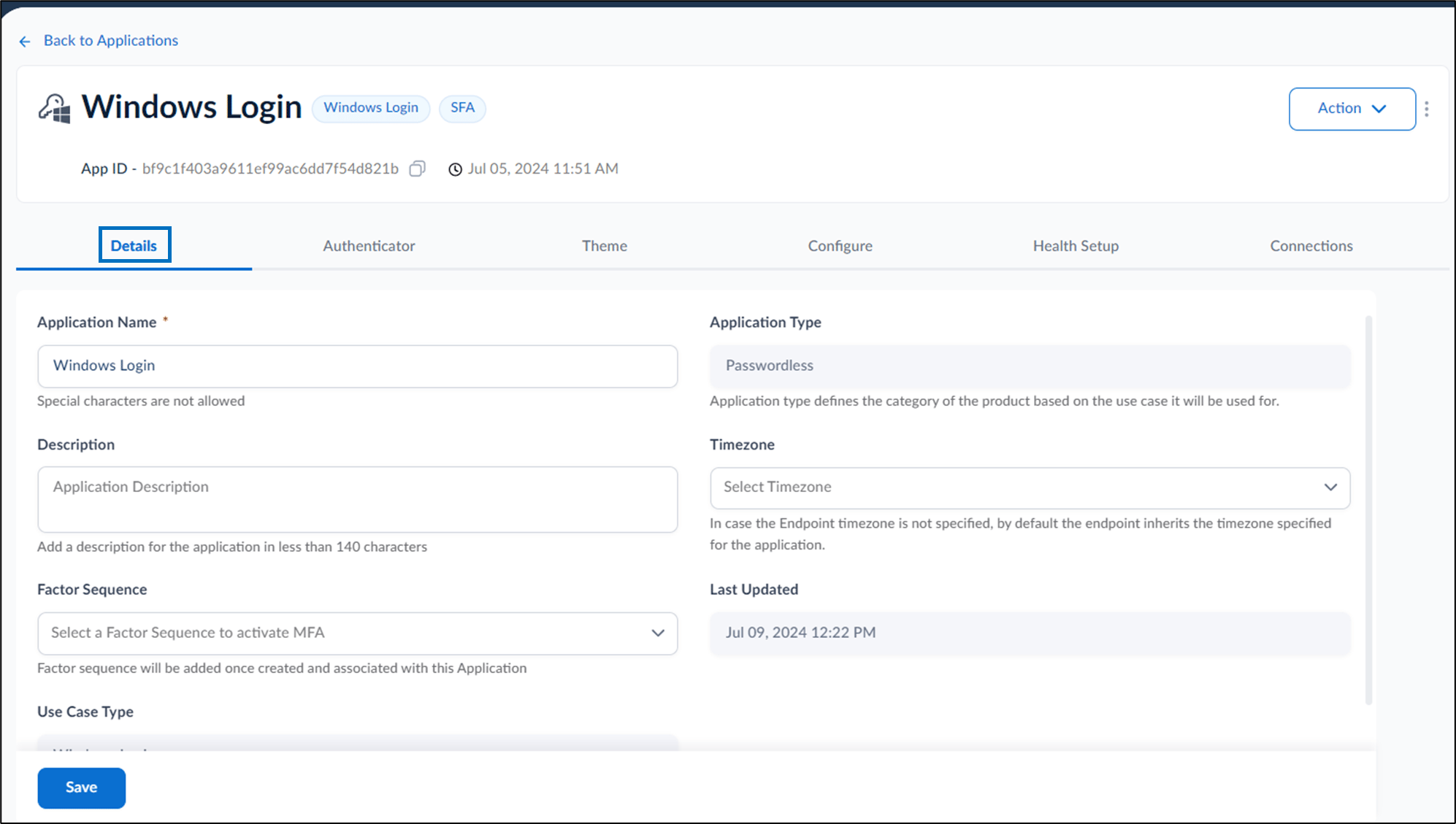
- Configure the following:
- Details tab
- Authenticator tab
- Theme tab
- Configure tab
- Health Setup tab
- Connections tab
Note: These are one-time settings and all the default settings are recommended.
Configure Details Tab
-
Modify Application Name (if required).
Note: Special characters are not allowed in Application Name.
-
Add Description. (Optional)
Note: The description should be less than 140 characters.
- Select your Timezone based on your country and region from dropdown list. (Coming Soon)
- Select Factor Sequence from drop down list to activate Multi-Factor Authentication (MFA) for the Application’s Endpoints. (Coming Soon)
Configure Authenticator Tab
You may enable username and one or more credential options based on your requirements.Enable Username
Emp ID/Primary ID: Enable this option to prompt the user to enter their Employee ID or Primary ID before authentication.- (Optional) In the Custom Label field, enter a label that appears on the login screen instead of Emp ID / Primary ID.
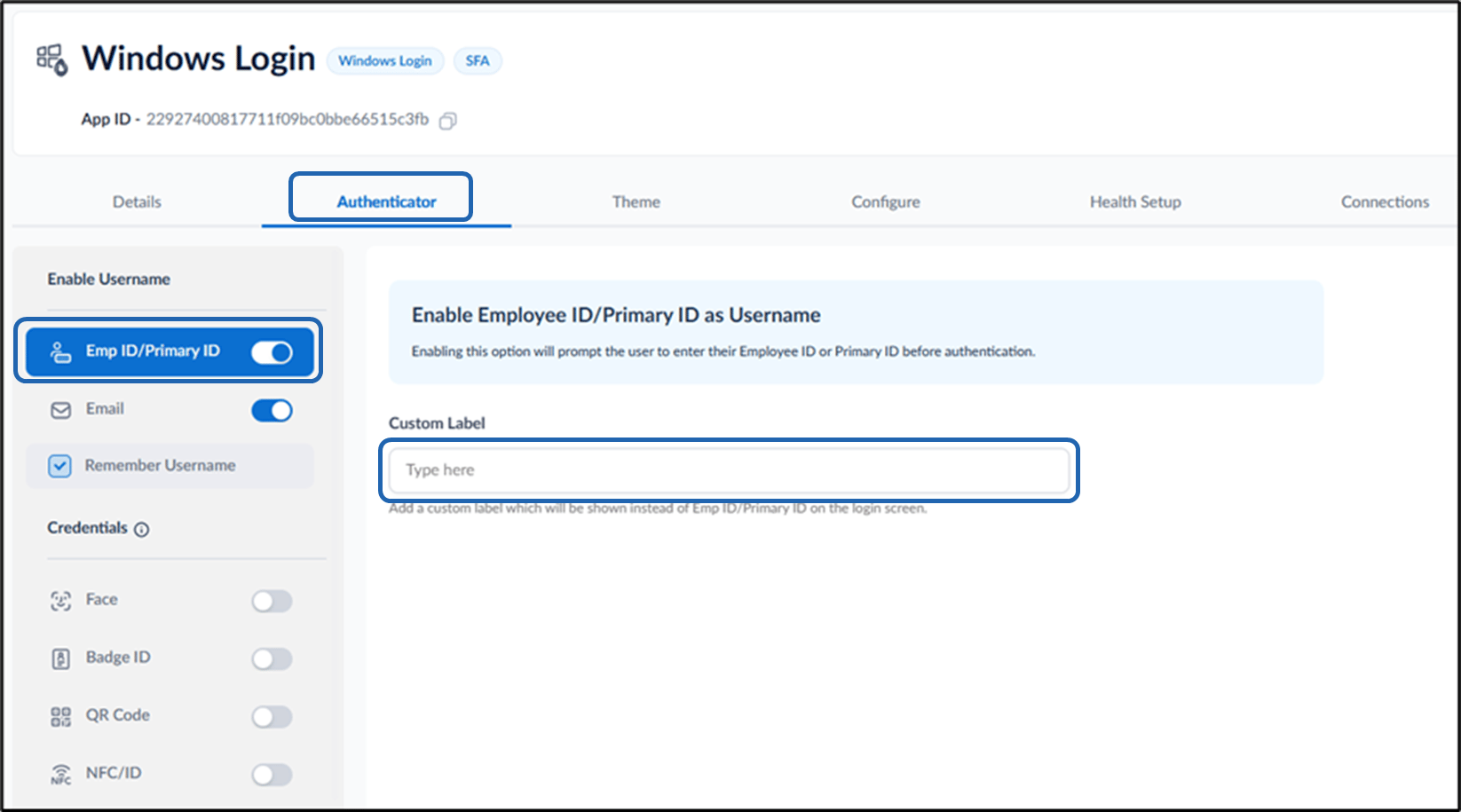
- Select the Remember Username checkbox to save the user after the first login. Next time, the app skips the ID entry screen and opens the authentication screen directly.

Configure Credentials
Face
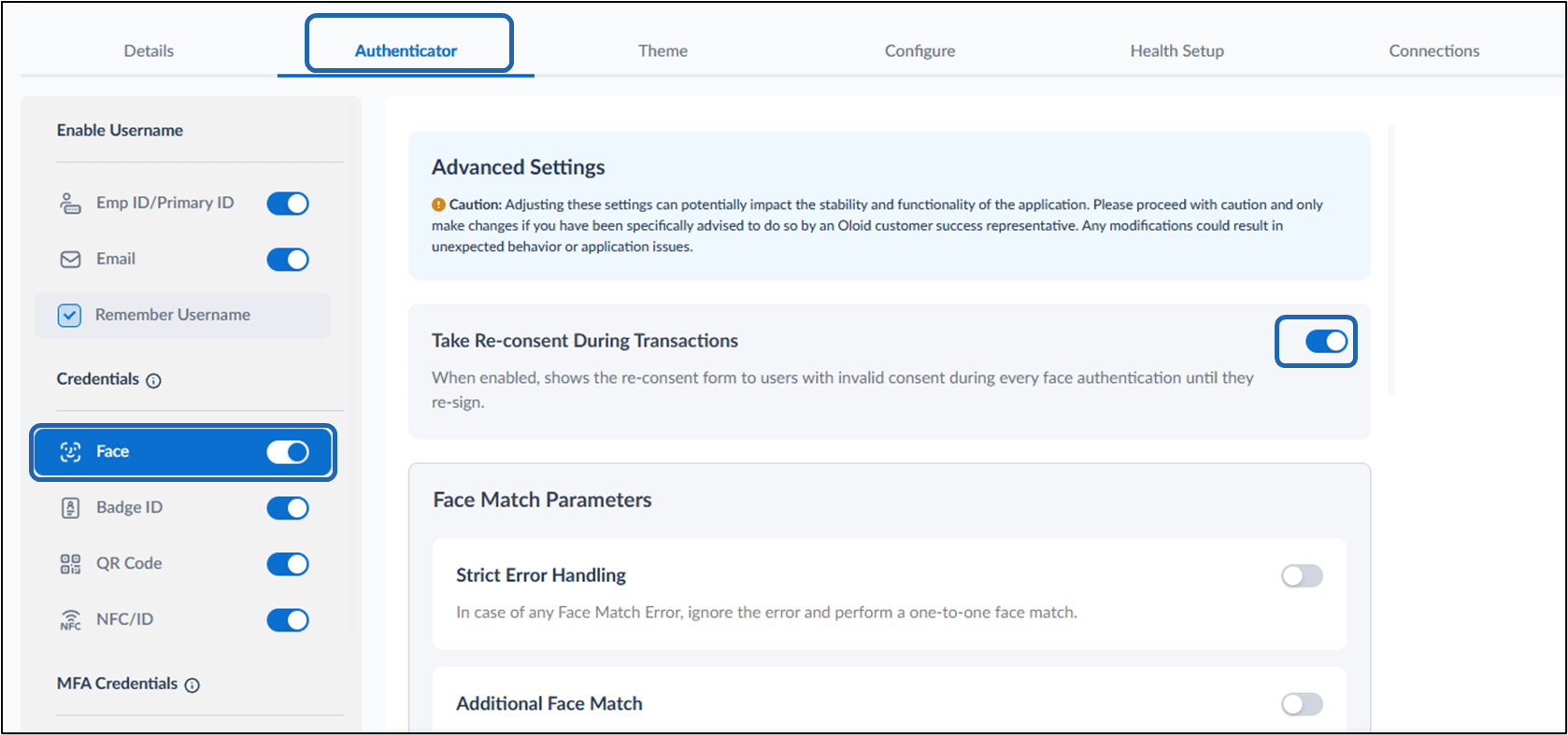
Do the following:- To use face as credential, enable Face option.
The Advanced Settings page is displayed.
- Enable the Take Re-consent During Transactions Toggle.
- Take Re-consent During transactions: When enabled, shows the re-consent form to users with invalid consent during every face authentication until they re-sign.
- Configure Face Match Parameters, and Liveliness Check Parameters on the Advanced Settings page. For more, refer to How to configure Face credential for Windows Login Application in the Tenant Admin Portal
Badge ID
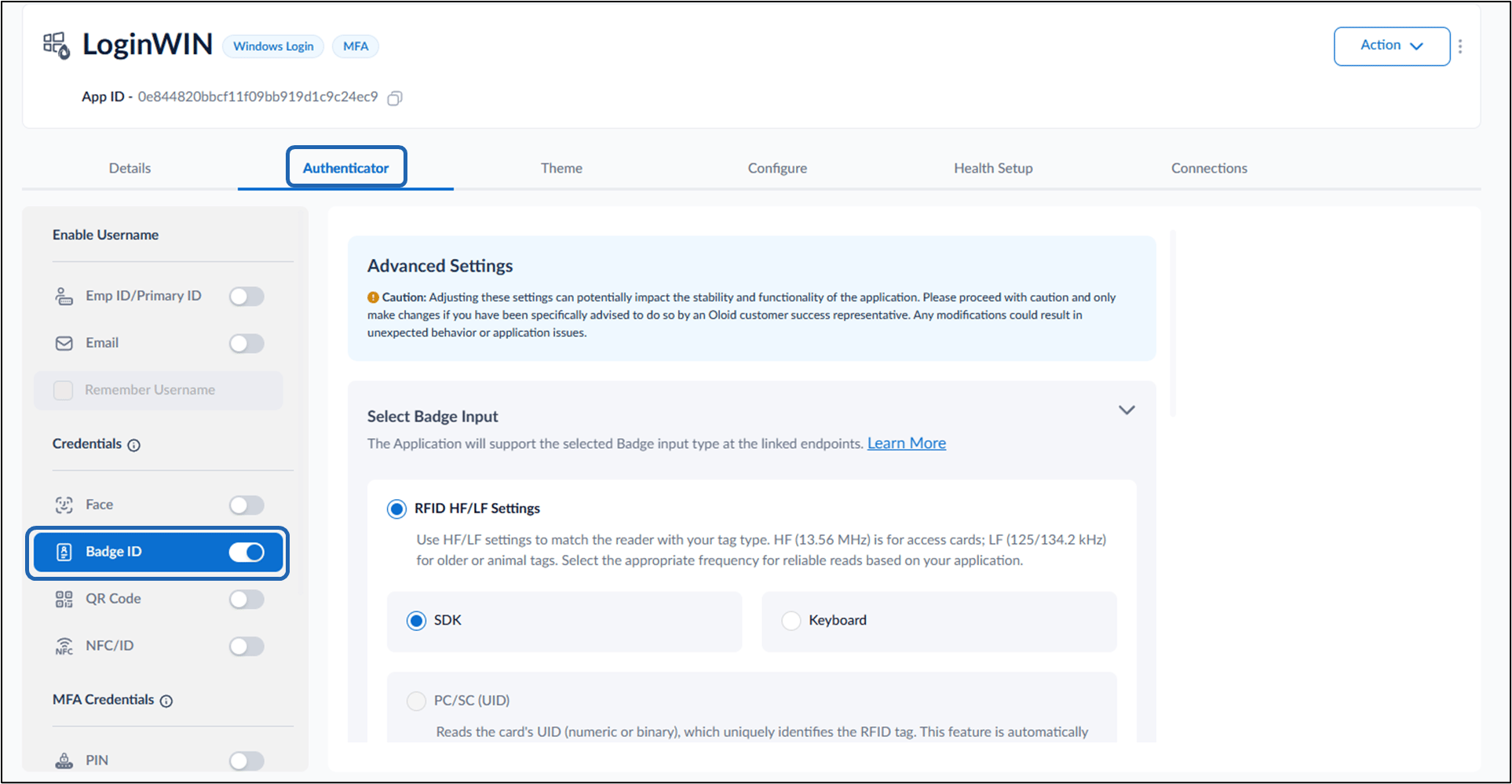
To use Badge ID as credential, enable Badge ID.- To configure Select Badge Input refer to: How to Configure Badge ID for Windows Login Application
- Configure Badge Auth Source refer to: How to configure Badge Auth Source in Windows Login Application
QR Code
To use QR Code as credential, enable QR Code for multi-factor authentication to sign into Windows Login application. For more, refer to How to enable QR Code credential for Windows Login application in the Tenant Admin Portal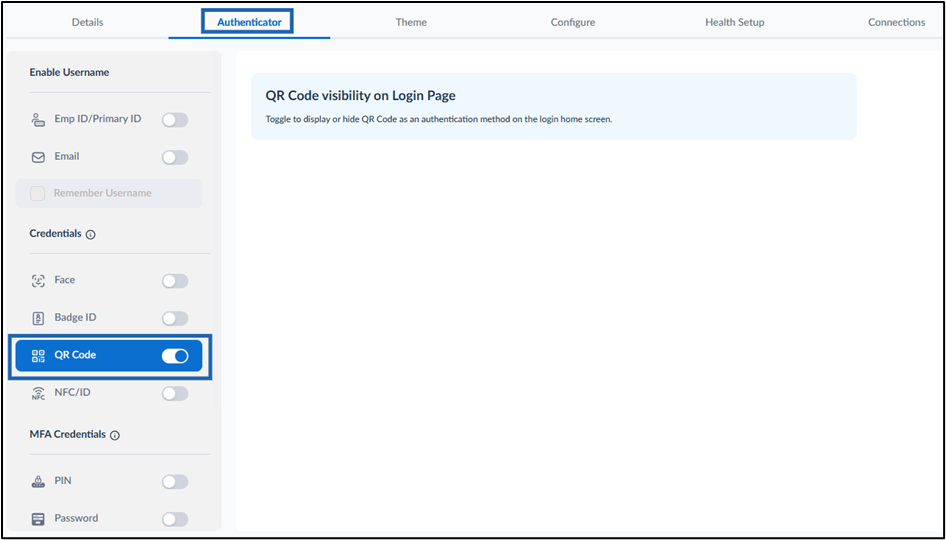
NFC/ID
To use NFC/ID credential, enable NFC/ID to sign into Windows Login application. For more, refer to How to enable NFC/ID credential for Windows Login application in the Tenant Admin Portal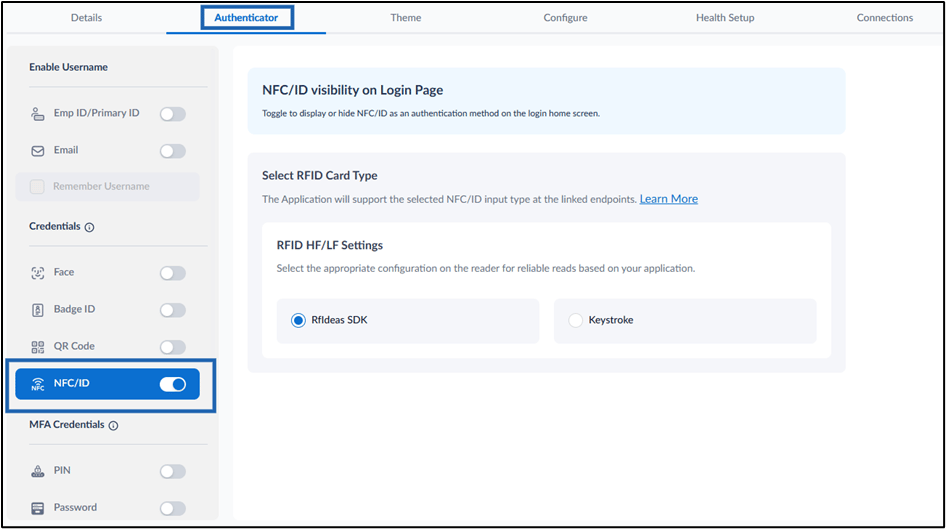
Configure MFA Credentials
PIN
To use PIN as credential, enable PIN for multi-factor authentication to sign into Windows Login application. For more, refer to: How to enable and configure PIN credential for Windows Login application in the Tenant Admin Portal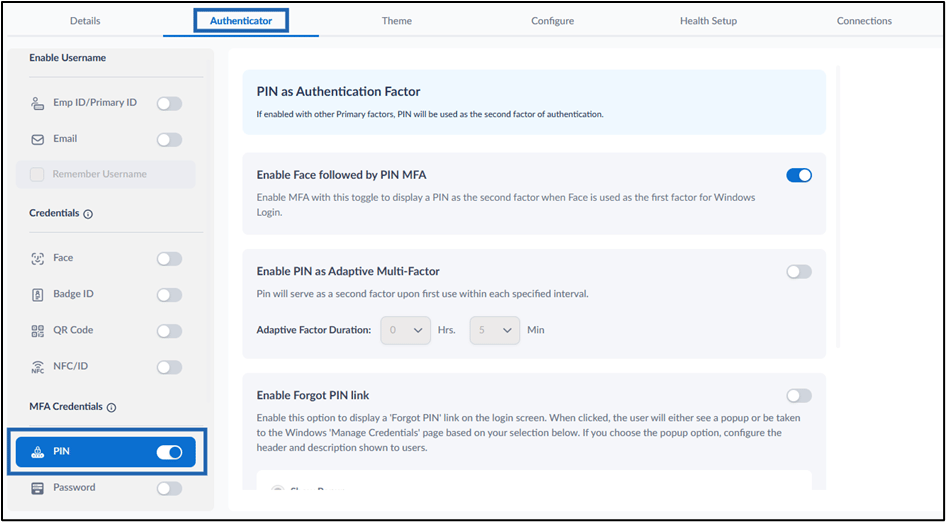
Password
To use Password as credential, enable Password for multi-factor authentication to sign into Windows Login application. For more, refer to: How to configure Password credential in Windows Login Application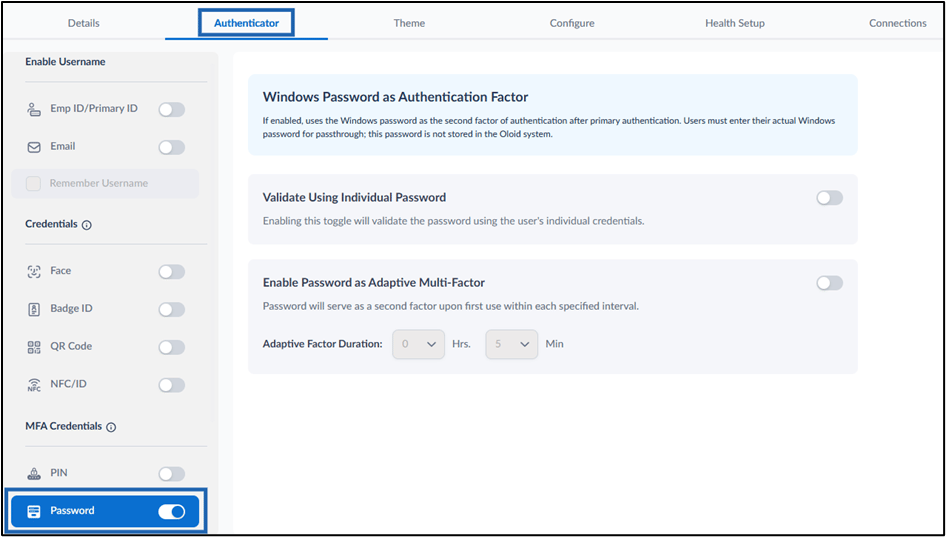
Duo
To use Duo as credential, enable Duo for multi-factor authentication to sign into Windows Login application. For more, refer to: How to enable Duo MFA credential for Windows Login Application in the Tenant Admin Portal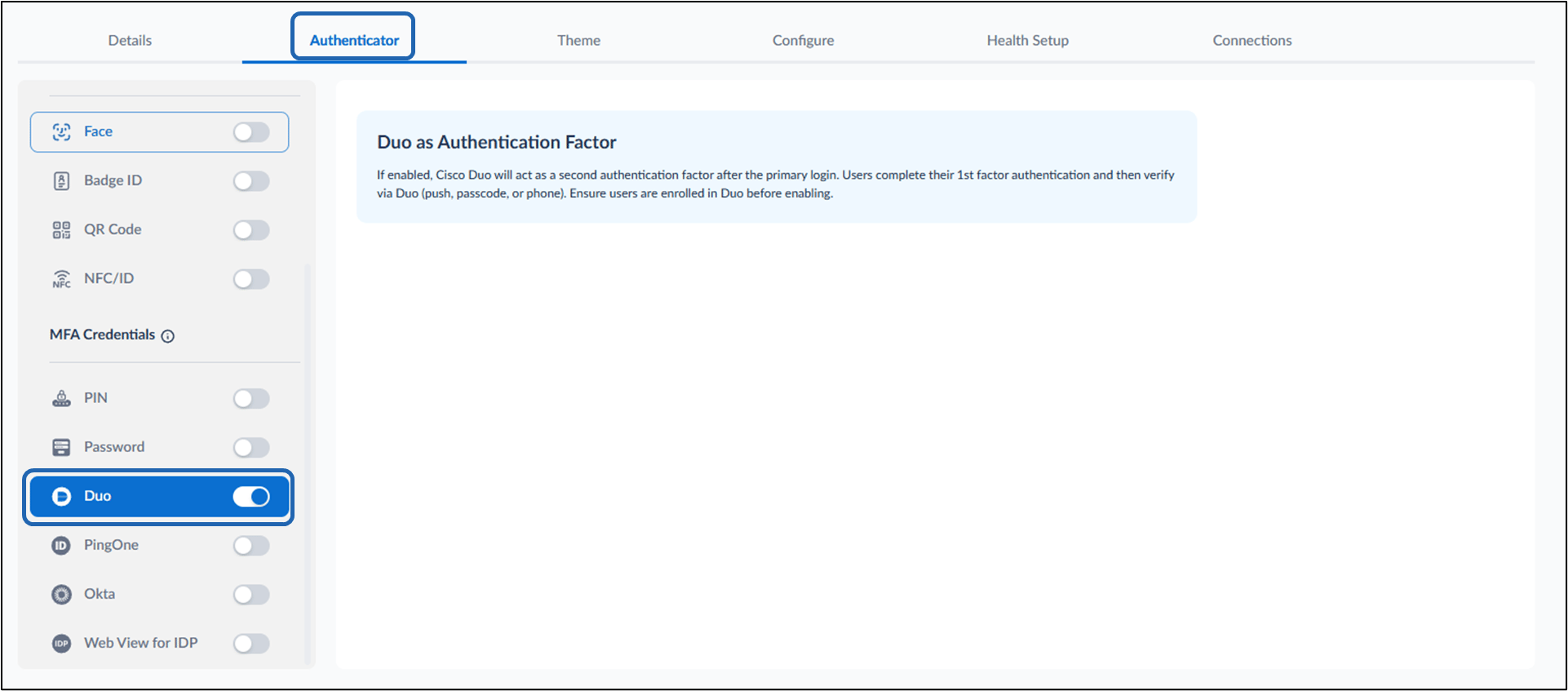
PingOne
To use PingOne as credential, enable PingOne for multi-factor authentication to sign into Windows Login application. For more, refer to: How to Enable PingOne Multi Factor Authentication (MFA) for Windows Login Application in the Tenant Admin Portal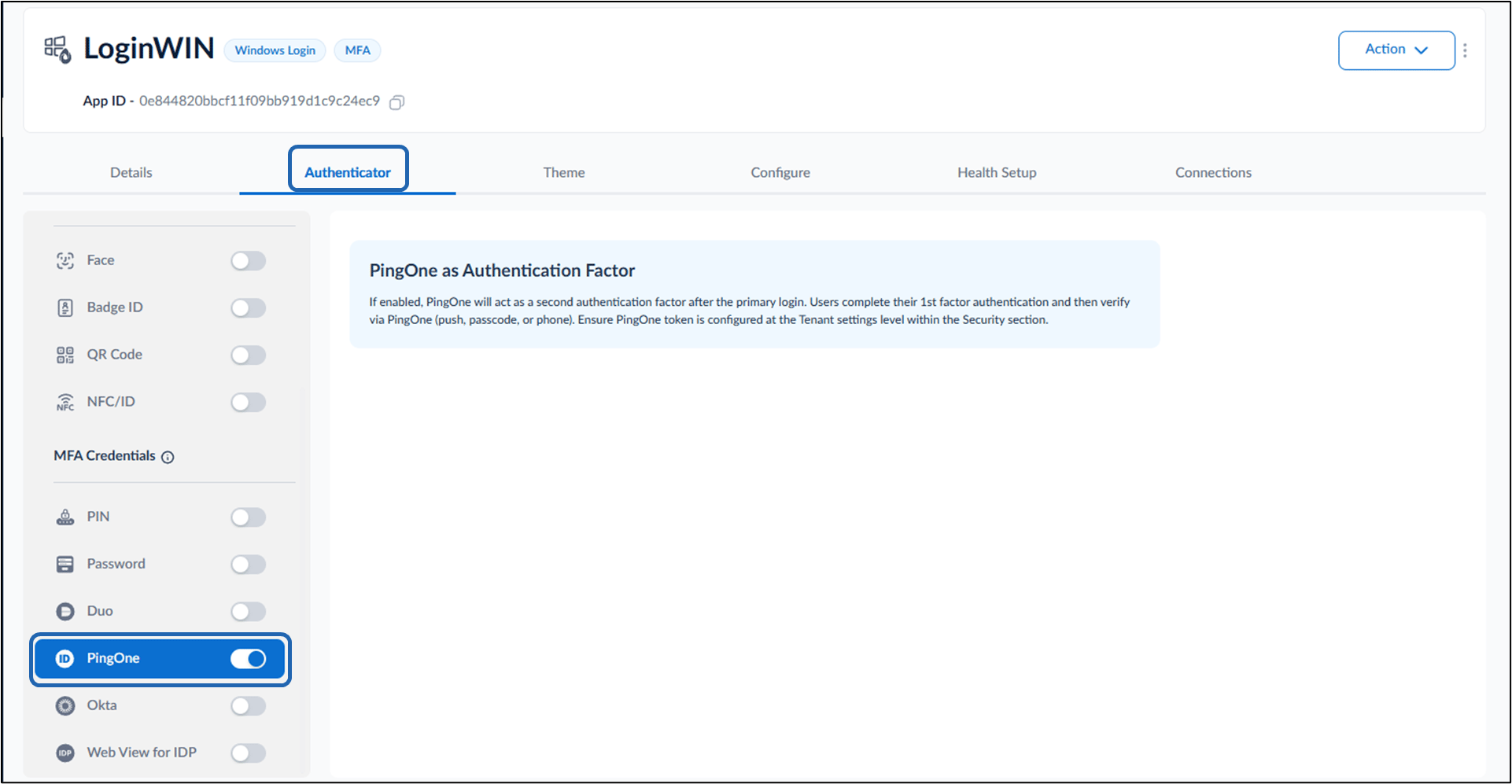
Okta
To use Okta as credential, enable Okta for multi-factor authentication to sign into Windows Login application. For more, refer to: How to Enable OKTA Multi-Factor Authentication (MFA) Credential for Windows Login Application in the Tenant Admin Portal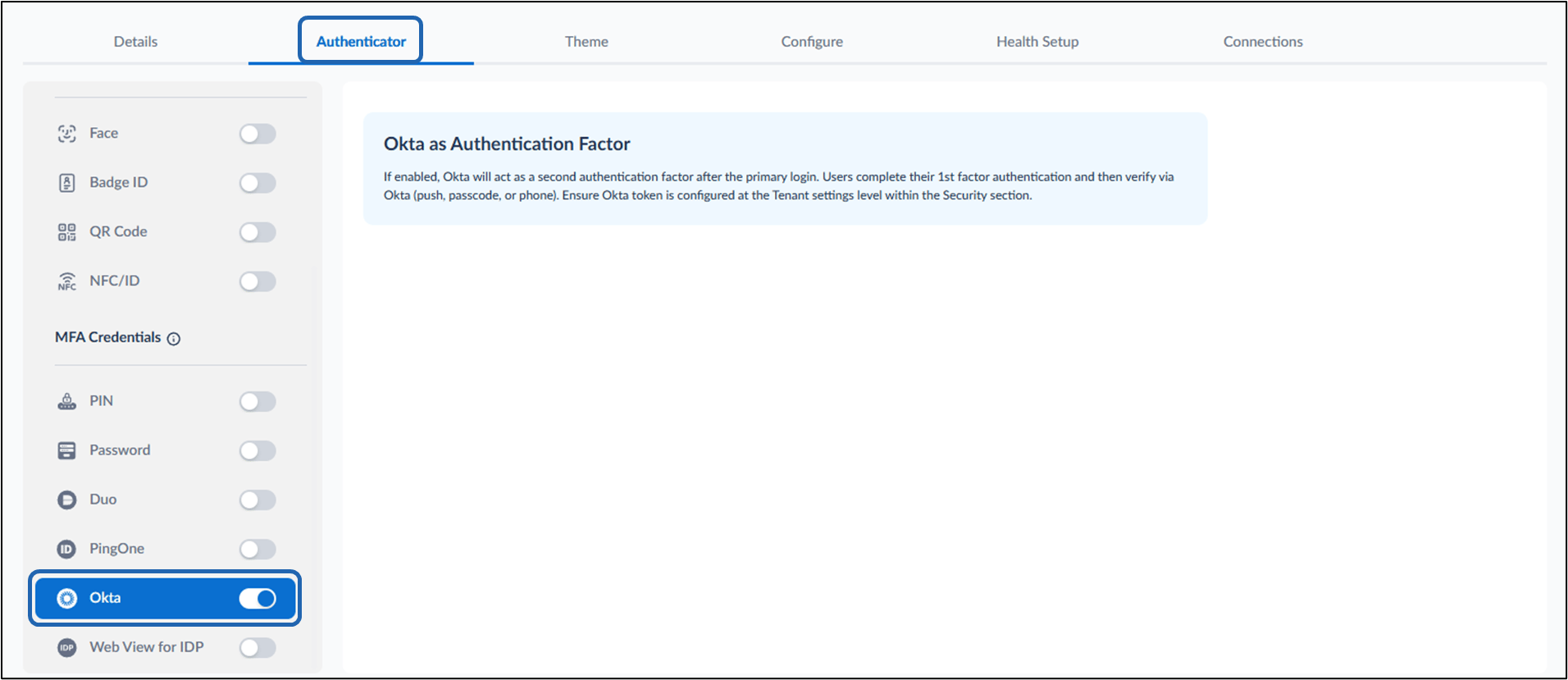
Configure Theme Tab
You can customize theme of your login page of the Windows Login application by following the onscreen instructions. Refer How to Edit Theme tab for Windows Login Application in the Tenant Admin Portal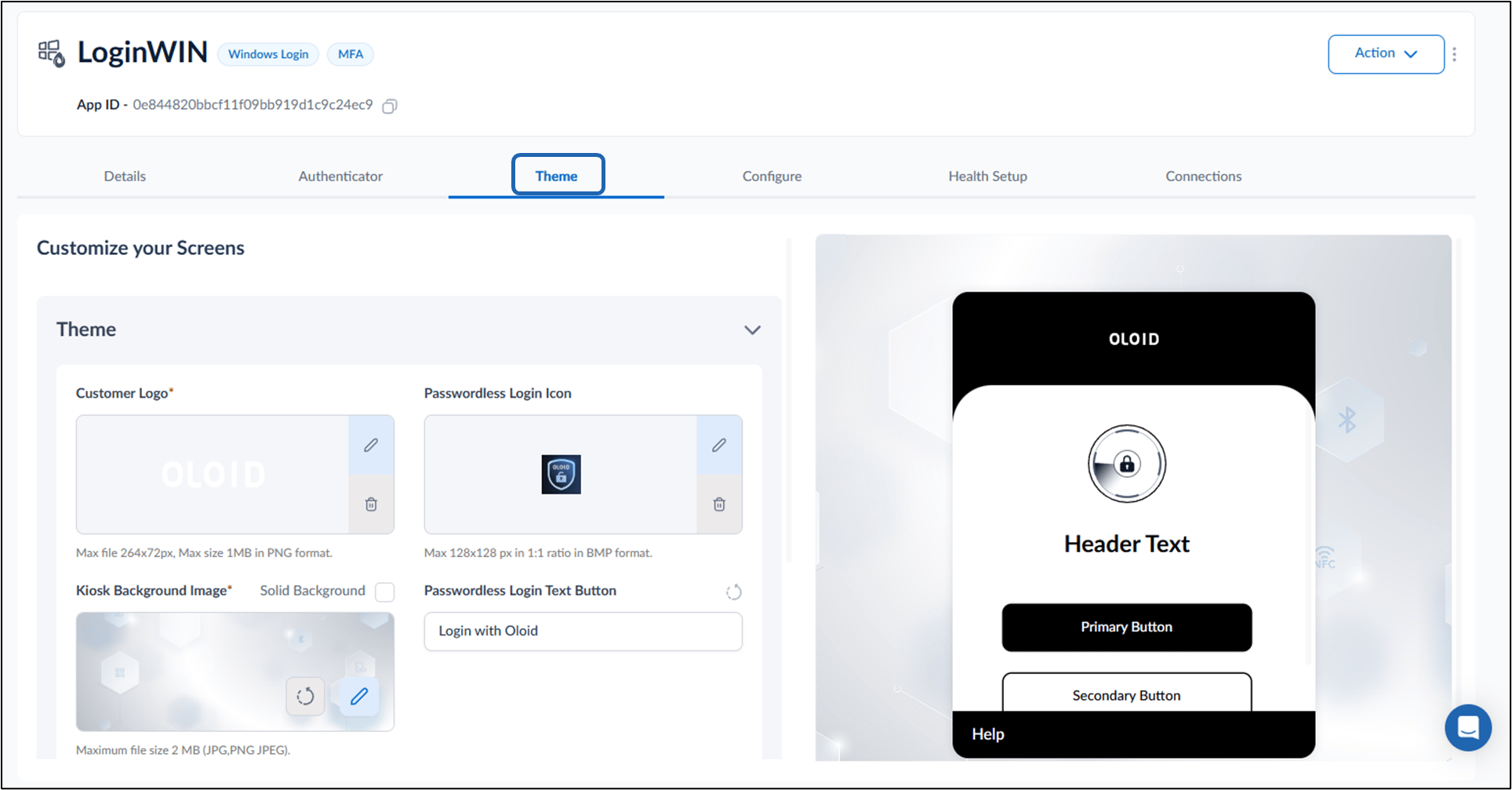
Design Configure Tab
Do the following:- Configure Settings tab
- Configure rf IDEAS tab
- Configure Epic EHR
- Configure Customize Buttons
- Configure Auto Updates
Configure Settings Tab
- Enable Auto Launch Mode: Select this option to auto-launch the Windows Login app in the login screen.
- Set Time-Out for Login Screen: Select this option to allow users to configure the maximum time the system will wait on the login screen before timing out.
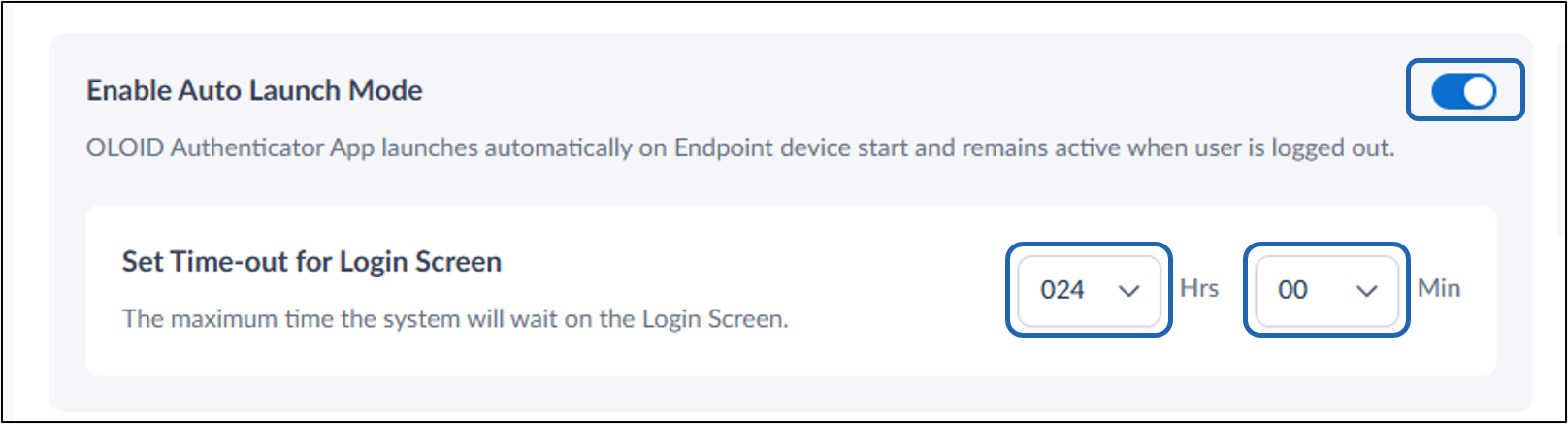
- Set Time-Out for Login Screen: Select this option to allow users to configure the maximum time the system will wait on the login screen before timing out.
- Use Groups for Authorization: Coming Soon
- Validate Windows Credential: Select this option to ensure Oloid Agent checks the validity of the user’s Windows credentials before logging in.

- Enable Passkey: Turn on Enable Passkeys toggle button to allow users to log in using Passkey credential.

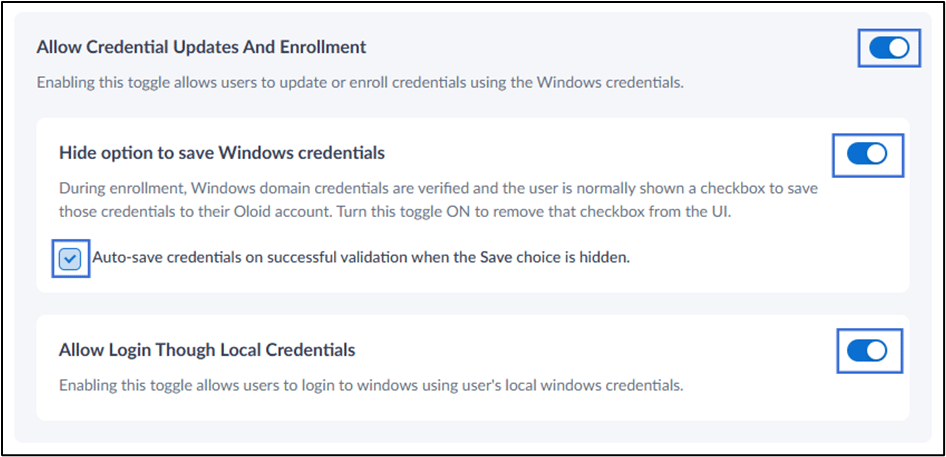
- Allow Credential Updates and Enrollment: Select this option to allow users to self-enroll or update their credentials.
- Enable Hide Option to Save Windows Credentials toggle to hide the Save credentials option from the enrollment screen after Windows domain credentials are validated.
- Select Auto-save credentials on successful validation when the Save choice is hidden checkbox to automatically save validated Windows credentials to the user’s Oloid account when the Save credentials option is hidden.
- Enable Allow Login Through Local Credentials to allow users to log in to Windows using their local Windows credentials. For more, refer to How to Configure Allow Login Through Local Credentials
- Capture Windows User Events: Select this option to capture Windows events for user logins, logouts, locks, unlocks, and credential provider details. All captured data is stored in the transaction tab.

- Enable Auto-recover Endpoint to automatically validate and sync the endpoint configuration during login module launch.

- Enable Manual Capture Accessibility: Turn on this option to allow users to manually capture their face during face authentication.

- Enable Auto Authentication of Oloid Apps Using Oloid Session toggle.
Enabling this toggle will allow user to auto-authenticate the user using the Windows session, into Oloid apps after device login.

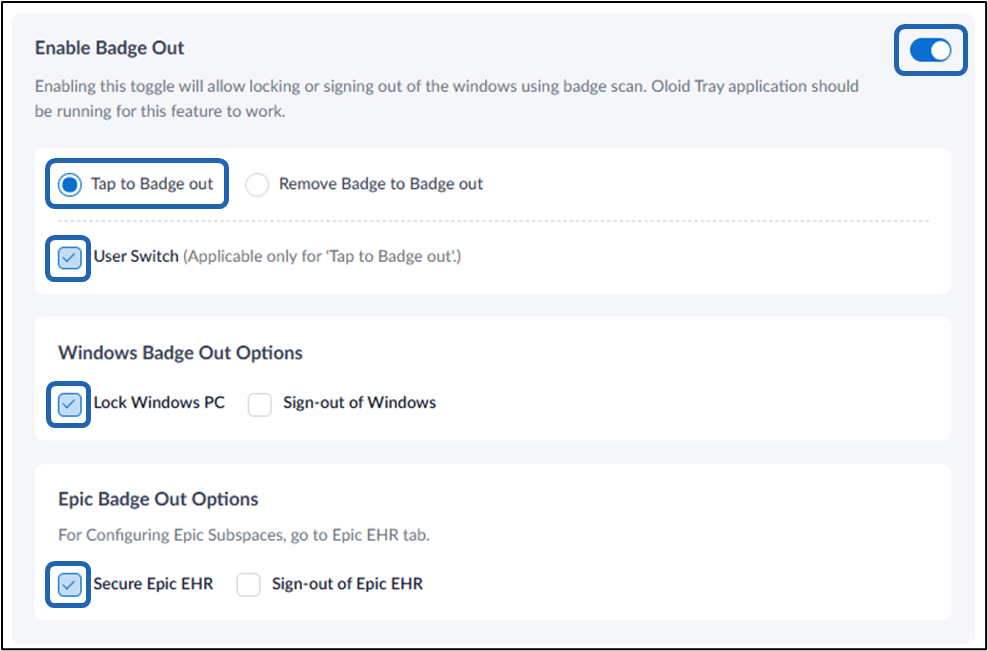
- Enable Badge Out: Select Badge out using Windows Service option to allow users to log out of their Windows system using their badge. For details, refer to Windows Login - How to configure Enable Badge Out option
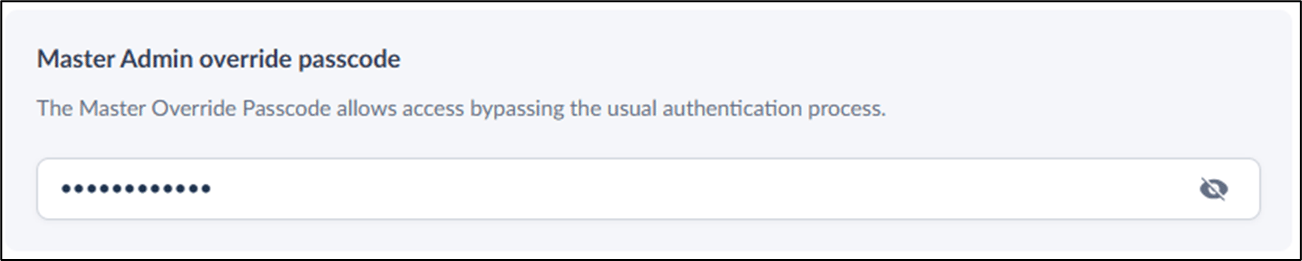
- Master Admin override passcode: Follow the onscreen instruction to create master admin override passcode. For details, refer How to create device-admin passcode for Supervisor App
- Apply Endpoint Template: Select a Windows Login endpoint template that is applied during the endpoint pairing process.

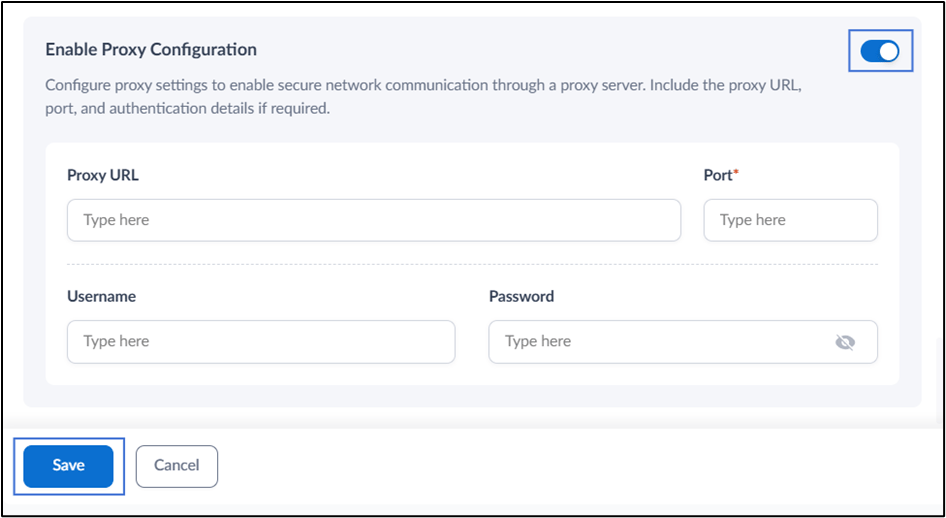
- Enable Proxy Configuration to configure proxy settings for secure network communication through a proxy server.
- Do the following:
- Enter Proxy URL.
- Enter Port.
- Enter Username.
- Enter Password.
- Click Save.
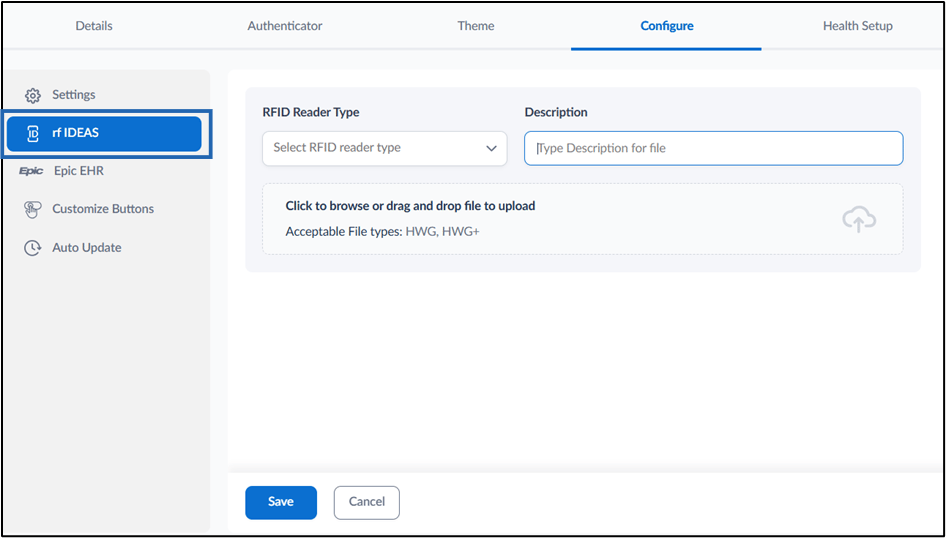
Configure rf IDEAS Tab
- Do the following:
- Select RFID Reader Type from the Select RFID reader type dropdown .
- Enter Description. (Optional)
- Click to browse the file or drag the file to upload/download.
- Click Save.
The application is updated successfully. For more details, refer How to upload/download HWG file in Oloid Portal
Configure Epic EHR
Epic EHR for Windows Login in the Tenant Admin Portal which enables secure authentication into Epic applications using Windows Login. For more information please refer to: How to Configure Epic EHR in the Tenant Admin Portal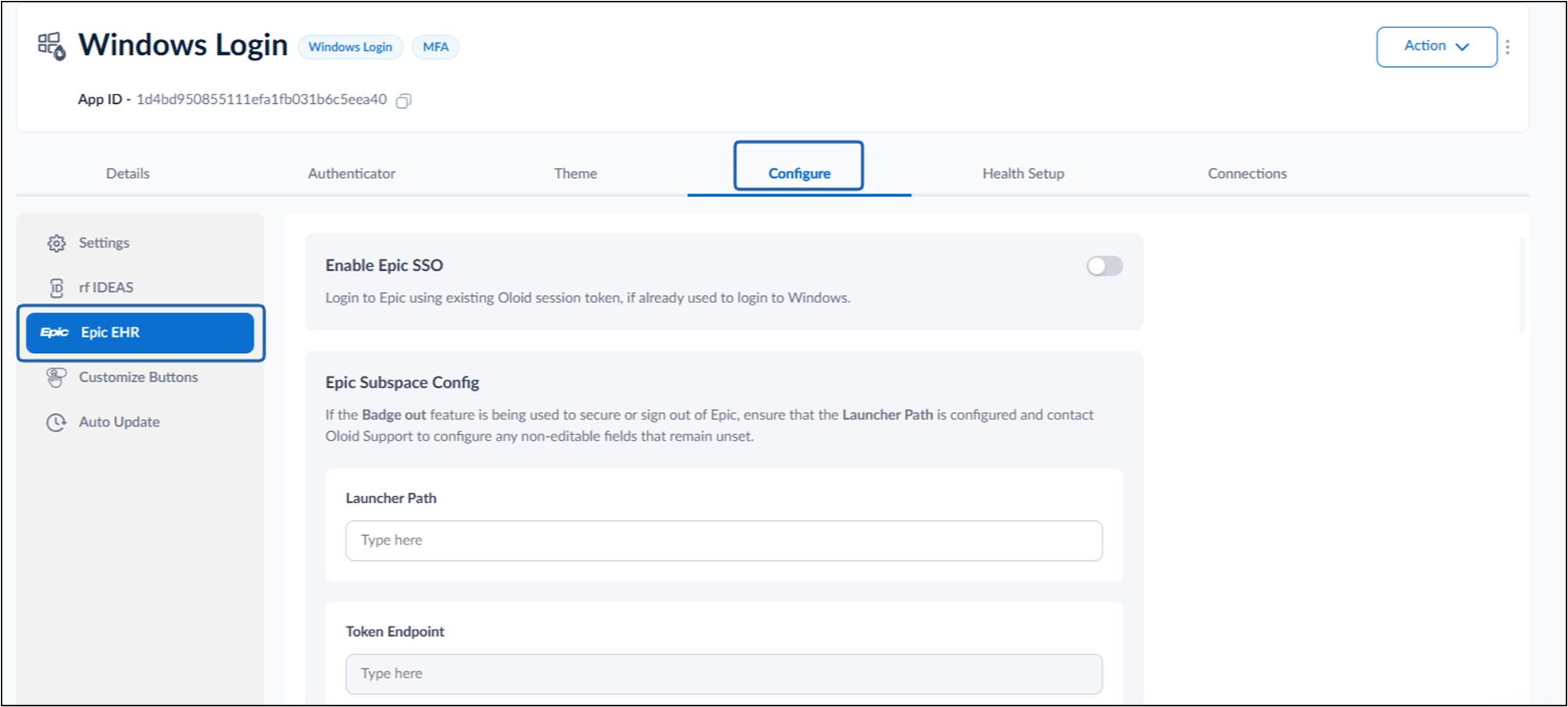
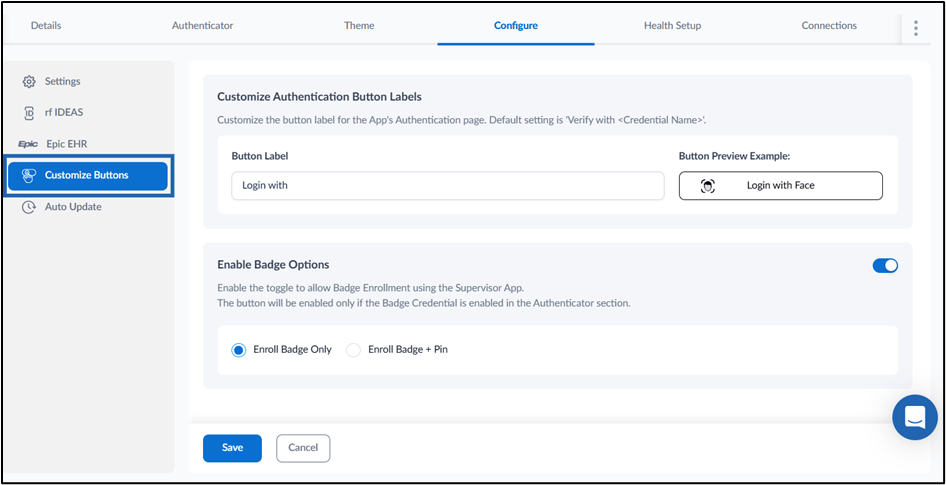
Customize Buttons Tab
- Customize Authentication Button Labels: Enter customized Button Label to display on the Windows application.
- Select Enable Badge Options to display on the Windows Login app.
- Do one of the following:
- Select Enroll Badge Only to enable Badge login
- Select Enroll Badge + Pin to enable Badge and Pin login.
- Do one of the following:
Configure Auto Update Tab
Auto update features keep all Windows Device Agents up to date without manual effort. It allows the tenant admin to install the latest version or select a specific version. They can also schedule updates to run at a set time, with options to retry if an update fails. For more, refer to How to configure Auto Update feature in Windows Login Application in Tenant Admin Portal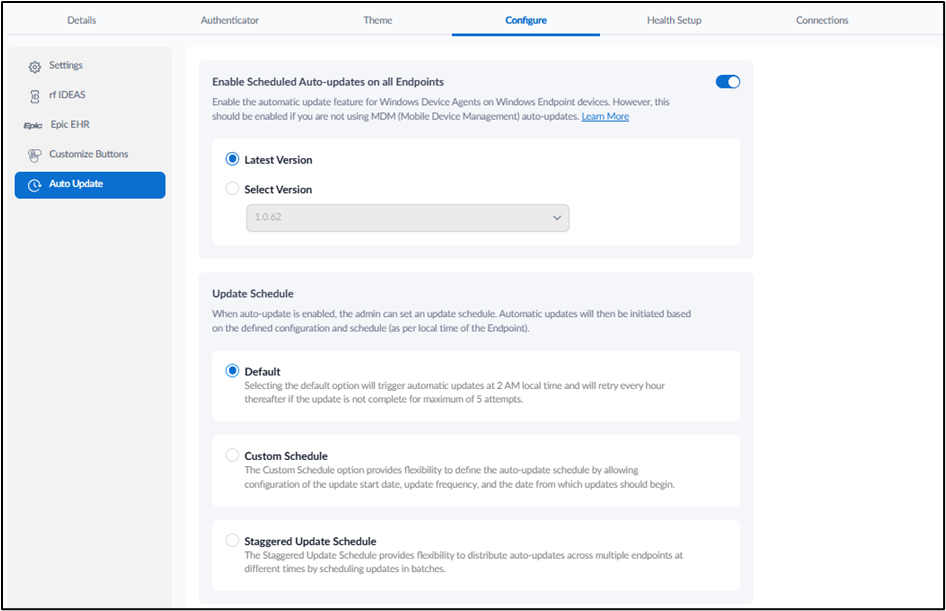
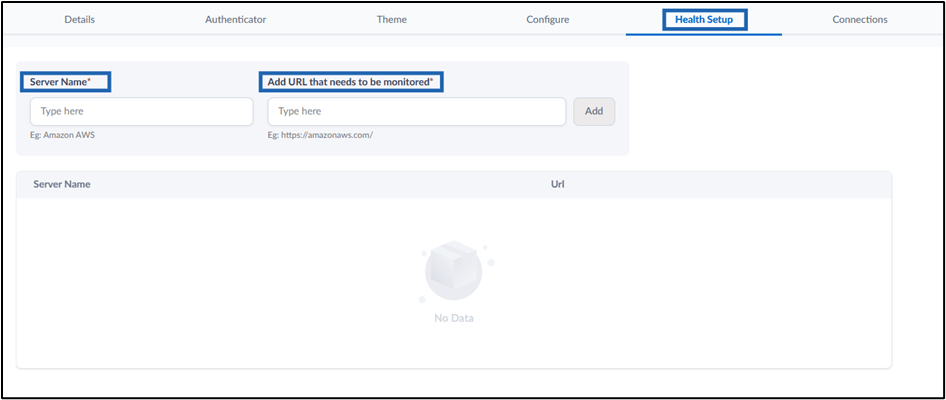
Configure Health Setup
Do the following:- Enter Server Name
- Enter URL in the Add URL that needs to be monitored field and click Add
The Health Setup tab is configured.
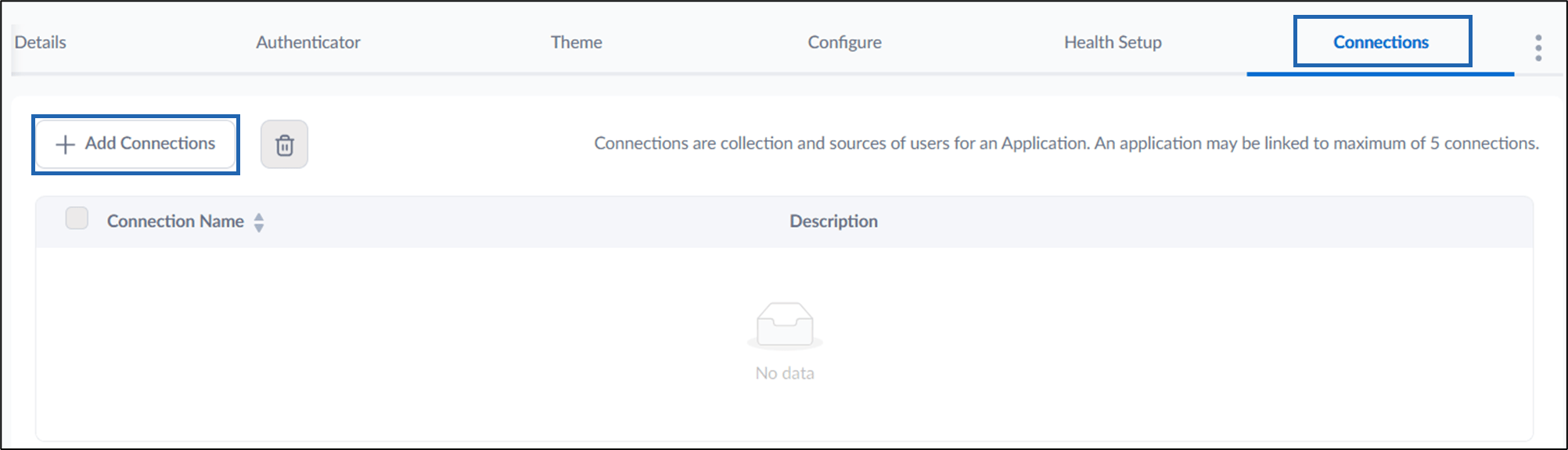
Configure Connections
Do the following:- Select + Add Connections to map a connection to the application.
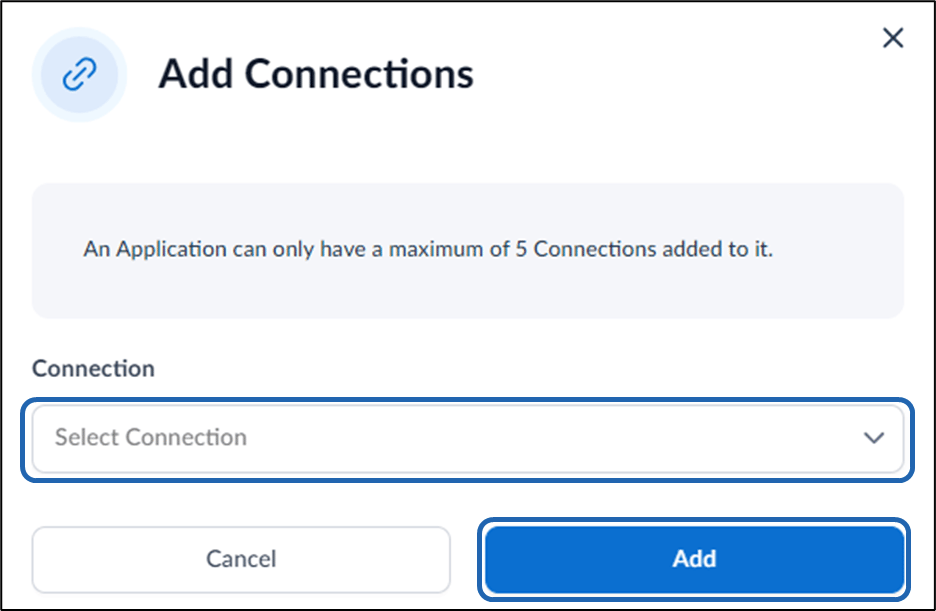
- On the Add Connections pop-up box, select connection name(s) from the Select Connection dropdown list and click Add.
Note: Click Save after each action to save your configuration.
Video Tutorial
Watch the videos to create and configure Windows Login App:- How to create Windows Login application - Video Tutorial
- How to configure Windows Login application - Video Tutorial