Introduction
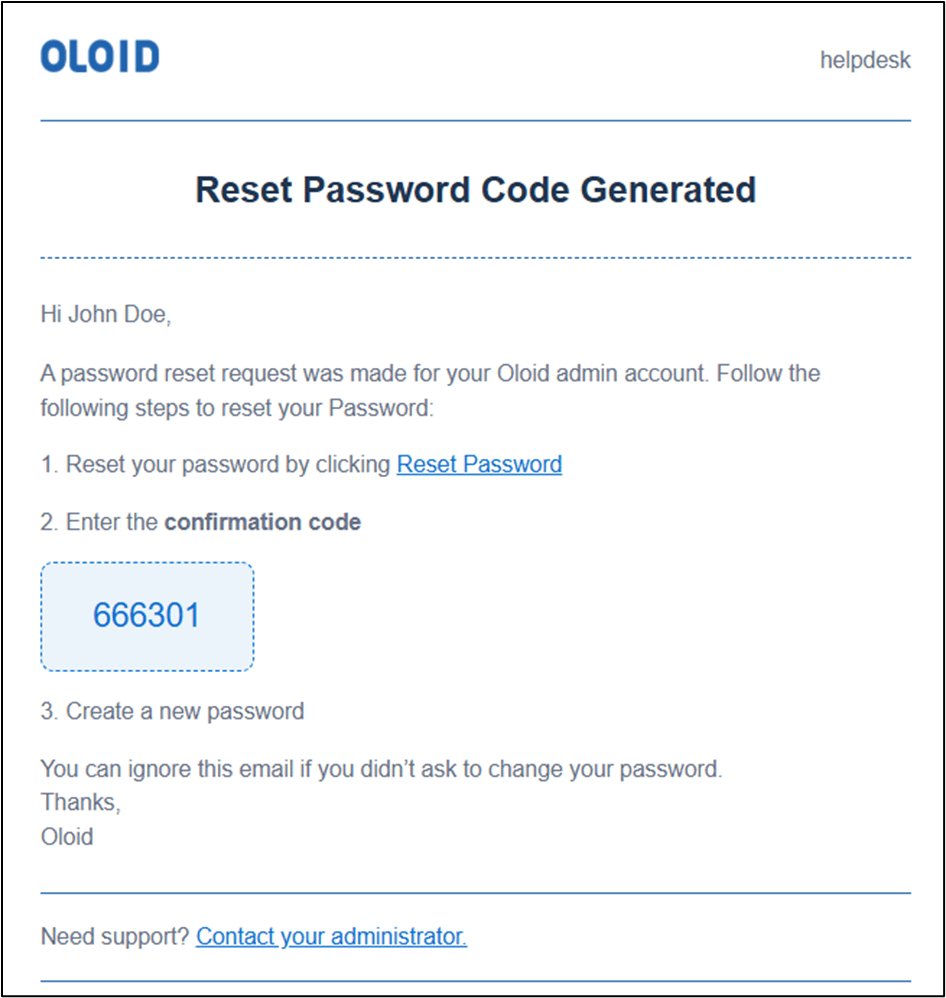
This document provides instructions to reset the password for a Tenant Admin from the Tenant Admin Portal. When you reset the password, a password reset link is sent to the Tenant Admin’s registered email address.Prerequisite
You must have admin access to the Tenant Admin Portal.Steps to reset password for Tenant Admin
- Log in to the Tenant Admin Portal.
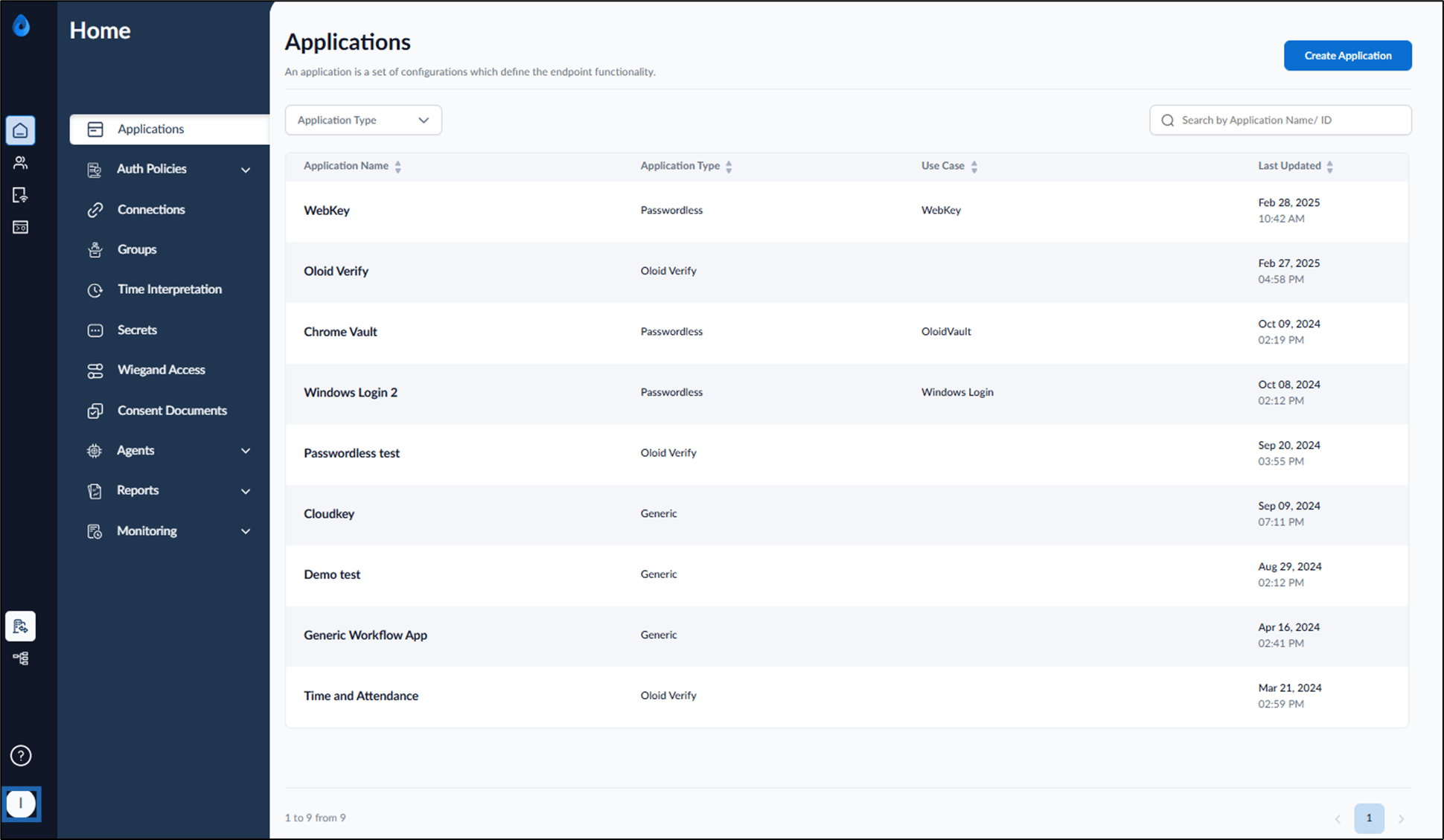
- On the homepage of the portal, click user profile icon on the bottom left of the menu panel.
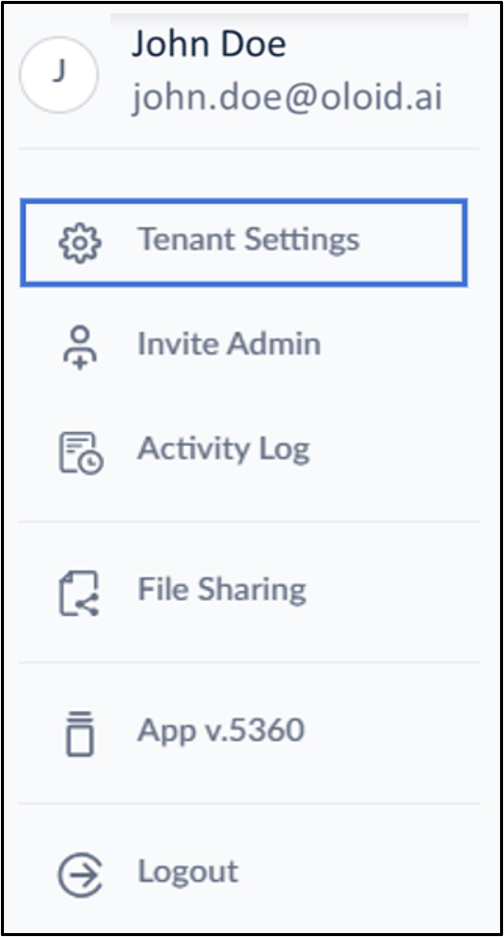
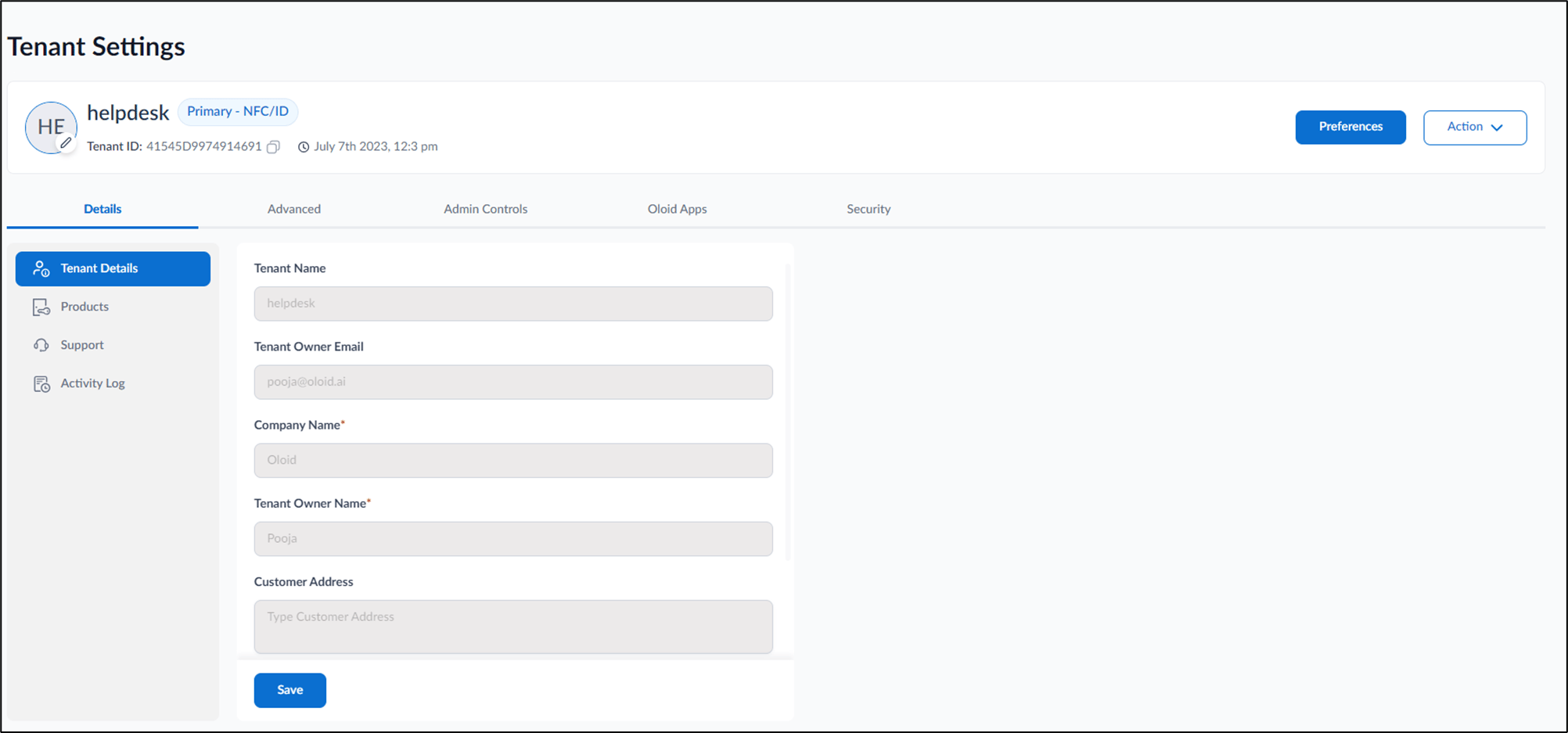
- Click Tenant Settings.
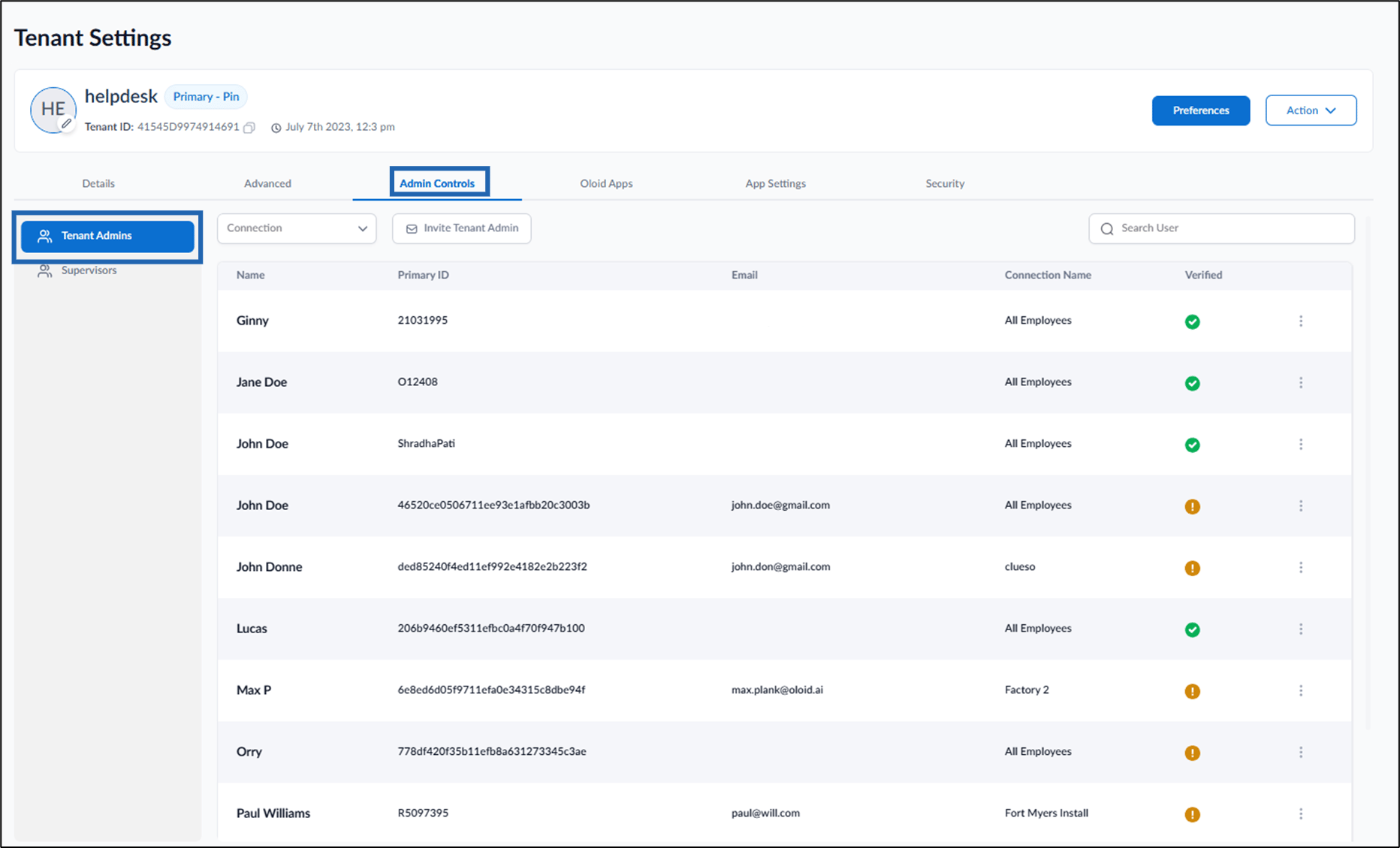
- Go to Admin Controls > Tenant Admin.
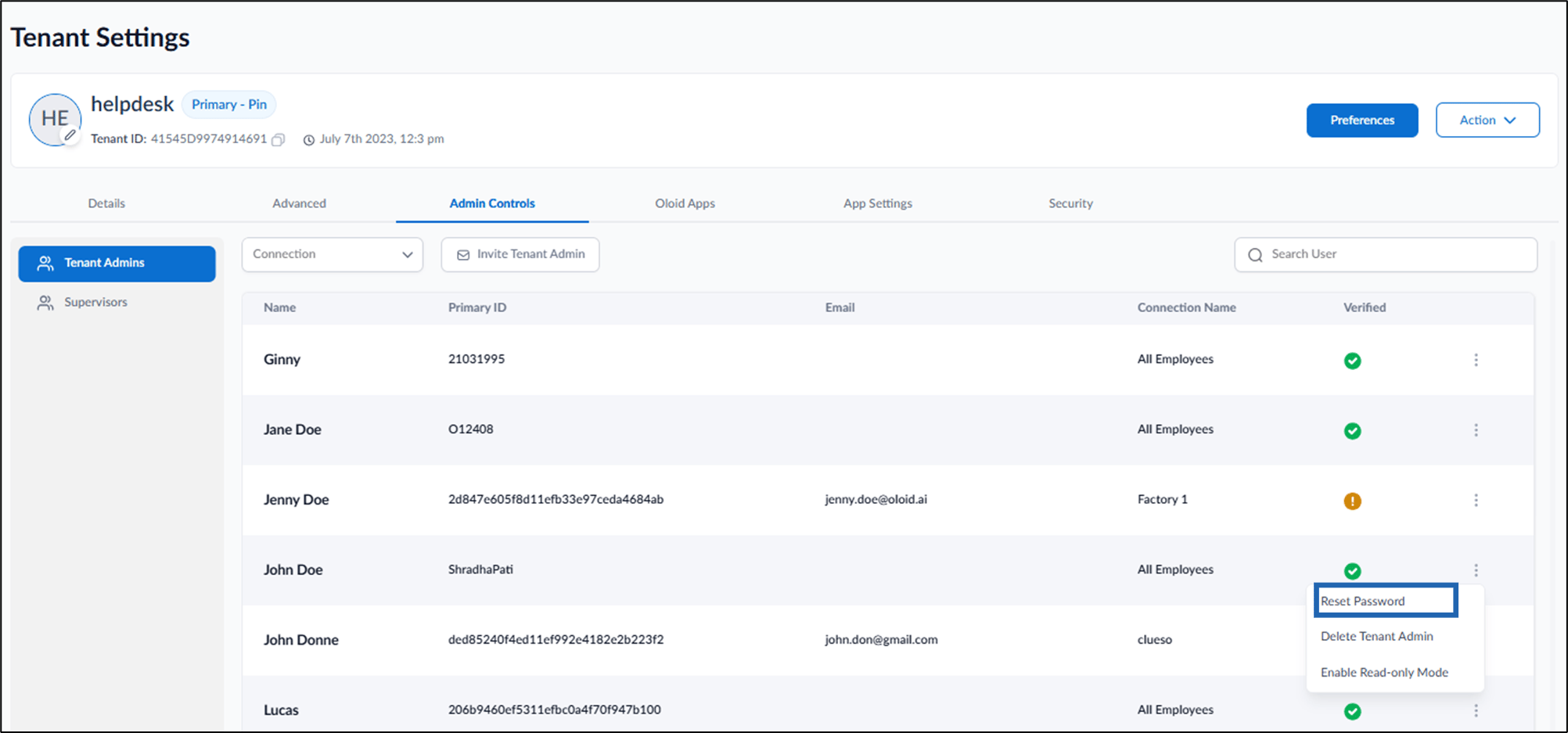
- Locate the Tenant Admin, and then select the kebab menu (three vertical dots) > Reset Password.
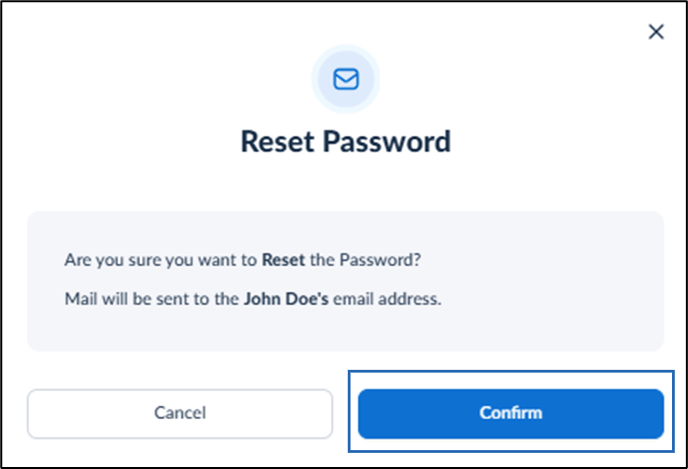
- Click Confirm.