Introduction
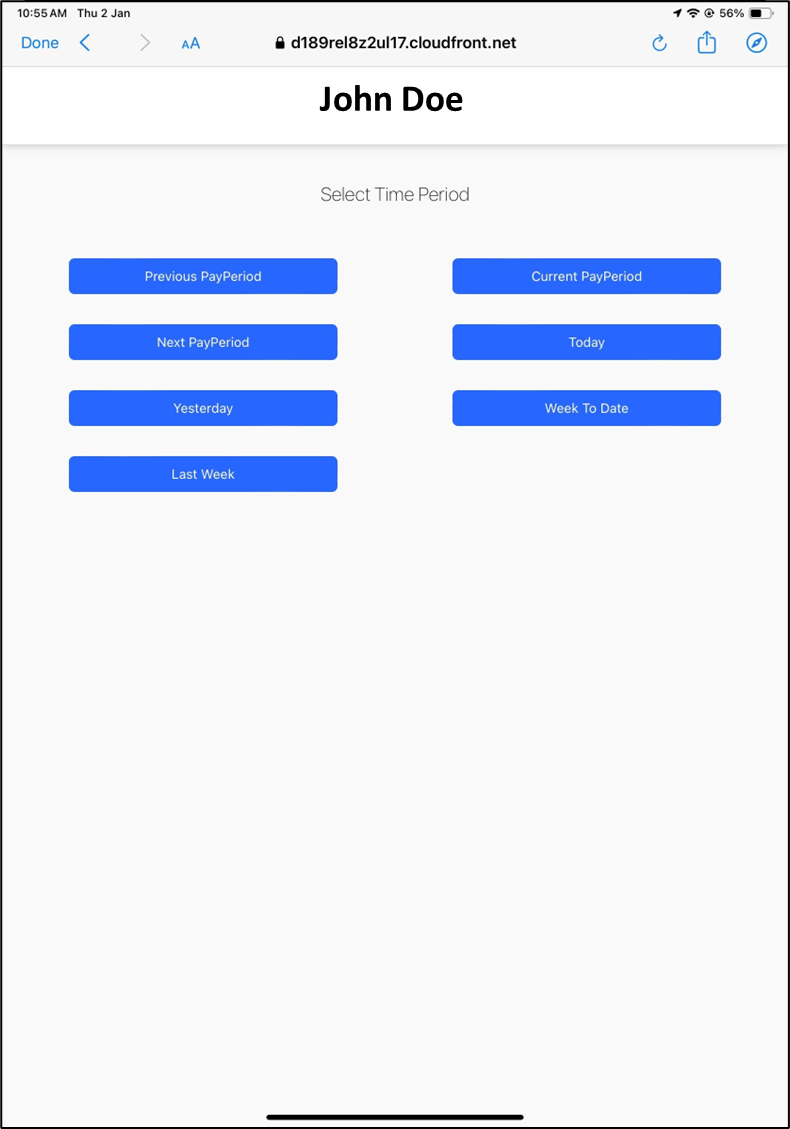
The view punch details feature in the Oloid Verify app allows User to review their recent verification activity and access detailed transaction records. By logging in through the app’s secure face or QR-based verification flow.Prerequisites
- You must configure the Oloid Verify endpoint Web button in the Tenant Admin Portal. For more, refer to Configure Web Button
- Oloid Verify endpoint must be paired. For more, refer toHow to Pair an Oloid Verify Endpoint
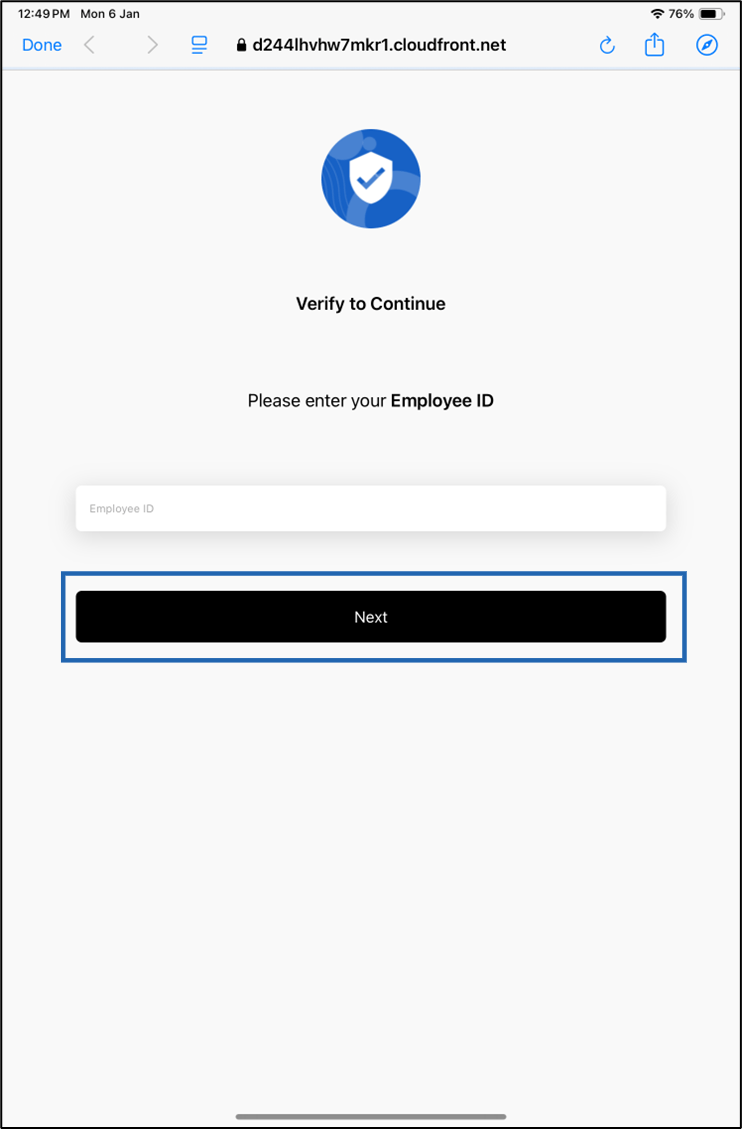
- You must have your Employee ID.
- You must have one of the following:
- You must have your QR Code credential. or
- Your face must be registered in the Oloid Verify app.
Steps to view punch details
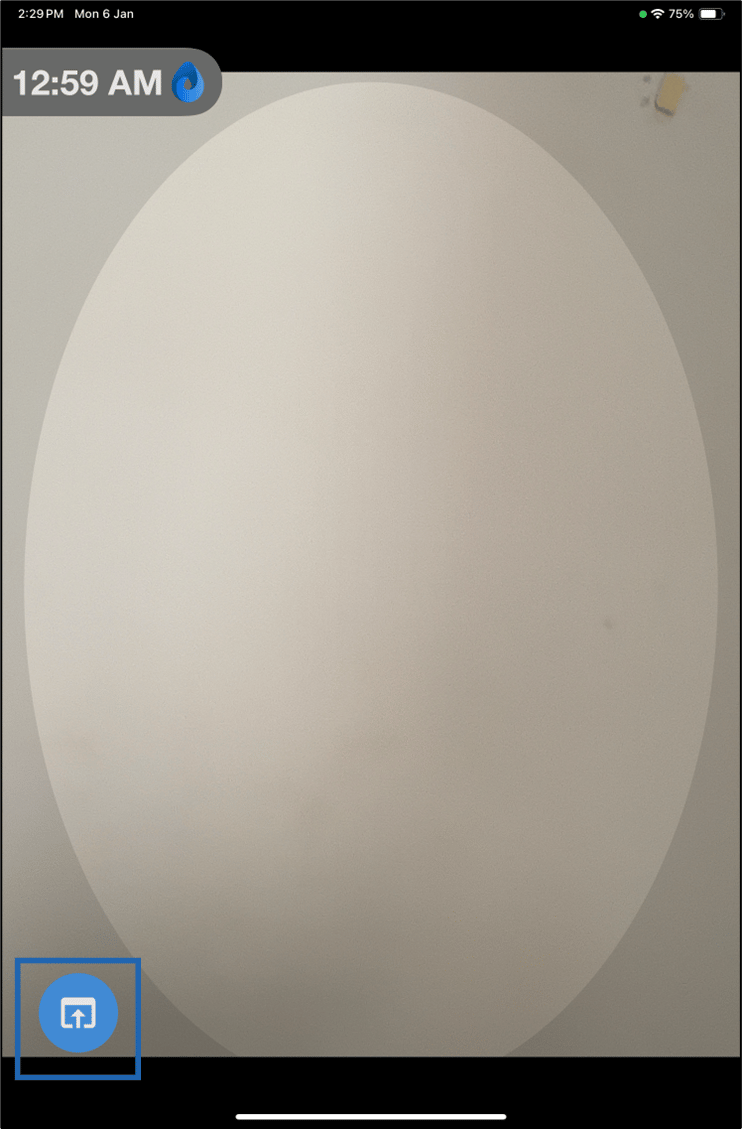
- Tap the Web Button from the bottom left corner.
Authenticate using Face
- Place your face inside the frame.
- Tap Capture.
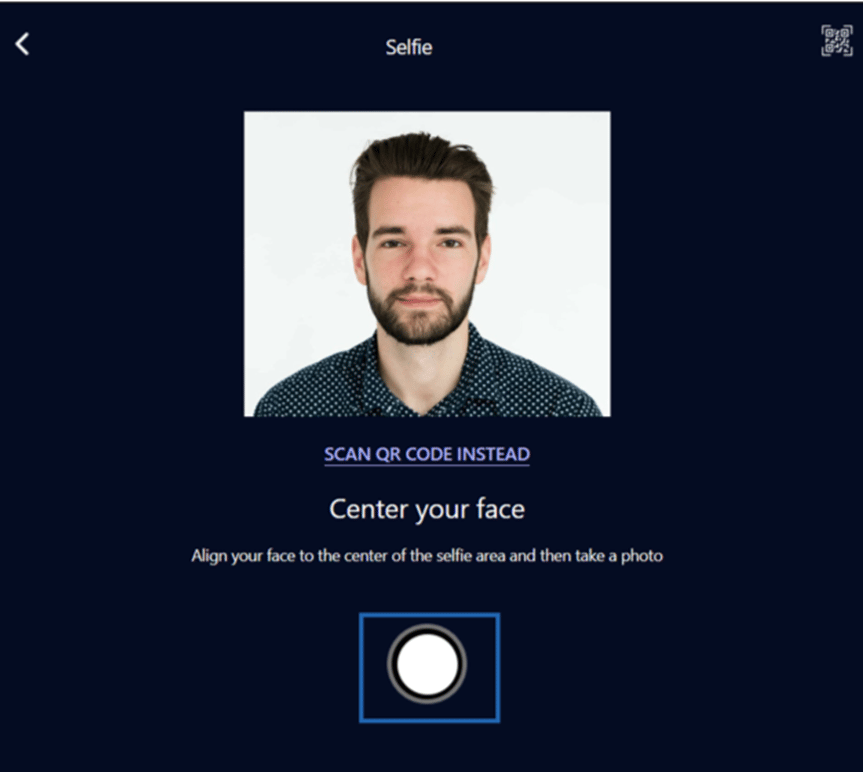
- Do one of the following:
- Tap Login to continue.
- Tap Take a new photo to recapture the face.
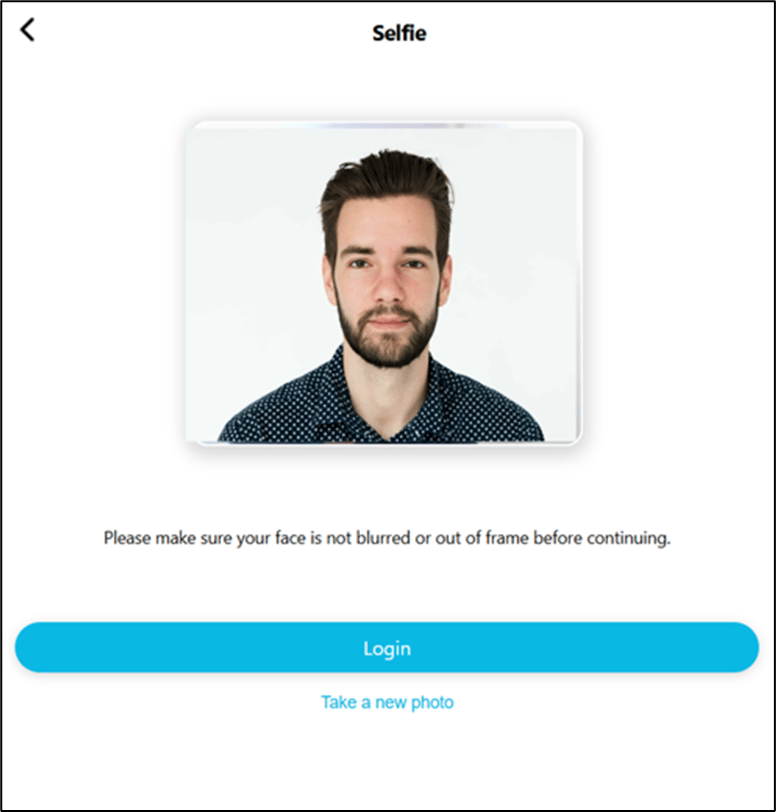
Authenticate Using QR Code
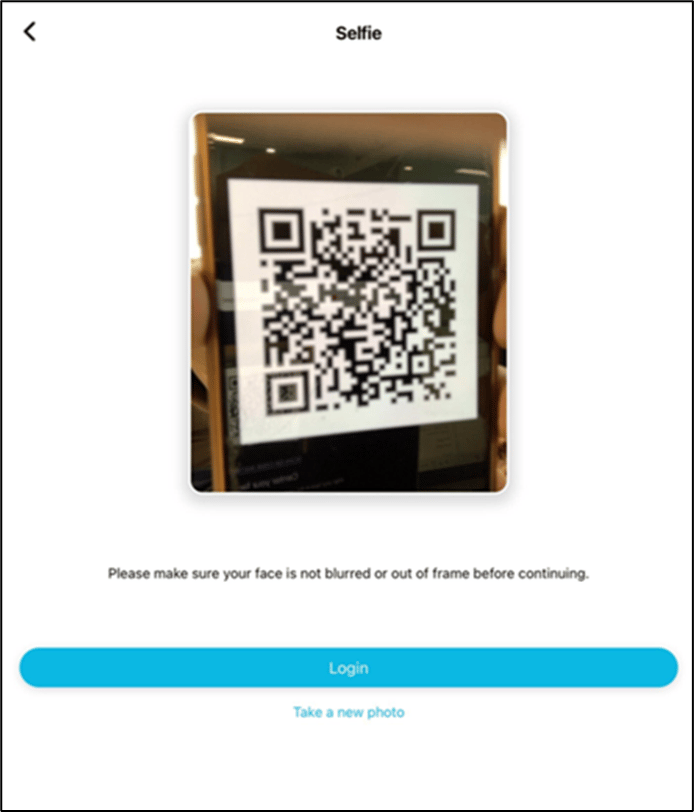
- Place your QR code inside the frame.
- Tap capture button.
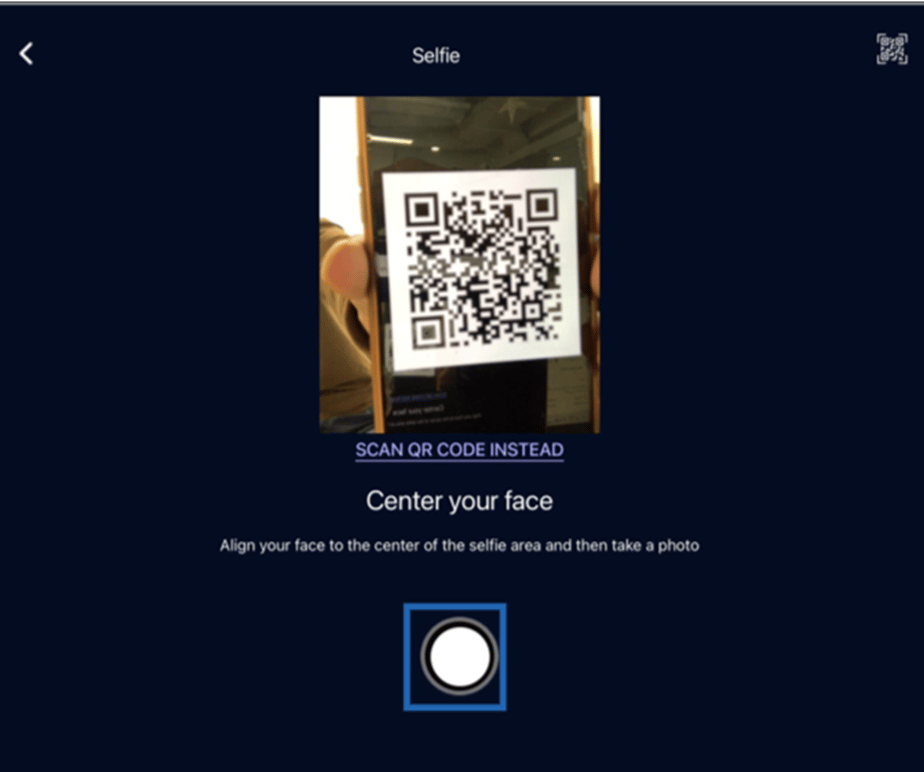
- Do one of the following:
- Tap Login to continue.
- Tap Take a new photo to recapture the QR Code.