Introduction
This document explains how to configure an endpoint in the Tenant Admin Portal. Endpoint configuration allows Tenant Admin to manage endpoint settings, appearance, groups and transaction behaviour for the Oloid Verify app.Note: Once you pair an endpoint with Oloid Verify application, it gets saved and appears in the Tenant Admin Portal. After pairing, you can configure the endpoint.
Prerequisite
The Oloid Verify Endpoint must be paired. For more, refer toHow to Pair an Oloid Verify EndpointSteps to Configure the Endpoint
- Log in to the Tenant Admin Portal.
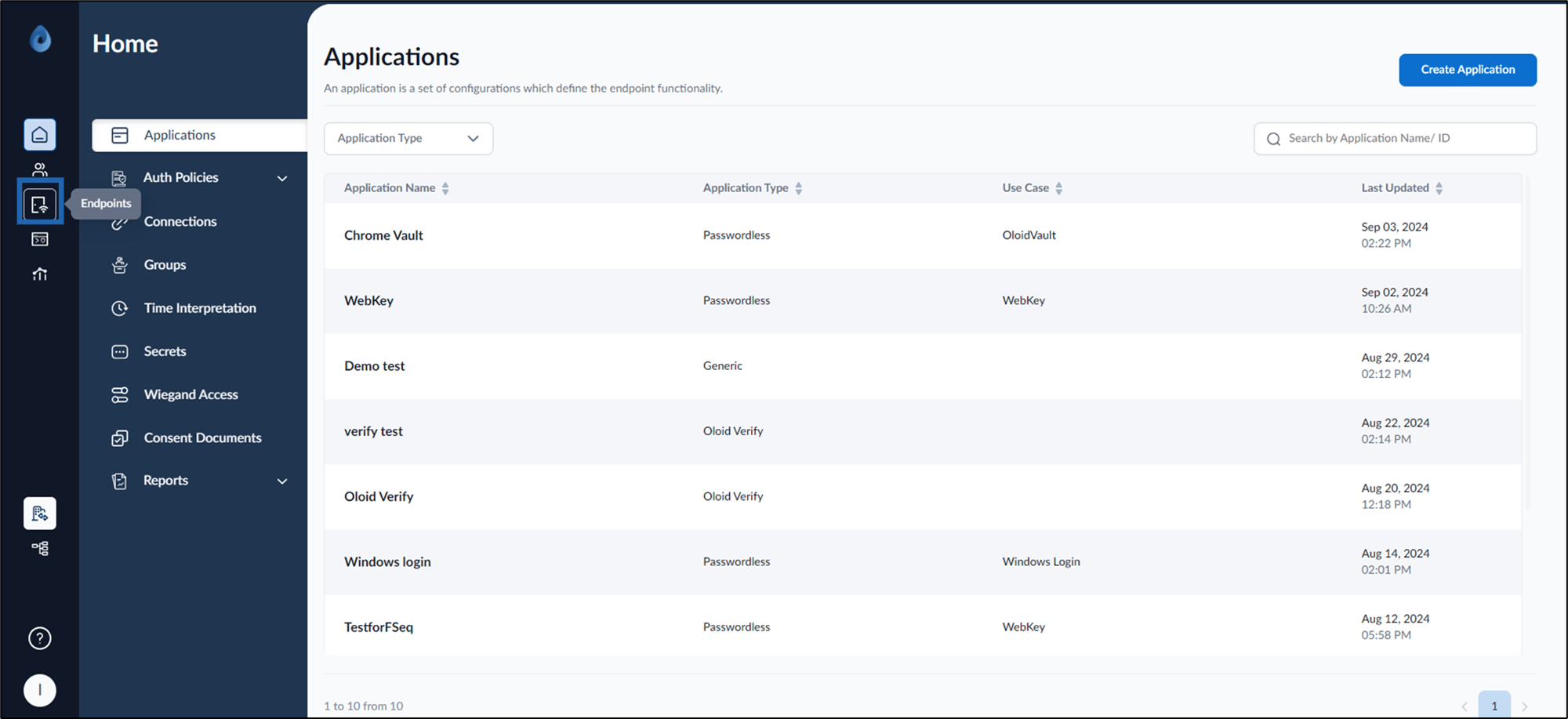
- On the home page of the portal, click Endpoints on the left menu panel.
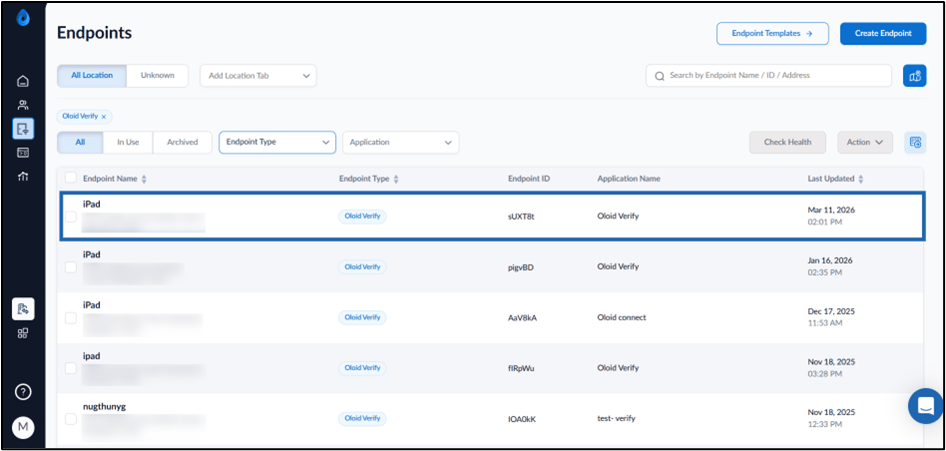
- Select the paired Oloid Verify Endpoint.
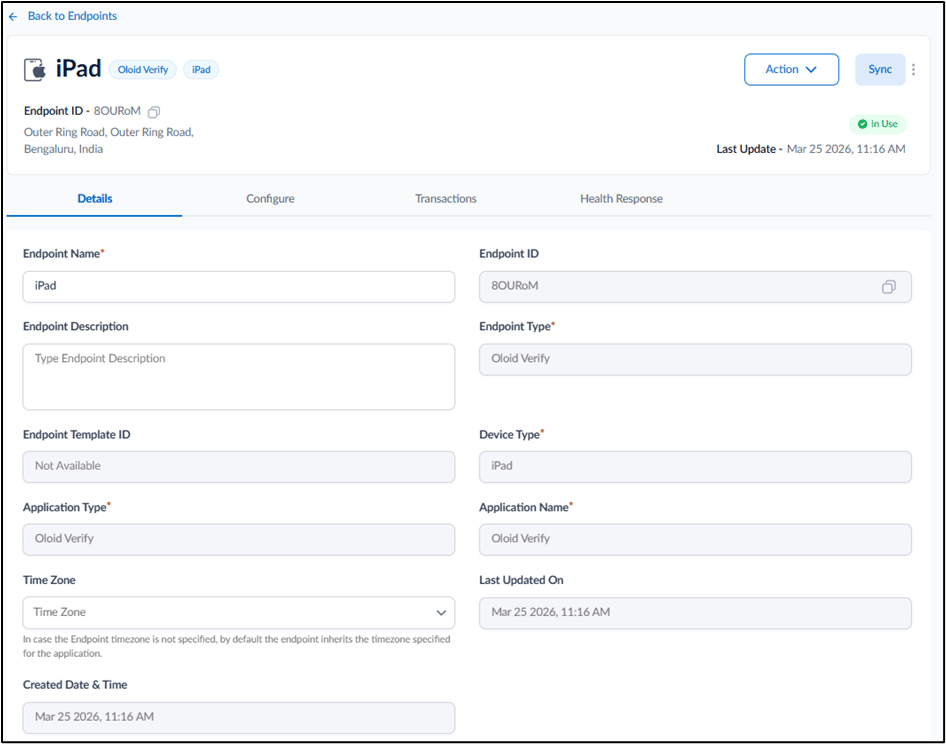
- Do the following:
- Configure Details Tab
- Design Configure Tab
- Configure Transactions Tab
- Configure Health Response Tab The Endpoint is configured successfully.
Configure Details Tab
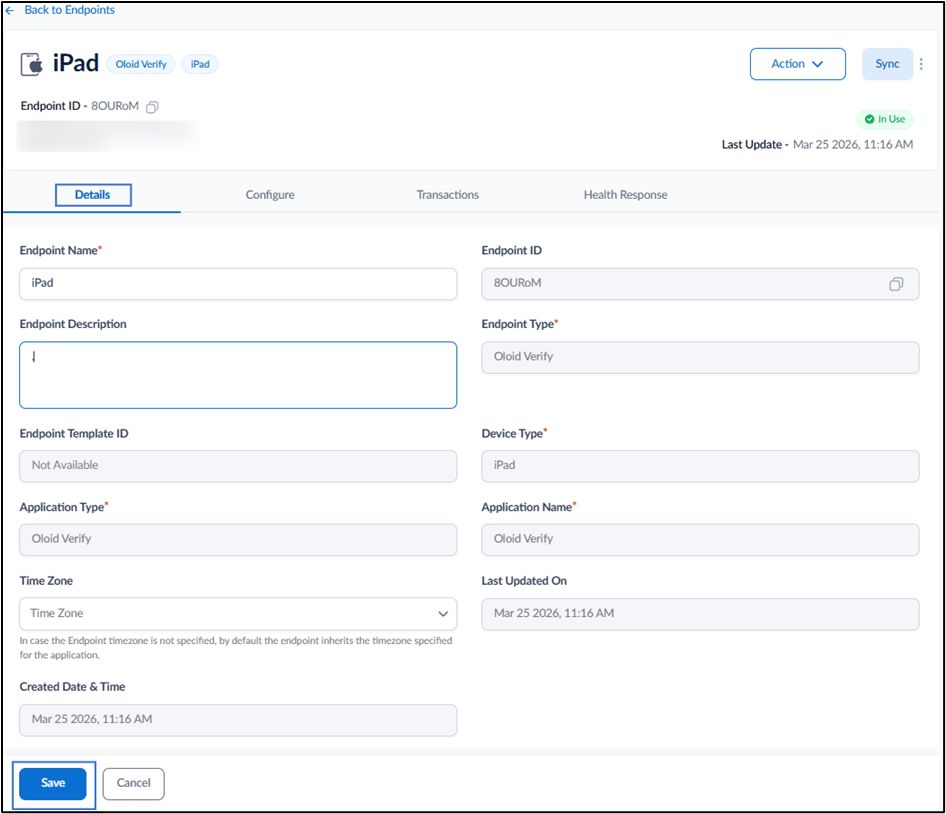
- Edit Endpoint Name if required.
- Enter Endpoint Description. (Optional)
-
Select Time Zone from the dropdown list. (Optional)
Note: If time zone is not set for the Endpoint, it automatically uses the application’s default time zone.
-
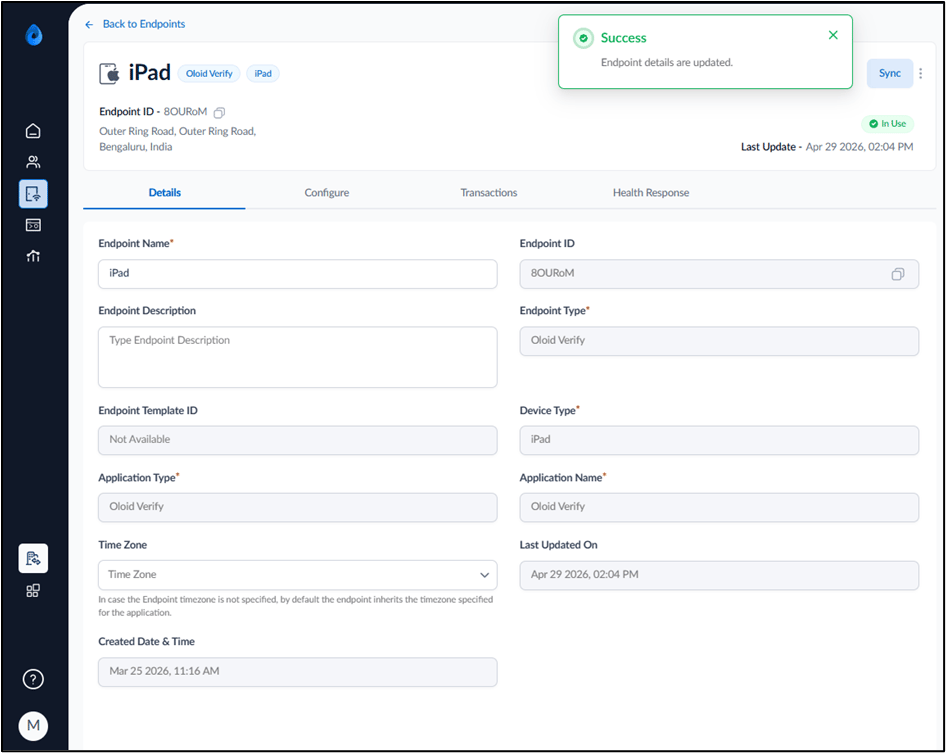
Click Save.
Design Configure Tab
Configure the following:Endpoint Settings
-
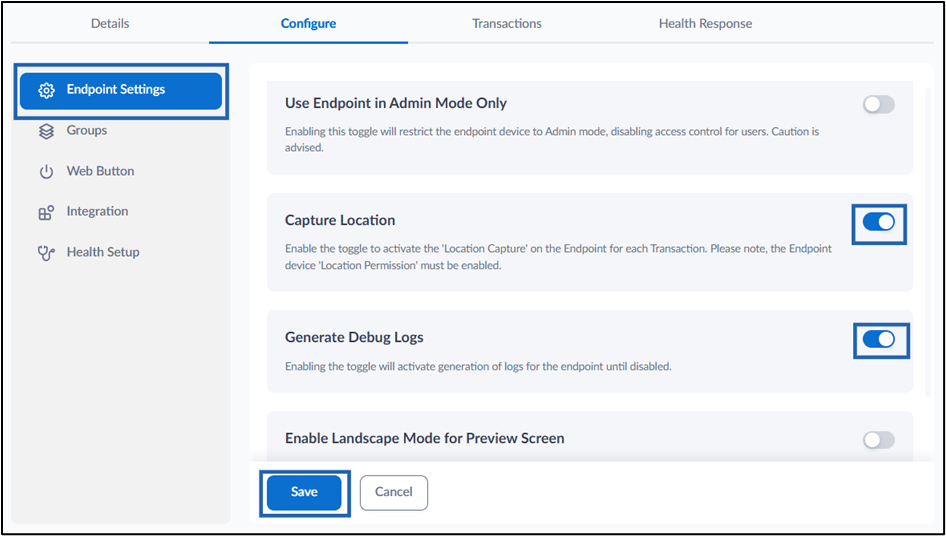
Turn on Capture Location toggleto activate location capture on the endpoint for each transaction.
Note: The Location Permission of the device must be enabled to make the feature functional.
- Turn on Generate Debug Logs toggle to activate log generation for the endpoint until disabled.
-
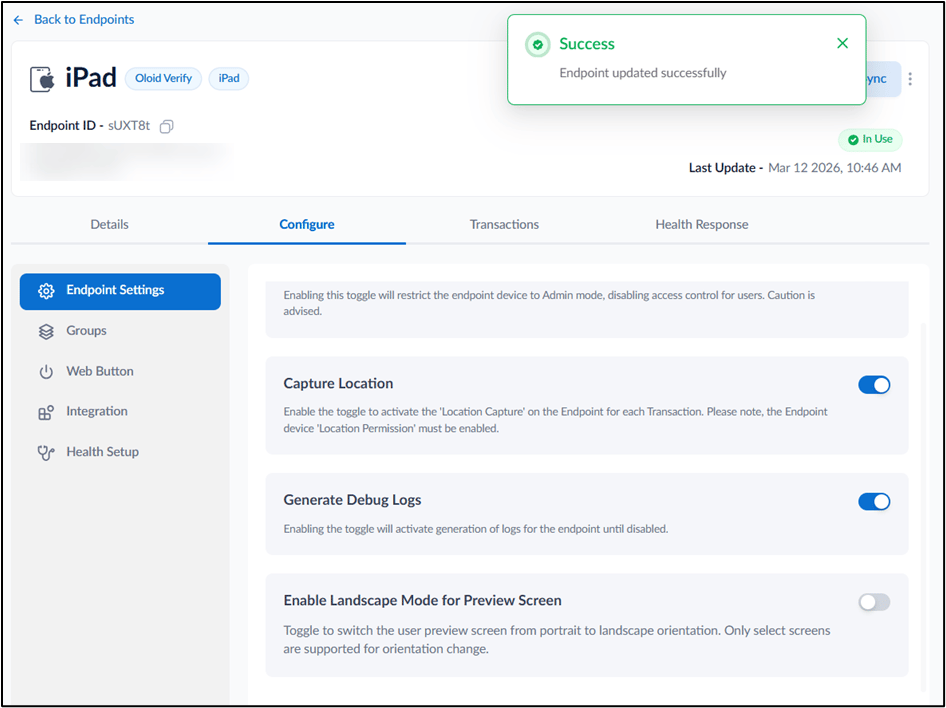
Click Save.
Groups
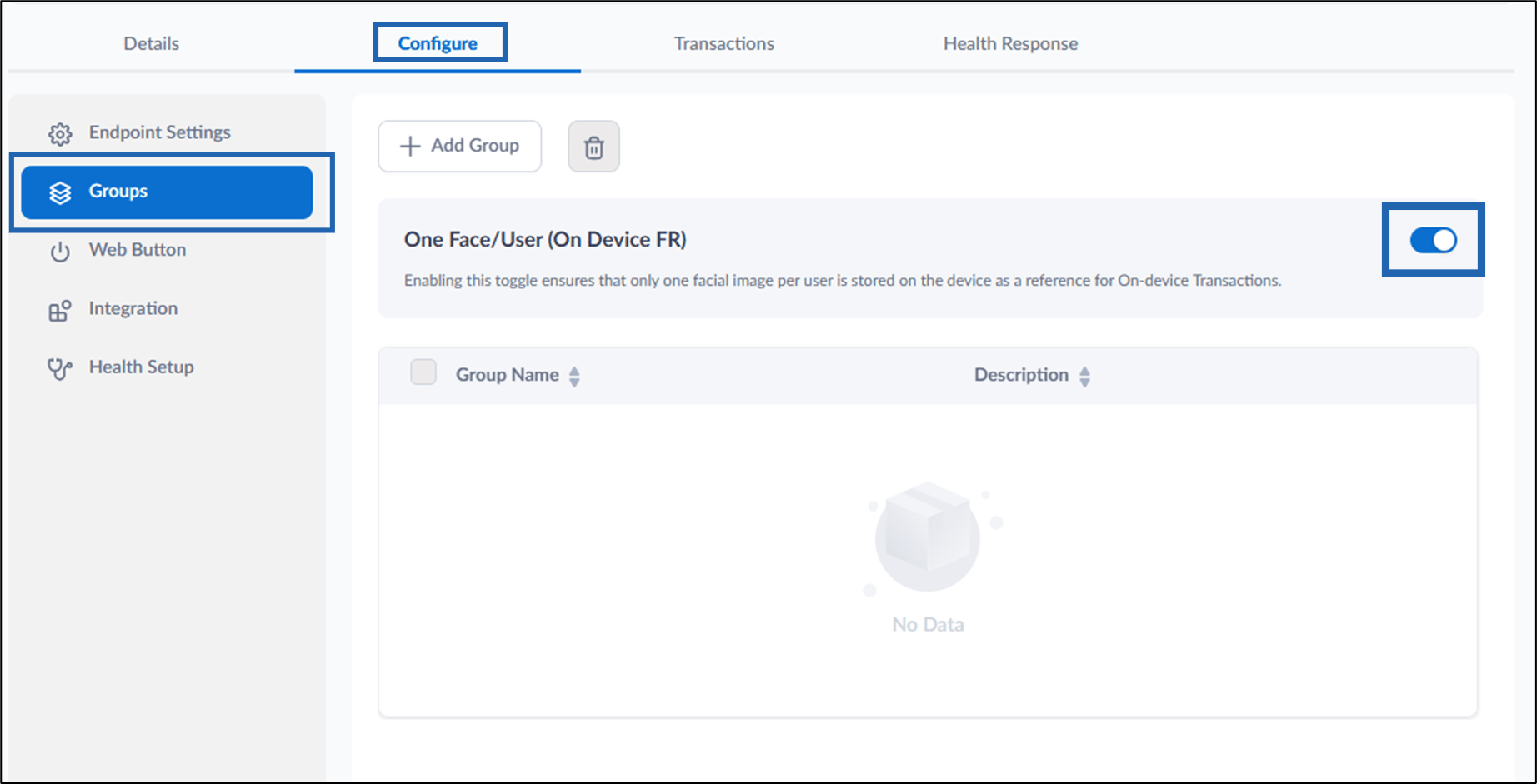
- Turn on One Face/User (On Device FR) toggle to ensure that only one facial image of each user is stored on the device as a reference for On-device Transaction.
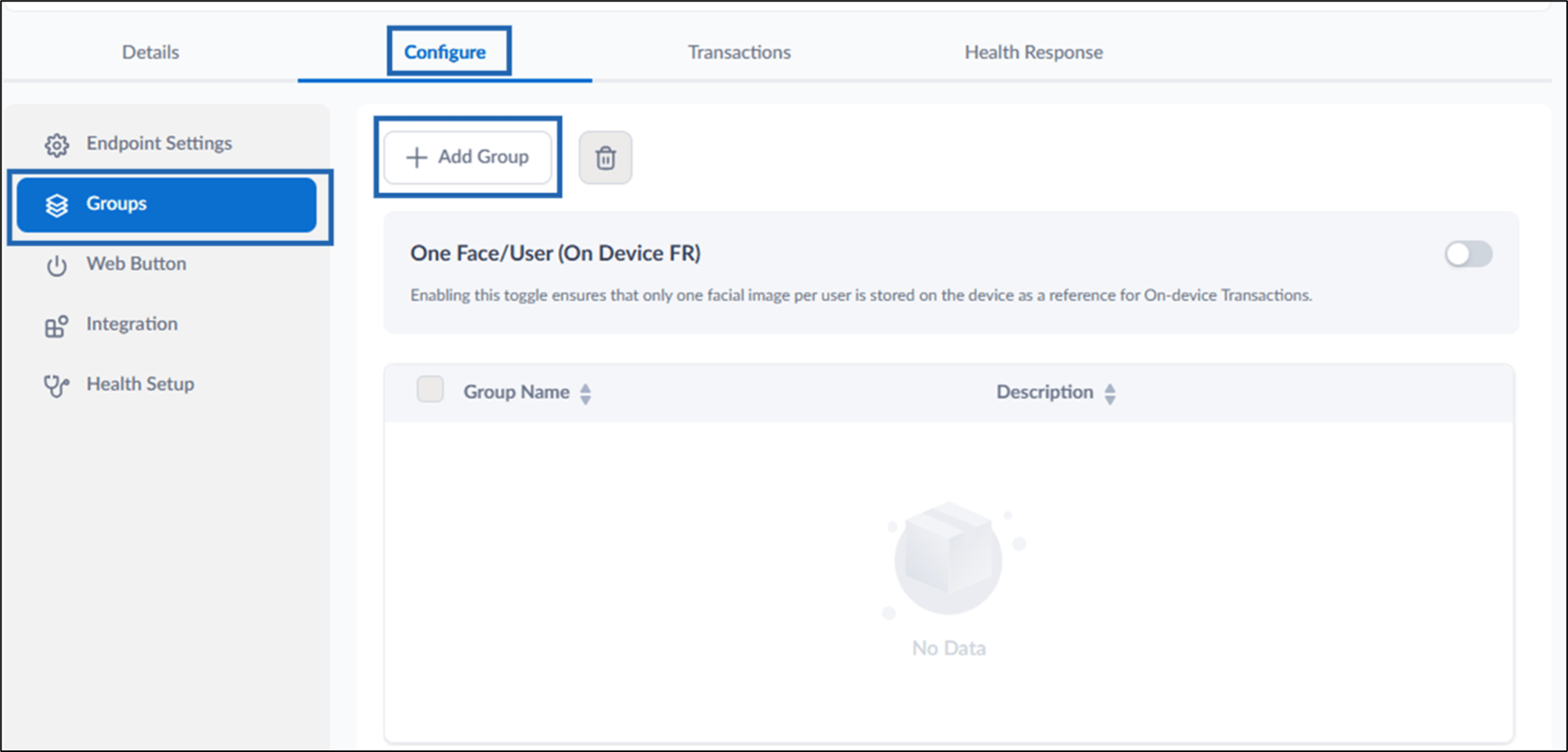
- Click + Add Group.
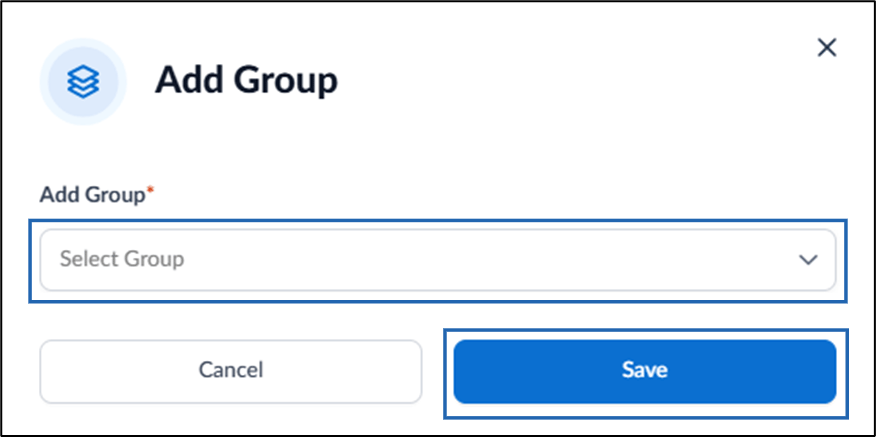
- Select group(s) in Add Group field.
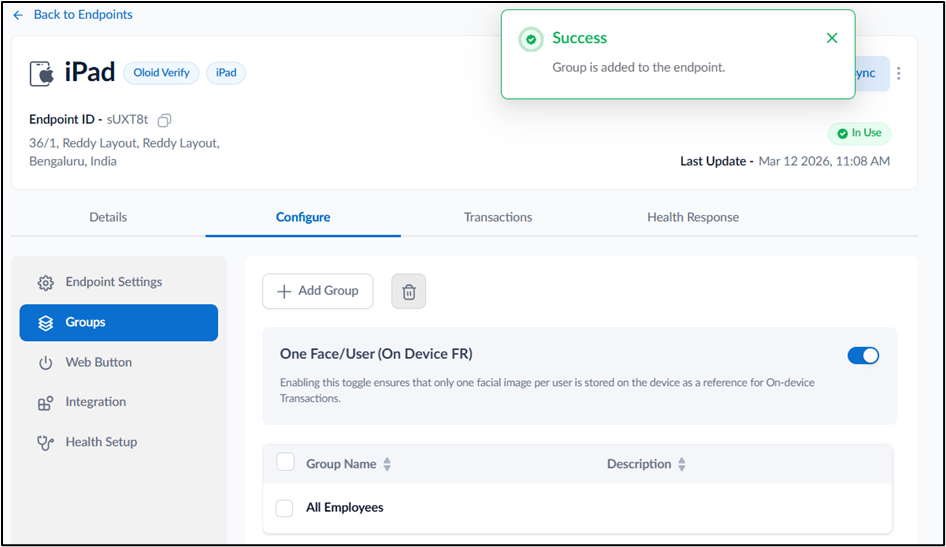
- Click Save.
Web Button
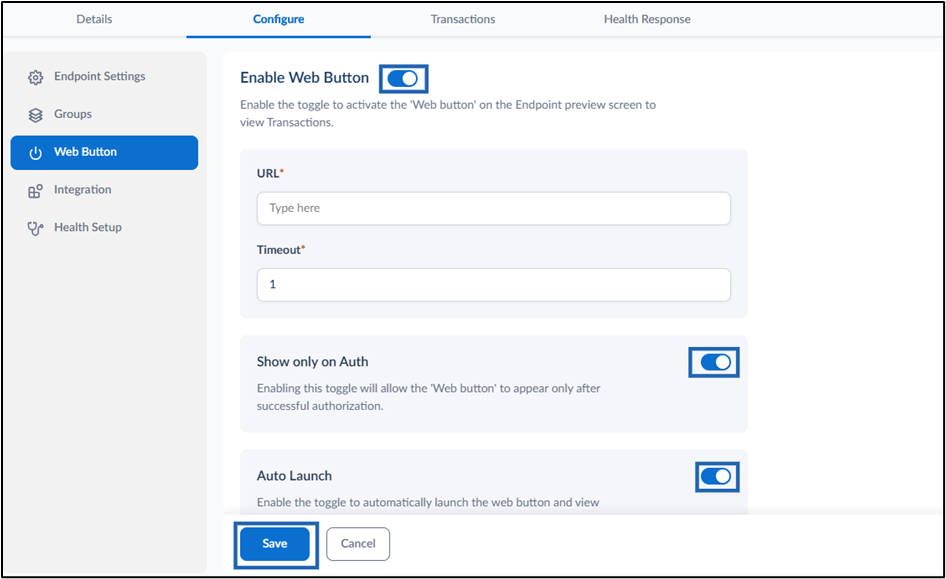
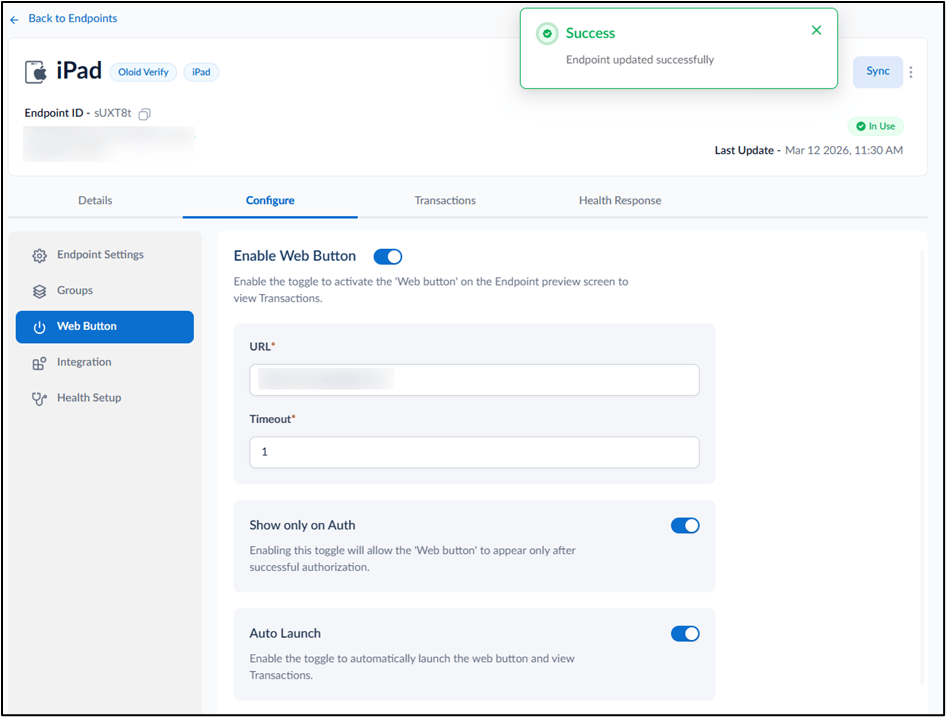
- Turn on Web Button toggle to display the Web Button on the endpoint preview screen. This button allows users to view transactions.
-
In the URL field, enter the complete URL of the website where users will review punch data.
Note: You have to enter the URL of the website where the user will review the punches.
- In the Timeout field, enter the delay (in minutes) before the URL launches.
- Turn on Show only on Auth toggle to display the Web Button only after the user is successfully authorized. (Optional)
- Turn on Auto Launch toggle to automatically launch the web button and view transaction. (Optional)
Health Setup
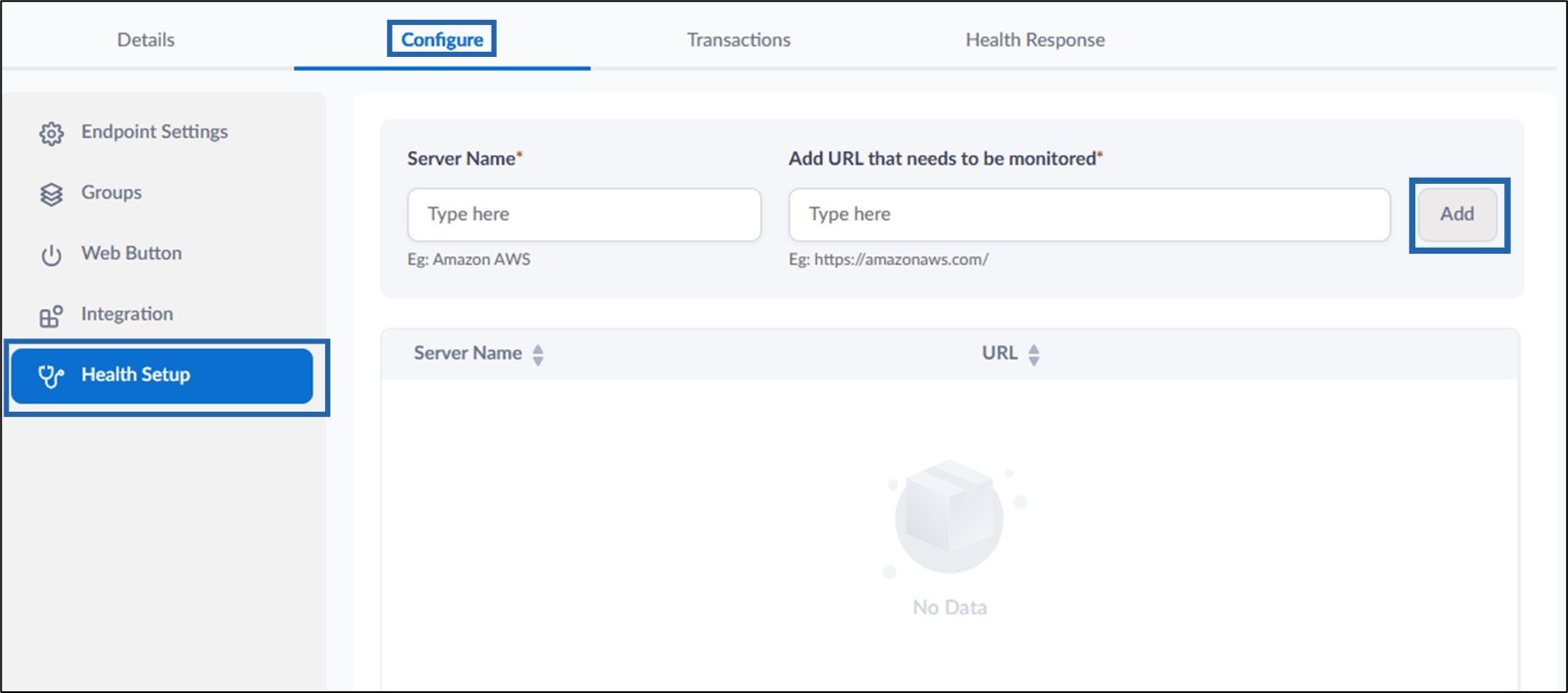
- Enter Server Name.
- Enter URL of the server in Add URL that needs to be monitored field.
-
Click Add.
The monitored URLs will appear in the list below, with columns for Server Name and URL.
Note: Configure the settings only if they are applicable. Consult your Oloid representative before making any changes.
Configure Transactions Tab
The Transactions tab allows you to view detailed user transactions. You can monitor transaction statuses and filter results based on success or failure.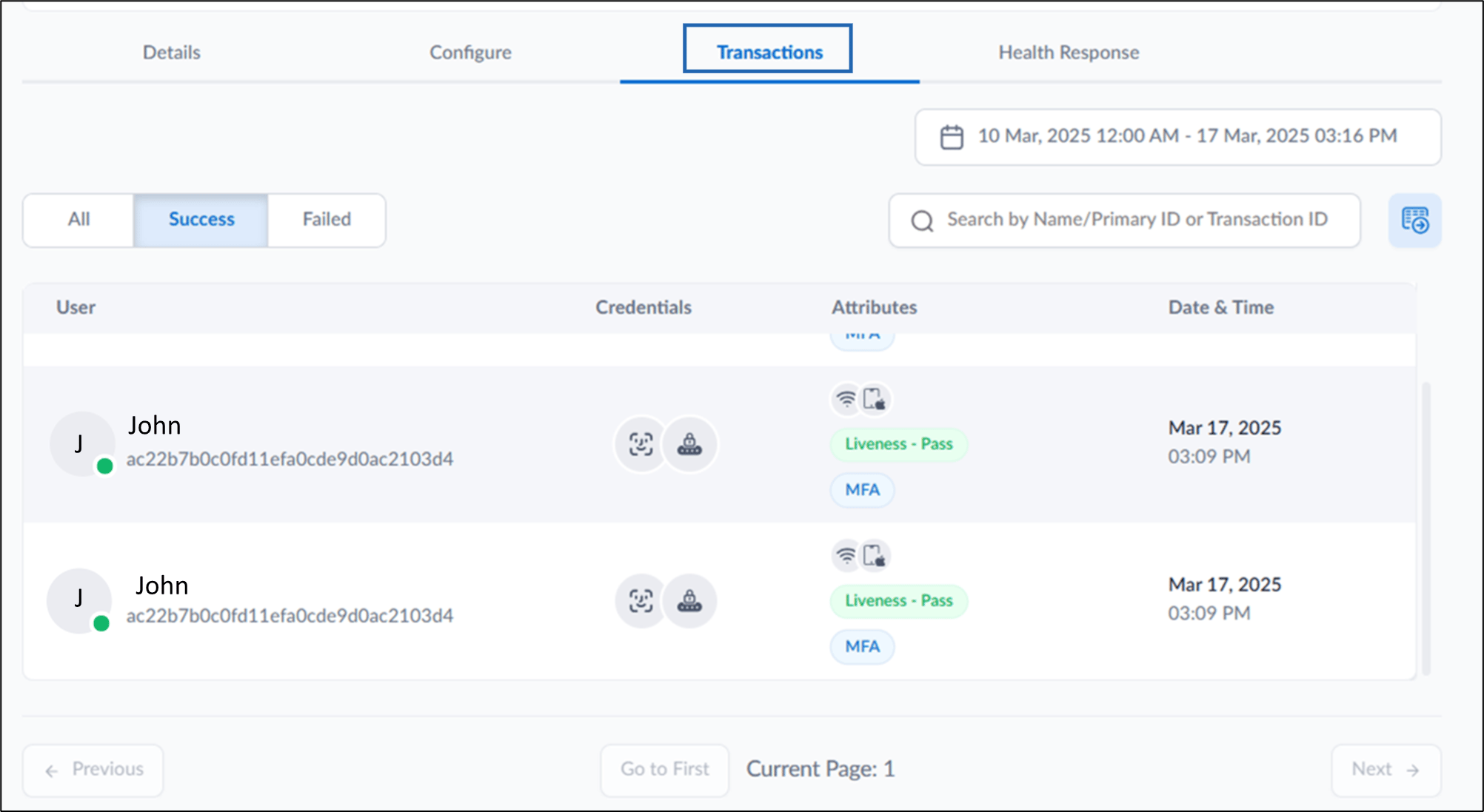
Configure Health Response Tab
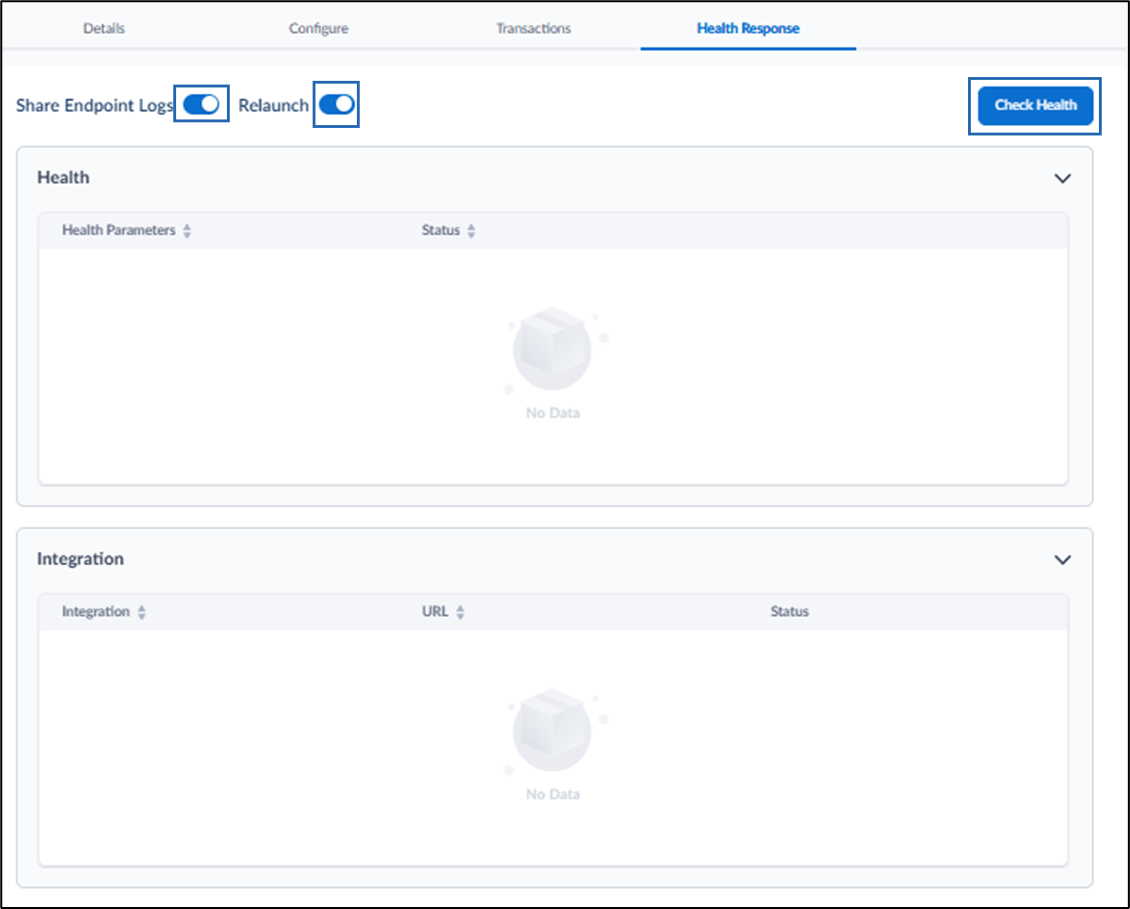
- Turn on Share Endpoint Logs toggle to share logs.
- Turn on Relaunch toggle to automatically apply changes made on the Tenant Admin Portal to the Oloid Verify app without manually closing or restarting the app.
- Click Check Health to initiate a health check successfully.