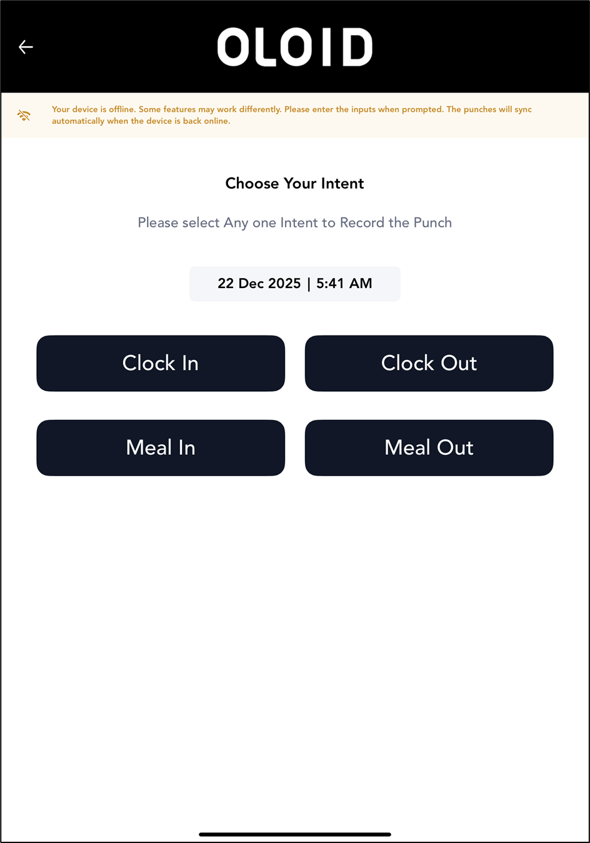
Introduction
This document explains how to set up the Offline Intent Screen in the Oloid Connect application. The Offline Intent Screen allow users choose an intent even when the device is offline. You can enable the Offline intent screen, show an offline message, and configure intent buttons that appear on the screen.Prerequisites
- You must have access to Tenant Admin Portal.
- The Oloid Connect application must be created and configured in the Tenant Admin Portal. For more, refer to How to create and configure Oloid Connect Application in Tenant Admin Portal
- You must pair the oloid connect Endpoint. For more information, refer How to pair an Oloid Connect endpoint
- Ensure that the authentication method(FR Mode) is set to Hybrid, as it supports both online and offline authentication. For more, refer to How to Set FR mode
- Ensure that the user and endpoint are added to the appropriate group. For more information, refer How to Configure Group
Steps to configure Offline Intent Screen
- Log in to the Tenant Admin Portal.
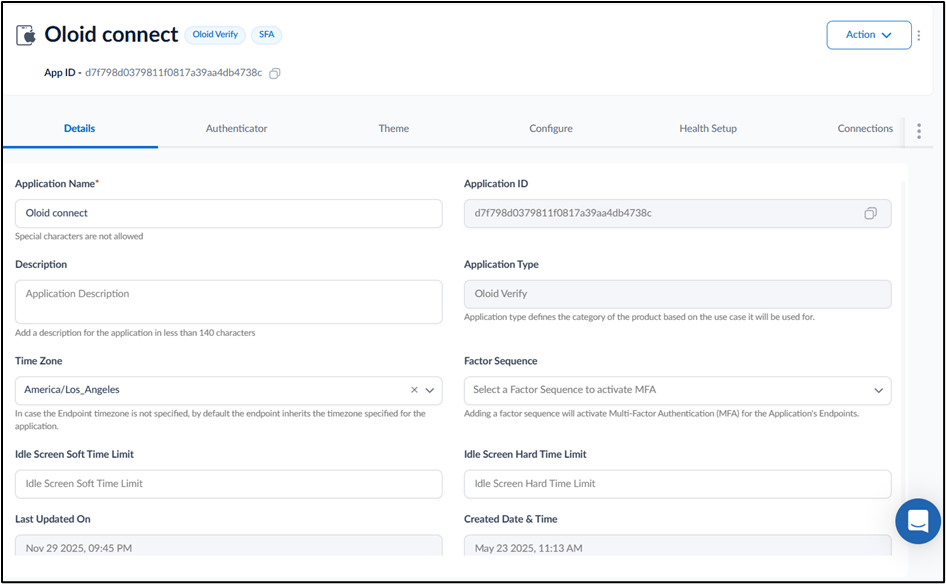
- On the Applications page, click on the preferred Oloid Connect application.
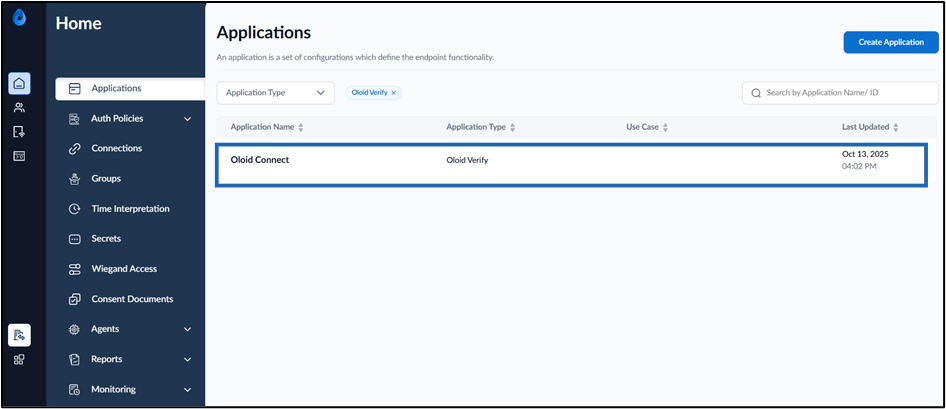
- Go to Configure tab > Offline Intent Screen.
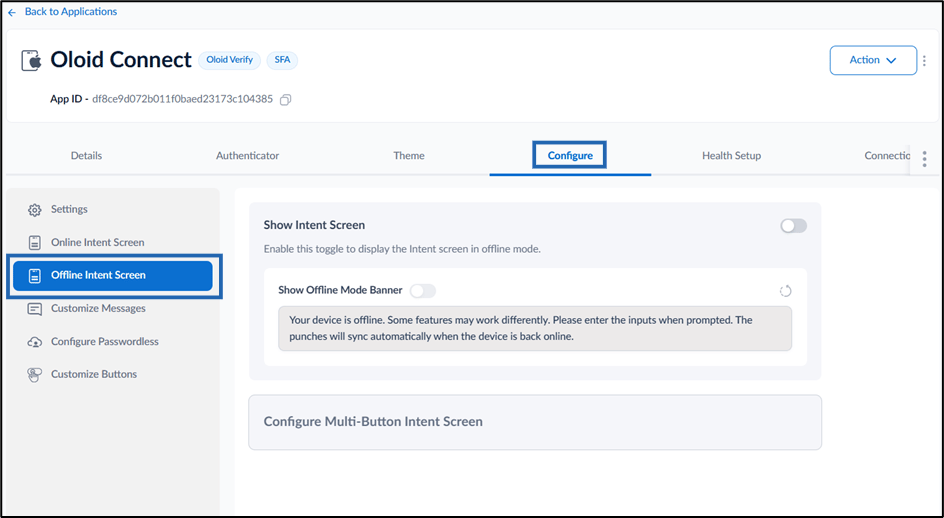
- Do the following:
- Configure Show Intent Screen
- Configure Multi Button Intent Screen The Offline Intent Screen is configured successfully.
Configure Show Intent Screen
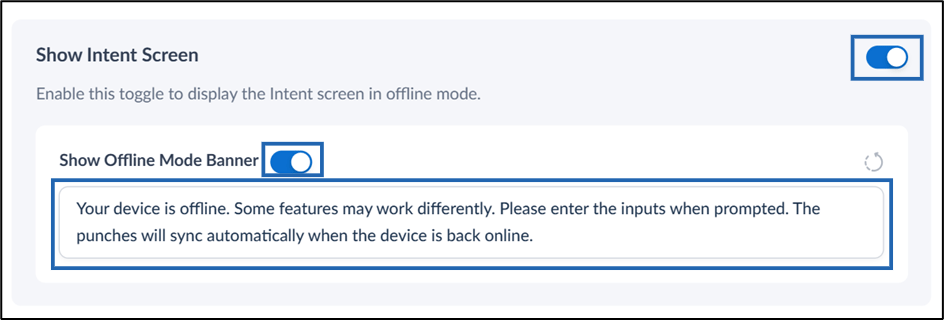
- Enable Show Intent Screen toggle.
- Do the following:
- Turn on Show Offline Mode Banner toggle.
-
Review or edit the banner message displayed to users on the Intent Screen.(Optional)
Configure Multi Button Intent Screen
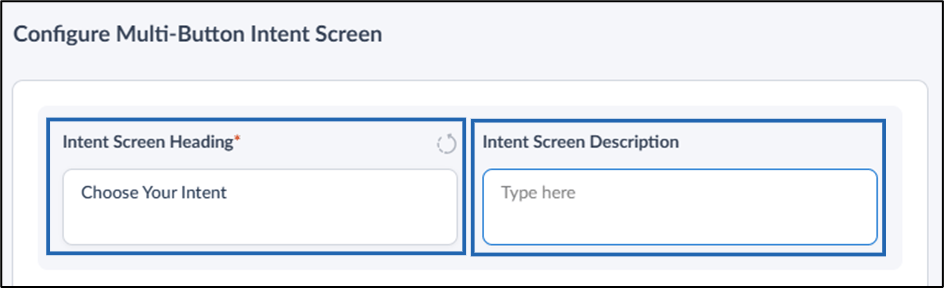
- Enter a title in the Intent Screen Heading field. This title appears at the top of the intent screen.
- Type a short description in the Intent Screen Description field.
Configure Intent Screen Buttons
You can configure at least one and up to six intent buttons.- Do the following:
- Click +Add Button to add an intent button. The button section is displayed.
-
Select 1 Column or 2 Column from the Show Buttons in dropdown, to define how intent buttons appear on the Intent Screen.
- 2 Column (default): Displays intent buttons in two columns.
- 1 Column: Displays intent buttons in a single column.
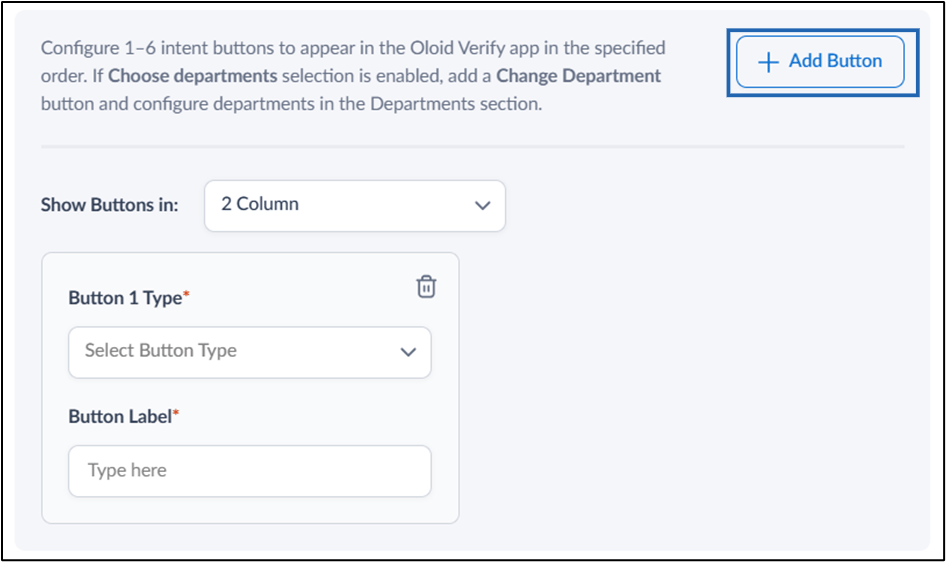
- Select Button Type from the dropdown.
-
Enter Button Label.
Note: The label is displayed on the intent screen.
Configure Advanced Settings
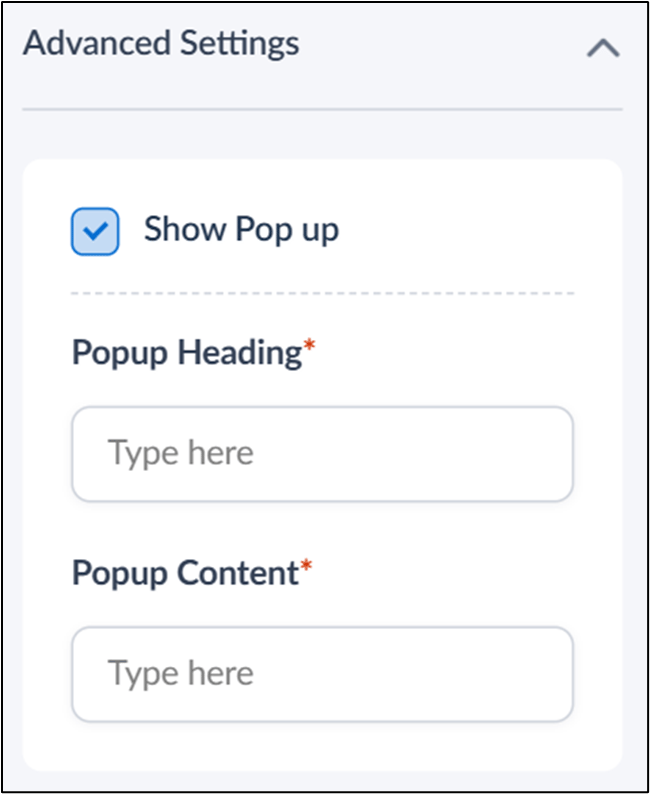
- Select Show Pop up to display a confirmation pop-up box when a user taps the intent button.
- In the Popup Heading field**,** enter the title text that appears at the top of the popup. This heading should clearly describe the purpose of the popup.
- In the Popup Content field, enter the main message or instructions displayed inside the popup.
This content should provide clear and concise information to the user.
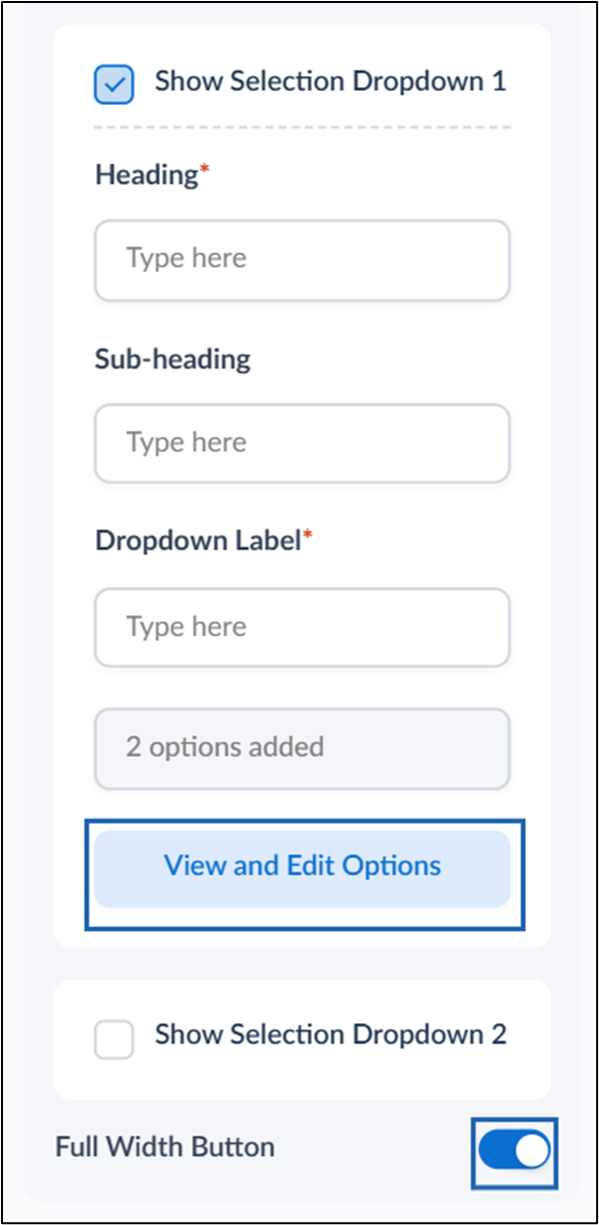
- Select Show Selection Dropdown 1 (or Dropdown 2 if required).
- Configure the following fields:
- Heading – Enter the title displayed on the dropdown screen.
- Sub-heading – (Optional) Provide additional context.
- Dropdown Label – Enter the label shown for the dropdown field.
- Enable the Full Width Button toggle (Optional).
- Click View and Edit Options.
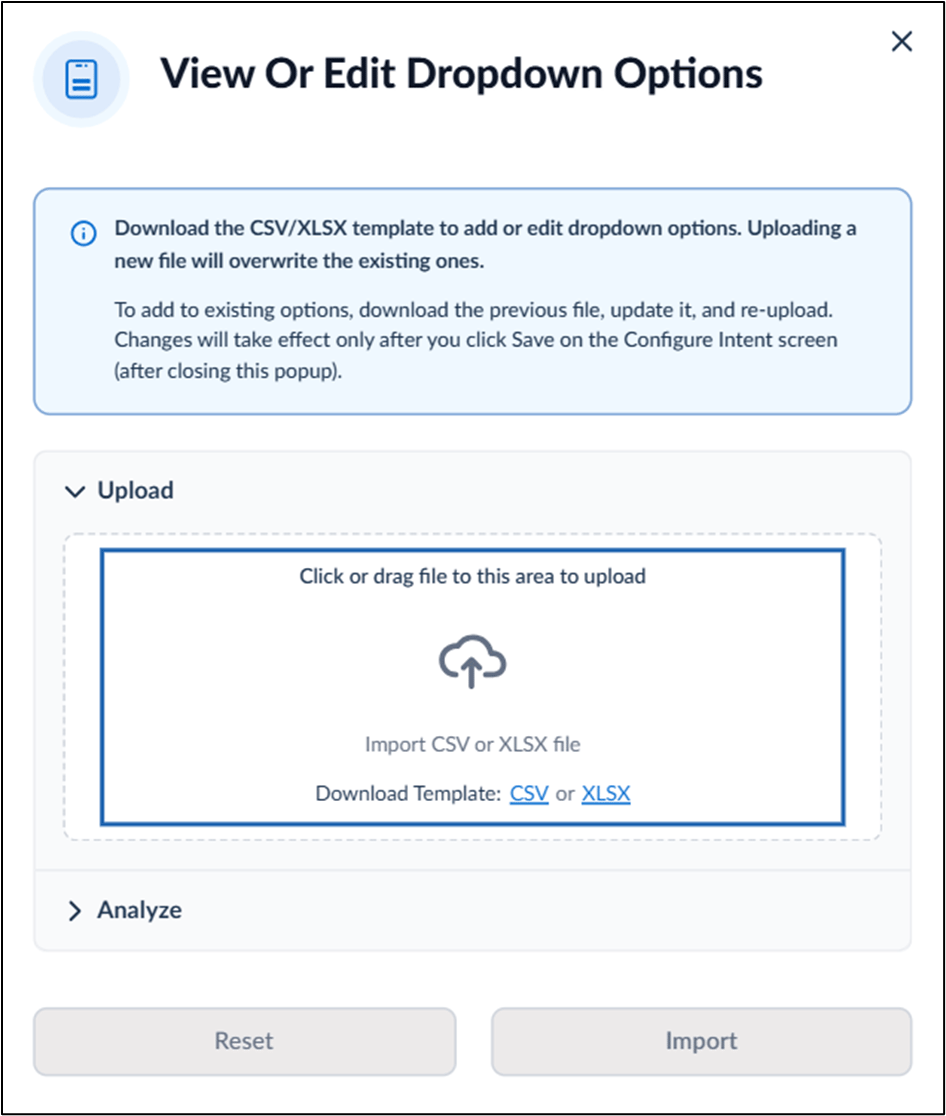
- Click Download Template and select one of the following formats:
- CSV
- XLSX
- Open the downloaded file and add or update the dropdown values as required.
- Upload the CSV/XLSX file using one of the following options:
- Drag and drop the file.
- Click to upload and select the file from your system.
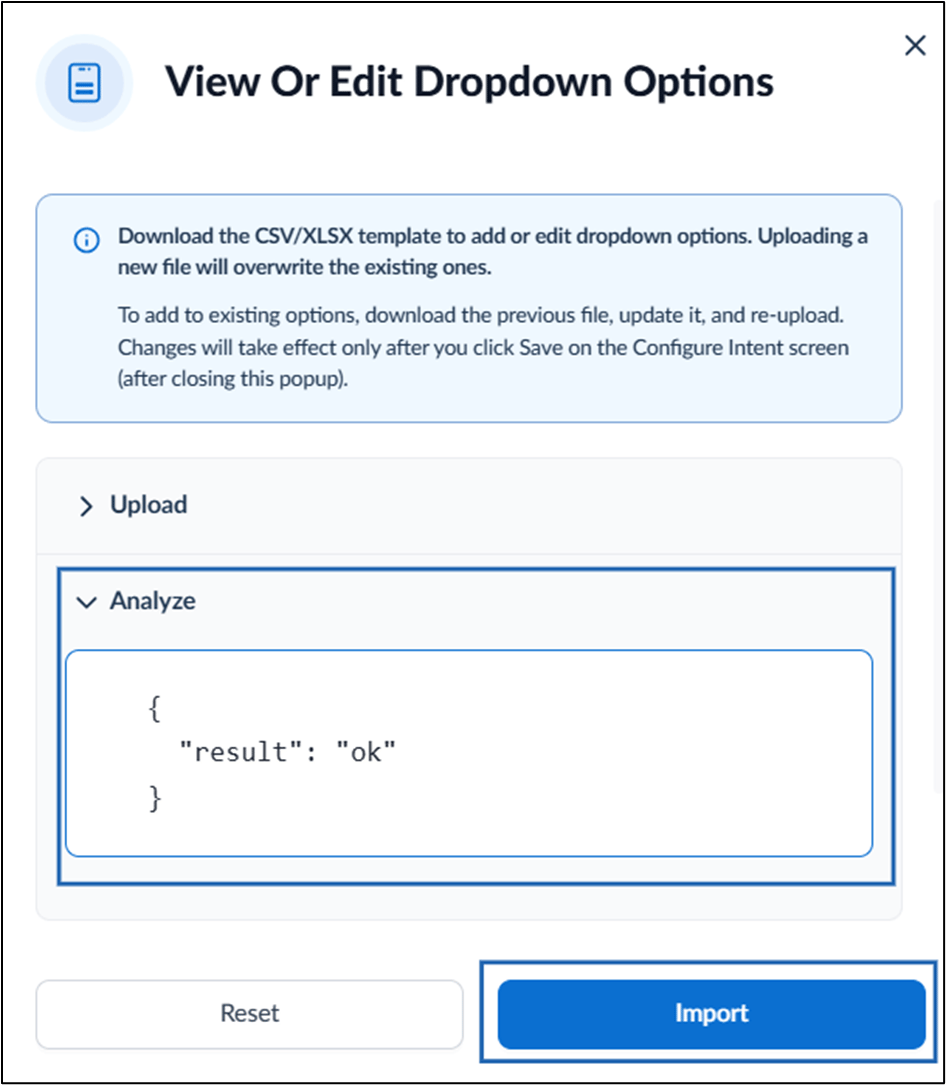
- After the file is uploaded, review the Analyze section.
- Ensure the result displays “result”: “ok”, indicating a successful validation.
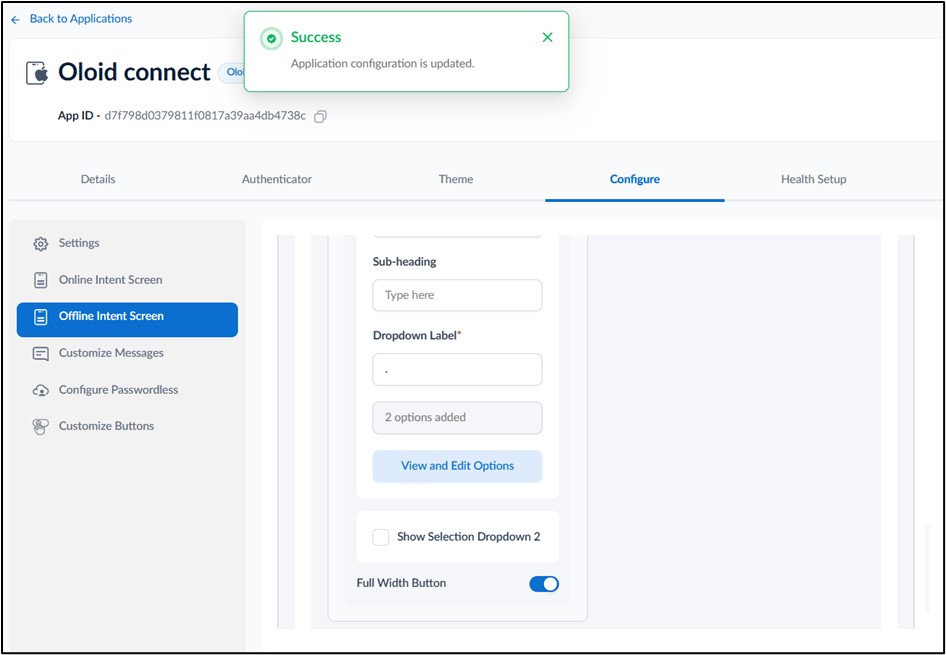
- Click Import.
Sample Intent Screen