

Login using Email and Password
Prerequisite
- You must complete the Admin Setup. For more details refer Oloid Verify: App Installation and Admin Setup.
-
Password must be updated using the invite email received by the Supervisor.
Note: In case, supervisor has not received any invite email, they should contact the Tenant Admin.
Steps to log in with Email and Password
-
Launch the Oloid Verify App.
 Note: Since the endpoint is already paired, the app will launch in the preview mode. For more, refer to Oloid Verify - How to Pair an Endpoint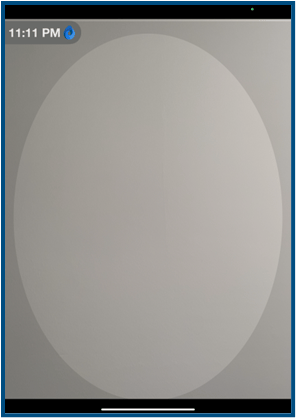
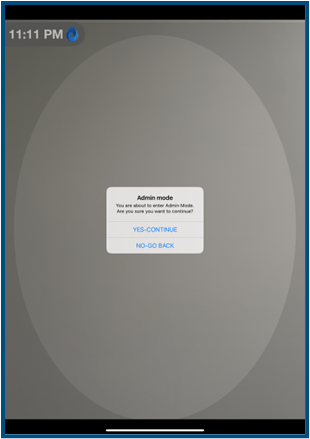
- Double tap with two fingers on the screen to launch the Admin Mode.
-
Tap Yes- Continue.
-
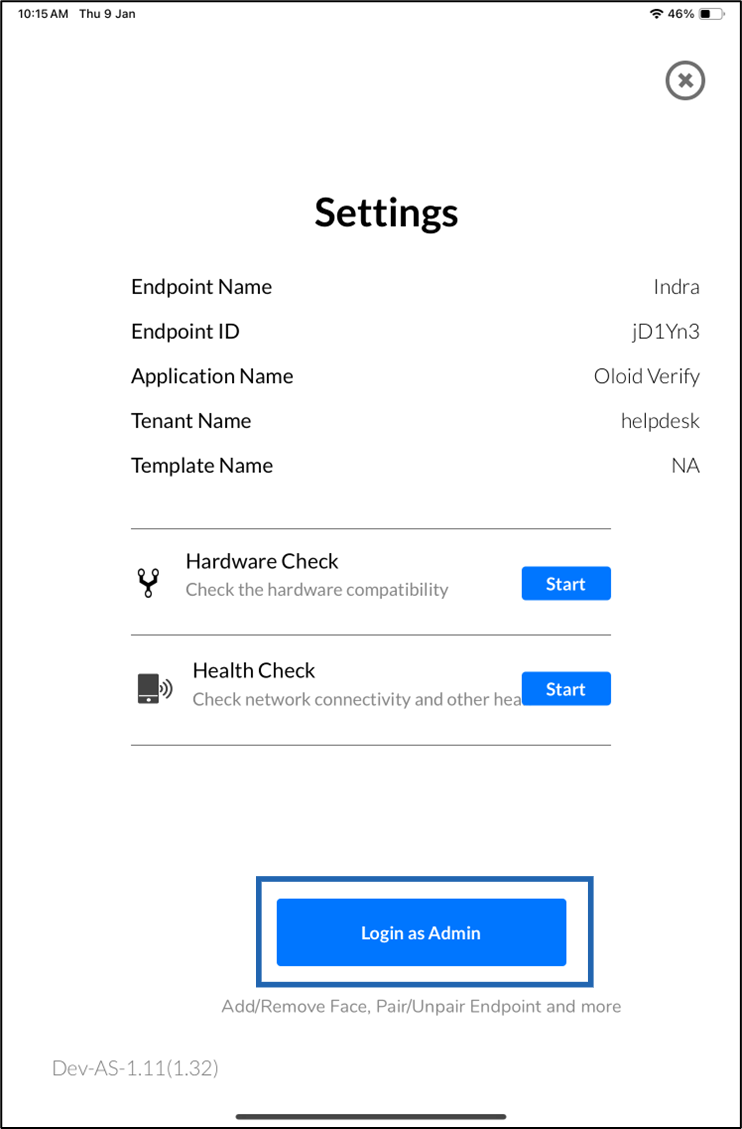
Tap Login as Admin.
-
Do the following:
- Enter Email ID in the Email field.
- Enter Password in the Password field.
-
Tap LOGIN.
 Note: After successfully logging in to Admin mode, the Users page is displayed. For more details, refer to the sample screen
Login using Face
Prerequisite
- Face must be onboarded for the Supervisor/Admin.
- Endpoint must be paired in the iPad. For more details refer How to pair an Oloid Verify endpoint.
- The connection that the supervisor belongs to, must be linked to the application the endpoint is paired with.
Steps to log in with Face
-
Launch the Oloid Verify App.
 Note: Since the endpoint is already paired, the app will launch in the preview mode.
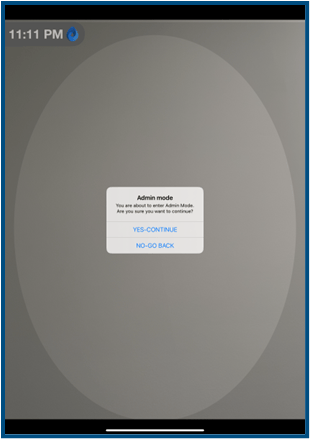
 - Double tap with two fingers on the screen to launch the Admin Mode.
-
Tap Yes- Continue.
-
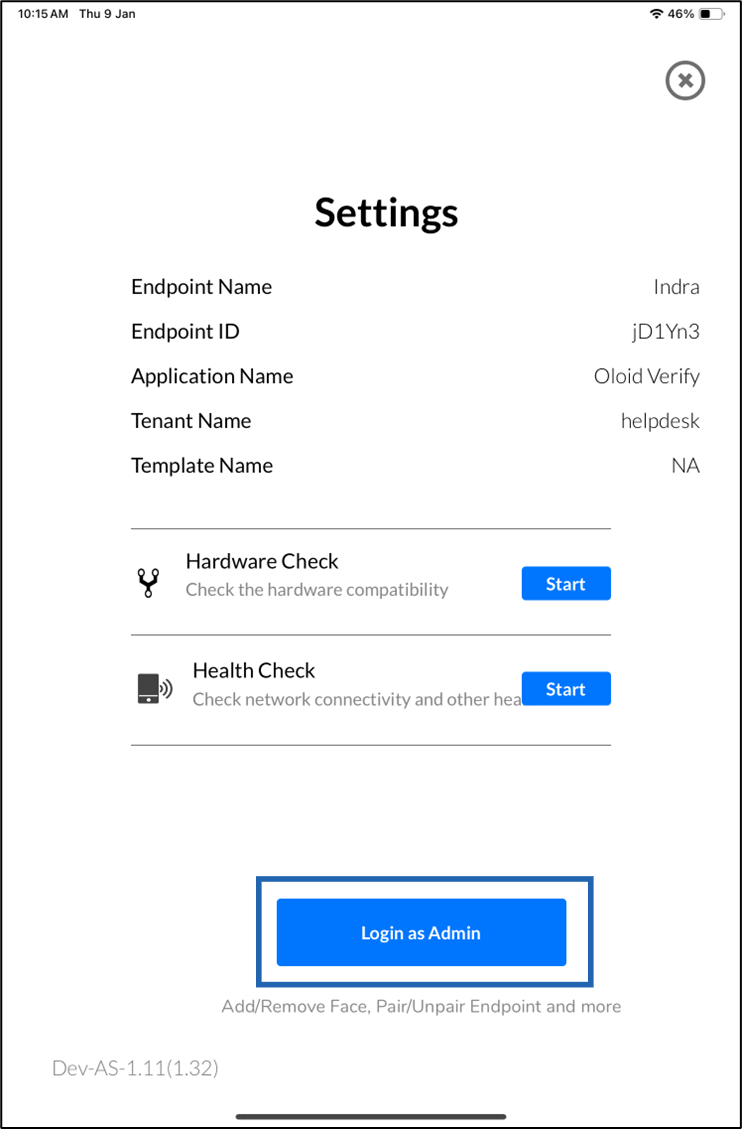
Tap Login as Admin.
-
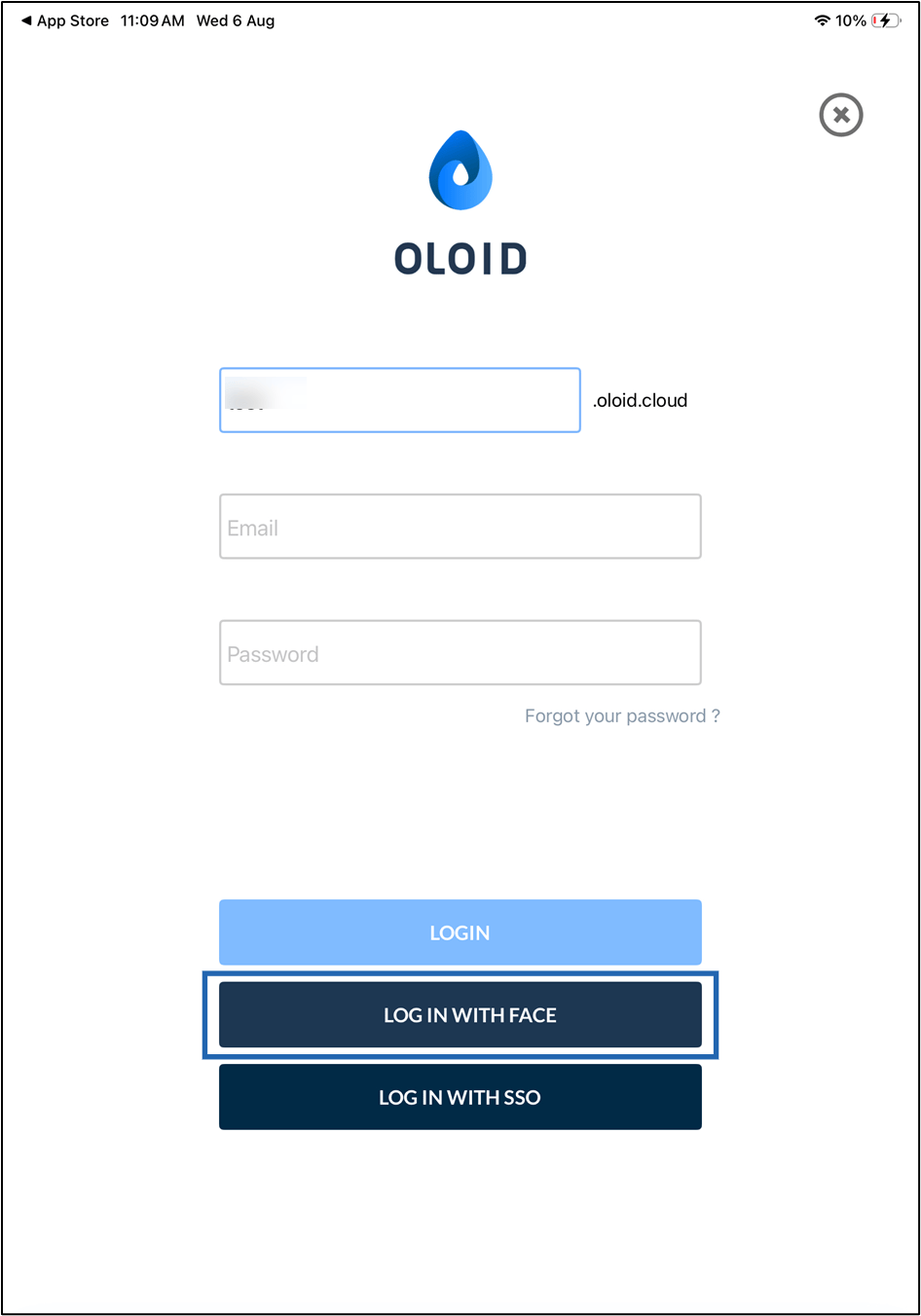
Tap LOG IN WITH FACE.
-
Look at the camera to confirm your identity.
 Note: After successfully logging in to Admin mode, the Users page is displayed. For more details, refer to the sample screen
Log in using SSO
Prerequisite
- Endpoint must be paired in the iPad. For more details refer How to pair an Oloid Verify endpoint.
- Tenant admin and Supervisor’s Email ID needs to be updated in the Tenant Admin Portal.
Steps to log in with SSO
-
Launch the Oloid Verify App.
 Note: Since the endpoint is already paired, the App will launch in the preview screen of the App.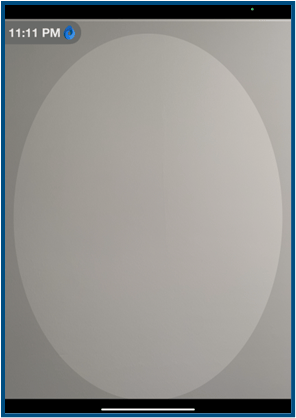
- Double tap with two fingers on the preview screen to launch the Admin Mode.
-
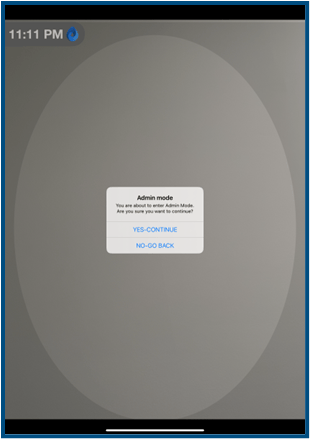
Tap Yes- Continue.
-
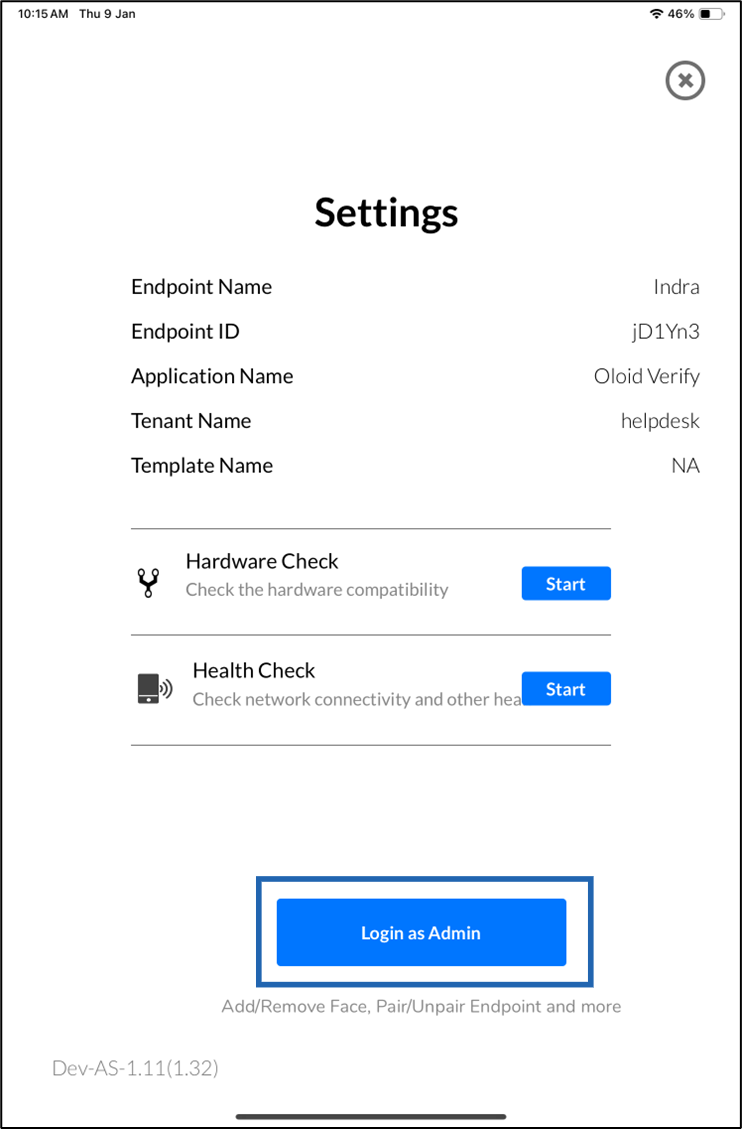
Tap Login as Admin.
-
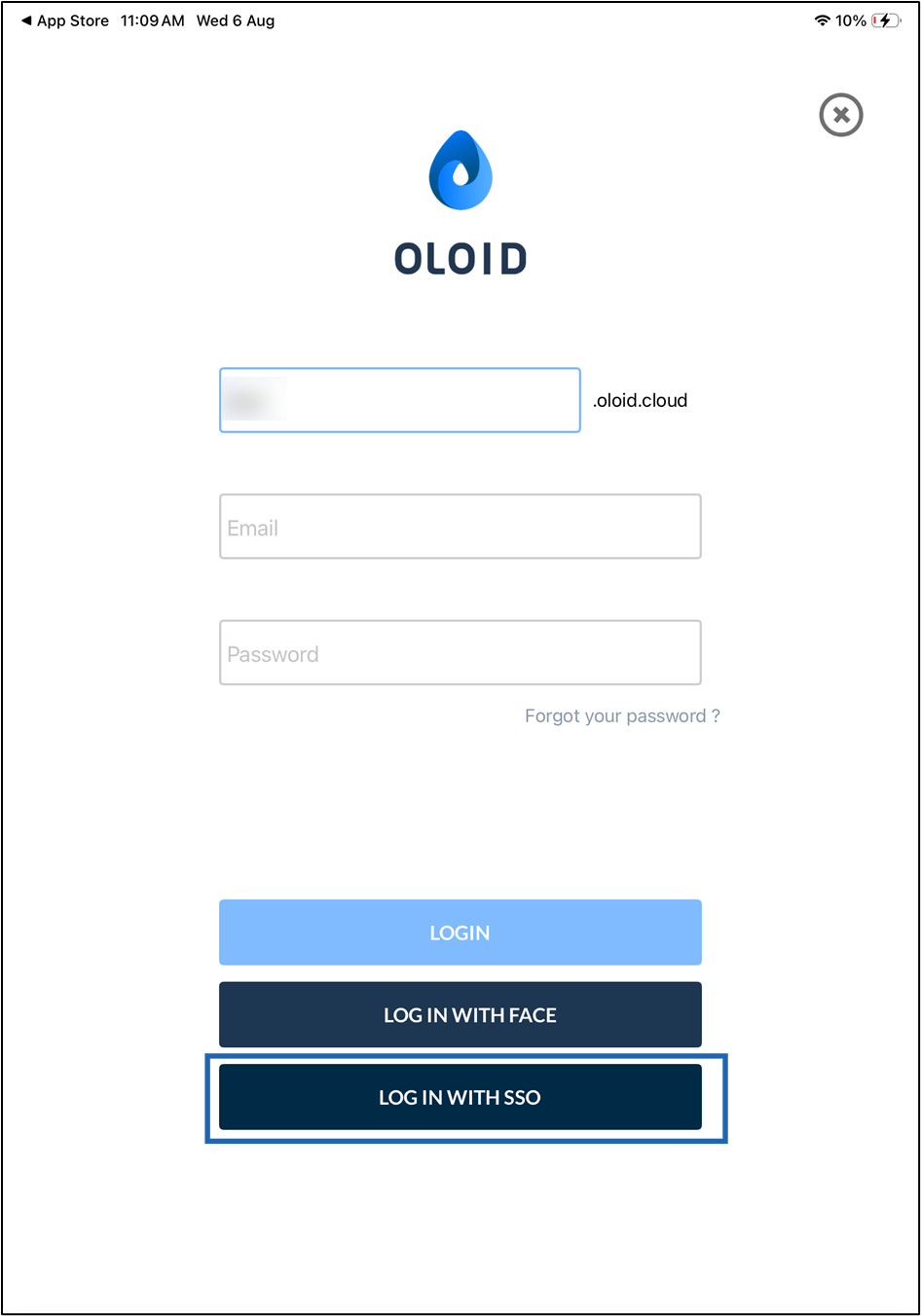
On the login screen, tap Login with SSO.
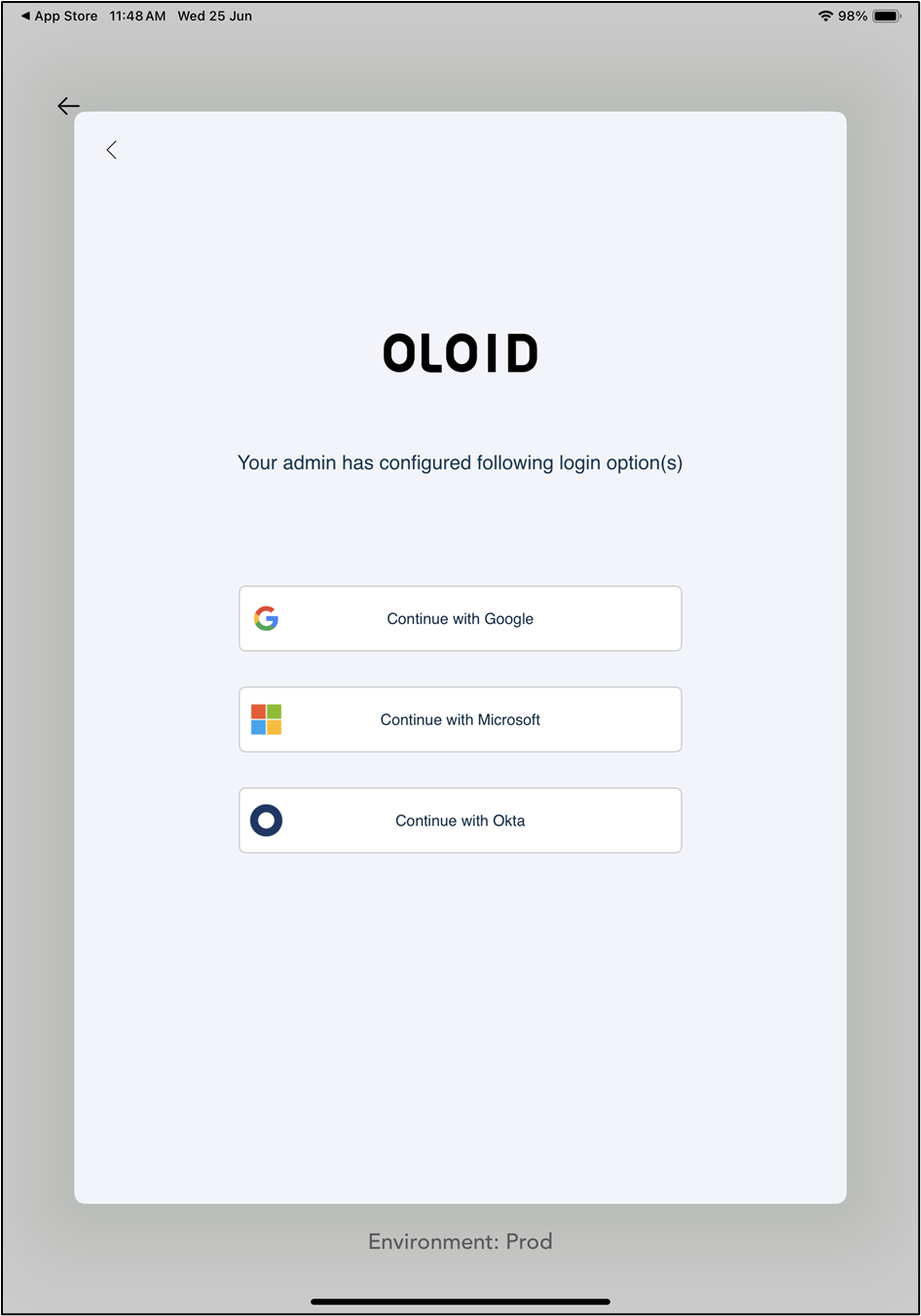
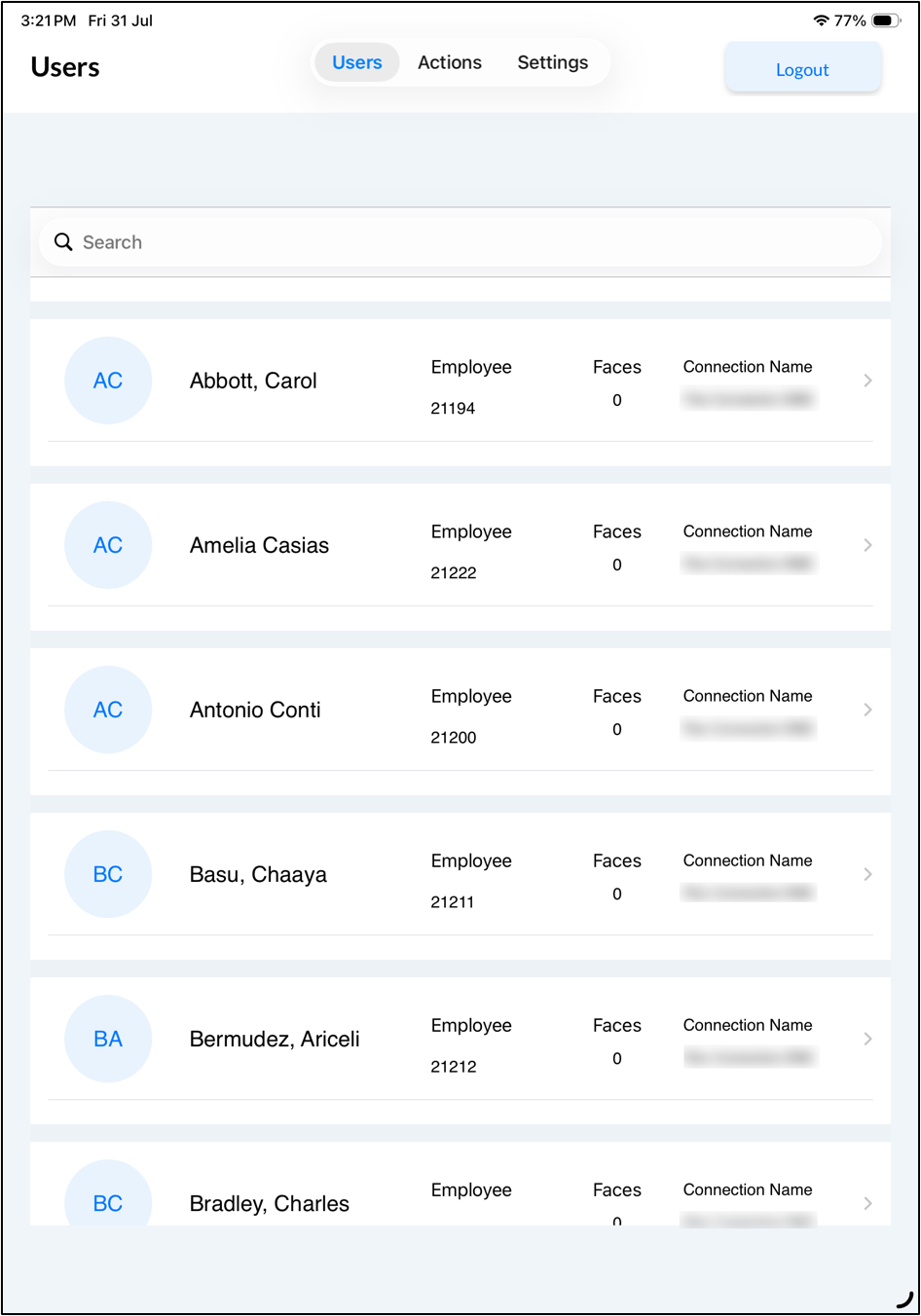
Note: After successfully logging in to Admin mode, the Users page is displayed. For more details, refer to the sample screen
Sample Screen
SEO Keywords
- Oloid Verify Admin Mode login | Oloid Verify login methods | Oloid Verify Email and Password login | Oloid Verify Face login | Oloid Verify SSO login