

Prerequisite
The Oloid Connect App should be configured in OloID platform for using the credentials. The user should have Okta user credentials. Once the setup is complete, you can use one of the following to log in to Okta.Login with Face
Pre-requisite
The user and user face are added to the Oloid Portal. To log in with face:- Launch the Oloid Connect App on the iPad.
The preview screen is displayed.

- Position yourself in front of the iPad and align your face within the oval frame. The camera captures the face. On successful face authentication, the app takes you to the Okta dashboard.
Login with Badge
Pre-requisite
- The Badge Reader is connected to the device.
- User and Badge credentials are created in the Oloid Portal.
- Launch the Oloid Connect App on the iPad.
The scan badge screen is displayed.

- Scan your badge in the Badge Reader. On successful badge authentication, the app takes you to the Okta dashboard.
Login with PIN
Pre-requisite
- User is added to the Oloid Portal.
- PIN is configured and communicated to the user.
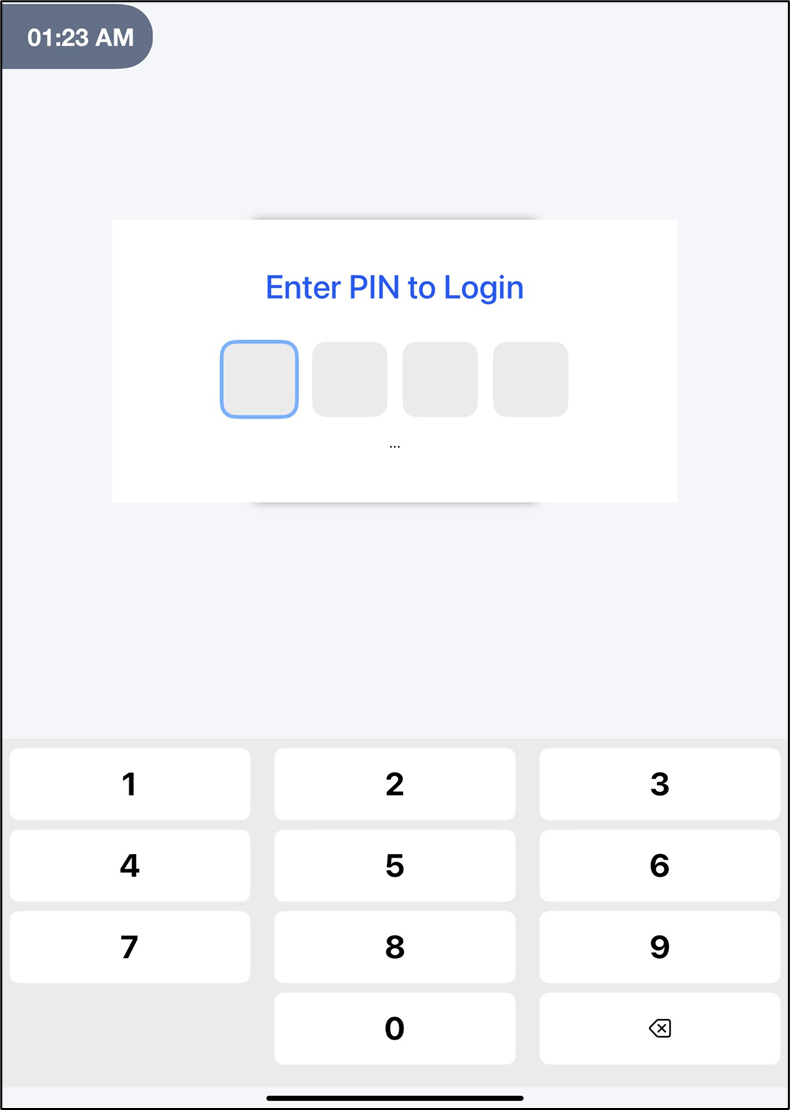
- Launch the Oloid Connect App on the iPad. The login screen is displayed.
-
On Enter PIN to Login screen, enter the PIN.
Note: By default, the PIN is set to 4 Digit Numeric PIN. You can configure the PIN length. For PIN configuration, seeHow to configure the PIN
Login with QR Code
Pre-requisite
The user and QR Code are added to the Oloid Portal. To log in with QR Code:- Launch the Oloid Connect App on the iPad. The preview screen is displayed.
- Show your QR Code for automatic capture.

Login with NFC
Pre-requisite
- The Badge Reader is connected to the device.
- User and NFC credentials are created in the Oloid Portal.
- Launch the Oloid Connect App on the iPad.
The NFC Tag screen is displayed.

- Scan your NFC Tag in the Reader. On successful NFC authentication, the app takes you to the Okta dashboard.