Introduction
This document explains how to assign a badge to a user using the Oloid Connect iPad app. Admin can scan a physical badge using a connected badge reader to enroll it for a user.Prerequisites
- User should be added to the connection paired with the application.
- The badge reader must be connected to the iPad.
Steps to assign Badge
-
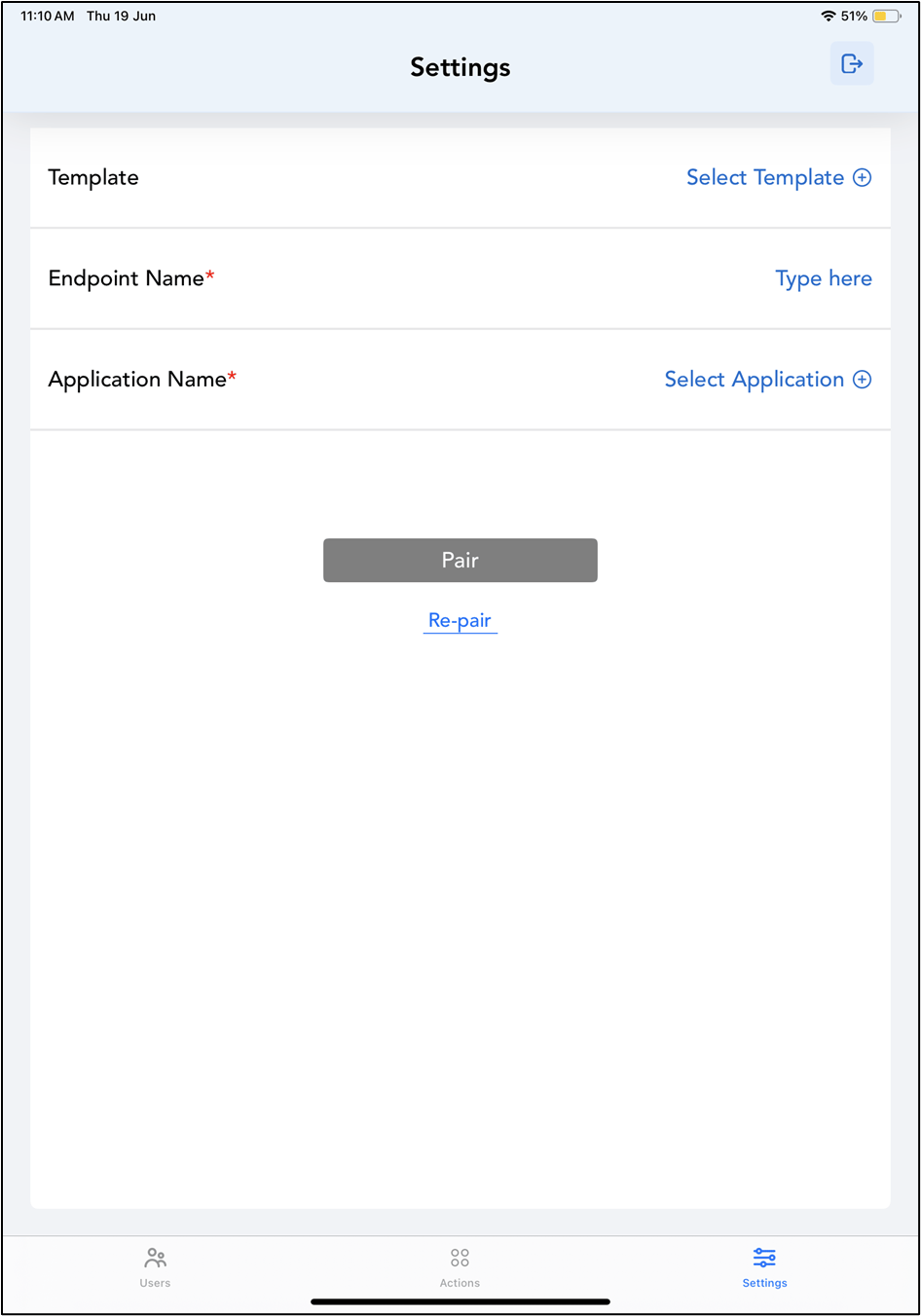
Launch the Oloid Connect app.
The Settings page is displayed.Note: For more information about how to log in to the Oloid Connect, refer to How to log in to the Admin mode in Oloid Connect App.
-
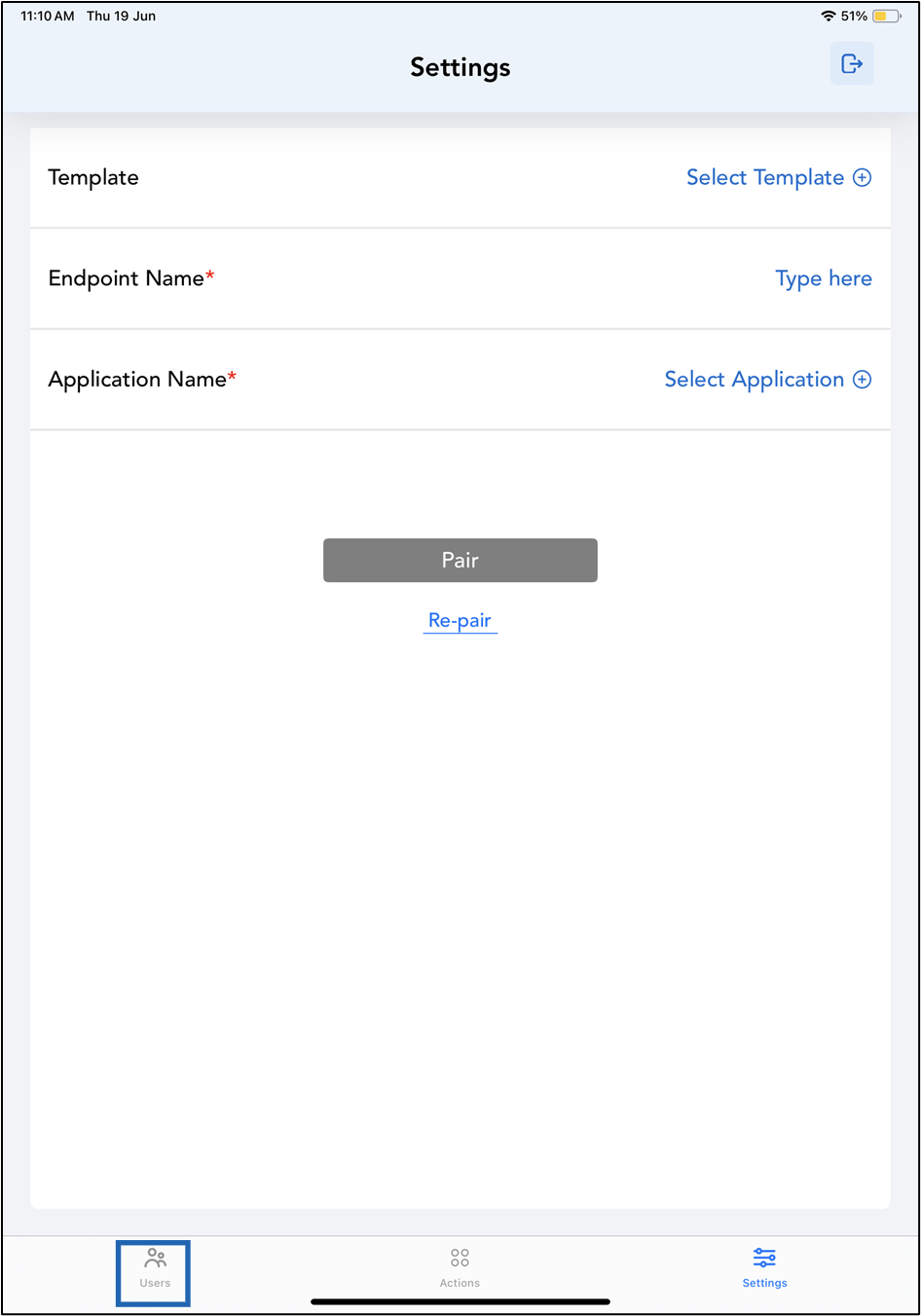
Tap Users on the menu at the bottom of the screen.
-
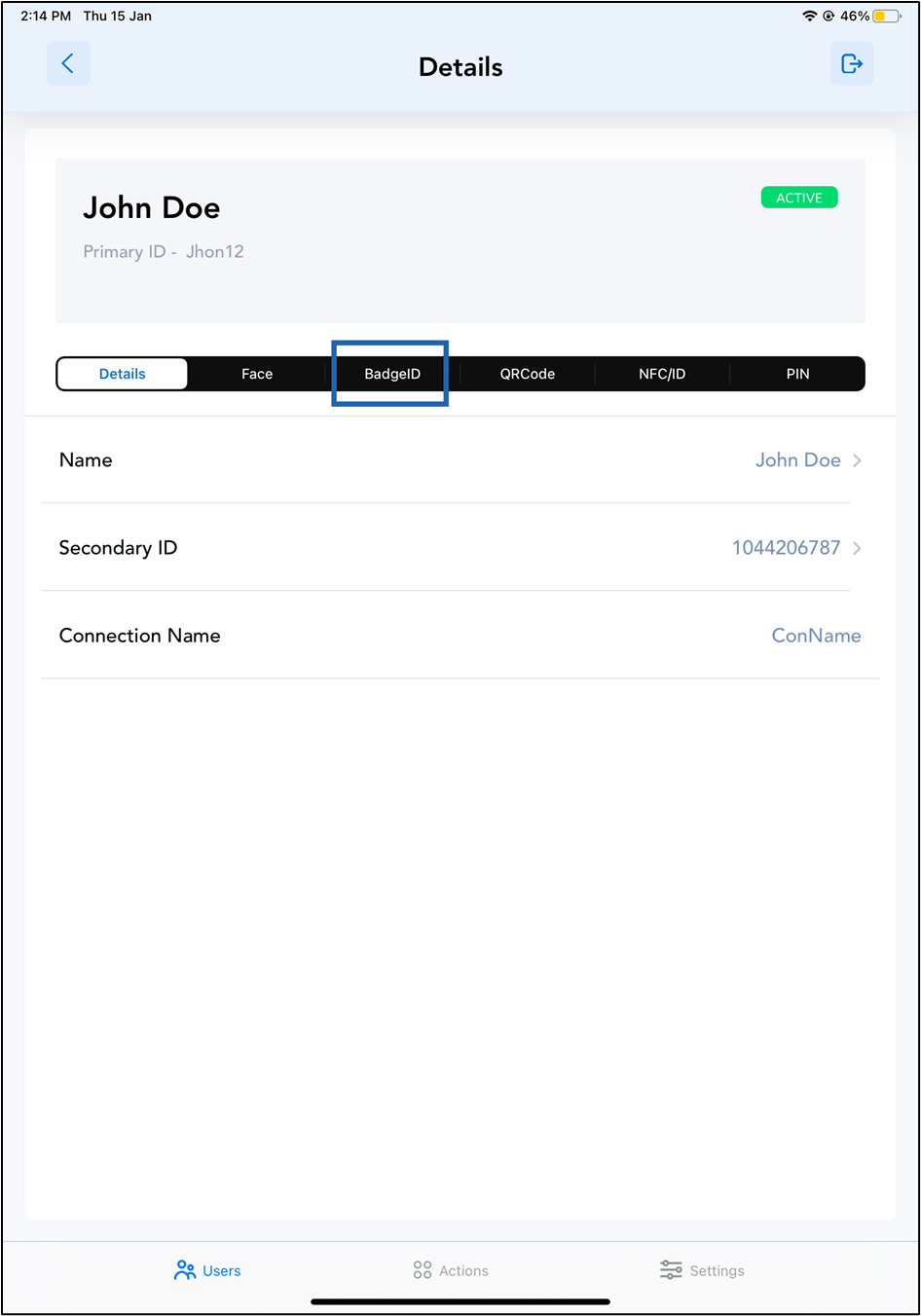
Select user from the list, or search for a user using the search bar at the top to assign the badge.

-
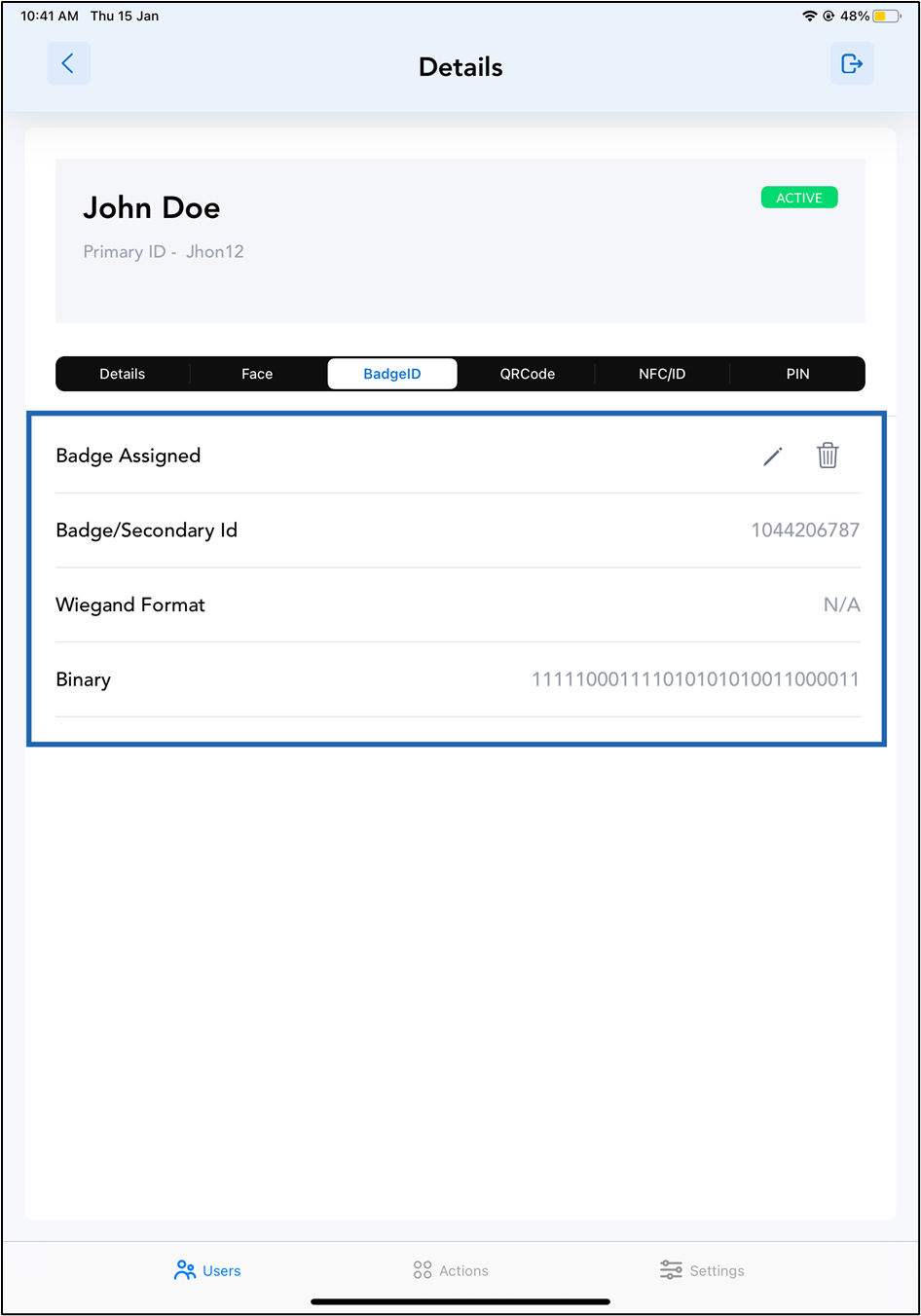
Go to BadgeID.
-
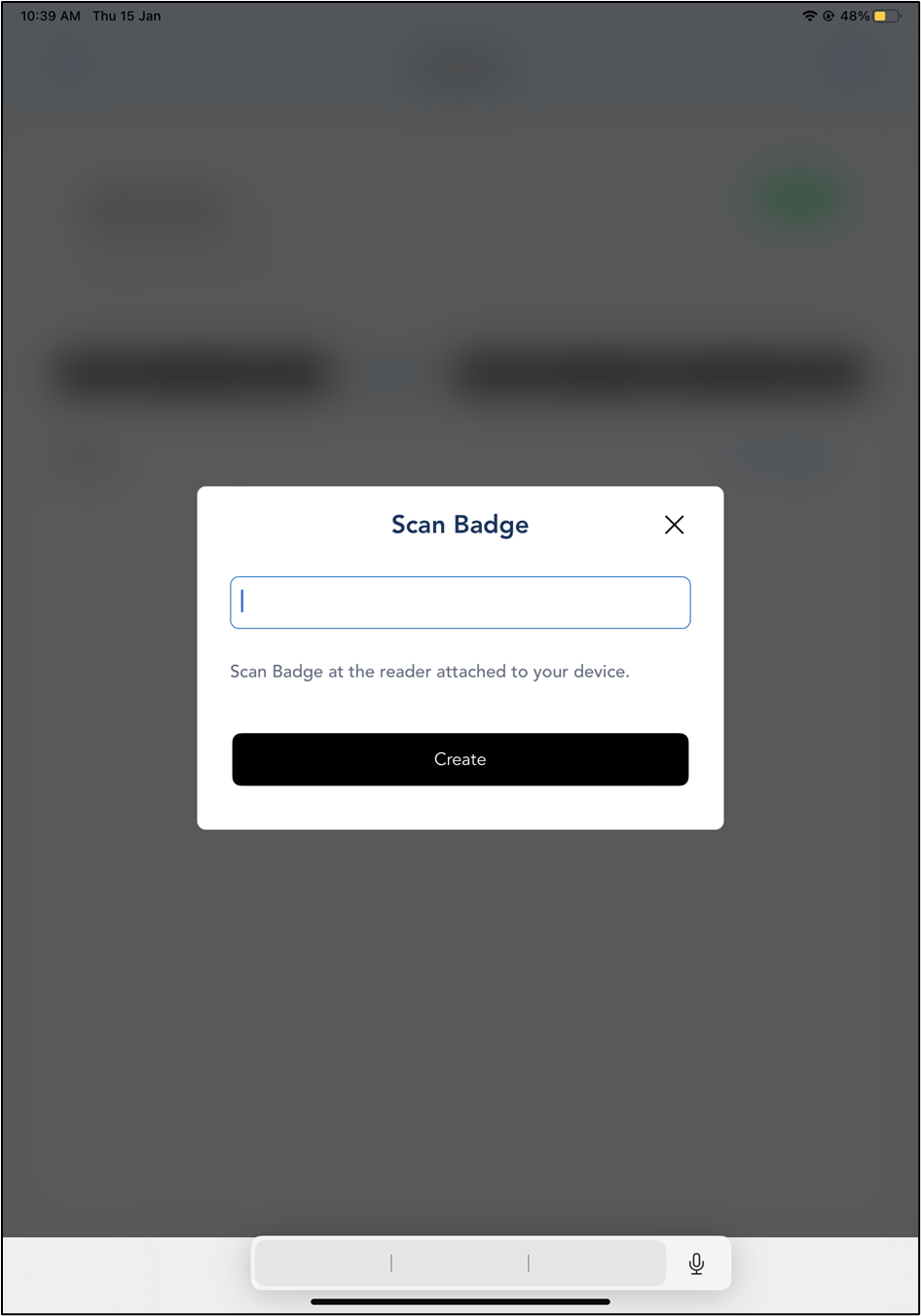
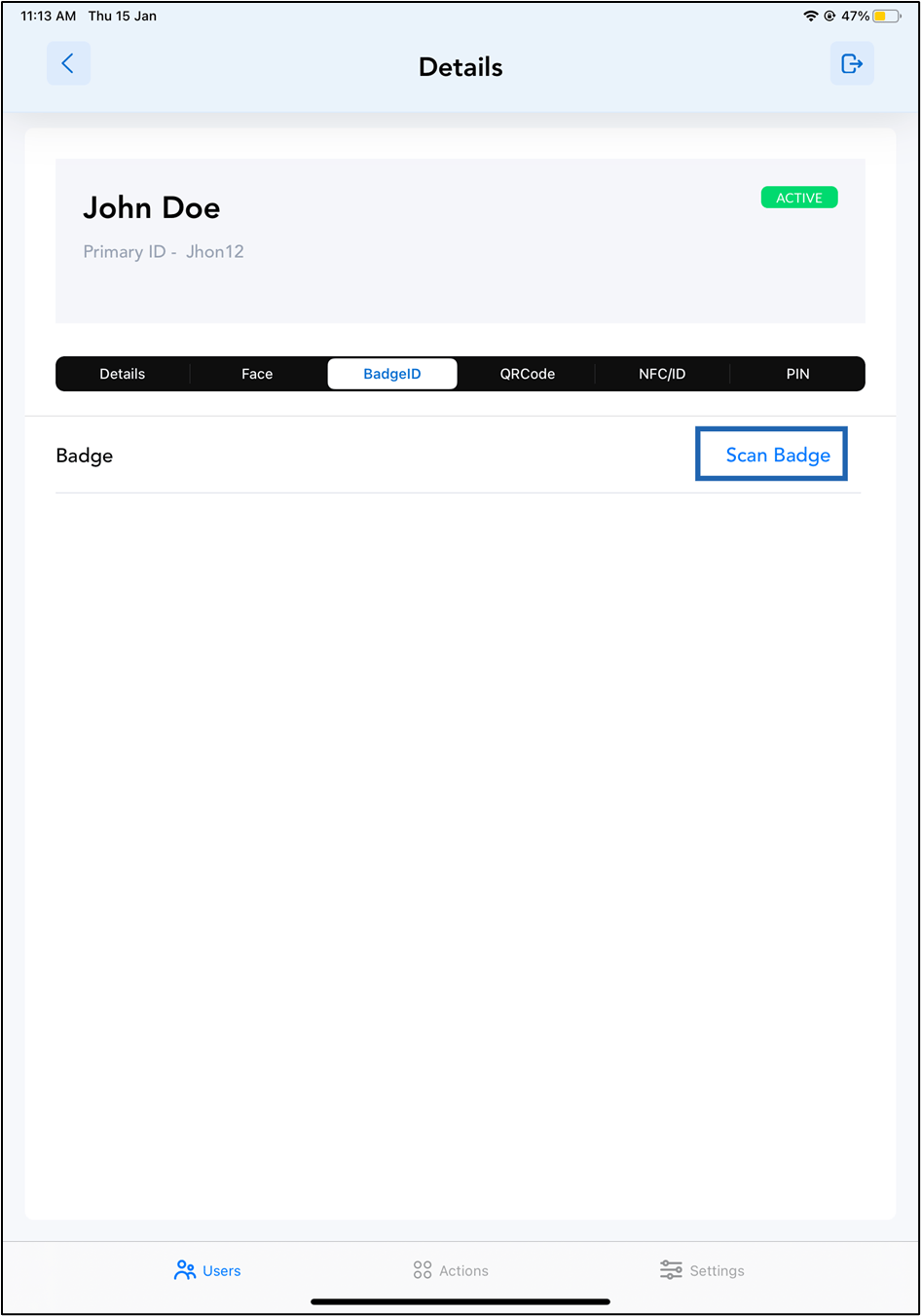
Tap Scan Badge.
-
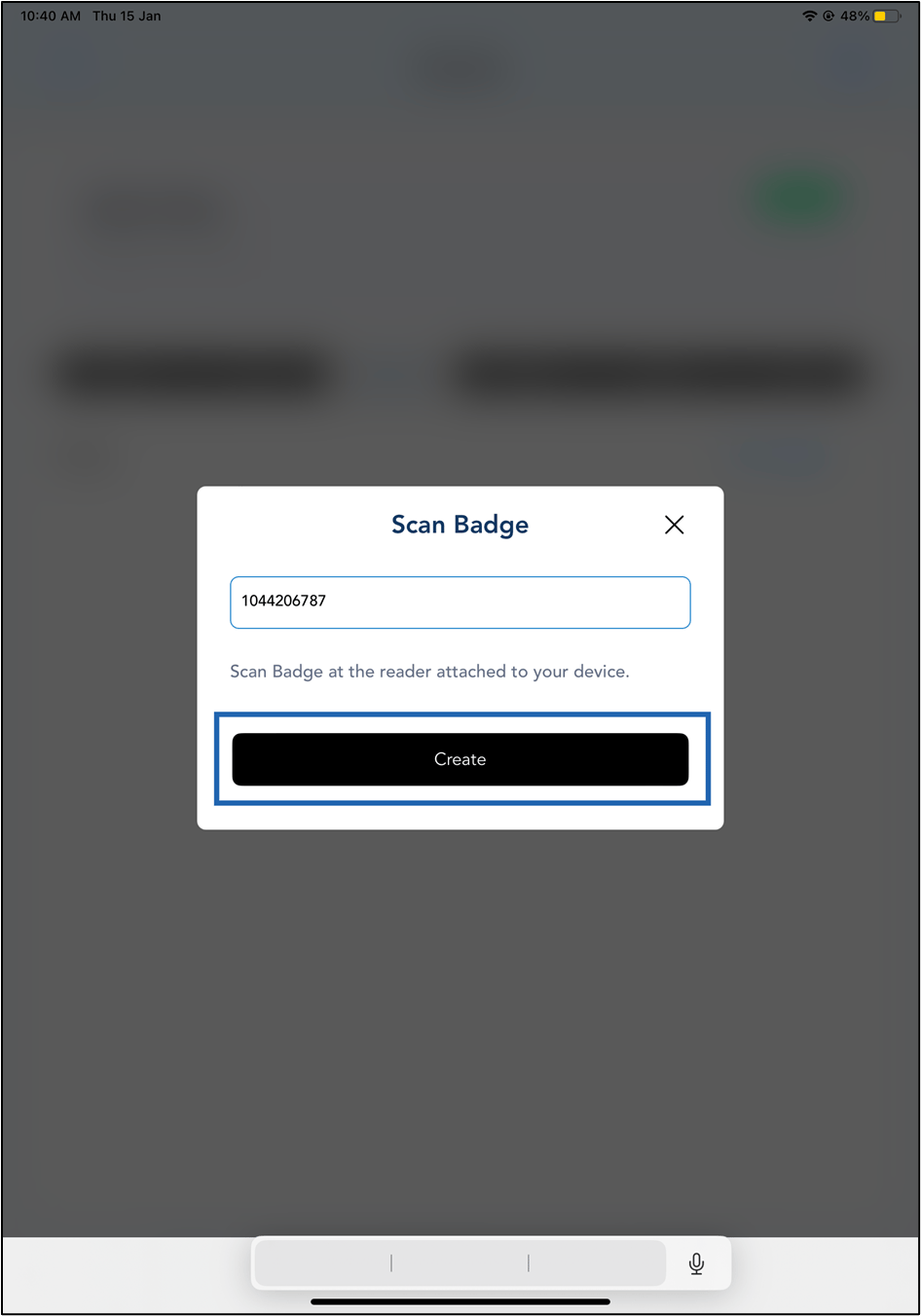
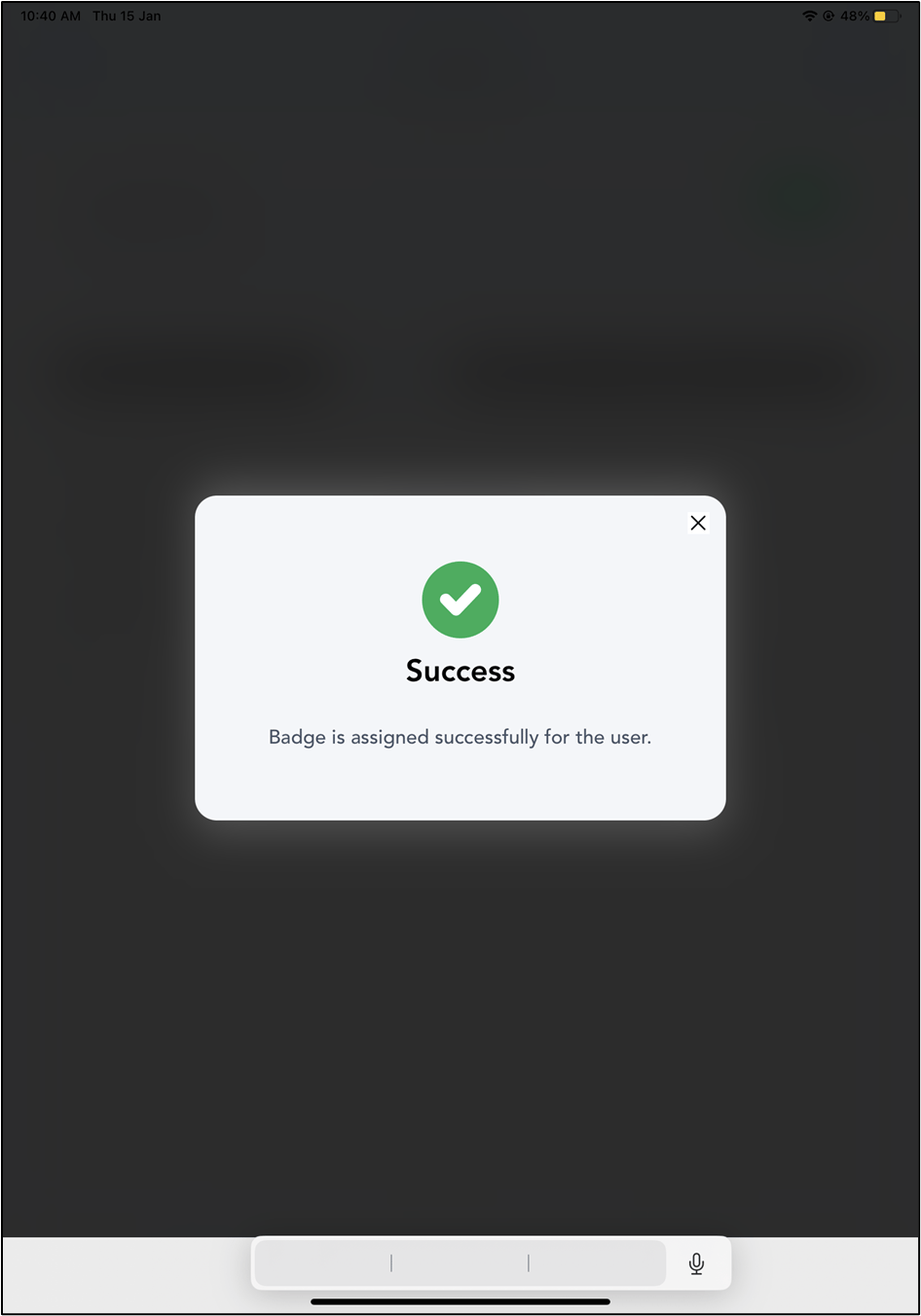
Scan the Badge on the Badge reader.
Note: The badge reader must be connected to the iPad.