Introduction
The Auto Config file is created and downloaded from the Tenant Admin Portal. It includes all the necessary settings to automatically connect your iPad to the Oloid Connect application. After downloading, transfer the file to your iPad. This process allows the endpoint to connect with the Oloid Connect application configured in the Tenant Admin Portal, without requiring manual setup.Prerequisites
- You must generate the Auto-config file, transfer it to the iPad, and save it. For more, refer to How to generate Auto-Pair config file for Oloid Connect in Tenant Admin Portal
- In the Tenant Admin Portal, select Skip user confirmation for pairing when generating the auto-config file. The endpoints pair automatically without user confirmation (recommended).
Steps to pair an Oloid Connect endpoint using Auto Config file
- Launch the Oloid Connect


- Tap Auto-pair using config file.

- On the Pair Device Using Config File, tap on Click here to pair file.
- Upload the auto-config file from your iPad.

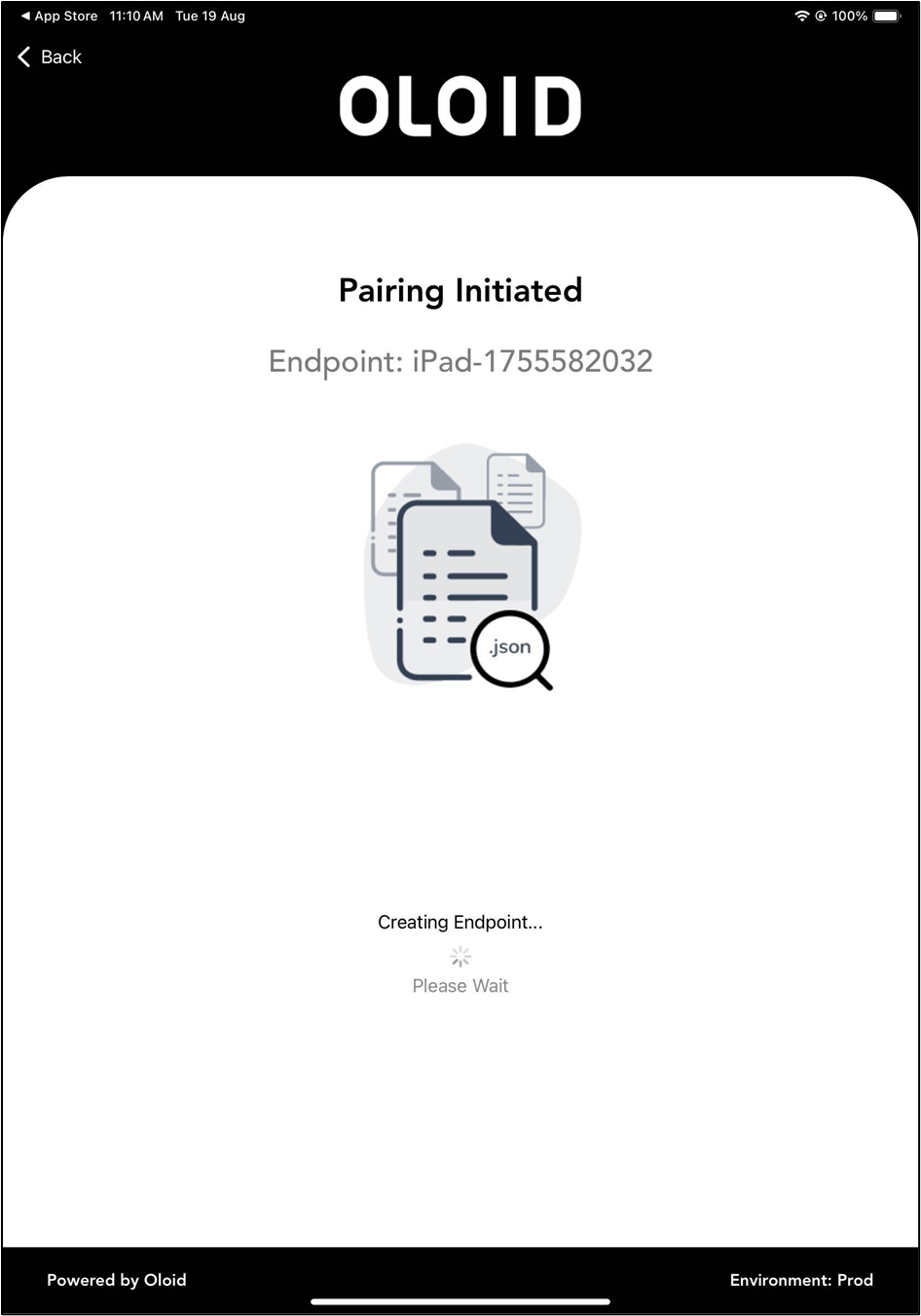
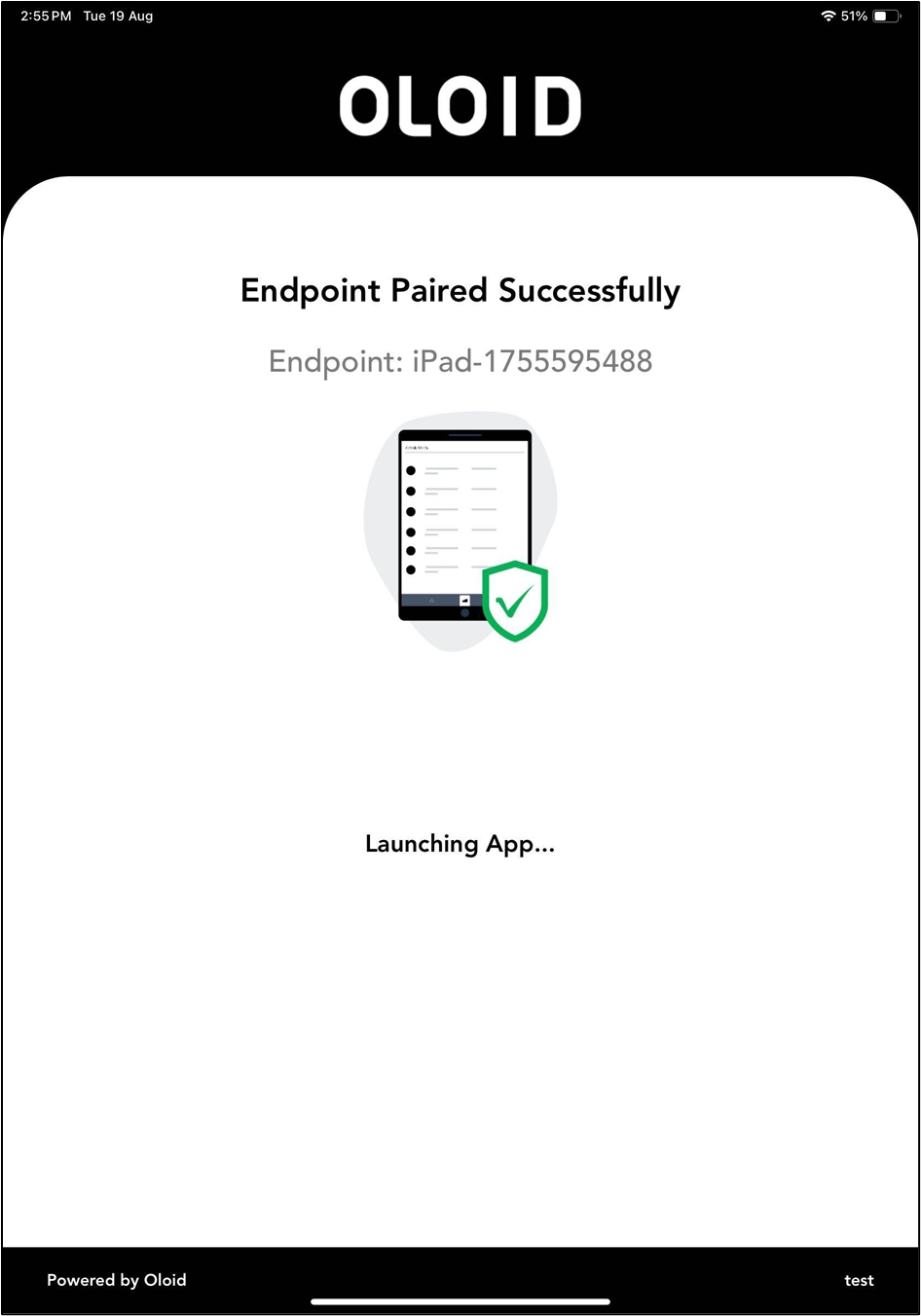
- Tap Upload to initiate endpoint pairing.