

Introduction
This document provides instructions to log in to the Oloid Connect application using Microsoft Single Sign On (SSO).Prerequisite
- You must create and configure the Oloid Connect application in the Tenant Admin Portal. For more, refer to How to create and configure Oloid Connect Application in Tenant Admin Portal
- You must install the Oloid Connect app from the App Store. For more, refer to How to Download and Install the Oloid Connect App on iPhone
Steps to log in with Microsoft SSO
- Launch the Oloid Connect


- Tap Pair as Supervisor.

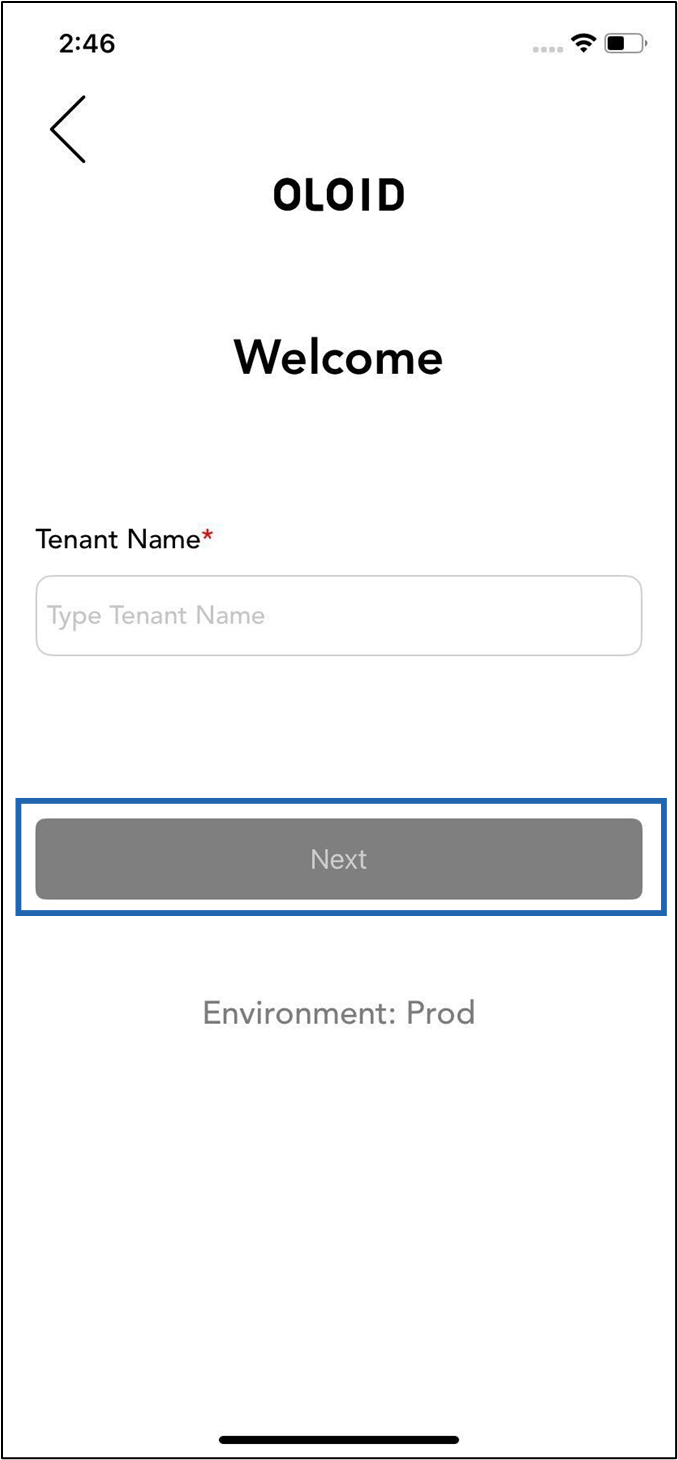
- Enter Tenant Name, then tap Next.
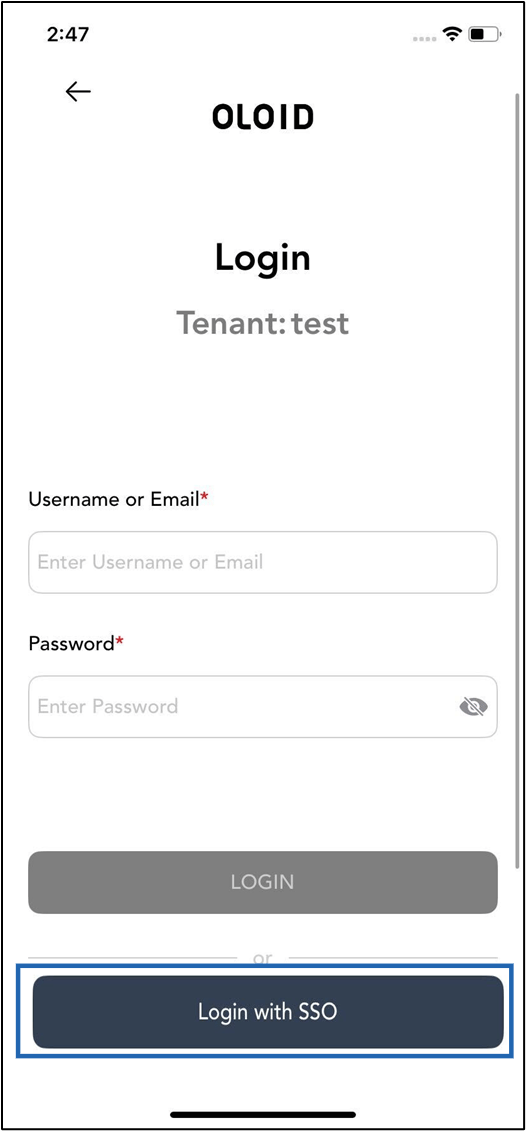
- Tap Login with SSO.
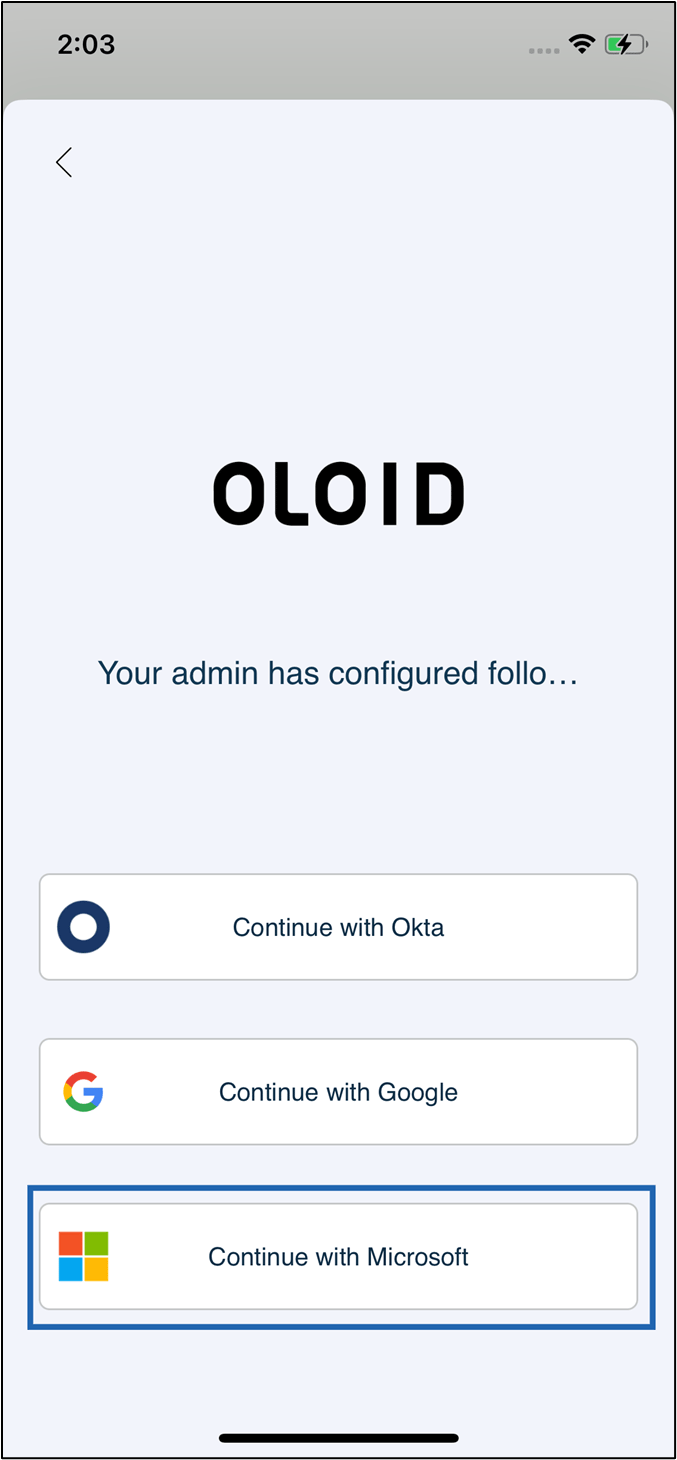
- Select Continue with Microsoft.
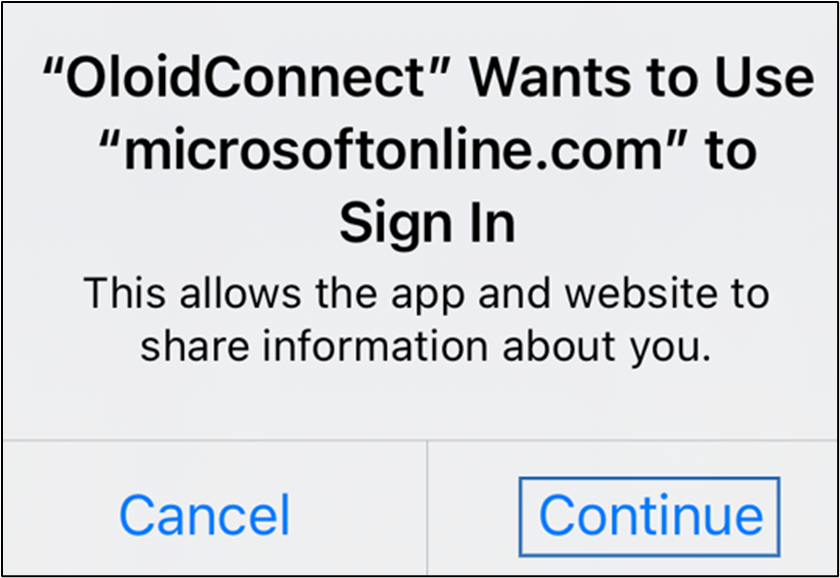
- Click Continue.
- Do the following:
- Enter Email ID.
- Tap Next.

- Do the following:
- Enter Password.
- Tap Next.

